
Office Articles


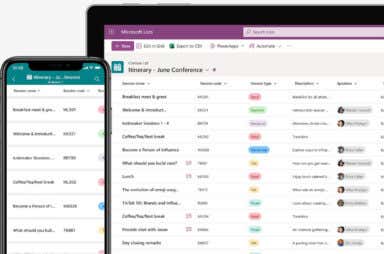
How to Use Microsoft Lists (And Why It’s Awesome)
 Feb 4th, 2024 by Levin Roy
An excellent way to keep everything organized

Fixed: Cloud File Provider Is Not Running on OneDrive – 0x8007016A Error
 Aug 22nd, 2023 by Mahesh Makvana
Not as difficult as you may think
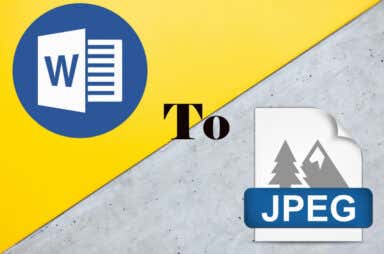
How to Save a Word Document as a JPEG
 Apr 17th, 2023 by Nicolae Bochis
Take a picture, it lasts longer

Where to Download Cool Microsoft Teams Background Images for Free
Plus what to do if you don't want an image
Microsoft Teams has become one of the most popular team communication tools, and they’ve now made it possible to use your own custom images as virtual backgrounds. Whether you’re looking […]


How to Sync a Notebook in OneNote for Windows
You can do it manually or automatically
Always online? You don’t need to worry about losing your important notes in OneNote, but only if OneNote syncs properly. Syncing means your changes are saved online and updated across […]


How to Create a Calendar Group in Microsoft Outlook
Saves time coordinating all your schedules
When you want to see shared calendars for your family or coworkers or your subscribed calendars, you can easily add one to Microsoft Outlook. However, if you create a calendar […]

How to Add an Appendix to Your PowerPoint Presentation
Give your audience that little extra
When you create a Microsoft PowerPoint presentation, you want to include content that’s meaningful to your audience. You may have additional details related to that content that you want to […]

How to Get Microsoft Word to Read Your Document Aloud
Sit back, relax and just listen
Sometimes hearing a document read out loud is helpful. With Microsoft Word, you can take advantage of a text-to-speech feature that reads documents. Using Read Aloud, just sit back and […]

How to Make a Schedule in Microsoft Excel
No more excuses for being late
You can find plenty of digital schedule apps, but if you want one you can share with others, print and put on the fridge, or hand out to your team, […]
How to Print on an Envelope in Microsoft Word
Make your job applications look pro
If you want to send professional-looking correspondence, don’t let the first thing your recipient sees be a messy handwritten envelope. Grab an envelope, put it in your printer, and type […]
What Is the Latest Version of Microsoft Office?
Plus the difference between Office and Microsoft 365
It’s easy to confuse Microsoft Office and Office 365 or Microsoft 365. Microsoft Office is the standard office suite you’ve used for years and can include the desktop app versions […]


How to Set Up and Use MLA Format in Microsoft Word
Important to know when writing your dissertation
The Modern Language Association (MLA) is an organization that provides guidelines for professional and academic writers. Many universities, employers, and professional agencies now require writers to conform to the MLA […]

The Best Microsoft PowerPoint Keyboard Shortcuts
Improve the efficiency of your workflow
Microsoft Office PowerPoint is still commonly used for creating graphic presentations in corporate and education all over the world. Millions of people use it on a daily basis. Although it’s […]

How to Find and Calculate Range in Excel
We show you in 3 easy steps
Mathematically, you calculate a range by subtracting the minimum value from the maximum value of a particular dataset. It represents the spread of values within a dataset and is useful […]
What Version of Microsoft Office Do I Have?
Plus, how to update Microsoft applications
If the same Microsoft Office app has different features on different devices, it’s likely because they’re different versions. Some third-party add-ins and templates also have features that only work in […]

The 40 Best Microsoft Excel Keyboard Shortcuts
Makes your job so much easier
Microsoft Excel is a versatile software developed to help everyone who deals with spreadsheets and data professionally or in their day-to-day lives. It allows you to organize and store your […]
The 30+ Best Microsoft Word Keyboard Shortcuts
Many will work on iPhones and iPads
If you create or edit Word documents often, take some time to learn a few MS Word keyboard shortcuts. Below, we’ll run through some of the best ones. As a […]


How to Get OneDrive to Stop Emailing Memories
Because sometimes it can get annoying or depressing
If you use OneDrive to back up your photo library, it regularly emails you memories— images and videos from the same day in previous years. Here’s how to disable them […]


Microsoft Outlook Not Responding? 8 Fixes to Try
Before banging your head against the wall
Is Microsoft Outlook crashing intermittently when you open the app on your Windows computer? Does the app occasionally freeze and display a “Microsoft Outlook Not Responding” alert at random intervals? […]
How To Save Office Documents to Local Computer by Default
When you'd rather not store it in the cloud
By default, if you’re logged in to your Office apps with your Microsoft account, your apps save your documents in OneDrive storage. This encourages you to store your files on […]
