

Getting frustrated because websites won’t let you log in, or you keep seeing “cookies must be enabled” error messages? You’re not alone. Modern websites rely on cookies to remember your login info, shopping cart contents, and personal preferences, but Microsoft Edge’s privacy settings sometimes block them by default.
In this guide, you’ll learn how to enable cookies in Edge so websites work properly again. We’ll cover both the quick fix for most situations and the advanced options for when you need more control.
What Are Cookies (And Why Do Websites Need Them)?
Cookies are tiny files that websites store on your computer to remember things about you. Think of them like digital sticky notes that help sites recognize you when you come back.
Common uses for cookies:
- Login info: Keeps you signed in so you don’t have to enter your password every time
- Shopping carts: Remembers what you added to your cart even if you close the browser
- Preferences: Saves your theme choices, language settings, and other customizations
- Site functionality: Powers features like “remember me” checkboxes and personalized content
Without cookies enabled, many websites just won’t work right. You might get logged out constantly, lose your shopping cart, or see generic content instead of personalized recommendations.
How to Enable Cookies in Microsoft Edge
Edge’s default “Balanced” tracking prevention sometimes blocks cookies that websites actually need. Here’s how to fix it:
Note: These steps apply to Edge on both Windows and macOS — the settings menus are identical on both platforms.
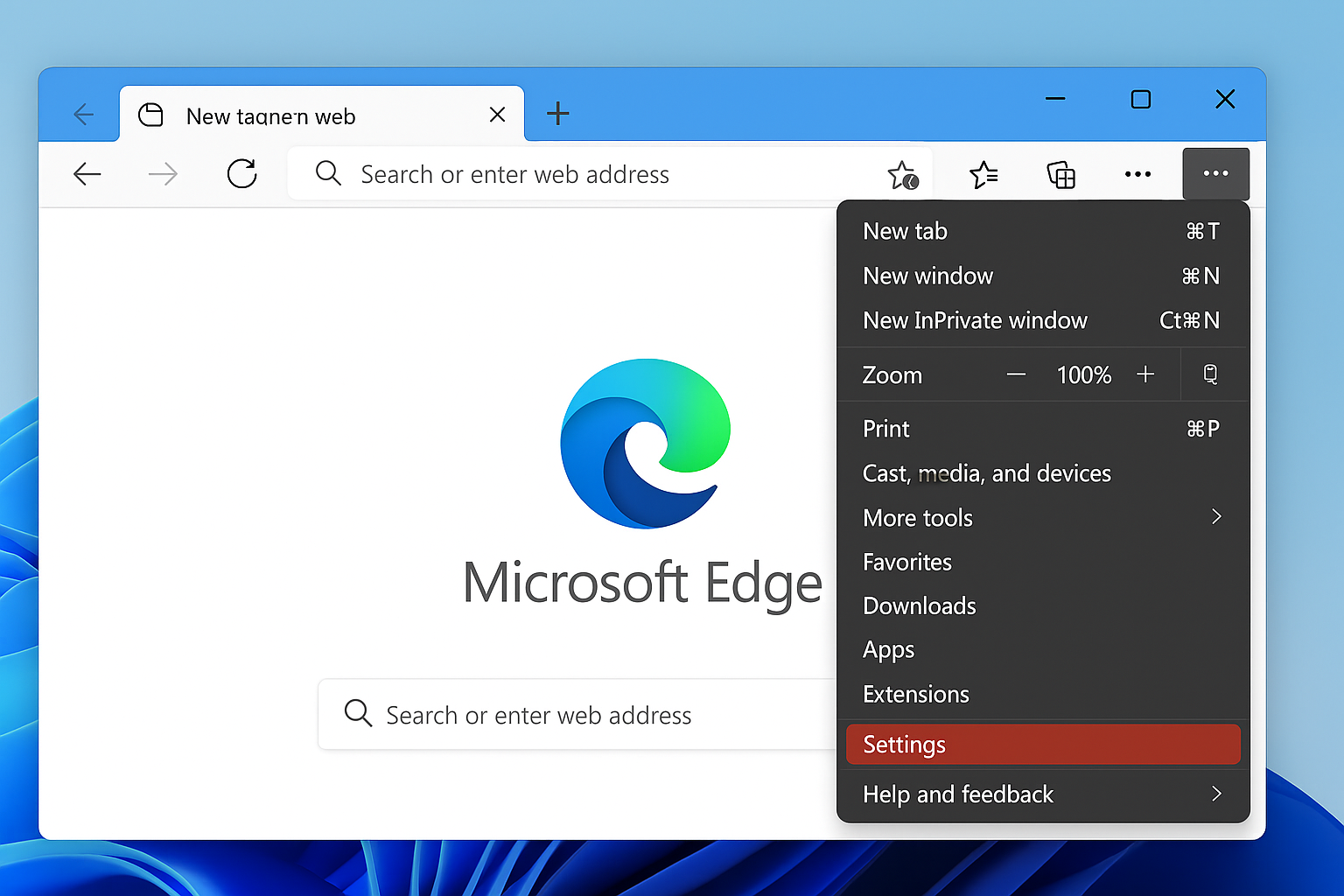
Step 1: Open Edge Settings
Click the three-dot menu (…) in the top-right corner of Edge, then select Settings.
Step 2: Go to Privacy Settings
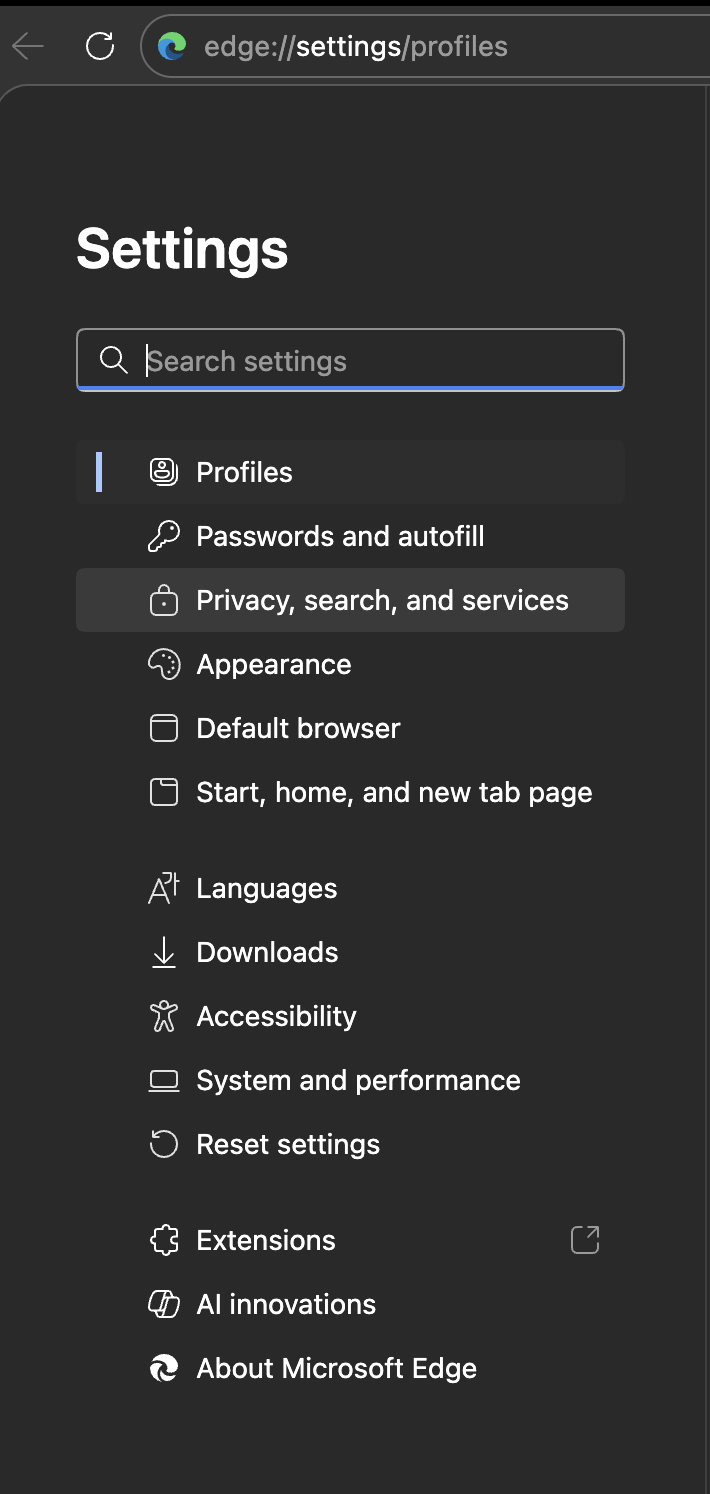
Click Privacy, search, and services in the left sidebar.
Step 3: Find Cookie Settings
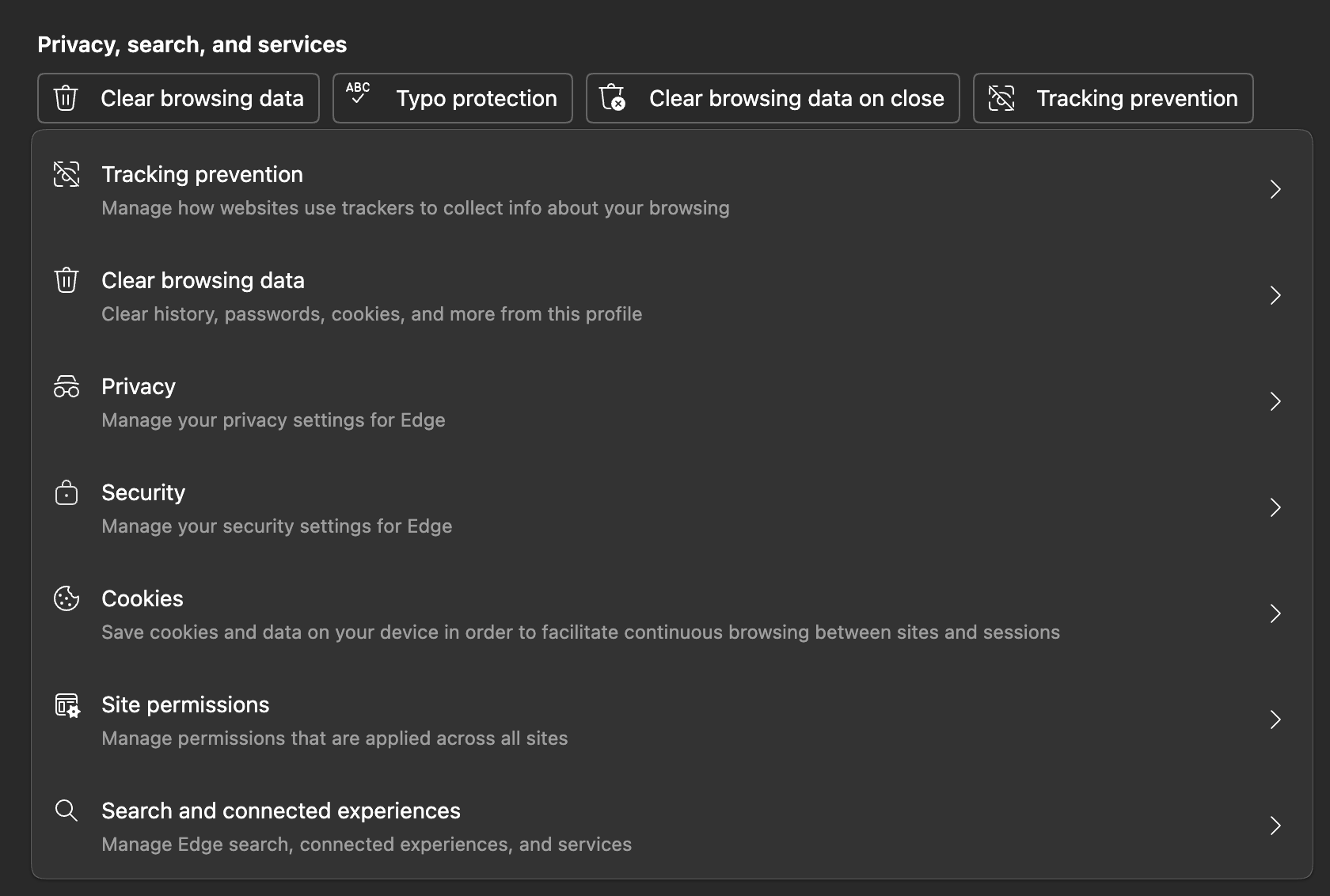
Scroll down to the Cookies and site permissions section and click Cookies and data stored.
Step 4: Enable Cookies
Toggle on the option that says Allow sites to save and read cookie data (recommended). If it’s already on but you’re still having issues, make sure Block third-party cookies is turned off (some sites need third-party cookies to work).
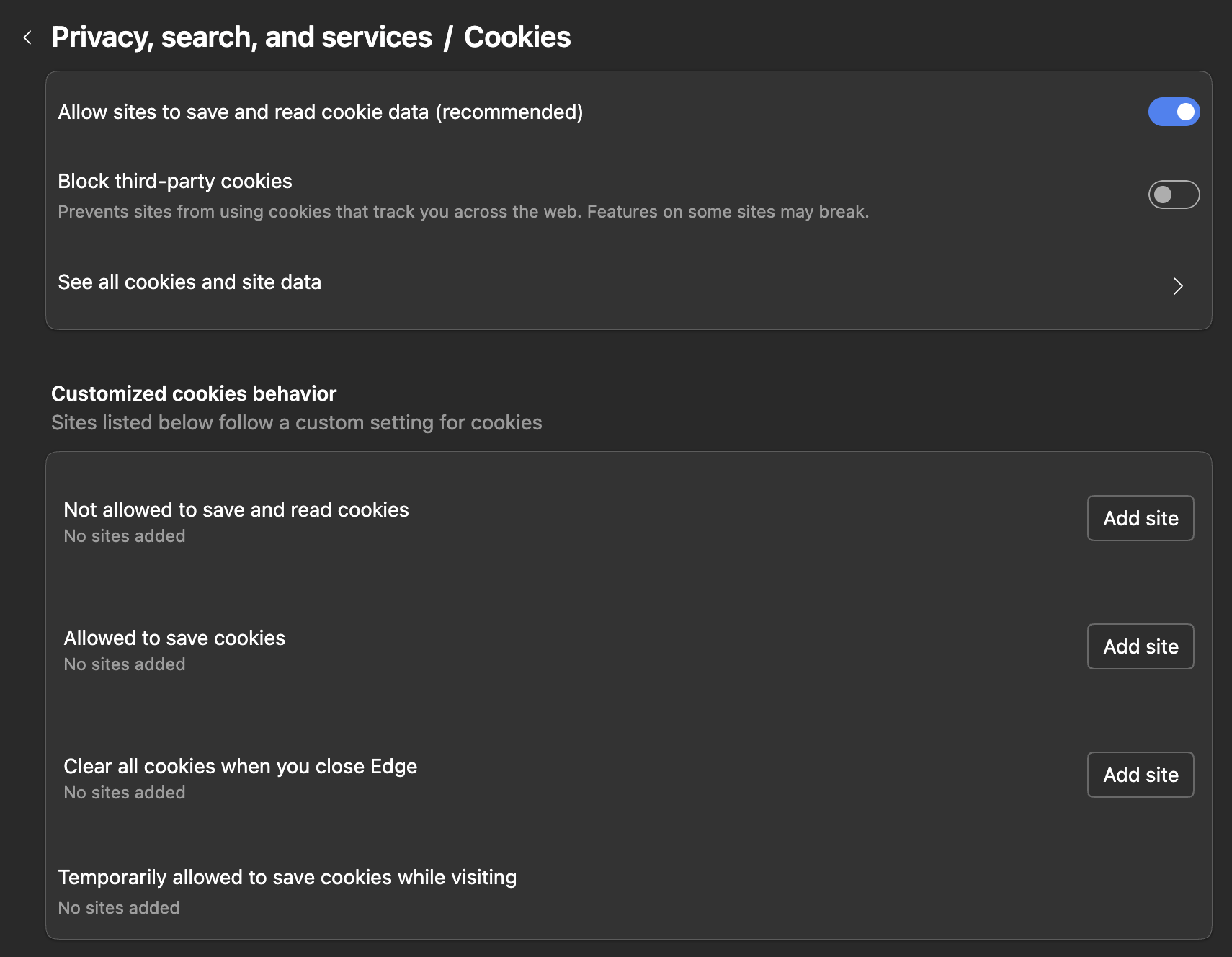
Changes take effect immediately, no need to restart Edge or your computer.
Quick Alternative: Use the Direct URL
For faster access, type edge://settings/content/cookies directly in Edge’s address bar. This jumps straight to the cookie settings page.
Mobile Edge: Enable Cookies on Your Phone
If you’re using Edge on your phone or tablet, the process is a bit different. The exact toggle label varies depending on whether you’re on Android or iPhone:
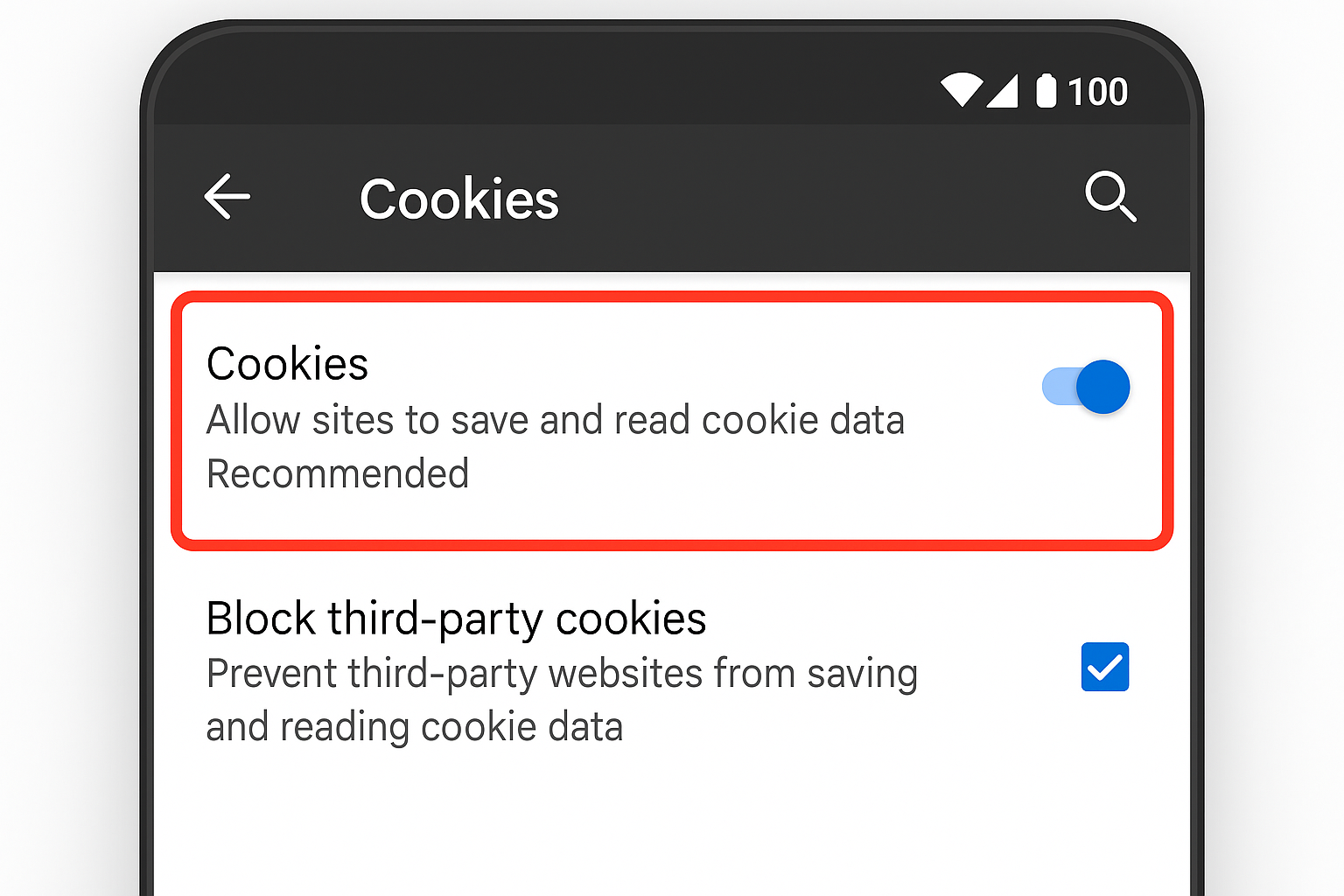
On Android (Edge v109+)
- Open the Edge app and tap the … menu at the top-right
- Tap Settings
- Tap Privacy, search, and services, then tap Cookies and site data
- Toggle on Allow sites to save and read cookie data (recommended)
- Optionally, toggle off Block third-party cookies if sites still don’t work correctly
On iPhone (iOS 26+)
- Open the Edge app and tap the … menu at the bottom
- Tap Settings
- Tap Privacy, then tap Cookies
- Select Allow All Cookies or if you see a Block All Cookies toggle, make sure it is turned off
- On iOS 18+, you may also see a Cross-Site Tracking Prevention toggle; turn it off if third-party cookies are needed
Note: Edge on iOS uses Apple’s WebKit engine, so cookie settings may appear slightly different from Android. The labels above reflect iOS 17 and iOS 18 as of 2026.
Managing Cookies for Specific Sites
Sometimes you want to allow cookies for most sites but block them for others (or vice versa). Edge lets you customize this per website:
Allow or Block Cookies for Individual Sites
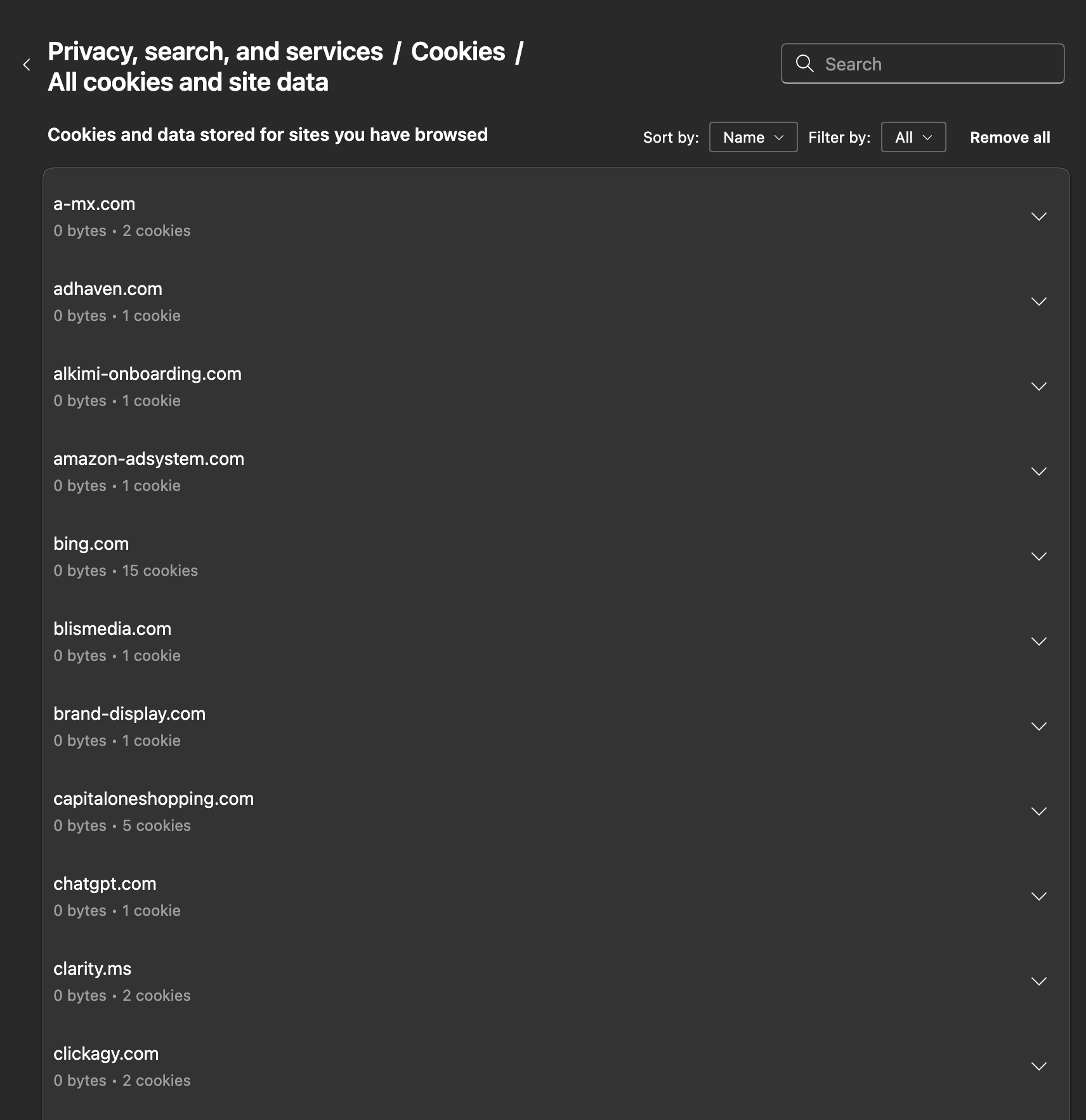
- Go to Settings > Privacy, search, and services > Cookies and data stored
- Click See all cookies and site data
- Search for the website you want to manage
- Click the trash icon to delete existing cookies, or click Allow to whitelist the site
Tips and Troubleshooting
Common Issues
Problem: Websites still don’t work after enabling cookies
This usually happens when Edge’s tracking prevention is being too aggressive. Try this:
- Go to Settings > Privacy, search, and services
- Under Tracking prevention, change from Balanced to Basic
- Reload the problematic website
Problem: Getting “temporarily allow cookies” prompts
When Edge blocks cookies, you’ll sometimes see a notification in the address bar. Click it and select Allow for 30 days and Edge will automatically reset this after a month for better privacy.
Problem: Cookies work in regular browsing but not InPrivate mode
That’s normal! InPrivate mode is designed to block most cookies by default. If you need cookies in InPrivate, you’ll need to manually allow them for each site using the address bar notification.
Pro Tips
- Clear old cookies if sites act weird: Go to Settings > Privacy, search, and services > Clear browsing data and select Cookies and other site data
- Check for Edge updates: Outdated versions sometimes have cookie bugs. Go to Settings > About Microsoft Edge to update
- Use keyboard shortcuts: Press
Ctrl + Shift + Delete(Windows) orCmd + Shift + Delete(Mac) to quickly open the clear data dialog
Understanding Edge’s Cookie Categories
Edge groups cookies into different types, and understanding them helps you make better privacy choices:
- First-party cookies: Set by the website you’re actually visiting (like Amazon.com setting cookies when you’re on Amazon)
- Third-party cookies: Set by other companies’ services embedded on the page (like ads, analytics, or social media buttons)
- Session cookies: Deleted when you close your browser
- Persistent cookies: Stay on your computer until they expire or you delete them
Most login and functionality issues happen when first-party cookies are blocked, while privacy concerns usually involve third-party tracking cookies.
Wrapping Up
Enabling cookies in Edge is pretty straightforward once you know where to look. The Privacy, search, and services section gives you control over both general cookie settings and per-site exceptions. For most people, turning on “Allow sites to save and read cookie data” solves login problems and site errors right away.
Edge’s privacy features are actually pretty smart — they try to block the tracking stuff while allowing the functional cookies you actually need. But when websites don’t work, these steps will get you back up and running in no time. If you’re still running into browser-related issues, check out our guides on Gmail not loading in Chrome, YouTube not working in Google Chrome, or fixing slow Wi-Fi on your smartphone for more help.