Fix for Cannont Empty the Clipboard in Office
Posted on September 20, 2008 at 5:48 am
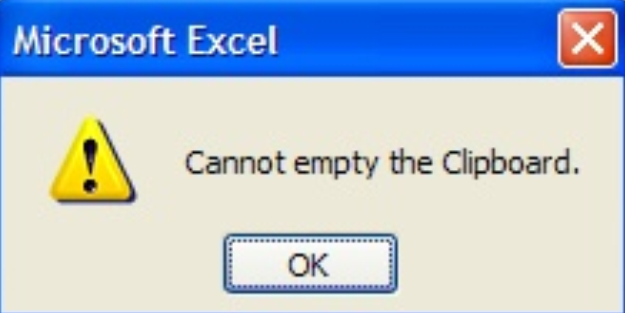
Trying to copy something in Excel and get the error message “Cannot empty the clipboard”? I was recently the victim of this annoying error, which would pop up EVERY time I tried to copy a cell or cells in Excel!
The strange thing is that the copy still works for me, but I have to keep clicking OK to remove the error message. After some read and playing around on my own, I’ve learned that this error can happen for all kinds of wacky reasons and so there are a number of things you can try to rectify the situation.
For the most part, you’ll see this error in Microsoft Excel and Word, especially when you are trying to copy cells in Excel. Here are some fixes to try:
Method 1:
Sometimes in Excel you can get this error if a cell has been copied and you try to copy another cell. You can try to press the ESC key to deselect the copied cell and then try to copy again.
This method might let you copy, but you may still get the error message on the next attempt to copy. It’s not a permanent fix.
Method 2:
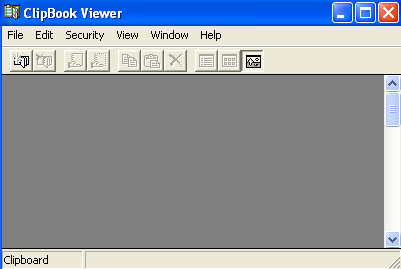
Another thing you can try is to open the clipboard in Windows and leave it open. Somehow doing this can help get rid of the error. It’s not a great solution, but these are the strange things you have to do in Windows!
You can open the Clipboard by going to Start, Run and typing in clipbrd.exe. You can also go to your Windows\System32 directory and double-click on clipbrd.exe.
Method 3:
If you’ve been using Remote Desktop, you may get the cannot copy to clipboard error because Remote Desktop uses the clipboard and it can cause weird issues with Excel.
Go to Task Manager and then click on the Processes tab and kill the process called rdpclip.exe and see if that fixes your problem! If you have UltraVNC installed, it may also be the culprit! Any kind of remote desktop software could be causing the issue, so make sure to check to see if you have the problem when one of those programs are running.
Method 4:
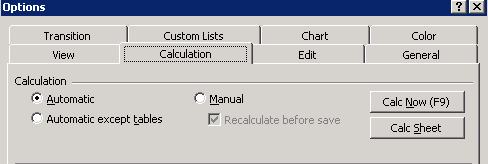
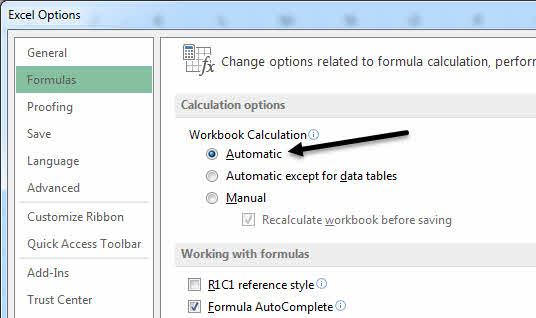
Go to Excel, click on Tools, then Options, and go to the Calculation tab.
Make sure that Automatic is selected from the three options. Also, try rebooting your machine.
Method 5:
If you have a program like GetRight or Flashget installed on your computer, you will have to go in and uncheck the option for “Monitor the clipboard”. Any other program that may try to use the Windows Clipboard could be causing the problem, so uninstall any third party software that you know uses the clipboard.
Method 6:
Clear the office clipboard by going to Edit and choosing Office Clipboard. This will only work for Office XP and 2003. Now go ahead and click Clear All to clear the office clipboard completely.
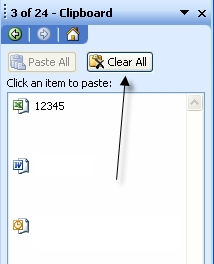
Also, at the bottom of the screen, you should see an Options button. Click on that and select the “Collect without showing office clipboard” option.
Method 7:
Microsoft has written about this error in their KB and they have a hotfix for it, but it may or may not work for you. It’s only for Windows Server 2003 and it has to do with Terminal Services.
You can download the hotfix here: http://support.microsoft.com/?id=840872.
That’s all the solutions I could find for not being able to empty the clipboard! If you have another solution that has worked for you, post a comment here! Good luck!
Windows has lots of crpytic messages like this and I’ve written about a few of them before like how to fix missing or corrup NTFS.sys, fix Windows Search Indexer has stopped working, fix USB device not recognized in Windows, and fix for host process in Windows has stopped working error. Whew!
» Filed Under MS Office Tips
Related Posts
- Fix Microsoft Word has Stopped Working
- How to fix "Host process for windows services stopped working and was closed" on Vista
- Fix Microsoft Security Essentials Install Error Code 0×80070645
- Word Tools Options dialog empty or greyed out
- How to fix "Missing or corrupt NTFS.sys" error in Windows XP
Quickeys can be a culprit as well. I right-clicked on the Quickeys tray icon and selected Show Variables and found a string in the Clipboard. Clearing that out seeemed to help so far.
Thanks for the tip. I use Remote desktop. Solution of Method 3 works perfectly.
RealVNC also seems to cause this – probably down to its clipboard updating functions.
I love you! Thanks! My clipboard was being super stubborn until I found this!
Have WinXP SP3 installed. “Cannot erase clipboard” happened to me when I attempted to copy an Excel 2003 range to the clipboard, then “Import the clipboard” to a DOS legacy program (Import clipboard was legacy program function). (The DOS legacy program did work in Win95, Win98 and Win2k it works w/o ImportClipboard function in XP).
The error showed up on subsequent XL copy/paste attempts.
One other symptom. After clearing the “error announcement” I did OPEN>RUN> clipbrd (note spelling)
When I clicked the “Open Clipboard” button on the lower left, the mouse-hourglass started flashing. I had to go to TaskManager and terminate the clipbrd program (no problem).
My Fix.
1. Create a list of all files listed on the Applications tab of Task Manager that are running when the error occurs.
(This should not be a long list.)
2. Close all Apps listed in Applications tab of Task manager, except XL.
3. Attempt copy/paste in XL. If it works then goto 4:
If error still present, close and reopen XL and continue.
4. Open one of the Apps files that were listed when you had the problem.
5. Copy an XL range in XL and then to the App just opened.
If the copy/paste works, repeat Step 3 above, close app.
If copy/paste in XL does not work then the “Clipboard” problem is associated with the App you have opened.
So long as I didn’t copy/paste to the App I opened Ihave no problem with XL copy/paste used within XL
6. Close this App. Open another App on your list. Repeat
steps 3, 4, 5, 6 until you have completed the Apps on your Application list.
Conclusion: If the paste part of copy/paste cannot be accomplished, XP sp3 and/or XL 2003 cannot clear the hangup therefore, you should not copy/paste to that App.
I also found at least two other applications that can cause this error. Perhaps there are more.
I hope this helps you
Frank
I keep getting this cannot empty clipboard error when copying and pasting within an Excel file, but it only happens sometimes. If I restart the computer, the problem goes away. I tried your methods, but none of them seemed to work. Any other ideas?
Same like Jesse said. any other solution? MsExcel 2007, windows XP SP3. Restarting machine only is not a solution.
Thank you so very much. I had the RDP clipboard problem and used the solution for that (stop the task). I was able to finish my work at home! Great Job, thanks.
Saludos mis usuarios usan sesiones terminal, entonces en esa sesion termine el proceso rdpclip.exe y finalize sesion, despues reinicie mi equipo y funciono a la perfeccion.
I want to thank you for the help. While I did not get the answer directly here it pointed me in the correct direction. I happen to use VNC on my desktop to admin unix systems. This will also allow me to cut and paste text from Windows to Unix. Hence look for 3rd party applications that monitor the clipboard pointed me there. I did not have to uninstall it just shut it down while working in excel. I have not looks yet to see if there is a setting on VNC I can change but that is next. Have a GREAT DAY!!
Harry
Thanks for ur solution. My problem is solved by killing the process rdpclip.exe in task manager.
I am still having this problem with Microsoft Excel! Every time I copy, I get the Cannot Empty Clipboard error and it’s driving me crazy! I tried your solution, but it didn’t help. Should I reinstall Office or is it a hardware problem?
Windows / Office is such a pile of junk imho. Yet in reality we have little choice but to use it, it is the defacto standard used by everyone else. Why are MS unable or unwilling to sort out these problems some of which are decades old ?. Sums up MS, Contemptable, imho.
I had this problem when using PC Duo (NetSupport) within virtual PC 2007 (running XP) on Vista host machine. To fix I did another copy and paste in Virtual PC 2007 in notepad. This seemed to fix problem
I’ve tried many above suggested solutions but not working. I finally got it to work by un-installing MS office completely reboot and then reinstall it again and of course reboot after that.
I’ve had this problem sporadically and none of the published fixes I’ve found worked. Amazingly, what has worked for me is to close out OUTLOOK when I experience the problem. This fixes the problem without a reboot or any other action needed.
Well. Thank you! I could never copy and paste anything in Excel without that message coming up.
Comment 14 sorted it for me. Thanks, Jared.
I have a Vista laptop with a virtual PC set up for all my RDPing.
Intermittently, on the Vista laptop I was finding Excel gave ‘cannot empty clipboard’, and Outlook would not copy/paste at all. Opening a notepad on the virtual PC and a couple of copy-pastes in there got the functionality back so I can copy from Outlook to Excel and vice versa again on the Vista machine, and between the virtual and Vista machines.
Anyone know how to find the clipboard to empty it on Vista as there is no ‘clipbrd.exe’ or anything similar that I can find?
Thank you Brad! Closing Outlook is what did the trick for me.
Hi.
I have the same problem, too, with the ‘cannot empty clipboard’ thing. Your method 1 works for me, but it’s only for copying and pasting in Excel itself. I still cannot copy data from Excel then paste it in another location such as notepad, outlook, etc. The final solution is that I must restart my PC.
But, thanks for your sharing.
You are a great help for all us who get this weird message.
Thanks for fixing it for me.
I installed the newest CCleaner and ran the cleaner (reguler cleaner nor registry).
That worked for me, I use Win 7 64bit and excel 2003.
This is the first time that I encountered this issue. It is happening in Excel 2003. Survey says that “Brad” is the man!!! I am pretty geeky and had tried everything short of rebooting and all I had to do was close Outlook (which is open all the time). BTW: deleting the task would most likely have solved it, but not when you are work and don’t have admin rights!!!
I tried some of the methods mentioned including closing Outlook, but no luck. However, did notice that although I closed Excel, the Excel process was still running in task manager. After killing the process, and restarting Excel, the error went away. Gotta love MS;-)
Finally a SOLUTION to this problem. MS Excel 2007. I´ve been reading posts all over the net from people having this extremely annoying problem. It was driving me crazy, to say the least.
None of the posted “solutions” did work for me. I´m using MS Office 2007 (and therefore Excel 2007).
Keeping Outlook open while working in excel has never been a problem.
The problem is Skype, yes SKYPE. Uninstall Skype and the problem goes away.
You can also try:
deactivate the add-ons/ins (skype Plugins) that are enabled on IE (MS explorer).
Steps: Tools / Manage add-ons / select and disable.
Hope this will work for you all, it sure did work for me
(spread the word and make Skype fix this)
I encountered the same error on my Windows 7 machine with Excel 2010. It seems the problem for me was caused by a Skype add-on with Chrome, IE, and Forefox. In cases where either Chrome, IE or Firefox is open (I have both installed), and I’m working in Excel 2010, the error occured. I went into both all of the browsers and “disabled” any add-on related to Skype. This solved my problem. I don’t need the Skype add-on (at least not for a reason that I can figure out) so disabling it causes no loss of functionality.