
How to convert them into an AirPrint-enabled printer

Got a printer and need to print something from your iPhone or iPad? If your printer supports AirPrint, thing couldn’t be easier. The printer will just show up in the list and you’re good to go.
If you do not have an AirPrint-enabled printer, however, then you’re pretty much out of luck. Luckily, there are several ways you can convert any printer into an AirPrint-enabled printer.
Table of Contents
In this article, I’ll talk about the third-party tools you can install so that you’ll be able to print directly from your iPhone or iPad to your locally attached printer or network/wireless printer.
Requirements
Before we get into the details, let’s talk about the requirements for this to work. Firstly, you need to have the printer already installed and working on at least one computer. It doesn’t matter if the printer is attached locally to the machine or if it is a wireless/network printer, it just needs to be installed on the machine.
Secondly, in order to print from your Apple device to your non-AirPrint printer, you’ll need to keep the computer on at all times. The third-party software basically acts as a proxy and all the print jobs go to the computer first and then are passed on to the actual printer.
Lastly, you’ll have to spend some money as these third-party apps are not free. It’s worth considering bypassing all of this trouble and simply buying a new AirPrint-enabled printer as they are pretty cheap these days.
With that out of the way, let’s get into the details. I’m going to mention several programs, some for Mac and some for Windows. In addition, I’ll talk about some hardware you can buy that will also act as a print server.
Windows AirPrint
For Windows machines, the most popular program is O’Print, which costs $19.80. You can download a free 30-day trial to make sure that it works properly with your printer and system. Overall, I found the program’s interface to be a little outdated, but the functionality was excellent.
Once you download and install the software, the main interface of the program will show you all the printers installed on your system.
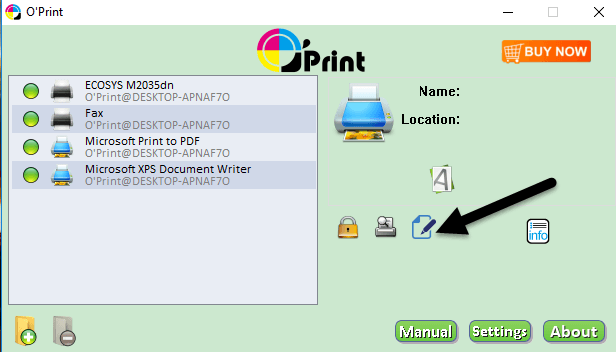
If you do not see any printers in the list, it means you have to go to System Preferences – Printer & Scanners and add the printer to OS X first. Once the printer is added, go back to O’Print and it should show up in the list.
At this point, you really don’t have to do anything else unless your printer uses a different port than the standard port. You can click on the Edit button (paper with pen icon) to change the name of the printer if you like.
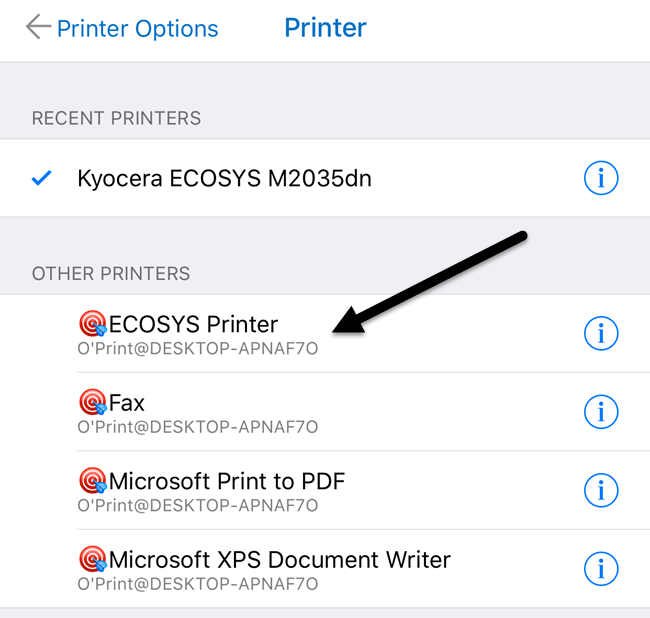
Now when you go to print from your iPhone or iPad and you tap on Select Printer, you should see all the O’Print printers listed under Other Printers. You’ll also see it has the name of the computer under the printer name.
There is one other option for Windows which requires a bit more technical setup, but is completely free. Check out this guide to install AirPrintActivator and see if it works for you.
Mac AirPrint
For Mac users, there are two programs I recommend: HandyPrint and Printopia. HandyPrint requires a donation in order to activate the license and the minimum amount is $5. So basically, you can purchase HandyPrint for $5. Printopia is $19.99, but HandyPrint has a PRO version that requires a $20 donation. The PRO version can run even when a user is not logged into the Mac.
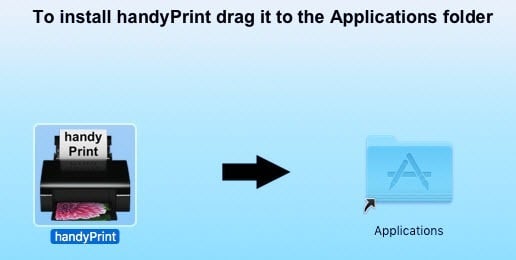
Once you download HandyPrint, run the DMG file and then drag the icon onto the Applications folder in order to install it.
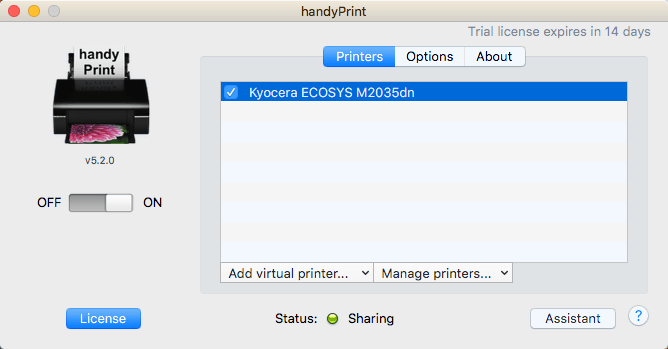
When you run the program, it’ll detect your printer and show it in the list. You’ll also need to make sure that the toggle button is set to On.
From your iPhone or iPad, you’ll now see all HandyPrint printers listed under Other Printers.
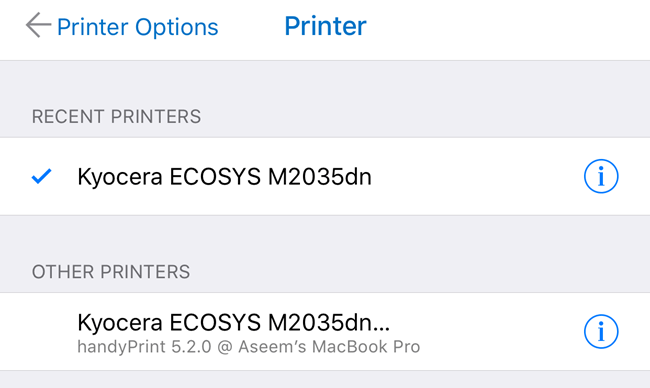
Printopia is pretty much exactly the same literally in terms of appearance and functionality.
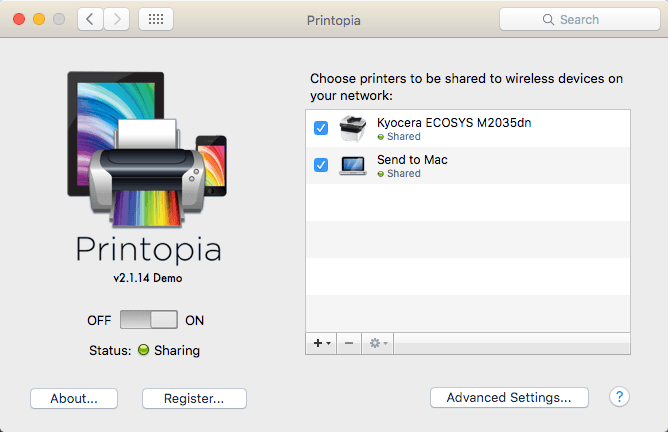
Printopia also has a Send to Mac printer, which is a convenient way to print a document directly to your computer. Both programs worked very well in my tests, so I don’t really see any reason to spend $20 when you can get HandyPrint for $5.
Printer Pro
One last option that I should mention is Printer Pro by Readdle. It’s a combination iPhone/iPad app and desktop program that runs on Mac or Windows. The app is $7 in the App Store and the desktop app is free.
It works just like the other programs mentioned above in the sense that you need to have the desktop app running at all times in order for print jobs to go through. The smartphone/tablet app is definitely the most professional and polished app out there and it has a lot of features, so if you do some serious printing and need to change printer settings a lot, this might be your best option.
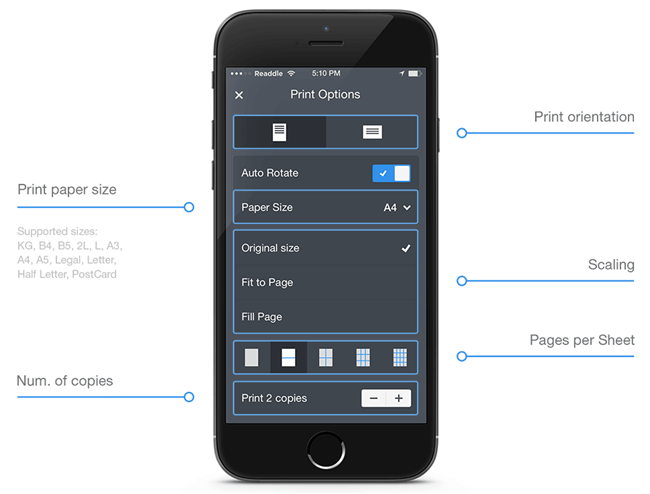
It’s worth noting that you should install the app on your iPhone or iPad first and see if it can print directly to the printer without the desktop app. According to the site, it can print directly from within the app to most printers without the additional desktop app. Overall, it’s a good option and not too expensive.
Lantronix xPrintServer
Outside of programs, you can also purchase a hardware device from a company called Lantronix that acts as a print server. The xPrintServer is something I have owned, so I know it works well. The only issues are that you need to make sure your printer is supported and it costs a whopping $200!
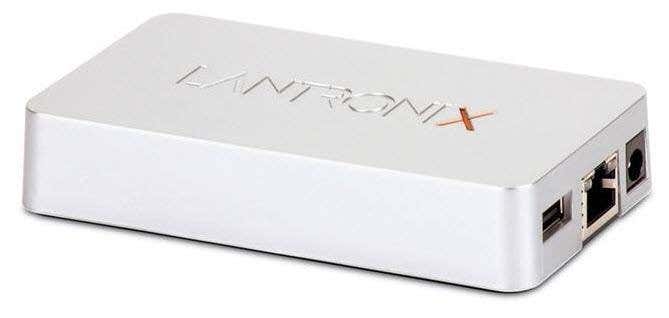
This is a really good solution if you are in a small office environment with many Apple users and many printers. It doesn’t really make sense for a home with one or two printers.
Those are pretty much all the options for printing to a non-AirPrint enabled printer on your network. Note that if you print only from Chrome or other Google apps like Gmail, etc., you can easily setup Google Cloud Print and not worry about any of these programs. If you have any questions, feel free to comment. Enjoy!

