
We'll show you 3 different ways to do it

I always have and always will believe that it’s worth installing an upgrade to firmware for any device, whether it be a computer, wireless router, or game console. In this article I am going to walk you through the steps required to upgrade the firmware on a PSP device.
Unfortunately, it’s not as easy as double-clicking an EXE file and watching the magic happen. With a PSP, in order to update the firmware, you have to follow a couple of steps. However, they are fairly simple steps that don’t require much technical know-how.
Table of Contents
Note that there are three ways to update the firmware on a PSP: using a computer, via network update, and updating using an UMD. I am going to talk about the first method.

Update PSP Firmware
Step 1: First, download the latest PSP firmware from the PSP System Software site.
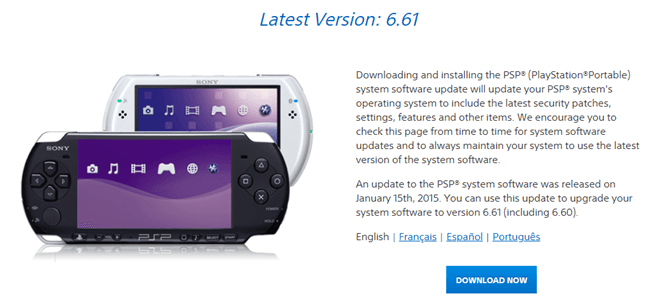
Step 2: Once you download the update to your computer, you need to copy it to Memory Stick Duo media. You can either plug the Memory Stick Duo card into your PSP and then connect the PSP to your computer, or if you can copy it to the memory stick some other way, that’s fine also.
Step 3: Before you copy the file to the Memory Stick Duo, you first need to create a few folders. On the stick, create a folder called PSP, then create a folder inside that called GAME, and finally create a folder inside GAME called UPDATE.
Note that all of the folder names need to be capitalized or else it will not work.

Step 4: Make sure to copy the firmware update file into the UPDATE folder on the memory stick.
Step 5: Now make sure to fully charge your PSP and plug it into a wall outlet. If you do not fully charge it, the update could fail due to a glitch.
Step 6: Insert the memory stick into the PSP if it’s not already there and then click on Game from the home menu and choose Memory Stick by pressing X. You’ll now see the version of the PSP update about to be installed.

Step 7: Choose PSP Update Version and you’ll get a screen that has a Start button on it. Press Start to begin the firmware upgrade. DO NOT press a single button on the PSP or even touch it while it is updating.
Step 8: To make sure the update worked, go to Settings from the Home menu, then System Settings, then System Information. You should see the new version number for System Software.

Upgrading your PSP is a good idea because there are a lot more games and software applications that run on the new versions. You can also update your PSP using a wireless Internet connection, but I find this method much easier and safer. Enjoy!

