
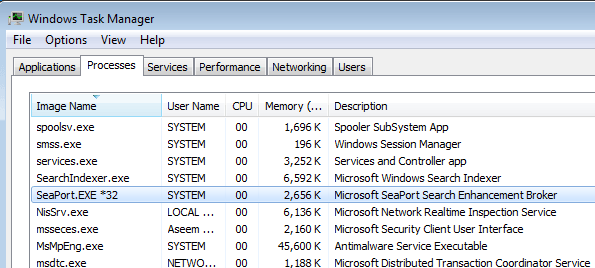
If you have installed any Windows Essentials programs onto your computer recently like Photo Gallery, Movie Maker, Live Writer or Live Mail, you may have noticed a new process running on your system called SeaPort.exe. So what exactly is this process and should you worry about it?
Luckily, seaport.exe is not a virus or malware program. It’s the Microsoft SeaPort Search Enhancement Broker process. This process basically downloads some configuration files to enhance the search functionality in various Windows programs. This program will also run if you have installed the Bing toolbar in IE.
If you open Task Manager, you can see the program running and kill the process if you like. However, this is only a temporary solution. When you restart your computer, seaport.exe will appear again.
The description for the process in Windows is as follows:
Enables the detection, download and installation of up-to-date configuration files for Bing Bar. Also provides server communication for the customer experience improvement program. Stopping or disabling this service may prevent you from getting the latest updates for Bing Bar, which may expose your computer to security vulnerabilities or functional flaws in the Bing Bar.
Previously, it seemed that seaport.exe was simply an automatic update tool for the Microsoft Search Enhancement application and this may be true if it got installed with a Windows Live program, however, if installed with the Bing Bar, it could prevent the computer from installing the latest security updates for the toolbar.
My recommendation is to leave it alone if you installed the Bing Bar. If you installed a Windows Essentials program, then it’s really not necessary to keep the process because it basically runs all the time and eats up resources. Granted, it carries a very tiny footprint overall, but it’s still an extra process that doesn’t necessarily need to be there.
Remove SeaPort.exe From Your PC
Depending on what you installed on your system, the procedure for removing seaport.exe may be different. The first method involves turning off the service via the Services console. To do this, you first have to see which service is running the process. It will either be SeaPort or BBUpdate (Bing Bar Update).
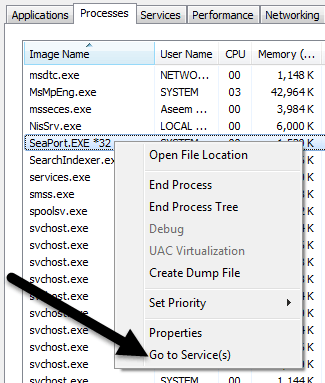
Step 1: From the Windows task manager Processes tab, right-click on seaport.exe and choose Go to Service(s).
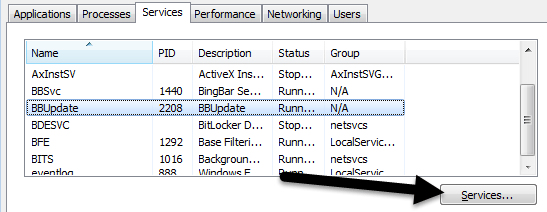
Step 2: This will bring you to the Services tab where you will be able to see the name of the service. In my case, it was called BBUpdate. Now click on the Services button at the bottom right of the window.
Step 3: Scroll down till you find BBUpdate or SeaPort and then right-click and choose Properties.
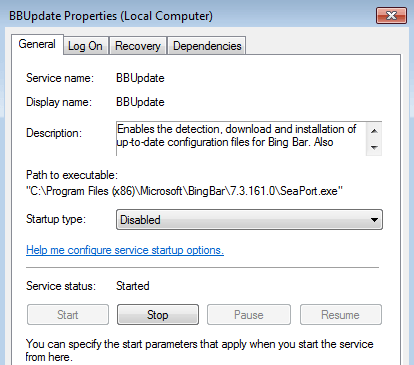
On the General tab, change the Startup type to Disabled and click Stop to end the process. Then click OK to save the changes. Go ahead and restart your computer and seaport.exe should no longer be running. As mentioned earlier, I would only do this if seaport.exe is causing some kind of problem on your system. If you installed the Bing Bar, the better option would be to uninstall the Bing Bar altogether, which will remove seaport.exe also.
In most situations, the above steps should stop SeaPort from running on your PC. However, if it is still running, you can try to delete the EXE itself. Depending on what you installed, it’ll be in one of the two locations below:
C:\Program Files (x86)\Microsoft\BingBar\7.3.161.0\SeaPort.exe
C:\Program Files\Microsoft\Search Enhancement Pack\SeaPort\SeaPort.exe
Overall, the program is harmless, but if you find it eating up a lot of your CPU or eating up network bandwidth, feel free to uninstall the Windows programs mentioned above or disable it via the Services console. If you have any questions, feel free to comment. Enjoy!