
Don't throw it in the garbage, try this

The Xbox 360 is an annoying game console. After first giving me the blinking red ring of death error, which forced me to return it to Microsoft, it has now stopped playing MP4 files after the latest system update!
Firstly, it took quite a bit of time to figure out how to stream MP4 and video files to the Xbox 360 using Windows Media Player, but once I did, it was great because I could watch all my movies, TV shows, etc. on my TV without a problem.
Table of Contents
Then came some system update in April and now my Xbox 360 doesn’t see MP4 files anymore. It just says “No videos found’” whenever I go into a folder with MP4 files.
Anyway, after wasting more of my time, I was able to figure out how to get my MP4 files playing on the Xbox 360 again! For anyone out there with the same problem, I hope this helps you.
Play MP4 files on Xbox 360
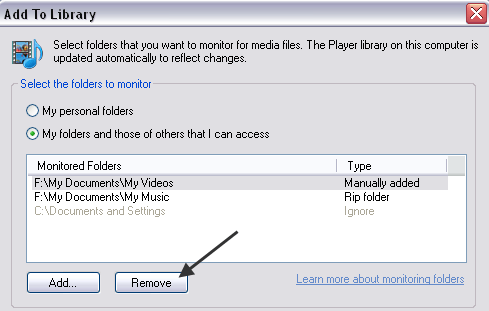
Step 1: The first thing you want to do is delete the current monitored folders in Windows Media Player.
You can do that by going to Tools, then Options and clicking on the Library tab. Now click on the Monitor Folders button. Go ahead and delete everything from the list except for the defaults.
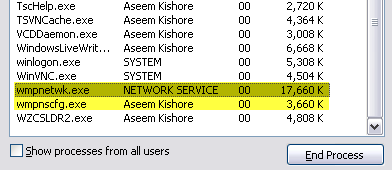
Step 2: Now you need to stop the Windows Media Player Network Sharing service. You can do this by going to Task Manager and killing two processes (wmpnetwk.exe and wmpnscfg.exe) or you can go to Control Panel, Administrative Tools, Services, right-click on the WMP Network Sharing service and choose Stop.
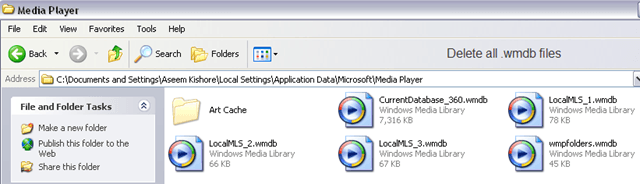
Step 3: Now that the network sharing service is stopped, we have to delete the entire Windows Media Player library. Note that this will not delete any of your actual media files, it’ll just delete the index that WMP creates.
Navigate to the following location and delete all files that end with .WMDB.
C:Documents and SettingsusernameLocal SettingsApplication DataMicrosoftMedia Player
Step 4: Now you have to rename all of your .MP4 files to .AVI. Not sure why this has to be done or why it works, but it does! So any MKV files you converted to MP4 will need to be renamed to AVI. Note they do NOT have to be re-encoded, just renamed in Windows Explorer.

Step 5: Now go ahead and open Windows Media Player and go back to the Monitor Folders dialog. Go ahead and re-select the folders that contain the videos you want to stream to the Xbox 360.
Let Windows Media Player go ahead and re-create the database library of your media collection.
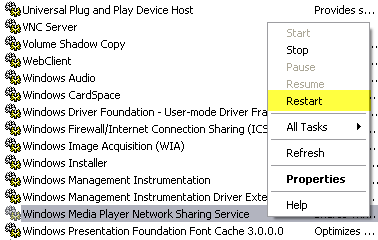
Step 6: Once it’s done, go to the Services console again and this time right-click and choose Restart on the WMP Network Sharing service.
That’s it! Now you should go to your Xbox 360 and browse the folders again. Hopefully, like me, you will see your MP4 files, which are again playable!
Also, the thing to note is that whenever you add more videos to your folders, you will have to do this whole process again! It’s a royal pain in the butt, but that’s the only way I could get it to work. Enjoy!

