
Basic security against malicious processes

If you have a network of computers in your home or workplace, one of the things you need to control is which users or apps get to change things in that system.
One way to prevent unauthorized changes is to have one person as the network administrator. However, it’s not enough just to have one person managing everything, which is where the User Access Control (UAC) feature comes in.
Table of Contents

This guide explains what UAC is and how you can disable it in Windows 10.
What Is UAC?
UAC is a security feature in Windows 10 that prevents unauthorized or inadvertent changes to the operating system. The feature was first a part of the Windows Vista security system and has since been improved with each new version of Windows.
Such changes can be initiated by users, viruses, malware, or applications. But if the administrator doesn’t approve the changes, they won’t be executed.

Among the changes that require administrative privileges include:
- Running Task Scheduler
- Making changes to UAC settings
- Windows Update configurations
- Adding or removing user accounts
- Changing system-wide files or settings in Program File or Windows folders
- Viewing or changing other users’ files or folders
- Running apps as administrator
- Installing or uninstalling apps and drivers
- Changing Windows Firewall or system date and time settings
- Configuring Family Safety or Parental Controls
- Changing users’ account type
Each time you run a desktop app that requires admin permissions, the UAC pops up. You’ll also see it when you want to change important system settings that require admin approval.
Any users on your network can sign into their computers using a standard user account, but any processes they launch will be performed using access rights granted to a standard user.
For example, any apps started using Windows Explorer will run with standard user level permissions. This includes apps included with Windows 10 itself.
For legacy apps, which aren’t designed with security in mind, additional permissions are often required to run successfully. More permissions are required for actions such as installing new software and changing Windows Firewall configurations, as this requires administrator account level permissions.
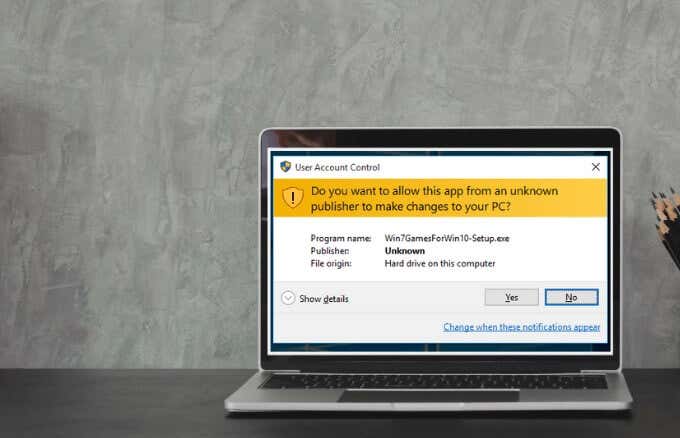
If you need to run an app that requires more than standard account user rights, you can restore more user groups to the token in order to manage apps that make system level changes to your computers or devices.
For families, there’s an option to create a dedicated Child account that comes with various limitations and integrated parental controls and monitoring. Learn more in our Microsoft Family account and how to add a family member to your Microsoft account guides.
UAC Slider Levels in Windows 10 and What They Mean
In Windows Vista, there were only two UAC options: On or Off. In Windows 10 however, there are four UAC levels to choose from:
- Always Notify: Notifies you before users and apps make changes that require admin permissions. It also freezes other tasks until you respond, and is recommended if you often visit unfamiliar websites or install new software.
- Notify me only when programs/apps try to make changes to my computer: Notifies you when programs try to make changes to your computer or install software. This level also freezes other tasks until you respond, but it won’t notify you when you make changes to Windows settings.
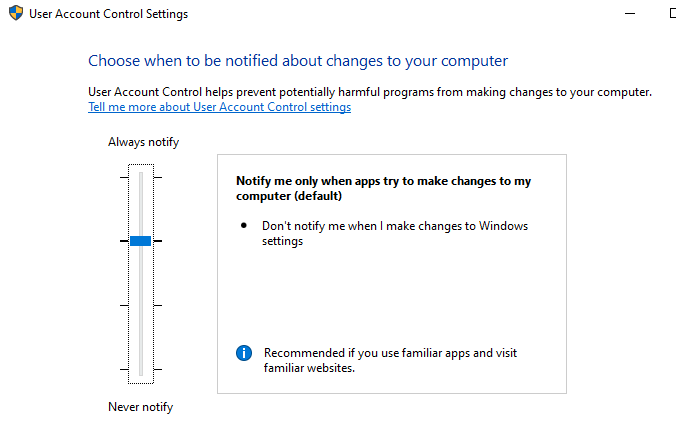
- Notify me only when programs/apps try to make changes to my computer (do not dim my desktop): Notifies you when a program tries to make changes or install software on your computer. It doesn’t notify you when you make changes to Windows settings and doesn’t freeze tasks until you respond. Choose this level only if it takes long to dim your computer’s desktop.
- Never notify: Doesn’t notify you when a program tries to make changes, install software, or when you modify Windows settings. This setting isn’t recommended, especially if you don’t have a good security suite as it’s much easier for viruses and malware to infect your computer with UAC turned off.
How to Disable UAC in Windows 10
Note: We don’t recommend disabling UAC on your computer as doing this makes it easier for malicious programs to infect and manage your computer. If there are apps that keep triggering UAC, use Windows Task Scheduler to run those apps without admin rights and UAC prompts first, instead of disabling UAC altogether.
If you still want to disable UAC, you can do it via Control Panel, Group Policy, Registry Editor, or using a Command Line.
How to Disable UAC Using Control Panel
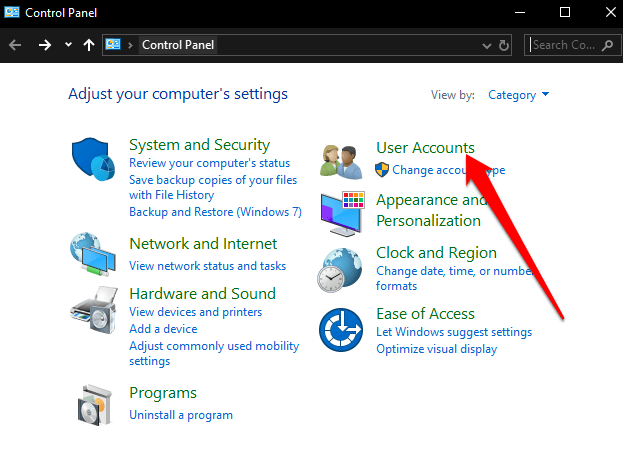
- Open Control Panel and select User Accounts.
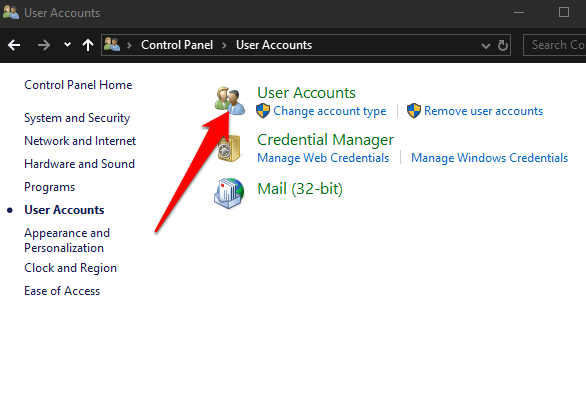
- Select User Accounts again.
- Next, select Change User Account Control settings.
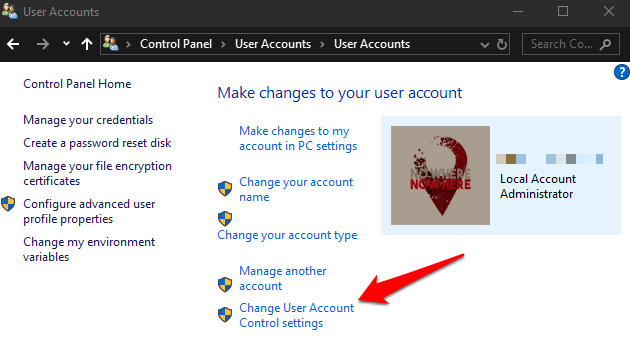
- If you want to completely disable UAC, drag the slider to Never notify to turn UAC off and then click OK.
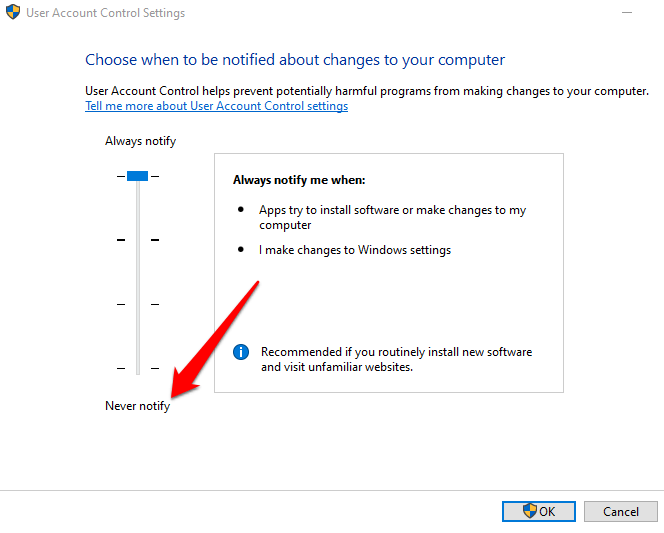
To turn UAC back on, drag the slider to the security level you want and then click OK. Confirm your selection or enter your admin password if prompted to, and then restart your computer to keep the changes.
How to Disable UAC Using a Command Line
- To do this, type CMD in the search box, and select Run as administrator.
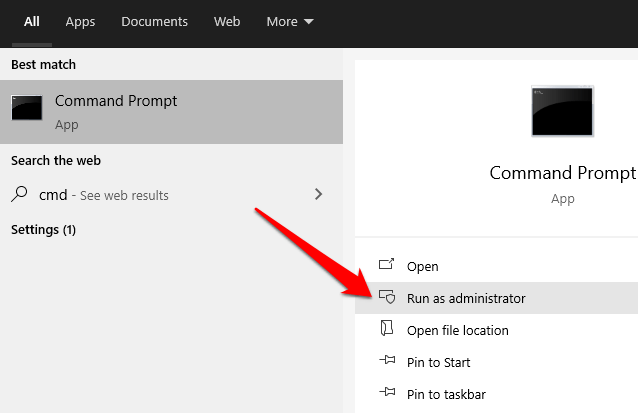
In the Command Prompt box, enter this command and press Enter:
reg.exe ADD HKLMSOFTWAREMicrosoftWindowsCurrentVersionPoliciesSystem /v EnableLUA /t REG_DWORD /d 0 /f
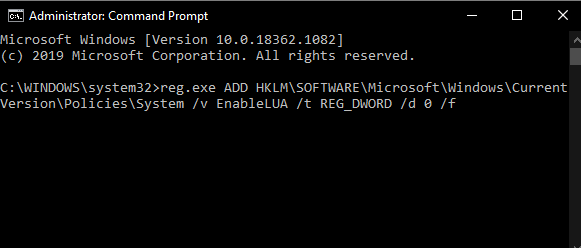
- Restart your computer for the changes to take effect.
If you want to enable or turn UAC on again, enter this command:
reg.exe ADD HKLMSOFTWAREMicrosoftWindowsCurrentVersionPoliciesSystem /v EnableLUA /t REG_DWORD /d 1 /f
How to Disable UAC Using Group Policy Editor
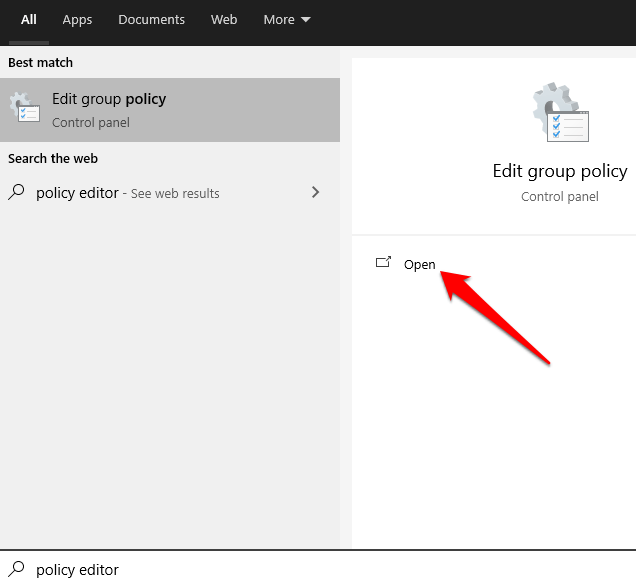
- To do this, type Policy Editor in the search box and select Edit Group Policy.
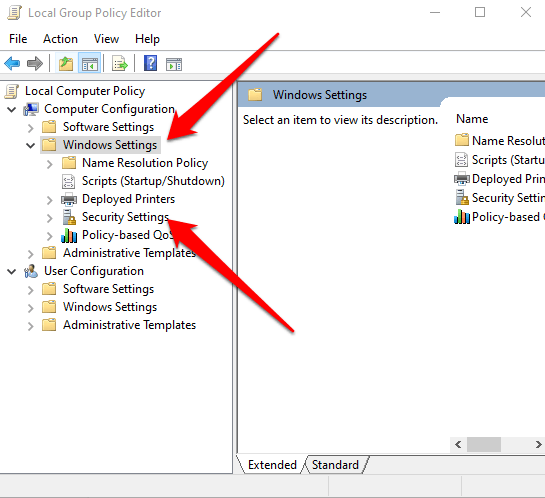
- Select Computer Configuration > Windows Settings and then select Security Settings.
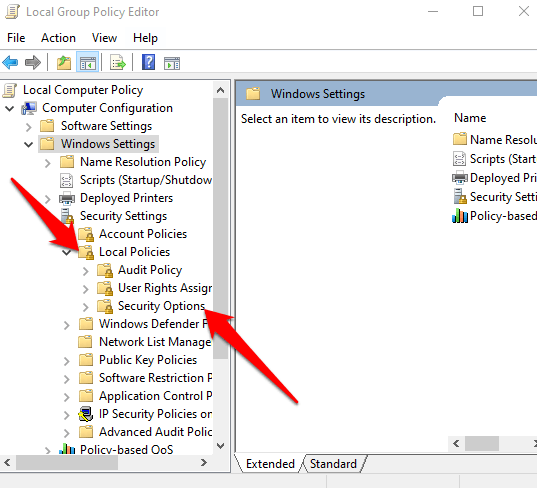
- Next, select Local Policies > Security Options.
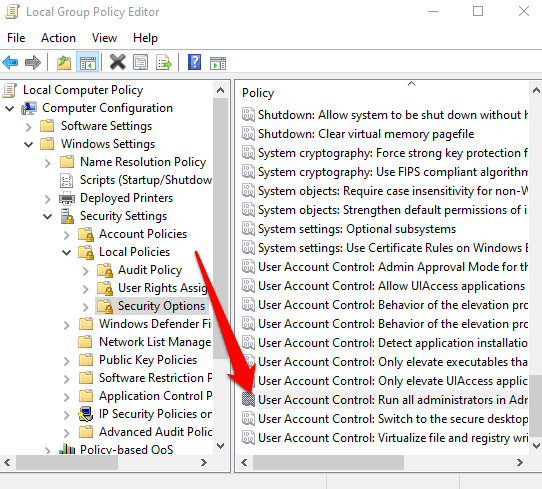
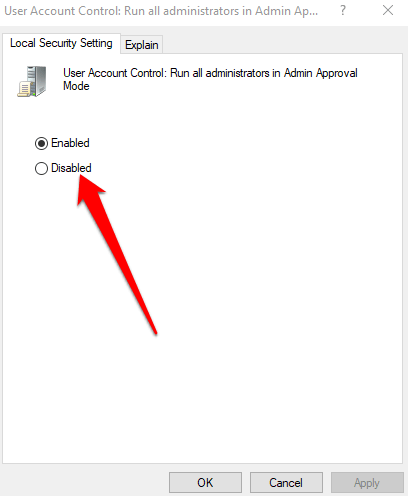
- Scroll down and double-click on User Account Control: Run all administrators in Admin Approval Mode.
- Select Disabled > OK.
How to Disable UAC Using Windows Registry
You can also disable UAC via the Windows Registry. However, before you do that, make sure you back up the registry to avoid any system issues.
- To disable UAC via Windows Registry, right-click Start > Run, enter regedit.exe and press Enter on your keyboard.
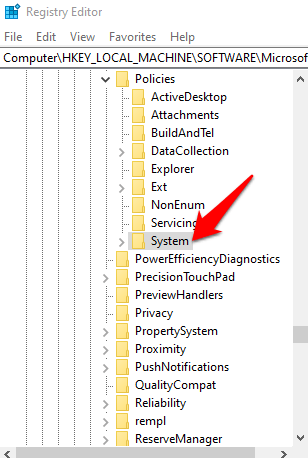
- Follow the path: HKEY_LOCAL_MACHINESOFTWAREMicrosoftWindowsCurrentVersionPoliciesSystem
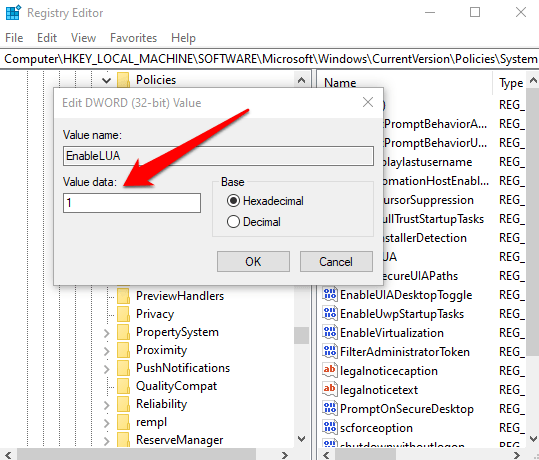
- Next, double-click on the key EnableLUA and change the value data to 0.
- Save the changes and reboot your computer.
Take Control of Your Accounts
UAC makes all the difference between standard user accounts and administrator accounts. With the feature, you have a basic level system security that helps save your system from malicious processes even with a security suite in place.
Were you able to disable UAC on your computer? Share with us in the comments.

