
It's gone but the new key combos are still pretty useful

In Windows Vista, Microsoft released a new feature called Aero Flip 3D in order to show up the capabilities of hardware acceleration. In order to use it, you had to have the appropriate hardware and also be using an Aero theme.
This feature stuck around in Windows 7 also and it can be activated by using the Windows Key + TAB combo as opposed to the standard ALT + TAB combo. If you liked this feature a lot, it got removed in Windows 8 and Windows 10.
Table of Contents
The key combo still works, but it does something different in Windows 8 and something else in Windows 10! Yes, thanks Microsoft for changing features in every version of Windows!
Anyway, in this article, I’ll explain to you how Aero Flip 3D worked in Windows 7 and how the Windows Key and ALT combos now work in Windows 8 and Windows 10.
Aero Flip 3D
In Windows 7, if you press the ALT + TAB key combo, you get the following display for your programs:
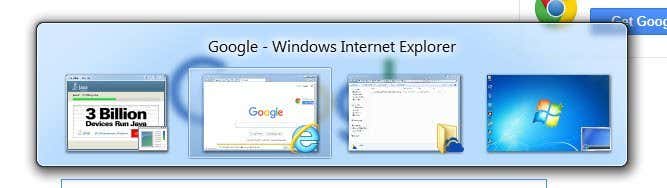
Basically, you get small little thumbnails for each program or window that is on the taskbar. If you use the Windows Key + TAB combo, you get the cool looking flip 3D stack look:
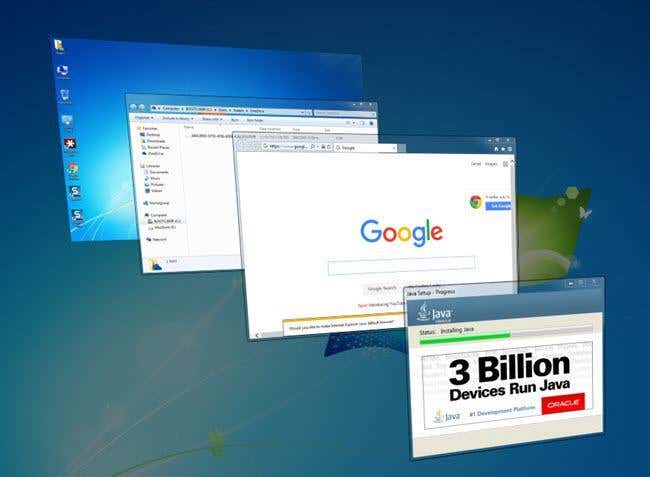
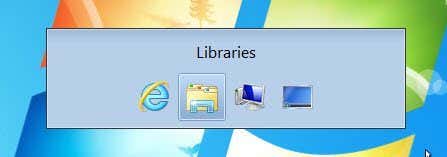
By the way, if your computer does not support hardware acceleration, then when you press ALT + TAB, you’ll see small icons instead of previews like shown below:
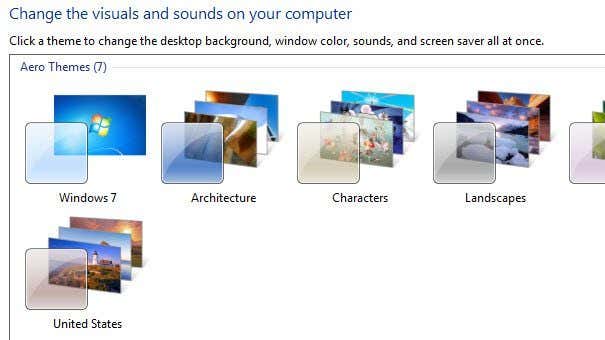
If Aero Flip 3D is not working in Windows 7, it could also be that you are not using an Aero theme. Right-click on the desktop and choose Personalize. Then select one of themes under Aero Themes.
Windows 8 Switching Between Apps
So what happened in Windows 8? Well, firstly, flip 3D was removed in favor of the new sliding bars that come out from all sides in Windows 8. You remember the Charms bar on the right hand side?
In Windows 8, if you press ALT + TAB, you get a similar thumbnail view of all open programs, which includes desktop apps and the new Windows Store apps that were introduced in Windows 8.
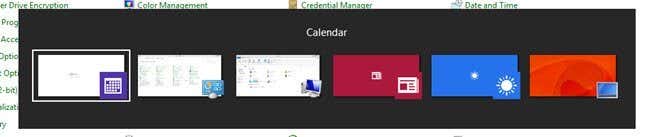
This is logical and makes sense, right? However, if you press the Windows Key + TAB, you end up getting this sliding bar from the left side of the screen:
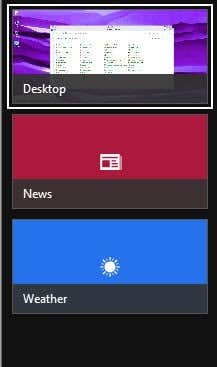
Firstly, I don’t use that many Windows apps to justify this annoying sliding bar on the left side of the screen. I much preferred the 3D flip of Windows 7. On top of that, it doesn’t list out desktop apps, but instead has one tile called Desktop. This is one of the many reasons why people simply hate Windows 8.
Windows 10 Switching Between Apps
Thankfully, Windows 10 has fixed a few of those problems. You’re still not going to get any 3D flip action in Windows 10, but I don’t mind that as much anymore.
Firstly, when press ALT + TAB in Windows 10, you get the same thumbnail previews as older versions of Windows, but the thumbnails are huge compared to preview versions of Windows, so it looks really nice.
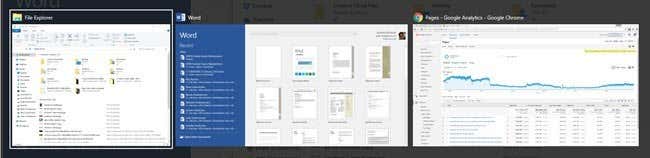
As with Windows 8, ALT + TAB will show you desktop apps and Windows Store apps. Thankfully, in Windows 10, Store apps are inside windows and can be used like desktop apps, rather than going to full screen and being really annoying.
So what does Window Key + TAB do in Windows 10? Well, now that Windows 10 supports multiple desktops, like OS X has for a while, this key combo will allow you to switch between desktops. What’s nice about this key combo is that you can also let go of all the keys and it doesn’t disappear.
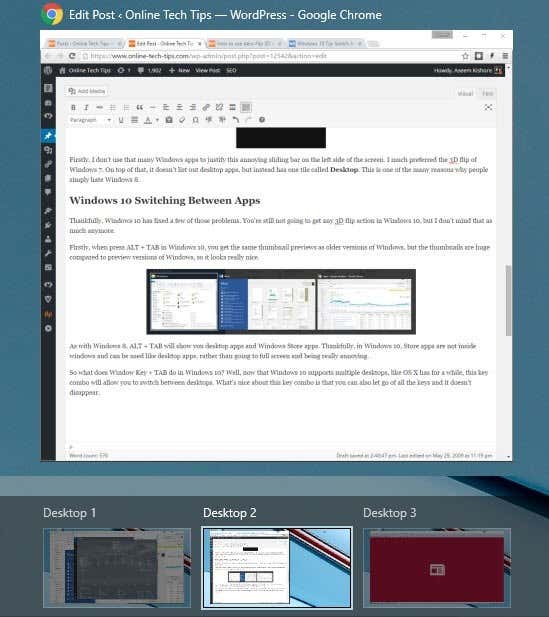
Here is where things get a little interesting. When you are in this mode, pressing tab will not switch you between apps in a particular desktop. Instead, it will switch you from the bottom part of the screen, where it lists out all the desktops, and the top part of the screen, where it lists out all of the apps and programs on a particular desktop.
If you press the left or right arrow keys, it will let you switch between the different programs on that desktop like shown below.
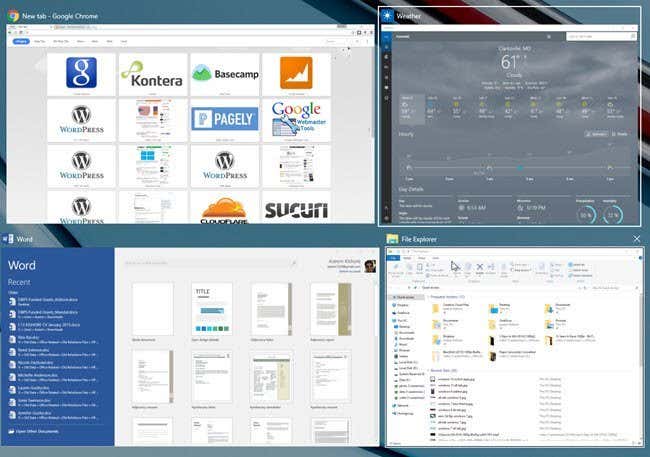
You’ll see a little white box around the app that is currently selected. You can then press Enter to select that app. While in this mode, if you press TAB, then you will activate the lower section and now you can move through the desktops by pressing the left and right arrow keys. As you can see below, two desktops are showing brighter because one was active one when I pressed Windows Key + TAB and the other one I used the arrows key to highlight.
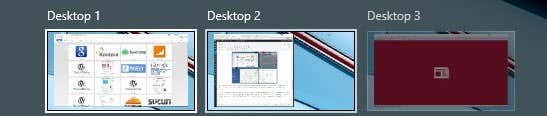
Now if you just press Enter when selecting a different desktop, then it will simply load that desktop and show you whatever the active window was previously for that desktop.
However, to show all the windows that are active for another desktop, you have to press the SPACEBAR key. Then you can press TAB again to get back to the top part of the screen and arrow around to which app you want to select. Then press Enter and you will load that app from that desktop.
Since I use multiple desktops quite a bit, these new key combos are pretty useful and everything makes much more sense. The SPACEBAR trick wasn’t intuitive, but once you learn it, it makes a world of difference navigating between desktops and apps. Hopefully, that gives you a bit of an idea on how these shortcuts have changed over time. If you have any questions, feel free to comment. Enjoy!

