
Times have changed, but you can still use it to upload

I originally wrote this article back in 2007, but I’m updating it for 2014 because a lot has changed in seven years. Firstly, Picasa Web Albums no longer exist. Since the release of Google+, all photo storage takes place in Google+ Photos. You can, however, still use Picasa on both a Mac and PC to upload your pictures to Google+ Photos.
I’m a huge fan of Picasa because of its ease of use and the way it organizes all my pictures. The fact is that I can have my pictures stored locally however I like, have them organized in Picasa differently using albums and then upload them directly to Google+ Photos. I don’t like Flickr because it’s a pain to upload photos and they don’t have a desktop program to organize all my thousands of pictures. So if you’re trying to decide on the best program to manage your photos, I would go with Picasa!
Table of Contents

Ok, so here’s how you would go about setting up Google+ Photos with Picasa (and in turn setting up Picasa itself)…STEPWISE!
Step 1) Download the Picasa program. Go to http://picasa.google.com/ and click the Download Picasa link. A dialog box should pop up asking to save the file or run it. You can just click Run, so that after it downloads, it’ll automatically start the installation. As mentioned before, it’s available for both Mac and Windows, which is really nice.
Step 2) Next, before you start Picasa, you can move all your pictures to the My Pictures folder under My Documents. That’s where Picasa looks first for your pictures. Now if you have a ton of pictures and it’ll take too long to move them or you just don’t want to, then just go ahead and open Picasa and you can tell it to look in other folders for your pictures.
Step 3) Go ahead and launch Picasa. Once it loads, a dialog comes up asking to either scan your whole computer or just My Pictures, My Docs, and the desktop. I usually choose the latter option (My Pics, My Docs, Desktop) because otherwise when the whole computer is scanned, it will pick up a lot of junk images that you probably don’t want (Office icons, etc). So even if your pics are not in those folders, just choose it anyway and I’ll show you how to add the folders later.
Step 4) Give it some time to find all the pictures and you’ll see the folders load on the left-hand side. When you click on one of the folders, all the pictures load up on the right side as thumbnails. By default, it’s smart enough to sort out all the pictures by year, month and so forth.
Quick Tip: If the date set by Picasa is incorrect, just right-click on a folder and choose Edit Description. Here you can change the date and also add a location if you like.
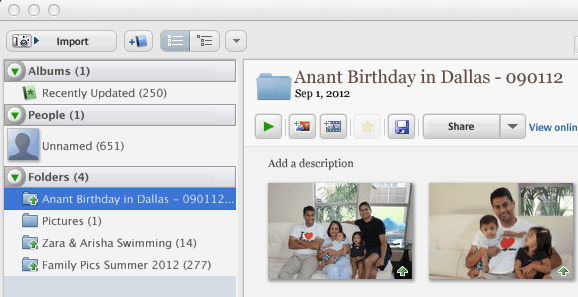
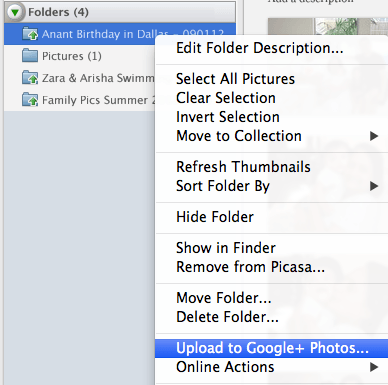
Step 5) Once everything is loaded, you can click on any of the folders in the left pane and it’ll highlight that folder and bring up the pictures for that folder. Then simply right click on the folder and there is an option called Upload to Google+ Photos. When you click that, it’ll ask you for your login information, so you need to create a Google account if you don’t already have one. There is an option to sign up, so click that if you don’t have a Google account.
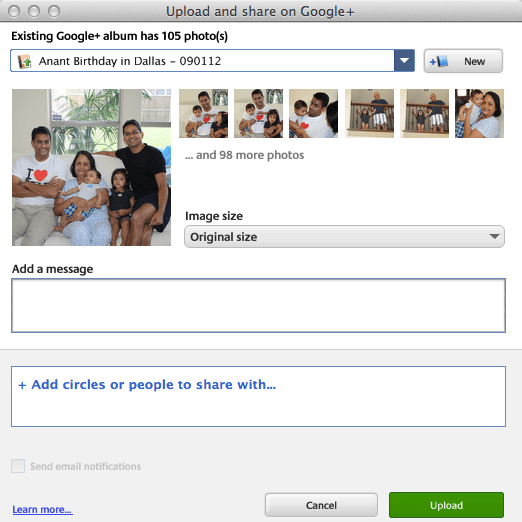
Step 6) Once you do that, it’ll bring up another dialog box asking for the Title of the album and some other information. Most of it is self-explantory, but leave the setting for Upload Setting to the default of Best for Sharing. You can choose Original if you want to create a backup of all your pictures at the highest resolution.
Now that Google+ Photos is the new Picasa Web Albums, you have the option to share with your Google+ circles. If you don’t add anyone, it will be a private album. Now click Upload and you’ve successfully uploaded your first album to Google+ Photos from Picasa.
Step 7) To view your photos on Google+, go the following link: https://plus.google.com/photos.
As of 2014, the storage plans have changed. Now you get 15GB of free storage for Google Drive, Gmail and Google+ Photos. Google+ Photos also has an awesome feature whereby you don’t get charged for storage if the pictures you upload are less than 2048×2048 in resolution. So if you choose the Best for Sharing option, you could theoretically upload unlimited photos for free.
You can buy extra storage that is shared across Drive, Gmail and Photos starting at $2 a month for 100GB, $10 a month for 1 TB, and so on. Here is a link on the new Google storage plans:
https://support.google.com/drive/answer/2375123?hl=en
For this article, I just focused on using Picasa to get your photos organized and uploaded to Google+ Photos without even mentioning all the other cool features of the program and of Google+ Photos. I’ll save that for another post, but Picasa is a great photo editing tool if you like to edit your photos before uploading.

Overall, it’s an impressive piece of software and is the best option for anyone who already has a Google account and isn’t heavily invested in another service like Flickr. If you have any questions, feel free to post them in the comments. Enjoy!

