
Good news for 99% of the readers of this article

Back in the days, defragging your PC was something everyone did on a regular basis, even if you had no clue what you were doing. What everyone did know was that it somehow made the computer run faster.
I’ve written many articles in the past about defragmenting your hard drive, the boot sector, the paging file and even the registry. During the days of Windows XP, defragging was necessary and it made a significant difference in performance.
Table of Contents
Over time, many companies started selling third party defragging tools that supposedly did the job faster, better and more accurately. Some were actually fairly good, but most pretty much did the same thing as the built-in Windows defragment tool or even worse. It wasn’t surprising to run a third-party defrag tool and have your computer actually run slower than before.
Third Party Defrag Scenarios
The only time I have actually seen a reason to recommend a third-party defrag tool to anyone was if the person had a complex setup on their PC with different types of data stored in different locations. For example, if you have four different hard drives installed on your PC, each containing different types of data like music, videos, operating system files, etc, then a third-party tool can let you defrag each drive in a different way.
If one drive has a lot of small files that are accessed often, you could use a third-party tool to defragment that drive so that the files are sorted by the last accessed time or creation time. For a drive that has a bunch of large music or video files that don’t get accessed very often, you could sort them on the disk by folder size or file size.
You could even defragment only certain files or folders instead of the entire drive if you wanted. Obviously, as you can see, this is really only useful for certain specific scenarios and the time and effort spent doing all of this may not even yield any dramatic results.
The only other scenario where a third-party defrag tool worked well was with a client who had a hard drive that was almost full. I was able to use a third-party tool to move all the data to the beginning of the disk. This freed up some extra space and helped speed up the PC a bit.
Windows Built-In Defrag Is The Best
For 99% of the people reading this article, the built-in disk defragmenter tool in Windows is perfect for keeping your hard drive running smoothly.
A bunch of people have actually gone through the trouble of testing out a lot of different defragment tools like Defraggler, MyDefrag, etc and have found that in Windows 7 and above, they don’t speed up read or write access to data on the hard drive by any noticeable amount.
This is because hard drives nowadays are much larger and therefore have a lot more free space. With the extra space, Windows doesn’t have to fragment your files as much.
In addition to larger hard drives, modern machines and hard drives can access data much faster than earlier. So even if you have a partially fragmented hard drive, it most likely won’t even make any difference in how fast the data can be accessed. Only if you have a very fragmented hard drive will you start seeing some slowdowns, but this is virtually impossible because of the built-in Windows defragmenter.
In Windows 7, it’s called Disk Defragmenter and in Windows 8 and higher, it’s now called Optimize Drives. By default, it’s scheduled to run once a week, which pretty much keeps all your drives near 0% fragmentation. Here’s my Windows 7 PC after 2 years of use without ever manually running a defrag.
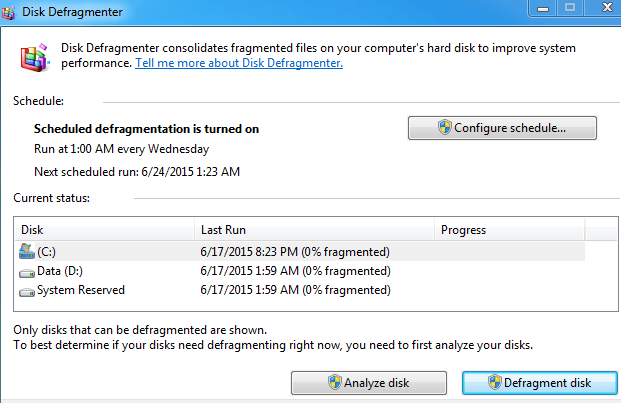
I’ve already written a detailed post about Optimize Drives and Disk Defragmenter in Windows 8 and Windows 7, so feel free to check that out if you want more info.
SSDs Don’t Need Defragmenting
Lastly, even the days of automatic defragmentation are dying because of SSDs (solid state disks). An SSD doesn’t read and write data like a traditional hard drive and doesn’t need to be defragged. Actually, Windows will automatically disable disk defragmentation on a solid state hard drive because defragging can reduce the life of an SSD.
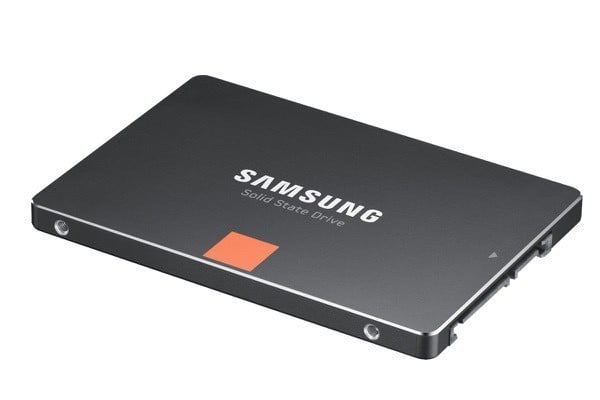
If you are looking for truly significant performance gains when reading and writing data, then you should upgrade to an SSD. Even the cheapest and slowest SSDs are many times faster than traditional spinning hard drives.
On my Windows 7 machine, the boot time went from over 40 seconds to under 5 seconds when I switched from a 7200 RPM hard drive to a 256 GB Samsung SSD. SSDs are usually much smaller in size due to their higher cost, but just loading the operating system onto an SSD can make a huge difference, even if you store all your other data on a separate slower spinning hard drive.
Conclusion
Hopefully, everything I said above made sense, but if not, here’s the takeaway. If you are running Windows XP on an older machine, you really should upgrade. If you can’t, then manually run the built-in disk defragmenter. If you are running Windows Vista or higher, there is nothing you have to do becauseWindows will automatically defragment any traditional hard drives and will exclude SSDs.
If you’re a tech geek and want to squeeze every last ounce of juice from your PC, then install a reputable third-party defrag tool and configure it to your liking. Otherwise, relax and enjoy your already optimized hard drive. Another good way to speed up a PC that is better than defragmenting is uninstalling unused or junk software. Enjoy!

