
Helps you navigate and perform operations easier

Looking for a free program to customize or edit the right-click context menu for the desktop or for Explorer in Windows? One of the main reasons I think people use Windows over Mac is because right clicking on something is more natural in Windows. So why not supercharge the right-click menu to make it even more useful than it already is?
In this article, I’ll cover a couple of really useful right-click context menu editors that I use all the time. These extra menu options can help you navigate Windows faster and perform file operations more easily.
Table of Contents
File Menu Tools
FileMenu Tools is a nifty little app that makes it super easy to add a bunch of more options to the context menu. You can add built-in utilities to the context menu that perform certain operations over files and folders. Basically, it just adds one item to the main right-click menu and that one item can then be customized to have as many or as few of the pre-configured options you choose.
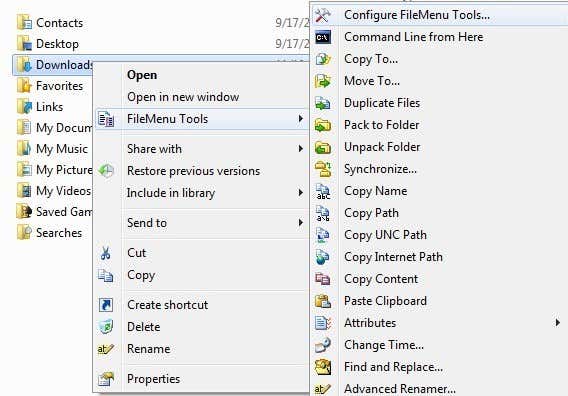
Here are a couple of other things you can do with FileMenu Tools that make working in Explorer more efficient:
- Ability to add customized commands to the context menu which let you run external applications, copy/move to a specific folder, or delete files by specific file type, etc.
- Ability to configure the Send To submenu option in Explorer.
- Ability to enable/disable commands on the context menu that were added by other applications.
I really like FileMenu Tools because it allows you to accomplish some pretty complicated tasks that would be very tedious to complete without it! Here are some of the options you can add to the context menu:
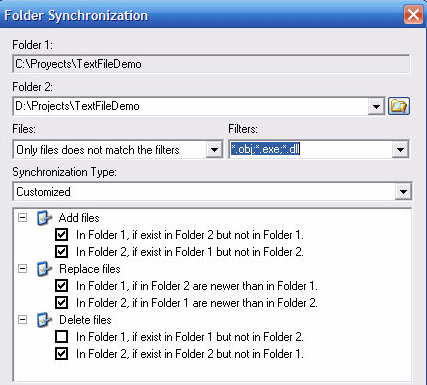
Synchronize Folders – Synchronizes two folders. It is possible configure the synchronization type (unidirectional, bidirectional, etc.) and the file types which you want to have synchronized.
Extended Delete – Need to delete all the PDFs on your immediately? This item deletes recursively specific file types from a folder. The file types are specified with wildcards, for example: *.txt, *.t??, etc.

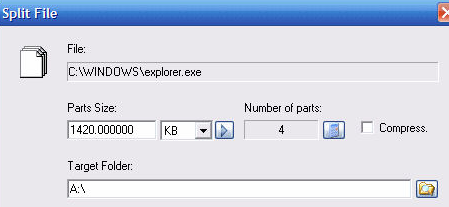
Split and Join File – Splits the selected file into various parts and then rejoins the parts which were previously split. If you’re looking for a file splitter, you can get that plus a ton more features using this program! If you’re looking for just a file splitter, you can check out a post I wrote a while back.
Copy Name – I like this utility as it copies to the clipboard the name of the all selected elements. So if you want to get a list of all files in a folder into a text file, you can simply select them, right-click and choose Copy Name.
Change Time – Changes the creation time, the last access time, and the last write time of the selected elements. If a folder is selected, it is possible change the time recursively for all files and folders underneath.
Size of Folders – Displays the size of the folders. Quickly see how large a folder is using this utility.
Shred Files – Lets you shred the selected files definitely so it is impossible to recover the files with advanced recovering tools.
If you don’t need all those options in the right-click context menu, you can simply uncheck them in the program interface. It’s best to first play around with each one and see whether you’ll actually use it or not. I only have about 5 of the 30 or 40 options they include, but I use those 5 quite often. Also, you can customize the Send To menu and add/remove commands from other apps via the other tabs as shown below.
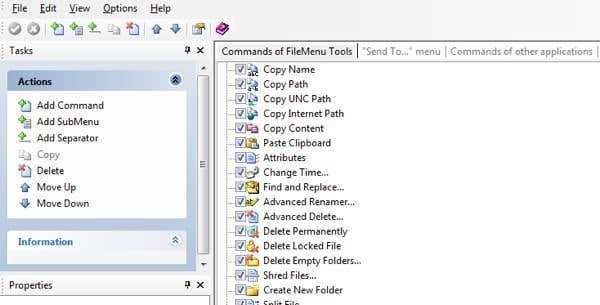
Overall, it’s a great freeware application that has a ton of features. If you’re looking for a way to customize the right-click menu in Explorer, then this is the ultimate tool for that purpose! It basically combines many smaller apps into one integrated all-in-one utility!
Right-Click Context Menu Adder
File Menu Tools is great, but it still doesn’t let you add items directly to the right-click menu. Instead, it creates its own main menu item and then adds all the other options in the sub-menu. This is not necessarily a bad thing because I’ve seen that it never causes a performance problem when right-clicking. The programs that add directly to the context menu can sometimes make it really slow, especially if you add a bunch of new menu items.
Anyway, Right-Click Context Menu Adder is a nice utility for customizing the main right-click menu in Windows. Just download it and run the program, which thankfully doesn’t even require an install.
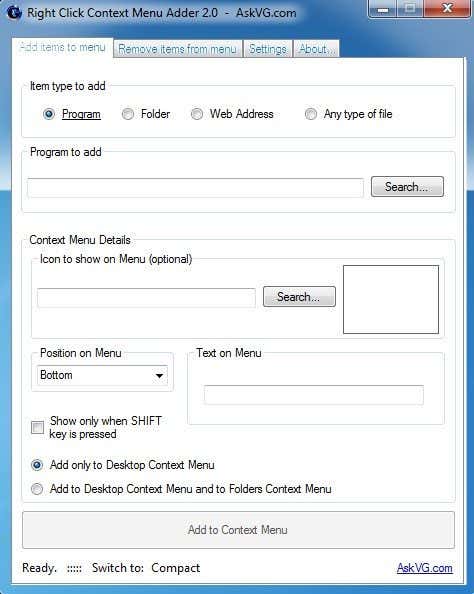
Whereas File Menu Tools is a much more user-friendly tool, Context Menu Adder is all about doing it yourself. There are no pre-configured options or options to choose from. You have to decide what type of item you want to add to the context menu (program, folder, web address or other), choose your options and then add it.
I use this particular tool for the ability to add folders and websites mostly. I have found that really handy since I tend to open the same set of folders in Explorer all the time and this saves me a bunch of time. When adding a program, you can choose from an EXE, MSI or batch file. If you have scripts that you like to run on your computer, you can add them to the context menu for easy access.
Other than that, you simply choose the icon, which is normally automatically pulled from the EXE, choose the position and choose the text you want to show up in the context menu. You also have an option to only show your new options when you press the SHIFT key and then right click. I found this feature to be really useful as it doesn’t clutter up your right-click menu normally, but only when you need it.
Lastly, you choose whether you want it to appear only on the desktop context menu or on that and the folders context menu. If you choose the second option, whenever you right-click on an empty space in Explorer, you’ll see the menu. Here I have added a random folder and IE to my right-click menu, one at the bottom and one at the top.
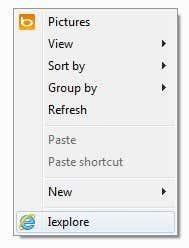
If you want to remove anything, just click on the second tab and you’ll be able to get rid of anything you added to the context menu. Other than that, there aren’t really any other options or features to the program. It works well for what it does and I actually use it in combination with File Menu Tools, since they kind of let you do different things with the context menu.
Easy Context Menu
Another program that I like to recommend to friends is Easy Context Menu. It’s got a very simple interface where you basically just check everything that you want for the different context menus.
What I like about this program is that it really breaks the options down by pretty much every type of context menu that exists on the system. You can add something to just the desktop right-click, to My Computer right-click, to only a folder right-click, etc.
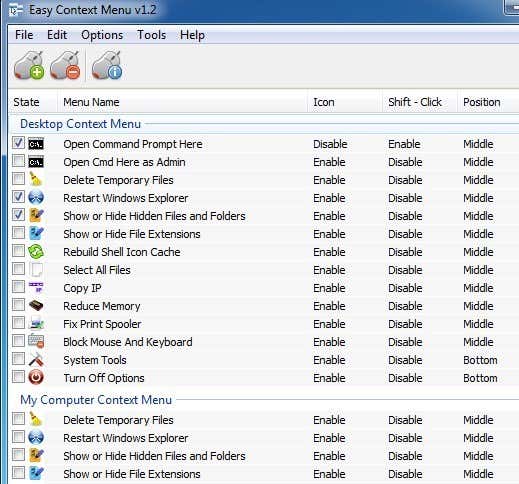
So here’s how it works. Find the context menu you want to edit, then check the boxes you for the menu items you want to add and then click on the little mouse button at the top with the green plus sign. That will apply the changes to the registry. When you have done that, click on Tools at the top and click on Restart Windows Explorer.
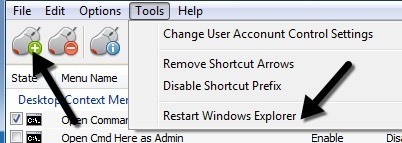
Once you restart Explorer, you will see the changes appear immediately when you right-click. The only other thing you have to understand is the way the three columns work. Icon will simply display an icon next to the menu item in the context menu. Shift + Click will either be enabled or disabled. If enabled, you’ll only see the item when you press and hold the SHIFT key. Lastly, the position is where you want the menu item to appear. You can change these three options for each item listed by select it and then clicking on Edit the top.
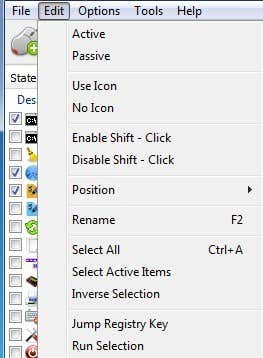
You’ll see sections for Use Icon, No Icon, Enable Shift, Disable Shift, Position, etc. Also, active means the item is checked whereas passive means it’s simply unchecked. Thi is kind of an odd setting so that’s why I mentioned it here.
So hopefully one of these three tools will help you configure your right-click context menu exactly the way you want. If you have another tool that does a better job, let us know in the comments. Enjoy!

