
But be sure to let everyone know

Whether you want to make a meeting shareable with your clients or replay a memorable video chat with family or friends, Skype’s call recordings makes it possible with the click of a mouse.
Skype added the audio and video call recording feature in 2018 so you can save your calls for future reference.
Table of Contents

Skype call recording is easy to do as long as everyone in the meeting knows and agrees to be recorded. This way, you can respect everyone’s privacy and avoid potential legal issues.
We’ll walk you through how to record Skype calls on Windows, Mac, iPhone and Android.
How to Record Skype Calls on Different Devices
The Skype call recordings feature is available on desktop, mobile, and web versions, so you can use it on a PC, Mac, Android, iPhone or iPad. Here are a few things to note before you begin recording your calls:
- Skype will notify all participants that the call is being recorded.
- You can only record Skype-to-Skype calls.
- For video calls, Skype combines all streams in the recording, including yours.
- If you share your screen during the meeting, the recording will include the shared screen.
- The maximum length of one call recording is 24 hours. If it’s longer than that, the recording may be split into multiple files.
- Once you leave a call, the recording automatically stops. It will be available for 30 days during which you can save, listen to, or share with others.
How to Record Skype Calls on Windows 10
If you’re using a Windows 10 PC, the recording happens in the cloud (Microsoft servers) where it stays for 30 days, so you don’t need local storage to save it.
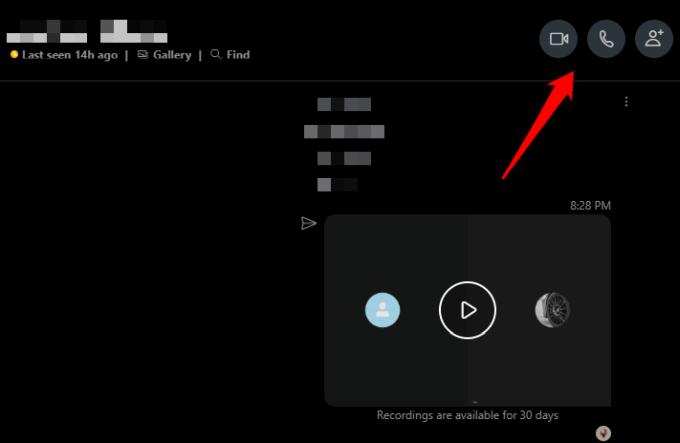
- To get started, open Skype and select the audio or video call button to start the session.
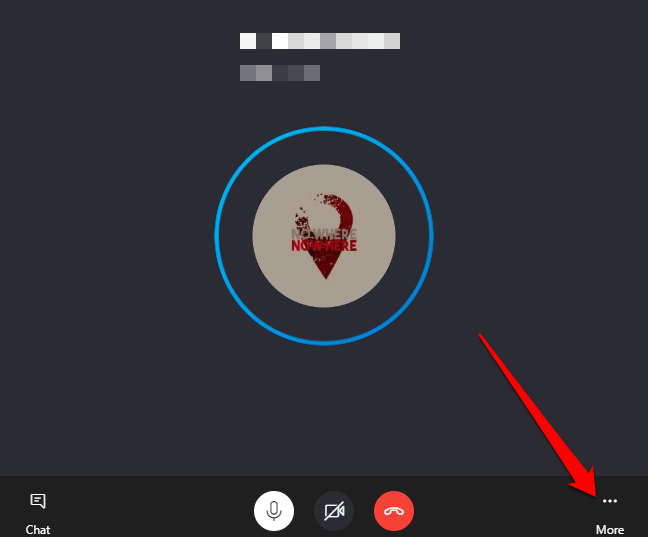
- Select the three-dotted button at the lower right side to open the menu.
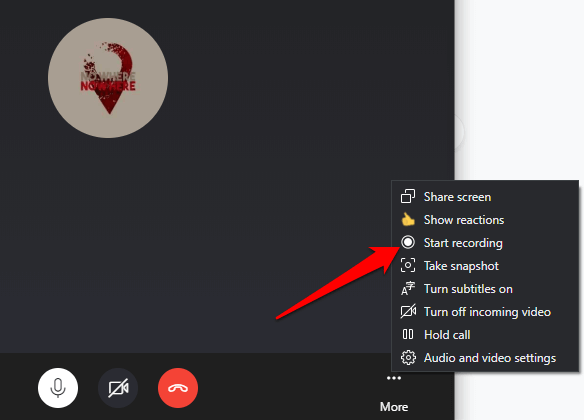
- Next, select Start recording and Skype will start recording your audio or video call.
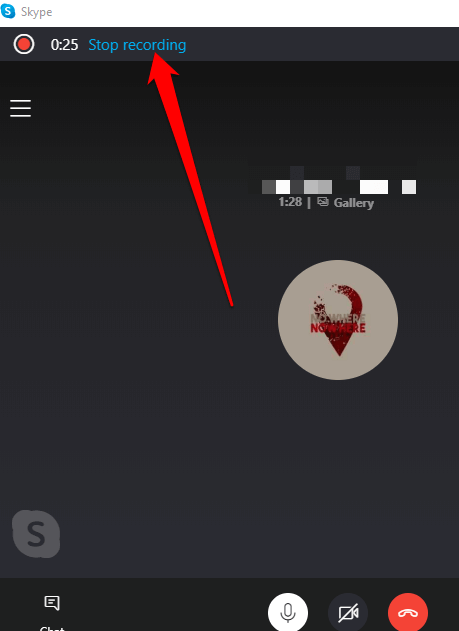
- Select the menu at the lower right side and select Stop recording. Alternatively, select Stop recording at the upper left side of your screen.
- Once you stop the recording, you’ll see the audio or video conversation in the Skype chat box. From here, you can save, replay, share, or download it manually to store it on your computer.
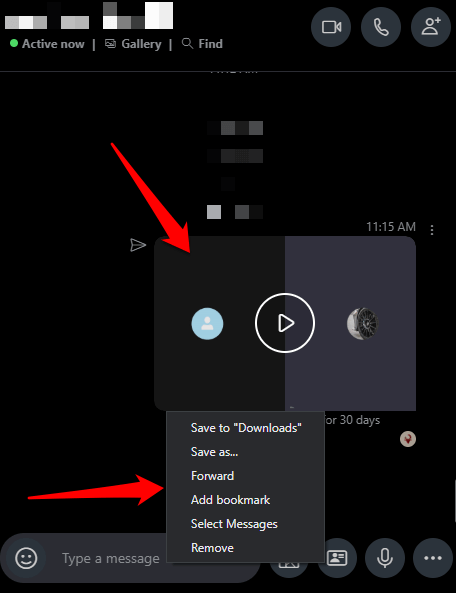
You can download or delete the Skype call recording.
- To download the recording, go to Recent Chats, select the conversation, and right-click on the recording to reveal the menu. Select the menu > Save to Downloads.
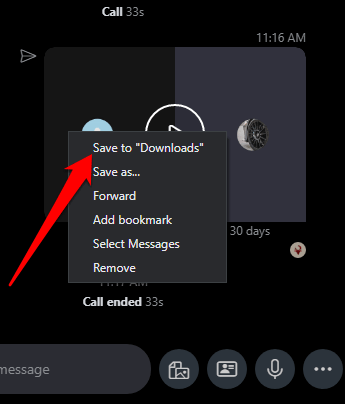
Choose the folder destination where you want to save your recording to, give it a descriptive file name, and then select Save. The file will be saved as an MP4 file.
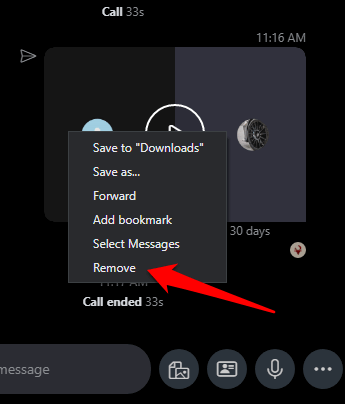
- To delete the Skype call recording, go to Recent Chats, right-click the recording you want to delete and select Remove from the menu.
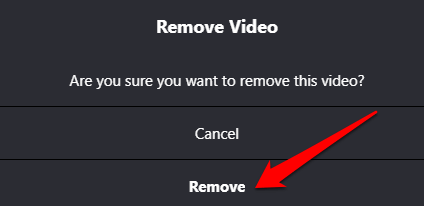
- Select Remove to delete the recording completely from the Skype chat timeline history.
How to Record Skype Calls on Mac
Recording a Skype call on Mac is just as easy to do as with a Windows 10 PC. Here’s how.
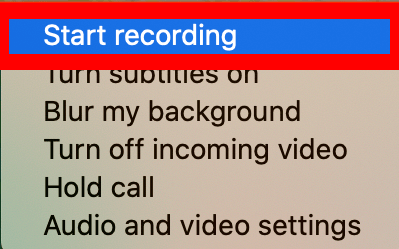
- Start the Skype audio or video call on your Mac. Select the + button at the lower right side of the screen, and then select Start recording to record the session. All participants will get a notification via a banner at the top of their screens that you’re recording the current session.
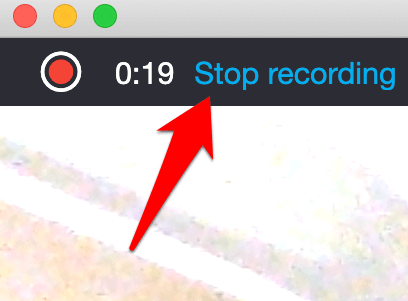
- Just before the session ends, select Stop recording at the top of your screen or just end the call.
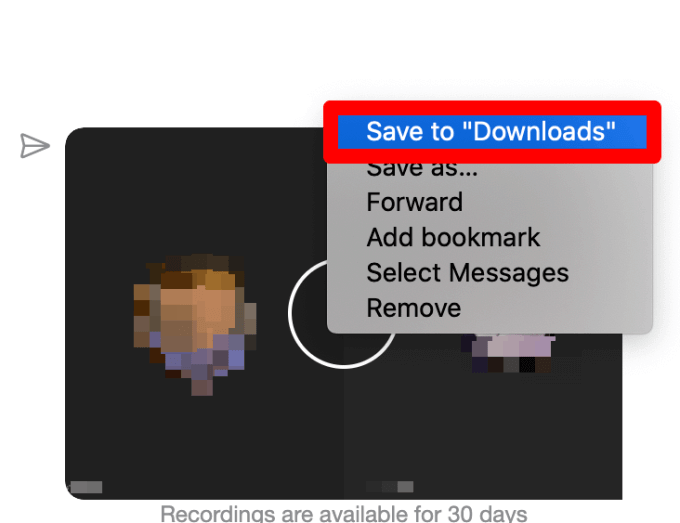
- Go to the chat and select the menu > More options > Save to Downloads to save the recording.
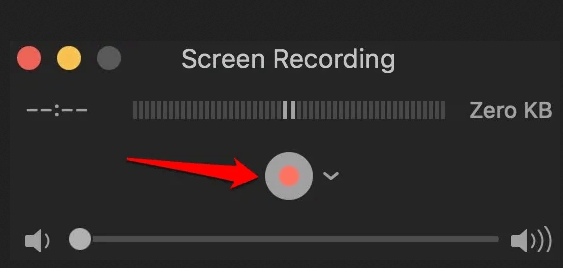
Note: You can also record your audio or video calls for free using the QuickTime player on your Mac. Open QuickTime on your Mac, select File > New Screen Recording.
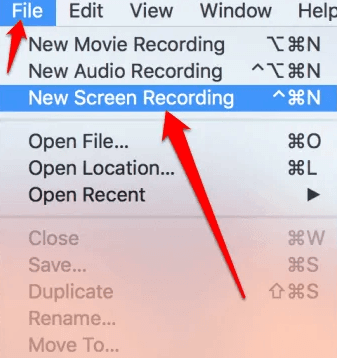
Select the Recording button to start recording your Skype call and then select the Stop button to stop recording or press Command+Ctrl+Escape on your keyboard.
How to Record Skype Calls on Android
- To start recording Skype calls on an Android device, open Skype, tap the address book and select the contact you want to call.
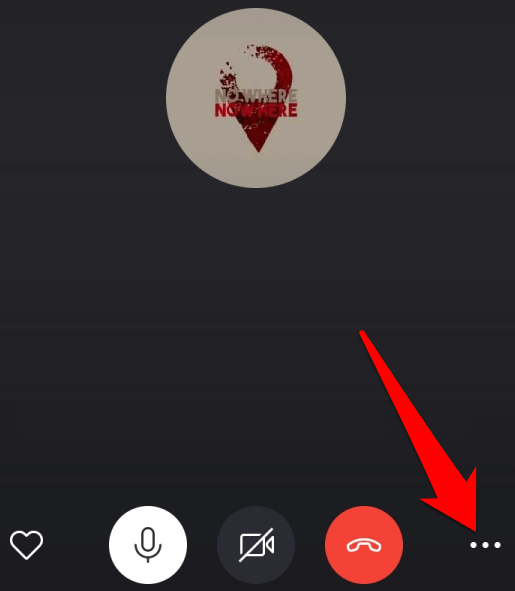
- Next, tap the video or audio call button to start the call, and then tap the three dots at the bottom right side of the screen to open the menu.
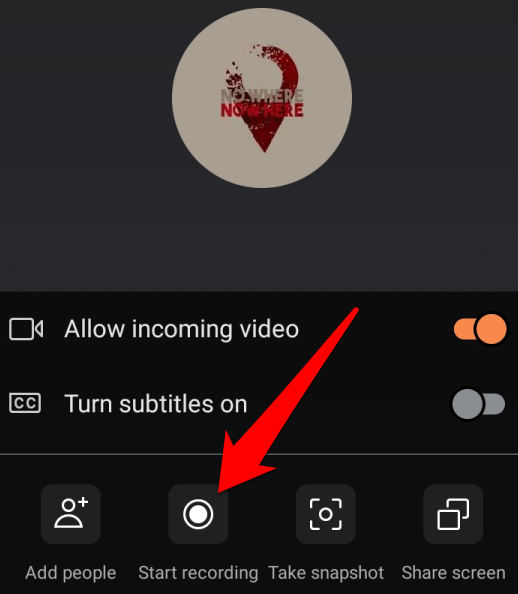
- Tap Start recording button and the call will be recorded. Your contact will be notified that you’re recording the call.
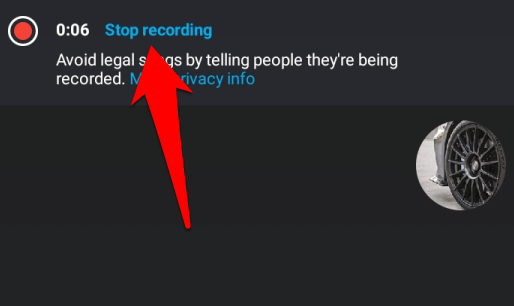
- When you’re done with the session, tap Stop recording at the top left side. Alternatively tap the menu at the bottom and then tap Stop recording.
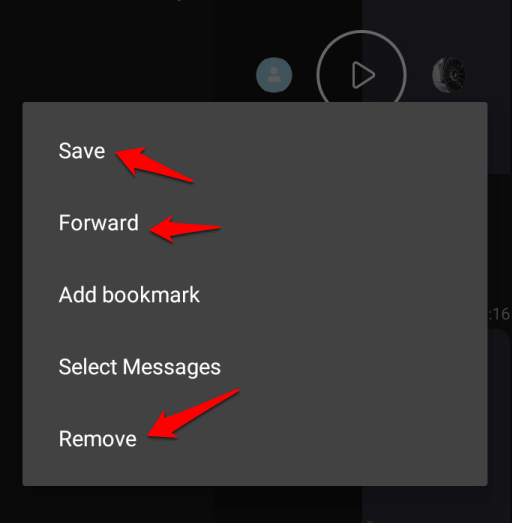
The recording will be available for you to save or share on the Skype chat timeline. To save, share or remove the recording, tap and hold the recording in the chat box to display the Save, Forward, or Remove options.
How to Record Skype Calls on iPhone
With a simple tap, you can record Skype calls on iPhone instead of trying to take notes to capture everything.
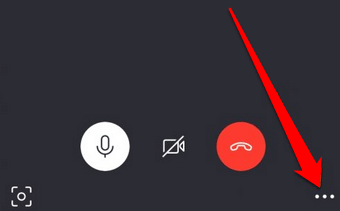
- To get started, open Skype and start an audio or video call with your contact(s). Tap the three dots at the lower right side of your screen to open the Menu.
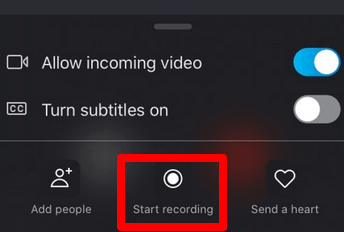
- Tap Start Recording once your caller joins. When the session is over, your recording will be available in the Skype chat area.
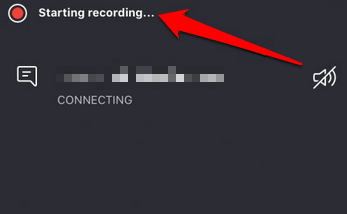
- You’ll get a notification at the top left side of your screen confirming that the recording has begun. Tap and hold the recording to save it to your device or share it with others.
Note: If you’re not using Skype version 8.0, you may not be able to record any audio or video calls. In this case, you can use a third-party app like the free MP3 Skype Recorder, which works with Skype version 7 and is free for non-commercial use. Other such apps include Pamela for Skype and Evaer Skype recorder.

