
Zap all those giant space hogs

When you use Windows 10, the internal storage on your PC fills up gradually over time. That’s not a major problem on high capacity HDDs and SSDs. But you’ll run into space-related snags on drives that don’t offer much breathing room to start with.
You can rely on several methods to free up disk space in Windows 10. Some of them help you free up tens (if not hundreds) of gigabytes, while others net you only a few extra megabytes.
Table of Contents

1. Free Up Recycle Bin
When you delete files on your computer, Windows 10 does not remove them outright. Instead, it stashes them away in the Recycle Bin. That allows you to restore deleted files if you change your mind later. But you end up trading disk space for convenience.
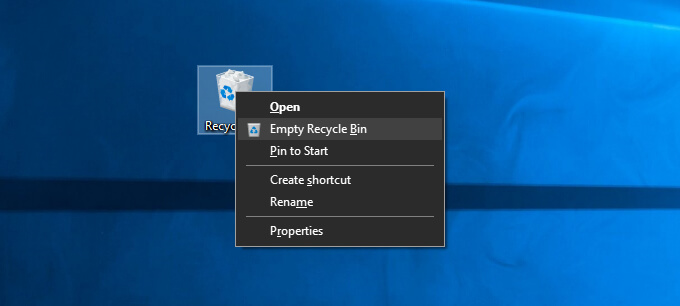
If you don’t plan on restoring any deleted files, you can choose to empty the Recycle Bin. To do that, right-click the Recycle Bin icon on the desktop and select Empty Recycle Bin. Alternatively, you can open the Recycle Bin and remove select files inside it.
It’s also possible to delete a file permanently without sending it to the Recycle Bin by pressing Shift + Delete after selecting it.
2. Clear the Downloads Folder
The Downloads folder on your Windows 10 PC is a hotspot for junk files and program installers that you’ll rarely ever re-use.
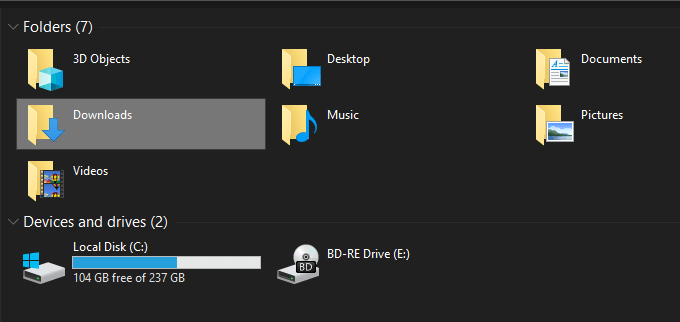
Open File Explorer and select This PC > Downloads on the sidebar. Then, delete any files that you don’t want. You can also switch the folder to List view and filter files by Size to locate and remove items that use up space the most.
3. Delete Unwanted Apps
Getting rid of unwanted apps and programs from your computer is another quick way to cut down the amount of used storage on your Windows 10 computer.
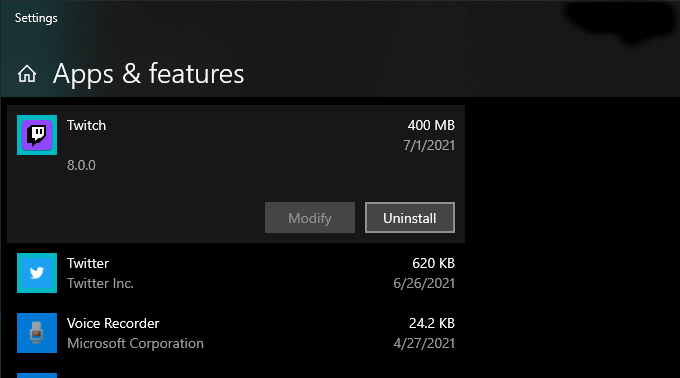
To do that, open the Start menu and go to Settings > Apps > Apps & Features. Then, scroll through the list, pick the apps you don’t use anymore, and select Uninstall to delete them.
4. Use Files On-Demand in OneDrive
OneDrive comes built into Windows 10 and allows you to back up documents and photos to the cloud easily. It also supports Files On-Demand functionality, allowing you to download backed-up files to local storage only when needed.
To enable Files On-Demand in OneDrive, select the OneDrive icon on the taskbar and choose Help & Settings > Settings. On the Microsoft OneDrive dialog box that then shows up, switch to the Settings tab. Follow that by checking the box next to Save space and download files as you use them.
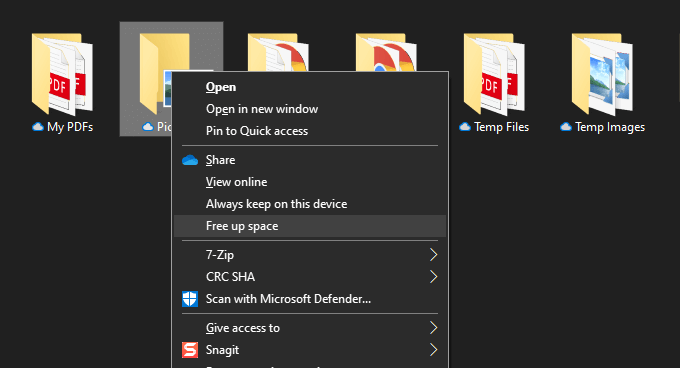
With Files On-Demand active, you can directly offload backed-up files and folders whenever you want by right-clicking and selecting Free up space. You’ll continue to see placeholder icons of the items. Attempting to access an offloaded file shall prompt OneDrive to download it locally.
5. Use Storage Pane in Settings
Windows 10’s Settings app comes with a Storage pane to help you identify data types that use up the most amount of storage on your PC.
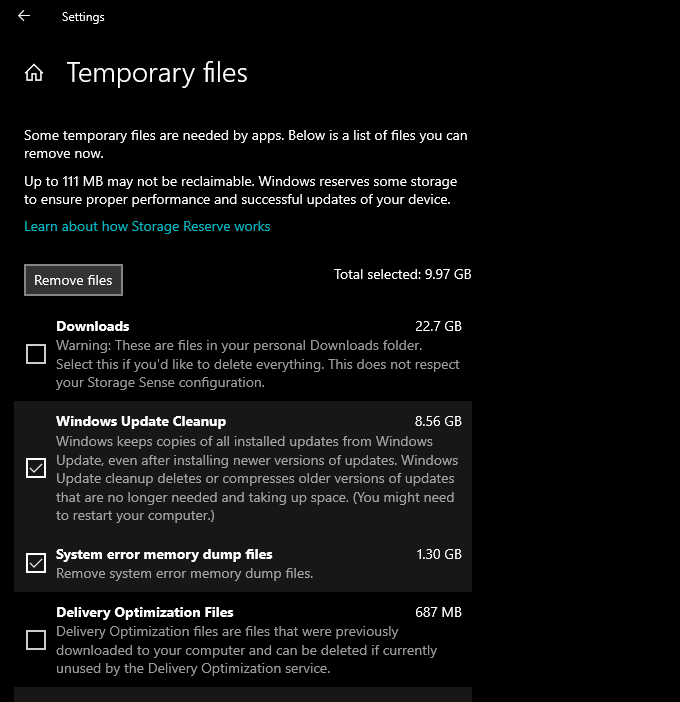
You can access it by going to Start > Settings > System > Storage. You’ll then see a list of categories such as Apps & Features, Temporary Files, Pictures, Music, etc., all of which you can dive into and remove space-consuming programs and files.
However, the most important of the lot is Temporary Files. Select it, and you’ll immediately come across a list of areas that hold temporary files, such as the Downloads folder, Recycle Bin, and Windows Update cache. Next, pick what you want to delete and select Remove files.
6. Run or Activate Storage Sense
The Storage pane above also comes with a feature called Storage Sense. Activate it, and you provide Windows 10 permissions to delete temporary files on your computer automatically.
Go to Start > Settings > System > Storage > Configure Storage Sense or run it now to access your Storage Sense settings.
Then, turn on the switch under Storage Sense to activate the feature. Follow that by tweaking the settings to determine how you want Storage Sense to run on your computer. For example, you can specify when it should run (while low on disk space, for example), how often it should delete the contents inside your Recycle Bin and Downloads folder, and so on.
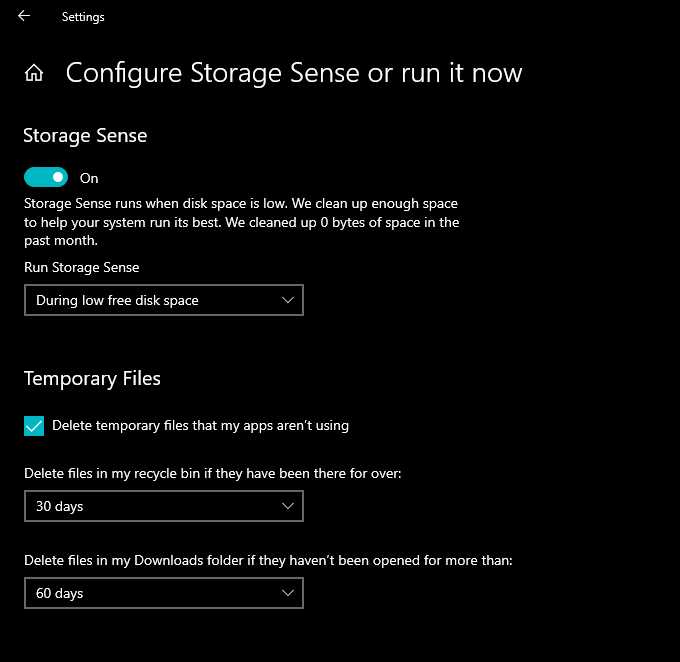
You can also choose to run Storage Sense manually whenever you want. Just scroll to the bottom of the screen and select Clean now.
7. Use Disk Cleanup
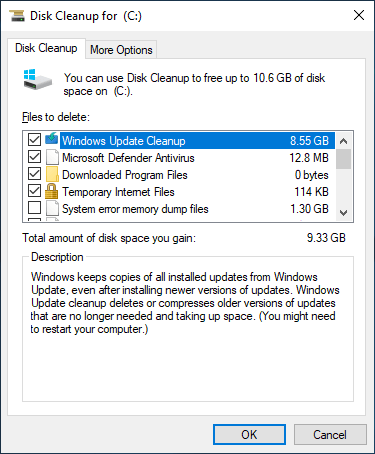
If you prefer a more compact view than the Storage screen in the Settings app, you can opt for the legacy Disk Cleanup utility instead. It offers similar functionality and allows you to delete loads of temporary files quickly. You can bring it up by searching for Disk Cleanup on the Start menu.
Follow by checking the boxes next to the data types you want to delete—e.g., Windows Update Cleanup, Temporary Internet Files, System error memory dump files, etc. Then, select OK.
You can also select the Clean up system files option to view additional temporary file types.
8. Delete More Temporary Files
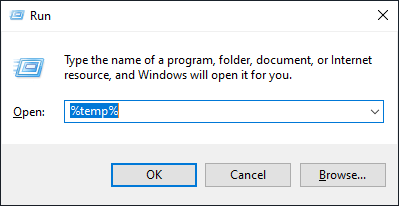
Windows 10 also contains large amounts of other temporary files that you can safely delete. Start by pressing Windows + R to open the Run box. Then, type %temp% and select OK.
Follow by deleting all files and folders within the directory that shows up. Next, type temp into another Run box, select OK, and remove all files inside that directory as well. Finally, wrap up by restarting your computer.
9. Clear Browser Cache
When you surf the internet, your browser ends up caching data to make subsequent website visits faster. But if you’re crunched for storage, you can quickly free up roughly 500 megabytes to one gigabyte of storage by clearing the browser cache.
Google Chrome
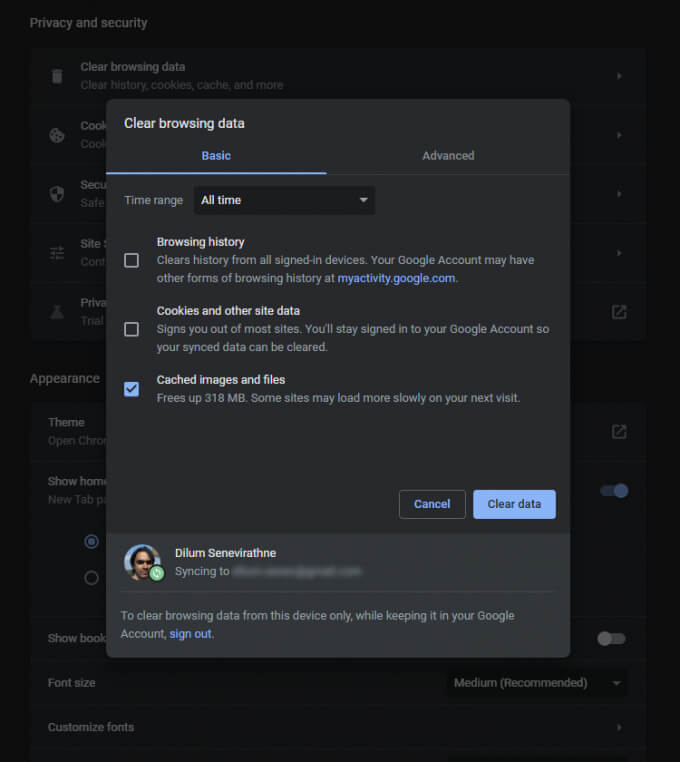
Open the Chrome menu and select Settings > Privacy and security > Clear browsing data.
On the Clear browsing data dialog that then shows up, set Time range to All time and check the box next to Cached images and files. Finally, select Clear data.
Mozilla Firefox
Open the Firefox menu and go to Options > Privacy and security > Clear Data (under the Cookies and Site Data section). Then, check the box next to Cached Web Content and select Clear.
Microsoft Edge
Open the Edge menu and select Settings. Then, switch to the Privacy, search, and services tab on the sidebar and select Choose what to clear under Clear browsing data.
Next, set the Time range to All time, check the box next to Cached images and files, and select Clear data.
10. Find Large Files With WinDirStat
WinDirStat is a free and open-source app that allows you to locate large files and folders on your computer in visual format. After installing and opening the program, pick the storage drive or partition you want to scan. You should then see a list of directories that occupy the most storage, including in percentage form relative to drive size.
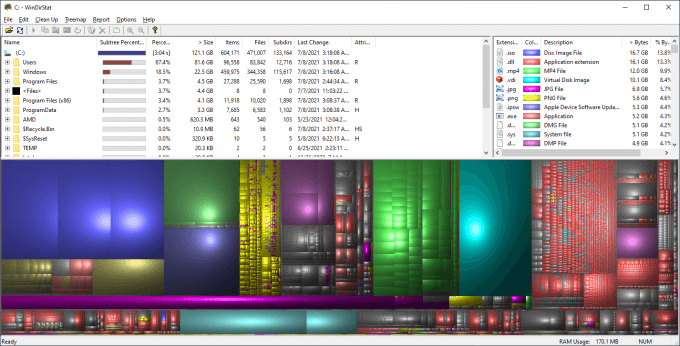
Once WinDirStat finishes scanning the drive, you should also see many colored blocks denoting files (by format) on the chosen drive. The larger the size, the more space they consume. You can right-click an item and select Explorer Here to view (and delete) it in File Explorer.
11. Delete Hibernation File
Windows 10’s Hibernate mode allows you to restore files and programs even after you’ve powered down your computer. But the file that facilitates the functionality by saving the state of the programs and operating system can hog up a lot of disk space. So if you don’t mind skipping out on using Hibernate, you can choose to disable it and reclaim the storage.
To do that, right-click the Start button and select Windows PowerShell (Admin). Then, run the command below:
powercfg -h off
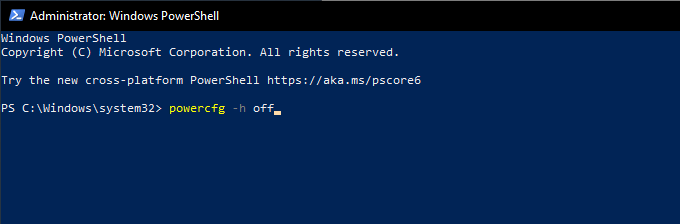
Follow that by opening File Explorer. Then, select File > Change folder and search options.
On the Folder Options dialog box that then shows up, switch to the View tab and select Show hidden files, folder, and drives. Finally, open the Windows 10 installation drive—Local Disk (C:)—and delete the file labeled hiberfil.sys.
For complete step-by-step instructions, check out this guide to disabling Hibernation in Windows 10.
12. Delete Old User Accounts
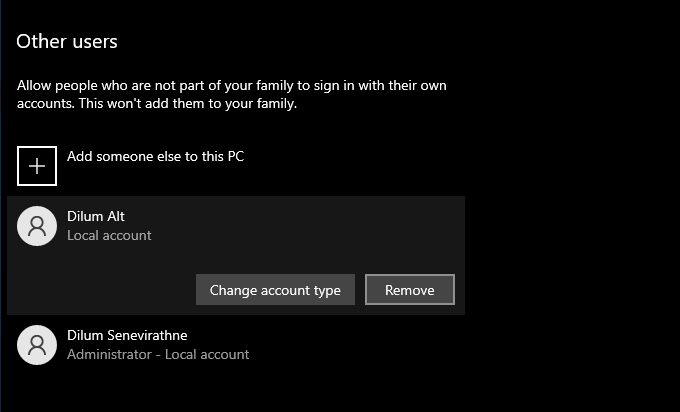
If your computer has multiple Windows 10 user accounts, you might want to delete any that don’t serve a purpose anymore. Just note that you’ll permanently lose all data related to the accounts you remove.
Start by opening the Start menu on your computer. Then, go to Settings > Accounts > Family & other users, select an account from the Other users section, and select Remove.
13. Disable System Restore
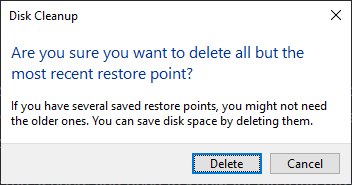
System Restore is a handy backup function that helps you restore your computer to an earlier state should something go wrong. But it also uses a hefty chunk of storage. So if you’re still running low on storage, you can choose to delete all but the last System Restore point.
To do that, open the Disk Cleanup utility, select Clean up system files, switch to the More Options tab, and select Clean up > Delete.
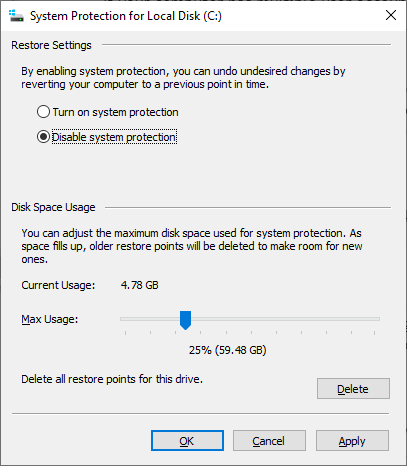
If you don’t mind disabling System Restore completely, open the Run box, type sysdm.cpl, and select OK. On the System Properties dialog box that shows up, select Configure under Protection Settings and select the radio button next to Disable system protection.
14. Reduce the Size of Windows 10
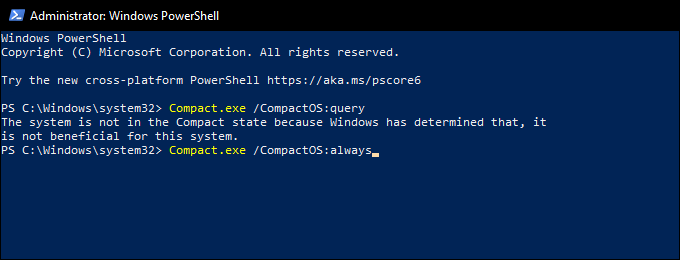
You can tone down the size of Windows 10 itself to free up disk space by activating a feature called CompactOS. It compresses the operating system slightly and is well worth activating on computers with very little storage space remaining.
Start by right-clicking the Start button. Then, select Windows PowerShell (Admin) and run the following command:
Compact.exe /CompactOS:query
If you see that CompactOS isn’t already active on your system, run the following command to activate it:
Compact.exe /CompactOS:always
15. Disable Reserved Storage
Windows 10 uses a feature called Reserved Storage to ensure it has sufficient space to download and install future operating system updates. But that also translates to multiple gigabytes of lost storage. So, you can choose to disable Reserved Storage with a tweak to the system registry should you want.
Start by pressing Windows + R to open the Run box. Then, type regedit and select OK. On the Registry Editor window that shows up subsequently, type the following path into the address bar and press Enter:
HKEY_LOCAL_MACHINESOFTWAREMicrosoftWindowsCurrentVersionReserveManager
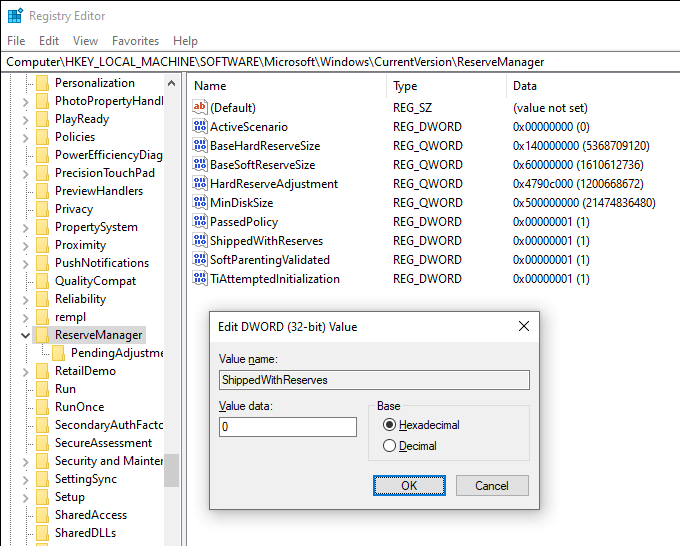
Follow that by double-clicking the ShippedWithReserves key. Then, select Value Data to 0, select OK, and exit the Registry Editor. You must restart your computer for the changes to take effect.
Lots of Space Freed Up
The pointers above should’ve definitely helped you free up disk space in Windows 10. Taking the time to set up Storage Sense alone is a great way to stop yourself from going on manual cleaning sessions regularly. But whenever you want more storage, working your way through the list again can help you reclaim large amounts of used-up space on your PC.

