
This is great if you've got a really old computer

There are many ways to increase the performance of your PC and today’s article will talk about disabling visual effects and setting Processor Scheduling settings. These are fairly straight-forward and one of the simpler settings to change, but they don’t give much of a performance boost. What that means is that this tip will increase computer performance minimally on most computers. It’ll be great for people who have an old graphics cards in their systems or a graphics card with very little memory.
First off, the process for disabling visual effects in Windows XP, Windows 7 and Windows 8 is very similar. Secondly, it’ll make everything look like Windows 2000 again. If you hated that look, then don’t even worry about changing the settings. All the fancy buttons, sliding menus, shadows, glossy icons, etc will disappear when you disable visual effects. Ok, so if you really just want to speed things up a bit, here’s how to go about it.
Table of Contents
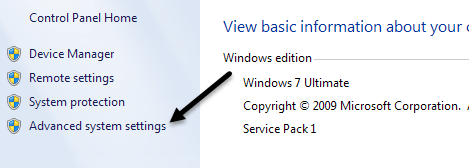
Right-click on My Computer and click on Properties. This will bring you to the System Properties dialog. You can also go to the Control Panel and click on System. In Windows 7/8, you have to click on Advanced System Settings in the left hand menu first. Go ahead and click on the Advanced tab as shown below:
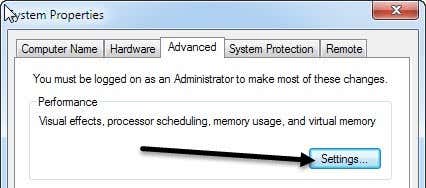
Next, click on the Settings button underneath the Performance heading. This will get you to the Performance Options dialog:
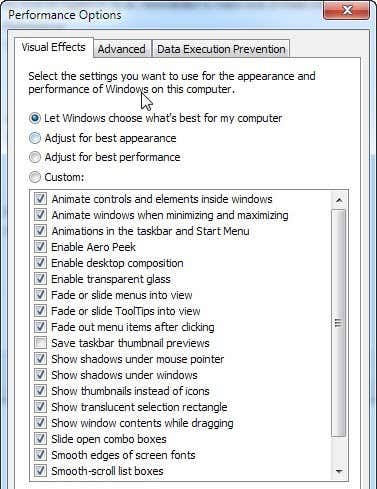
The default setting in Windows is Let Windows choose what’s best for my computer, and if your computer is too slow, Windows should automatically choose Adjust for best performance, but unless you are running an eMachine, there is no way Windows is going to choose that option! Anyway, as you can see from the list, you can also manually uncheck items one by one, which allows you to keep some of your favorite effects, but not everything.
Frankly, if you only like those nice buttons and glossy windows, but don’t really care for fading menus or sliding combo boxes, then go ahead and uncheck everything except the very last option: Use visual styles on windows and buttons. So you’ll still have the newer look, but get rid of the graphics card intensive effects. This will probably be good for anyone who has an integrated video card rather than a dedicated one.
So that’s it for the Visual Effects, not much else you can configure there. If you click on the Advanced tab, you’ll see a few more options under Processor scheduling that you just need to make sure are set correctly.
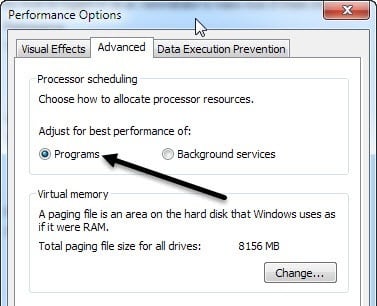
You want to choose Programs for the Adjust for best performance of option. Unless you are running your computer as a web server, ftp server, gaming server or some other kind of server off your machine, then you should always have Programs selected. This will ensure that programs will get higher priority for the processor and the RAM than Windows services.

