
Hint: Don't delete the SoftwareDistribution folder

Even though installing updates in Windows is an easy process, the mechanism in the background that manages it all is fairly complicated. There is also a lot of misinformation on the Internet about how to deal with problems relating to Windows Update.
One of the biggest misconceptions is that all Windows updates can be installed at once by simply deleting the SoftwareDistribution folder stored in C:\Windows. This is completely wrong. Yes, you might save some space (anywhere from 500 MB to several GB’s), but deleting the folder will not remove any installed update.
Table of Contents
In addition it’s a bad idea to delete the SoftwareDistribution folder unless it is absolutely required. There is a subfolder called DataStore that has a large database of all the Windows Updates available. This database will probably be a couple of hundred MBs in size. Deleting this database simply removes the Windows Update history for the computer.
To prove this to myself, I did a test. I opened Control Panel, clicked on Windows Update and then clicked on View Update History in the left hand menu.
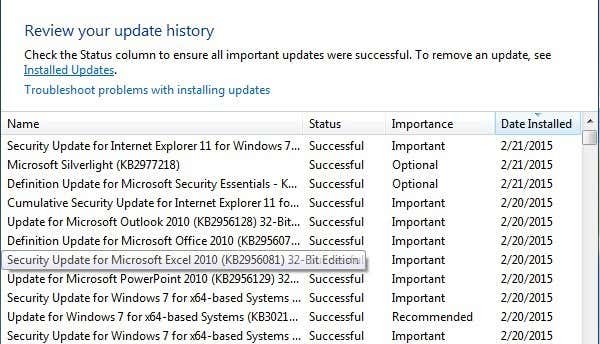
This screen just gives you a full list of installed updates with the Status, Importance and Date Installed. When we delete the SoftwareDistribution folder, this dialog will be completely empty as if you have never installed any updates. Before I show you that, click on the Installed Updates link at the top where it tells you how to remove an update.
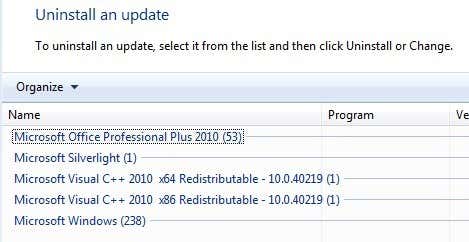
As you can see, I have a couple of hundreds updates currently installed for Office, Windows, Silverlight, etc. Now if you follow the instructions below for deleting the folder, you can go back to View Update History dialog and you will see it’s now empty.
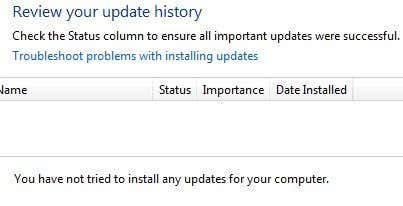
However, if you click on Installed Updates again, you will see that all the updates that were listed before and still listed there. This is because we simply deleted the log history of the updates and not the actual updates.
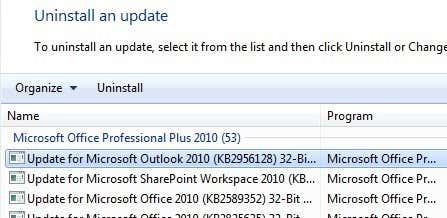
This dialog is where you can actually uninstall an update, but only one at a time. Simply click on an update and then click Uninstall. Unfortunately, there is no way to remove all updates at once unless you use System Restore.
If you use System Restore and restore the computer to a previous restore point, any updates that were installed after that restore point will be gone. To remove all updates, though, you would need a restore point created right after the OS was installed. Even if a restore point was created at that point, older ones normally get deleted over time to make space for newer restore points.
Still, if you have a lot of space allocated to System Restore, you might be able to roll back a couple months worth of updates at once.
Once you delete the contents of the folder, you will need to revisit Windows Update via Control Panel and check for updates. The entire database will be built from scratch and you may notice that Windows shows Checking for updates for a very long time. This is because a list of every update applicable to the OS has to be downloaded again and then compared to the updates currently installed on the system.
Delete SoftwareDistribution Folder
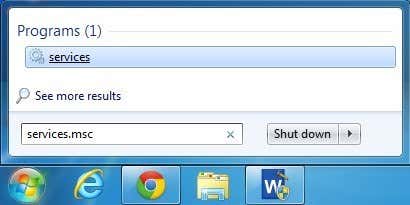
In order to remove this folder, you first have to stop the Windows Update and BITS services in Windows. To do this, click on Start and type in services.msc into the search box.
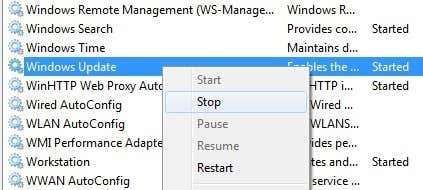
Next, right-click on the Windows Update service and click on Stop. Do the same thing for the Background Intelligent Transfer Service (BITS) service too.
Now navigate to the following folder shown below and you will see several folders listed there. The main ones that we will talk about are Downloads and DataStore.
C:\Windows\SoftwareDistribution
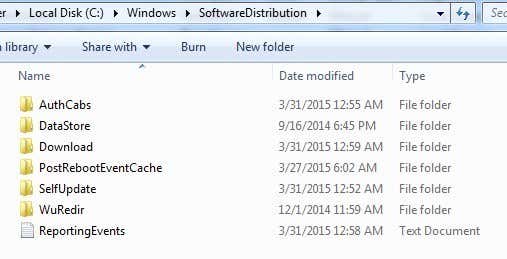
If you are trying to regain hard drive space only, then you should only delete the contents of the Download folder, though in theory this should not really be necessary. The Download folder actually holds all the updates that have been downloaded, but not yet installed. Once they are installed, the updates are removed within 10 days. So theoretically, that folder should shrink in size soon after you have installed all the Windows updates.
The DataStore folder contains the database with the full Windows update history for the computer. Once it is deleted, the update history dialog will be blank like I had shown above, but all your updates will still remain. You should really never delete the DataStore folder unless you are told to do so or if Windows Update is completely corrupt and misconfigured.
Note that you may not be able to delete certain folders and the ReportingEvents file. In the case where you can’t delete a folder, just open the folder and delete all the contents inside. For me, I got an error when trying to delete the DataStore folder, so I just went inside the folder and deleted the database file and all the other files in the folder.
Check for Windows Updates
If you did remove the SoftwareDistribution folder, you will want to go to Windows Update again to check for updates. It will show that you have never perform a check for updates since the update history is now gone.
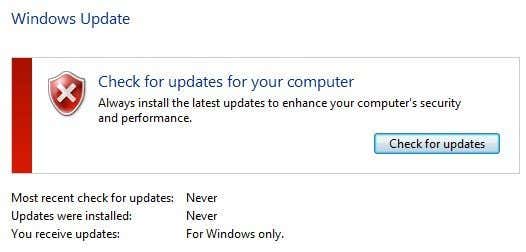
Click the Check for updates button and be prepared to wait a while as the database is being recreated.
Conclusion
So the main point here is that you cannot really get rid of all Windows Updates at once unless you have a really old restore point saved on the system. Secondly, you should only delete the Downloads folder in the SoftwareDistribution folder if you are looking to save space or simply install all the latest updates and wait 10 days to see if they are removed automatically.
Thirdly, you should only delete the DataStore folder if something is really wrong with Windows Update like not showing any new updates for several months, etc. Hopefully, this gives you a better understanding of how Windows Update works and how the files are stored. If you have any questions, post a comment. Enjoy!

