
Not too complicated but depends on which version you are using

Don’t you hate it when need to adjust the volume on your computer only to find that the icon is missing from your taskbar? Here’s a quick tip that I thought I would write since it happens to me all the time! The process for getting back your volume icon is not very complicated, so here it goes! It does, however, differ depending on what operating system you’re running. In this article, I’ll mention Windows XP and Windows 7/8.
Windows XP Volume Icon
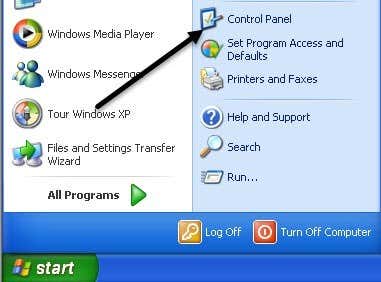
First, click on Start and then Control Panel to get to the computer settings:
Table of Contents
Next, click on the Sounds and Audio Devices icon in the Control Panel. If you don’t see the icon, you may be in Category View. Switch to Classic View by clicking the first option at the top left.
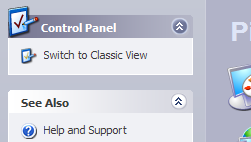
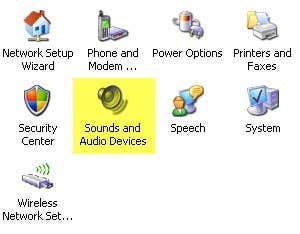
Personally, I like Classic View better since it’s easier to get to what you want quickly. Once you open the dialog, you should already be on the Volume tab.
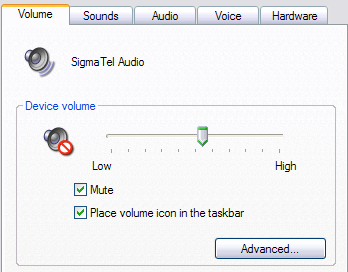
You’ll notice the “Place volume icon in the taskbar” option is either checked or unchecked. If it’s already checked and the icon is not showing up, you need to uncheck the box, and then click Apply. Re-check the box and then click Apply again. Now your icon should appear in the taskbar.

Windows 7/8 Volume Icon
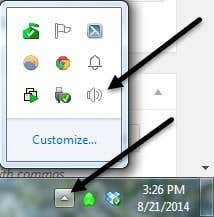
In Windows 7 and Windows 8, the taskbar got a huge revamp and so the process is completely different. Also, in Windows 7/8, taskbar icons can now be combined. This is to basically save space and make your taskbar look less cluttered. It’s nice, but your volume icon may actually just be in the grouped icons rather than it’s own icon on the taskbar, so make sure to check that first. You can always drag the icon out back onto the main section of the taskbar.
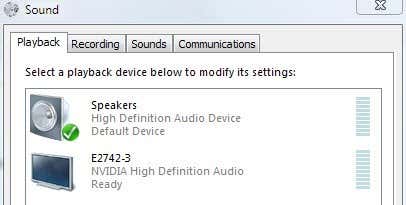
If you go to the Control Panel and click on Sounds in Windows 7/8, you won’t see any checkbox for adding the icon to the taskbar, but instead all the audio inputs and outputs on your system.
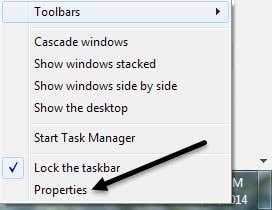
This actually makes sense because the taskbar icon should be controlled by the taskbar settings. In Windows 7/8, to hide or view the volume icon, you need to customize the taskbar. To do that, you simply right-click anywhere on the taskbar and choose Properties.
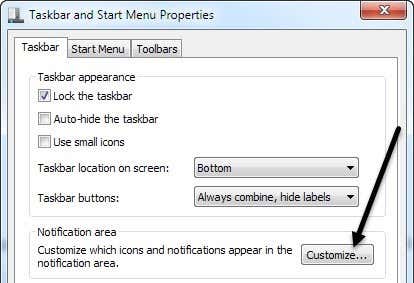
Now, you need to click on the Customize button under Notification area.
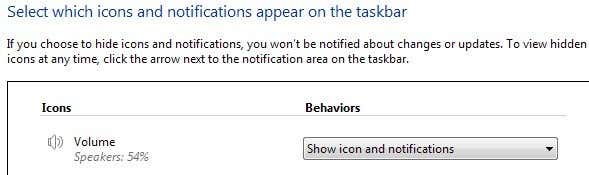
In the Notification Area Icons dialog box, there are two things you have to check. First, make sure the volume icon behavior is set to Show icon and notifications.
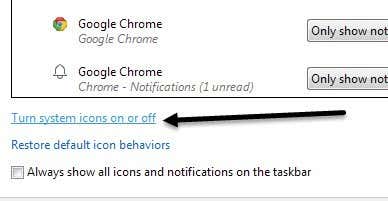
Then, towards the bottom of the screen, go ahead and click on Turn system icons on or off.
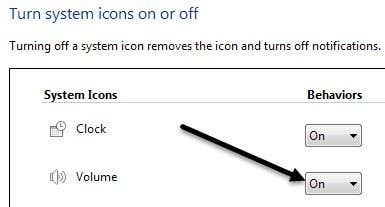
Make sure the volume icon is set to On.
That’s it! Sometimes this happens a lot, especially after you restart your computer or log off. If the sound icon keeps disappearing over and over again, you need to update the driver for your sound card. You can do this by going to the computer manufacturers web site and downloading it from there, i.e. Dell support, etc. Any questions, post a comment. Enjoy!

