How to change the drive letter in Windows XP for an external USB stick or hard drive

Posted on July 13, 2007 at 6:54 am

This is a guide on how to change a drive letter in Windows XP for an external device. Here’s a common problem that I have seen: Plug a USB flash drive into your computer and it’s says ready to use, but for some reason nothing shows up in the list of drives. Take it out, plug it back in and still nothing shows up!!! What the heck is the problem? Well, it could be several things, but the most common issue is that the drive letter Windows is trying to assign to your device is already taken by some other drive or maybe mapped to a network drive.

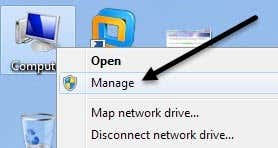
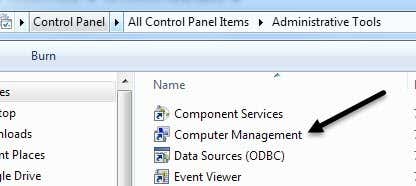
Sadly, Windows XP does not figure this out itself (which is should) and your drive is basically lost in la-la land somewhere. In order to fix it, we need to go to Computer Management and change the drive letter there manually. There are two ways to get to the Computer Management dialog in Windows, one through Control Panel and the second by right-clicking My Computer and choosing Manage.


Right-click My Computer

Computer Management in Administrative Tools

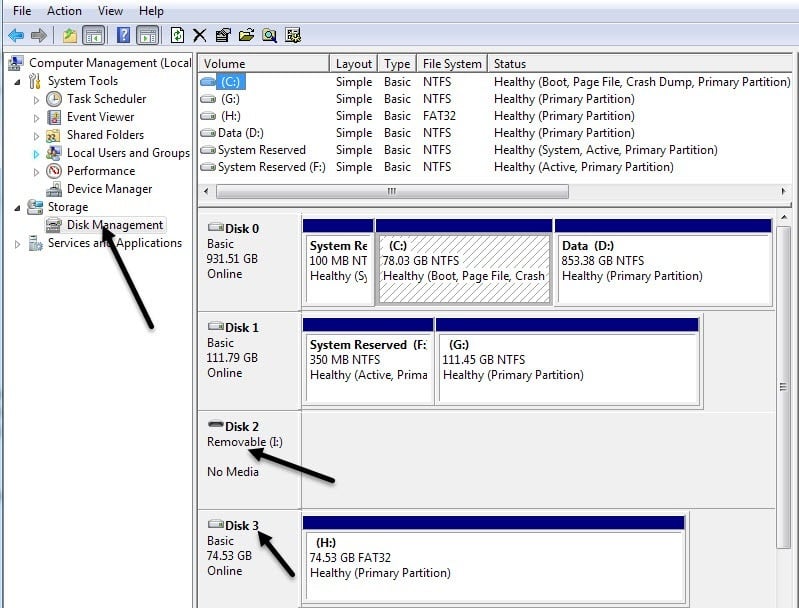
Click on Disk Management under the Storage section and the right side will show you all of the current drives and partitions on your drive. If you don’t know what that means, don’t worry, just find the drive you are looking for in the graphs at the bottom. They are usually named Disk 0, Disk 1, CD-ROM, CD-ROM1, etc. If you’re looking for a USB flash drive, you’ll see the word “Removable” underneath Disk X.

As you can see from my computer, I plugged in a USB flash drive and it’s currently assigned drive letter is F. If you want to change this, right-click in the white space to the right of the drive letter and choose Change Drive Letter and Paths.
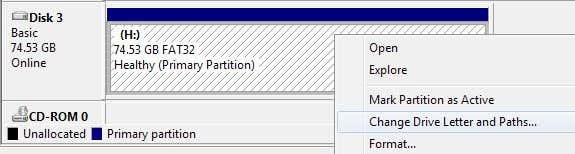
Click the Change button in the dialog box and then pick a new letter from the drop-down list. Just for your info, the Mount in the following NTFS folder option is used if you had right clicked on an external hard drive and instead of giving it a drive letter, you wanted to just have it show up as a folder on your current hard drive. That means you could create a folder in My Documents called pictures that actually points to another hard drive instead of one where all of your My Documents are currently stored.

Click Ok twice and your drive should now have the new letter assigned. Usually, if you USB stick was not showing up before, once you change the letter, it will automatically pop up and ask you what you want to do. And that’s about it! You can also use Disk Management to format disks, determine the type of File System, and see the amount of free space available.

[tags]windows xp, change drive letter, change xp drive letter, windows xp[/tags]

» Filed Under Computer Tips

Related Posts

Comments

40 Responses to “How to change the drive letter in Windows XP for an external USB stick or hard drive”

  1. Shahid said on :

    Can i increase the drive letter of windows to more than Z …like AA BB CC …..


  2. akishore said on :

    Hi Shahid,

    It is currently not possible to have more than 26 drive letters in Windows. However, this does not mean you cannot have more than 26 drives attached to your computer. You can mount a hard drive to an empty folder on your computer using Disk Management.

    However, if you want to connect to more than 26 network shares on a server at once, this is not possible, it must be a new and empty hard disk.

    I will write a post on how to mount an external hard drive to an empty NTFS folder soon.

    Thanks!


  3. HP said on :

    Thanks for the tip.
    However, what do I have to do that this is not necessary each time I reconnect the drive after reboot?
    REgards,
    HP


  4. Dave said on :

    I’ve done everything you’ve said to assign a drive letter to my external USB hard drive. The drive is recognized in Disk Manager and Device Manager, but drive letter assignment is not avail. for the drive (though it is available for the internal drives). I’m running Vista, and this problem arose only after reinstalling the OS. Thanks for your help, if possible.


  5. LAKEISHA said on :

    I REALLY REALLY NEED HELP. I did what it said above about the flash drive and disk management and it does not give me the option to change the drive letter at all. I see my “c” or hardrive, i see my “d” drive or cd/drive and then i see one that says disk 0 which i am assuming is my flash drive because when i put it in the usb port it does not give me that usual “removable e,f,g,h” etc. I followed the directions above and when i right click on it, it only gives me properties or help unlike the other two drives it actually says change drive letter. PLEASE PLEASE HELP ME. I have some important documents on the flash drive and i really need it to open up. thanks so much


  6. akishore said on :

    HP, once you assign the letter to the USB drive the first time, it will show up automatically even when you reboot.

    Daniel & Lakeisha – If Windows is not allowing you to change the drive letter, try out a USB drive letter changing program like USBDLM here http://www.uwe-sieber.de/usbdlm_e.html. It’s freeware for personal use.


  7. CH said on :

    Thanks…


  8. Vladimir said on :

    In windows XP, when I put a USB drive, XP tries to map the drive to letter F:. But F: is used to map a network. In windows 2000 the drive is maped to the next free drive.

    There is some configuration to make in xp to work like Win 2000?


  9. akishore said on :

    Vladimir, you have to follow the above mentioned steps to change the drive letter manually in Windows XP for your USB drive! It’s very annoying, but that’s the only way in your case.


  10. Jeremy Harris said on :

    Thanks for the tip! The included screenshots made the tutorial a breeze.


  11. Jeremy Harris said on :

    oops…last email didn’t contain correct URL to website.


  12. George said on :

    Thanks so much, i unplugged my external harddrive which was in location (E:) but when i plugged it back in it was in (F:), which meant none of music played because the paths were to (E:), anyway its all sorted, thanks again!


  13. Lazarus Arguelles said on :

    My CD Drive Letter (E) and my Hard Drive Letter (I) have switched and now the letter (I) is not an option. I change the CD Drive back to Letter (E) but when I go to do the same for my Hard Drive Letter (I) is not an option.


  14. Royce said on :

    worked just as you said. Thanks!


  15. chunhua said on :

    Hi there,

    I have a 500gb WD external hard drive with three partitions (drives, NTFS). The operating system could show all partitions (drive letters) but I could not access to one of the partition. When I click on this drive letter, the popup said “F:\is not accessible. the file or directory is corrupted and ureadable”.
    I tried to reboot with this external hard drive and it seemed no problem with the hard drive. I check the hard drive status using the Administration tool\Computer management. It showed that this partition could not be accessed is healthy.
    I also tried to hook this hard drive to another computer with Windows XP installed but I met the same problem.
    Wonder what I can do to read\access this partition.

    Thanks!

    Chunhua


  16. Bert said on :

    “In windows XP, when I put a USB drive, XP tries to map the drive to letter F:. But F: is used to map a network. In windows 2000 the drive is maped to the next free drive.”

    Win2000 assigns the next available letter to a Mapped Network drive. By default WinXP starts assigning with Z: and works back up the alphabet. The assigned letter can be changed in Disk Management but it’s my experience that reconnecting to a Mapped drive usually overrides it. [NAS/Network Attached Storage is a different deal.]


  17. Chris said on :

    Interesting problems I have had – to save me writing more please go peek here -

    http://www.computerhope.com/fo.....4.new.html

    Right as of now I seem to have exhausted my options!


  18. Alessandro said on :

    I used to connect my usb drive and this would be mapped as drive E:. At the same time, I have a a network drive mapped

    as F:.

    But one day I connected two usb drives in my computer, being my one the last one to be connected. As the drive E: was

    already assigned to the 1st usb drive connected, Windows XP tried to map my usb drive as F:, but this was already

    assigned to the network drive.

    Result: I could only access my usb drive after disconnecting the network drive.

    Even after diconnecting the two usb drives, and reeboting the computer, Windows XP would recognize my usb drive as

    drive F: “forever”.

    Unfortunately, I don´t have administrator privilegies to apply the drive letter assignement change as described above. So, I found out a new tricky way to put my USB drive back to letter E:.

    First: have other 2 USB drives, that would connect as drive E: in your computer. Let´s call them as U1 and U2. In addition, your USB drive that you want as drive E:, let´s call U3.

    Connect U1 first, as it should map as drive E:. Connect U2, and it should try to connect as drive F:, the next free letter, but probably you can´t access it because of the mapped network drive. It doesn´t matter if you have disconnected the network drive or not for this trick. What matters now is that U1 is recognized by your computer as drive E: and U2 as drive F:. Now U2 should always connect as drive F:, like your U3.

    Now unplug both U1 and U2. Plug back U2. It should connect as drive F:. Connect U3. It is going to try to connect as drive F:, but it is already being used by U2, so it will be remapped to drive E:, and voilá, you have your U3 mapped back to drive E: “forever”.


  19. Jim Burch said on :

    Thanks! Very helpful.–jb


  20. Roger said on :

    The OS seemed to see my new HDD but would not assign it a drive letter. Your post led me to the My Computer / Manage pressure point and I found the drive was not initialized. Right click let me do the init, assign a letter and then format it. Thanks VERY much!


  21. Winrar said on :

    Wow! Thanks so much for that, its been driving me CRAZY for ages! :D


  22. Aone415 said on :

    THANKS SOOOOOOOOOO MUCH… brilliant tutorial!


  23. Jericho Escobar said on :

    Hello,

    I also recently had the same problem as what was described in this and several other posts. First my setup:

    6 external hard drives w/c was composed of:

    4 500GB acomdata usb 2.0 external drives
    1 300GB maxtor usb 2.0 external drive
    1 1TB buffalo terrastation 2.0 external drive (new)

    all connected to a Vakoss 7 port USB 2.0 hub

    The problem started when I installed the new 1TB terrastation drive. At first it installed on E: (which was the first available drive letter). So far so good. Then I attempted to re-format it (it was formatted FAT out of the box). Along the way, I booted up one of the other drives (BAD IDEA) and from that point on the terrastation drive disappeared.

    Well to make a long story short, I ended up doing the following:

    1. Power down all the external USB HD Drives
    2. Disconnect all the usb drives from the hub
    3. While the usb hub is still connected to the computer, go to Windows Device Manager
    Right-click on My Computer > Properties > click on Hardware tab > Device Manager
    4. Find Universal Serial Bus controllers
    5. I found my device called Generic USB Hub and I right-clicked and uninstall
    6. Then I reboot the computer
    7. After the computer rebooted, I powered on the hub and then connected the hub to the computer
    8. Windows automatically detects the hub and install all the necessary drivers

    After windows has installed the hub, the next thing is to attach each of the drives (one at a time) and then assign them to a new drive letter. Because Windows will try to grab the next available letter, it is best to assign them to higher letter drives. So eventually I ended up renaming each of the drives (through Disk Management in Computer Management as described in the blog tutorial above) and assigning them drive letters that correspond to their names

    L: Luffy
    M: Megatron
    N: Nekochan
    O: Optimus
    .. and so on …

    It took a few hours to get everything set up but I got everything working.

    A few more notes:
    * While installing the drives to the hub, sometimes Windows would still fail to recognize the drive. I found out that removing the usb cable from the hub and plugging it into another port would help 9 out of 10 times. That was how I was able to resolve my issues.
    * You might consider always going through Windows’ safely remove hardware feature. There’s a couple of programs out there and doing it that way has also been very helpful for me.

    Your mileage may vary but I hope that helps

    To the author of this guide: THANK YOU!! YOU SAVED MY BACON :-)

    References:
    http://support.microsoft.com/kb/297694 (describes the windows drive problem)
    http://ubuntuforums.org/showthread.php?t=386836 (acomdata)
    http://www.acomdata.com/custom.....pport.html (acomdata)
    http://www.uwe-sieber.de/usbdlm_e.html (usb disk utility)
    http://quick.mixnmojo.com/usb-disk-ejector (usb disk ejector)


  24. Sarah said on :

    I have pretty much the same problem. Problem would be fixed by me changing my new external HD to the letter F:.

    But when I go to do the Disk Management thing, my external drive doesn’t show up. It only shows C: and D:. When I go to My Computer, my external shows up (G:) and within that Computer Management window, if I click Disk Defragmenter, my external shows up.

    Anyone know why this may be happening and anything I can do about it? Really just want to change this dang external drive to F: and be done with it!


  25. Julio said on :

    I have a fat32 300 gigs external drive which my computer detects and list all the properties. The problem is that I cannot see the files, the drive is 200 gigs loaded. I followed your instructions and change the drive letter to “P” but still the same problem. My computer operating system is Windows XP Professional ans it is upgraded regularly.
    Please help.


  26. jay said on :

    thank you man…


  27. Esa king esa? said on :

    thank you ! you just made my day better. =)


  28. Trey said on :

    Thank you!


  29. David said on :

    Hello,

    I have a WD 800JB external hard drive, which USED to work fine with my laptop. Now, it seems that it is not detected- the drivers are installed, but STORAGE does not show the DD, so I cannot even begin to assign a new letter. What might be the problem?

    Thanks,
    David


  30. Berton said on :

    Can the External USB HDD be recognized on another computer? Do the USB ports work with other devices? Does the HDD show in Computer Management, Disk Management section? If so, does it have a drive letter assigned? If not, you may have to assign a letter.


  31. Foivos said on :

    I HAVE A BIG PROBLEM

    When I open the “Disk Management” I do not see anything, not a drive… What to do??? What’s the problem???


  32. JANT said on :

    I have changed the drive letter for the USB (personal jump drive) from F to J. The only other USB is used for my Seagate external HD (mapped as E).

    After I restarted the laptop, the J drive is recognized b/c the Adobe Photoshop Album appears to retrieve any pictures that may be on the drive.

    When I go to My PC, it shows all the drives except the J drive (formerly F) and the E drive (the Seagate). Weird thing is that I know the J drive is there as proof by the Adobe Photoshop Album that appears and shows the source (J as the location of the pictures that it retrieved).

    Q: Why is the J drive not showing (it will also not show sometimes even when the E [Seagate] is not connected.

    HELP!!!!!! I am at my wits-end!

    JANT


  33. Erica said on :

    THANK YOU! Been looking all over to figure how to change the drive!


  34. Jenni said on :

    We have XP. How do I remap my network drive to find an external hard drive from another computer on the network?. Today it was unplugged from the port and now the computer on the network can’t find it. Is remapping what I need to do?

    Thanks


  35. Anna said on :

    Worked like a charm. Thanks for the easy to follow instructions.


  36. Feles Ridens said on :

    Thank you!! I think there is some update to XP sp that changed this.


  37. Jonathan said on :

    Hi I’ve run into a bit of a wall. I am attempting to assign a static drive letter for my flash drive which I use on multiple computers some not my own. How can I set it up so that every computer will read it as the assigned letter without altering the other computers? After searching for hours a few months ago I gave up. Recently I decided to give it another shot, but once again I cant seem to find a way. Any feedback would be wonderful. I used AutoPlayMenu builder to create auto plays for my flash drives. Unfortunately the programs it’s supposed to run don’t, because the drive is not static with different computers. This is not necessarily a debilitating problem, but it sure would look and feel nice if it worked.


  38. Bobby said on :

    Thank you! I have run into this a couple times and this is the first time the letter actually mattered (for scheduled backups).

    Worked perfect, thank you!!


  39. Barak said on :

    Thanks :) works like a charm


  40. Berton said on :

    Jonathon, it probably doesn’t work because many computers are not be set up the same way as others and the drive letter has to be assigned in Disk Management on each computer. Maybe someone could come up with a script for making the change but one would have to be careful not to screw up other computers with it.

    WinXP started the lettering of Networked drives beginning with Z and working back up the alphabet.

    Have you looked into the U3 system for running programs on Thumb/Flash drives? http://www.u3.com/ I haven’t tried it yet but do have it on one drive.


Please post your comments/suggestions!