
Plus how to tell if it's a hardware issue

Do you have trouble getting the Escape key to register on your Windows 11/10 desktop or laptop? There are several reasons why this happens. For example, it could be due to a software glitch, a conflicting operating system setting, or a corrupt keyboard driver.
There’s also the possibility that the ESC key is defective, probably because of dirt, physical damage, or wear and tear from regular use. However, it’s best to work through the fixes that follow before coming to that conclusion.
Table of Contents
1. Use the Keyboard Troubleshooter
Windows 10 and 11 have a dedicated troubleshooting utility that automatically detects and repairs problems specific to keyboards. To run it:
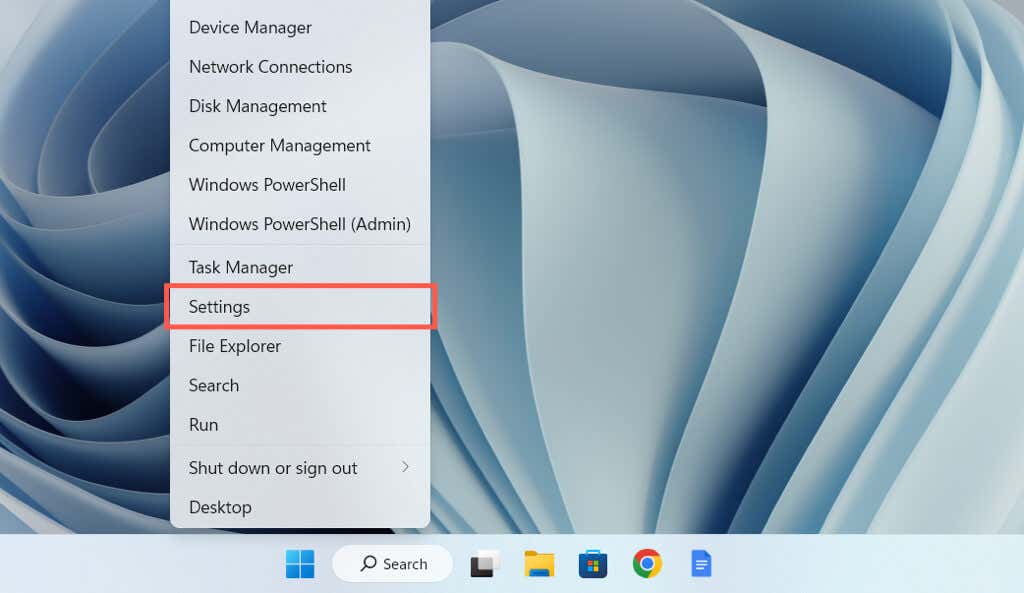
- Right-click the Start button and select Settings.
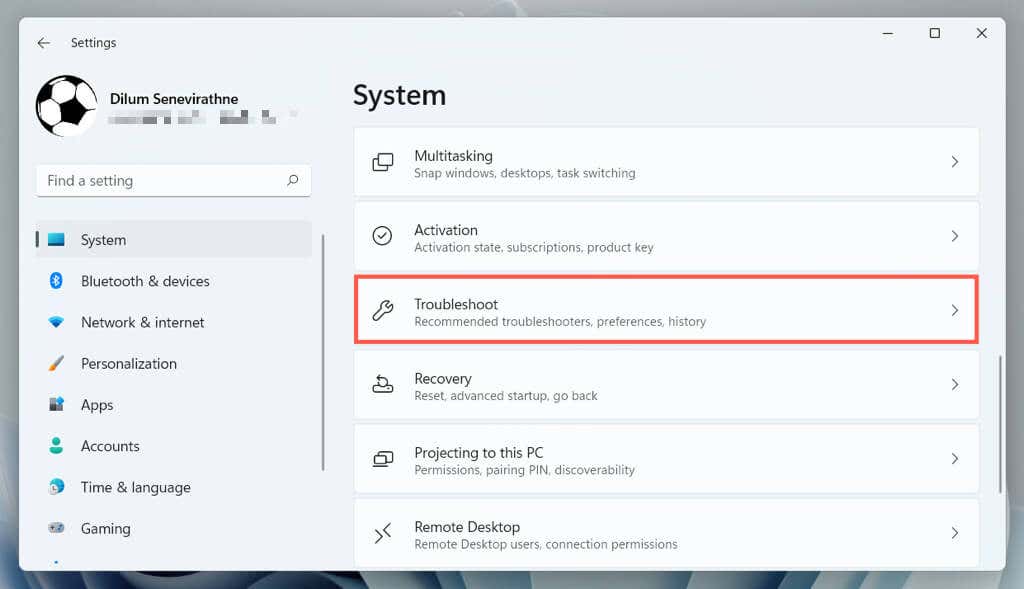
- Go to System > Troubleshoot.
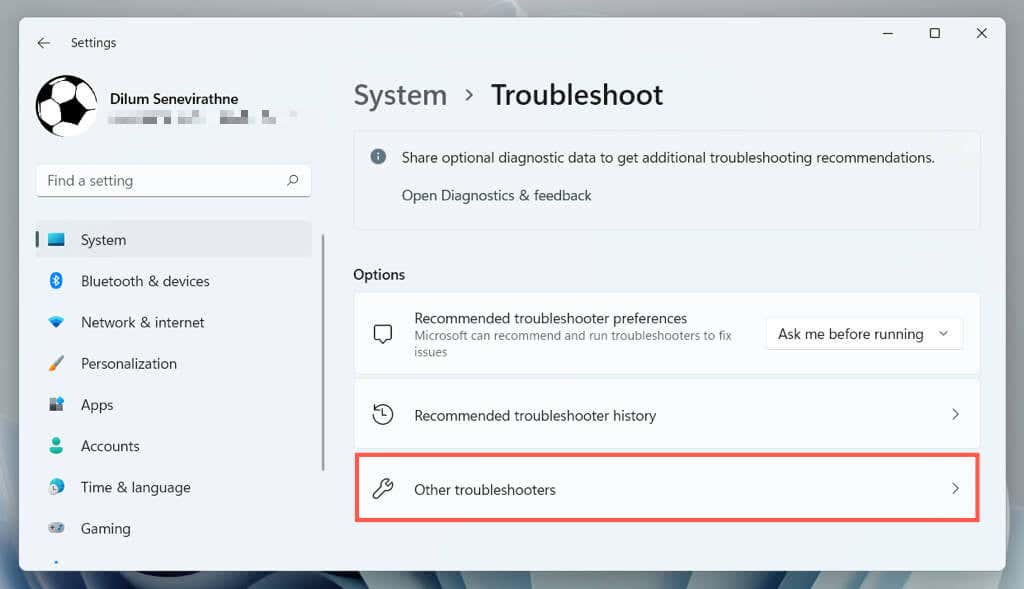
- Select Additional/Other troubleshooters.
- Select Run next to Keyboard.
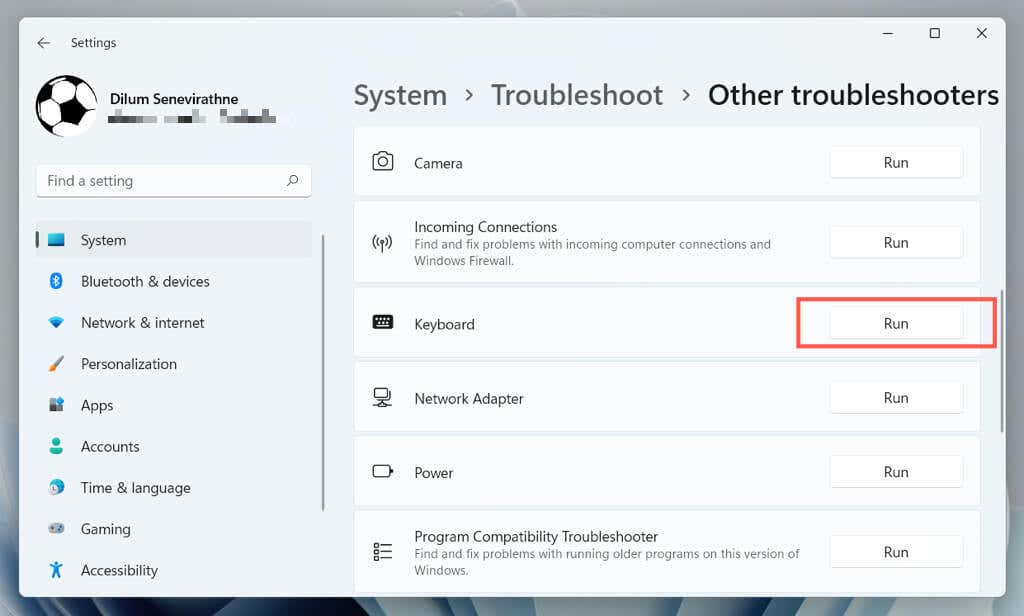
- Follow the on-screen instructions of the Keyboard troubleshooter to fix any issues it detects.
2. Switch USB Ports
USB ports can malfunction and prevent connected devices from working correctly. It’s a good idea to plug the keyboard into a different USB port and check if that fixes the problem. If you use a wireless keyboard, try another port for its wireless receiver.
You should also avoid connecting the keyboard to any USB hubs; instead, plug it directly into a port on the CPU casing.
3. Reboot Your Computer
A computer restart clears temporary operating system data and flushes out the hardware driver cache, resolving various keyboard-related issues.
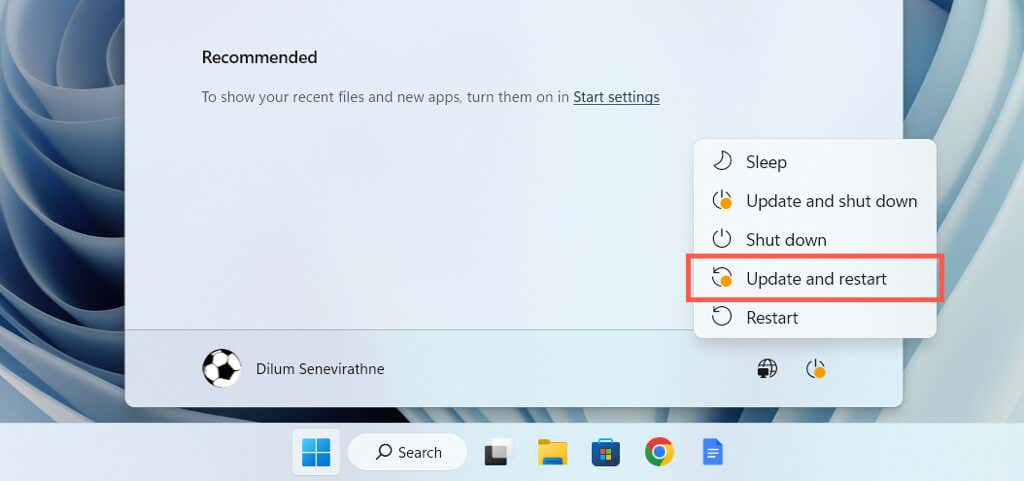
Just open the Start menu and select Power > Restart. If there are any unfinalized Windows updates, pick the Update and restart option.
4. Turn Off Filter Keys
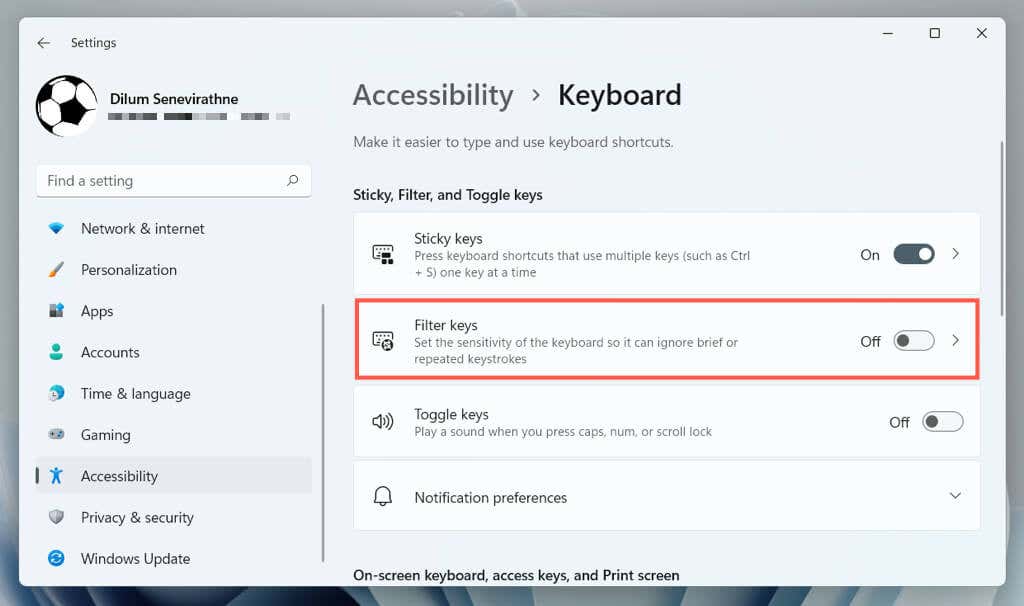
Filter Keys is a built-in accessibility feature in Windows that filters accidental keystrokes but can also result in the ESC key not working. To deactivate it:
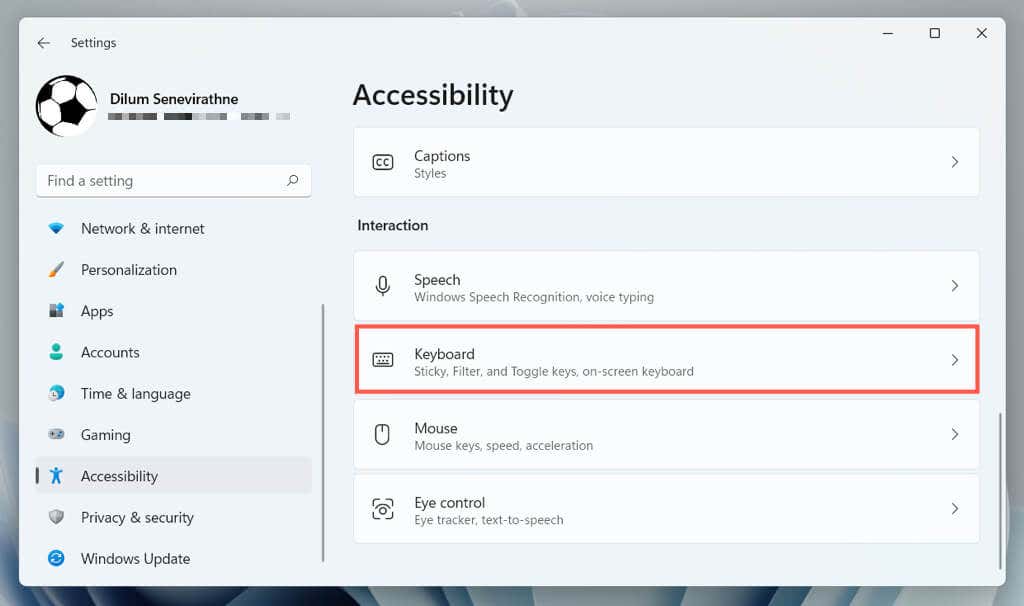
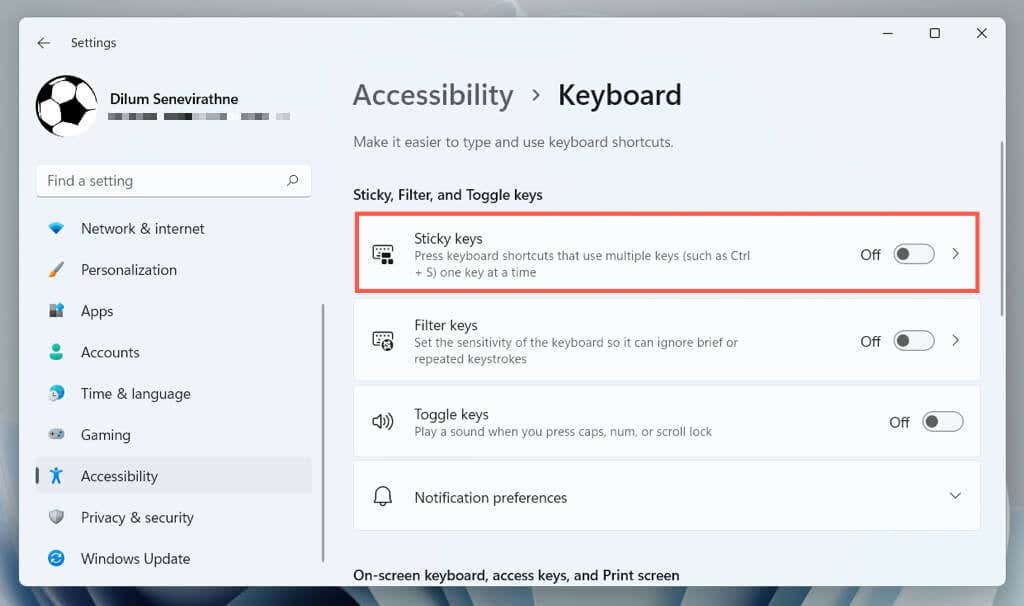
- Open the Windows Settings app and select Accessibility > Keyboard.
- Disable the switch next to Use Filter Keys.
5. Disable Sticky Keys
Sticky Keys is another accessibility feature that activates the Ctrl, Alt, and Shift keys until you press another key. Try disabling it if the Esc key—including others such as the Function keys—responds erratically.
To do that, uncheck the box next to Use Sticky Keys on the same screen above—Settings > Accessibility > Keyboard.
6. Disable Filter Keys and Sticky Keys (Alt Method)
If you have trouble opening the Windows Settings app, you can deactivate Filter Keys and Sticky Keys through the Control Panel on your computer. To do that:
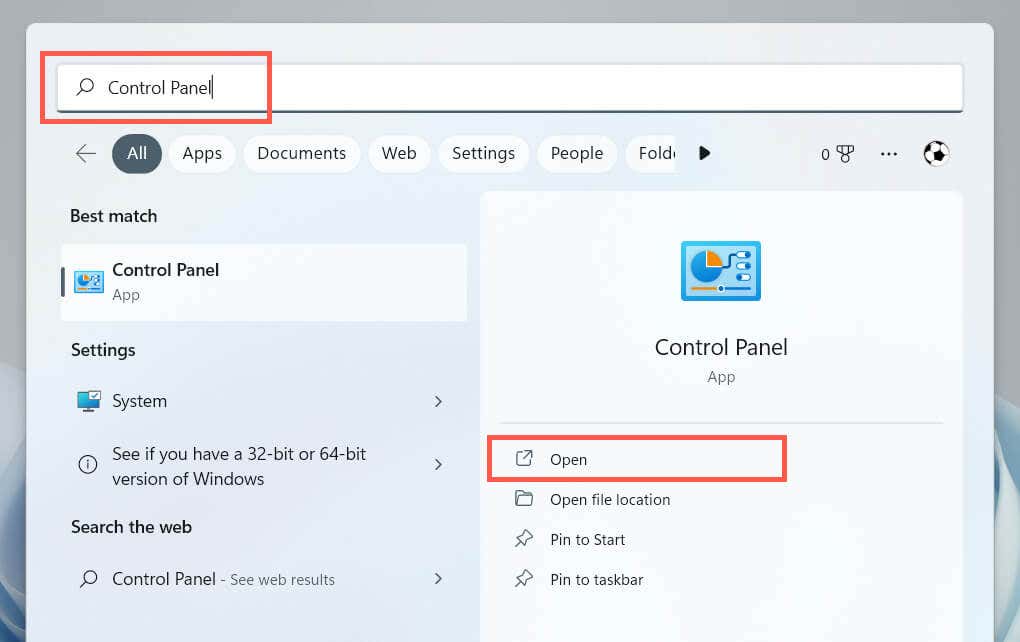
- Open the Start menu, type Control Panel, and select Open.
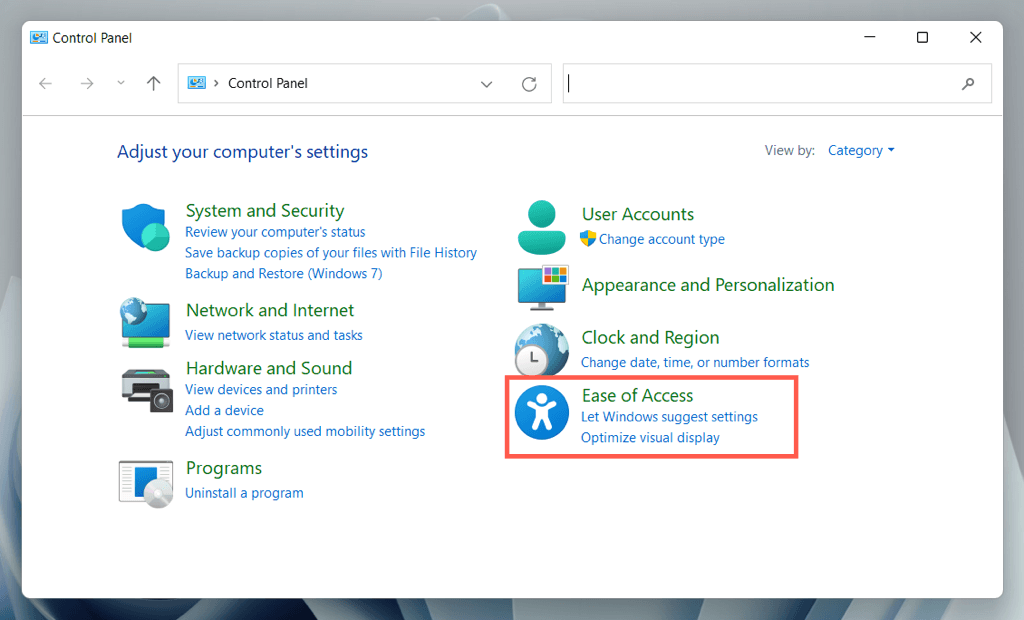
- Select Ease of Access.
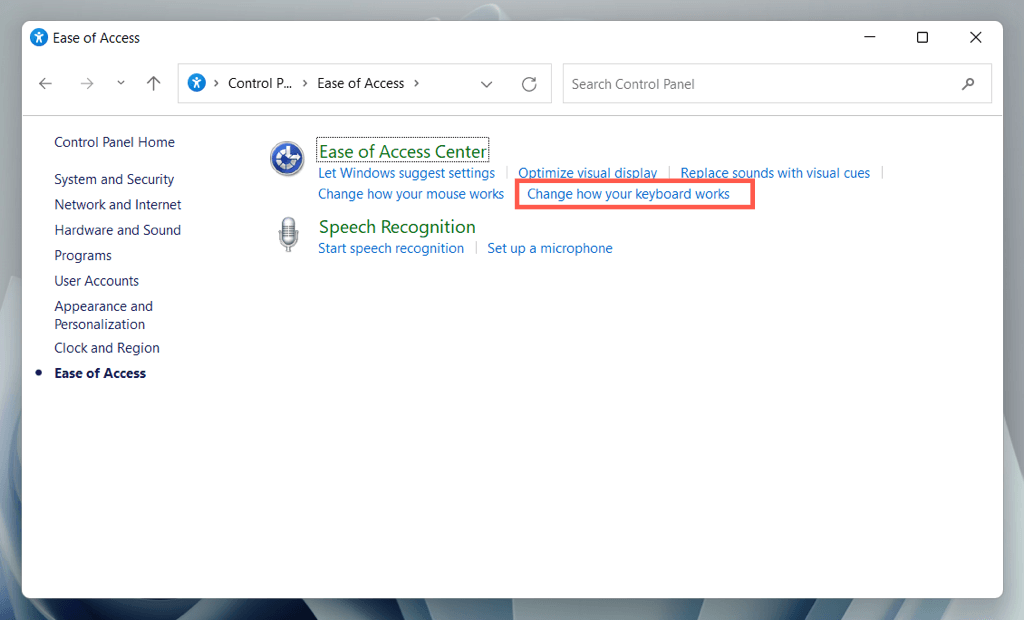
- Select Change how your keyboard works under Ease of Access Center.
- Uncheck the box next to Turn on Filter Keys and Turn on Sticky Keys.

- Select Apply, then OK.
7. Install Keyboard Manufacturer Software
Some keyboards may not function normally unless you download additional drivers and applications—e.g., Logi Options+ for Logitech-branded keyboards. Search the manufacturer’s website, download any available software, and check if that makes a difference.
If you already have, try removing and reinstalling the software. To do that:
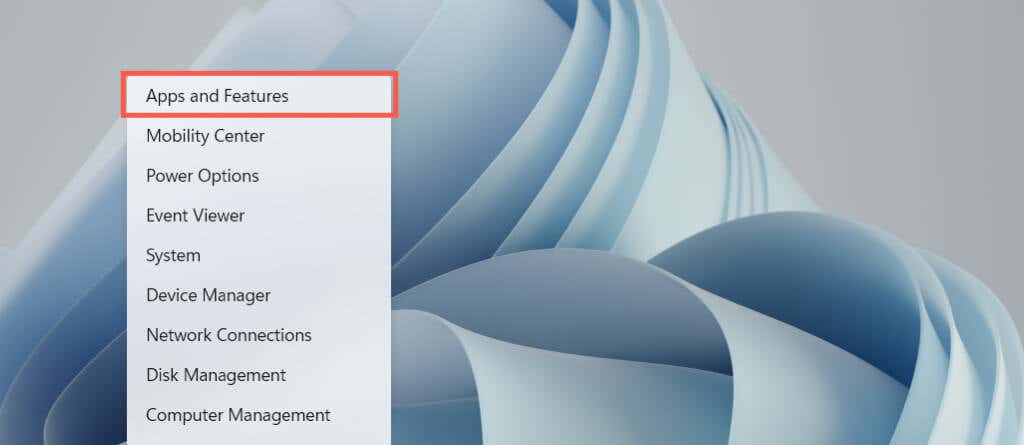
- Right-click the Start button and select Apps and Features.
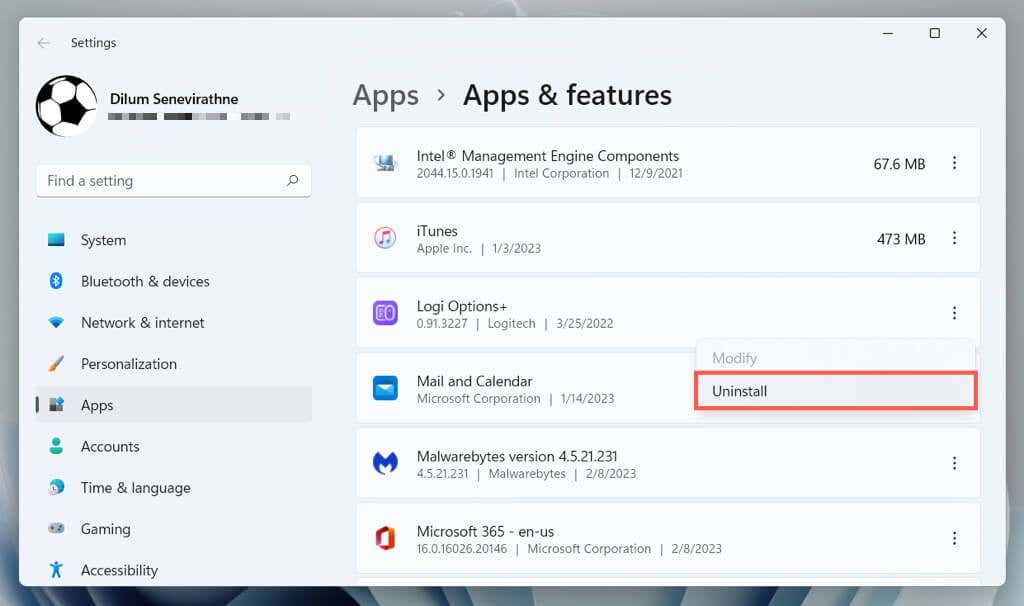
- Select the keyboard software and choose Uninstall.
- Restart your computer, and then download and reinstall the latest version of the keyboard management software from the manufacturer’s website.
8. Check for Malware
Keyboard hijacking is a common attack vector for computer viruses, so the next fix involves checking your computer for malware. Use the built-in Windows Security utility to run an antivirus scan:
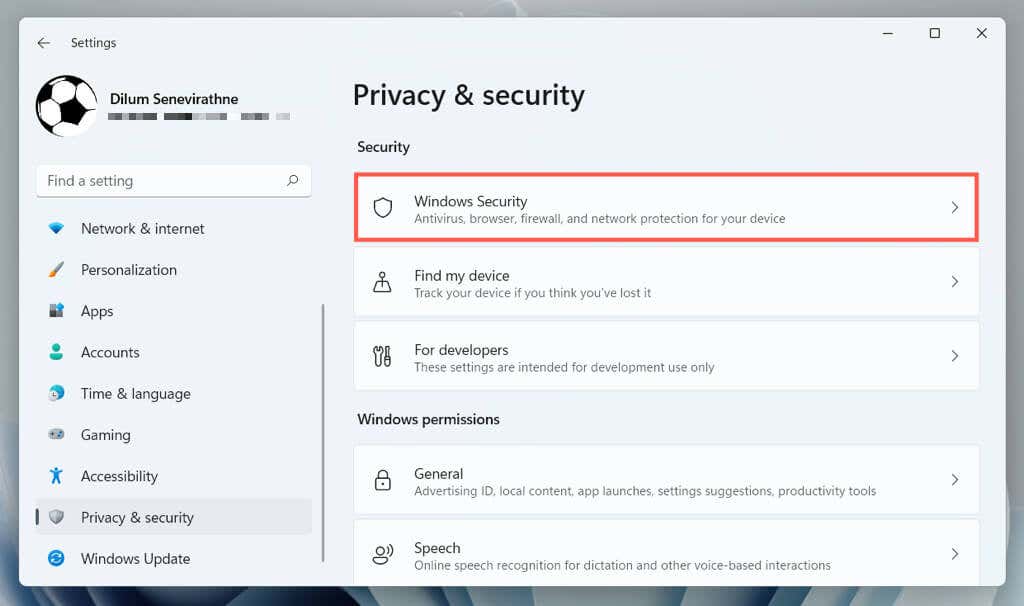
- Open the Settings app and select Privacy & Security/Update & Security > Windows Security.
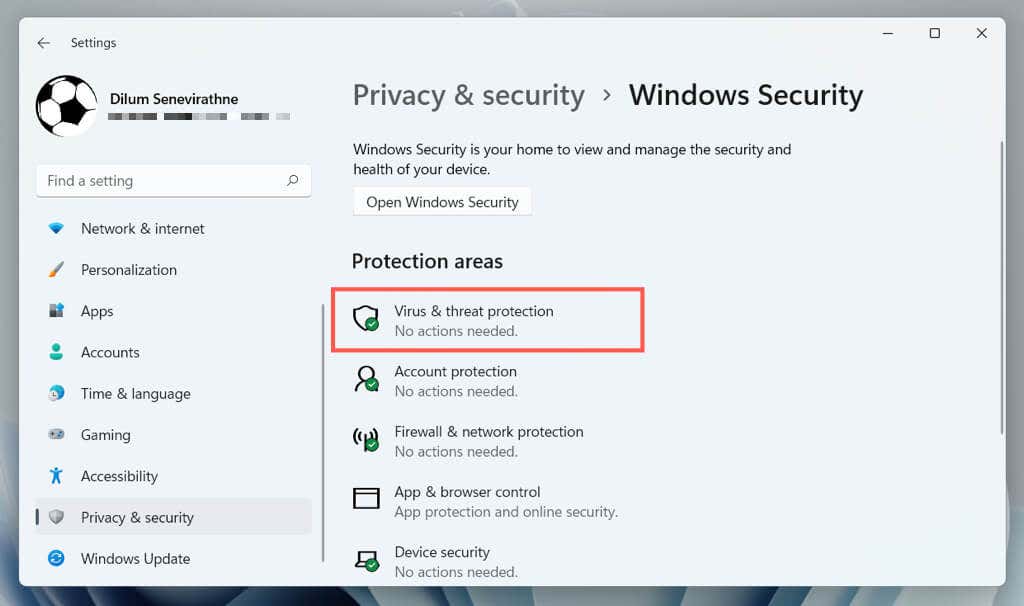
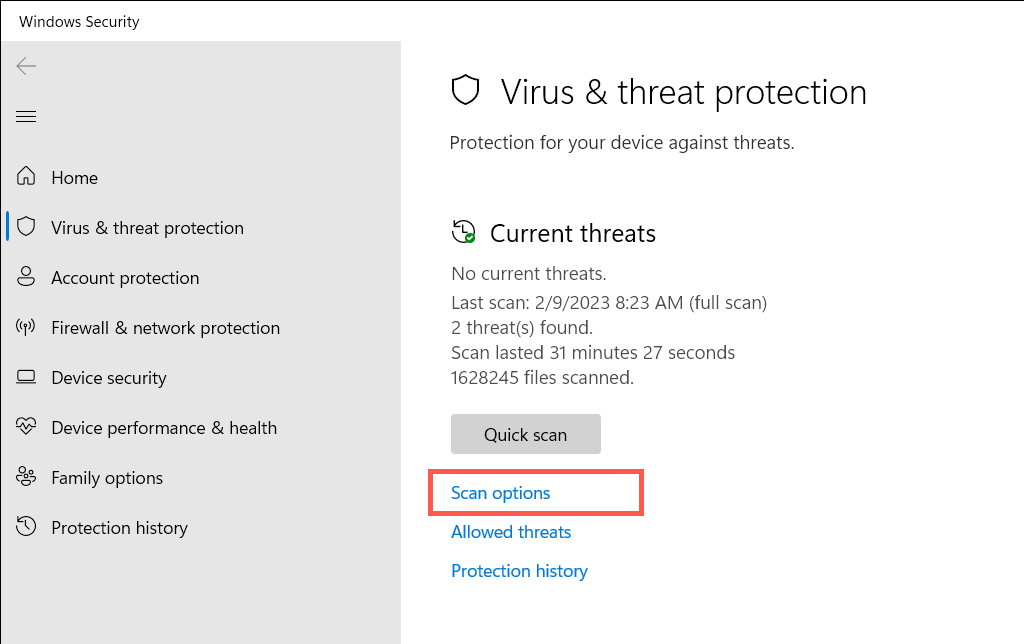
- Select Virus & Threat Protection.
- Select Scan options.
- Select the radio button next to Full Scan.
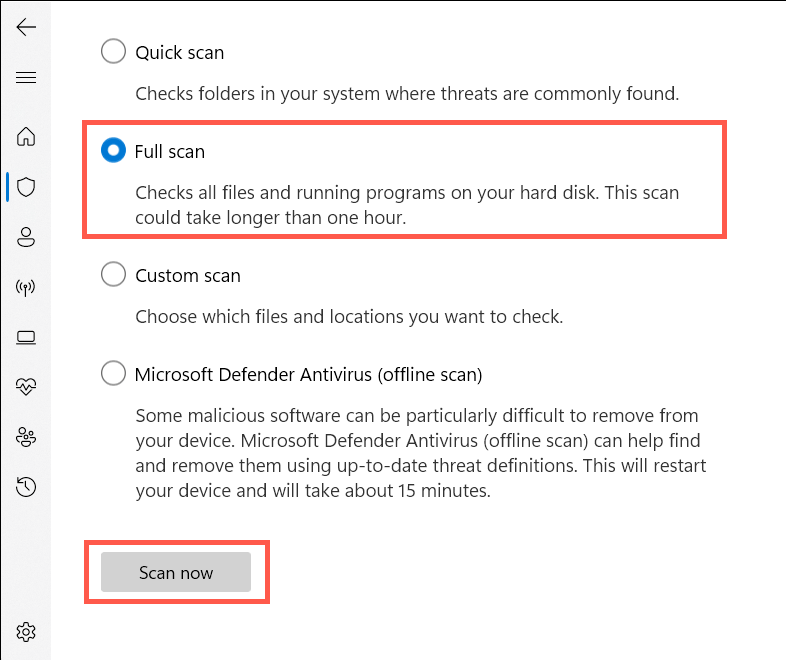
- Select Scan Now.
Follow up with a third-party malware removal utility to scan for additional forms of malware. E.g., the free version of Malwarebytes does an exceptional job detecting and removing trojans, spyware, and keyloggers.
9. Run the Hardware and Devices Troubleshooter
The Hardware and Devices troubleshooter by Microsoft can fix additional keyboard issues that stem from hardware and software conflicts on your computer. To run it:
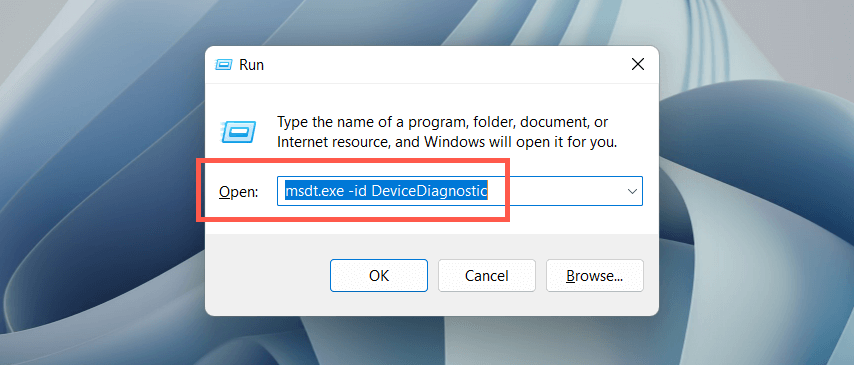
- Press Windows Key + R to open the Run dialog, copy and paste the following into the Search box, and select OK:
msdt.exe -id DeviceDiagnostic
- On the Hardware and Devices troubleshooter that shows up, select Advanced, check the box next to Apply repairs automatically, and choose Next.
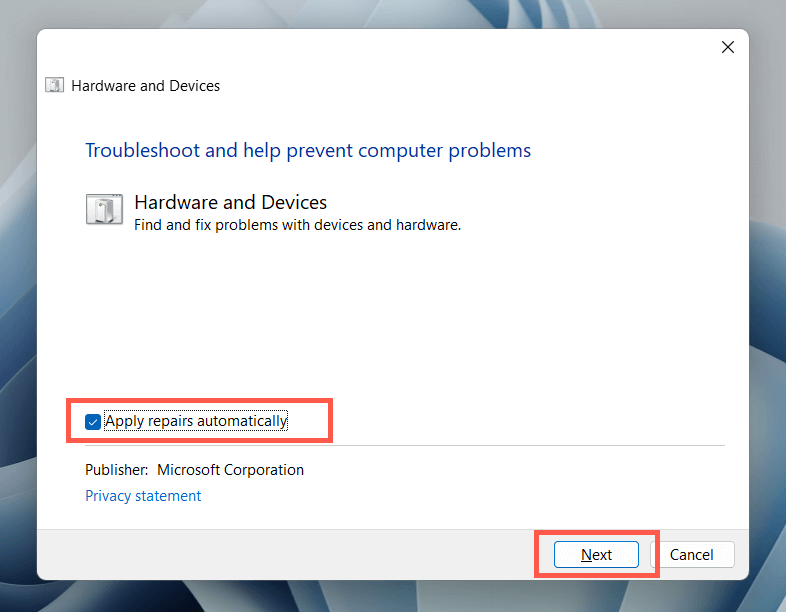
- Follow the on-screen instructions of the Hardware and Devices troubleshooter to fix issues it detects.
10. Update Keyboard Driver
If the problem with the ESC key persists, try updating the keyboard driver to its latest version. To do that:
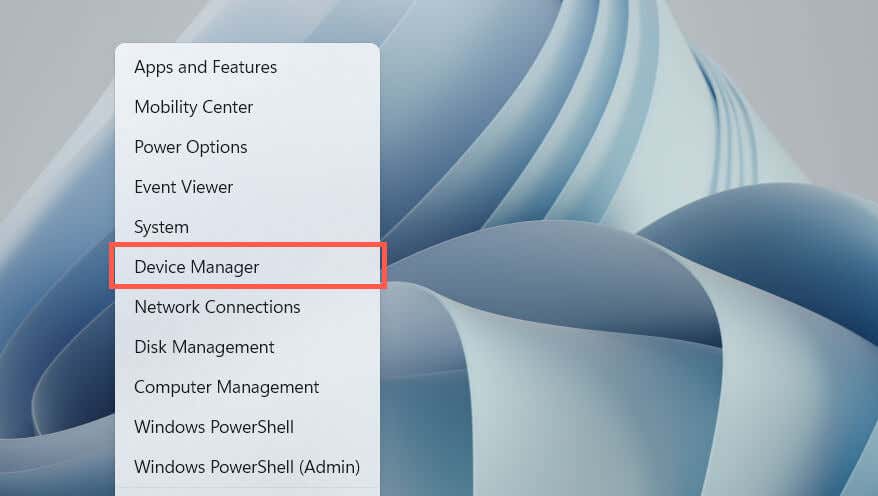
- Right-click the Start menu and select Device Manager.
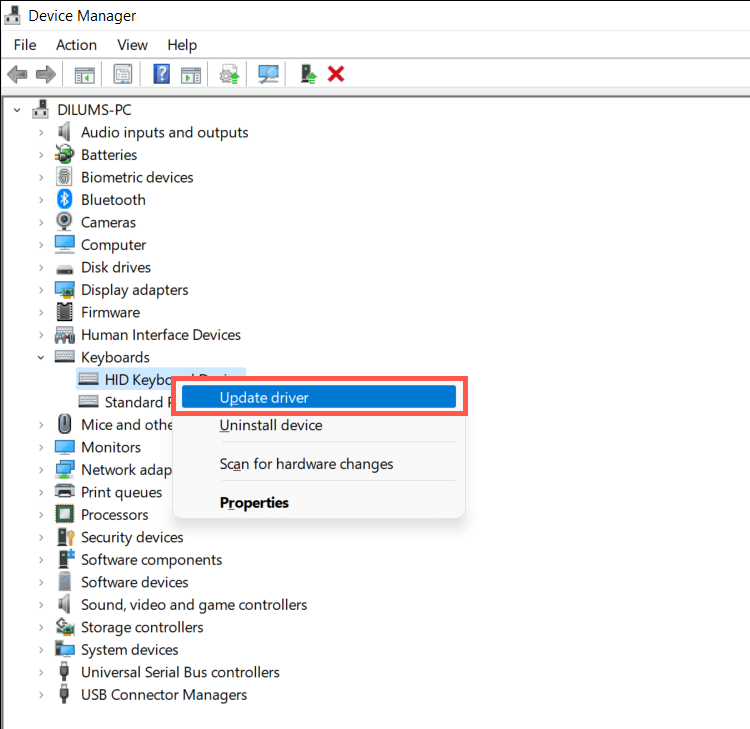
- Expand the Keyboards category, right-click your keyboard driver (e.g., HID Keyboard Device), and select Update driver.
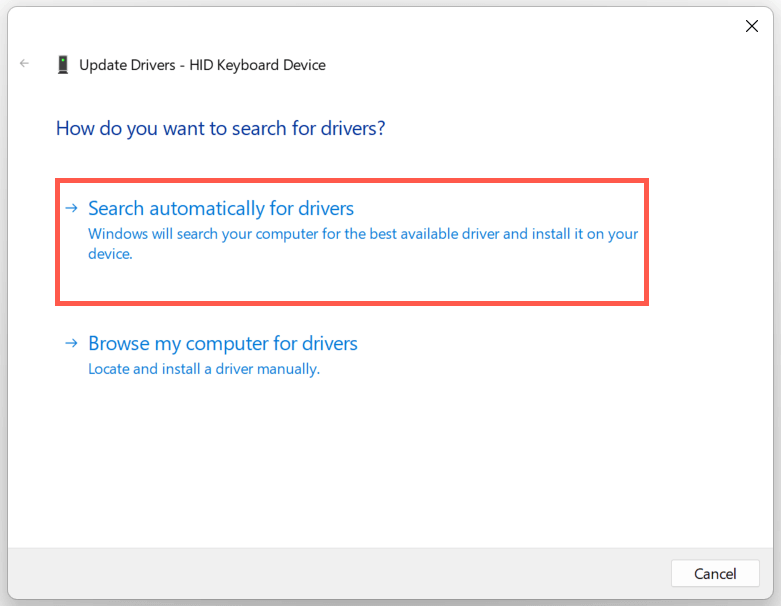
- Select Search automatically for driver.
- Select Search for updated drivers on Windows Update.
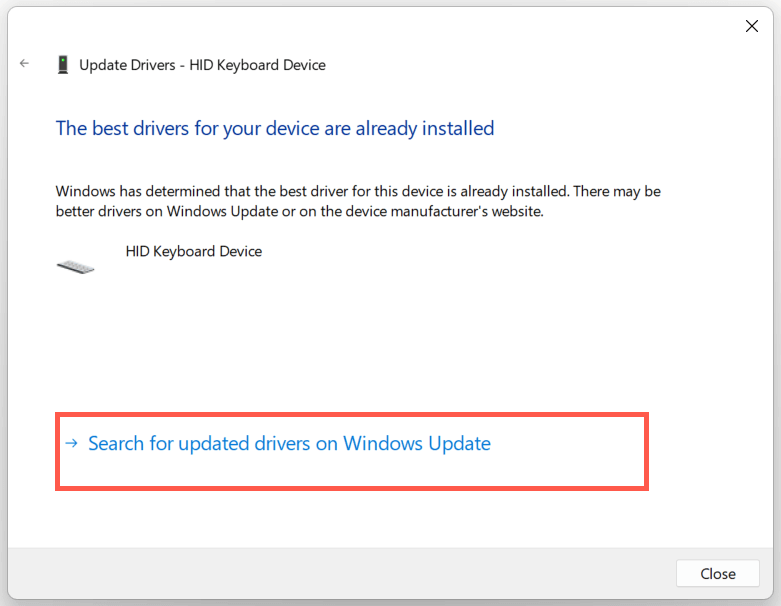
- Install any available keyboard driver updates that Windows Update detects.
11. Reinstall Keyboard Driver
A corrupt keyboard driver is another reason the ESC key does not work in Windows. Remove and reinstall it to fix the problem. To do that:
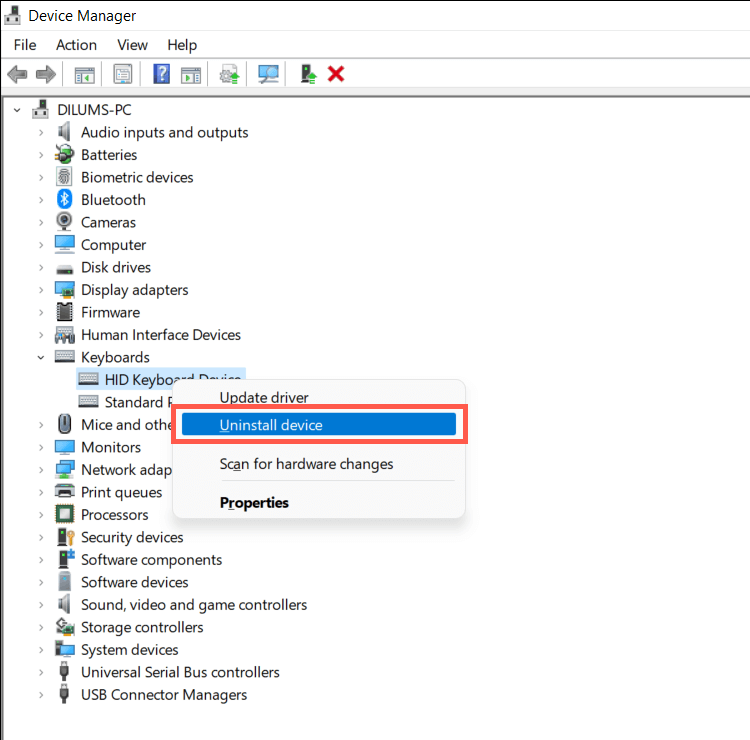
- Right-click your keyboard driver in the Device Manager and select Uninstall device.
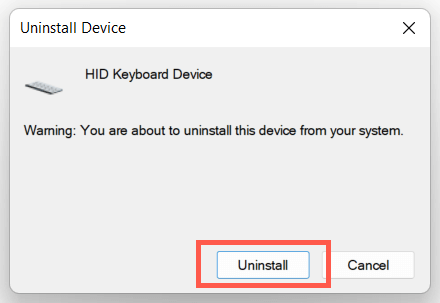
- Select Uninstall on the confirmation pop-up.
- Restart your computer.
Windows should automatically reinstall the keyboard drivers at computer startup. If the keyboard is unresponsive after the reboot, re-open the Device Manager and select Action > Scan for hardware changes on the menu bar.
12. Install Operating System Updates
Updating Windows to its latest version can resolve unexpected keyboard-related issues resulting from software and hardware incompatibilities.
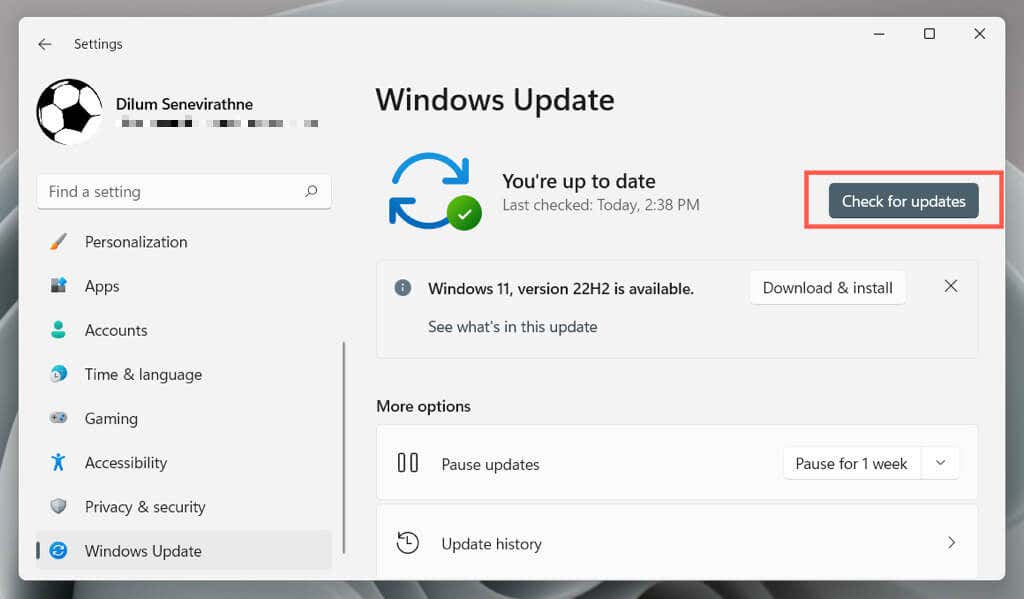
Just open the Settings app, select Windows Update, and choose Check for updates. If Windows Update detects an update, select Download and install to install it.
13. Run an SFC and DISM Scan
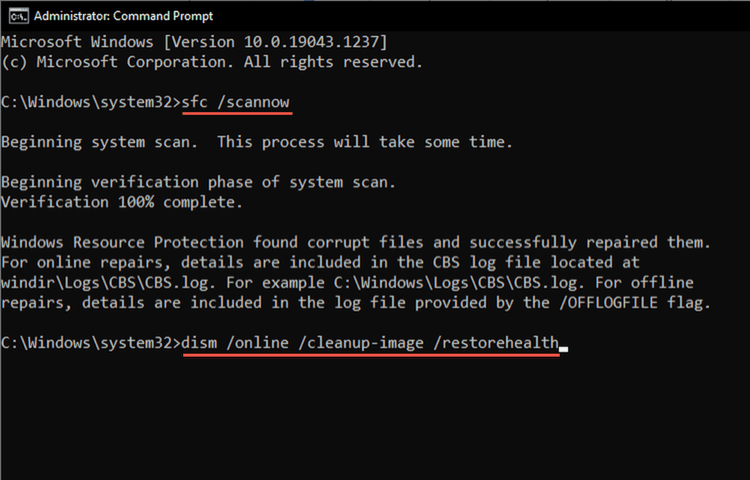
Windows corruption prevents various ESC key-related functions and keyboard shortcuts from working—e.g., opening the Task Manager with the Ctrl–Shift–Esc hotkey. Run the System File Checker and DISM (Deployment Image Servicing and Management) tool to repair the operating system.
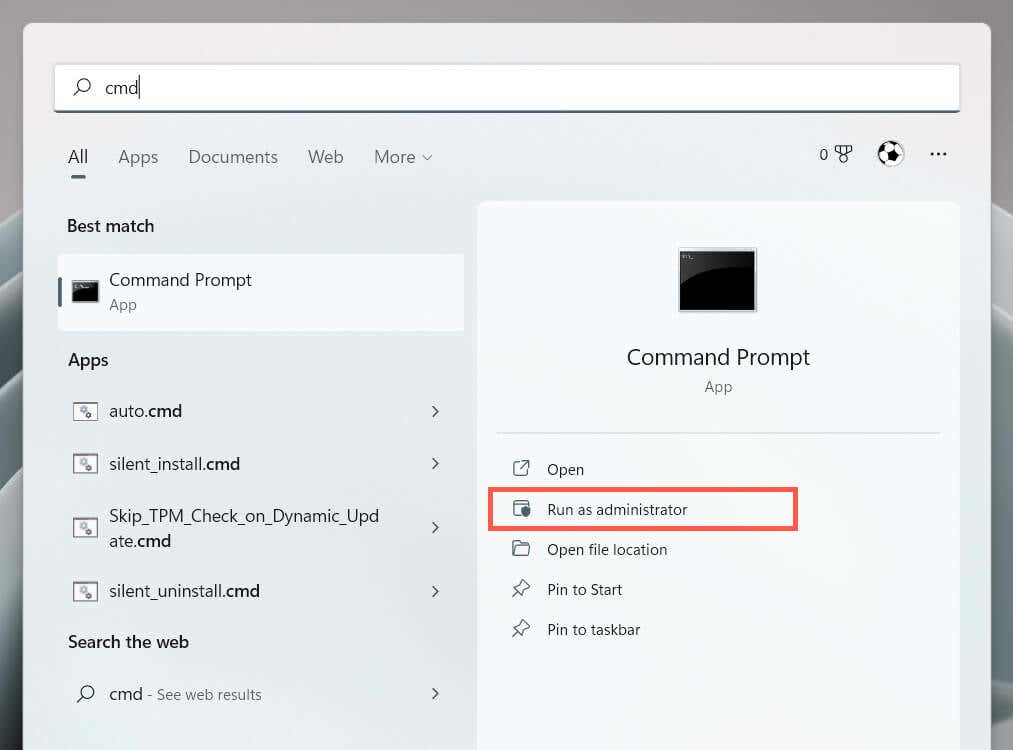
- Type cmd into the Start menu and select Run as administrator.
- Run the two commands one after the other:
- sfc /scannow
- DISM.exe /Online /Cleanup-Image /Restorehealth
14. Perform a System Restore
Restore Windows to an earlier state to resolve problems that result from conflicting program installations, hardware driver updates, and other recent changes to the operating system. To do that:
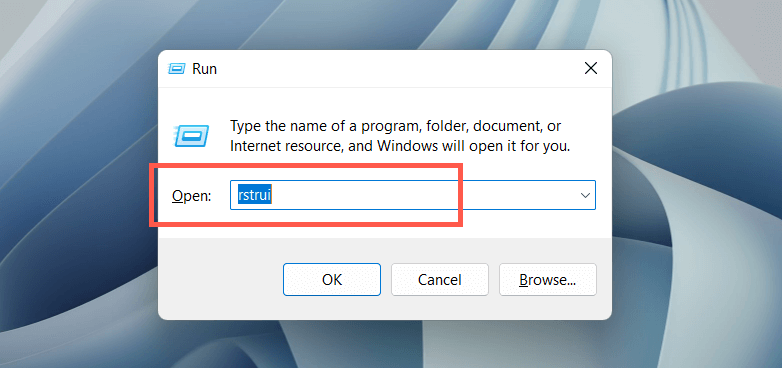
- Type rstrui into a Run box and select OK.
- Select Next on the System Restore wizard.

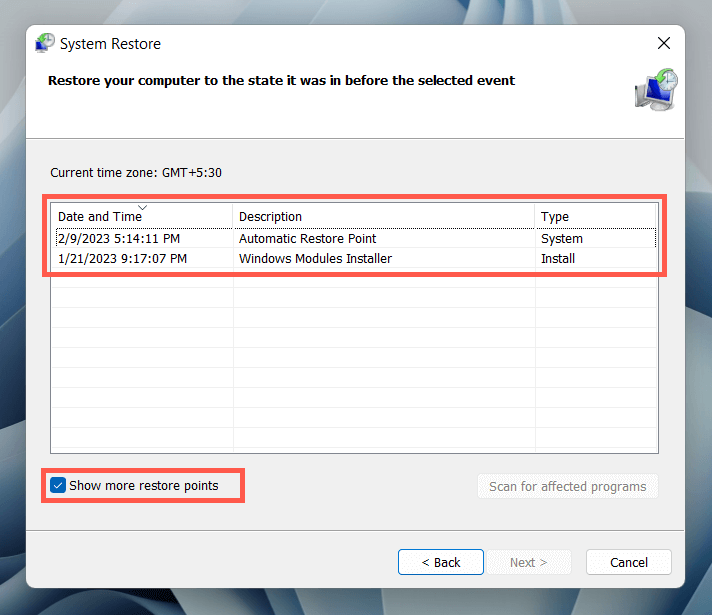
- Check the box next to Show more restore points, pick a restore point, and select Next.
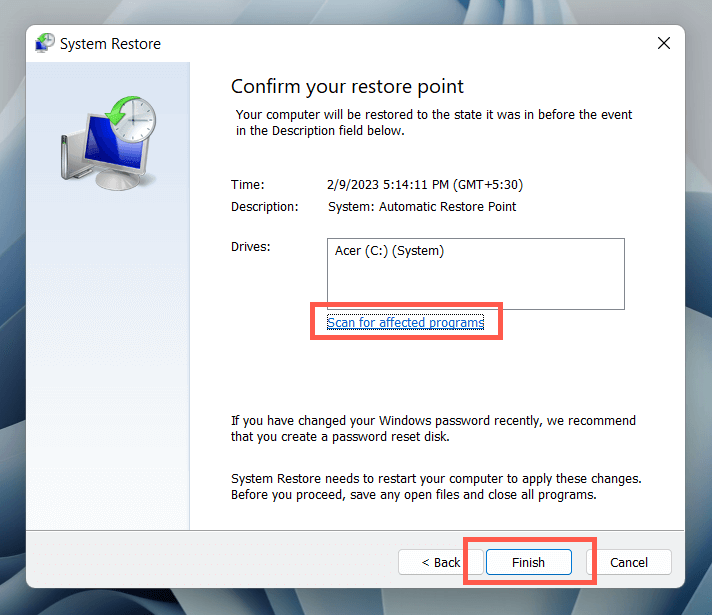
- Select Scan for affected programs option if you want to see a list of programs that will be affected when you go ahead. Choose Finish to continue.
- Wait until Windows reverts the operating system installation to the specified restore point.
15. Check for Hardware Issues
If none of the fixes above help fix the ESC key, the problem is likely hardware-related. Here are several ways to help you determine if that is the case.
- Load an online keyboard testing tool like KeyboardTester.com, press the ESC key, and check if it registers.
- Open the On-Screen Keyboard in Windows (via Start menu > All apps > Accessibility), perform an action that involves the ESC key (e.g., exiting a full-screen application), and check if it works.
- Connect the keyboard to a different computer and check if the same problem occurs. If you use a laptop device, connect an external keyboard to test whether Windows responds to the ESC key.
If all signs indicate a hardware issue with the Esc key, use a keycap puller to remove the key and inspect the mechanical switch or the membrane underneath for damage. Clean it or replace it if needed. You could also get the keyboard serviced by a PC technician, replace it under warranty, or buy yourself a new keyboard.
In the meantime, you can use a third-party keyboard customization tool like SharpKeys to remap ESC to a different keyboard key.

