How to burn Windows Movie Maker WMV video to DVD

Posted on June 2, 2008 at 5:28 am

By default, Windows XP has Windows Movie Maker installed for creating and editing home videos. It’s quite easy to use and gets the jobs done if you’re looking for a quick way to turn your digital videos into something a little more professional. You can import videos from your digital camera into Windows Movie Maker and you can automatically import your video directly from a camcorder also!

However, there is no option in Windows Movie Maker to burn your finished movie (WMV) to a DVD. It only lets you burn it to a CD! Now that’s just plain wrong. So in order to burn the WMV file to a DVD, you have to use a couple of free third party programs to get the job done.

Burn WMV to DVD

Firstly, your computer will need to have a DVD burner, otherwise this is not going to work! After that, you’ll need to be running Windows XP with SP2 as that contains Windows Movie Maker.

The two programs we will be needing to help us get our movie onto DVD are DVD Flick and ImgBurn. DVD Flick is a very cool open source program that you can use to convert just about any video on your computer into the DVD folder structure and format. Once converted, you will use ImgBurn to burn the newly created DVD folder to your DVD.

Step 1: Save edited movie from Windows Movie Maker

The first thing that you need to do is to create your movie in Windows Movie Maker. I am not going to go into how to use Windows Movie Maker in this post (maybe a future one), but if you just click around and read the menu items on the left, it won’t be hard to add titles, add transitions and add video effects.

After you have completed the movie, click on Save to my computer under the Finish Movie section.

save to my computer

This will export your modified movie to a Windows Movie Maker file, which will end in .WMV.

Step 2: Convert WMV to DVD format using DVD Flick

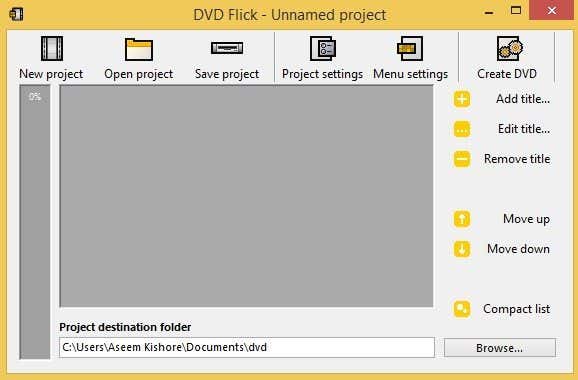
Now that we have our Windows Movie Maker video saved to the hard drive, we need to convert it to DVD format. That’s where DVD Flick comes in! Open the program and click on the Add Title button at the top right.

add title

Not really sure why it’s called Add Title since it’s really video clips you are adding. If you made the full video in WMM, then you would simply browse to that video and select it. If you have multiple videos created via WMM or any other video you want to add to the DVD, just keep clicking Add title.

Note the left side bar will show you the percentage of the DVD that is full, so it’s really easy to figure out if you added too much video or not.

convert wmv to dvd

Once you have added all of your clip(s), go ahead and choose a destination folder for the converted DVD at the very bottom. By default, this folder will be completely erased every time you create a new DVD from DVD Flick. Note that it can take up to 4.7GB of space, so you to choose a drive that has lots of free space.

Next click on the Create DVD button at the very top menu. It’ll ask you if you want to proceed and that the data in that directory will be deleted.

create dvd

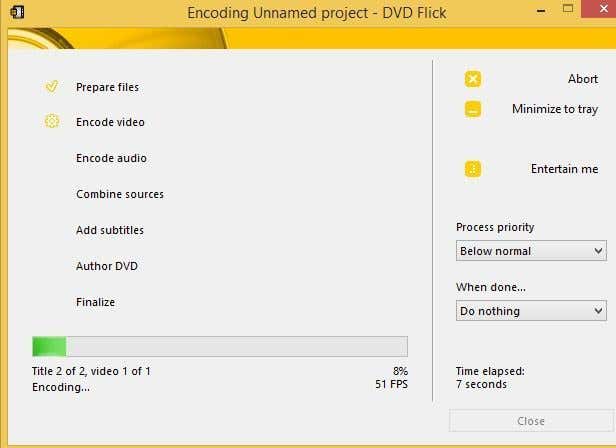
Now just sit back and wait as it converts the videos into the DVD format. This can take up a good amount of time depending on how fast your computer is and how big the videos are. For a full DVD on my computer, it took almost 2 hours, so yours will vary.

create dvd from wmv

Step 3: Burn files to DVD using ImgBurn

After the movie is converted, you can then use the free burning program ImgBurn to burn the files to DVD. Note that this is not a DATA DVD, it will be a video DVD that you can play in your regular DVD player like any other DVD movie, etc.

Start up ImgBurn and then click on the Write Files/Folders to Disc option.

imgburn

Now click on the Browse for a folder icon in the menu at the top right.

imgburn program

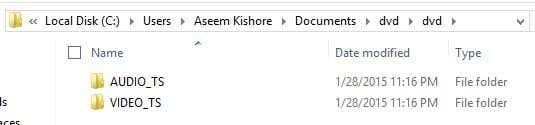
Now browse to the folder on your hard drive where the files were exported from DVD Flick and select the dvd folder inside the main folder. Basically select the folder that is called dvd and that is the direct parent of both the AUDIO_TS and VIDEO_TS folders.

dvd folder

Insert a blank DVD and then click on the Build It button at the bottom left. It’s the one with the folder and the green icon pointing to the DVD.

build dvd

That’s it! Once the DVD has completed being burned, you can pop it into your DVD player and you should now have your Windows Movie Maker video playing on your TV! If you know of an easier way to burn WMV files to DVD, post a comment! Enjoy!

[tags]burn wmv to dvd, convert wmv to dvd, convert wmv to dvd video, how to convert wmv files to dvd, convert wmv to play on dvd[/tags]

» Filed Under Computer Tips

Related Posts

Comments

68 Responses to “How to burn Windows Movie Maker WMV video to DVD”

  1. NISMO said on :

    …and if you’re looking for completely FREE and powerful CD/DVD and Blu-Ray/HD-DVD burning application you’re welcomed to give a try to StarBurn from Rocket Division Software.

    Just in case here’s an URL:

    StarBurn

    Arigato!

    -ichiro


  2. Kitkat said on :

    Wow, that’s good. Now, I need to burn some porn DVDs.


  3. akishore said on :

    Kitkat – hahahaha I will not endorse that, but sure go ahead if it works for you!


  4. MJ said on :

    Thanks for the info.


  5. Elsie said on :

    i convected 4 videos with a total time of 14:31 minutes. went into IMGBURN and the file size was too big for my cd (870ish, cd 702) … any explaination ?


  6. Janice Abel said on :

    Hey – the instructions were great but still I can’t get it to play on my DVD. it says, start up may not be on disc. I tried to save Movie Maker file to the hard disk using the AVI-(NTSC) as well as the one already selected. that does not help either. Any clues.


  7. Tyler said on :

    I made a slideshow in WMM for church and of course everyone wanted copies. No one there has a computer though so I was stuck with making DVD’s for everyone, thanks to this, I was able to do it.

    Thanks a lot.


  8. Gemma said on :

    Do these tools have any way of putting multiple movies on, with a menu to choose between them?

    (I’ve used other free tools to burn DVDs, but you don’t get any menu, so its a bit poor.)


  9. CMK said on :

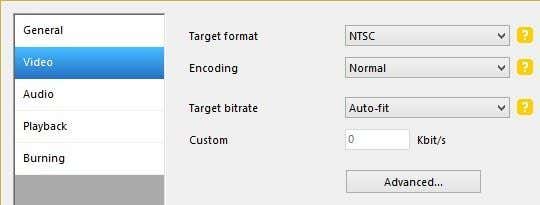
    Janice-I had the same problem. Look in the video settings of DVD flick and make sure the video is set to NTSC. Mine was defaulted to PAL and that was the problem.

    Janice Abel said on : June 19th, 2008 at 4:19 pm

    Hey – the instructions were great but still I can’t get it to play on my DVD. it says, start up may not be on disc. I tried to save Movie Maker file to the hard disk using the AVI-(NTSC) as well as the one already selected. that does not help either. Any clues.


  10. Lil said on :

    Thank you! Thank you! Thank you!


  11. Ann said on :

    This was really easy to set up and do so many thanks. I have no sound on the dvd but I didn’t have any sound on the wmv file either so it must be a problem uploading from my camcorder. Anyone got any suggestions?


  12. Antinous said on :

    Thank you very much fot the help.


  13. Shae said on :

    we downloaded a video from camera, created a movie, it says that we cannot save the movie to our computer, the original video before making the movie is still on our computer…..we cannot burn the movie onto dvd until we find out why it wont let us save to computer. The movie was very easy to create but need help in finding out why it wont save help please!!!!! Could use Intervideo launcher but cant find out how to turn the video vertical.


  14. Nicole said on :

    Help! I am trying to convert my video over to DVD Flick, but it ends in .MSWMM, not .WMV. Can anyone please help me? Thanks!


  15. Rhiannon said on :

    This is the error I received and it aborted the burning process- what is the deal?
    W 22:53:25 Retrying (33)…
    W 22:53:25 Retry Failed – Reason: Cannot Format Medium – Incompatible Medium
    W 22:53:25 Retrying (34)…
    W 22:53:25 Retry Failed – Reason: Cannot Format Medium – Incompatible Medium
    E 22:53:26 Failed to Write Sectors 376224 – 376255 – Reason: Write Error
    I 22:53:26 Synchronising Cache…
    E 22:53:34 Failed to Write Image!
    I 22:53:34 Exporting Graph Data…
    I 22:53:34 Graph Data File: C:\Documents and Settings\HP_Administrator\Application Data\ImgBurn\Graph Data Files\TSSTcorp_CD-DVDW_TS-H652L_0603_SUNDAY-SEPTEMBER-14-2008_10-49_PM_97m26s66f_MAX.ibg
    I 22:53:34 Export Successfully Completed!
    E 22:53:34 Operation Failed! – Duration: 00:04:03
    I 22:53:34 Average Write Rate: 3,583 KB/s (23.9x) – Maximum Write Rate: 6,202 KB/s (41.3x)


  16. CrossSlasher said on :

    er i have a problem, i dont have the audio ts or video ts folders! help?


  17. Will said on :

    i have followed all the instructions (which are great) but right at the end, when i insert a blank dvd, ImgBurn doesn’t recognise it, so therefore i cant burn my movie.

    email me back at: willguice11@hotmail.co.uk
    (or post it here if easier)
    thnx


  18. cpt doogie said on :

    You can use a program called avs video converter to put the avi files into T/S files too


  19. fritaboss said on :

    Will said on : December 16th, 2008 at 2:34 pm

    i have followed all the instructions (which are great) but right at the end, when i insert a blank dvd, ImgBurn doesn’t recognise it, so therefore i cant burn my movie.

    Do you have a DVD burner or only a DVD player? Your computer must have a dvd burner to work.


  20. What Chu Talking Bout? said on :

    Just have to point out that Windows Movie Maker CAN output to DVD files, lookie here:
    http://www.microsoft.com/windo.....todvd.mspx


  21. Emma said on :

    thank you sooo much !!
    this helped me alot


  22. Ajaxx said on :

    Great tutorial! The only issue I ran into was towards the end…I had checked on the “eject tray” box on ImgBurn, and it returned an error because I was using a laptop. Anyway, it just opens the tray and asks you to manually close it again…and then it finishes the process. Kinda weird, but oh well…it still worked out great.

    Ajaxx


  23. Durgesh said on :

    I used Picasa to create wmv/a files from my photo collection and video collection. Converted wmv/a files into DVD file system format using DVD flick.Followed by that, I used ImgBurn. It worked fine on Toshiba HD DVD player. Great instructions. A small comment, for some reason, when the AV files are played the output stops sometimes. If I press, next chapter, it works fine.


  24. Sharon said on :

    THANK YOU SO MUCH!!!!! THIS IS EXACTLY WHAT I NEEDED AND IT EVEN PLAYS ON MY PS2!!!!


  25. Doug said on :

    great data. Just what I was looking for. Thank you..


  26. Duff said on :

    Thank you so much, I was looking all night to find a way to burn video to DVD, then I stumbled upon your post and it worked great. Thanks again!


  27. Marco said on :

    i have some movies which they are in WMV format , i tried DVD Flick to convert them to DVD ,
    first it took 29 second to convert (ech file was over 2 GB )
    2nd ,the result was small file about 10 MB and pictures were scrabeled
    does any bodey know why ???
    or
    how i can convert WMV files to DVD and burn them???
    bye the way i tried some other video converter , they couldn’t convert to dvd


  28. new dvd user said on :

    Help,
    DVD flick appears to complete its portoon, but when I look in the folders the Audio one is empty and the Video one has files in it. I tried burning it anyways and then when I put it in my DVD player it says it won’t work because there is no audio. Any suggestions?


  29. Rosa said on :

    I followed the instructions and the video plays on the DVD players, but I added title pages with words to introduce a set of photos. The title pages of the windows movie make movie do not show up, just the pictures. Any suggestions?


  30. billyblaze said on :

    Thanks so much – this worked like a charm for me!


  31. Jen said on :

    I have to thank you sooooo much for this information. I made a video for my late grandmother’s memorial (which is next week!) and I have been trying for over a week to figure out how to burn to a DVD and play in a dvd player, you are a life saver! Thank you again!!!!!!!


  32. sisozuki said on :

    Help!!!!! I have been working for months trying to burn stuff to a dvd! I have videos on my computer that I have captured from youtube. I did the two steps you mentioned dvd flick then img burn. all the way till the end- then when i insert the dvd to see if it works ( i try it on my computer) there seems to be only a text file there with a few mamb jumbo on it. Please I need to create a dvd in time for summer for my kids! help!!


  33. Sandra said on :

    I have downloaded DVD Flick, and ImgBurn.
    I’ve done the convert, and then when I burn the DVD, I always get an error. “I/O error scsi status:0×2, Interpretation: I/O process terminated” However it burned part of the disk and will play, up to that point but not all the file.
    I then burned with Nero. It terminated also, before finalization. Sometimes they will play, sometimes not (I’ve tried several times)
    As you can see I’ve worried with this for a whole day trying to get it to work..
    Any suggestions?


  34. Lara said on :

    Sweet! I too had no problems at all! Brilliant steps to follow. Very easy to follow. Just finished watching the dvd of our little girl on the big screen, so cool! Thank you!


  35. Lara said on :

    oh, i also had title pages, audio etc and they all worked. We published the movie in Windows Movie Maker – Saved using Widescreen option and then followed the DVD Flick & ImgBurn instructions as above. Perfection!


  36. Helena said on :

    A pity the writer of the article disappeared into the blue after publishing it.

    There are so many unanswered questions here which surely could have received a reponse by now.

    Very disappointing.


  37. Helena said on :

    #20 Thank you for that post.

    If people follow that link they will immediately see that this entire pantomime of messing around with dvd flick and imageburn is completely unnecessary.


  38. Link said on :

    hi there,

    I was able to crate the dvd using the dvd flick and burn it on dvd using the ImgBurn without any problems or errors.

    But I can’t play the dvd on my dvd player. It shows unknown disc. :(

    any clues? thanks in advance.


  39. Oscar said on :

    Thank you for posting this, Windows Movie Maker didn’t let me burn this movie onto a DVD. Now I can watch my photo gallery demo on my TV. =)


  40. Carl said on :

    As above I downloaded a movie into a default file and then copied the movie to a folder in my documents. From there I wish to copy to a disc in my disc drive. However it states “Windows encountered a problem when trying to copy this file. What do you want Windows to do?”

    Can anyone help?


  41. Jojolee said on :

    Thanks for the information, I am capable of actually adding the movie, and all the effects audio etc. Once completed it plays beautifully on the computer, but when I burn to a dvd, there is no audio? There is the general banter of the videos, but not the music I have added to it? I have tried many different things, why is it fine on the computer preivew but not on the disc?


  42. Rob said on :

    I got to step 3 with IMGBURN and when i hit the build it button, it loads till about 43% and then it fails to write sectors and IMGBURN self aborts. Any suggestions on what it going wrong?


  43. Valorie said on :

    Can someone help me?
    I keep getting this error when i try to burn my video onto my disc, the error is Failed to Reserve Track! – Reason: Invalid Field in CDB.


  44. Denise Davila said on :

    I have movies that play just fine in Windows Media Maker, but as soon as I put them in Windows Movie maker they freeze, and this transfers onto the dvd I create also. Please Help!


  45. vfox said on :

    I also use Wondershare Movie Story to convert WMV video to DVD along with photos and music.

    ourpix.com/downloads/dvd-slide-show.html?page=125


  46. Chuck said on :

    Thanks for the advice on making DVDs from Windows Movie Maker.

    My question is, can I burn a CD from Windows Movie Maker, copy it to a computer having Windows Vista, and re-burn to a DVD. I have access to another computer with Vista only occasionally.
    Thanks,
    Chuck


  47. John said on :

    DVD flick tells you it is completely free, then when you download it they want $50 to make it work. Now I can’t get rid of the worthless files. It is a big scam. Don’t get sucked in!


  48. Itadakiman said on :

    Thank you very much for this useful and easy to understand guide!!


  49. Alan said on :

    I made a movie with clips and have 4 hours in this. Suddenly when the import media items window opens the program is frozen. I cant do anything. the cancel does not even work on import media items.If I close the program will I lose all my work. Alan


  50. Jessica said on :

    Absolutely the most helpful blog post I’ve read in a while. Followed the directions exactly, and was able to create a DVD for my elderly (non computer savvy) grandmother in a little over an hour. FYI – you can create an acceptable movie (WMV format) in Picasa 3 (by Google) as well.


  51. Melissa said on :

    Thanks so much for this! You were a God send! I was desperate to get a file converted and you helped me to do that. Thanks a million!!


  52. PETER said on :

    DOES THIS PROGRAM CONVERT FROM WMV TO PAL RATHER THAN NTSC


  53. Earl said on :

    Windows DVD Maker in Windows 7 works great for burning DVDs! Finally something created by Microsoft that is good!


  54. Susan Brice said on :

    disclaimer: I’m not very tech saavy.

    I have created a windows movie maker slide show with photos (.jpg files) and music (.wma files) for my parents’ 40th anniversary, ie I used no video clips as you reference above, just .jpg and .wma files. do you know if I can use the same instructions above, or is there an extra step or two?

    I would appreciate any help you have time to give! thank you very much! Susan Brice


  55. Georgia said on :

    thanks :D this helped alot!


  56. Portia Vyktouria said on :

    This was SO helpful! I needed to figure out how to get this done for work this morning, and it likely just saved me 3 hours of frustration :)


  57. Andrea said on :

    I have lot of videos to burn and this tutorial helped me a lot! Thanks


  58. Any said on :

    For those who kept asking and wondering why others are working fine please check the following:

    1, You will NEED to save/publish your project in WMM/WLMM into a .wmv file before you can put it into DVD flick for conversion. (All you need is a single .wmv file as it includes your music/photos/video clips etc etc when you are building back in WMM/WLMM.)

    2, Make sure you have enough hard disk space as both converting and burning will take up roughly 5gb each. So 10-20 gb free disk space is recommended.

    3, The more RAM your computer has the faster the conversion and burning as well as more stable and less crashes. Better go for 4gb RAM or more if you are into movie making. Note that even 4gb RAM will crash sometimes with a large movie file.

    4, Some real-time running programs can effect disc burning and cause the process to either stop or crash. Make sure you turn off all the softwares running in background before you start burning. If possible disable your antivirus during burning process as most are the main cause for burning failure.

    Additional notes:
    >14: That’s the project saved file you have to save/publish it as .wmv
    >20: That is not a solution more like a guide and it still needs additional paid softwares to complete the task.
    >46: Yes it will work on vista. Infact you can just work them directly on vista without having to tranfer them.
    >52: PAL/NTSL can be set in the settings before the convertion in DVD Flick/before the creation of the WMV file in WMM.
    >53: Windows DVD Maker is available in Vista Premium and Ultimate too. But since it’s built in and can’t be downloaded or purchased elsewhere those asking for help here won’t be able to get it unless they change their OS to one of the mentioned.


  59. Daniel said on :

    Thank-you so much for posting this. I had been trying for two years to get a project done, and it was just not working. After I found this web page, I immediately tried again. It worked magnificently. Your tutorials worked out just right. Thank-you again.


  60. Tanya said on :

    My goal was to creat a slideshow using pictures and audio. The instructions above were very clear, but unfortunately, I was not able to burn to a DVD. During the ImgBurn process, I received lots of error messages and I’m not sure what errors they were refering to since I followed each step (or at least I thouht I did).

    Can anyone help?

    Below are some examples of the error messages…

    W 22:07:27 Total Errors in Sector: 164
    I 22:07:27 Verifying Sectors…
    W 22:07:29 Miscompare at LBA: 508, Offset: 48, File: \VIDEO_TS\VTS_01_1.VOB
    W 22:07:29 Device: 0×00
    W 22:07:29 Image File: 0xED
    W 22:07:29 Total Errors in Sector: 170
    I 22:07:29 Verifying Sectors…
    W 22:07:31 Miscompare at LBA: 777, Offset: 47, File: \VIDEO_TS\VTS_01_1.VOB
    W 22:07:31 Device: 0×00
    W 22:07:31 Image File: 0×01
    W 22:07:31 Total Errors in Sector: 175
    I 22:07:31 Verifying Sectors…
    W 22:07:31 Miscompare at LBA: 1043, Offset: 47, File: \VIDEO_TS\VTS_01_1.VOB
    W 22:07:31 Device: 0×00
    W 22:07:31 Image File: 0×03
    W 22:07:31 Total Errors in Sector: 176
    I 22:07:31 Verifying Sectors…
    W 22:07:32 Miscompare at LBA: 1309, Offset: 47, File: \VIDEO_TS\VTS_01_1.VOB
    W 22:07:32 Device: 0×00
    W 22:07:32 Image File: 0×04
    W 22:07:32 Total Errors in Sector: 175
    I 22:07:37 Verifying Sectors…
    W 22:07:37 Miscompare at LBA: 1574, Offset: 47, File: \VIDEO_TS\VTS_01_1.VOB
    W 22:07:37 Device: 0×00
    W 22:07:37 Image File: 0×05
    W 22:07:37 Total Errors in Sector: 174
    I 22:07:37 Verifying Sectors…
    W 22:07:37 Miscompare at LBA: 1840, Offset: 47, File: \VIDEO_TS\VTS_01_1.VOB
    W 22:07:37 Device: 0×00
    W 22:07:37 Image File: 0×06
    W 22:07:37 Total Errors in Sector: 173
    I 22:07:37 Verifying Sectors…
    W 22:07:37 Miscompare at LBA: 2105, Offset: 47, File: \VIDEO_TS\VTS_01_1.VOB
    W 22:07:37 Device: 0×00
    W 22:07:37 Image File: 0×07
    W 22:07:37 Total Errors in Sector: 172
    I 22:07:37 Verifying Sectors…
    W 22:07:37 Miscompare at LBA: 2371, Offset: 47, File: \VIDEO_TS\VTS_01_1.VOB
    W 22:07:37 Device: 0×00
    W 22:07:37 Image File: 0×08
    W 22:07:37 Total Errors in Sector: 171
    I 22:07:37 Verifying Sectors…
    W 22:07:37 Miscompare at LBA: 2641, Offset: 47, File: \VIDEO_TS\VTS_01_1.VOB
    W 22:07:37 Device: 0×00
    W 22:07:37 Image File: 0×09
    W 22:07:37 Total Errors in Sector: 170
    I 22:07:37 Verifying Sectors…
    I 22:08:27 Exporting Graph Data…
    I 22:08:27 Graph Data File: C:\Documents and Settings\Admin\Application Data\ImgBurn\Graph Data Files\SONY_DVD_RW_DRU-830A_SS25_WEDNESDAY-DECEMBER-23-2009_10-04_PM_SONY-D21-00_MAX.ibg
    I 22:08:27 Export Successfully Completed!
    I 22:08:27 Operation Successfully Completed! – Duration: 00:01:10
    I 22:08:27 Average Verify Rate: 5,636 KB/s (4.1x) – Maximum Verify Rate: 10,469 KB/s (7.6x)


  61. Josh said on :

    THANK YOU SO MUCH!
    Was having several issues trying to turn videos from my video camera onto a DVD, but this method has cleared up all doubt.
    VERY grateful :)


  62. adri_rory said on :

    Thank you for posting this ! Your information helped me a lot !


  63. TC said on :

    Excellent write up. It took me about 4 hours to finish my project but it was smooth all the way. I appreciate the insight and post.


  64. Meghan said on :

    THANK YOU SO MUCH! Very helpful! You saved me from a week long frustration trying to burn a WMV to DVD!


  65. miyavi said on :

    thanks for posting this I was about to give up trying to burn my Windows Movie Maker file to DVD!!


  66. Owen said on :

    Thank you very much!!!!!!!!!!


  67. Chad said on :

    I went through the whole process and it plays fine on my computer but not in my dvd player. I have everything checked correctly (NTSC) but nothing. Please help!


  68. Chad said on :

    Oh and by the way.. i also noticed that when i do play it back on the computer its all jumpy….


Please post your comments/suggestions!