
Change almost everything about how it works

Windows 10 is a powerful platform for several reasons, but its primary strength, and one of the main strengths of Windows since its inception, is the level of customization it opens up to users. Windows far outstrips macOS in terms of what it will allow you to do.
The only thing you need to change and tweak your Windows 10 settings and appearance is the right tool. The good news is that there are a lot of different options available, but not all of them are safe. This is a list of the best, virus-free tools for tweaking Windows 10 settings.
Table of Contents
Ultimate Windows Tweaker 4
Ultimate Windows Tweaker 4 is one of the most popular and powerful customization Windows 10 tweak tools available. For starters, it is totally portable – you do not have to install it in order to use it. If you want to carry it around a flash drive, you can. It measures only 750 KB or so in size.
It has 200 built-in tweaks that range from customization options, performance, security and privacy, browsers, and more. Its functionality isn’t limited just to customization, either. Ultimate Windows Tweaker works as a powerful security tool. You can disable telemetry, Cortana, and a host of other avenues that can be used to access data.
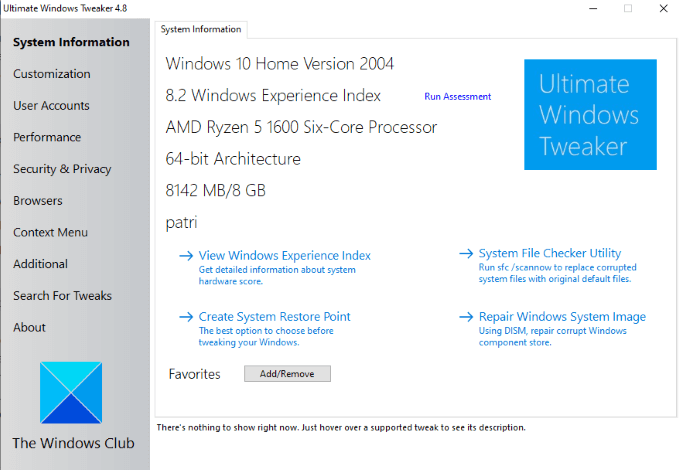
There’s even a search feature that makes it easy to find specific tweaks. From the main screen, you can repair the Windows System Image, run the file checker utility, and more. For a completely free tool, Ultimate Windows Tweaker offers more utility than many paid options.
AdvancedRun
AdvancedRun is a tweaking application produced by NirSoft. It allows you to change the way you run specific programs, including changing the priority between low and high, the main window state, and running the program with different user permissions.
Once you’ve changed the settings to the way you like, you can save them as a configuration file and run the program this way every time. You can also run the program in specific compatibility modes (a major boon to people that want to play games that aren’t supported on the current version of Windows.)
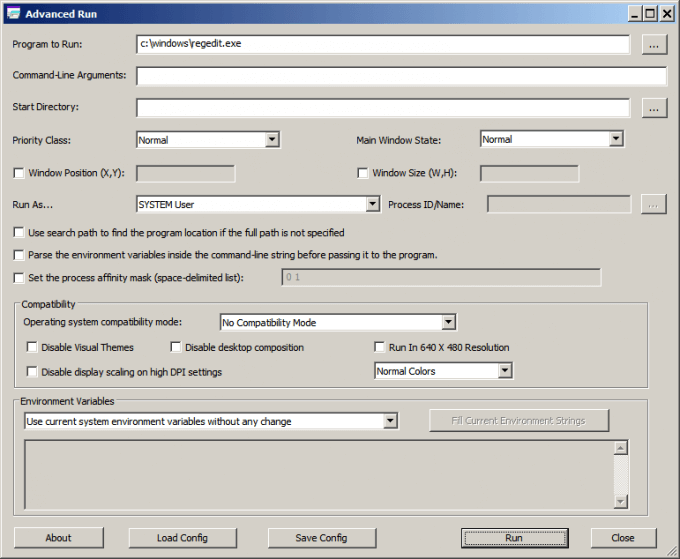
AdvancedRun is supported on both 32- and 64-bit versions of Windows. It also runs on previous versions of Windows, although some settings are not supported on Windows XP and earlier.
Rainmeter
Rainmeter is a fully-featured desktop customization tool that allows users to change many more settings about the appearance of their computer than Windows does by default. Its primary function is to display custom skins on the desktop that range from hardware usage meters to music visualizers.
Rainmeter requires a small download, but uses few resources in the background. This means you will see little to no impact on your performance, even with a complex skin in place. The level of customization means you can move the start menu, display the icon bar at different locations, and more.
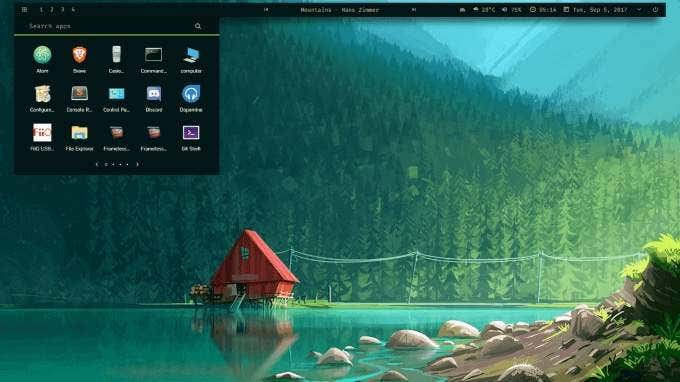
Over the past several years, Rainmeter has grown in popularity and a community has built up that has created even more skins. It’s a better time than ever to get into the program. While it won’t provide as much utility as others on this list, it has the most aesthetic potential.
TweakNow PowerPack
The TweakNow PowerPack is a powerful suite of customization options aimed at modifying the way Windows operates. It makes it easy to tweak the operating system thanks to the layout of the application. From the home screen you can quickly customize several settings, such as cleaning the Windows Registry, temporary files, traces from the web browser, and more.
There’s a set of miscellaneous tools that let you change how long it takes the system to shut down, optimize your RAM, and obtain more detailed information on the processes running in the background. In other words, it allows you to fine-tune your settings and speed up your PC.
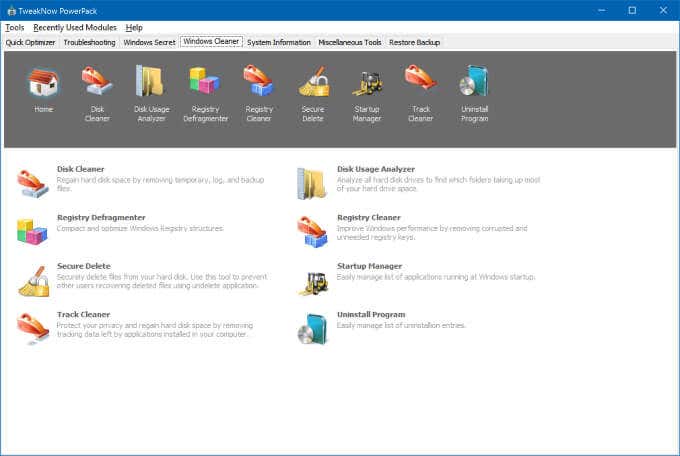
The built-in Windows Cleaner tool is equally as useful. It allows you to clean and defragment your registry, completely delete files from your drive, manage programs that auto-boot on startup, analyze your drive, and more.
TweakNow PowerPack is free, but there is a premium version that provides access to all future versions of the tool for free.
Folder Mark
Folder Mark is a more dedicated tool than others on this list. It allows you to change the color of file folders in Windows and assign different levels of importance to each color. You can also assign specific symbols like arrows, a clock, or more to indicate the purpose of the folder.
It’s a totally free application. It’s bare-bones and performs a single task, but it is also one of the few applications on the web that allows you to change the appearance of your folders, including Network Folders for customizing your LAN.
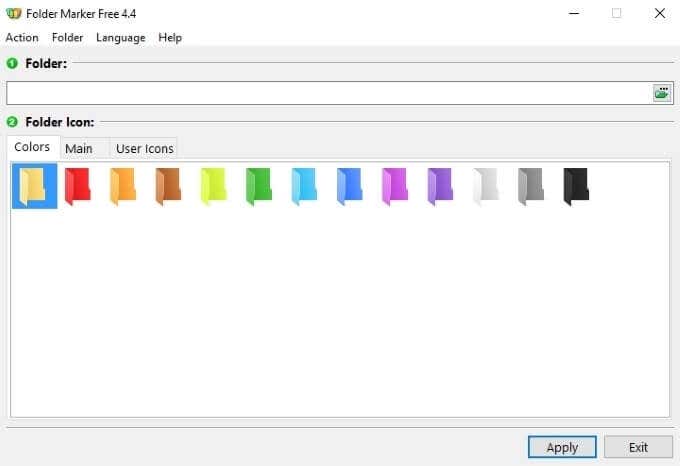
Designate folders based on low, normal, or high priority, as well as the type of work inside them. Is the work done, started, or just planned? Set aside a specific folder for each.
Want to customize Windows 10 to your tastes? Try out one of these five applications. Each one of these Windows 10 tweak tools serves a slightly different purpose, even if there is a bit of overlap–but between these five, you can change almost everything about the way Windows works.

