
Disabling third-party cookies in Chrome, Firefox, IE and Safari

Want to clear your browser of all cookies stored locally on your computer? Cookies, sometime called web cookies or tracking cookies, are small pieces of text sent by a server to a web browser and then sent back by the client every time it accesses that server.
Cookies are used for several different purposes including authenticating, session tracking, and maintaining specific information about users, such as their site preferences or the items in their shopping carts.
Table of Contents
Though cookies can be quite useful, they also raise privacy concerns because they track user behavior across the Internet. Another problem with cookies is that they may not always provide accurate identification of a user and can be exploited by hackers.
Cookies are quite common on many major websites and do not contain any spyware or viruses. They are simply pieces of data that help differentiate users. It’s worth understanding the difference between first-party cookies and third-party cookies first. The main thing to understand is that third-party cookies are the ones used to track you across multiple websites.
You may have noticed that if you searched for plane tickets one day and then started browsing other sites, the ads showing up on the other sites might be all geared towards flights, hotels, or something travel related. Those are third-party cookies in action.
To increase your privacy, but maintain convenience, you can disable third-party cookies and allow first-party cookies. You can also use an add-on or extension like Disconnect that has become very popular recently. You can easily manage cookies in Chrome, Firefox, IE and Safari by following the instructions below.
Manage Cookies in IE
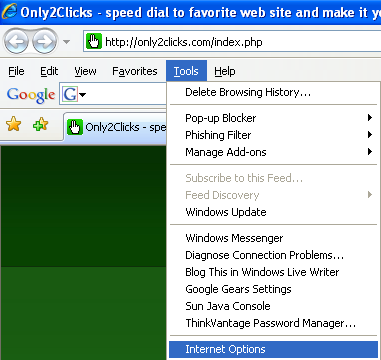
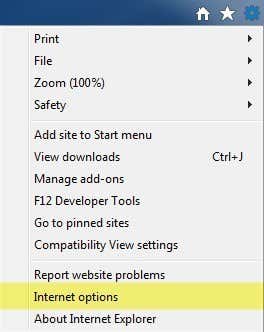
For older versions of IE, click on Tools and then Internet Options. In newer versions of IE, click on the little gear icon at the top right.
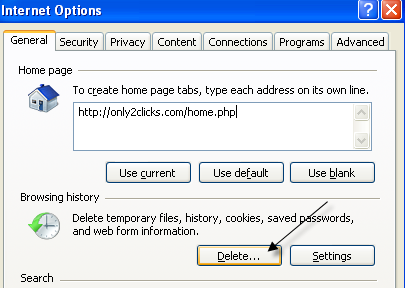
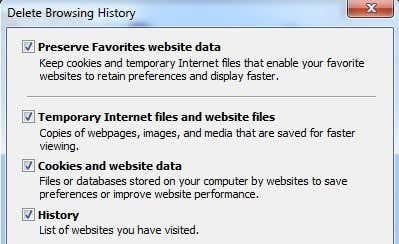
Under the Browsing History section on the General tab, click on the Delete button.
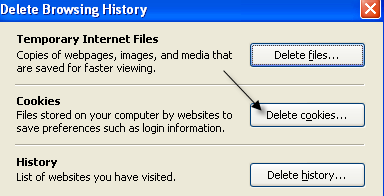
Now click on the Delete Cookies button. In newer versions of IE, you have to check the Cookies and website data box and then click delete. This will delete all cookies stored on your computer for Internet Explorer.
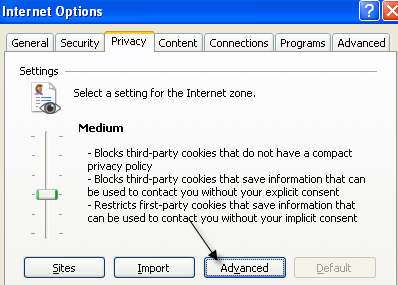
To control exactly what type of cookies can be stored on your computer locally, click on the Privacy tab and then click on the Advanced button.
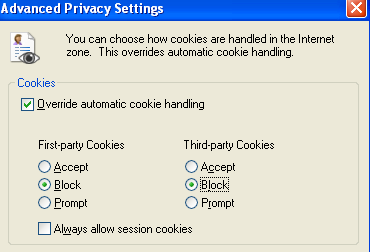
Check the “Override automatic cookie handling” and pick whether to accept, block or prompt for first-party and third-party cookies.
Manage Cookies in Firefox
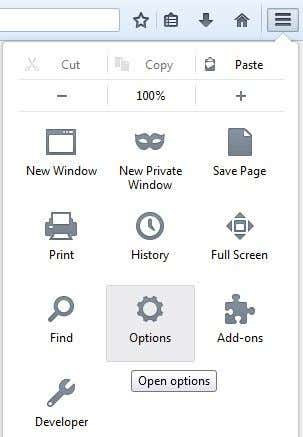
To manage cookies in Firefox, click on the settings icon and then click on Options.
Now click on Privacy and you will see a link at the bottom called Clear your recent history. You can click on that and it will bring up another window where you can check a box for cookies and then delete them for a specific time period or for all time.
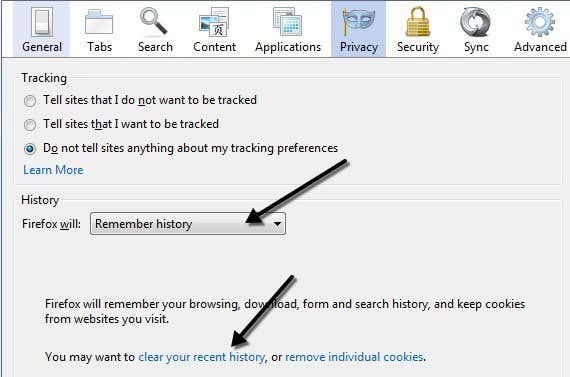
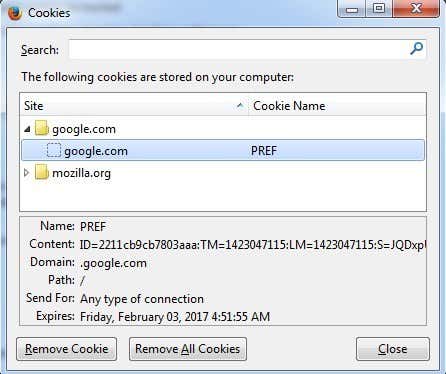
You can also click on the Remove individual cookies link to get a window will all the currently stored cookies and what data they contain.
To configure first-party and third-party cookies in Firefox, you have to click on the dropdown that says Remember history and change that to Use custom settings for history.
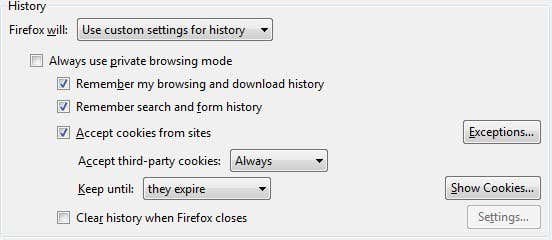
Accept cookies from sites is the same as first-party cookies. By default, third-party cookies are always accepted also, which is pretty much how every browser is configured. You can change the setting from Always to Visited or Never. I really like the visited option because it will not allow websites that you haven’t visited to store cookies locally. This will block a lot of advertising cookies.
Manage Cookies in Google Chrome
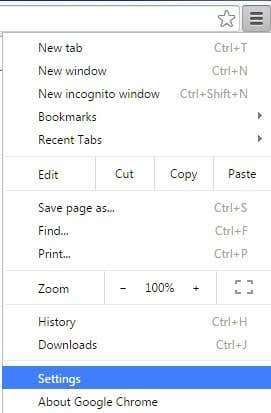
For Chrome, you need to click on the menu button and then click on Settings.
Now scroll down to the bottom of the settings page and click on Show advanced settings.

Under Privacy, you’ll see two buttons: Content settings and Clear browsing data. To quickly remove all cookies, just click the latter and then check the Cookies and other site and plug-in data box.
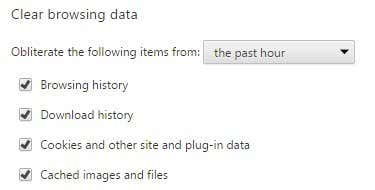
By default, it’s set to only clear data from the past hour, so you will want to change that accordingly. If you click on the Content settings button, you can block all cookies, only third-party cookies or clear it out every time you quit the browser.
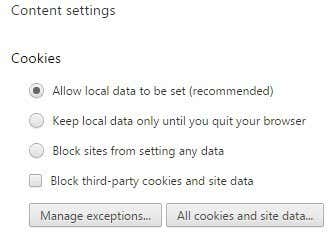
You can see each cookie that is stored individually by clicking on the All cookies and site data button. Chrome is nice because it even includes a search box to let you quickly find a cookie from a specific site.
Manage Cookies in Safari
For Mac users, you have to click on Safari in the top nav bar and then click on Preferences.
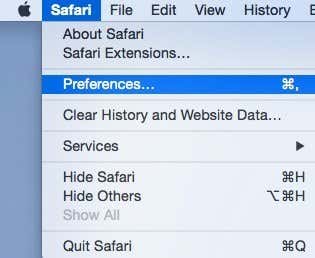
Click on Privacy and you can set your cookie preferences right at the top. By default, Safari on Yosemite had Allow from websites I visit as the default option, which basically means it blocks third-party cookies. Always allow will allow first and third-party cookies.
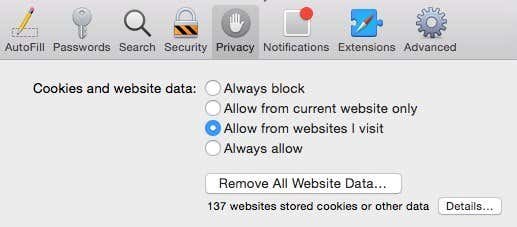
You can click the Remove All Website Data button to delete all cookies or click Details to see each individual cookie stored in Safari.
There are also others ways to try and prevent sites from tracking you and I’ll just mention them briefly below with links to detailed articles I’ve already written. The first method is to use the private browsing mode that each browser now comes with. In private mode, the browser won’t store any cookies on your computer locally or will remove them immediately after you close the private browsing window.
The websites you visit can still track you even in private mode, but the data won’t be stored locally to your computer and nothing will remain in your search history. Another method is to use Do Not Track, which all browsers let you enable from the same privacy tab mentioned above. This basically sends a request to the server not to track you while browsing.
Unfortunately, there is no legal requirements for sites to abide by this request, so it’s really up to the site if they want to track you or not. The best option is the plugin I had mentioned above for maintaining privacy.

