

Are you missing notifications from Snapchat on your iPhone or Android phone? Is this causing you to miss out on essential app announcements? Many items can cause Snapchat not to send you alerts. Luckily, you can resolve the issue with ease in most cases, and we’ll show you how.
You aren’t getting Snapchat notifications because you’ve enabled your phone’s DND mode, your Snapchat alerts are disabled, Snapchat’s app cache is faulty, your app version is old, and more.
Fix Your Internet Connection Problems
As you know, Snapchat relies on your phone’s internet connection to send alerts about various items. If your phone’s internet connection isn’t working, that can cause Snapchat not to trigger any notifications.
You can check if your internet connection is faulty by opening a web browser on your phone and accessing a site. Your site won’t load if your connection is faulty. In this case, apply various internet troubleshooting tips to your iPhone or Android phone. This can include rebooting your router, enabling and disabling your phone’s flight mode, re-joining your Wi-Fi network, and more.
Turn Off Your Phone’s Do Not Disturb or Focus Mode
Focus mode on iPhone and Do Not Disturb mode on Android allow you to turn off all the notifications on your phone. This is to prevent your apps from distracting you when you’re working on something important.
You may have enabled the above mode on your phone, causing Snapchat not to send you any alerts. So, you can fix the issue by turning off your phone’s DND mode.
On Android
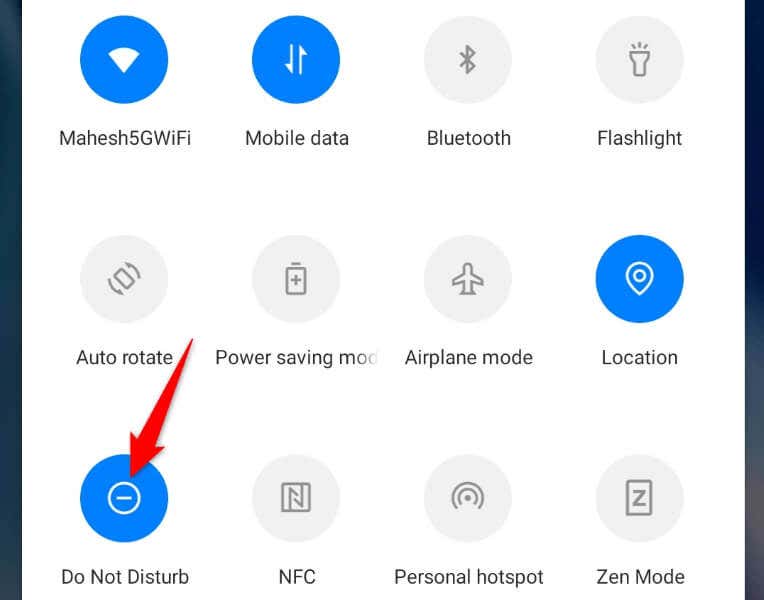
- Pull down twice from the top of your phone’s screen.
- Tap Do Not Disturb to turn off the mode.
On iPhone
- Open the Control Center by swiping down from the top-right corner of your phone’s screen.
- Tap the Focus mode option to see various Focuses you’ve created.
- Disable all Focuses on the list to turn off the mode.
Enable Snapchat’s Notifications in Your iPhone or Android Settings
iPhone and Android allow you to control your app notifications from the system level. This means you can turn off any app’s notifications on your phone, and that app can’t send you alerts no matter what.
That may be the case with Snapchat on your phone. You or someone else may have toggled off Snaphat’s notifications in your phone’s settings menu, preventing the app from sending you any alerts.
You can fix that by re-enabling the app’s alerts from your phone’s Settings app.
On Android
- Access the app drawer, tap and hold on Snapchat, and select App info.
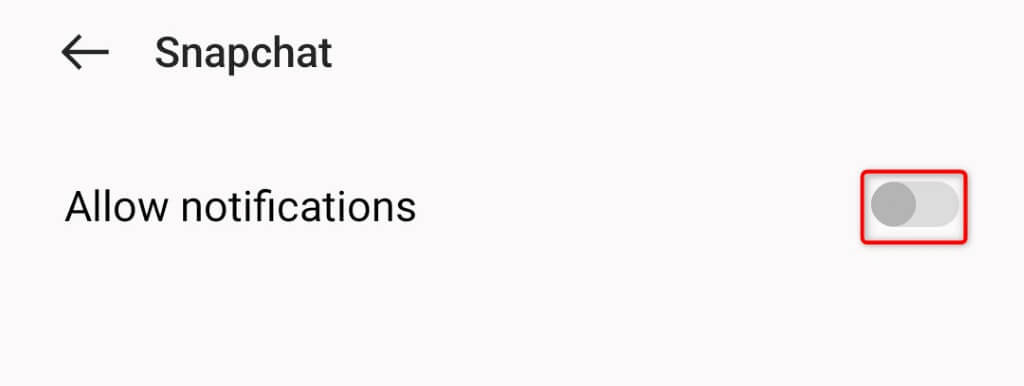
- Choose Manage notifications on the following screen.
- Enable the Allow notifications toggle.
On iPhone
- Launch the Settings app on your iPhone.
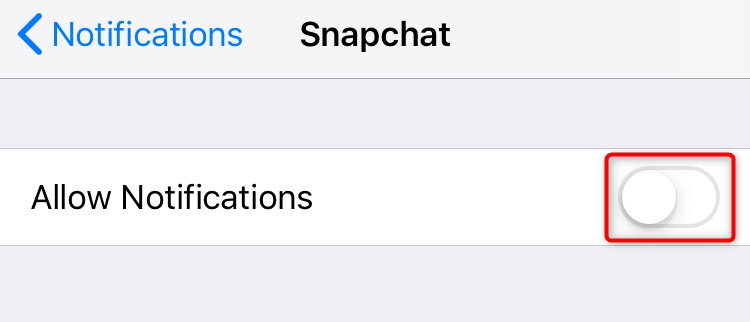
- Select Notifications and choose Snapchat.
- Turn on the Allow Notifications toggle to re-activate the app’s alerts.
Activate Various Notifications in the Snapchat App
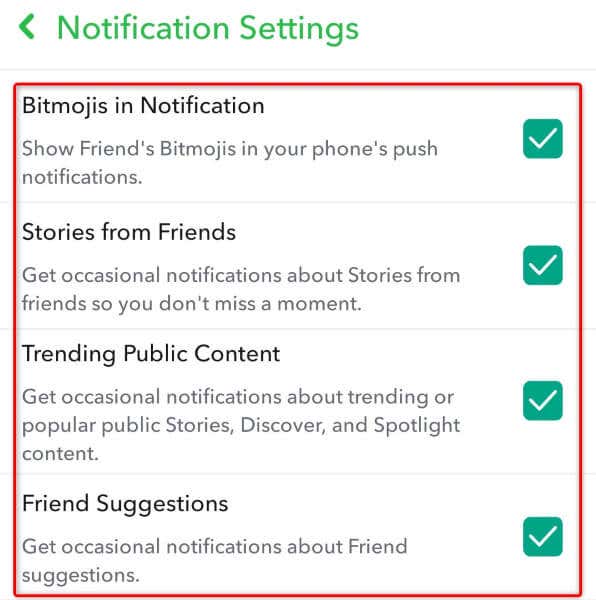
In addition to controlling Snapchat’s notifications from your phone’s Settings app, you can enable and disable various alerts from within the app. These in-app alerts may be disabled, causing you to miss your Snapchat notifications.
You can fix that by re-enabling all the alert options in your app.
- Open Snapchat on your phone.
- Select your profile icon or Bitmoji in the top-left corner.
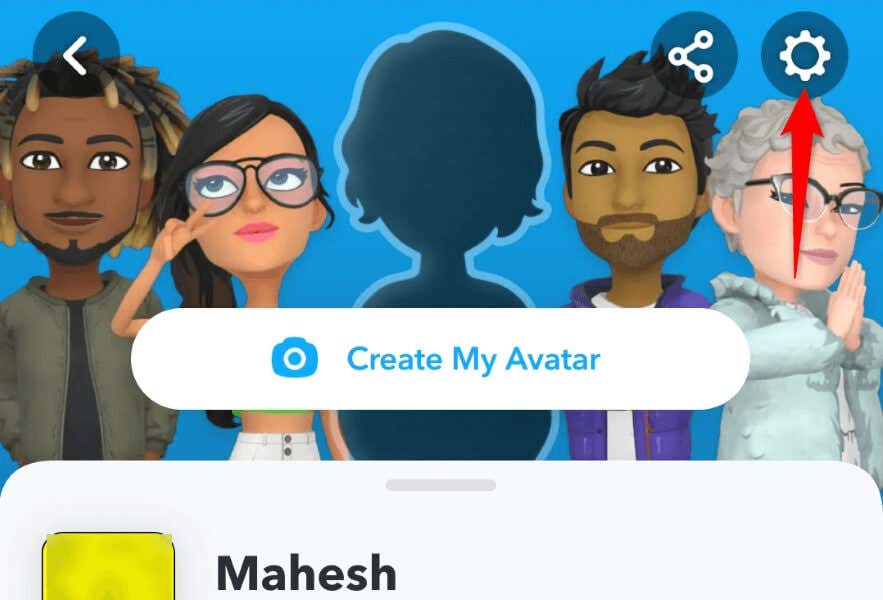
- Choose Settings (a gear icon) in the top-right corner.
- Select Notifications in the open menu.
- Enable the alerts you’d like to receive from the app on your phone.
Clear Snapchat’s App Cache on Your Smartphone
Snapchat can fail to send notifications because the app’s cache files are corrupted. Such corruption can cause your app to malfunction and create many other problems.
But you can resolve your issue by clearing your app’s faulty cache files. Doing so doesn’t delete your account data.
- Launch Snapchat on your phone.
- Select your profile icon or Bitmoji in the top-left corner and Settings (a gear icon) in the top-right corner.
- Choose Clear Cache in the open menu.
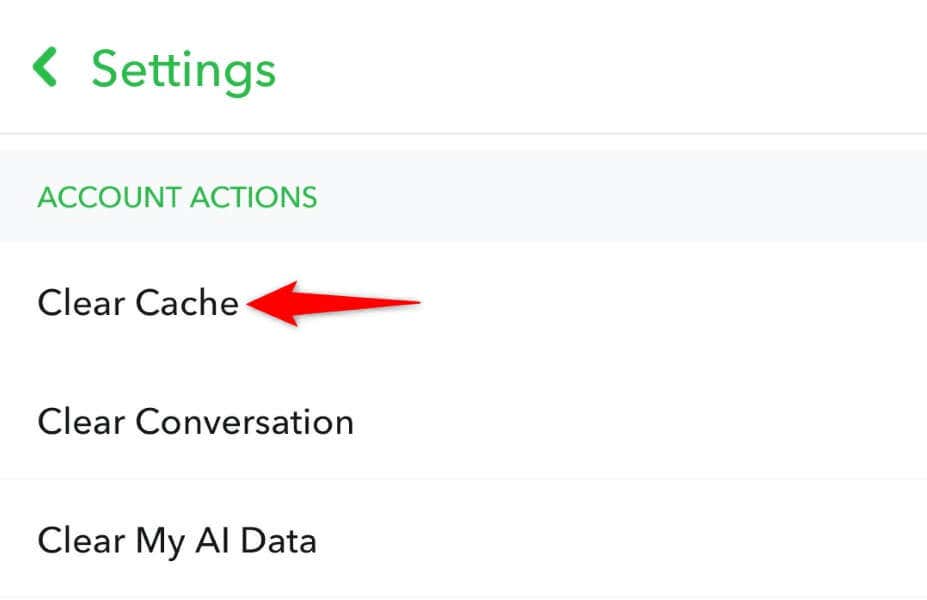
- Select Continue (Android) or Clear All (iPhone) to delete your app’s cached data.
- Close and relaunch your app.
Update Snapchat on Your iPhone or Android Phone
An outdated app version often causes many issues. You may be running an old app version with many bugs and issues.
You can resolve that issue by updating your app to the latest version.
On Android
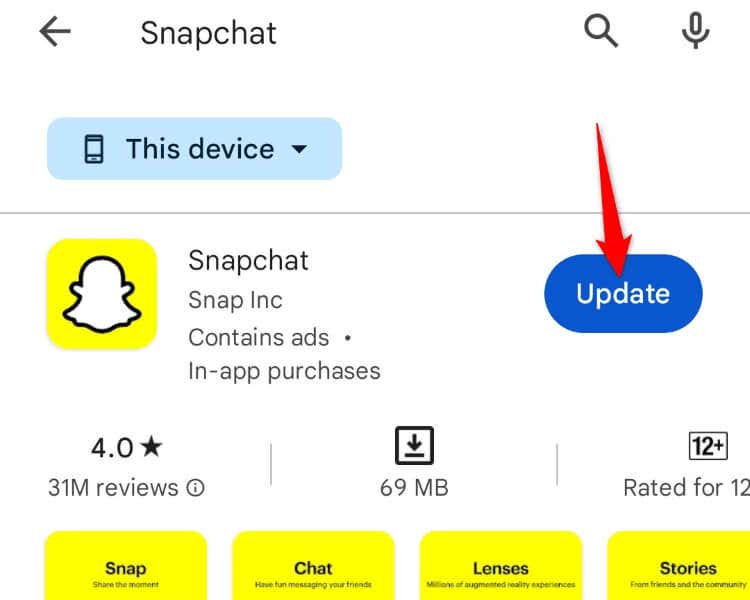
- Open Google Play Store on your phone.
- Search for Snapchat.
- Tap Update next to the app to update the app.
On iPhone
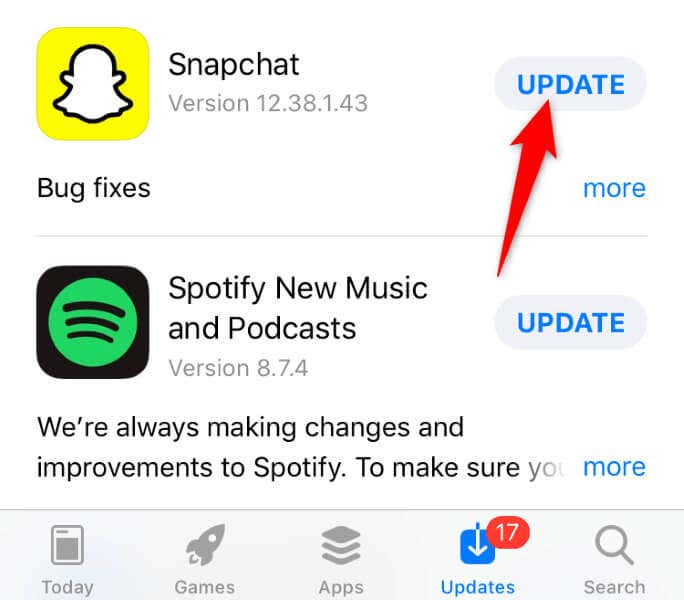
- Launch the App Store on your iPhone.
- Select Updates in the bottom bar.
- Choose Update next to Snapchat on the list.
Restart Your iPhone or Android Phone
Sometimes, the issue isn’t with your apps but with your phone. Your iPhone or Android phone may have a minor glitch, causing Snapchat not to function as expected. In this case, you can resolve those minor problems by restarting your devices.
Restarting your iPhone or Android phone turns off and back on all your system features, possibly fixing issues with those items.
On Android
- Press and hold down the Power button on your phone.
- Select Restart in the menu.
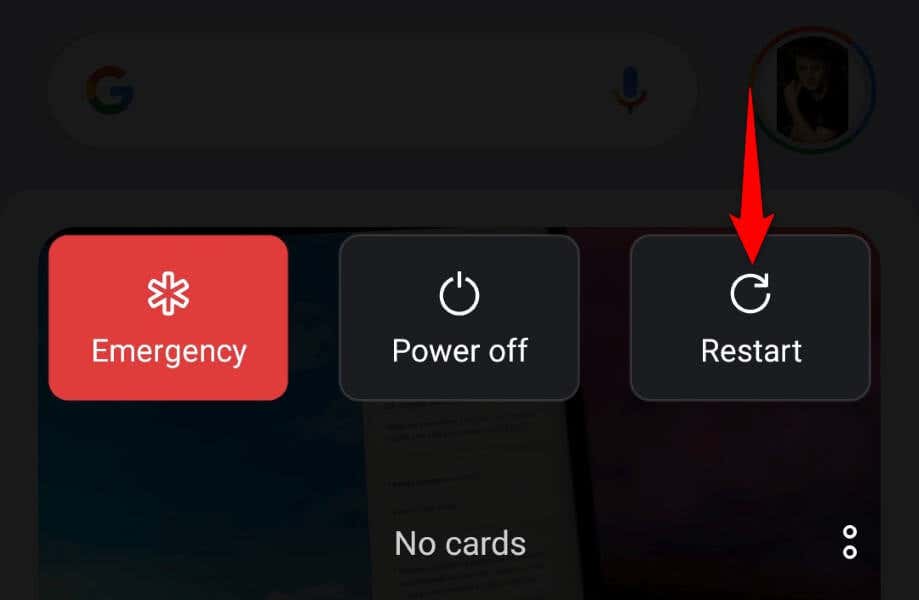
- Launch Snapchat when your phone turns on.
On iPhone
- Press and hold down Volume Up + Side or Volume Down + Side on your phone.
- Drag the slider to turn off your phone.
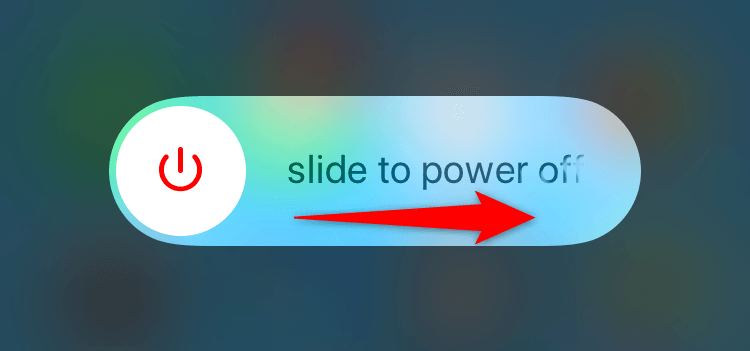
- Turn on your phone by pressing and holding down the Side button.
- Open the Snapchat app.
Log Out and Back Into Your Account on Snapchat
If you still aren’t receiving notifications from Snapchat, your login session with the app may have a problem. The app may be experiencing issues authenticating your user details with the company’s servers, causing your issue.
You can fix that by signing out and back into your account in the app. Keep your login details handy.
- Open Snapchat and access the Settings menu.
- Scroll the menu to the bottom and choose Log Out.
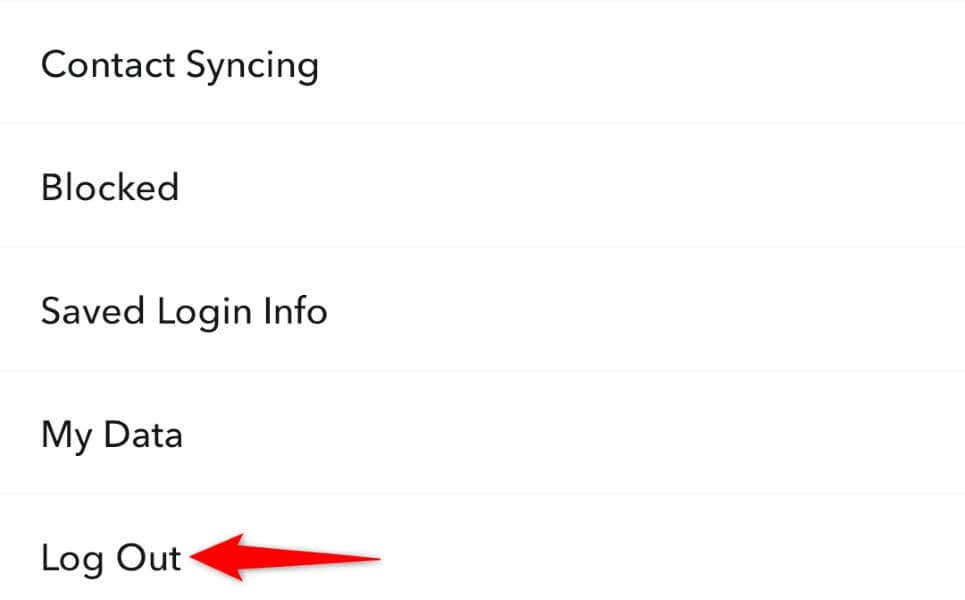
- Select Log Out in the prompt.
- Close and reopen the app.
- Log back into your account in the app.
Remove and Reinstall Snapchat on Your Phone
If none of the above methods fixes your issue, your last option is to uninstall and reinstall the Snapchat app on your phone. Your problem may be due to the app’s faulty core files, which you can resolve by deleting the current app files and bringing working files.
On Android
- Open the app drawer, tap and hold on Snapchat, and select Uninstall.
- Choose Uninstall in the prompt.
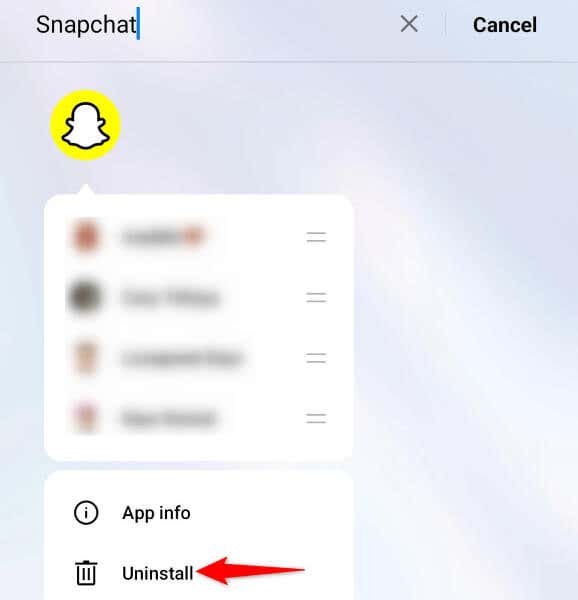
- Launch Google Play Store, find Snapchat, and select Install.
On iPhone
- Tap and hold on Snapchat on your iPhone’s home screen.
- Choose Remove App > Delete App in the menu.
- Reinstall the app by opening the App Store, finding Snapchat, and tapping the download icon.
Get Timely Alerts From Snapchat
Snapchat fails to send you account alerts for various reasons. Not receiving notifications can be a big deal if you use this app exclusively to chat with your friends and family.
Follow the methods outlined above, hopefully resolving your Snapchat alert issue on your iPhone or Android device.