

Got a new phone, tablet, console, or PC, and now you’re panicking about the giant castle your kid spent all summer building? Take a breath. Your Minecraft world isn’t lost. It’s still sitting on the old device. You just have to move it yourself, because signing in with the same Microsoft account doesn’t bring locally saved worlds along. (Worlds stored on a Realm are the exception, since the Realm belongs to your account.)
This guide shows you how to transfer a Minecraft world between devices using four methods: three official ones (Bedrock’s Export World .mcworld file, Minecraft Realms, and copying the Java Edition saves folder), plus Chunker, a third-party converter that Microsoft documents for switching between Java and Bedrock. Start with the chooser below. It tells you which method fits your two devices, so you can skip straight to your section.
Quick Answer: Which Method Do You Need?
Find your “from” and “to” devices in this table, then jump to that step.
| Moving from… | Moving to… | Use this method |
|---|---|---|
| Bedrock on Windows, iPhone/iPad, or Android* | Bedrock on Windows, iPhone/iPad, or Android* | Export World (.mcworld), Step 1–2 (no Realms needed) |
| Any Bedrock device | Xbox, PlayStation, or Nintendo Switch | Realms, Step 3 |
| Xbox, PlayStation, or Nintendo Switch | Any other Bedrock device | Realms, Step 3 |
| Java on Windows, Mac, or Linux | Java on another computer | Copy the saves folder, Step 4 |
| Java (any computer) | Bedrock (any device) | Chunker, Step 5, then Export or Realms |
| Bedrock (with file access) | Java (any computer) | Chunker, Step 5, then copy into saves |
*Android: Export World only works directly if the world’s File Storage Location is set to External. Worlds saved in Application storage need Realms (Step 3) instead.
The short version is this:
- Do you need Realms just to transfer a world? Usually not. Mojang’s guides point you to Realms when a console is involved, or when you can’t get the world out as a file, such as an Android world kept in Application storage.
- Can you move a Bedrock world to an Xbox or Switch? Yes, through Realms. Mojang’s transfer guides point Xbox, PlayStation, and Nintendo Switch players to Realms rather than .mcworld files, so Realms is the supported route for these consoles.
What Is Minecraft World Transfer, Anyway?
A Minecraft world is just a bundle of save data stored on one device, like a notebook sitting on one desk. Minecraft has two separate editions, and they store that notebook in different ways:
- Bedrock Edition runs on Windows, iOS/iPadOS, Android, Amazon Fire, Xbox, PlayStation, and Nintendo Switch. It isn’t officially available on macOS.
- Java Edition runs on Windows, macOS, and Linux.
- Bedrock worlds you create are stored on the device. They don’t sync through your Microsoft account unless you upload them to a Realm.
- Java worlds are plain folders on your computer that you can copy like any other folder.
- Java and Bedrock world formats don’t match. Copying one straight into the other won’t work without conversion.
This guide helps parents, casual players, and anyone upgrading their gear. It’s not a repair guide, though. If your world is damaged or you need to roll back, see our articles on how to restore a backup of your Minecraft world and how to fix a corrupted Minecraft world.
Before You Begin
- Minecraft is purchased and installed on both devices, in the edition you plan to play
- Both devices are updated to the latest version of Minecraft. Mojang specifically calls this out for Realms transfers
- You’re signed in to the same Microsoft account on both devices (for Realms)
- You have an active Realms subscription, but only if you’re using the Realms method
- You have internet access for Realms, and to download Chunker if you need it
- You have a way to move files: a USB flash drive, external SSD, cloud storage, email, or AirDrop
- You’ve made a backup copy of the world (trust me on this one)
- If you’re moving a world from Android, you’ve checked whether it uses External or Application storage
| Requirement | Details |
|---|---|
| Device | Any device listed in the chooser above |
| Game version | Current version on both devices (versions change often, so update first) |
| Realms | Separate subscription: Realms for Bedrock Edition $3.99/month, Realms Plus $7.99/month, Realms for Java Edition $7.99/month (U.S. prices on minecraft.net/realms in October 2026) |
| Chunker | Free third-party desktop app (plus a command-line version) for Windows, macOS, and Linux; converts worlds locally |
About Realms pricing: The Realms method needs an active Realms subscription or trial, according to Mojang’s support documentation. When we checked in October 2026, the official Realms page listed Realms for Bedrock Edition at $3.99 USD/month, Realms Plus for Bedrock Edition at $7.99 USD/month, and Realms for Java Edition at $7.99 USD/month. Prices vary by region and change over time, so confirm on that page before you subscribe.
Step-by-Step Guide
Step 1: Export Your Bedrock World as a .mcworld File
A .mcworld file is your whole Bedrock world squished into a single file. Think of it as packing a moving box. According to Mojang’s support documentation, this works on Bedrock devices that let you handle files, such as Windows, iPhone/iPad, and Android.
Heads-up: Mojang moves buttons around between updates, so the exact wording and location can differ a bit on your version. Look for Export World in the world’s settings.
On Windows
- Open Minecraft (Bedrock Edition) and click Play.
- On the Worlds tab, click the pencil (Edit) icon next to the world you want to move.
- Scroll through the world settings until you find Export World, then click it.
- Pick a save location, like your Desktop or a USB flash drive, and click Save.
Expected result: A file named something like My World.mcworld appears where you saved it.

On iOS/iPadOS
- Open Minecraft and tap Play.
- Tap the pencil icon next to your world.
- Scroll down in the settings and tap Export World.
- When the share sheet pops up, choose where to send it: Save to Files, iCloud Drive, AirDrop, or a messaging app.
Expected result: The .mcworld file goes wherever you sent it. If you chose Save to Files, it appears in the Files app; with AirDrop or a messaging app, it arrives on the other device or chat instead.
On Android
Before exporting, check your world’s File Storage Location in Settings > Storage, or in the world’s edit screen. According to Minecraft’s help documentation, worlds set to External storage can be exported and copied directly.
Minecraft’s help documentation says worlds set to Application storage aren’t available as separate files for manual transfer. If your world is in Application storage, skip ahead to Realms (Step 3) instead of exporting.
If your world uses External storage, follow these steps:
- Open Minecraft and tap Play.
- Tap the pencil icon next to your world, scroll down, and tap Export World.
- Choose where to save or share the file.
Android is a little unpredictable here. The save screen and default folder depend on your Android version, phone maker, and file manager app. If you can’t find the file afterward, check your Downloads folder, or search your phone’s file manager for .mcworld.
Expected result: For an External-storage world, a .mcworld file lands in the folder or app you picked. If your world is in Application storage, Minecraft’s help documentation says its files aren’t available for manual transfer, so use Realms instead.
Step 2: Import the .mcworld File on Your New Device
Now get the file onto the new device using a cloud drive, email, a USB cable, or AirDrop. Then open it.
On Windows
- Open File Explorer and find the .mcworld file.
- Double-click it.
Expected result: Minecraft launches and shows an import message. When it finishes, your world appears in the Worlds list.
On iOS/iPadOS
- Open the Files app (or wherever you saved the file).
- Tap the .mcworld file. If iOS doesn’t open it in Minecraft automatically, tap the Share icon and pick Minecraft.
Expected result: Minecraft opens, imports the world, and lists it under Worlds.
On Android
- Open your file manager and tap the .mcworld file.
- If you’re asked which app to use, choose Minecraft.
This also varies by phone. Some file managers open it right away, and others need you to pick the app first.
Expected result: Minecraft imports the world and adds it to your Worlds list.
Step 3: Use Realms for Consoles (or Devices Without File Access)
Xbox, PlayStation, and Nintendo Switch don’t offer the file access needed to import or export .mcworld files, based on current Mojang documentation. Realms solves this instead: it’s like a storage locker in the cloud, where you put the world in from one device and take it out on another.
Realms is also the documented path for Android worlds stored in Application storage, since Minecraft’s help documentation says those world files aren’t available for manual transfer. These steps follow Mojang’s official Realms transfer guide. Labels such as Realms Hub, the Worlds (or World) tab, Slots, and the three-dot menu vary between versions and platforms, so look for the closest match on your screen.
Part A: Upload from the old device
- Make sure Minecraft is updated, and that you’re signed in with the Microsoft account that owns the Realm.
- Go to Play > Realms and select your Realm to open the Realms Hub.
- Open the Worlds tab and pick a world slot.
- Choose Edit World and scroll to the bottom.
- On an empty slot, choose Upload World. On an occupied slot, Replace World overwrites what’s there. Then pick your local world.
Expected result: The upload finishes, and your world now lives in that Realm slot.
Warning: Replace World overwrites the world in that slot for good, and anyone playing on it gets kicked off. Double-check which slot you picked. See Mojang’s upload guide for more detail.
Part B: Download on the new device
- On the new device (an Xbox, for example), sign in with the same Microsoft account and update Minecraft.
- Go to Play > Realms, select the Realm, open the Worlds tab, pick the slot, and choose Edit World.
- Scroll down and choose Download World.
Expected result: A local copy appears on the Worlds tab (not the Realms tab), named something like “World name – Copy.” Tap the pencil icon if you want to rename it.
Tip: Once the world is safely downloaded, you can cancel Realms if you only subscribed for the move. Keep it if you want an always-on world for friends to join.
Step 4: Copy Your Java Edition Saves Folder
Java worlds are the easiest to move. Each world is its own folder inside a folder called saves. This follows Mojang’s Java transfer guide.
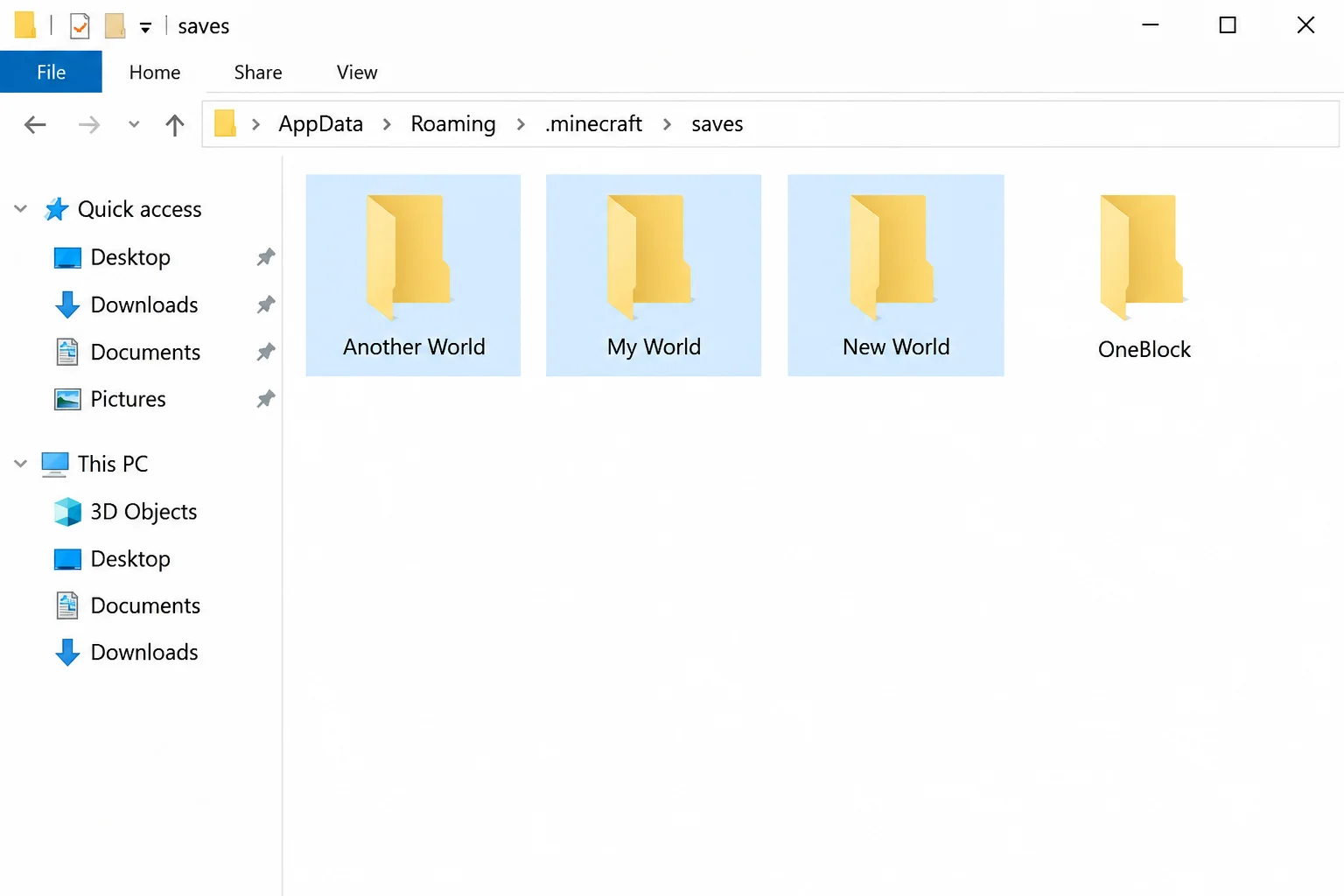
On Windows
- Close Minecraft.
- Press
Win + R, paste the path below, and press Enter:
%appdata%\.minecraft\saves- Find your world’s folder. It has the same name you see in the game.
- Copy the whole folder, including the folder itself and everything inside it. Save it to a USB flash drive, external SSD, or cloud drive.
- On the new PC, open the same path and paste the folder in.
Expected result: Launch Java Edition, click Singleplayer, and your world appears in the list.
On macOS
- Quit Minecraft.
- In Finder, click Go > Go to Folder (or press
Cmd + Shift + G). The Library folder is hidden by default, which is why you need this shortcut. - Paste this path and press Return:
~/Library/Application Support/minecraft/saves- Copy the world folder to a USB drive, a cloud drive, or AirDrop it to the new Mac.
- On the new Mac, open the same path and drop the folder in.
Expected result: Open Java Edition, choose Singleplayer, and your world is waiting for you.
On Linux
- Close Minecraft.
- Open your file manager and go to this folder in your home directory (press
Ctrl + Hto show hidden folders in most file managers):
~/.minecraft/saves- Copy the world folder to a USB drive or cloud drive, then paste it into the same folder on the new computer.
Expected result: Launch Java Edition, choose Singleplayer, and your world appears in the list. If you use a third-party launcher or a Flatpak/Snap package, the game folder may be elsewhere, so check the launcher’s game directory setting.
Mac players with a Bedrock world: Bedrock doesn’t run on macOS. To keep playing a Bedrock world on a Mac, you’d need to convert it to Java with Chunker (Step 5). Otherwise, play it on another Bedrock device.
Step 5: Convert Between Java and Bedrock with Chunker
So your kid’s friends all play Bedrock, but the world is on Java? Chunker is an independent tool for converting worlds between the two formats. It isn’t an official Mojang product, but Microsoft’s Bedrock developer documentation describes and links to it as a conversion option.
Microsoft’s Chunker overview describes it as a standalone application (plus a command-line version) for Windows, macOS, and Linux that converts your world locally on your computer. Microsoft’s documentation points to the Chunker releases page on GitHub for downloads.
- Back up your original world first. Chunker makes a converted copy, but keep the original anyway.
- Download the Chunker app for your operating system from the releases page and open it.
- On the Upload World screen, choose Choose world folder for a world folder (a Java world from Step 4, or any folder containing
level.dat), or Select archive for a .mcworld file from Step 1 or a .zip. You can also drag the folder or file onto the window. - Pick the edition and version you’re converting to, then click Convert (or open Advanced Mode if you need to adjust settings).
- When the conversion finishes, click Save to write the converted world to your output folder.
Expected result: For Bedrock output, open the converted .mcworld file and Minecraft imports it (Step 2), or upload it with Realms (Step 3). For Java output, copy the converted world folder into your saves folder (Step 4).
A command-line version of Chunker is also available if you want to script or automate conversions.
What might break? According to Microsoft’s Chunker documentation, entities (mobs and other creatures) and player inventories currently can’t be converted between editions, so expect to lose those. Move important items from your inventory into chests before converting, since containers and their items do convert. Some blocks, commands, and add-on content may also not carry over cleanly.
Before deleting your original world, check your inventory, nearby mobs, any commands or redstone contraptions, and add-ons on the converted copy.
Configuration: Settings Worth Knowing
- Java Saves Folder (Windows):
%appdata%\.minecraft\saves. Every singleplayer world is a subfolder here. - Java Saves Folder (macOS):
~/Library/Application Support/minecraft/saves. It’s hidden inside your user Library folder. - Java Saves Folder (Linux):
~/.minecraft/saveswith the default launcher. It’s a hidden folder in your home directory. - Realm World Slots: The official Realms page says a Realm has three persistent world slots. Use Upload World on an empty slot, and use Replace World only when you really want to overwrite.
- .mcworld Location: You choose this when exporting. It’s a normal file, so you can email it, send it in a chat, or store it in the cloud.
- Android File Storage Location: Found in Settings > Storage or a world’s edit screen. External storage worlds can be exported directly; Application storage worlds need Realms.
Tips and Troubleshooting
Problem: The world doesn’t show up after a Realms transfer
- Confirm the same Microsoft account is signed in on both devices.
- Check that your Realms subscription is active.
- Update Minecraft on both devices and try again.
Problem: You can’t find the downloaded Realms world
- Look on the Worlds tab, not the Realms tab.
- Look for a name ending in “- Copy.”
Problem: A copied Java world isn’t in Singleplayer
- Make sure you copied the whole world folder (the one containing
level.dat). - Check that it sits directly inside
saves, not inside an extra folder. - If it’s zipped, unzip it first.
Problem: You accidentally overwrote a world in Realms
- Next time, use Upload World only on empty slots.
- To recover a lost world, see our guide on how to restore a backup of your Minecraft world.
Problem: Your console won’t export or import a .mcworld file
- That’s expected. Mojang documents Realms, not .mcworld files, as the way to move worlds to and from consoles.
- Use Realms (Step 3) instead.
Problem: Export World doesn’t work on your Android world
- Check whether the world’s File Storage Location is set to Application rather than External.
- If it’s Application storage, use Realms (Step 3) instead of exporting.
Problem: A Java world looks broken on Bedrock (or vice versa)
- Don’t just copy the folder across editions. Convert it with Chunker first.
- Expect some differences after converting, especially entities and inventories, and keep the original world.
- Stay Official: Skip third-party “world sync” apps, especially any that ask for your Microsoft account password. They’re not worth the risk.
- Back Up Before Every Move: It takes two minutes and saves a lot of tears.
Wrapping Up
Moving a Minecraft world feels scary, but it isn’t. Your world never disappears on its own. It just won’t follow you to a new device until you move it. Figure out which two devices you’re dealing with, pick the matching method, and you’re done. In my experience, the .mcworld export and Java folder copy are usually the simplest routes, though that can depend on your device’s file access. Realms is mostly worth paying for if a console is involved or you want to play with friends.
| Step | Action | Applies To |
|---|---|---|
| 1 | Export World to .mcworld | Bedrock on Windows, iOS/iPadOS, Android (External storage) |
| 2 | Open .mcworld on new device | Bedrock on Windows, iOS/iPadOS, Android |
| 3 | Upload/Download via Realms | Any Bedrock device, required for consoles and Android Application-storage worlds |
| 4 | Copy the saves folder | Java on Windows, macOS, and Linux |
| 5 | Convert with Chunker | Switching between Java and Bedrock |