
If you’ve been struggling with cloud storage apps that insist on keeping your files in their special folders, you’re not alone. Google Drive, OneDrive, and Dropbox all work great, until you realize your important project files are sitting in D:\Work\Projects and the app wants everything neatly tucked inside its own directory. Moving everything just to get it synced is a pain, especially when you’ve spent years building the perfect folder structure. You can also consider changing the location of your Google Drive backup and sync folder for more flexibility.
The good news: you don’t have to move anything. Google Drive for Desktop now lets you add any folder on your PC directly, no tricks required. For OneDrive and Dropbox, a built-in Windows feature called a symbolic link (or “symlink”) solves this perfectly. This guide covers both approaches, so you can keep your files exactly where they are and still have them backed up to the cloud. Steps are written for Windows 10 and Windows 11. If you’re looking to change your Windows system language, you might also find that useful for navigating these steps.
What Is a Symbolic Link?
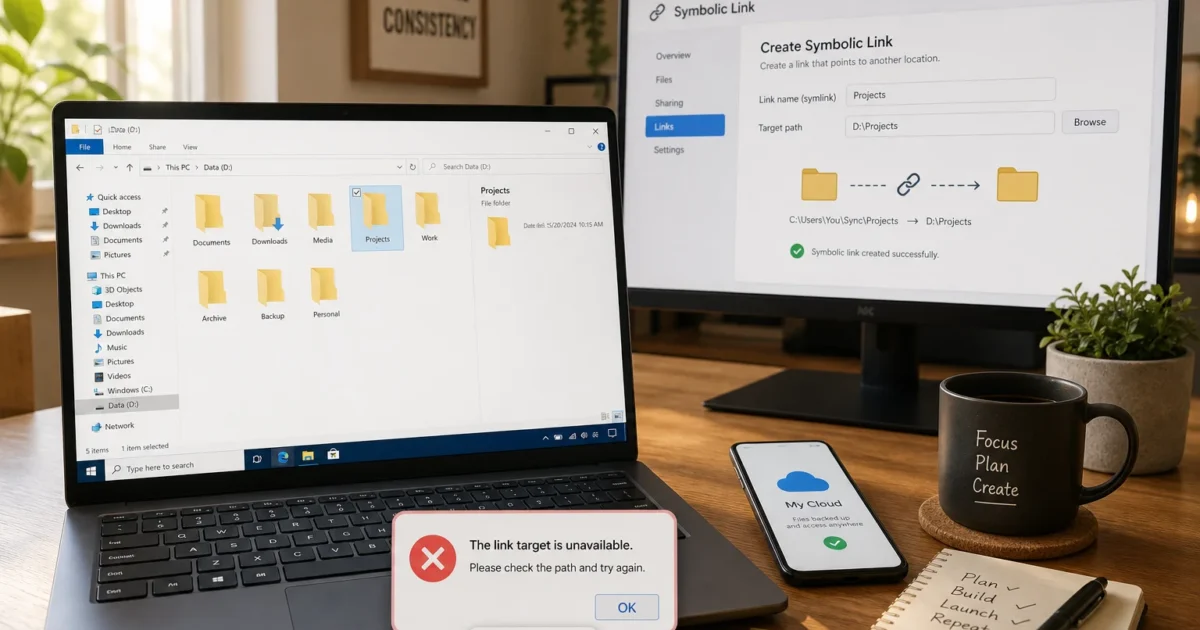
A symbolic link is basically a magic pointer. Instead of physically moving a folder into your OneDrive or Dropbox directory, you create a link inside that cloud folder that secretly points back to your original folder. The cloud app sees the link as just another regular folder and syncs everything inside it, but your files are actually living exactly where you put them. You can learn more about how to fix Google Drive backup and sync issues if you encounter any problems.
Think of it like a mirror: the cloud service sees the reflection (the link), while the actual stuff stays on the other side of the glass (your original folder). Windows has a built-in command called mklink that creates these links in about 30 seconds. It works the same on both Windows 10 and Windows 11. For more advanced users, learning about how the application launcher for Google Drive works can provide additional insights.
How to Sync Any Folder with Google Drive for Desktop
Google Drive users get the easiest path here. The modern Google Drive for Desktop app, which replaced the old Backup and Sync app a few years back, has a built-in “Add folder” option that lets you select any folder on your PC to sync. No commands, no tricks, no moving files. You can also check out how to enable dark mode for Google Drive for a better user experience.
Step 1: Download and Install Google Drive for Desktop
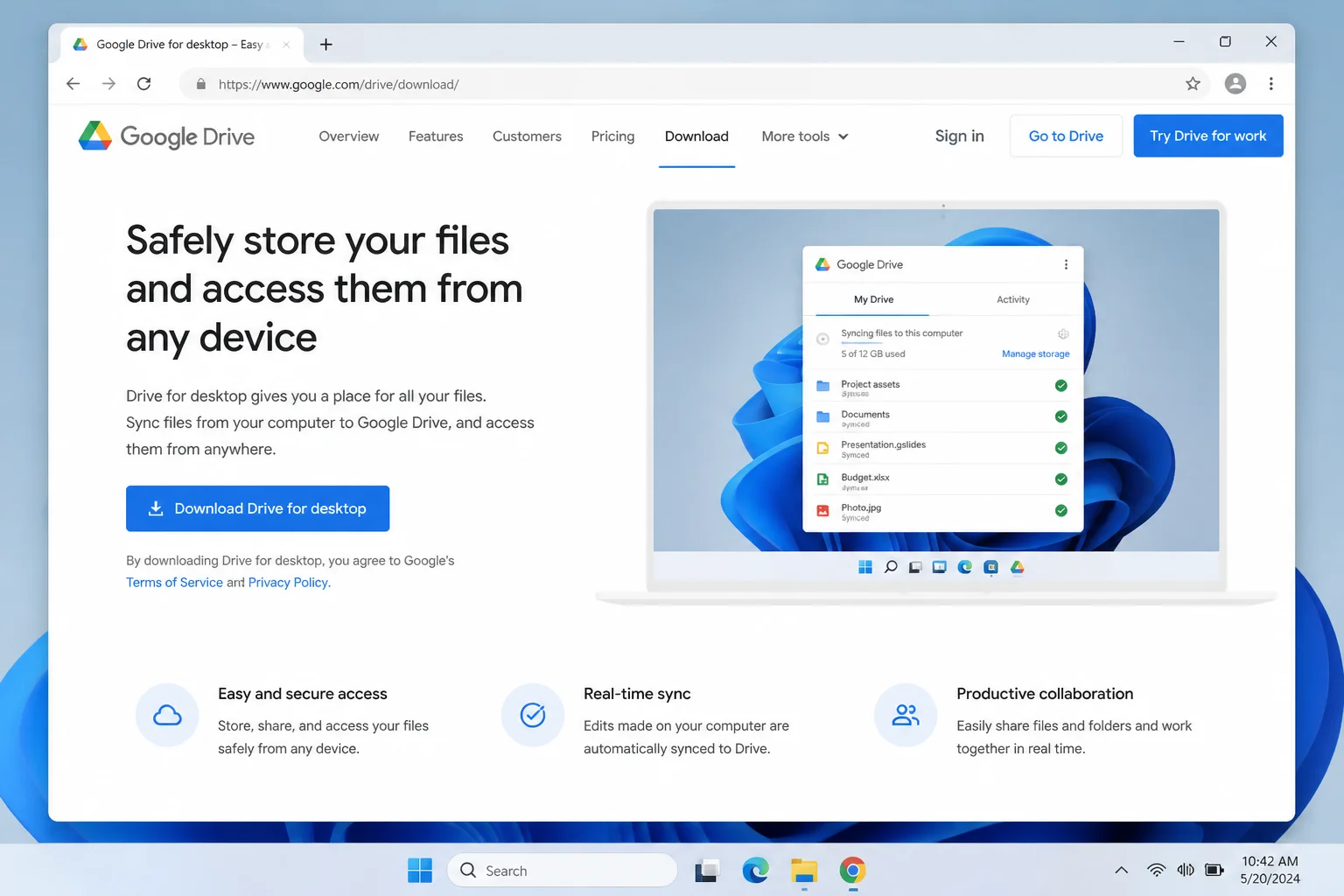
Head to Google Drive’s download page, grab the installer, and run it. Sign in with your Google account when prompted during setup. For more information on Google Drive, you can visit the official Google Drive support page.
Step 2: Open Google Drive Preferences
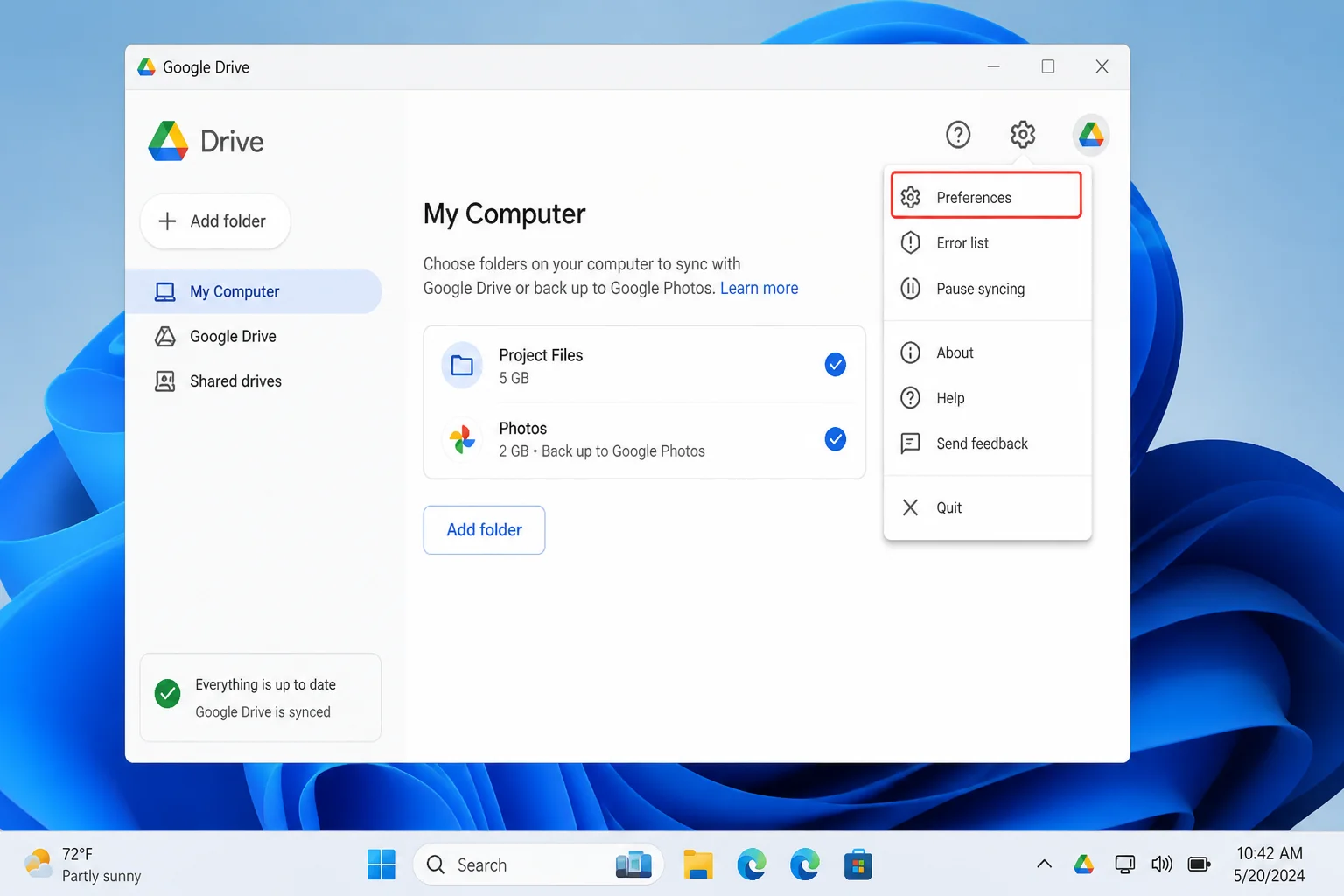
Once installed, you’ll see the Google Drive icon in your system tray (the bottom-right corner of your taskbar). Click it, then click the gear icon in the top-right corner of the popup, and select Preferences. If you need help with maintaining your LinkedIn profile, we have guides for that as well.
Step 3: Add Your Folder
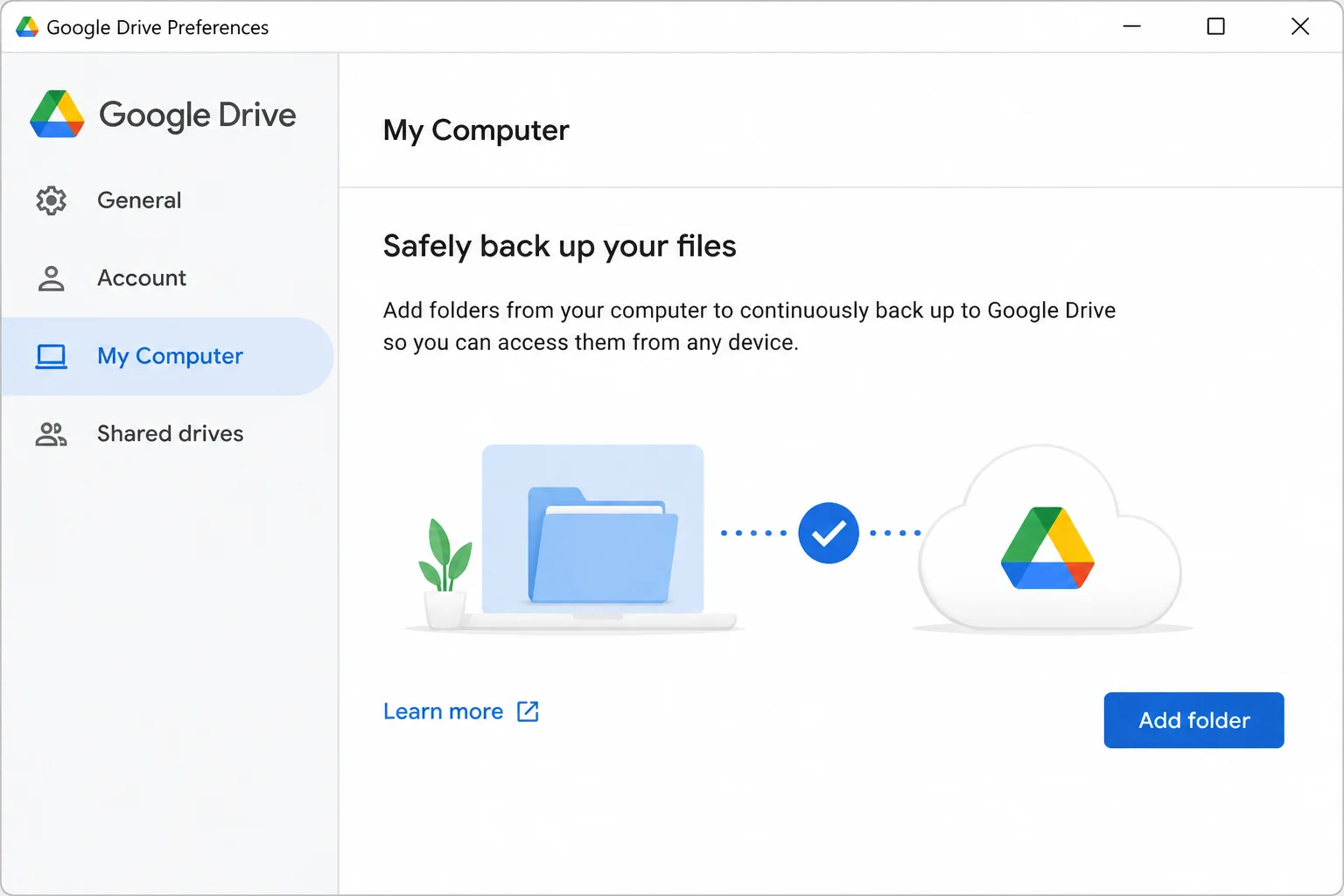
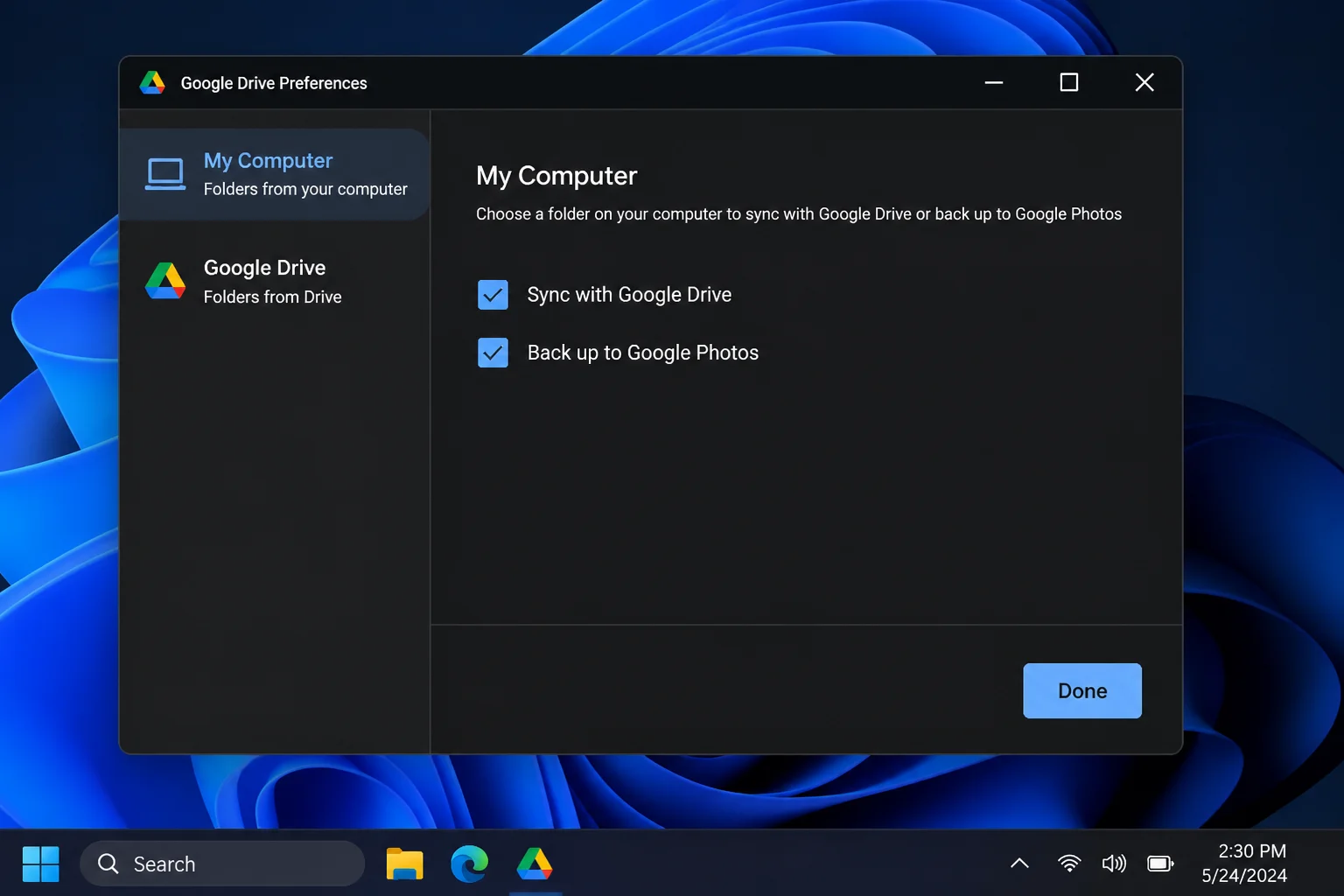
In the Preferences window, click My Computer in the left sidebar. You’ll see any folders already selected for sync. Click Add folder, then browse to whichever folder you want to sync, it can be anywhere on your PC, including an external drive. You might also want to explore free image hosting sites for storing your images.
Step 4: Choose Your Sync Options
After selecting the folder, you’ll get two options:
- Sync with Google Drive: uploads the folder to your Google Drive so you can access it from any device.
- Back up to Google Photos: for photos and videos, if you also want them in your Google Photos library.
Check whichever option fits your needs, click Done, then Save. Google Drive for Desktop will start syncing that folder immediately. No moving files, no fuss. For those interested in note-taking apps like GoodNotes or Notability, we have comparisons available.
How to Sync Any Folder with OneDrive or Dropbox (Using Symbolic Links)
OneDrive and Dropbox don’t have a “add any folder” option like Google Drive does. OneDrive does let you auto-backup your Desktop, Documents, and Pictures folders through its Settings, but for anything outside those three, you’re on your own. That’s where symbolic links come in, and they work like a charm. You can find more information on working with folders in Google Drive’s API for advanced integration.
Here’s the idea: you’ll use a Windows command called mklink to create a directory junction (a type of symbolic link) inside your OneDrive or Dropbox folder. That junction points to your actual folder sitting somewhere else on your PC. The cloud app sees it as a normal folder and syncs everything inside it. The whole setup takes about a minute once you know the command. If you’re experiencing high memory usage in Chrome, fixing that might help with overall system performance.
Step 1: Find Your Cloud Folder Path
You need to know the exact location of your OneDrive or Dropbox folder. By default, these are usually:
- OneDrive:
C:\Users\YourName\OneDrive - Dropbox:
C:\Users\YourName\Dropbox
Not sure where yours is? Right-click the OneDrive or Dropbox icon in your system tray, open Settings, and look for the folder location listed there. You can also check out connecting your Roku to Wi-Fi without a remote for other tech tips.
Step 2: Open Command Prompt as Administrator
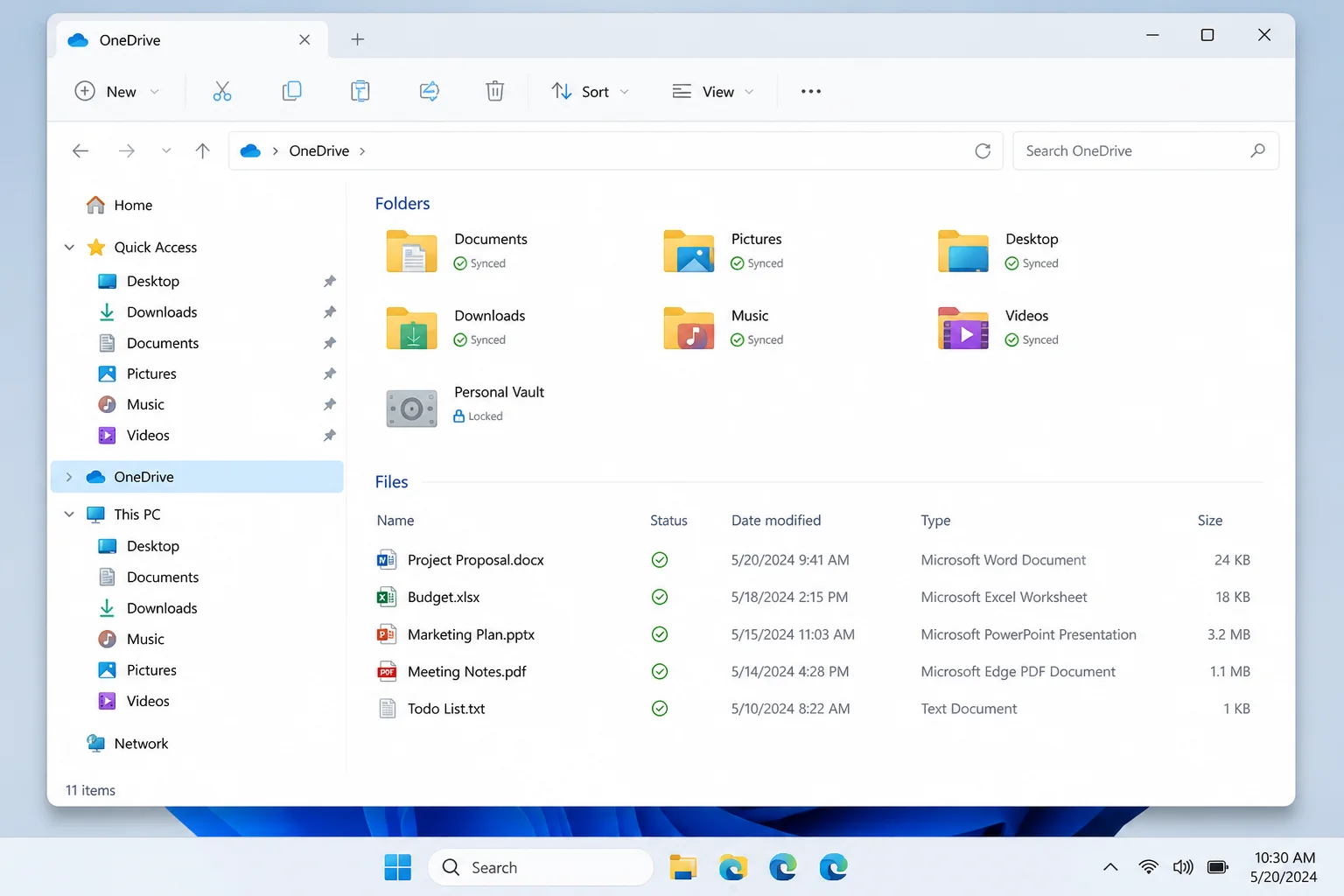
Creating symbolic links requires admin privileges (Windows won’t let just anyone mess with folder pointers). Click the Start menu, type Command Prompt, right-click it in the results, and select Run as administrator. Click Yes on the confirmation prompt that pops up. If you’re looking to fix Chrome extensions not working after an update, we have a guide for that as well.
Step 3: Run the mklink Command
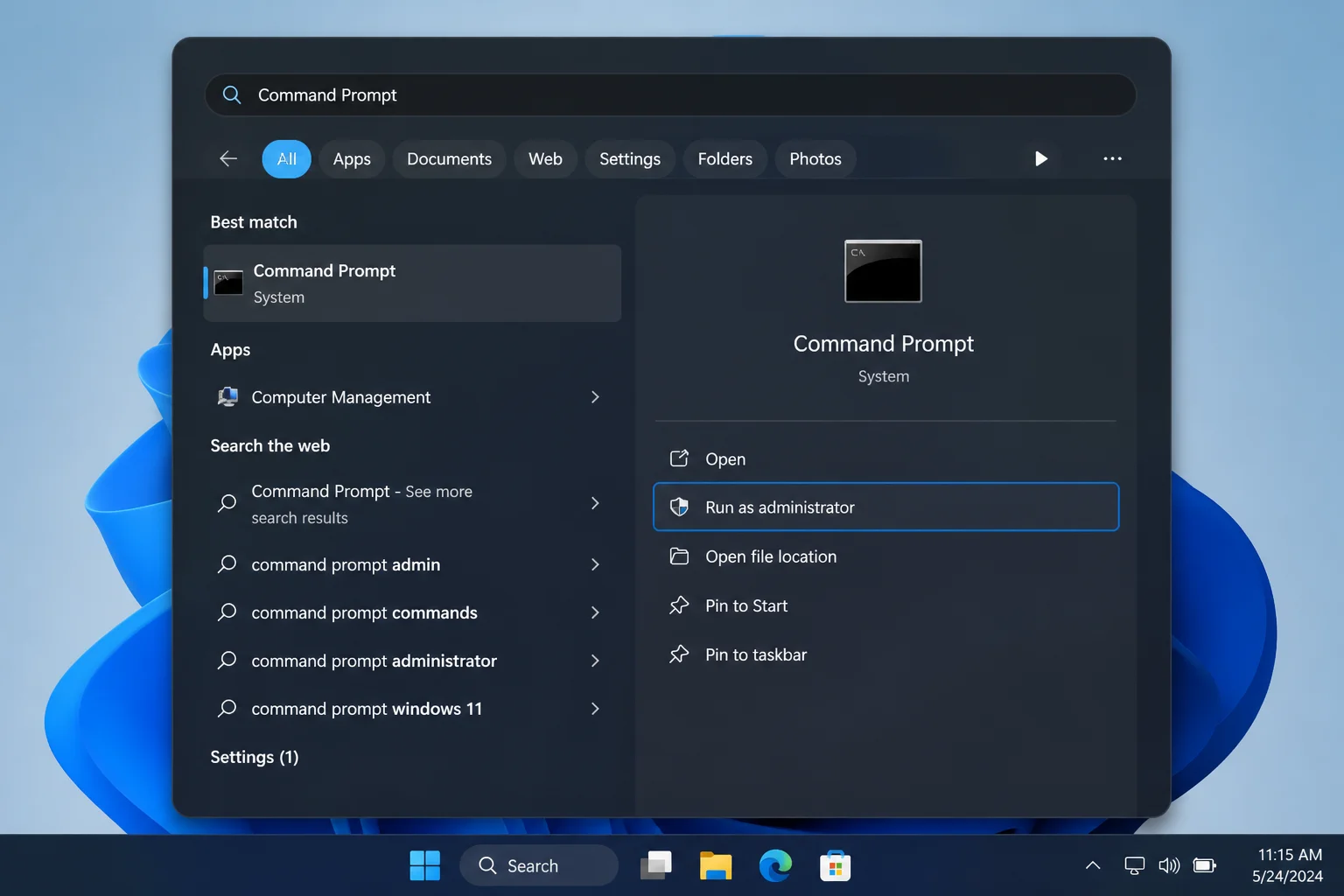
Type the mklink command using this structure, replacing the placeholder paths with your actual ones:
mklink /J "C:\Users\YourName\OneDrive\FolderName" "C:\Path\To\Your\Actual\Folder"Here’s what each part does:
- /J tells Windows to create a directory junction, the right type of link for syncing folders on your local drive.
- First path is where the link will appear inside your OneDrive or Dropbox folder. Windows creates this folder automatically, so don’t make it yourself first.
- Second path is your actual folder that you want to sync.
For example, to sync a folder at C:\Work\Projects to OneDrive with the name “Projects”, you’d type:
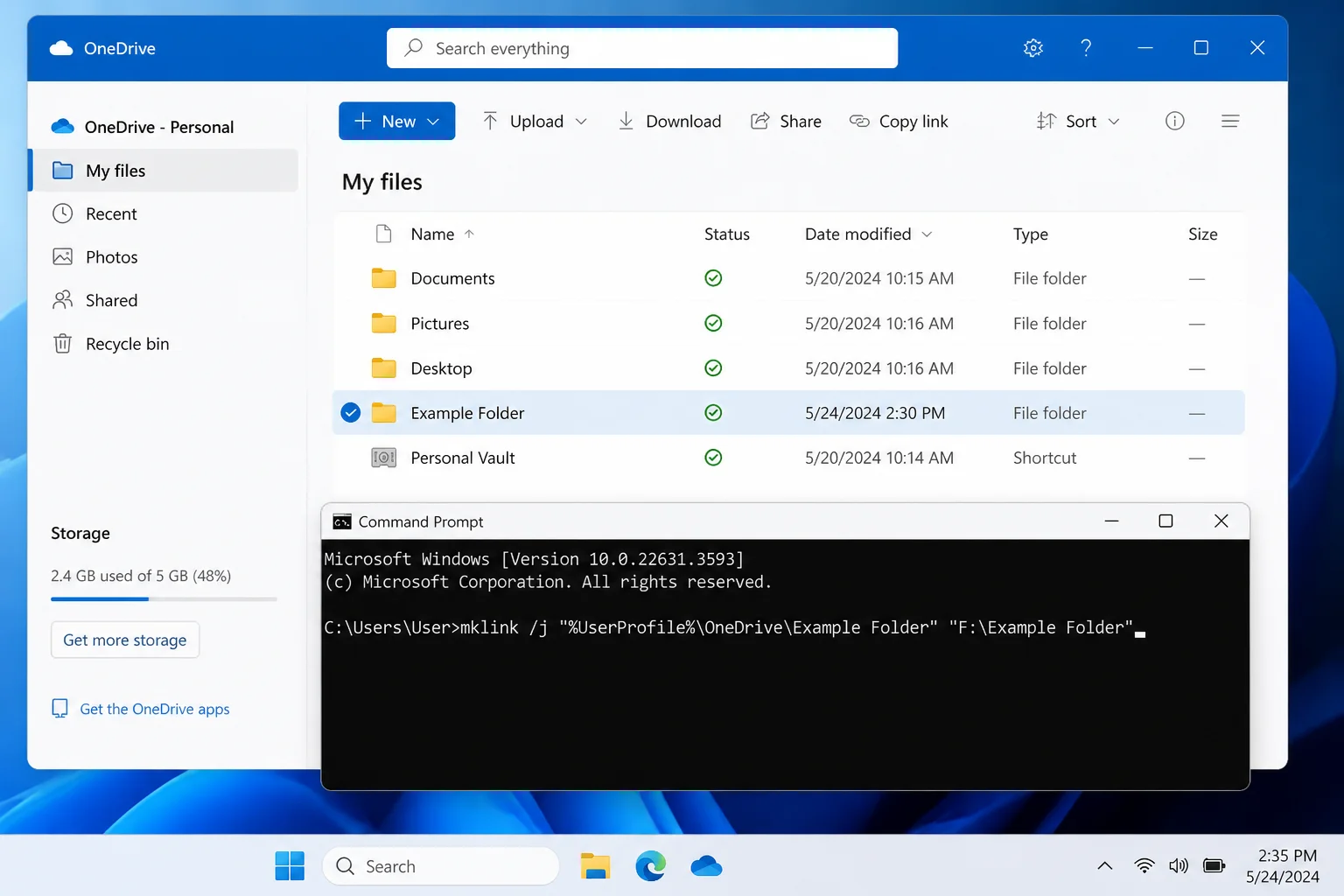
mklink /J "C:\Users\YourName\OneDrive\Projects" "C:\Work\Projects"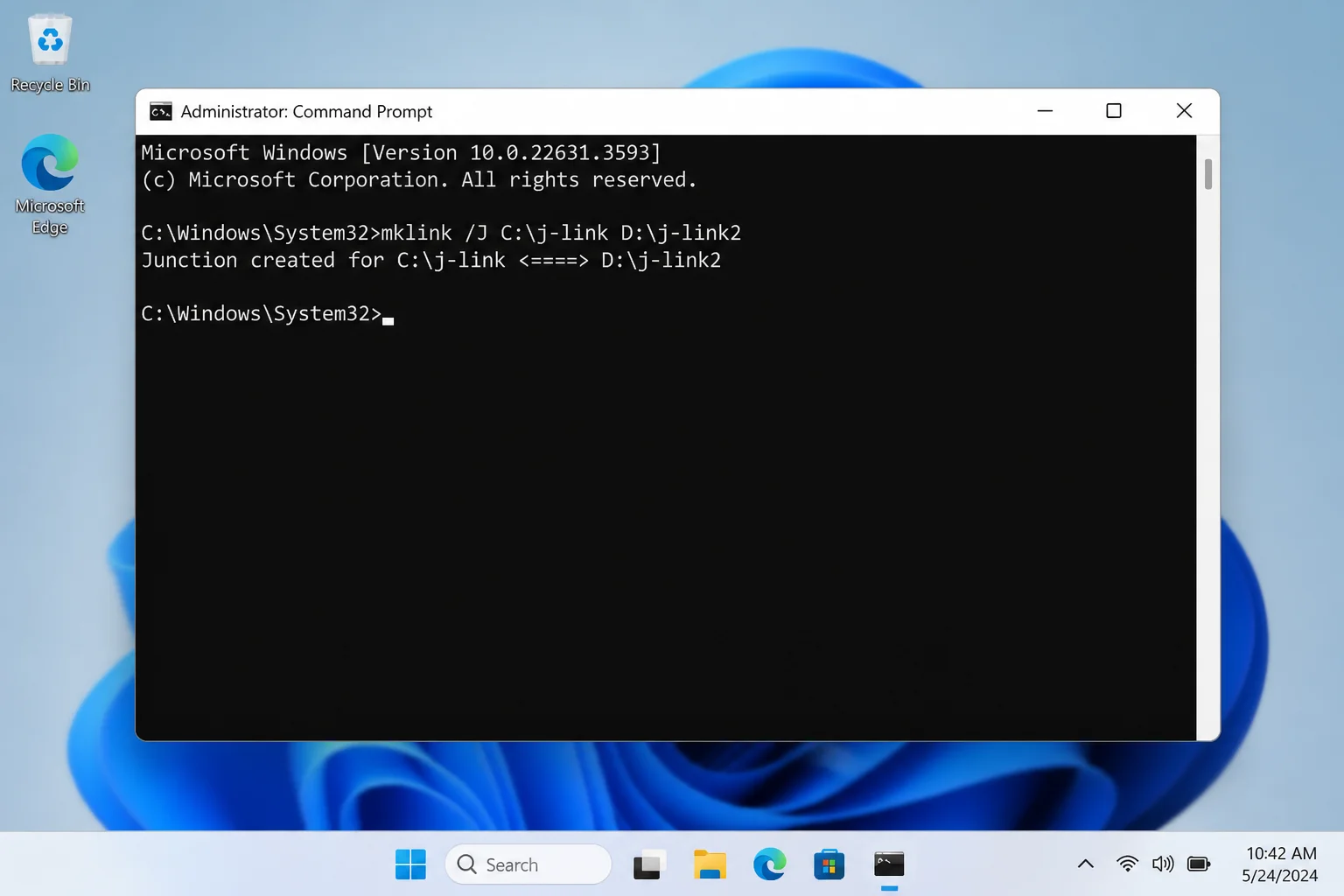
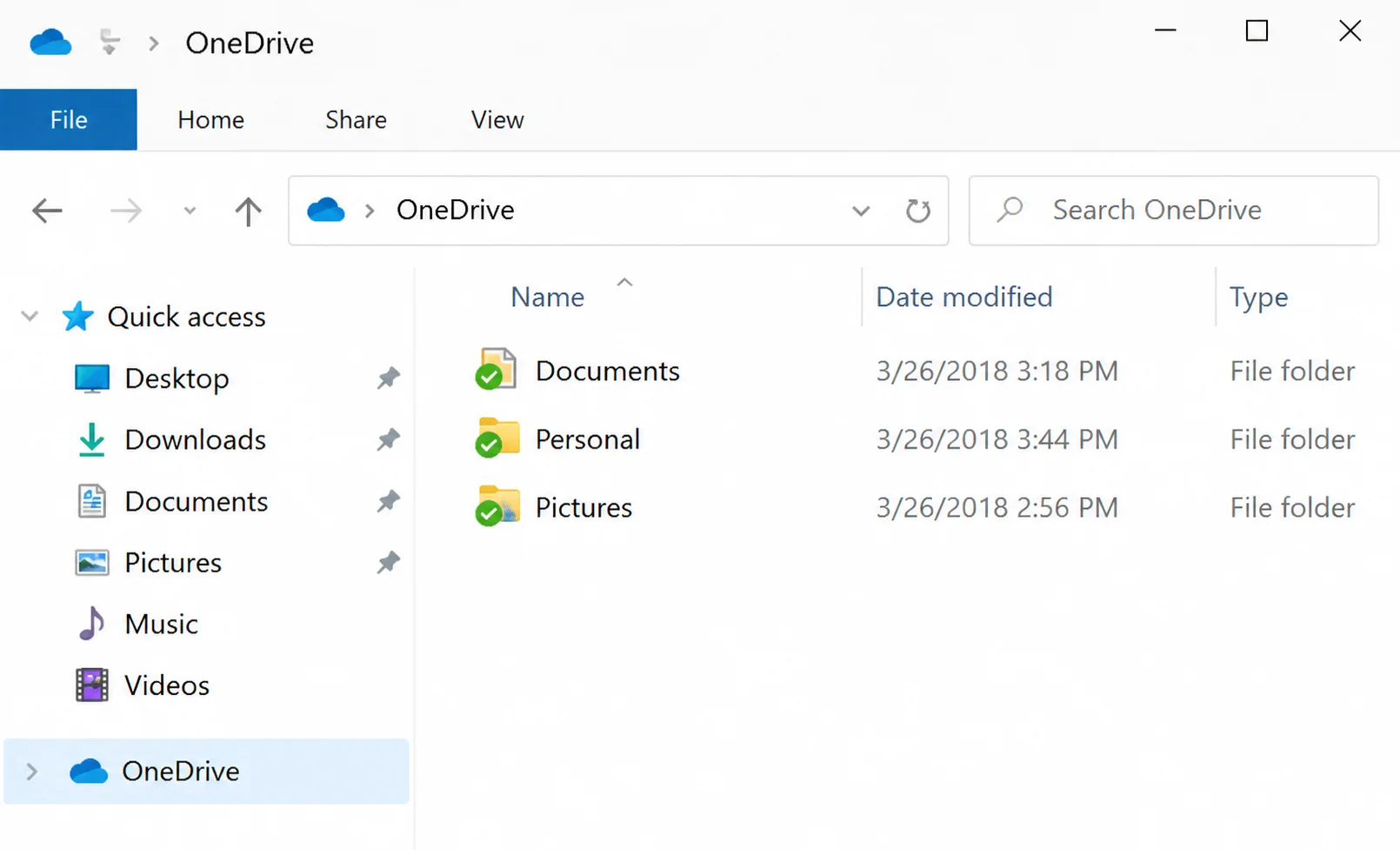
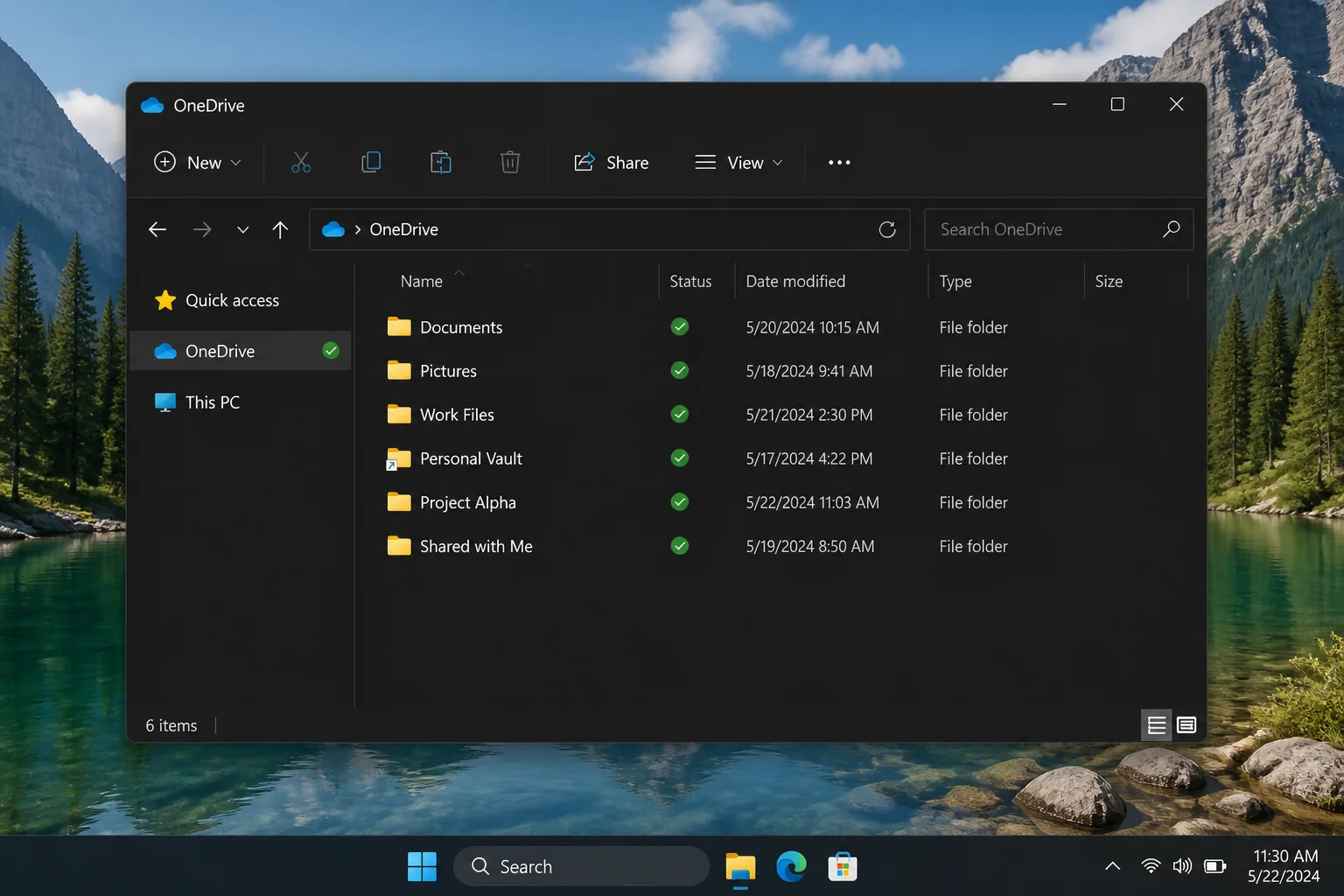
Once the command runs, you’ll see a confirmation that the junction was created. Here’s what it looks like in File Explorer. Notice the little shortcut arrow overlay on the folder icon, which shows it’s a symbolic link rather than a plain folder:
Step 4: Confirm the Sync Is Working
Open your OneDrive or Dropbox folder in File Explorer. The newly linked folder should appear there. If OneDrive or Dropbox is running, it’ll start syncing the contents almost immediately, you’ll see a syncing animation on the system tray icon, followed by a green checkmark when it’s done. You can also log into your cloud account on the web to confirm the files showed up there. For more on sports streaming sites, check out our recommendations.
Understanding Files On-Demand (Those Cloud Icons in File Explorer)
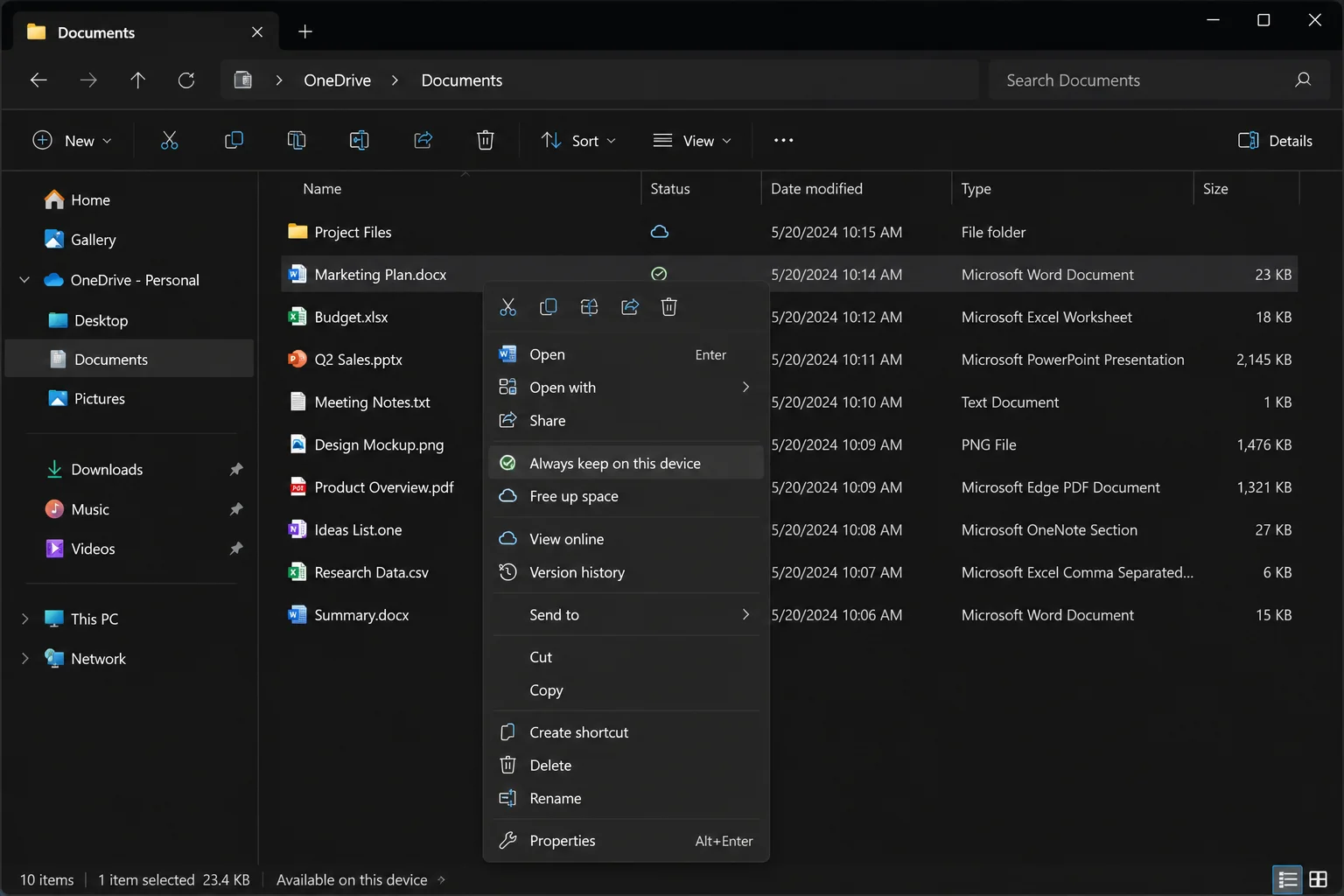
If you see little cloud icons next to files in your OneDrive, Dropbox, or Google Drive folder, don’t worry, that’s a feature called Files On-Demand. It means those files exist in the cloud but haven’t been downloaded to your device yet. Windows shows placeholder icons so you can see what’s there, but they’re not actually taking up space on your hard drive until you open them. You can also learn about changing the location of Spotify’s local storage in Windows for managing your music files.
Here’s how to take control of it:
- Download a file for offline use: Right-click the file or folder and select Always keep on this device (OneDrive), Make available offline (Dropbox), or Available offline (Google Drive). The cloud icon changes to a green checkmark once the download is done.
- Free up disk space: Right-click and choose Free up space (OneDrive), Make online-only (Dropbox), or Online only (Google Drive). Windows removes the local copy but keeps the file safe in the cloud.
Tips and Troubleshooting
Common Issues
Problem: The linked folder isn’t showing up in my cloud app after creating the symlink
Try restarting your cloud app. Right-click the OneDrive or Dropbox icon in the system tray, choose Quit, then reopen the app. It should detect the new folder and kick off a sync automatically. For help with Gmail not loading in Chrome, we have a fix for that as well.
Problem: mklink says “Cannot create a file when that file already exists”
This means there’s already a folder with that name inside your cloud directory. Delete or rename the existing folder first (make sure it’s empty so you don’t lose anything), then run the mklink command again. You can also explore Gmail alternatives for managing your email.
Problem: I deleted the linked folder inside OneDrive, did I lose my original files?
You’re fine. Deleting the junction (the link inside OneDrive or Dropbox) only removes the pointer, not your original files. They’re still sitting exactly where you left them. However, and this is important, if you open the linked folder and delete files from inside it, those files will be deleted at the original location. The link goes both ways. For more on removing ads from Amazon Prime Video, check out our guide.
Problem: My symlink stopped working after reinstalling Windows
Junctions depend on specific local paths. If you reinstall Windows or your username changes, the paths break and you’ll need to recreate the junction with the new paths. It’s a known limitation, just something to be aware of before you go all-in on this approach. You might also want to consider whether a smartwatch is worth it for your tech needs.
Pro Tips
- Sync to multiple cloud services at once: You can create junctions pointing to the same source folder in both your OneDrive and Dropbox directories at the same time. Just know that two cloud apps syncing the same files can occasionally create conflicts, especially if both services try to update the same file simultaneously.
- Wait for the initial sync to finish: After creating a symlink, give it time to complete the first sync before dumping a ton of new files into the folder. Large initial uploads eat bandwidth and can slow things down.
- Don’t create the link folder manually: The
mklinkcommand creates the link folder for you. If you create a folder with that name first, the command will fail with the “file already exists” error above.
Other Ways to Sync Folders Worth Knowing About
Symlinks aren’t the only way to handle this. Here are a few alternatives that might fit your situation better:
- Rclone / RcloneView: Want to sync folders directly between cloud services, like Google Drive to Dropbox, without involving your local PC at all? Rclone is a powerful free command-line tool that handles this. RcloneView is a friendlier GUI wrapper if you’d rather not deal with the command line. Just know that heavy usage can bump into API rate limits from Google or Dropbox.
- Virtual drive tools (like ExpanDrive): These apps mount your cloud storage as a virtual drive letter in File Explorer, like having a Google Drive or Dropbox “hard drive” that opens files directly from the cloud without syncing everything locally. Great if you’re tight on disk space, but you’ll need an active internet connection to access your files.
- Resilio Sync: If your main goal is keeping folders in sync between your own devices (rather than storing them in a cloud service), Resilio Sync does this peer-to-peer with no cloud provider in the middle. Some people swap Google Drive or Dropbox for this entirely.
Wrapping Up
You no longer have to let cloud services dictate where your files live on your PC. Problem solved. If you’re a Google Drive user, the built-in “Add folder” feature in Google Drive for Desktop makes this completely painless. For OneDrive and Dropbox, the mklink /J trick takes about a minute to set up and works reliably on both Windows 10 and 11. Either way, your files stay right where you want them and sync to the cloud like normal.
Just keep in mind the golden rule with symlinks: the junction inside the cloud folder is only a pointer. Your real files are always at the original location, so don’t panic if the link looks a little different from a regular folder. If you run into trouble getting any of this set up, drop a question in the comments and we’ll help you work through it.