
Lost your Roku remote somewhere between the couch cushions? You’re definitely not alone, and the good news is you’re not stuck watching the same channel forever. While it might seem impossible to change your Wi-Fi settings without that little remote, there are actually a few clever workarounds that can get you back to streaming in about 15 minutes.
The trick is using your smartphone as a bridge to reconnect your Roku. We’ll walk you through three different methods, starting with the most reliable one that works on pretty much any Roku model. By the end of this guide, you’ll be able to connect your Roku to any Wi-Fi network without ever touching a physical remote.
Before You Begin
Make sure you have:
- Two devices: Either two smartphones, or one smartphone plus a computer/tablet
- Your old Wi-Fi credentials: The name and password of the network your Roku was previously connected to (this is crucial for the hotspot method)
- The Roku app: Free download from the App Store or Google Play
- A 2.4 GHz compatible Roku: Most models support this, but very old ones might not
Method 1: Use the Mobile Hotspot Trick (Most Reliable)
This is the go-to method that works even when your Roku has never been connected to your current Wi-Fi network. The idea is simple: create a fake Wi-Fi network with the exact same name and password as your Roku’s previous network, trick it into connecting, then use the Roku app to switch to your real network.
Step 1: Create a Hotspot That Matches Your Roku’s Last Network
First, you’ll need to set up a mobile hotspot on one of your devices. The key here is using the exact same network name (SSID) and password that your Roku was connected to before. Even the capitalization matters!
On iPhone:
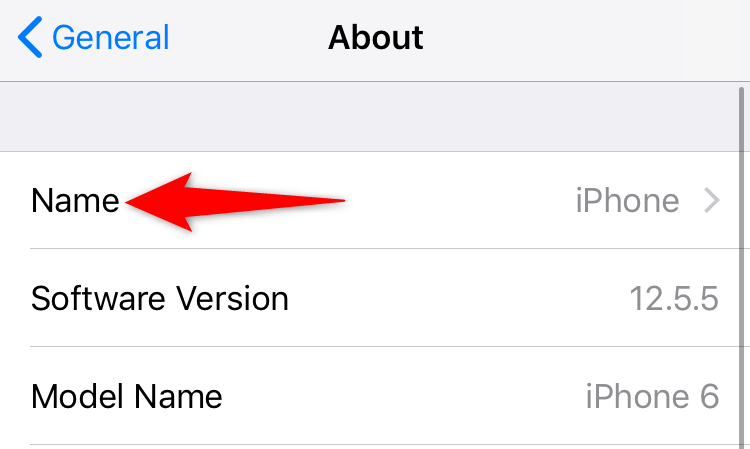
- Open Settings and go to General > About > Name.
- Change your phone’s name to match your old Wi-Fi network name exactly.
- Go back to Settings > Personal Hotspot.
- Toggle on Allow Others to Join.
- Tap Wi-Fi Password and enter the exact password from your old network.
On Android:
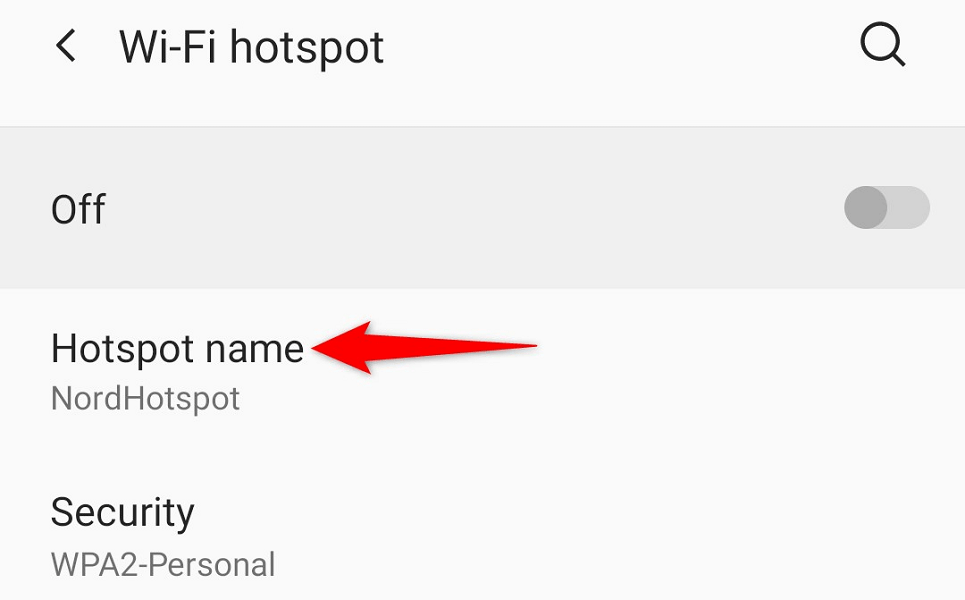
- Open Settings and navigate to Network & internet > Hotspot & tethering > Wi-Fi hotspot.
- Tap Hotspot name and enter your old network name exactly.
- Tap Hotspot password and enter your old network password.
- Turn on the hotspot toggle.
On Windows:
- Press
Windows + Ito open Settings. - Go to Network & Internet > Mobile hotspot.
- Click Edit and set both the network name and password to match your old Wi-Fi.
- Turn on the hotspot toggle.

Step 2: Power Cycle Your Roku
Now comes the magic part. Unplug your Roku from power, wait about 1 minute (seriously, count to 60), then plug it back in. Your Roku should automatically connect to your hotspot since it thinks it’s the same network it was on before.
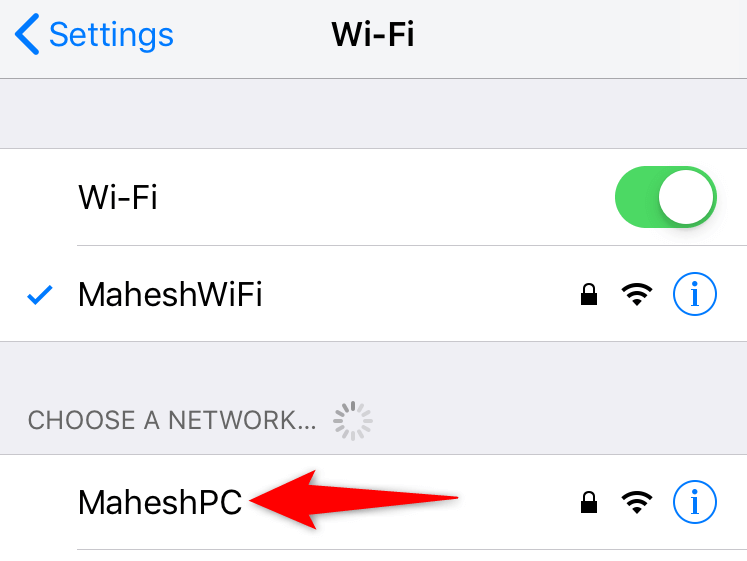
Step 3: Connect Your Second Device and Download the Roku App
On your second phone or tablet, connect to the hotspot you just created. Then download the official Roku app:
- iPhone: Search for “Roku” in the App Store
- Android: Search for “Roku” in Google Play Store
Step 4: Use the Roku App to Change Networks
Open the Roku app and it should automatically detect your Roku device (since they’re both on the same hotspot network). Here’s how to switch to your real Wi-Fi:
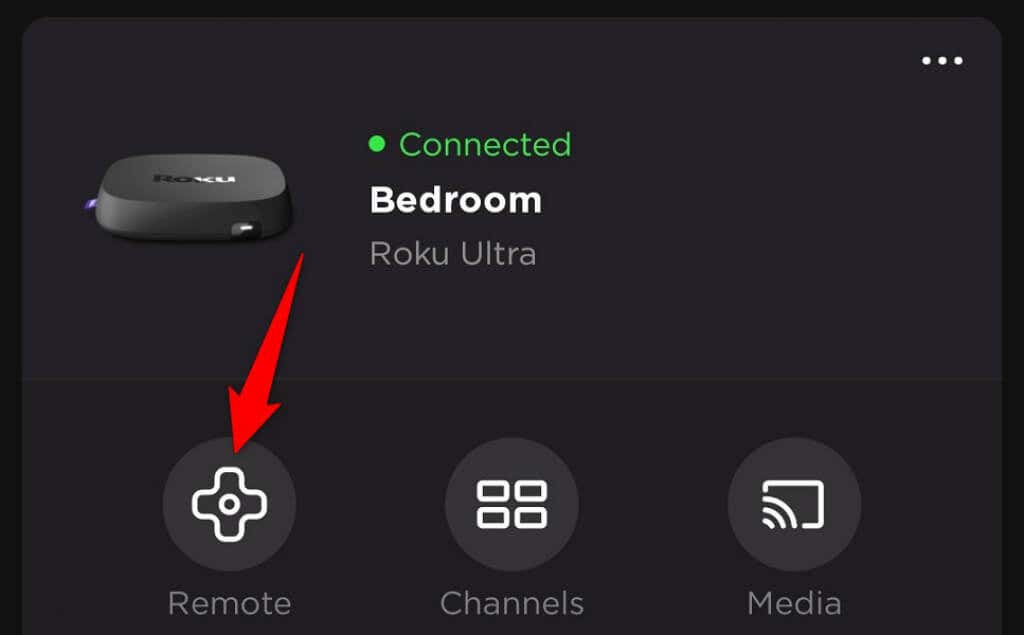
- Tap Devices at the bottom of the app.
- Select your Roku device from the list.
- Tap Remote to access the virtual remote.
- Navigate to Settings > Network > Set up connection > Wireless.
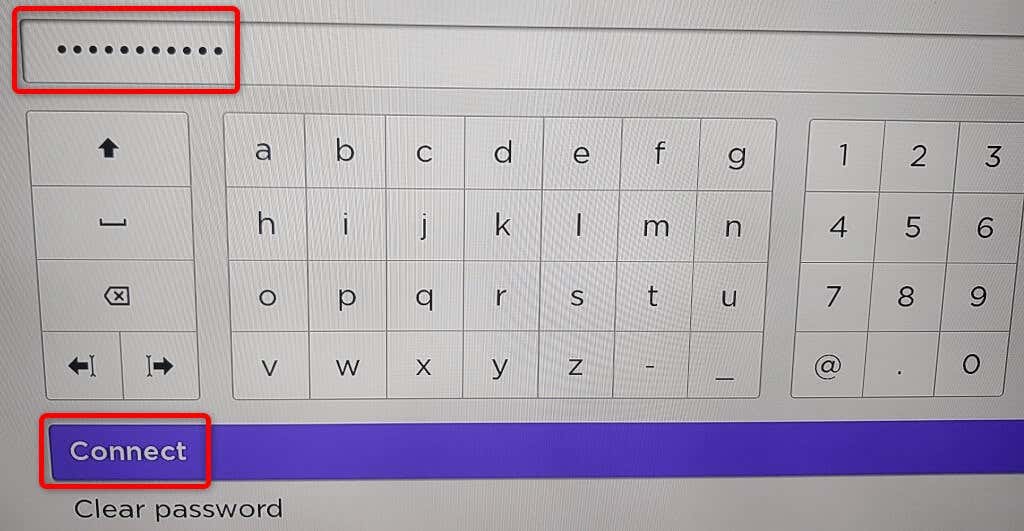
- Select your actual Wi-Fi network and enter the password.
- Tap Connect.
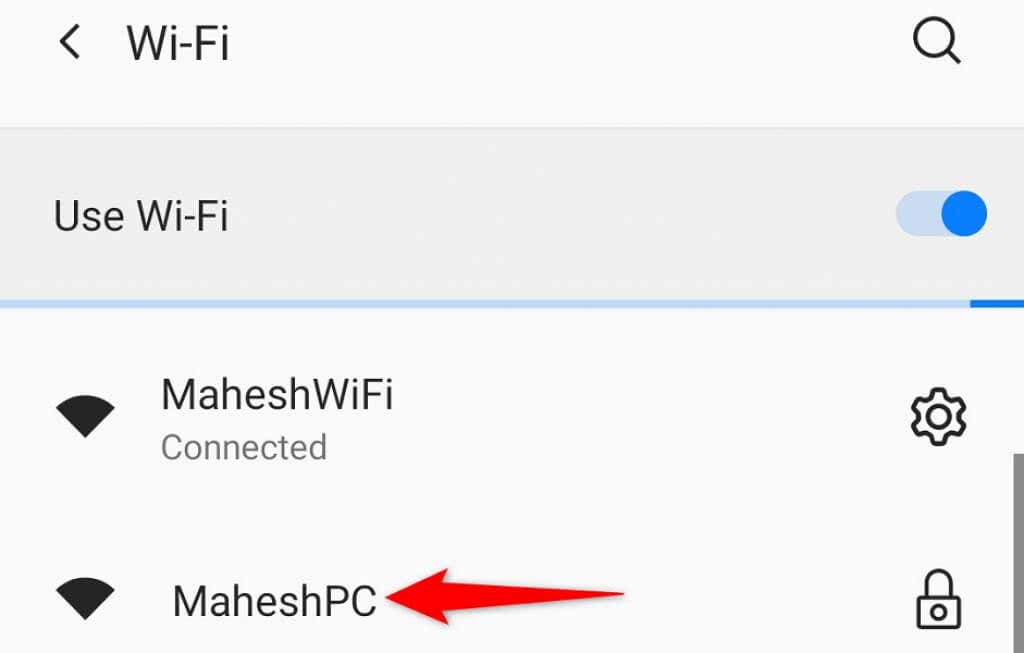
Once your Roku connects to your real Wi-Fi, you can turn off the hotspot and connect your phone to the same network. The Roku app will work normally from here on out.
Method 2: Use an Ethernet Cable (Simplest Option)
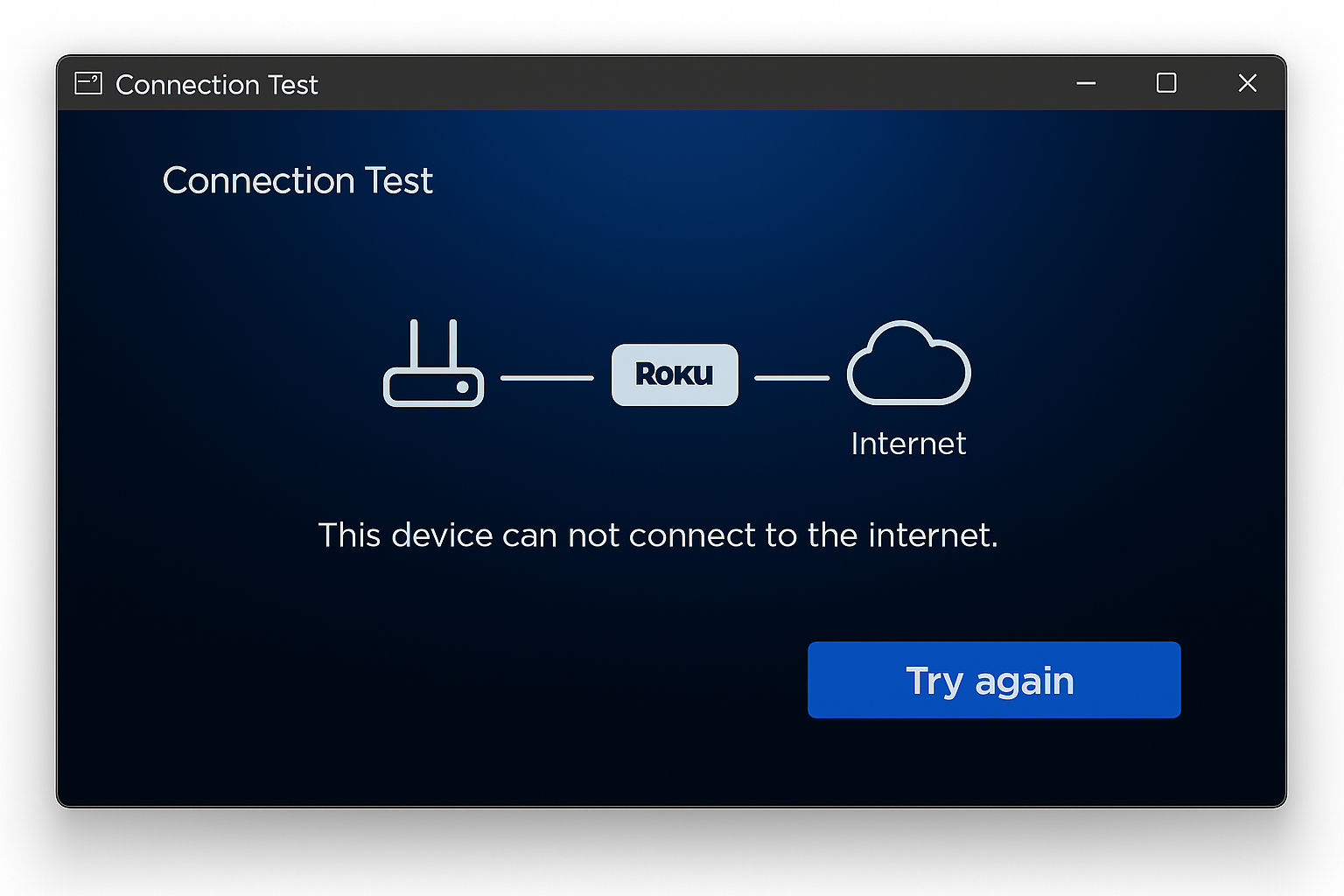
If your Roku has an Ethernet port (like the Roku Ultra or Streaming Stick 4K+), this is actually the easiest method. No hotspots, no old passwords, just plug and play.
Step 1: Connect Ethernet Cable
Simply plug an Ethernet cable from your router directly into your Roku’s Ethernet port. Your Roku will automatically connect to the internet.
Step 2: Use the Roku App
Now you can use the Roku app on any device connected to your Wi-Fi network to access your Roku’s settings and switch it to wireless if needed.
- Connect your phone to your Wi-Fi network.
- Open the Roku app and select your device.
- Go to Settings > Network > Set up connection > Wireless.
- Choose your Wi-Fi network and enter the password.
- Once connected, you can unplug the Ethernet cable.
Method 3: Use the App Directly (If Already Connected)
If your Roku is already connected to your current Wi-Fi network but you just lost the remote, this method is a breeze.
- Make sure your phone is connected to the same Wi-Fi network as your Roku.
- Download the Roku app from the App Store or Google Play.
- Open the app and select your Roku device.
- Tap Remote to start controlling your Roku immediately.
Tips and Troubleshooting
Common Issues
Problem: The hotspot isn’t working and my Roku won’t connect
This usually happens when the network name or password doesn’t match exactly. Double-check that:
- Capitalization matters: “MyNetwork” is different from “mynetwork”
- Special characters count: Make sure spaces, hyphens, and numbers are exactly right
- Your Roku supports 2.4 GHz: Most do, but very old models might not
Problem: The Roku app can’t find my device
Make sure both your phone and Roku are on the exact same network. If you’re using the hotspot method, your phone should be connected to the hotspot, not your regular Wi-Fi.
Problem: I don’t remember my old Wi-Fi credentials
Try the Ethernet method instead, or check if any other devices in your house remember the old network (like laptops or tablets that auto-connect).
Pro Tips
- Keep the Roku app: Even after you get a new remote, the app is super handy for typing passwords and searching
- Check your data plan: Hotspots can eat through mobile data quickly, so use this method briefly
- Ethernet is fastest: If you have the port, wired connections are always more reliable than wireless
Which Method Should You Use?
Here’s a quick breakdown to help you decide:
| Method | Best For | Requirements | Difficulty |
|---|---|---|---|
| Mobile Hotspot | Most situations | Two devices, old Wi-Fi credentials | Medium |
| Ethernet Cable | Roku Ultra, Stick 4K+ | Ethernet port on Roku | Easy |
| App Only | Already connected Rokus | Same Wi-Fi network | Very Easy |
You’re Back in Business
So there you have it! Losing your Roku remote doesn’t have to mean losing your streaming setup. The hotspot trick might seem a bit involved, but it works reliably once you get the hang of it. The Ethernet method is definitely the simplest if your Roku supports it, and the app-only approach is perfect when everything’s already connected.
Honestly, after trying these methods, you might find the Roku app more convenient than the physical remote anyway. It’s got a full keyboard for searches, voice control, and you’ll never lose it under the couch cushions. Worth keeping around even after you find that remote!