
Is your 4K video from your iPhone taking forever to load or does your 1080p footage look like a slideshow? You’re not alone. Even with modern computers, HD videos can stutter and lag if your system isn’t configured properly.
The good news? Most video playback issues aren’t about having weak hardware, they’re about settings that need tweaking. Whether you’re on Windows 11 or macOS, we’ll walk you through the fixes that actually work. No tech degree required.
What Causes Video Lag?
Video lag happens when your computer can’t decode and display frames fast enough. Modern 4K videos from iPhones and cameras use advanced compression (like HEVC/H.265) that requires either a powerful CPU or hardware acceleration from your graphics card.
Common culprits include:
- Outdated graphics drivers: Your GPU might support hardware decoding, but old drivers can’t use it
- Wrong player settings: VLC and other players often default to CPU-only decoding
- Power management: Laptops throttle performance on battery to save power
- Background apps: Other programs hogging CPU resources
- Slow storage: Playing files over slow network connections or old hard drives
Before You Begin
Make sure you have:
- A computer running Windows 10/11 or macOS Ventura or later
- Administrator access to install drivers and change settings
- Your video files saved locally (not on a network drive)
Quick Fixes That Work for Everyone
Step 1: Update Your Graphics Drivers
This is the most important fix. Modern graphics cards can decode 4K video effortlessly, but only with current drivers.
On Windows 11
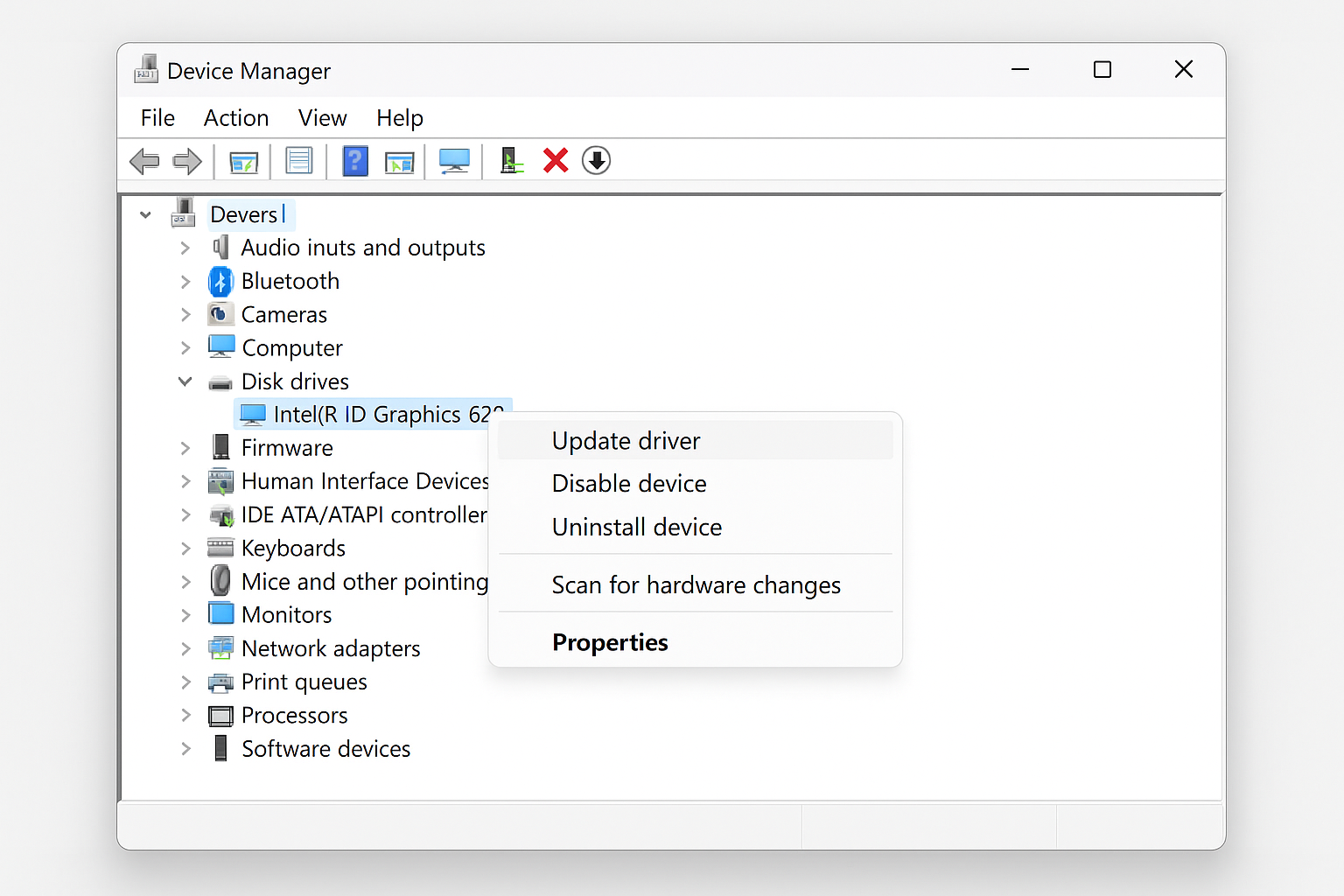
- Right-click the Start button and select Device Manager.
- Expand Display adapters and right-click your graphics card.
- Select Update driver > Search automatically for drivers.
- Restart your computer after the update completes.
On macOS
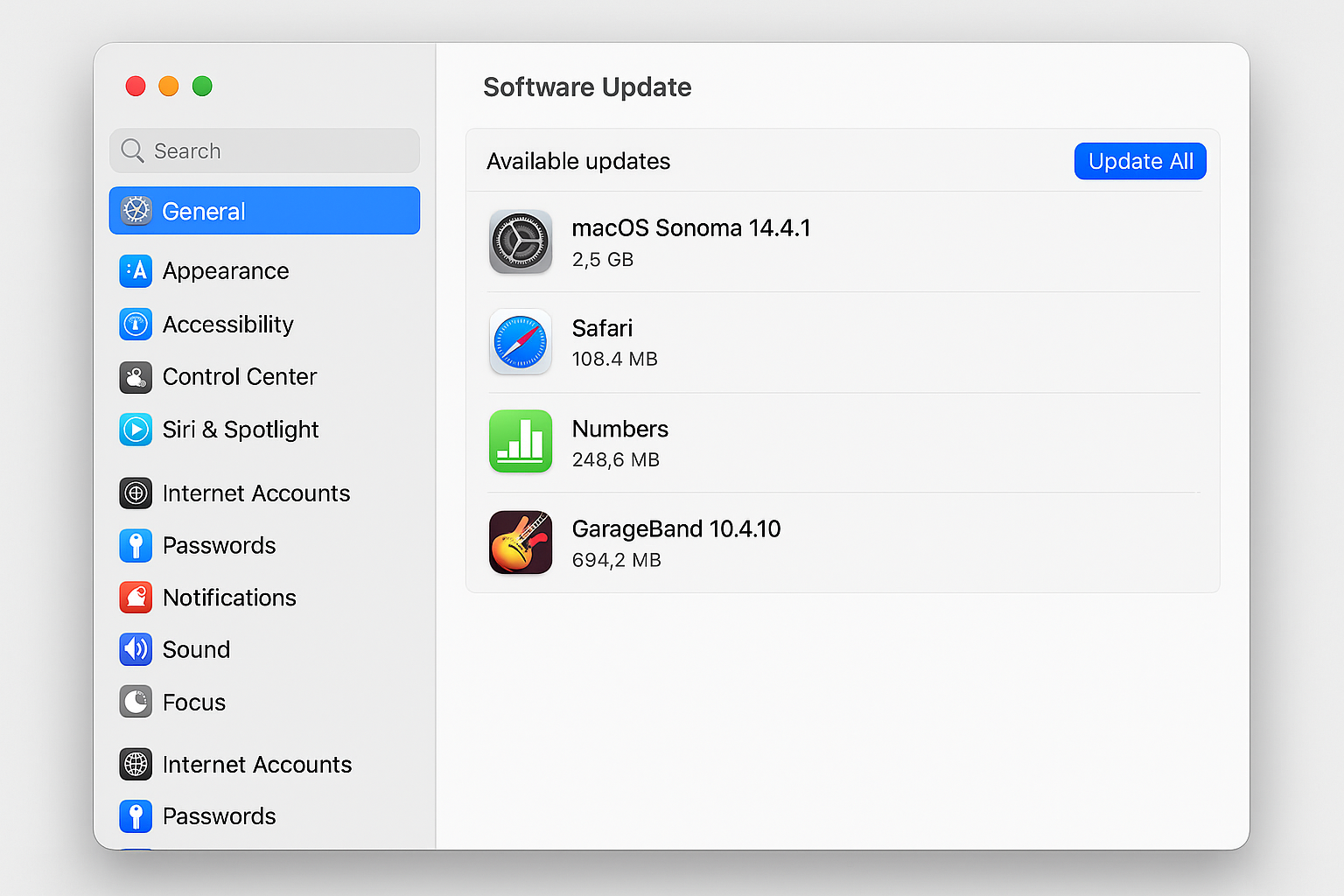
- Click the Apple menu and select System Settings.
- Click General > Software Update.
- Install any available updates and restart if prompted.
Step 2: Close Background Apps
Video playback needs CPU power. Close everything you’re not using.
On Windows
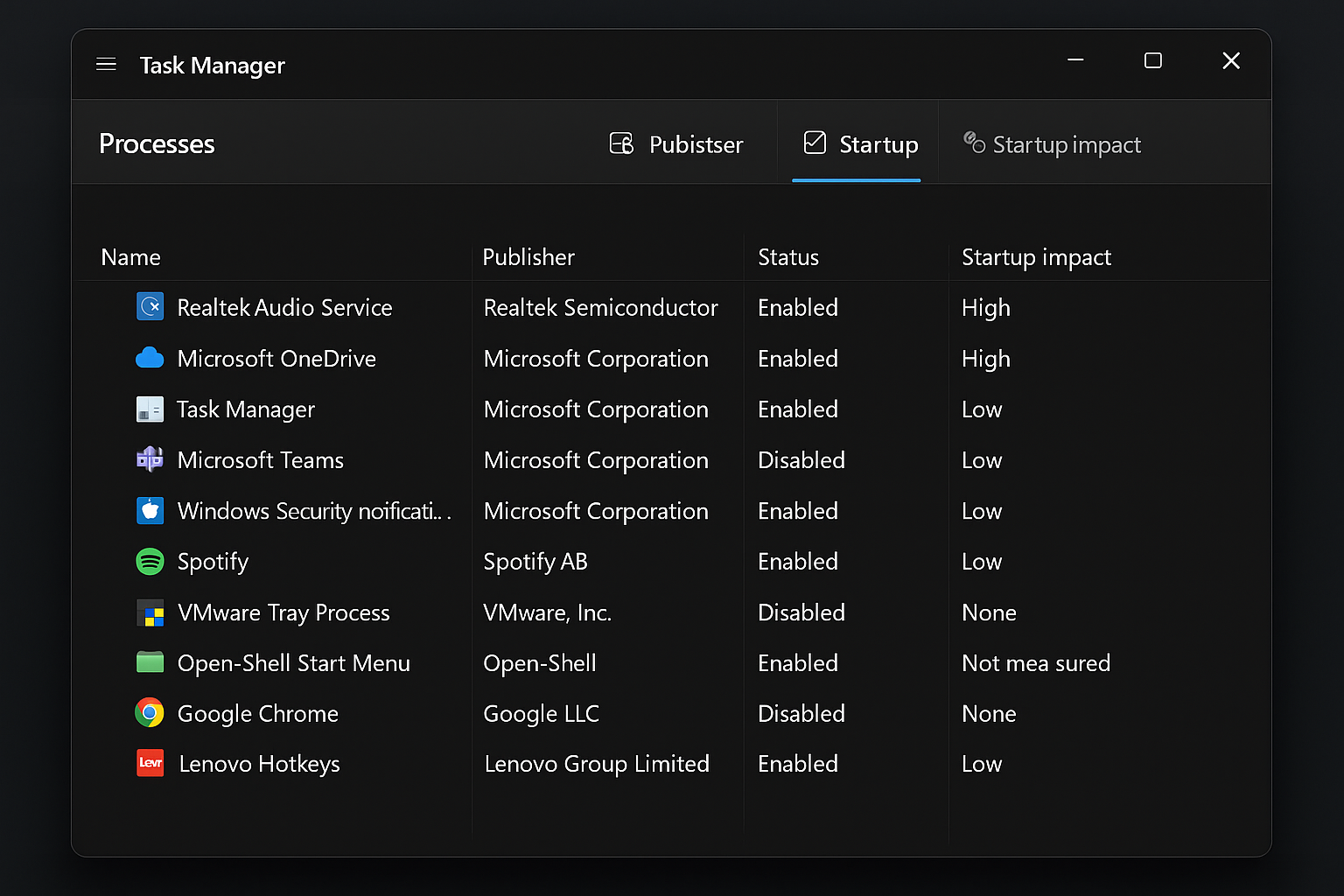
- Press
Ctrl + Shift + Escto open Task Manager. - Click the Startup tab and disable non-essential programs.
- Go to the Processes tab and end any resource-heavy apps you don’t need.
On macOS
- Press
Cmd + Spaceand type “Activity Monitor”. - Click the CPU tab and quit any apps using high CPU that you don’t need.
- Right-click apps and select Quit Process if needed.

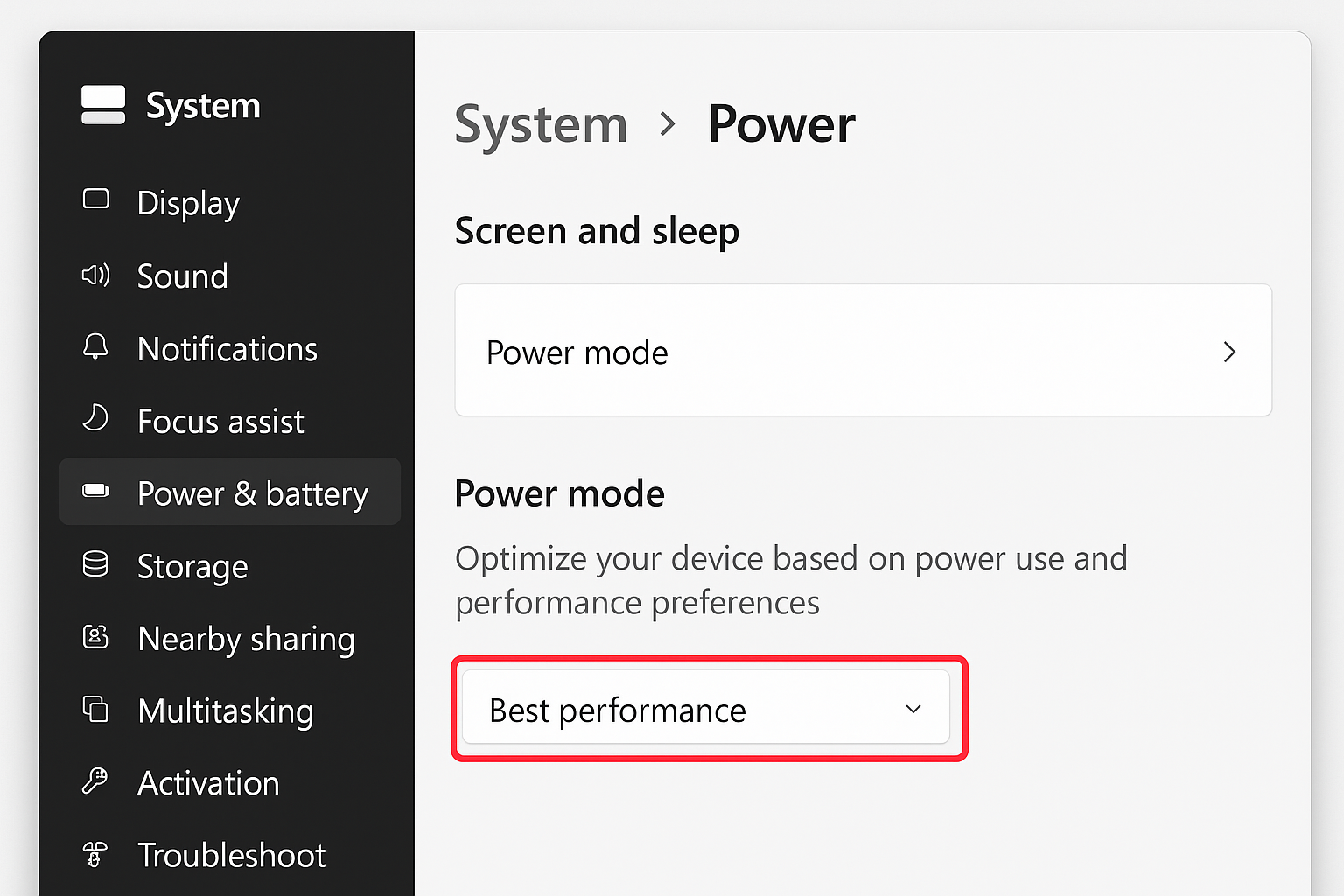
Step 3: Switch to High Performance Mode (Windows Only)
Windows often throttles performance to save battery. Switch to high performance for smooth playback.
- Press
Windows + Xand select Power Options. - Under Power mode, select Best performance.
- If you don’t see this option, click Additional power settings and choose High performance.
Fix VLC Player Settings
VLC is great for playing almost any video format, but its default settings often cause lag with HD videos. Here’s how to optimize it:
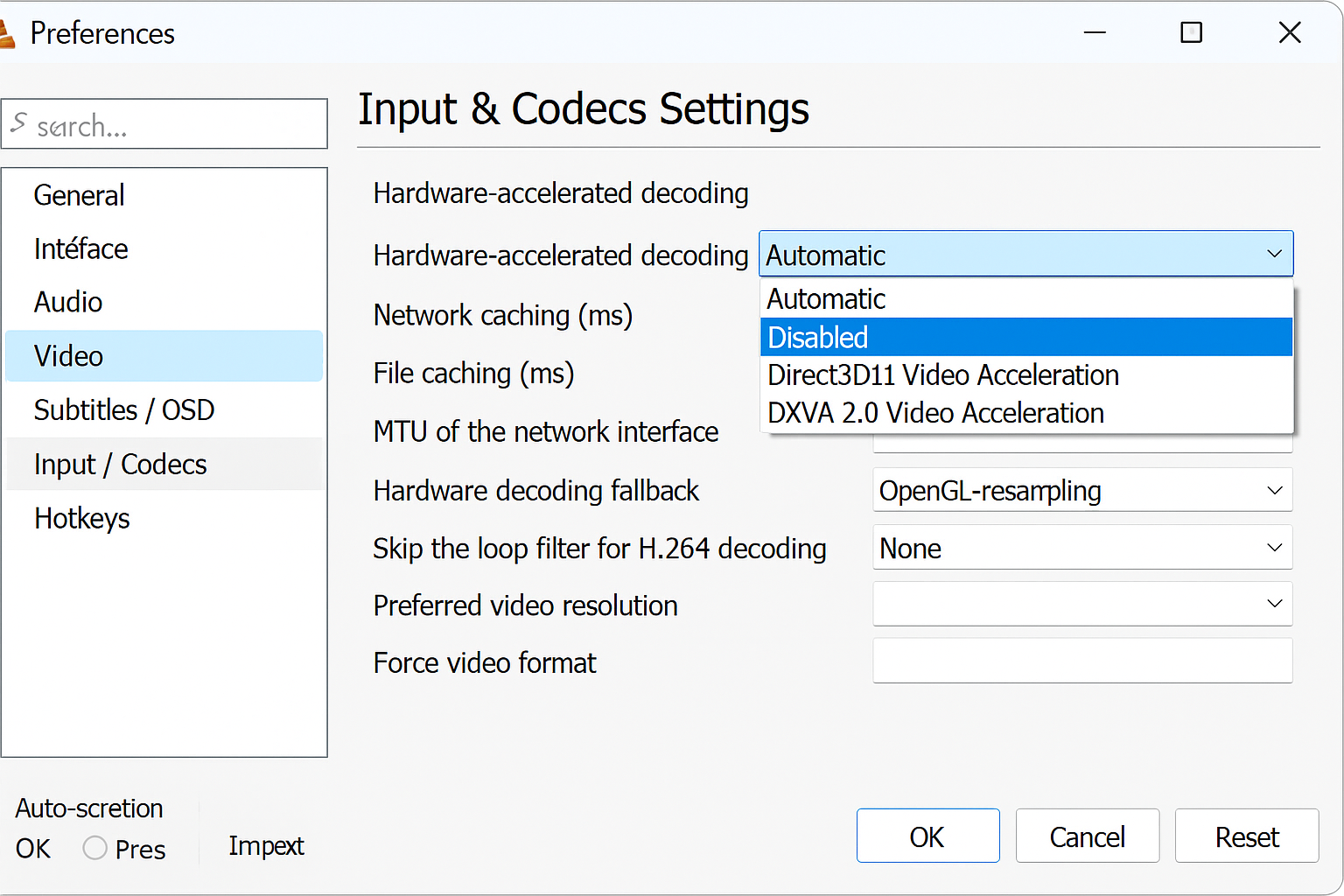
Step 1: Enable Hardware Acceleration
- Open VLC and go to Tools > Preferences (or press
Ctrl + P). - In the bottom-left, select Show settings: All.
- Navigate to Input / Codecs > Hardware-accelerated decoding.
- Change the setting from Disable to Automatic.
- Click Save and restart VLC.
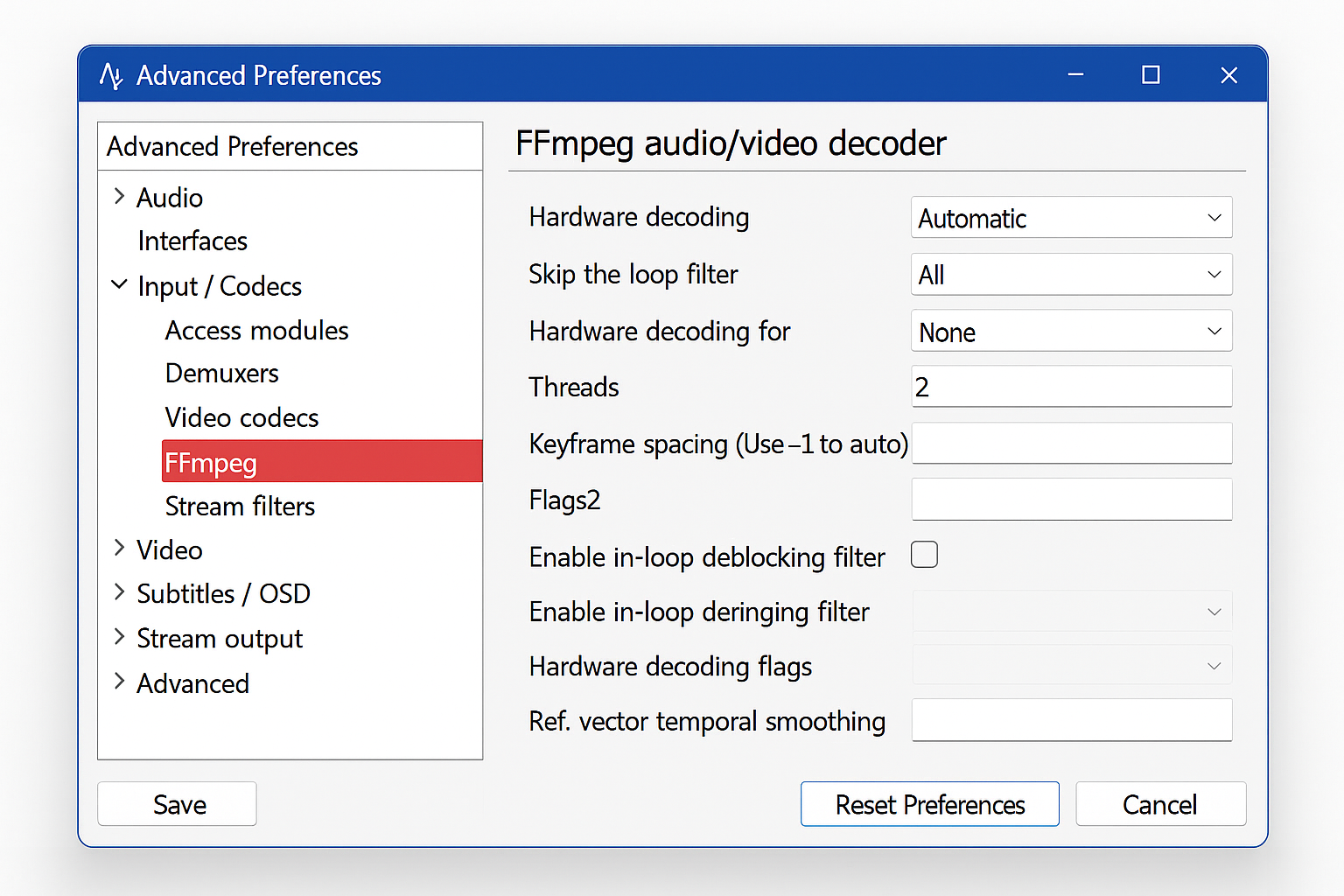
Step 2: Adjust H.264 Decoding
- In VLC Preferences, go to Input / Codecs > Video codecs > FFmpeg.
- Set Skip the loop filter for H.264 decoding to All.
- Set Threads to 2 (not 0 or auto).
- Click Save and restart VLC.
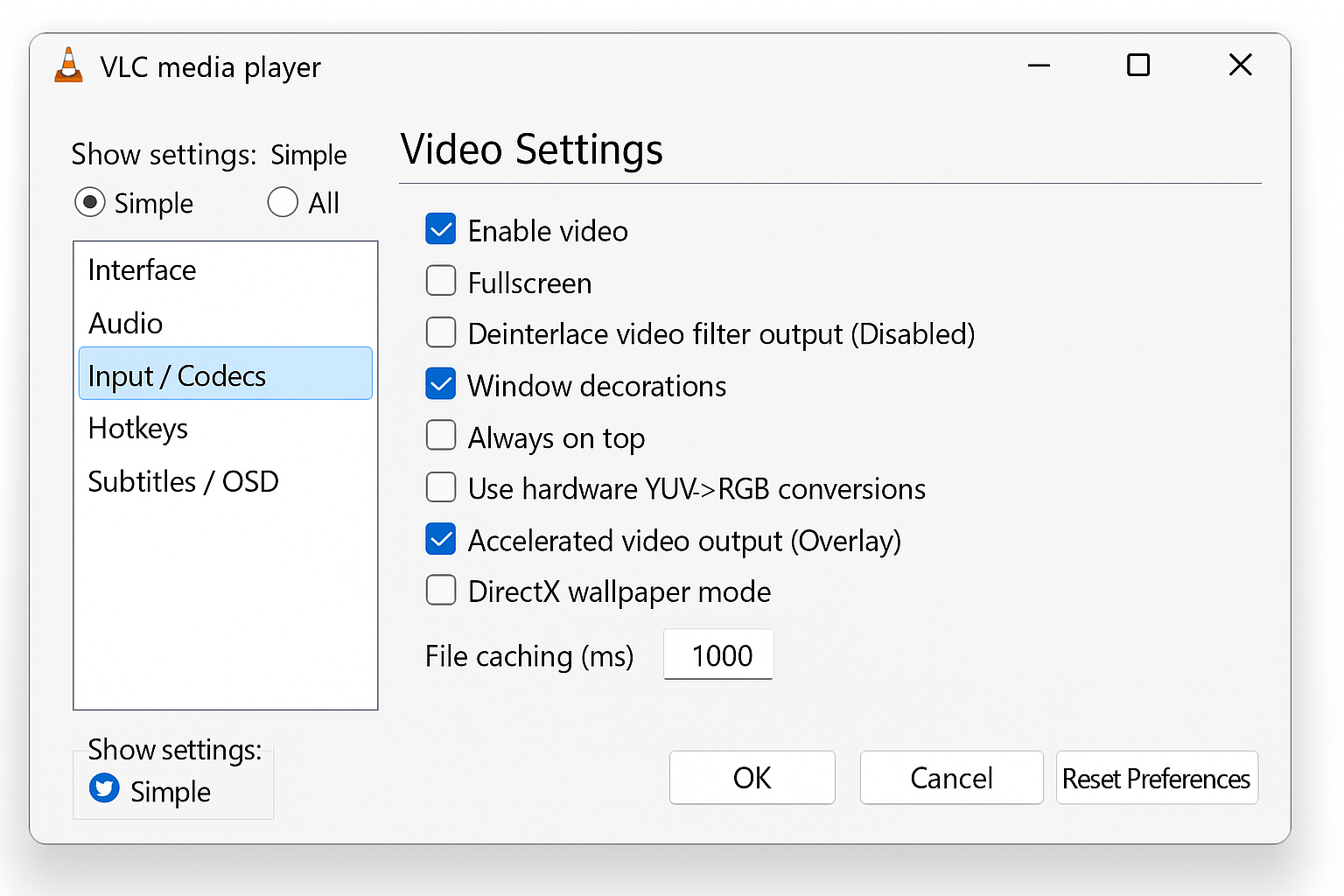
Step 3: Increase File Caching
- In VLC Preferences, switch back to Simple view.
- Go to Input / Codecs > Advanced.
- Set File caching to 1000 ms.
- Click Save and restart VLC.
Try Native Players Instead
Sometimes the easiest fix is switching to your operating system’s built-in video player. These are optimized for your hardware and often handle modern formats better than third-party apps.
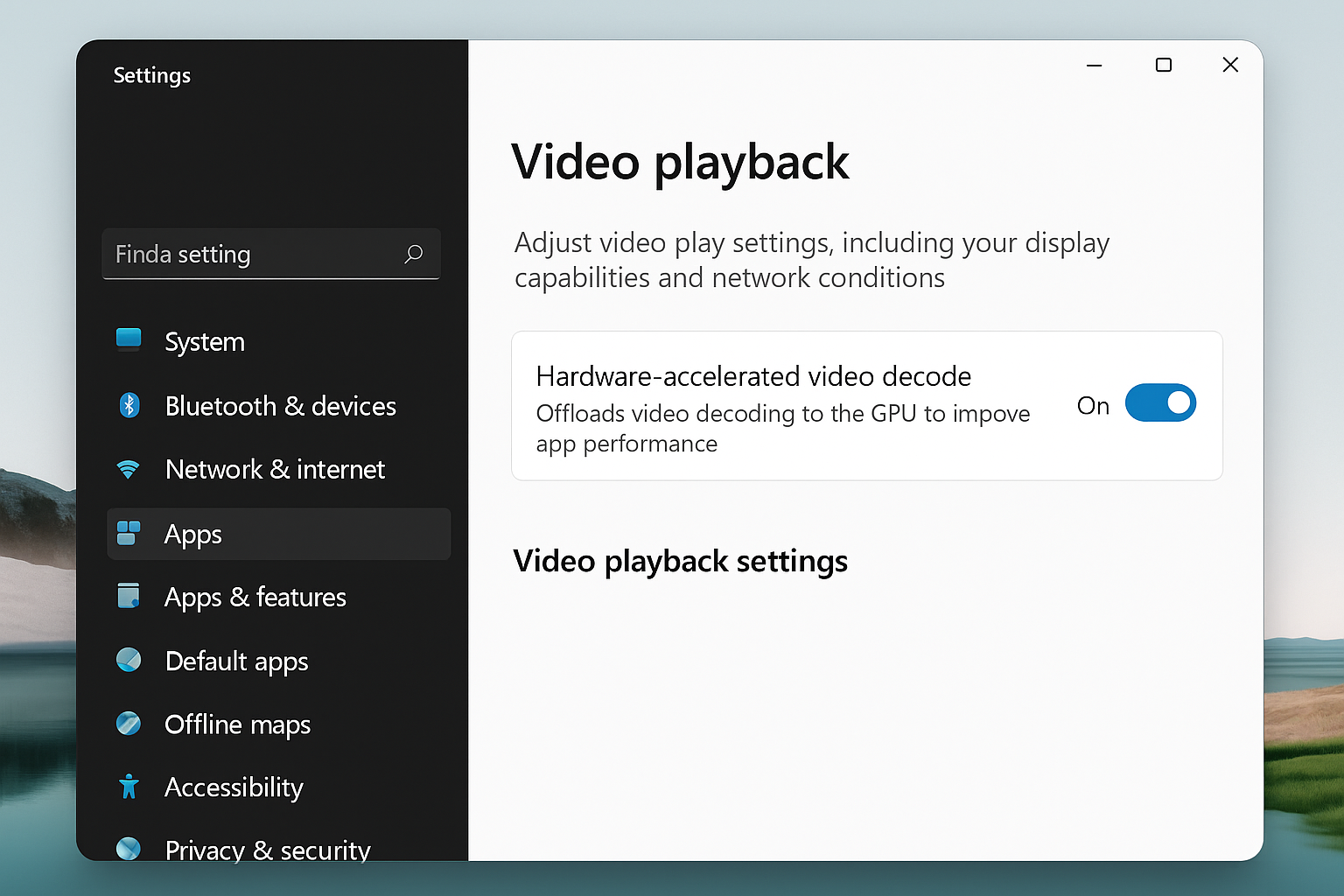
On Windows 11
- Right-click your video file and select Open with > Movies & TV.
- To enable hardware acceleration, go to Settings > Apps > Video playback.
- Turn on Hardware-accelerated video decode.
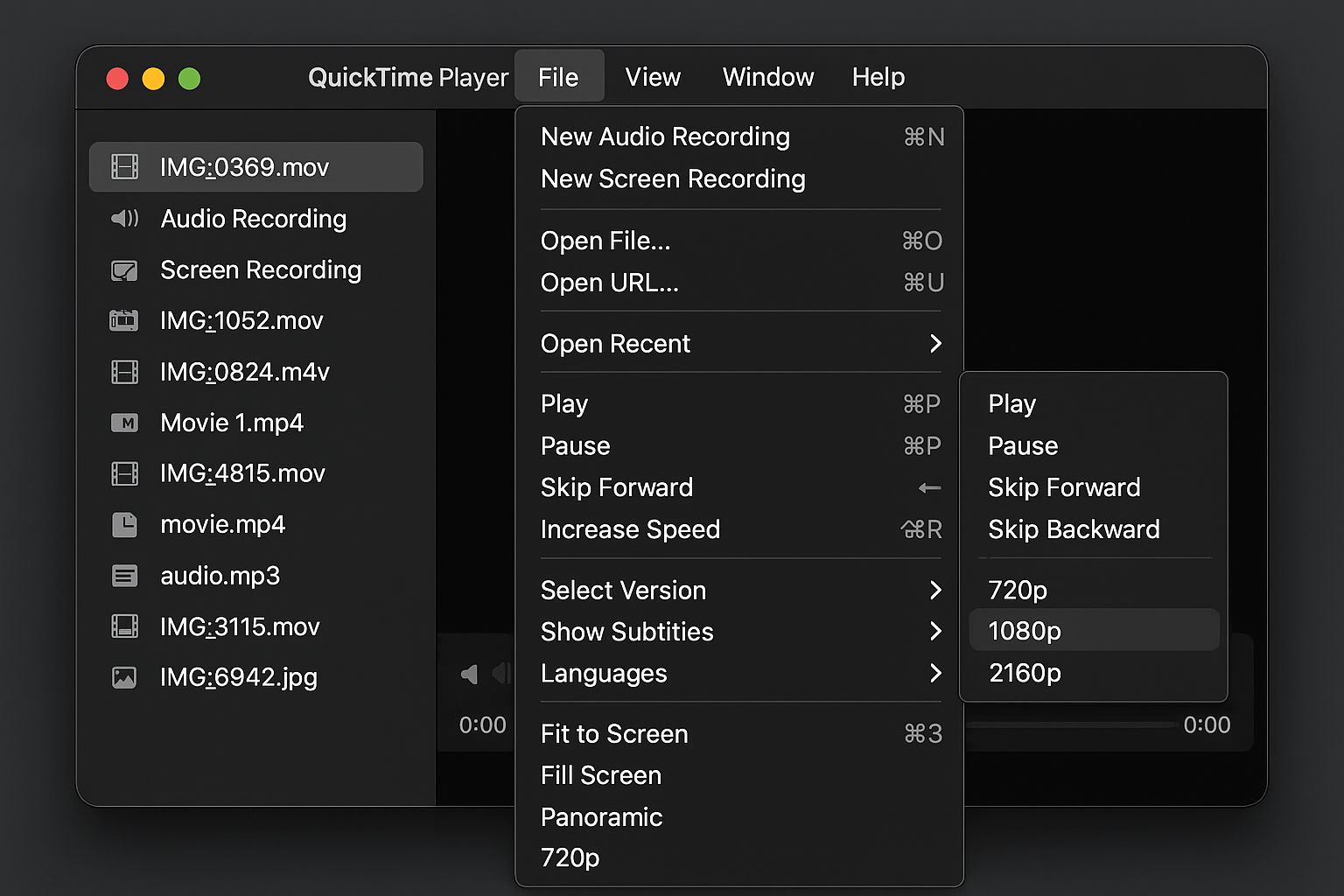
On macOS
- Double-click your video file to open it in QuickTime Player or drag it to the TV app.
- For 4K videos, these apps automatically use hardware acceleration if your Mac supports it.
- If playback is still choppy, try reducing the playback quality in the View menu.
Alternative Players to Try
If VLC and native players aren’t cutting it, these alternatives often handle HD video better:
- PotPlayer (Windows): Excellent GPU acceleration and automatically configures optimal settings
- MPC-HC (Windows): Lightweight with built-in hardware decoding support
- MPV (Mac/Windows): Command-line player with superior scaling and tone-mapping
- IINA (Mac): Modern interface with MPV’s powerful engine underneath
Convert Videos for Easier Playback
If your computer still struggles with certain formats (especially 4K HEVC from iPhones), converting to a more compatible format can help.
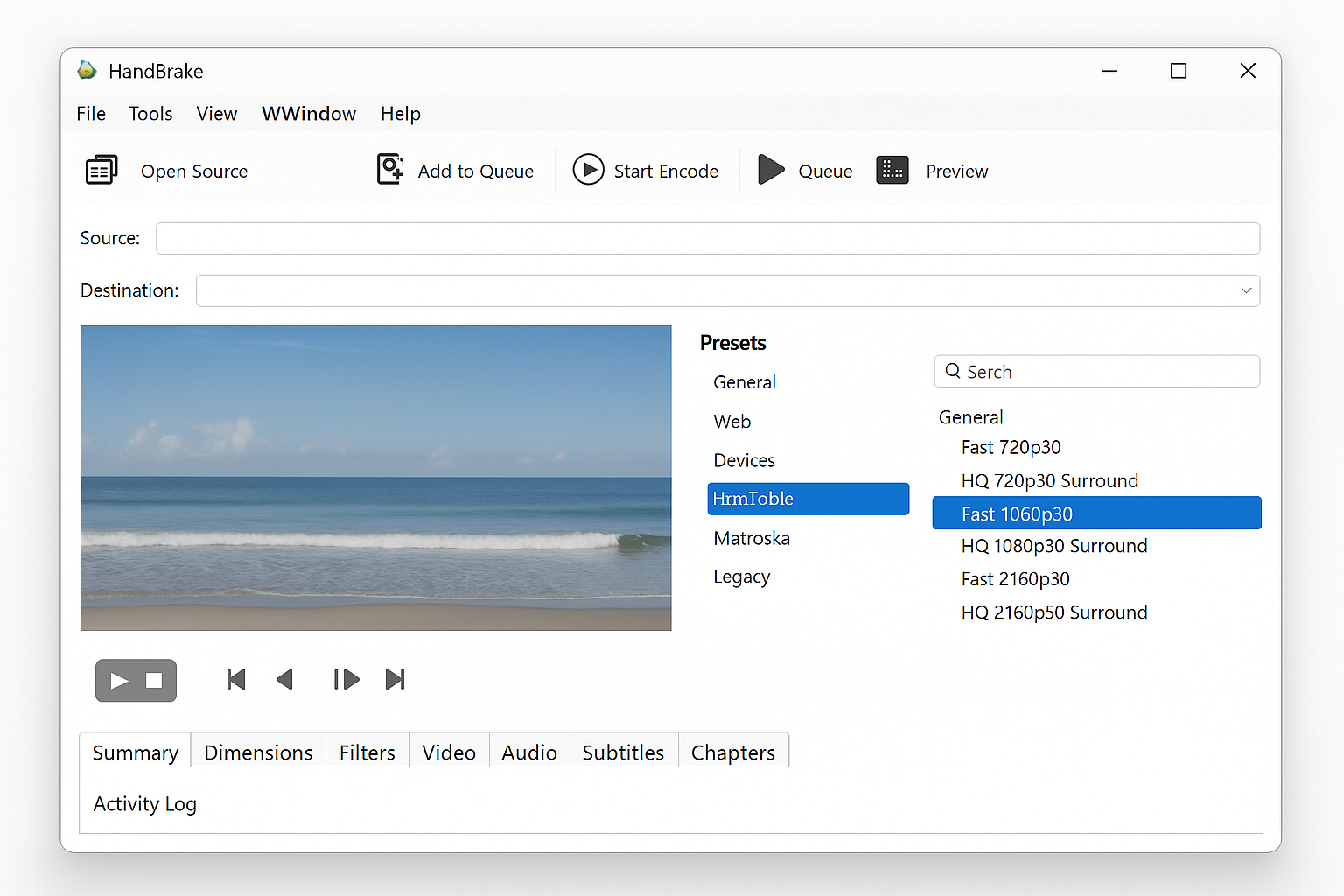
Using HandBrake (Free)
- Download and install HandBrake.
- Open your video file and select a preset like Fast 1080p30 or Fast 720p30.
- Click Start Encode to convert the file.
- The converted file should play much smoother.
Pro tip: You can batch convert multiple files at once. Just add them to the queue before starting the encode.
Check Your Storage Speed
Playing videos over slow connections or old hard drives can cause stuttering, even with perfect settings.
- Best: Files stored on an SSD (solid-state drive)
- Good: 7200 RPM hard drive with files stored locally
- Okay: External drive connected via USB 3.0, Thunderbolt, or USB-C
- Avoid: Network drives, cloud storage, or USB 2.0 connections for 4K playback
If you’re playing files from a network location, copy them to your local drive first. The difference is usually dramatic.
Tips and Troubleshooting
Common Issues
Problem: Videos play fine for a few minutes, then start stuttering
This is usually thermal throttling. Your CPU or GPU is overheating and slowing down to cool off. Make sure your computer’s vents aren’t blocked and consider using a laptop cooling pad.
Problem: 4K videos from iPhone won’t play at all
iPhones record in HEVC format, which requires newer hardware or software support. Try:
- Opening the file in your system’s native player first
- Converting to H.264 using HandBrake
- Installing HEVC Video Extensions from the Microsoft Store (Windows)
Problem: YouTube 4K videos lag in browser
In Chrome, type chrome://flags in the address bar and enable Hardware-accelerated video decode. In Firefox, go to about:config and set media.ffmpeg.vaapi.enabled to true.
Pro Tips
- Keyboard shortcut: In most players, press
Ctrl + Shift + Delete(Windows) orCmd + Shift + Delete(Mac) to clear cache if playback gets wonky - Quick test: Try playing a YouTube 4K video in your browser. If that’s smooth but local files aren’t, the issue is likely player settings or file format
- Power users: You can force GPU acceleration in VLC by setting the video output to DirectX (DirectDraw) video output on Windows or OpenGL on Mac
When to Consider Hardware Upgrades
If you’ve tried everything and 4K videos still won’t play smoothly, your hardware might be the bottleneck. Here’s when an upgrade makes sense:
- CPU older than 2018: Lacks modern video decoding instructions
- Integrated graphics only: Dedicated graphics cards handle video much better
- Less than 8GB RAM: Modern video players need memory for buffering
- 5400 RPM hard drive: Too slow for sustained 4K bitrates
The good news? Even budget graphics cards from the last few years can handle 4K video effortlessly once hardware acceleration is enabled.
Wrapping Up
Choppy video playback is frustrating, but it’s usually fixable with the right settings. Start with updating your graphics drivers and enabling hardware acceleration in your video player as those two fixes solve most issues. If you’re still having trouble, trying a different player or converting your files often does the trick.
Modern computers should handle 4K video without breaking a sweat, so don’t give up if the first fix doesn’t work. With a little tweaking, you’ll be watching your iPhone videos and camera footage in buttery-smooth glory.