
Locked out of your router because you forgot the admin password? Or maybe you just bought a new router and need to get into the settings for the first time? Don’t worry, every router comes with a default username and password that you can use to regain access.
Whether you have a Netgear, Linksys, D-Link, TP-Link, Asus, or Cisco router, we’ll show you exactly how to find those default credentials and get back into your router’s admin panel. Plus, we’ll cover what to do if someone already changed the password and you need to start fresh.
Check the Router Label First
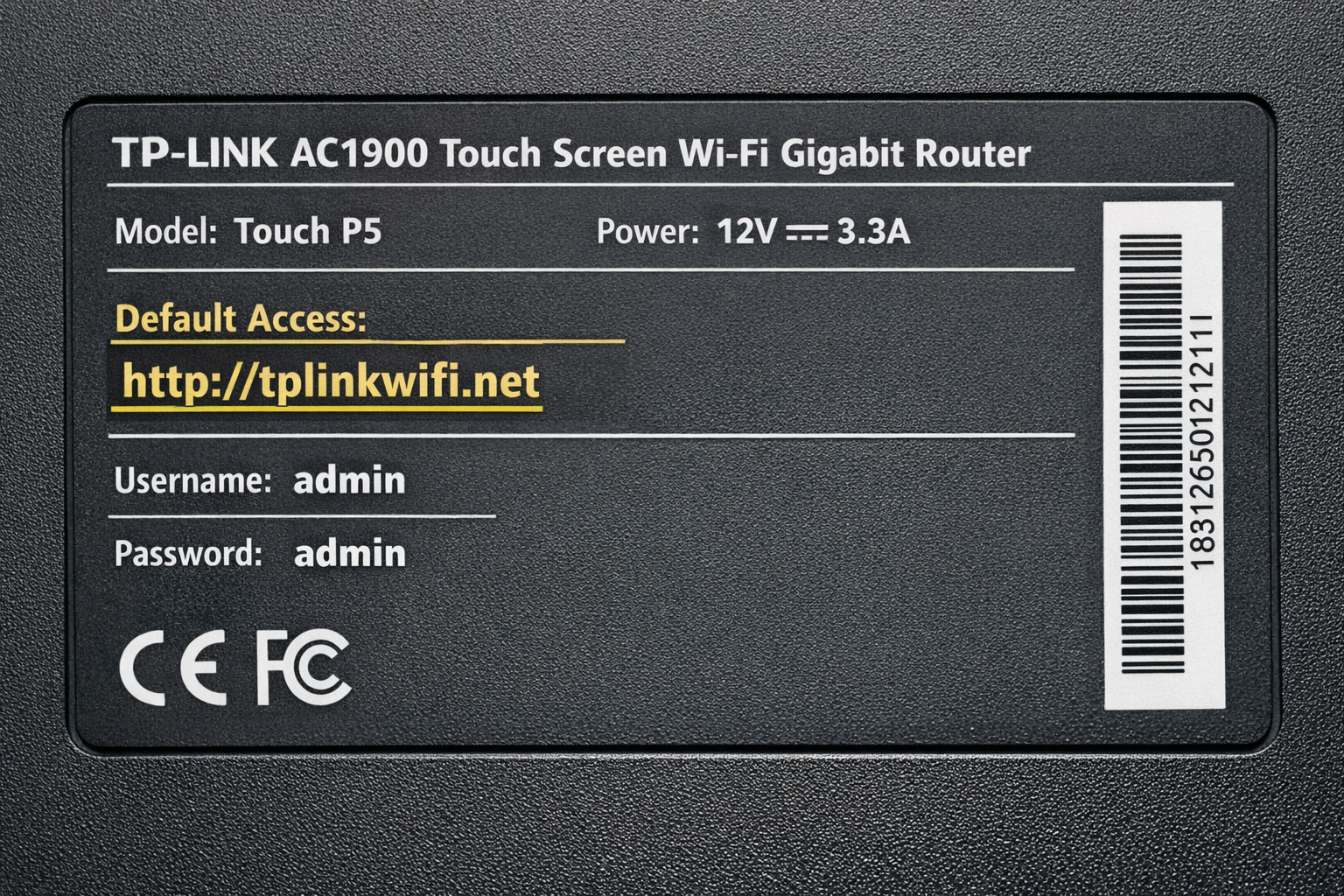
Before you start digging through old paperwork or searching online databases, flip your router over and look for a sticker or label. Most modern routers (especially since around 2014) have the default login credentials printed right on the device itself.
Look on the bottom, back, or side of your router for information like:
- Default Username & Password: Often printed as “admin/admin” or “admin/password”
- Router IP Address: Usually 192.168.1.1 or 192.168.0.1
- Wi-Fi Network Name (SSID): Don’t confuse this with the admin password
- Wi-Fi Password: Also different from the admin login
If you have a router from your internet provider (like Verizon, Comcast, or AT&T), it’s almost guaranteed to have this info on a label. ISPs learned that printing the credentials saves them tons of support calls from confused customers.
Common Default Passwords by Brand
Different router manufacturers use different default credentials. Here are the most common combinations you’ll encounter in 2026:
| Brand | Default IP | Username | Password |
|---|---|---|---|
| Netgear | 192.168.0.1 | admin | password |
| Linksys | 192.168.1.1 | admin | admin |
| D-Link | 192.168.0.1 | admin | admin (or blank) |
| TP-Link | 192.168.1.1 | admin | admin |
| Asus | 192.168.1.1 | admin | admin |
| Cisco | 192.168.1.1 | admin (varies by model) | admin (varies by model) |
Note: Some newer routers force you to create a custom password during the first login, so these defaults might only work once.
Important: Default credentials can vary between models and firmware versions, even within the same brand. The table above lists the most commonly reported defaults, but always check the label on your specific router first or consult the manufacturer’s documentation or an online database (see below) if the listed credentials don’t work.
How to Access Your Router’s Admin Panel
Once you have the default credentials, here’s how to actually log in:
Step 1: Find Your Router’s IP Address
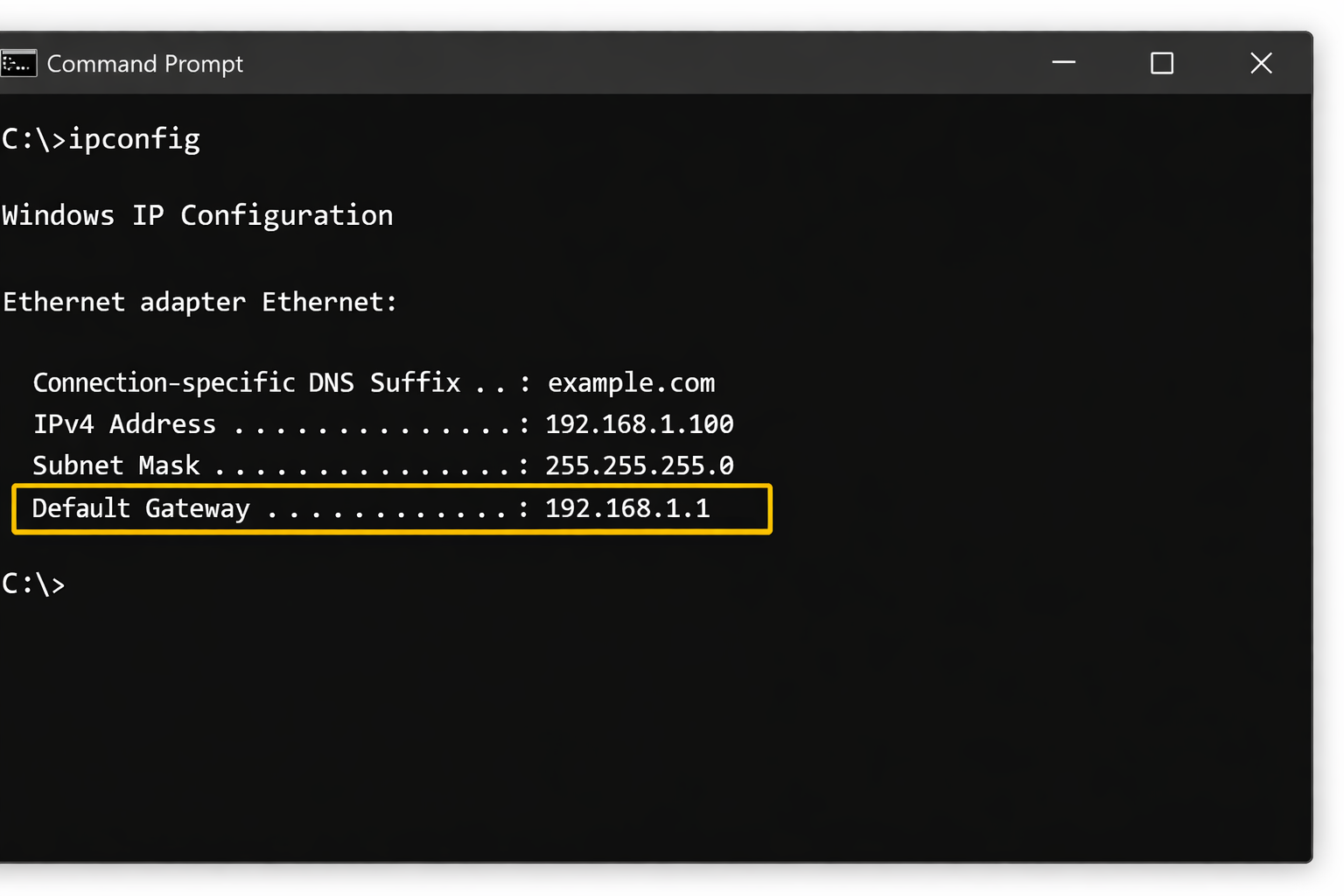
If the IP isn’t printed on your router label, you can find a wireless access point IP address through your computer:
On Windows
- Press
Windows + Rto open the Run dialog - Type
cmdand press Enter to open Command Prompt - Type
ipconfigand press Enter - Look for Default Gateway under your network adapter — that’s your router’s IP
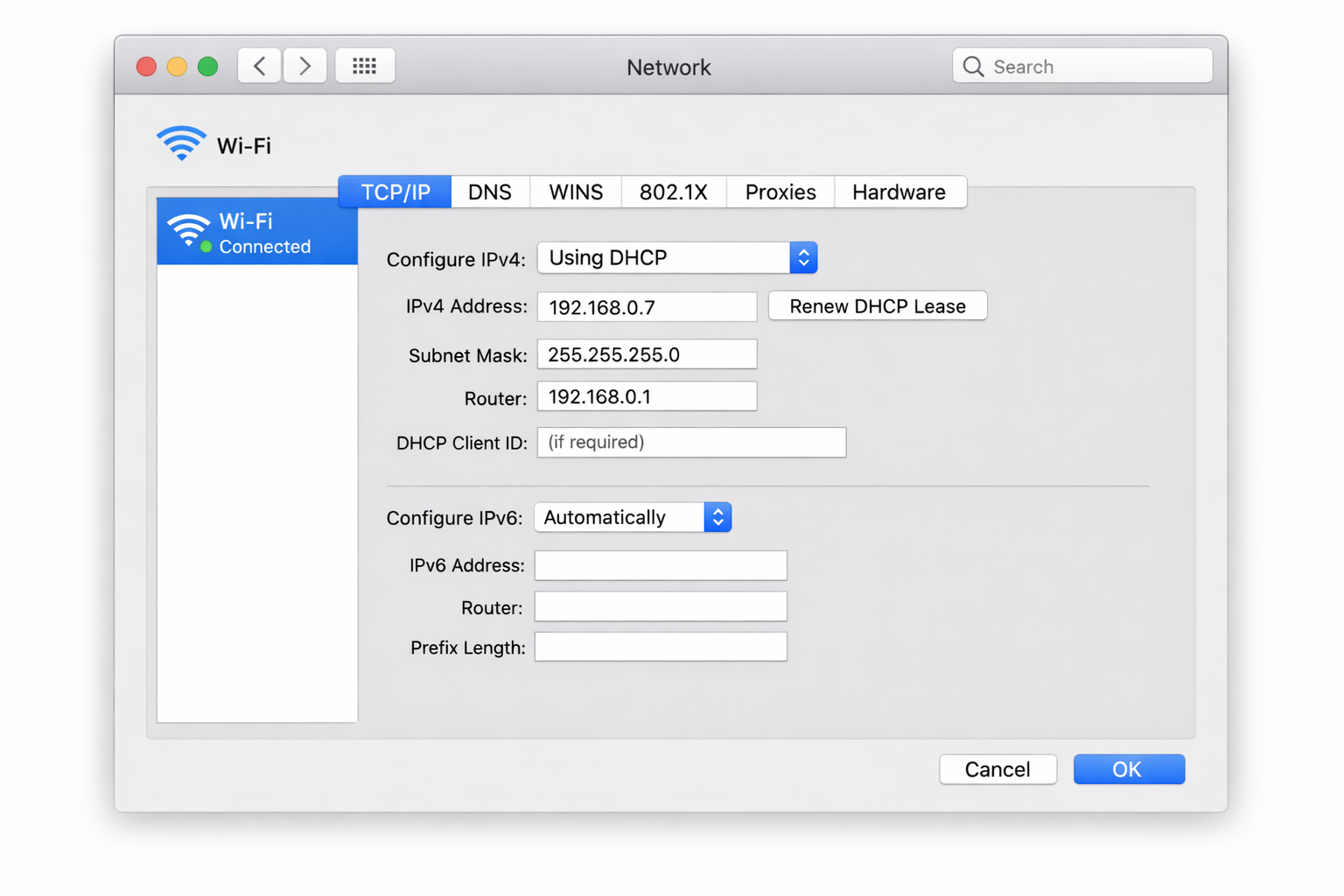
On macOS
- Click the Apple menu and select System Settings
- Click Network in the sidebar
- Select Wi-Fi and click Details
- Go to the TCP/IP tab and note the Router IP address
Step 2: Open the Router Interface
- Open any web browser (Chrome, Firefox, Safari, Edge — they all work)
- Type your router’s IP address in the address bar (like
http://192.168.1.1) - Press Enter
- Enter the default username and password when prompted
- Click Login or Sign In
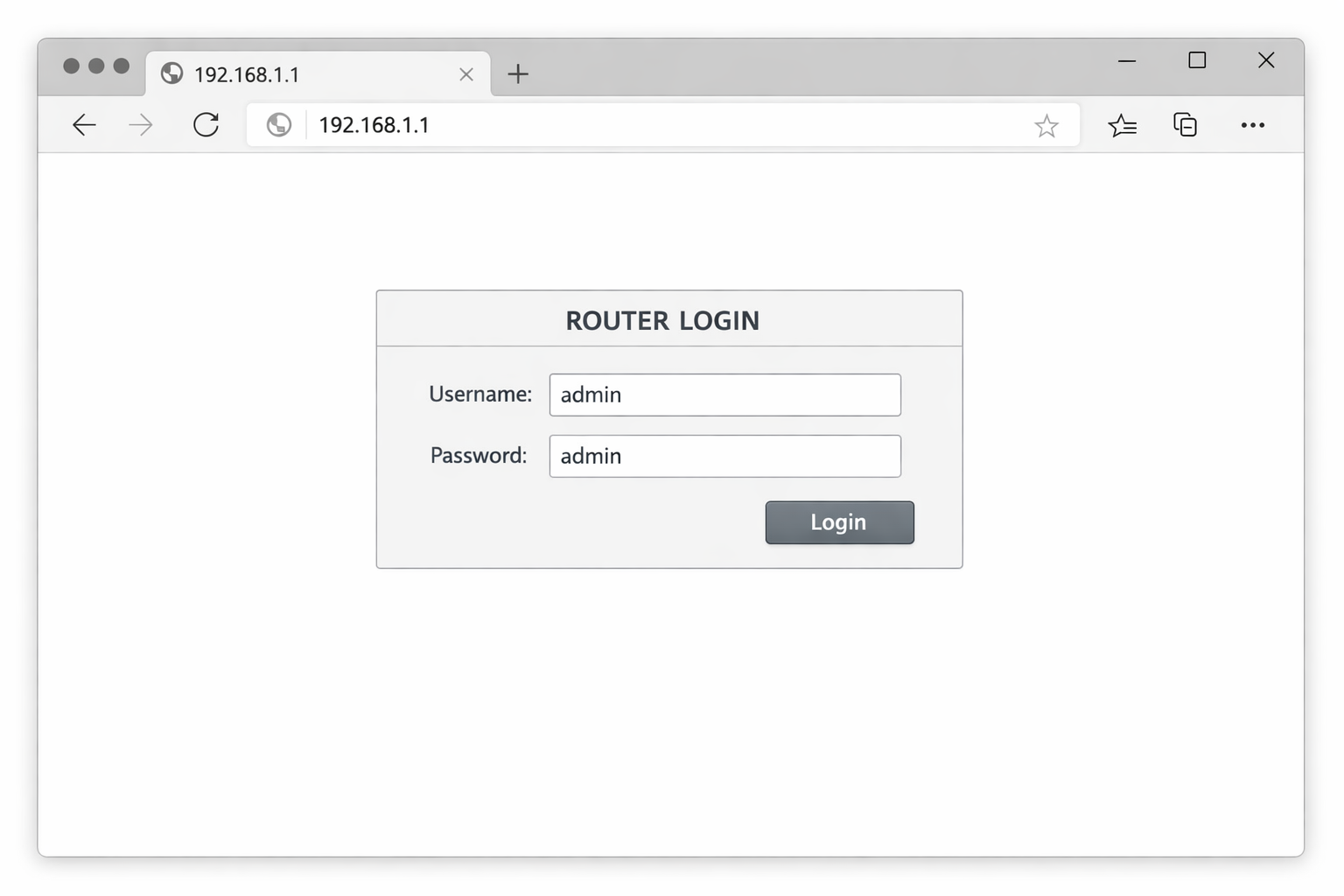
If the login works, you’ll see your router’s admin dashboard where you can change settings, update the password, configure Wi-Fi, and more.
Online Router Password Databases
Can’t find the info on your router and the common passwords didn’t work? There are several online databases that catalog default router credentials for thousands of models:
- PortForward.com: Comprehensive database with search by brand and model. They keep it pretty up-to-date with newer router models.
- GitHub Default Router Passwords: Community-maintained list that’s searchable and regularly updated.
- Router-Switch.com: Another solid database covering over 2000 router models.
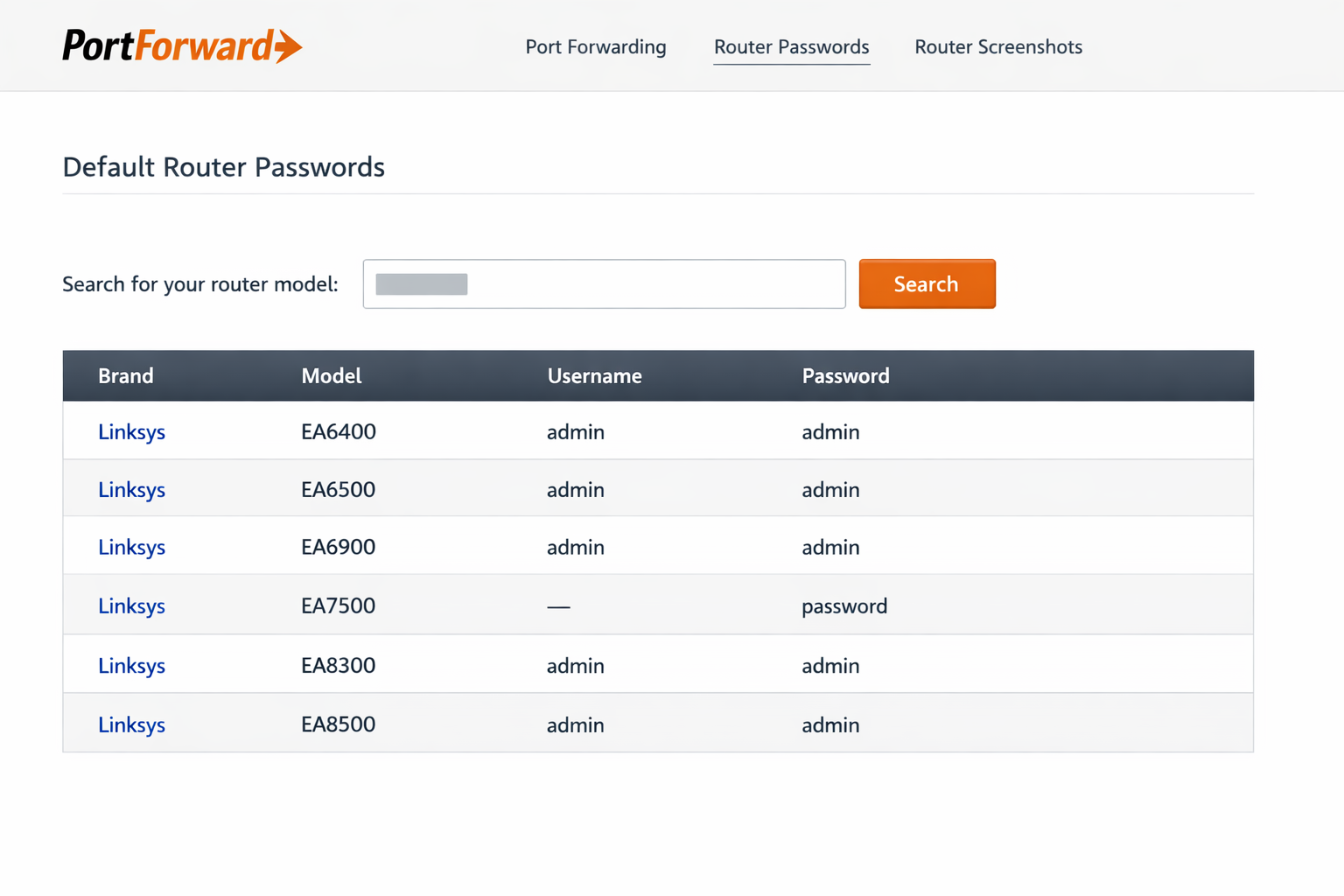
Just search for your router’s brand and model number (usually printed on the label) to find the exact default credentials.
What If Someone Already Changed the Password?
If the default passwords don’t work, it means someone previously logged in and changed the admin password. Your only option is to reset the router back to factory defaults:
- Locate the small Reset button on your router (usually on the back or bottom)
- With the router powered on, use a paperclip or pin to press and hold the Reset button
- Hold it for 10-30 seconds (check your router manual for the exact time)
- Release the button and wait for the router to restart (usually 1-2 minutes)
- The router will now accept the default username and password again
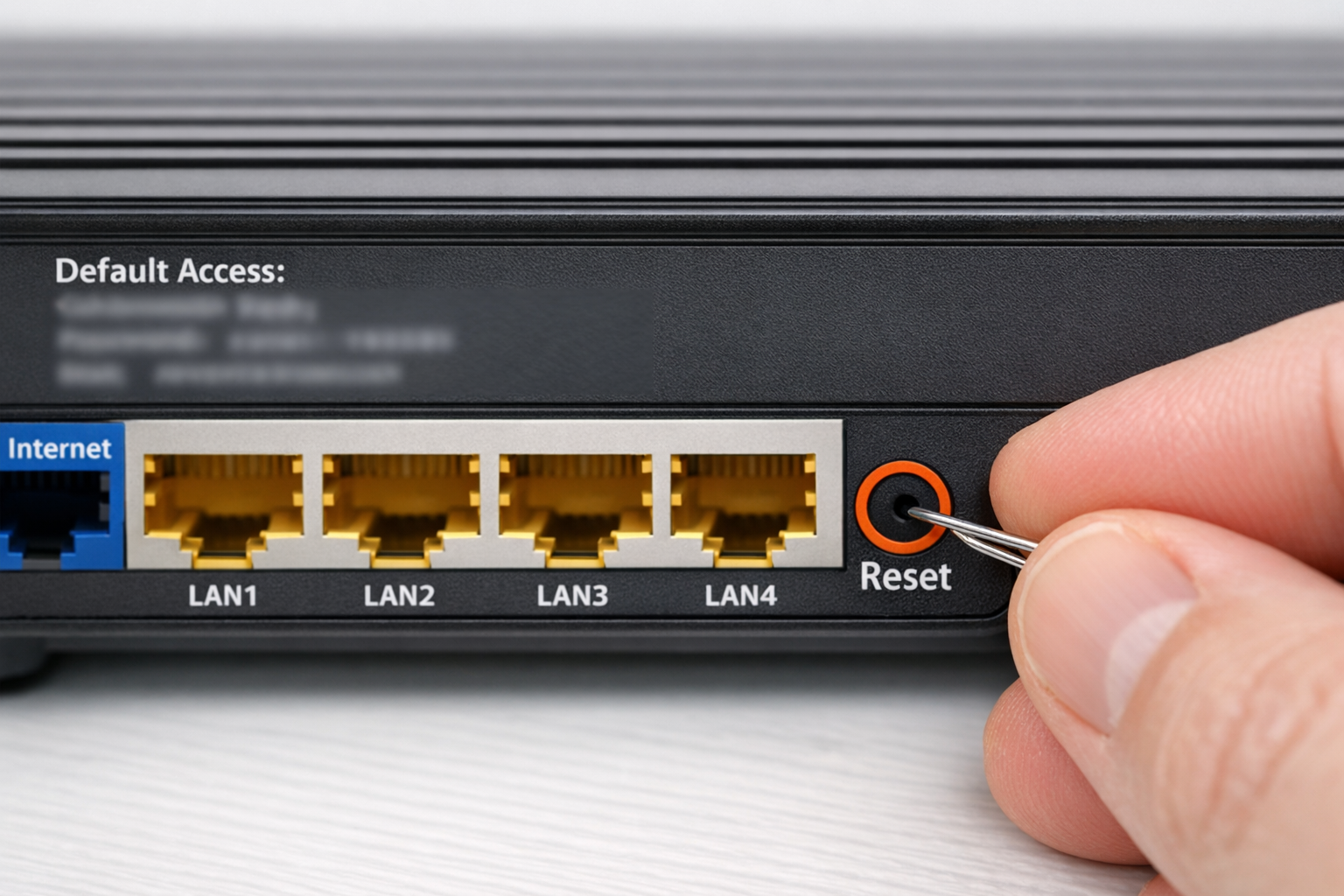
Warning: Resetting your router will erase ALL settings, including your Wi-Fi network name, password, port forwarding rules, and any other custom configurations. You’ll need to set everything up again from scratch.
Modern Alternatives: Router Apps
Many newer routers come with mobile apps that can bypass the traditional web interface entirely:
- Netgear Nighthawk App: Scan a QR code on the router to connect
- TP-Link Tether: Bluetooth setup that doesn’t require knowing the IP
- Linksys App: Automatic router detection on your network
- Asus Router App: Quick setup and management
These apps often work even when you don’t know the admin password, making them a great backup option.
Tips and Troubleshooting
Common Issues
Problem: Can’t reach the router IP address
This usually happens when you’re connected to a VPN or have multiple networks. Try:
- Disconnect from any VPN services
- Connect to the router via Ethernet cable instead of Wi-Fi
- Make sure you’re connected to the right network (not a neighbor’s Wi-Fi)
Problem: Browser shows security warnings
Modern browsers sometimes complain about router interfaces using older security certificates. Just click Advanced and then Proceed to [IP address] to continue.
Problem: Login page loads but credentials don’t work
Double-check that you’re using the admin login (for the router settings) and not the Wi-Fi password. These are completely different things, and people mix them up all the time.
Pro Tips
- Take a photo: Once you find the default credentials, snap a picture with your phone for future reference
- Change the password immediately: Default passwords are public knowledge, so anyone can look them up and access your router
- Write it down: When you do change the password, store it somewhere safe (like a password manager)
- Check for firmware updates: While you’re in the admin panel, look for router firmware updates to keep your network secure
Wrapping Up
Getting back into your router is usually pretty straightforward once you know where to look. Start with the label on the router itself, try the common default passwords for your brand, and use the online databases if needed. If all else fails, reboot a WiFi router using the reset button will get you back to square one.
Just remember to change that default password once you’re back in! Those defaults are basically public information at this point, and you don’t want random people accessing your network settings. A strong, unique admin password is your first line of defense against router hijacking and other network security issues.