

Here’s something that caught my eye recently: I stumbled upon the fact that most of us are sitting on a digital goldmine that our families have zero access to. I’m talking about everything from online banking and crypto wallets to AI-generated content and that mountain of photos stored in the cloud.
In my house, I’m the tech person who manages literally everything online from banking, investments, business accounts, social media, you name it. My wife uses her iPhone for the basics, but if something happened to me tomorrow? She’d be completely locked out of our digital life. And with how much valuable stuff we have stored online these days (including crypto and NFTs that weren’t even a thing a few years ago), that’s actually a pretty scary thought.
If you’re in the same boat, you’re not alone. Digital estate planning has become way more important and thankfully, way easier than it was even five years ago. Let me walk you through how to actually protect your digital legacy without making it overwhelming.
What Is Digital Estate Planning?
Digital estate planning is basically making sure your online accounts, digital assets, and tech devices can be properly managed or transferred when you’re no longer around. Think of it as a will for your digital life.
Key components include:
- Digital assets: Online banking, investments, crypto wallets, NFTs, AI-generated content, photos, and subscription services
- Account access: Email, social media, cloud storage, and streaming services
- Legal authorization: Giving someone the legal right to access these accounts (this is the part most people miss)
- Smart devices: Home assistants, security systems, and connected devices that need resetting or transferring
- Business assets: Websites, domain names, online businesses, and digital intellectual property
This matters more than ever because laws have actually caught up with technology. Most states now have digital estate laws that make it easier for your family to access your accounts — but only if you set things up correctly.
Before You Begin
Make sure you have:
- ☐ A computer running Windows 10/11 or macOS Ventura or later
- ☐ Access to your main email account and phone for two-factor authentication
- ☐ About 2-3 hours to work through this (you can do it in chunks)
- ☐ A trusted person who can serve as your digital executor
Step 1: Create a Complete Digital Asset Inventory
First things first! You need to catalog everything you own online. This goes way beyond just email and Facebook.
Start with the big-ticket items:
- Financial accounts: Online banking, investment platforms, credit cards, PayPal, Venmo
- Cryptocurrency: Coinbase, hardware wallets, NFT marketplaces, DeFi platforms
- Business assets: Domain names, hosting accounts, online stores, ad revenue accounts
- Subscription services: Netflix, Spotify, Adobe Creative Cloud, cloud storage
- Email and communication: Gmail, Outlook, messaging apps, video calling accounts
- Social media and content: Facebook, Instagram, YouTube channels, TikTok, LinkedIn
- Smart home devices: Alexa, Google Home, security systems, connected appliances
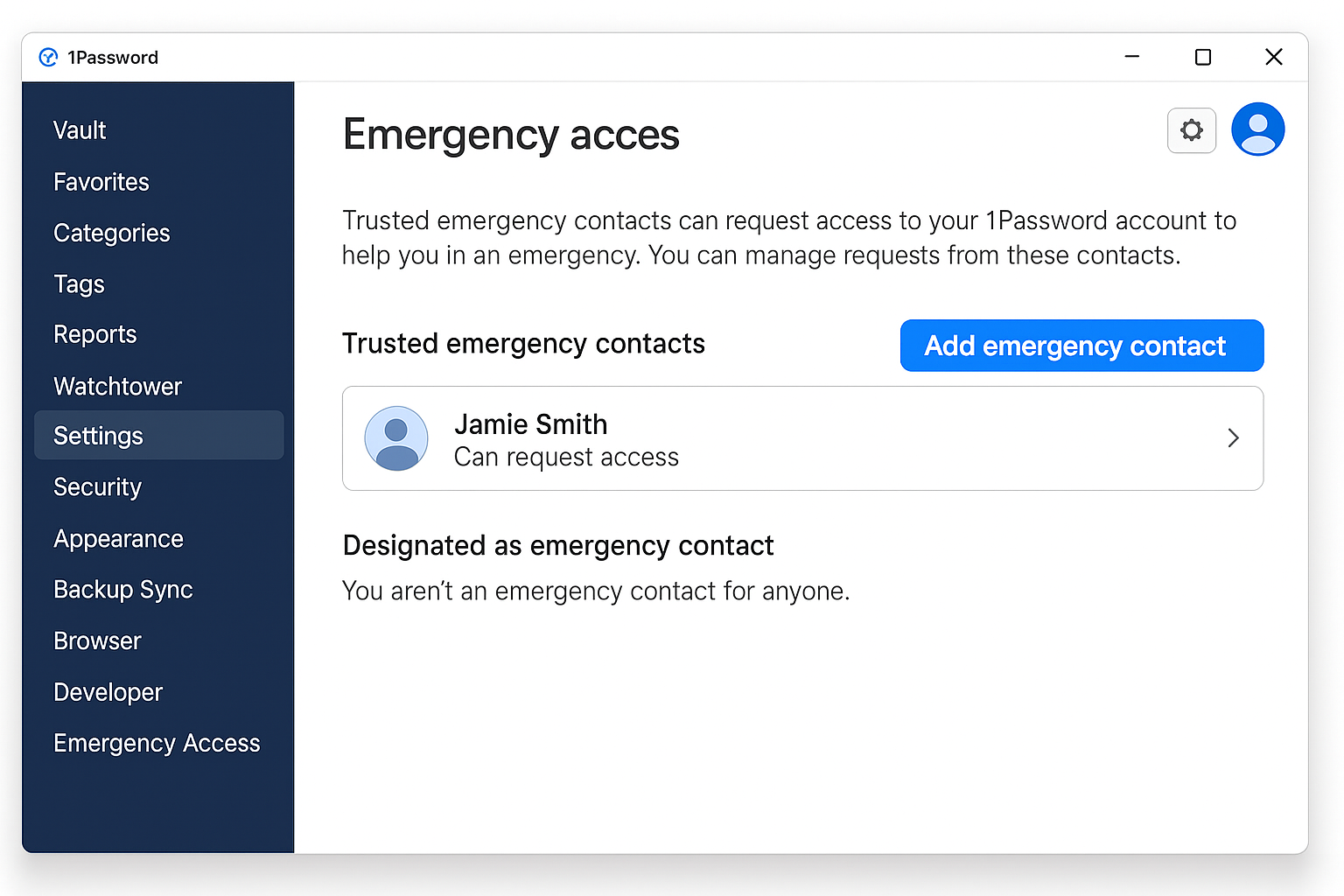
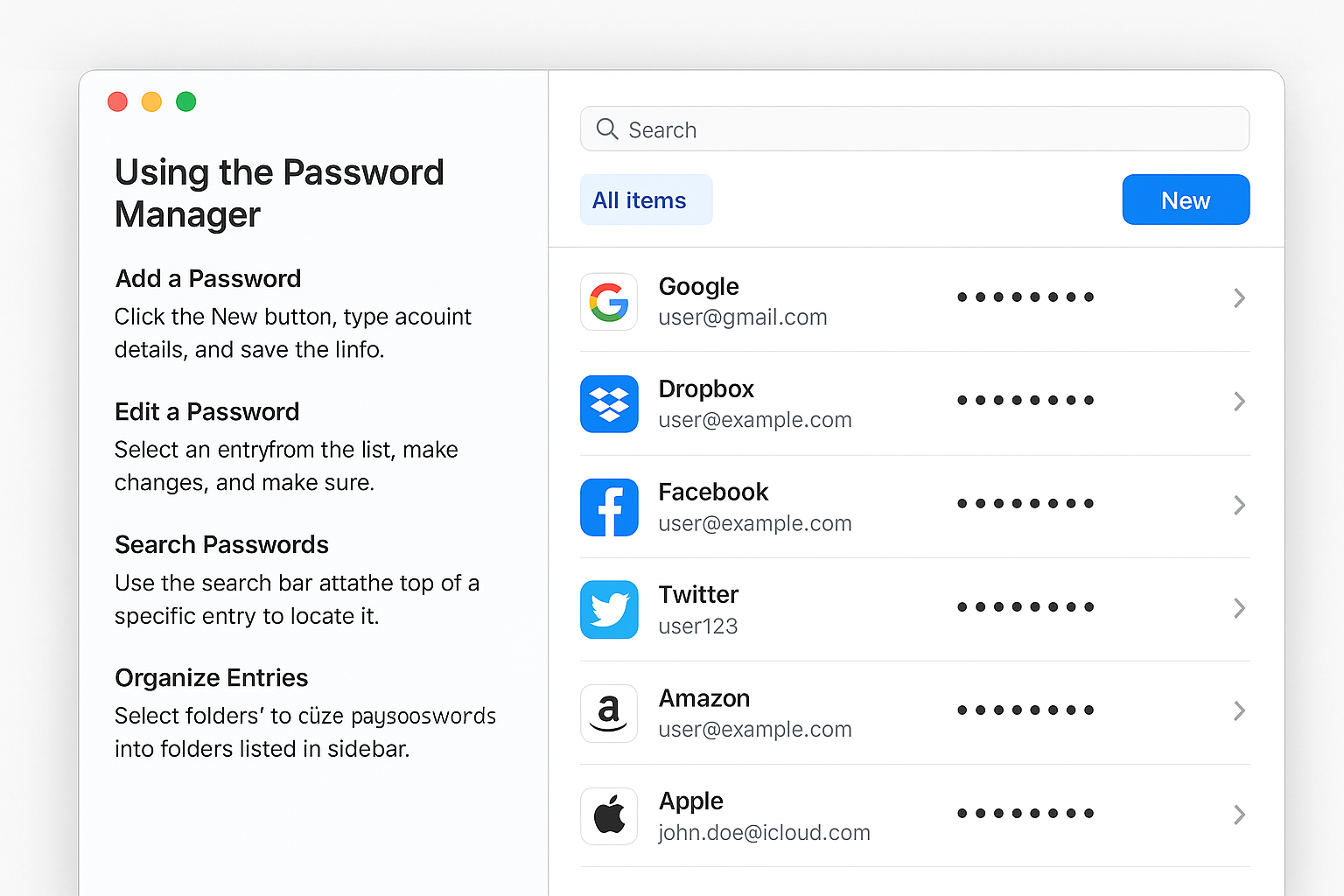
The easiest way to do this is with a password manager that has legacy access features. I actually recommend this approach over the old-school spreadsheet method because it’s more secure and easier to keep updated. 1Password has an excellent feature called Emergency Kit.
Step 2: Set Up Platform Legacy Contacts
Here’s something that’s gotten way better since the early days of digital planning as most major platforms now have built-in legacy features. Set these up first because they’re the easiest wins.
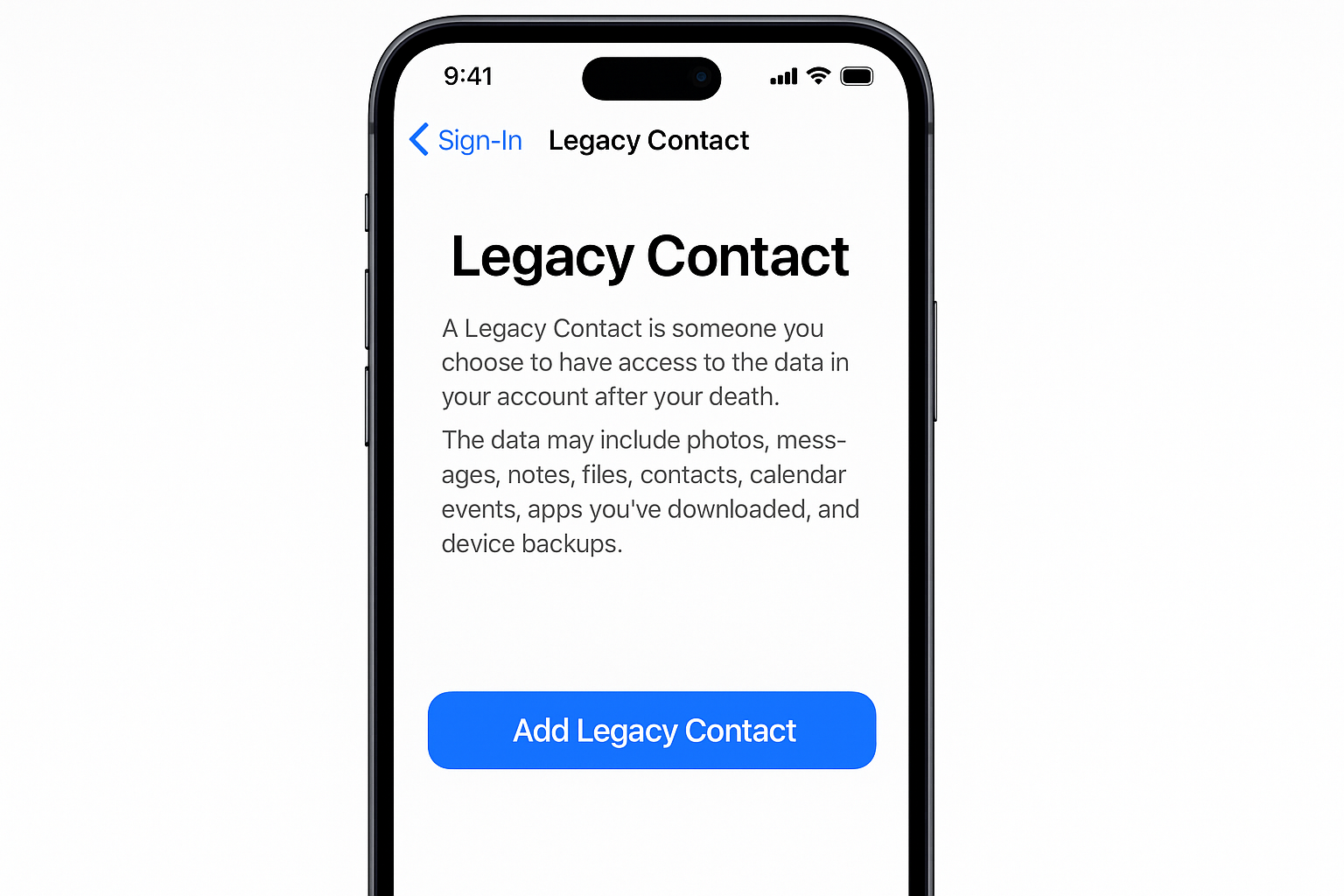
On iPhone/iPad (iOS)
- Open Settings and tap your name at the top
- Go to Sign-In & Security > Legacy Contact
- Tap Add Legacy Contact and choose someone from your contacts
- Apple will generate a recovery key so save this somewhere secure
On Android/Google
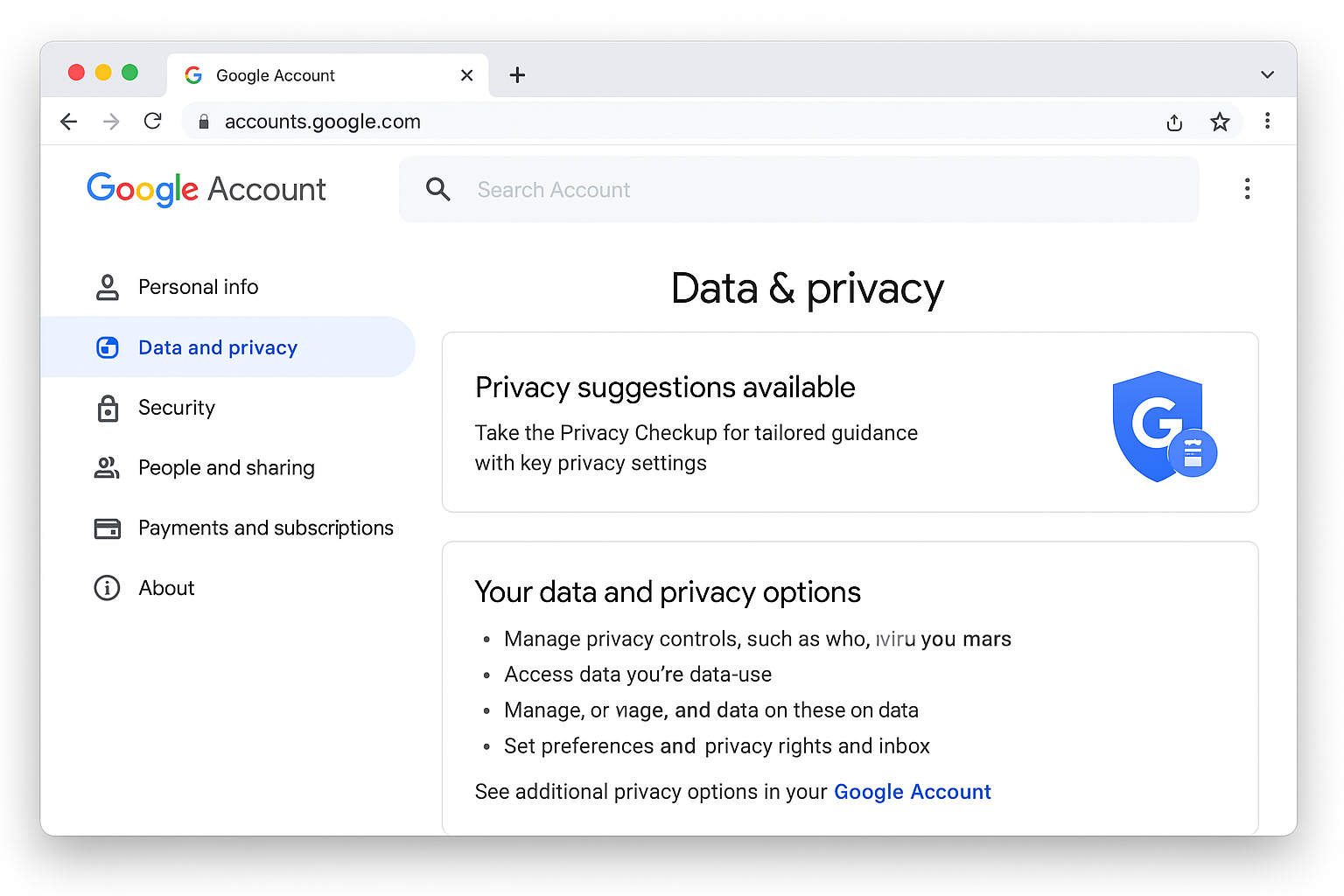
- Go to myaccount.google.com in your browser
- Click Data & Privacy in the left sidebar
- Scroll down to Make a plan for your digital legacy
- Set up inactive account manager and choose trusted contacts
Facebook and Meta Accounts
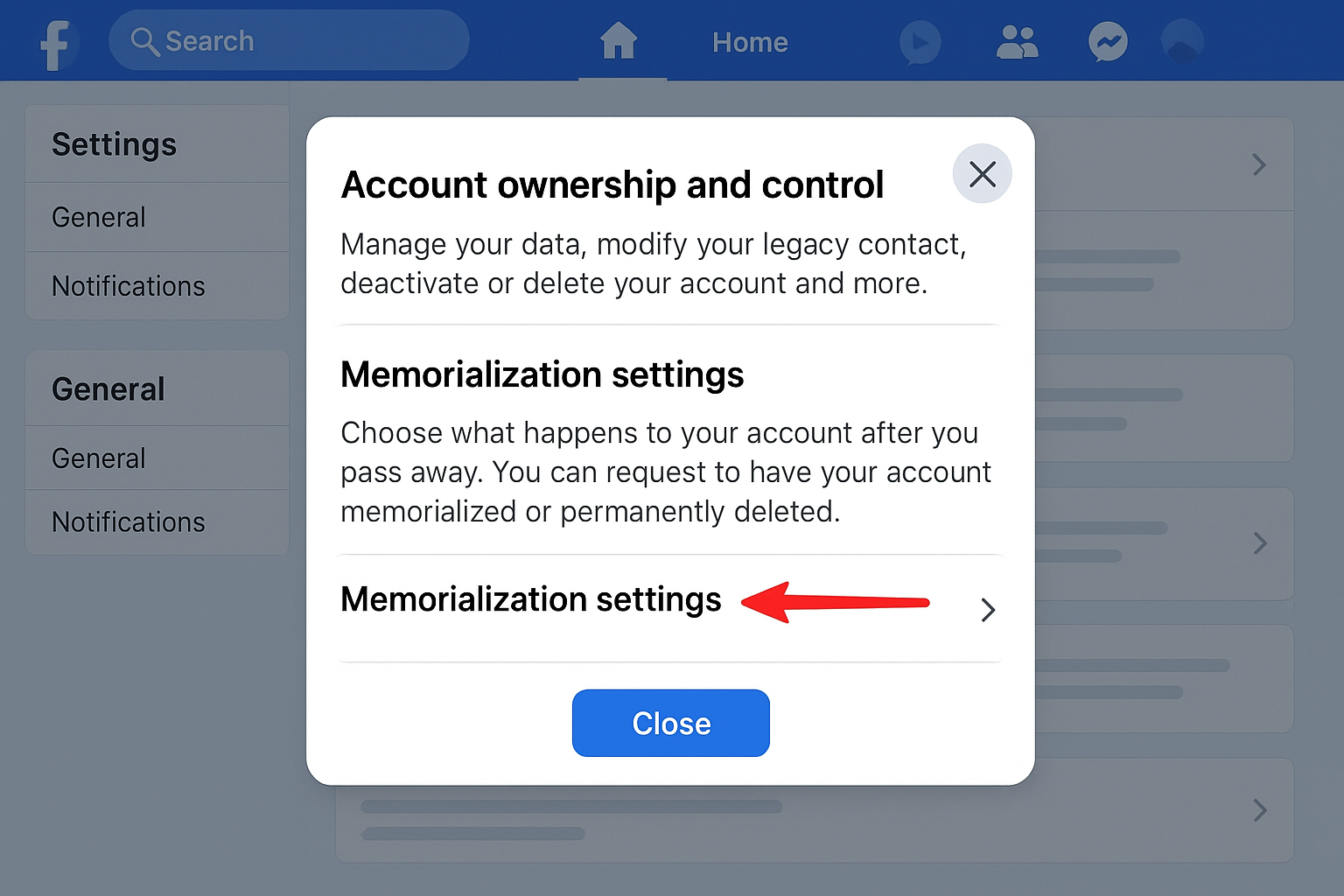
- Go to Facebook Settings > Privacy Center
- Look for Memorialization Settings
- Add a legacy contact who can manage your account after death
Step 3: Choose and Set Up a Secure Password Manager
This is where modern digital estate planning really shines. Instead of keeping a risky spreadsheet or written list, use a password manager with emergency access features.
Top options for 2026:
- 1Password: Has excellent emergency access features and family sharing
- Bitwarden: Open-source option with emergency contact features
- LastPass: Still works, though they’ve had some security issues in recent years
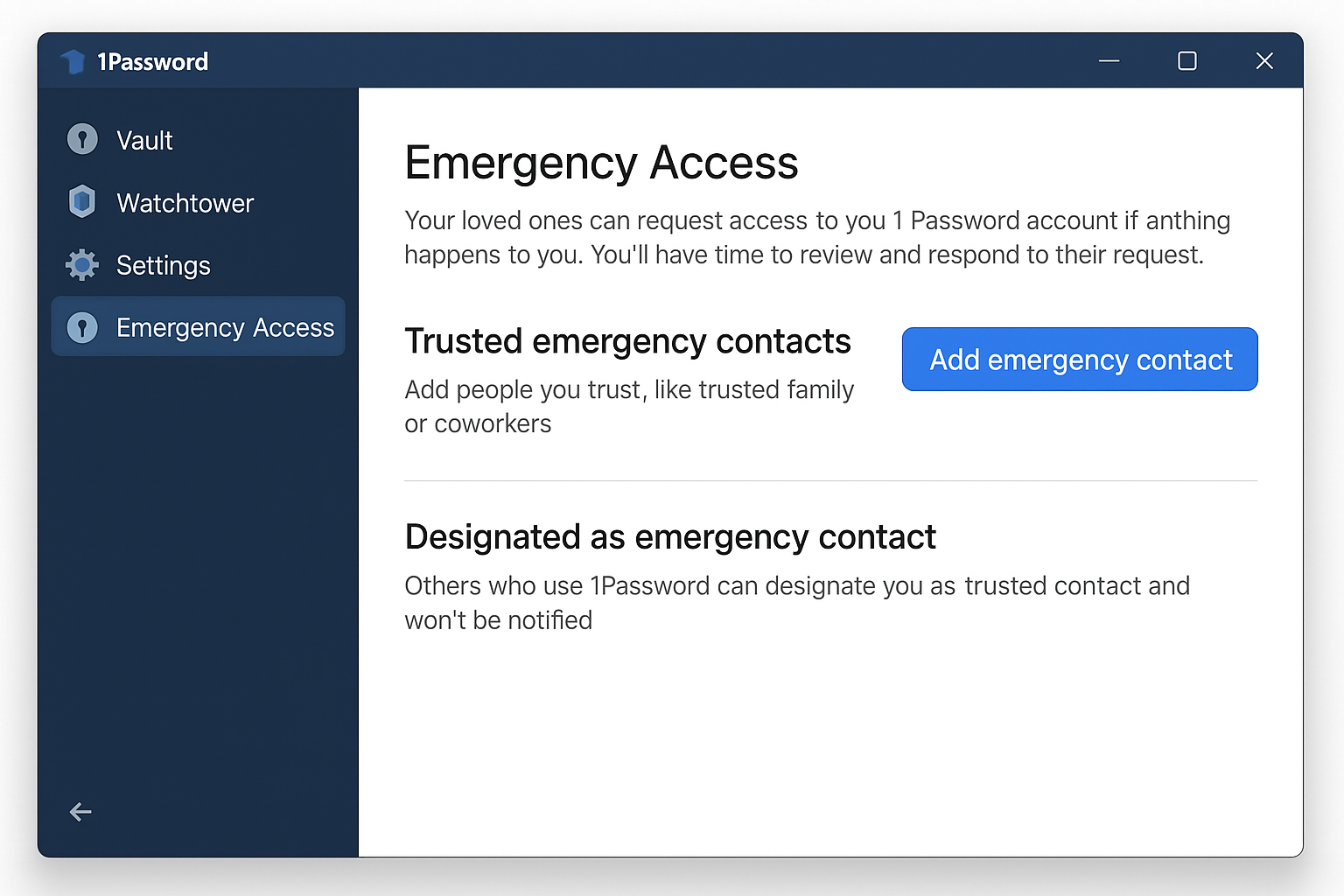
Setting Up Emergency Access in 1Password
- Open 1Password and go to your account settings
- Click Emergency Access in the sidebar
- Add trusted contacts and set a waiting period (I recommend 7-14 days)
- Your trusted contact will be able to request access, and if you don’t deny it within the waiting period, they get in
Pro tip: Set up the emergency access, then actually test it with your trusted person. Have them try the process so they know what to expect.
Step 4: Handle Cryptocurrency and NFTs Properly
Crypto is tricky because if you lose access to a wallet, that money is just gone forever. No customer service can help you recover it.
For exchange-based crypto (Coinbase, Binance, etc.):
- Include these in your regular password manager
- Make sure your digital executor knows about any two-factor authentication apps
- Document any backup codes in your secure notes
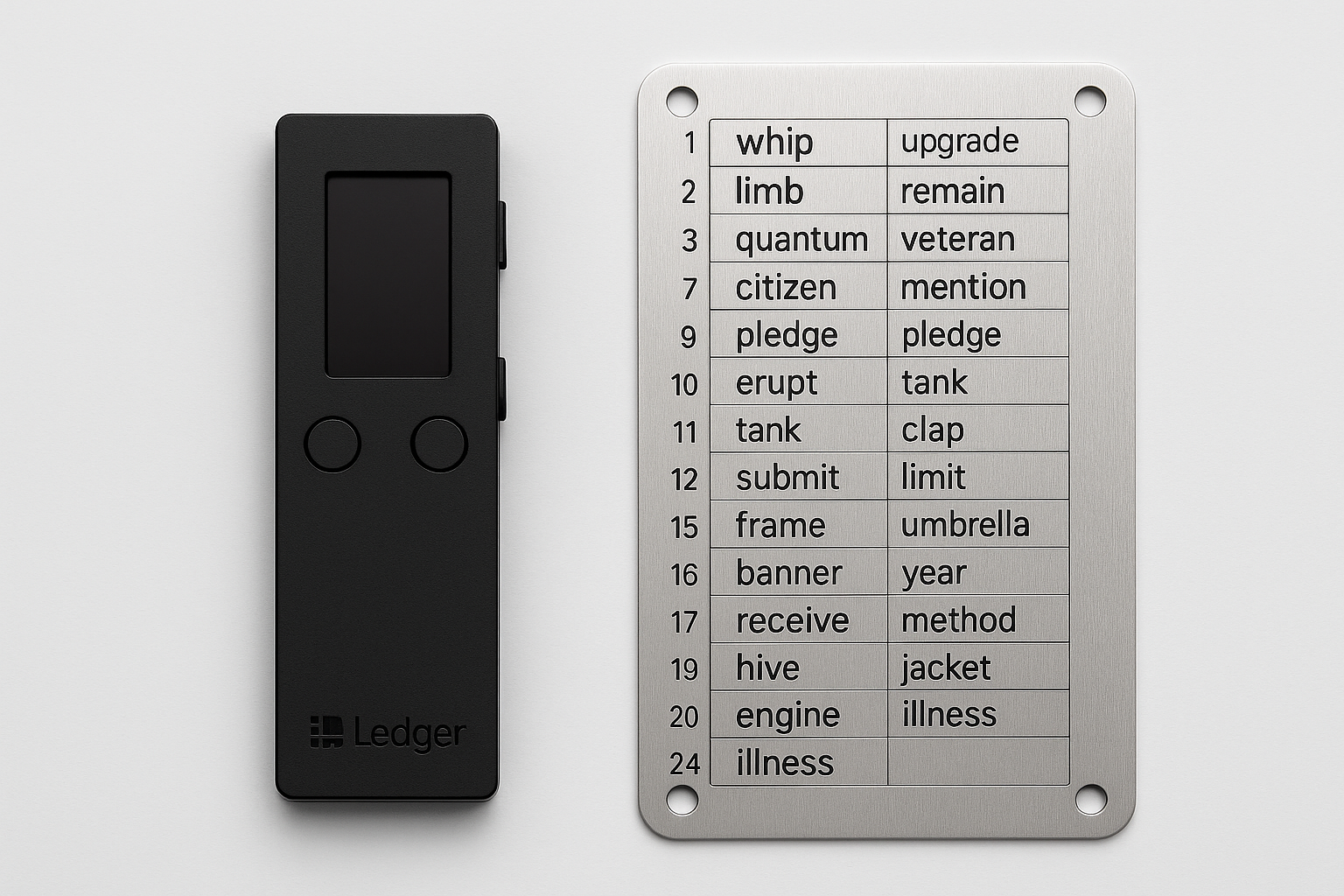
For hardware wallets (Ledger, Trezor, etc.):
- Store your seed phrase (those 12-24 recovery words) in a secure location separate from the device
- Consider a service like Casa that offers multi-signature setups for inheritance
- Never store seed phrases digitally, instead write them down on metal backup plates
For NFTs:
- Document which wallets contain valuable NFTs
- Include marketplace accounts (OpenSea, Foundation, etc.) in your password manager
- Consider the tax implications – NFTs might be considered collectibles
Step 5: Create Legal Documents with Digital Provisions
Here’s the part that’s actually gotten much easier thanks to new laws. Most states now have some version of the Revised Uniform Fiduciary Access to Digital Assets Act (RUFADAA), which gives your executor legal authority to access digital accounts.
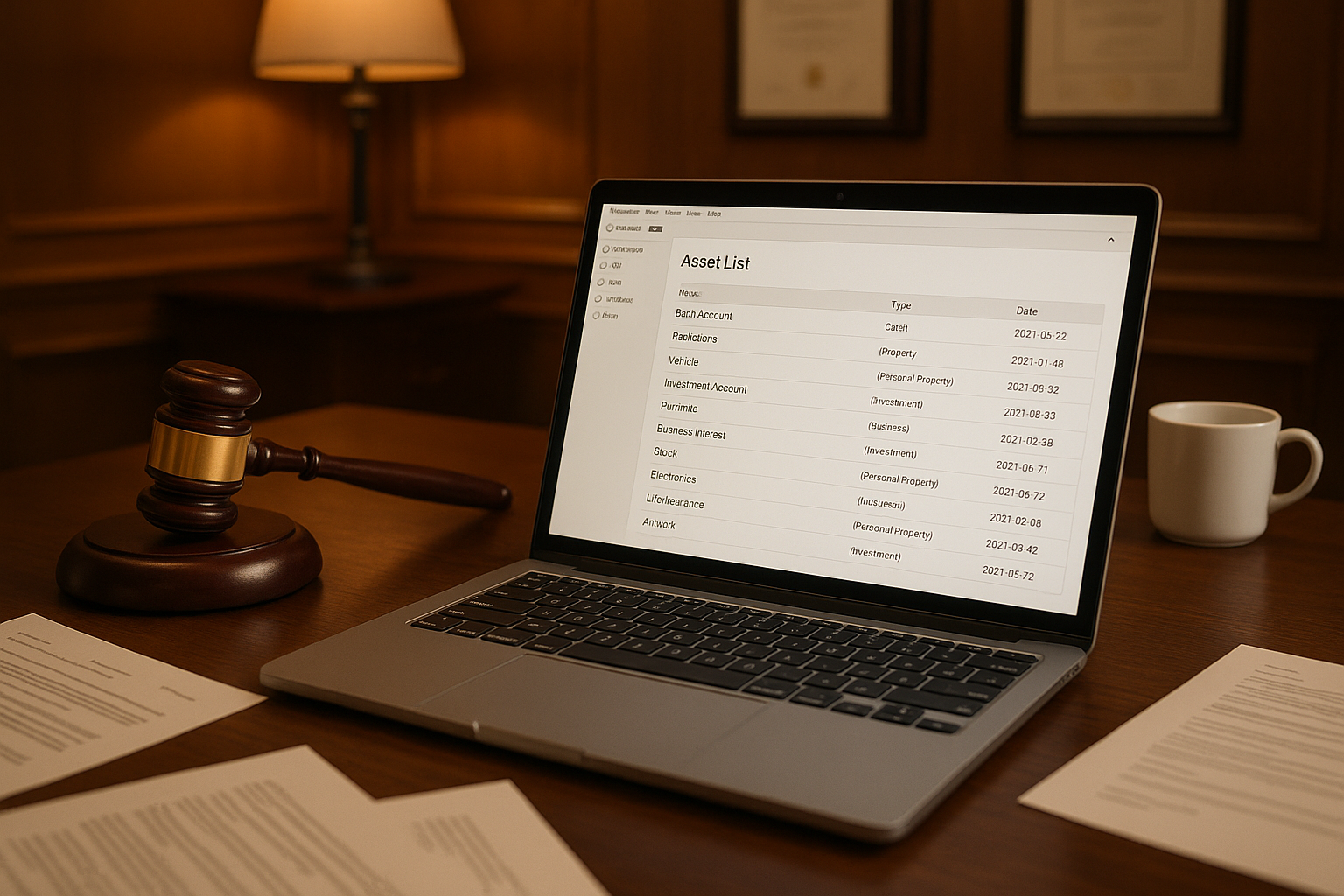
Essential documents to update:
- Will: Include specific language about digital assets and name a digital executor
- Power of Attorney: Make sure it covers digital accounts and online banking
- Digital Asset Addendum: A separate document listing your most important accounts
You’ll want to work with an attorney who understands digital estate planning. The language needs to be specific, generic “all my property” clauses don’t always work for digital accounts.
Step 6: Set Up Smart Device Transfer Plans
Don’t forget about all those connected devices around your house. Your family will need to know how to reset or transfer:
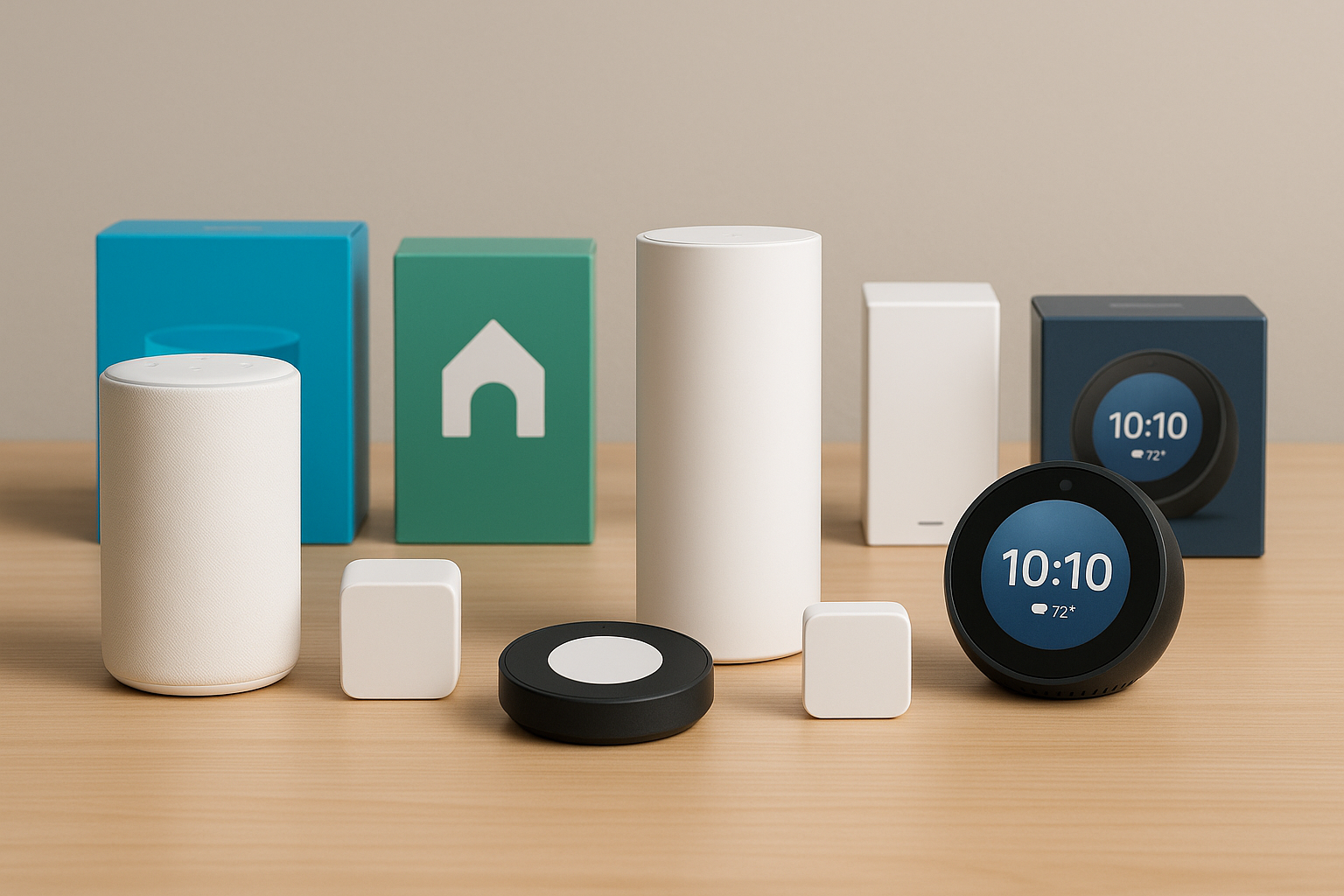
- Smart home systems: Alexa, Google Home, smart thermostats, security cameras
- Streaming devices: Apple TV, Roku, smart TVs with logged-in accounts
- Storage devices and local backups: Don’t overlook external hard drives, NAS (network-attached storage) devices, USB drives, and old laptops or desktops
- Subscription services: Document which services are worth keeping vs. canceling
- Domain names and hosting: These can be valuable business assets worth passing down
Include instructions for how to factory reset devices and transfer ownership where possible.
Step 7: Write Clear Instructions for Your Digital Executor
Remember, your digital executor might not be as tech-savvy as you are. Write instructions like you’re explaining to a smart friend who doesn’t live and breathe technology.
Your instruction document should include:
- How to access your password manager and what the emergency access process looks like
- Which accounts are most important to access first (banking, business accounts)
- Which accounts should be memorialized vs. deleted
- How to handle ongoing subscriptions and recurring payments
- Contact information for your attorney, accountant, and any business partners
Step 8: Store Everything Securely
You have a few good options for storing your master instructions:
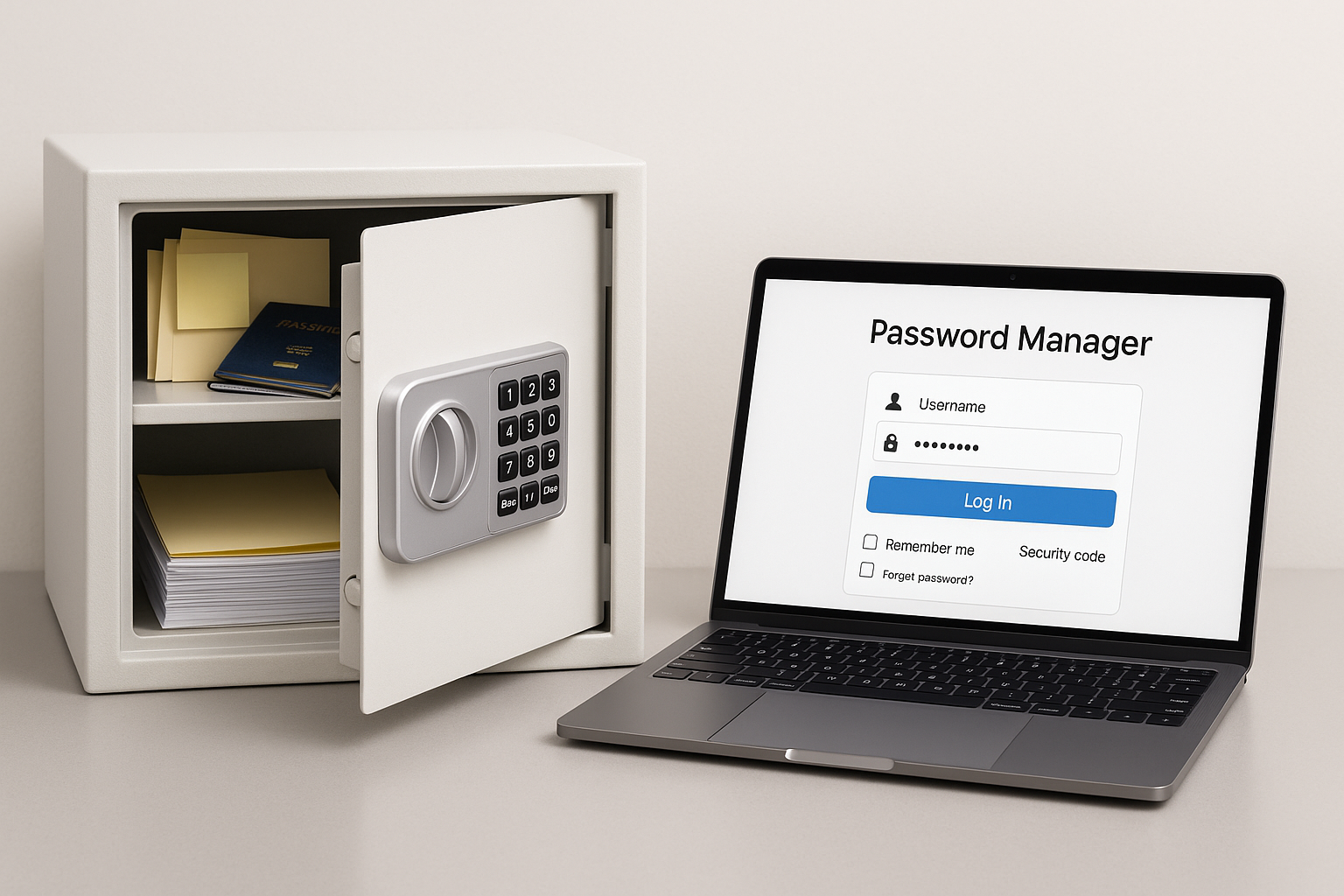
Digital-first approach: Keep everything in your password manager with emergency access set up. Include a printed backup of the most critical information in a safe deposit box.
Hybrid approach: Store detailed instructions digitally, but keep a simplified “quick start” guide in a safe deposit box with your other important documents.
Old-school approach: Print everything and store it in a safe deposit box. Less convenient for updates, but some people prefer this.
I personally use the digital-first approach because it’s easier to keep updated and the emergency access features in modern password managers are actually pretty reliable.
Common Issues and How to Fix Them
Problem: Family Members Getting Locked Out of Accounts
This usually happens when platforms change their policies or when two-factor authentication codes aren’t available.
Solution: Set up platform-specific legacy contacts (like we covered in Step 2) and make sure your digital executor has access to backup codes, not just your phone.
Problem: Incomplete Asset Discovery
People often forget about older accounts, cryptocurrency purchased years ago, or subscription services that are still running.
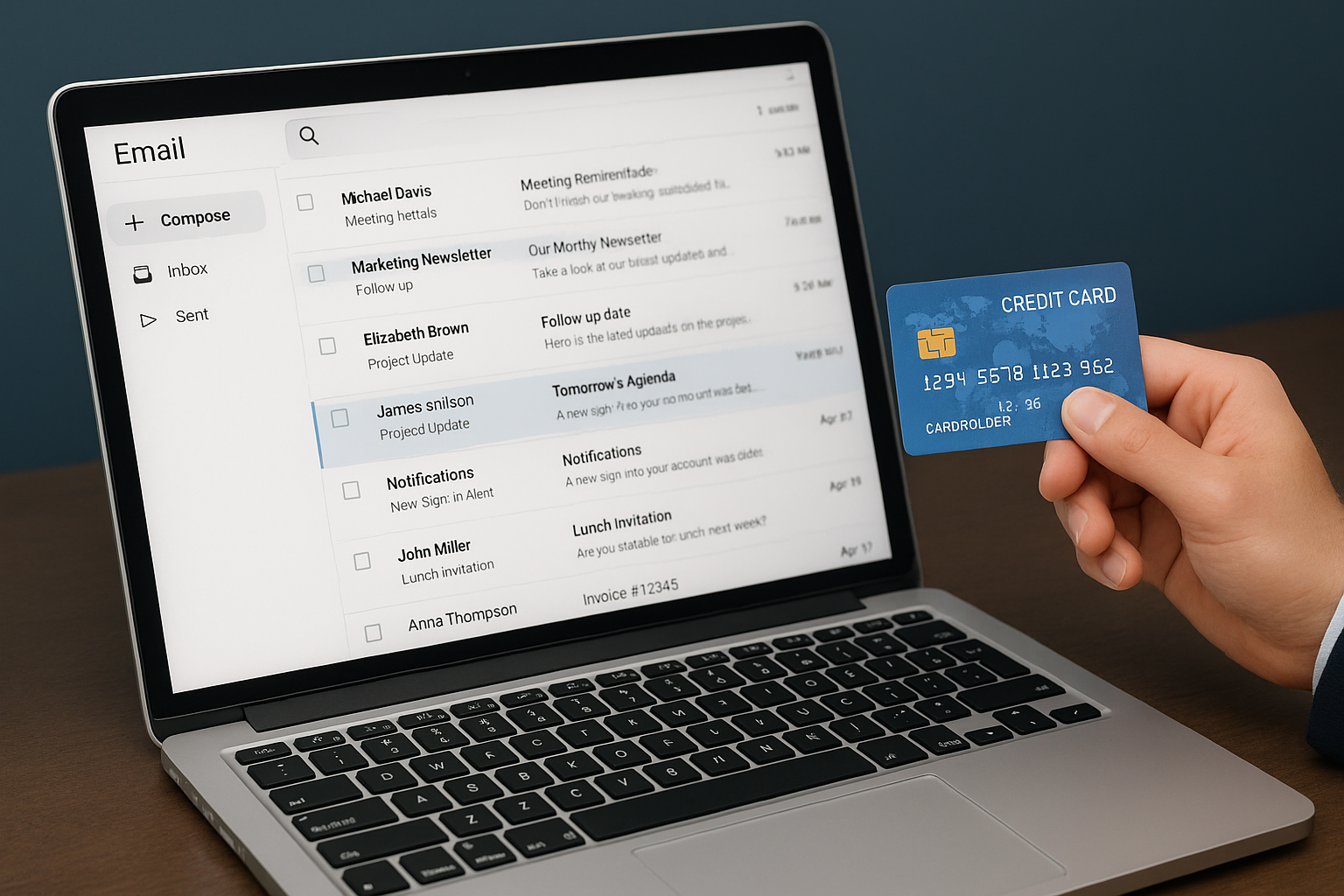
Solution: Do an annual “digital audit” where you go through your email for account notifications and check your credit card statements for recurring charges.
Problem: Legal Access Issues
Even with passwords, family members can get blocked by platforms that require legal documentation.
Solution: Work with an attorney to create RUFADAA-compliant documents and set up official legacy contacts on major platforms.
Problem: Outdated Information
Digital life changes fast — new apps, changed passwords, closed accounts.
Solution: Set a calendar reminder to review your digital estate plan annually, or after major life changes like moving, changing jobs, or getting married.
Pro Tips for 2026
- Use biometric backup: Some newer services are starting to support biometric inheritance verification, definitely worth exploring if you’re an early adopter
- Consider AI-generated content: If you create content using AI tools, document any licensing or ownership rights
- Don’t forget business accounts: Social media business pages, ad accounts, and domain names can be valuable assets
- Test your plan: Have your digital executor try accessing a test account to make sure the process actually works
- Keep it updated: Digital estate planning isn’t a one-and-done thing so plan to review it annually
Wrapping Up
Setting up digital estate planning used to be this complicated mess of spreadsheets and legal gray areas. Now? It’s actually pretty straightforward if you use the right tools and take advantage of the legacy features that major platforms have built in.
The key is starting with the big-ticket items (banking, crypto, business accounts) and working your way down. Don’t try to catalog every single account you’ve ever created, just focus on the stuff that actually matters to your family or has real value.
Honestly, this is one of those things that feels overwhelming until you actually sit down and do it. Once you’ve got your password manager set up with emergency access and your major platforms configured with legacy contacts, you’re covering like 80% of the important stuff. The rest is just details you can fine-tune over time.