
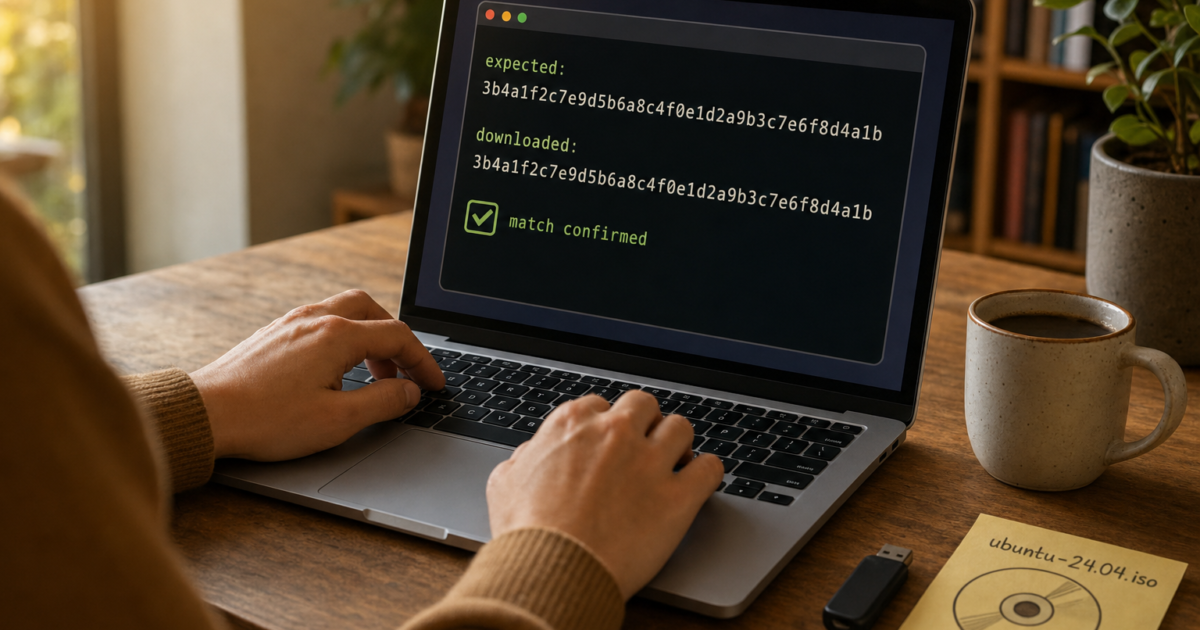
You’ve been struggling with this before: you download a big ISO file or a security tool, and right there on the download page is a long, weird string of letters and numbers. Something like 3b4a1f2c.... What is that thing, and do you actually need to care about it?
That string is called a checksum, basically a fingerprint for the file you just downloaded. If the file got corrupted mid-download or (worse) someone swapped it out with a tampered version, the checksum will catch it. In this guide, you’ll learn what checksums are, which ones to trust in 2026, and exactly how to verify them on Windows, macOS, and Linux, mostly using tools already built into your OS.
What Is a Checksum?
A checksum is a short, fixed-length string of characters generated by running a file through a hash function, a mathematical formula that produces a unique “fingerprint” for that file. Change even a single byte in the file and the checksum changes completely. That’s what makes them so useful for catching corruption or tampering.
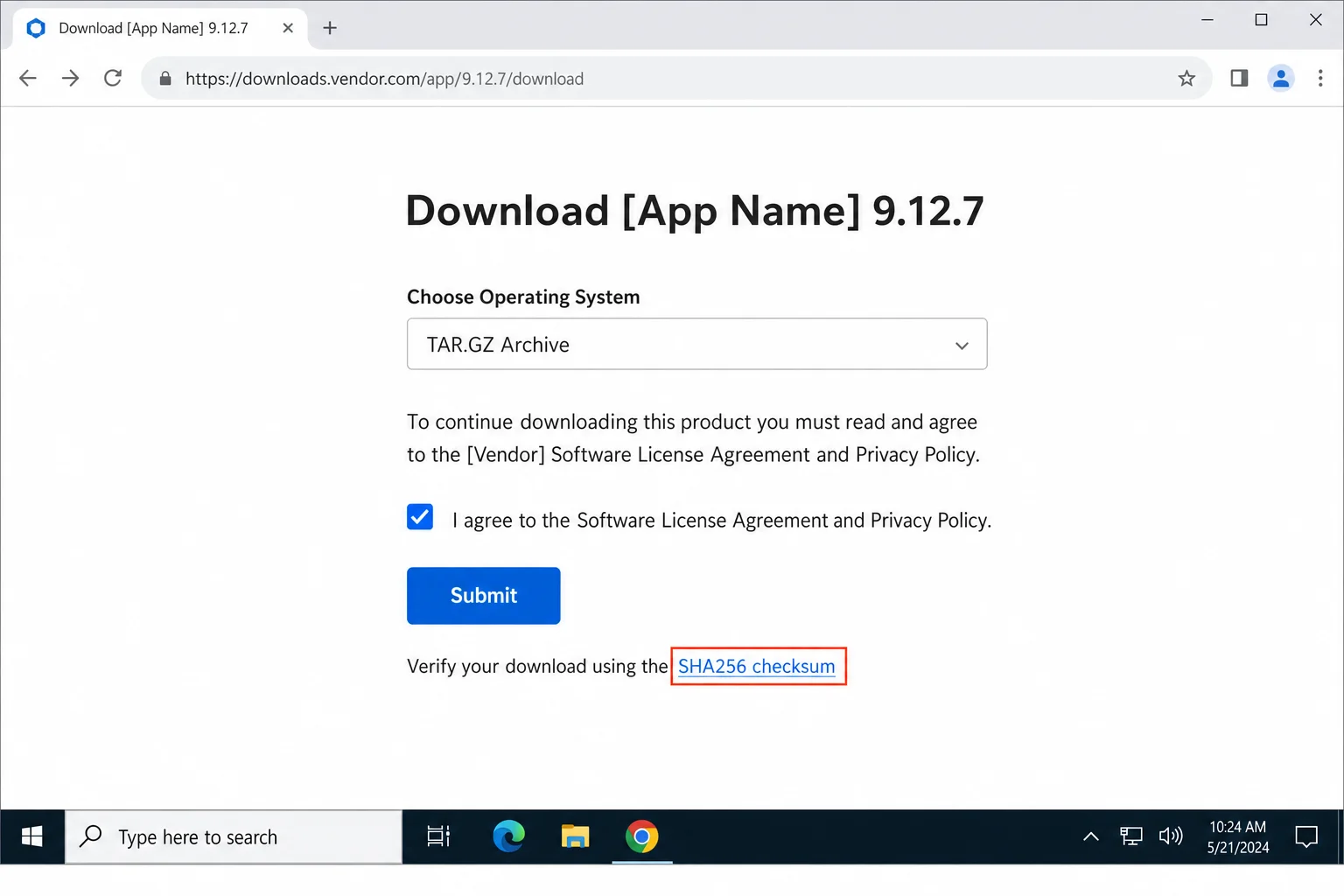
You’ll see checksums listed on download pages for things like Linux ISOs, firmware updates, drivers, and security software. The publisher runs the file through a hash function before publishing it, then posts the result. You download the file, run it through the same hash function, and compare. If the two strings match exactly, you’re good. If they don’t, don’t use the file.
Quick note on terminology: you’ll sometimes hear “checksum” and “hash” used interchangeably. Strictly speaking, a checksum (like CRC32) is a simpler error-detection code, while a cryptographic hash (like SHA-256) has stronger security properties. In everyday use, though, people call them all checksums, and that’s fine for our purposes here.
Which Checksum Algorithm Should You Use?
Not all checksum algorithms are created equal. Here’s the quick rundown:
- MD5: One of the oldest and most recognizable. It’s been cryptographically broken for years. Attackers can create two completely different files that produce the same MD5 hash. It’s fine for checking whether a download got corrupted accidentally, but don’t rely on it for anything security-sensitive.
- SHA-1: Better than MD5, but also broken. Google demonstrated a practical collision attack in 2017 (called “SHAttered”). Same deal, okay for basic integrity checks, not for security.
- SHA-256: This is the one you want. Part of the SHA-2 family, it’s the current standard for verifying downloads and no practical attack has been demonstrated against it. Most reputable software publishers, including Linux distros, Microsoft, and major open-source projects, now publish SHA-256 checksums.
- SHA-512: Even stronger than SHA-256, but overkill for most everyday download verification. You’ll see it occasionally.
- CRC32: Used inside ZIP and RAR archives for quick error detection. Not a security tool at all, just a basic “did this file get corrupted?” check.
Bottom line: Use SHA-256 whenever you can. If a download only offers MD5 or SHA-1, you can still use it to check for accidental corruption, but don’t rely on it to prove the file hasn’t been tampered with.
Do You Actually Need to Check Checksums?
Honestly, not always. Here’s a quick way to think about it:
- Using an app store or package manager? You’re covered. The Windows Store, Microsoft’s Winget, the macOS App Store, Homebrew, and Linux package managers (apt, dnf, pacman, etc.) all verify checksums and signatures automatically behind the scenes. You don’t need to do anything manually.
- Downloading an OS ISO, firmware, drivers, or security tools directly from a website? Yes, verify the checksum. These are exactly the kinds of files that attackers love to tamper with.
- Downloading from a mirror site or a third-party file host? Definitely verify. You have less assurance that the file hasn’t been swapped out.
- Small, non-critical file from a well-known site? Probably fine to skip it.
How to Verify a Checksum on Windows
Good news: Windows 10 and Windows 11 both have built-in tools for this. No extra software required.
Method 1: PowerShell (Recommended)
PowerShell’s Get-FileHash command is the cleanest way to do this on modern Windows.
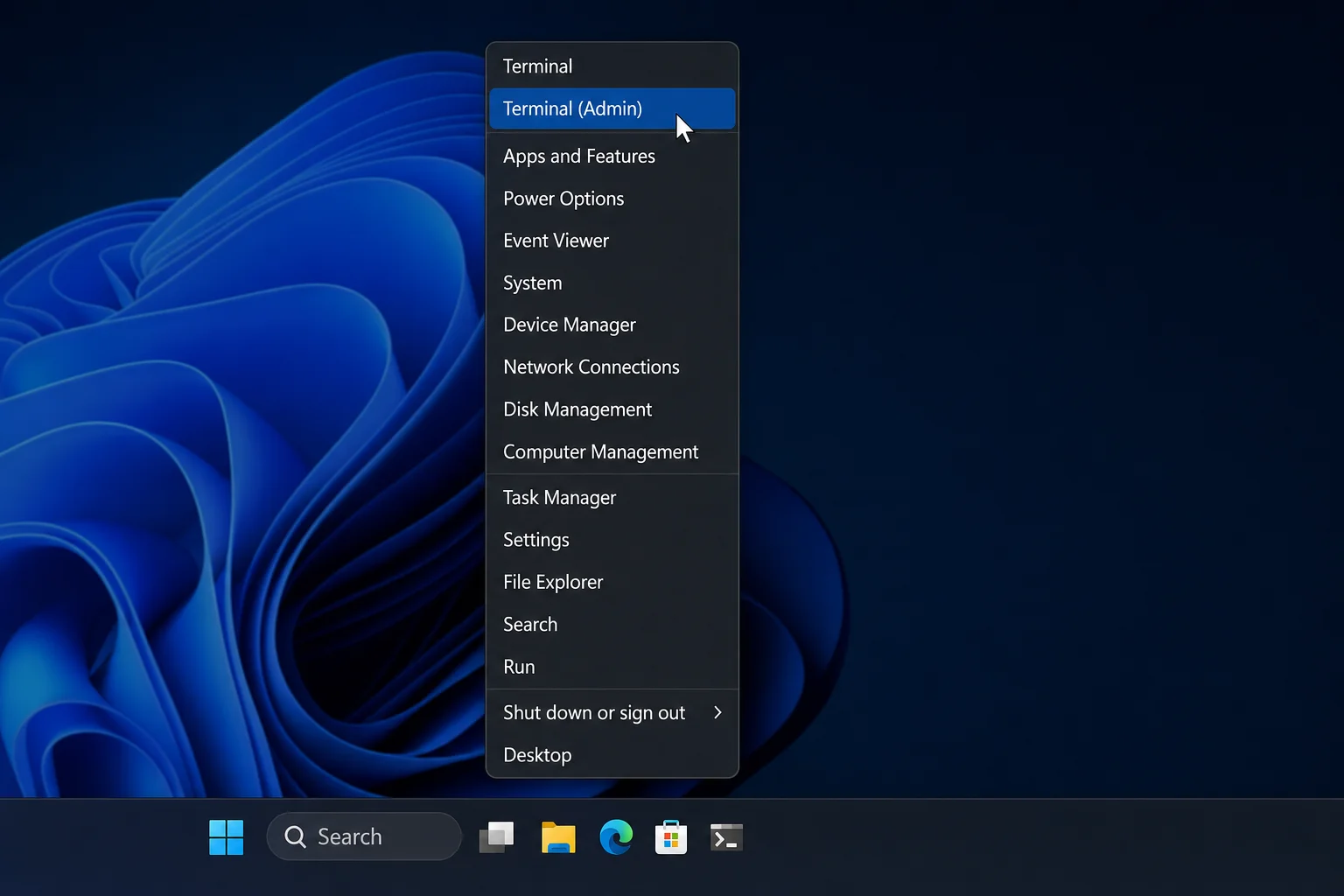
Step 1: Open PowerShell or Windows Terminal
Right-click the Start button and select Windows PowerShell or Terminal. Either one works.
Step 2: Run the Get-FileHash Command
Type the following command, replacing the file path with the actual location of your downloaded file:
Get-FileHash "C:\Users\YourName\Downloads\example.iso" -Algorithm SHA256You’ll see output that looks like this:
Algorithm       Hash                                                                   Path
---------       ----                                                                   ----
SHA256          1A2B3C4D...                                                            C:\Users\YourName\Downloads\example.iso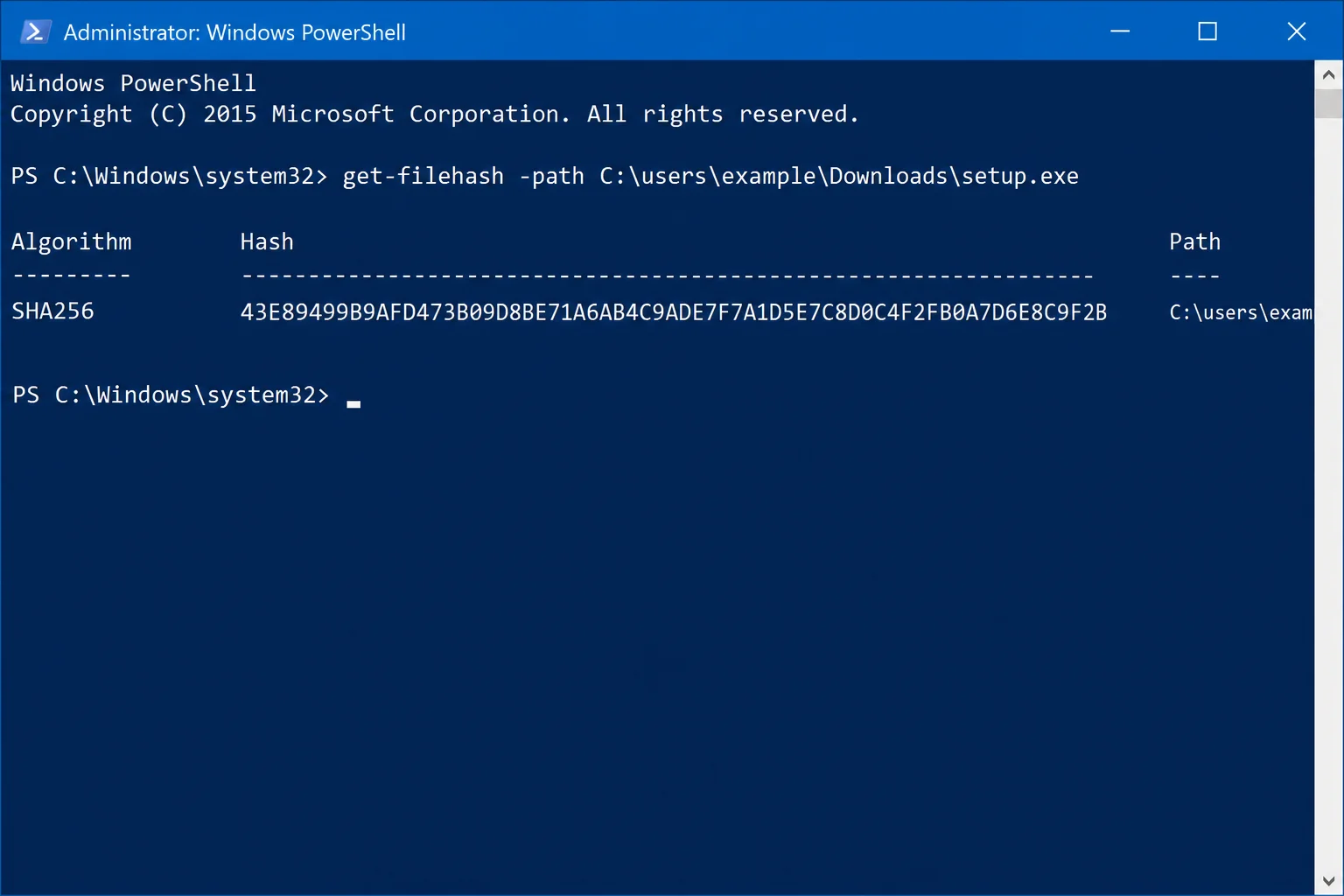
Step 3: Compare the Hash
Copy the long string from the Hash column and compare it to the checksum published on the download page. They need to match exactly, though capitalization doesn’t matter (uppercase and lowercase letters are treated the same).
You can also check SHA-1 or MD5 by swapping out the algorithm name:
Get-FileHash "C:\Users\YourName\Downloads\example.iso" -Algorithm SHA1
Get-FileHash "C:\Users\YourName\Downloads\example.iso" -Algorithm MD5
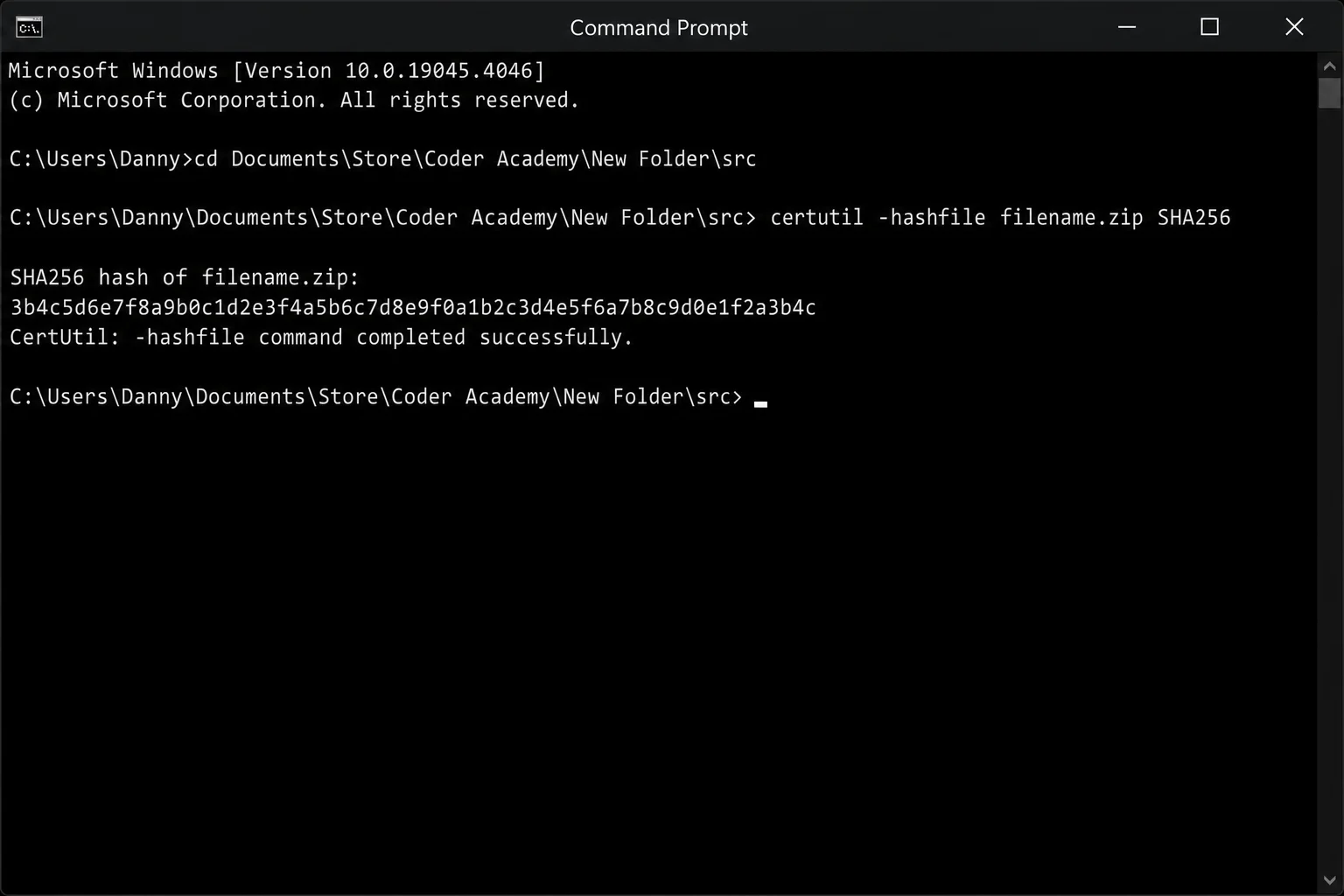
Method 2: Command Prompt with certutil
If you prefer the classic Command Prompt, certutil works just as well.
Step 1: Open Command Prompt
Press Windows + R, type cmd, and press Enter.
Step 2: Run the certutil Command
certutil -hashfile "C:\Users\YourName\Downloads\example.iso" SHA256The output will show the hash on its own line, followed by a success message. Compare that hash to the one on the download page.
Method 3: Use 7-Zip (GUI Option)
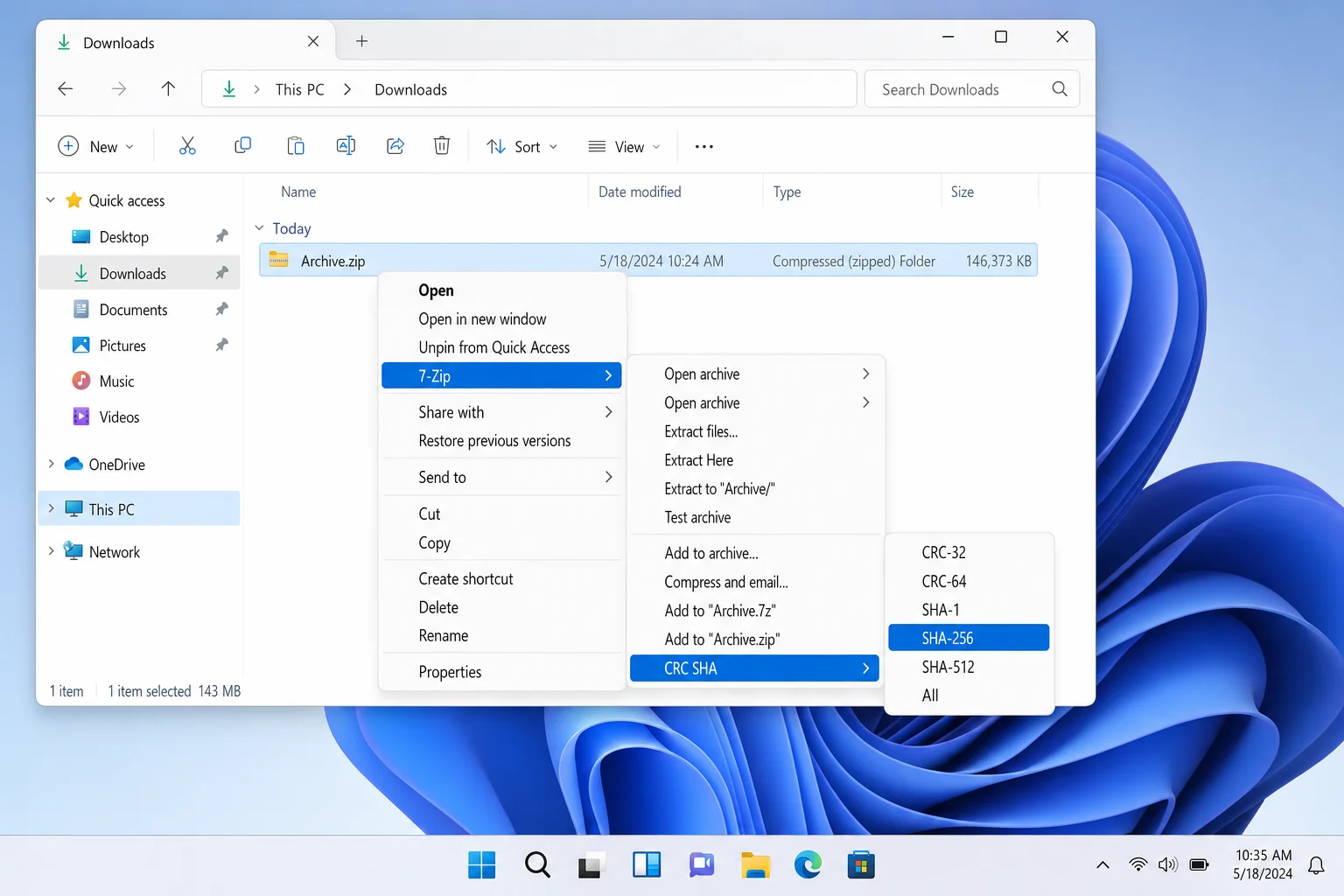
If command lines aren’t your thing, 7-Zip (the free file archiver most Windows users already have) can calculate checksums with a few clicks.
- Right-click the file in File Explorer.
- On Windows 11, click Show more options first to get the full context menu.
- Hover over 7-Zip, then click CRC SHA.
- Select SHA-256 (or whichever algorithm you need).
- A small dialog will pop up with the computed hash. Compare it to the published checksum.
How to Verify a Checksum on macOS
macOS makes this easy with the built-in shasum command in Terminal. No extra tools needed.
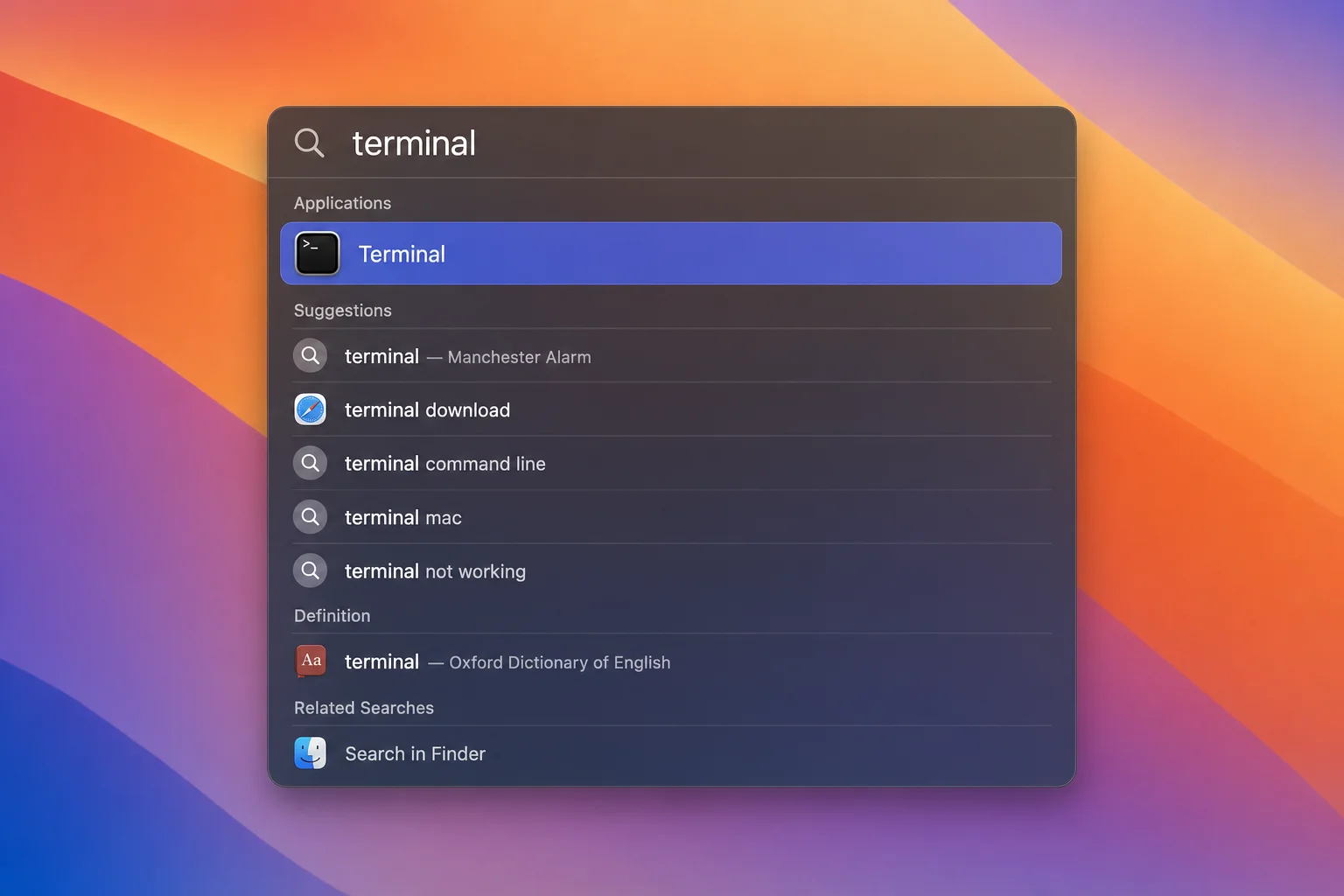
Step 1: Open Terminal
Press Command + Space to open Spotlight, type Terminal, and press Enter.
Step 2: Run the shasum Command
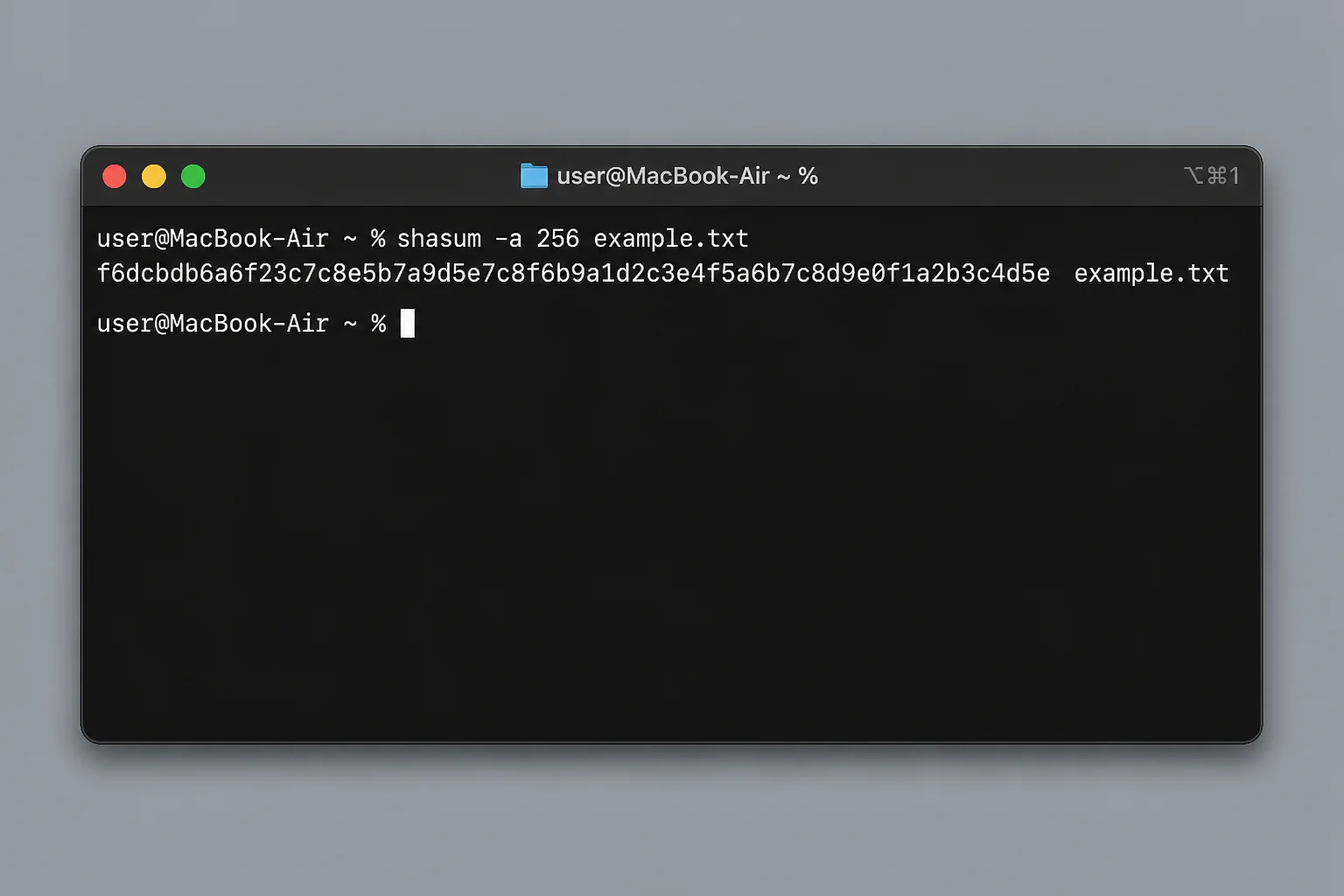
For SHA-256 (which is what you want most of the time):
shasum -a 256 ~/Downloads/example.dmgFor SHA-1 or MD5 (legacy, if that’s all the publisher offers):
shasum -a 1 ~/Downloads/example.dmg
md5 ~/Downloads/example.dmg
The output will look like this:
1a2b3c4d... /Users/you/Downloads/example.dmgThe long hex string at the start is your hash. Compare it to the checksum on the download page.
Step 3: Compare the Result
Copy the hash from the Terminal output and compare it character-by-character with the checksum on the download page. If they match, the file is intact. If they don’t, delete the file and download it again.
How to Verify a Checksum on Linux
Linux users have the simplest setup of all, as these commands are built into every major distro.
Open a terminal and run one of these, depending on which algorithm the publisher used:
# SHA-256 (recommended)
sha256sum file.iso

# SHA-1 (legacy)
sha1sum file.iso

# MD5 (legacy)
md5sum file.iso
The output is a hash followed by the filename. Compare the hash to the one published by the software vendor.
If the vendor provides a signed checksum file (common with Linux ISOs), you can verify the whole thing at once:
gpg --verify sha256sums.txt.gpg sha256sums.txt
sha256sum -c sha256sums.txt
This approach is even more secure because it verifies both the file’s integrity and that the checksum list itself hasn’t been tampered with.
Tips and Troubleshooting
Common Issues
Problem: The checksums don’t match
Don’t panic, this happens more often from boring reasons than scary ones. Here’s what to check:
- Re-download the file. The most common cause is a corrupted or incomplete download. Try again, preferably from the publisher’s primary download link rather than a mirror.
- Make sure you’re comparing the right checksum. Publishers often list multiple checksums for different versions or builds. Double-check you’re looking at the one that matches your exact file.
- Check for copy-paste errors. Sometimes pasting a checksum from a webpage picks up extra spaces or invisible characters. Try selecting and copying the hash more carefully.
- If it still doesn’t match, don’t run the file. Contact the publisher or check their support forums. A persistent mismatch is a red flag.
Problem: “Checksum error” in a game launcher, installer, or storage tool
Worth knowing: “checksum error” isn’t just a download thing. You might see it in game patchers (usually means wrong game version or a corrupted install), package managers (the downloaded package doesn’t match the expected hash and will be blocked automatically for your safety), or storage tools like TrueNAS or ZFS (checksum errors there often point to failing drives or bad RAM, not downloads). The concept is the same; something doesn’t match what was expected, but the fix depends on the context. If you’re seeing this in Steam specifically, check out our guides on how to fix a disk write error in Steam or how to fix Steam error code E20.
Pro Tips
- A matching checksum doesn’t guarantee the file is safe. It only means the file is identical to what the publisher posted. If the publisher’s website was compromised, the checksum will match the compromised file. For security-critical software, look for a digital signature (GPG/PGP) in addition to a hash, or better yet, install via a trusted package manager.
- SHA-256 is your default choice. If a download page offers multiple algorithms, always pick SHA-256 over MD5 or SHA-1.
- Drag and drop works in Terminal (macOS/Linux). Instead of typing out a long file path, type the command and then drag the file from Finder or your file manager directly into the Terminal window. It’ll paste the full path automatically.
- On Windows, you can right-click to paste in both PowerShell and Command Prompt. No need to type out the full file path if you copy it from File Explorer first.
Quick Reference: Checksum Commands by Platform
| Platform | Algorithm | Command |
|---|---|---|
| Windows (PowerShell) | SHA-256 | Get-FileHash "file" -Algorithm SHA256 |
| Windows (PowerShell) | MD5 | Get-FileHash "file" -Algorithm MD5 |
| Windows (CMD) | SHA-256 | certutil -hashfile "file" SHA256 |
| macOS (Terminal) | SHA-256 | shasum -a 256 file |
| macOS (Terminal) | MD5 | md5 file |
| Linux (Terminal) | SHA-256 | sha256sum file |
| Linux (Terminal) | MD5 | md5sum file |
Wrapping Up
Checksums aren’t something you need to think about every day, but when you’re downloading an OS image, a security tool, or anything from a mirror site, taking 30 seconds to verify one can save you a serious headache. The good news is you no longer need to download any extra software to do it: PowerShell on Windows and shasum on macOS handle it all natively. Just make sure you’re using SHA-256 rather than the older MD5 or SHA-1, and you’ll be in good shape.
If you’re still seeing a mismatch after re-downloading, don’t ignore it. That’s your computer telling you something is wrong with the file. Trust the hash.