

Ever start typing something into Google only to get distracted by trending topics about celebrity drama or random news you don’t care about? You’re not alone. Google’s “Autocomplete with trending searches” feature can turn a simple search into a 20-minute rabbit hole of stuff you never meant to look up.
The good news? You can turn off these distracting suggestions completely. This guide will show you exactly how to disable trending searches on Google across all your devices: desktop browsers, mobile browsers, and the Google app. Once you’re done, your search bar will stick to your actual search history and common queries instead of whatever’s trending on Twitter.

What Are Google Trending Searches?
Google’s trending search feature shows you what other people in your area are searching for right now. When you start typing in the search bar, you’ll see suggestions based on popular topics, breaking news, and viral content alongside your personal search history.
Key things to know:
- Location-based: Trending searches are tailored to your geographic region
- Real-time: They update constantly based on what’s popular at the moment
- Device-specific: The setting doesn’t sync across devices, so you’ll need to turn it off on each one
- Separate from personal suggestions: Your own search history will still show up even with trending searches disabled
The screenshots below show earlier Google layouts. Follow the current menu labels in the text when they differ; Google is rolling out settings changes. Google’s current instructions cover desktop, Android, and iPhone separately.
How to Turn Off Trending Searches on Desktop Browsers
This method works for Chrome, Firefox, Safari, Edge, and pretty much any browser you use on Windows or macOS.
Step 1: Go to Google Search Settings
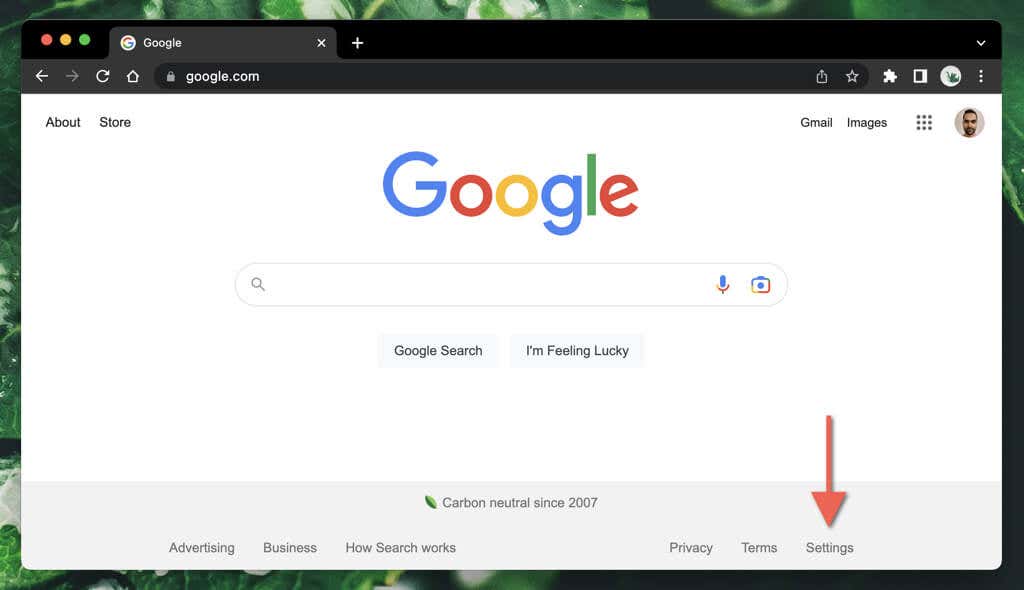
Visit google.com in your browser. At the bottom-right corner of the page, click Settings.
Step 2: Open Search Settings
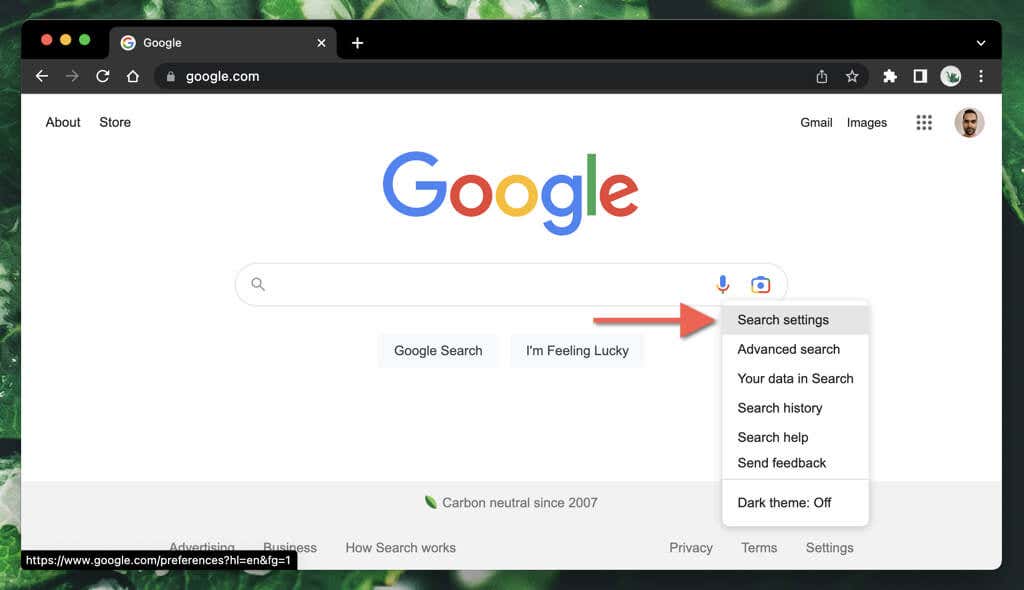
From the popup menu, click Search settings.
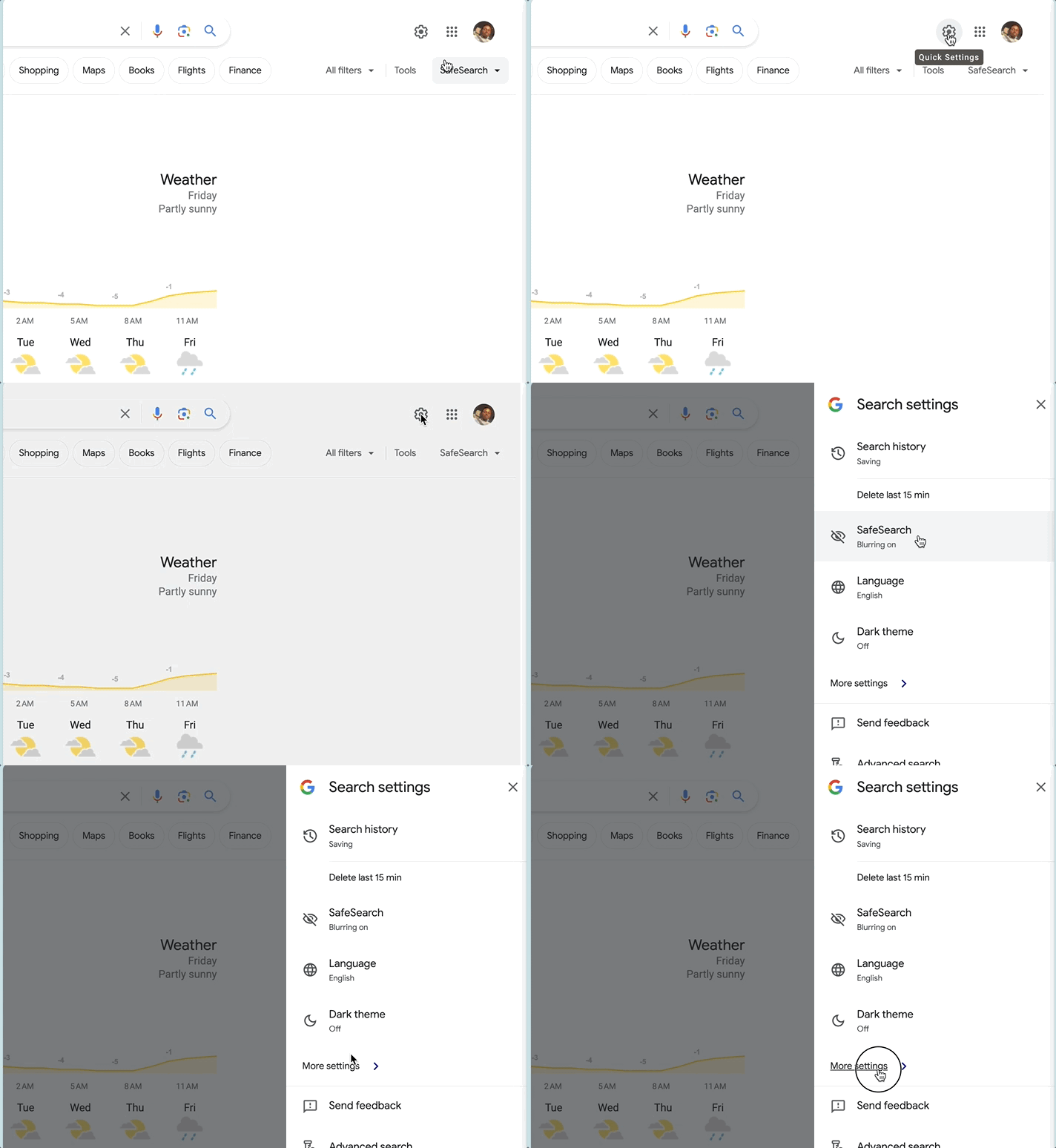
Alternative method: If you’re already on a search results page, you can click the gear icon in the top-right corner and select More settings.
Step 3: Navigate to Other Settings
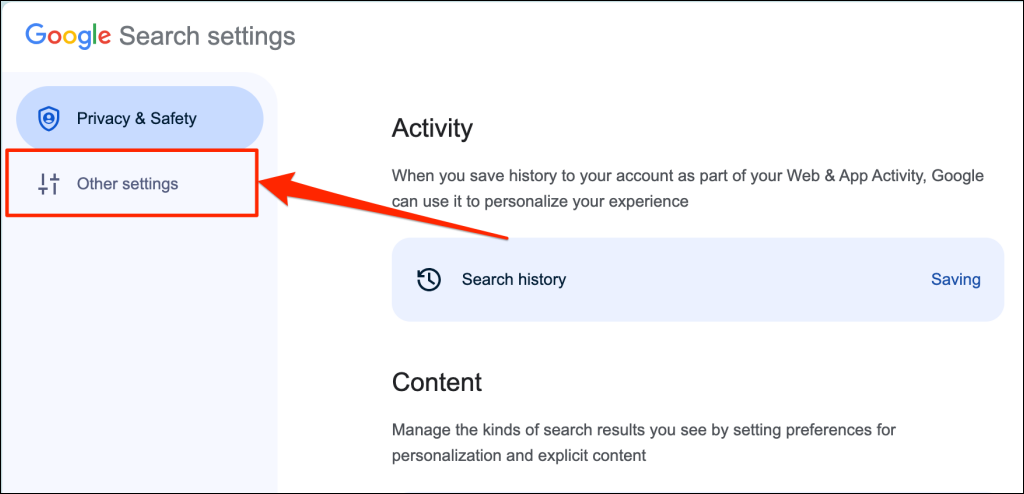
In the left sidebar, click Other settings.
Step 4: Turn Off Trending Searches
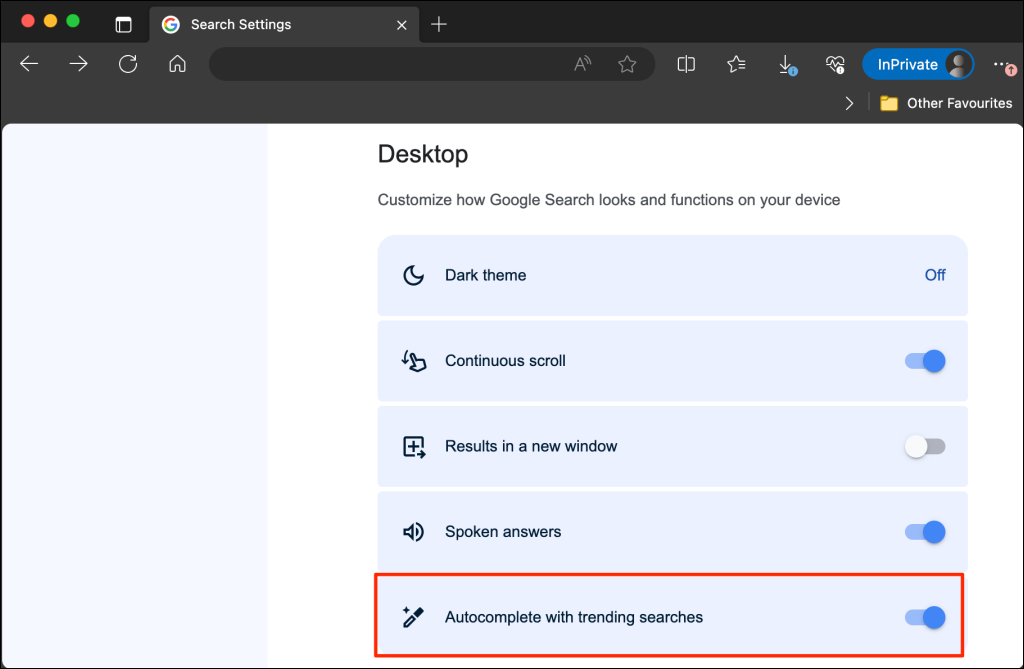
Scroll down to find Autocomplete with trending searches and toggle it off. That’s it!
How to Turn Off Trending Searches on Mobile Browsers
The mobile browser method is pretty similar, but the interface looks a bit different.
On Chrome, Safari, and Most Mobile Browsers
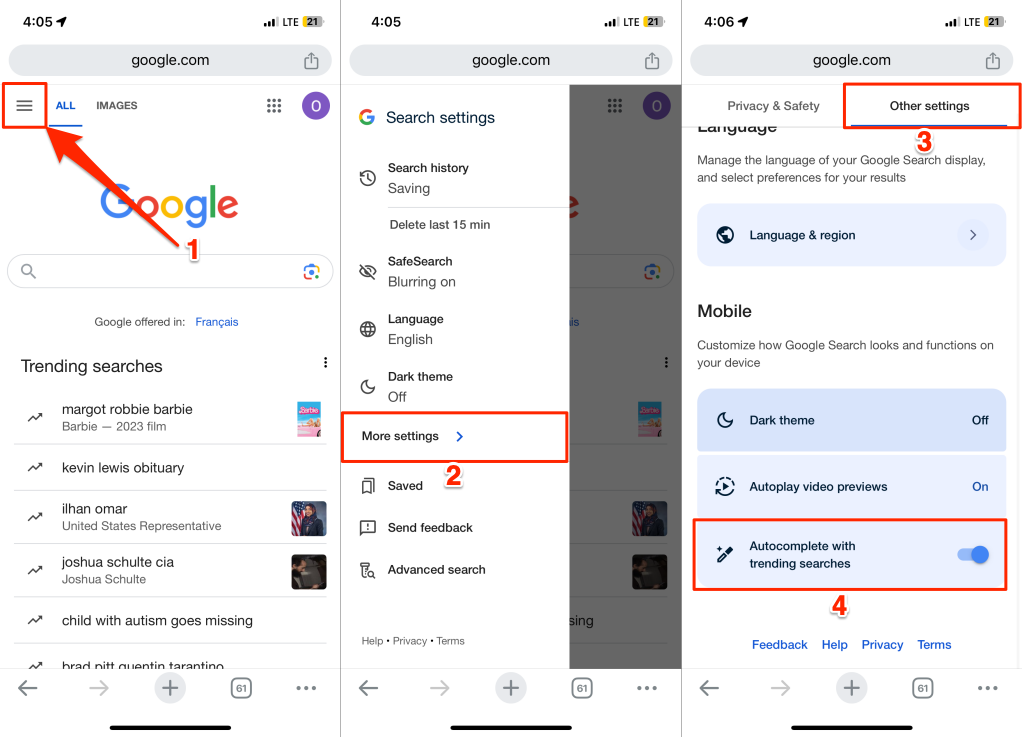
- Open your mobile browser and go to google.com
- Tap your profile picture or initial at the top right
- Choose More settings > Other settings
- Turn off Autocomplete with trending searches
On Samsung Internet and Firefox Mobile
The current Google page uses the same profile-menu route in these browsers. Older layouts may expose Settings at the bottom:
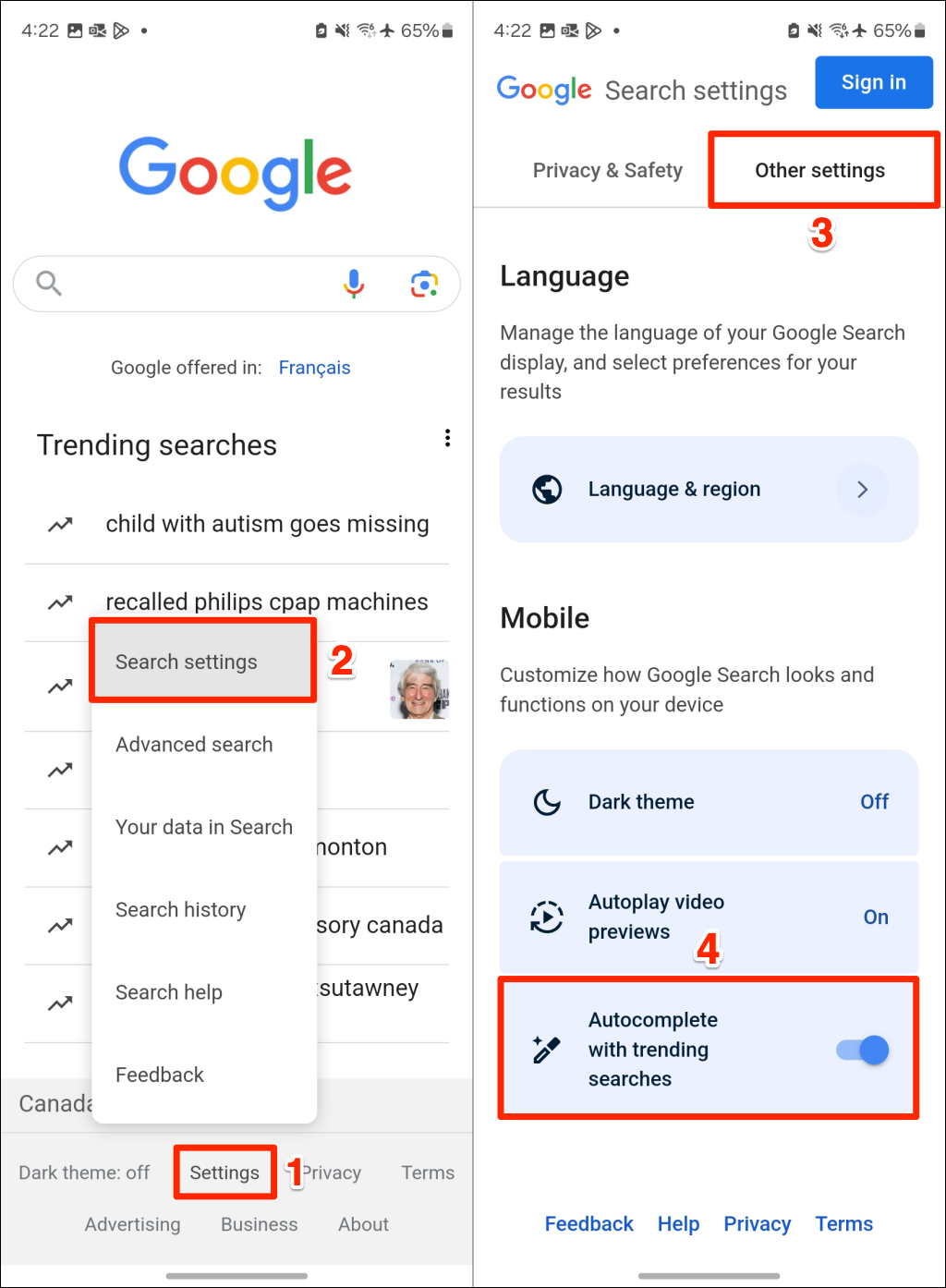
- Open the browser and visit google.com
- Tap Settings at the bottom of the page
- Choose Search settings
- Open the Other settings tab
- Turn off Autocomplete with trending searches
How to Turn Off Trending Searches in the Google App
If you use the official Google app on your phone or tablet, you’ll need to adjust the settings there too.
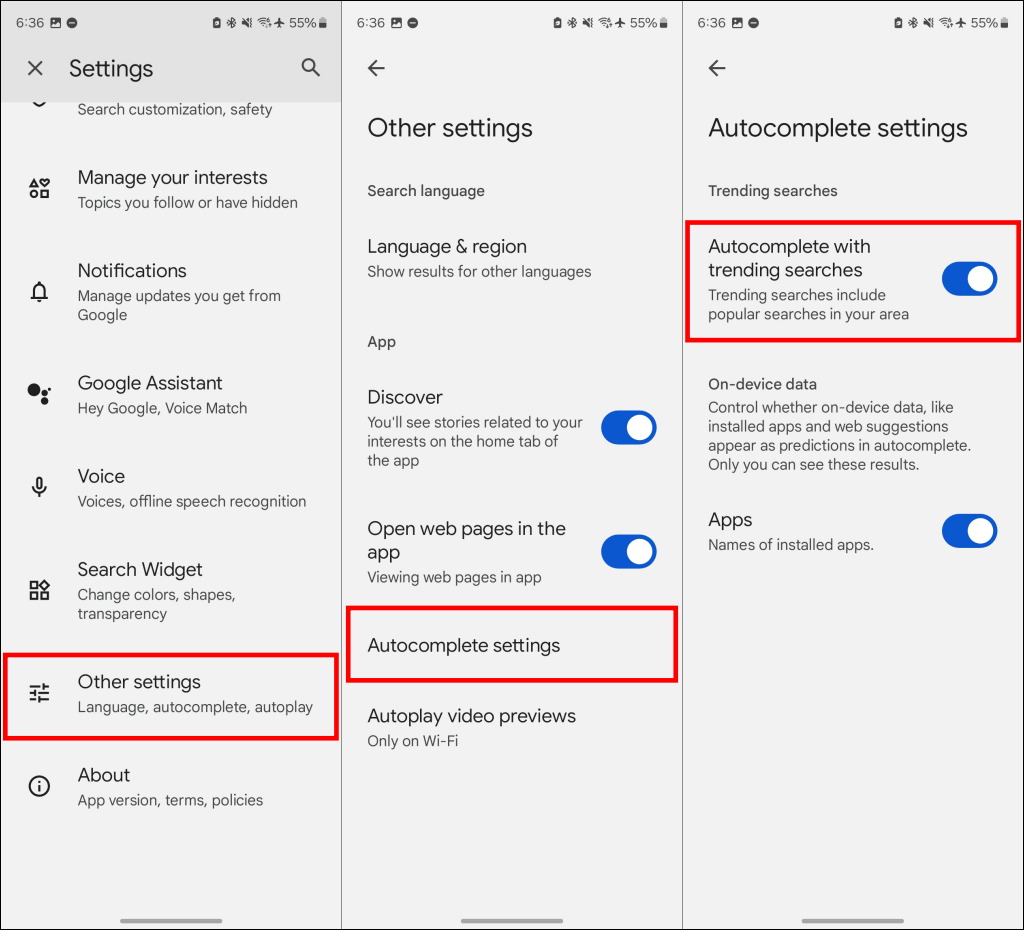
On Android
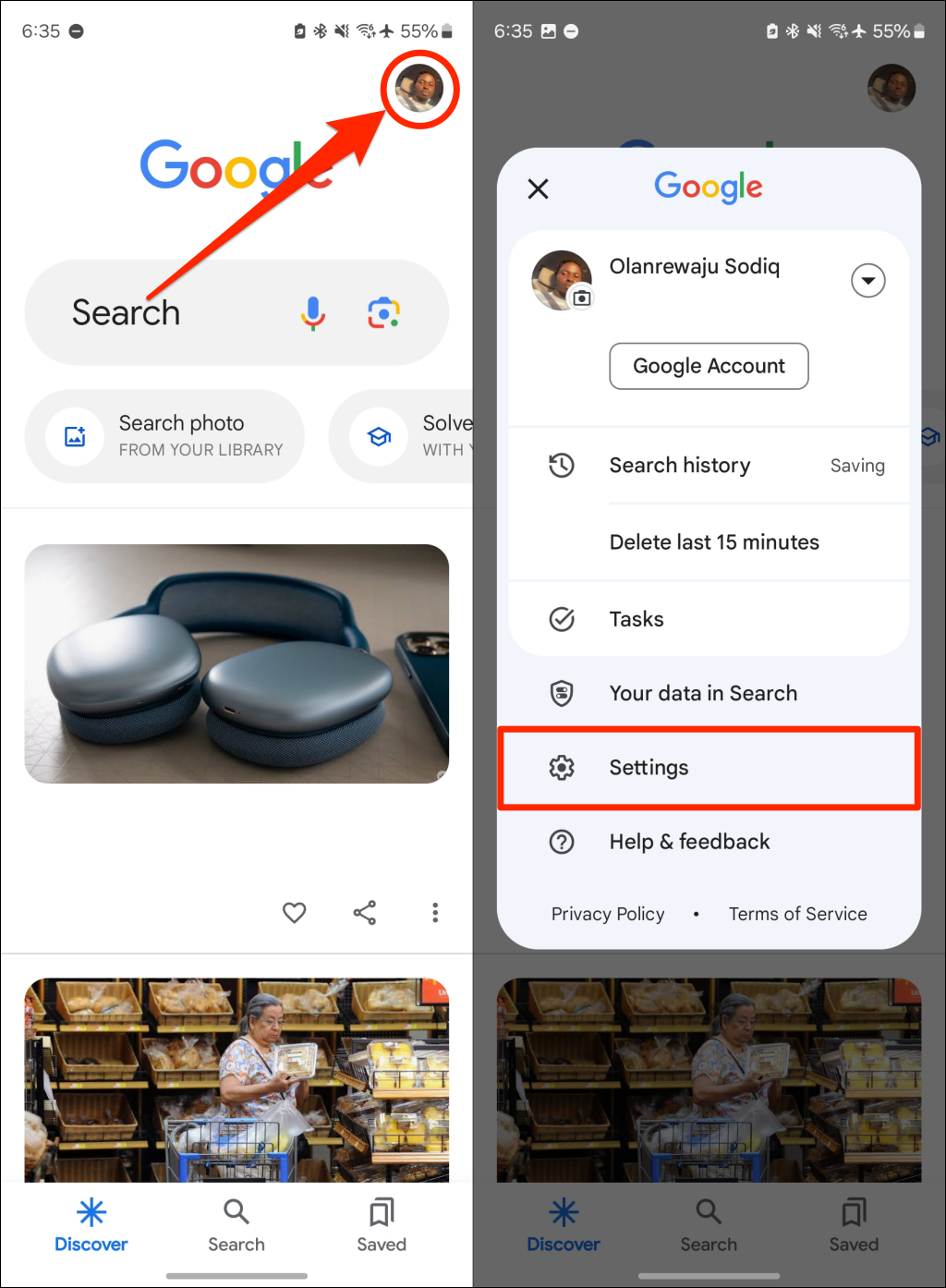
- Open the Google app
- Tap your profile picture in the top-right corner
- Select Settings from the menu
- Go to Other settings > Autocomplete settings
- Toggle off Autocomplete with trending searches
On iPhone and iPad
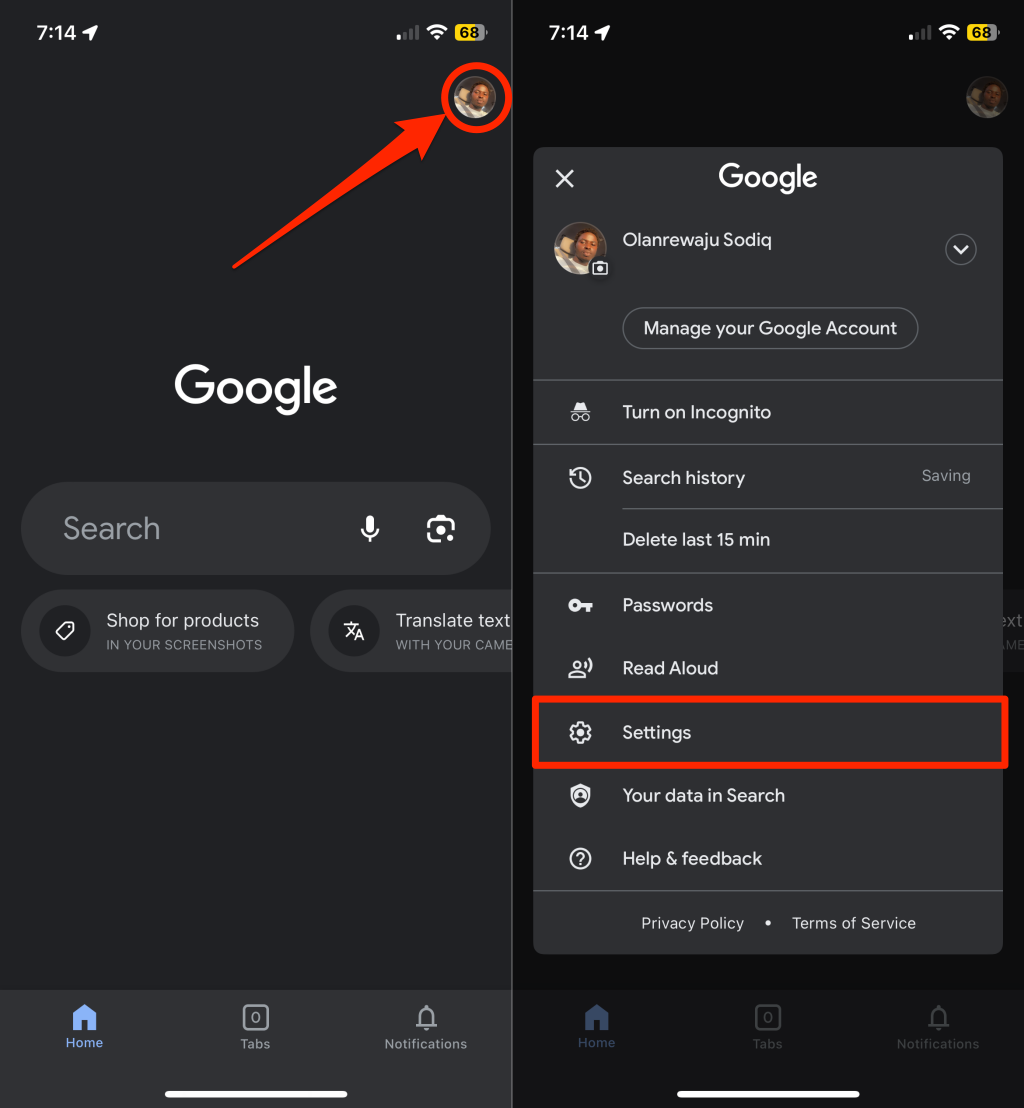
The iOS version is a bit simpler:
- Open the Google app
- Tap your profile picture in the top-right corner
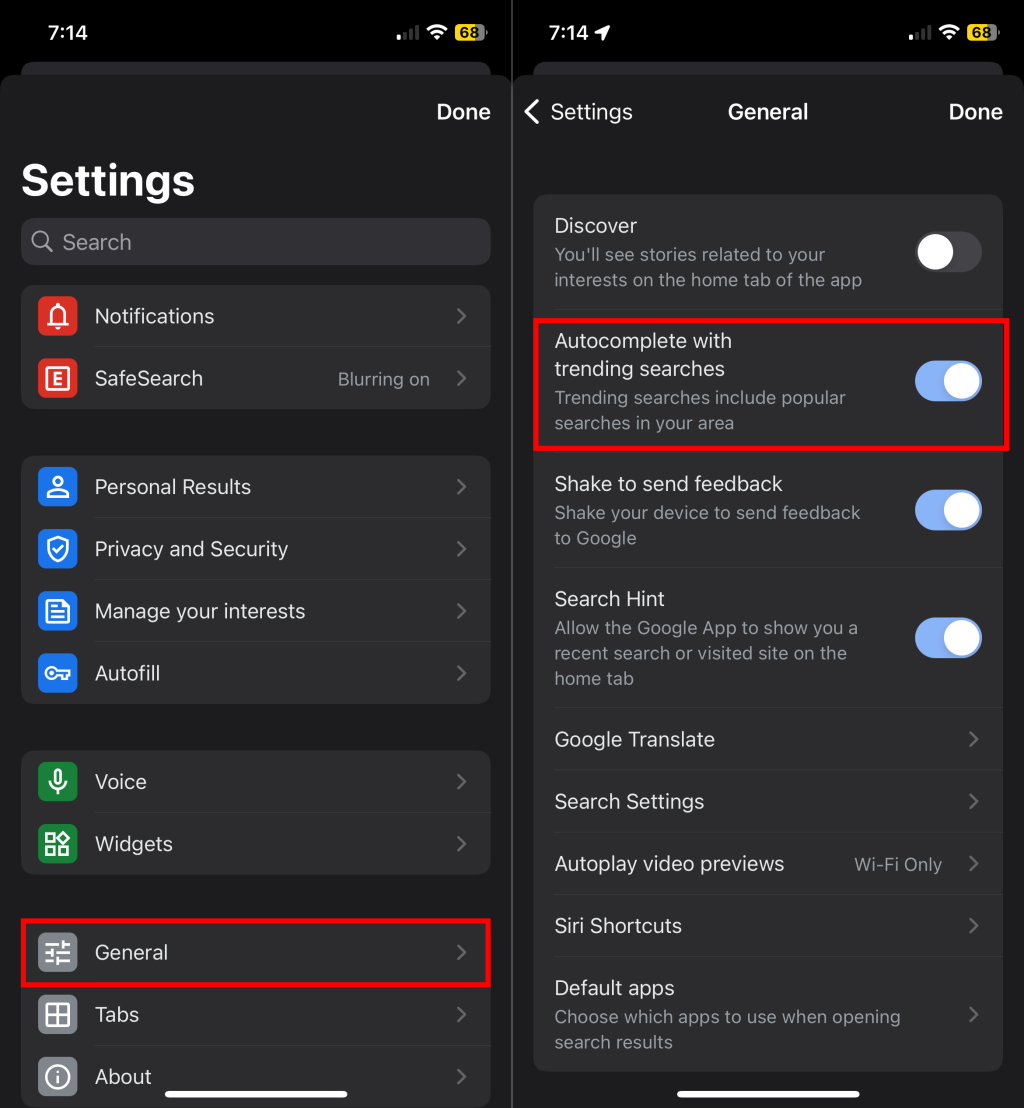
- Select Settings
- Tap Other settings
- Toggle off Autocomplete with trending searches
Tips and Troubleshooting
Common Issues
Settings keep reverting back: Check the setting in the same app or browser where the suggestions appear. Private browsing and clearing cookies can reset local preferences; changing the Google app setting does not also change google.com in your browser.
Changes not taking effect: Try clearing your browser cache and cookies, then repeat the steps. Sometimes old data gets in the way.
Can’t find the setting: Make sure you’re using the latest version of your browser or the Google app. Older versions might have the setting in a different location.
Pro Tips
- Incognito mode quirk: If you turn off trending searches in a private/incognito window, the change only lasts for that session. Once you close the private window, it’ll revert to the default settings.
- Want them back? You can always re-enable trending searches by following the same steps and toggling the setting back on.
Finally, Some Peace and Quiet
There you have it. No more getting sidetracked by whatever celebrity scandal is trending when you’re just trying to look up a recipe or check the weather. Your Google searches will now focus on what you actually want to find instead of whatever the internet is obsessing over today.
The best part? Your personal search suggestions will still work perfectly. Google will still remember your search history and suggest relevant completions based on what you’ve searched before, so you’re just cutting out the noise from trending topics. It’s honestly one of those small changes that makes browsing feel so much more focused.