

Ever deleted an app and then couldn’t remember what it was called? Or maybe you’re switching phones and want to see everything you’ve downloaded over the years. Whether you’re hunting for that productivity app you accidentally removed or just curious about your digital habits, knowing how to find your app download history is super handy.
Both Android and iPhone keep an account-based app history, including many apps you have deleted. Removed, hidden, region-restricted, or incompatible apps may be unavailable. In this guide, you’ll learn exactly where to find this history and how to use it to reinstall apps, clean up your downloads, or just satisfy your curiosity. No tech degree required!
What Is App Download History?
Your app download history is an account record of apps you have obtained from the Google Play Store or Apple App Store, even if you’ve since deleted them. Think of it like a receipt book for your digital purchases. Both free and paid apps show up here.
Key features:
- Account history: Includes available past downloads, not just installed apps; it is not a permanent backup of delisted apps
- Cross-device sync: History follows your Google or Apple account across all your devices
- Easy reinstalls: One-tap download for any app you’ve previously installed
- Family sharing visibility: See what family members have downloaded (if sharing is enabled)
How to View Your App Download History on Android
The Google Play Store keeps a comprehensive record of everything you’ve downloaded. Here’s how to access it:
Step 1: Open the Google Play Store
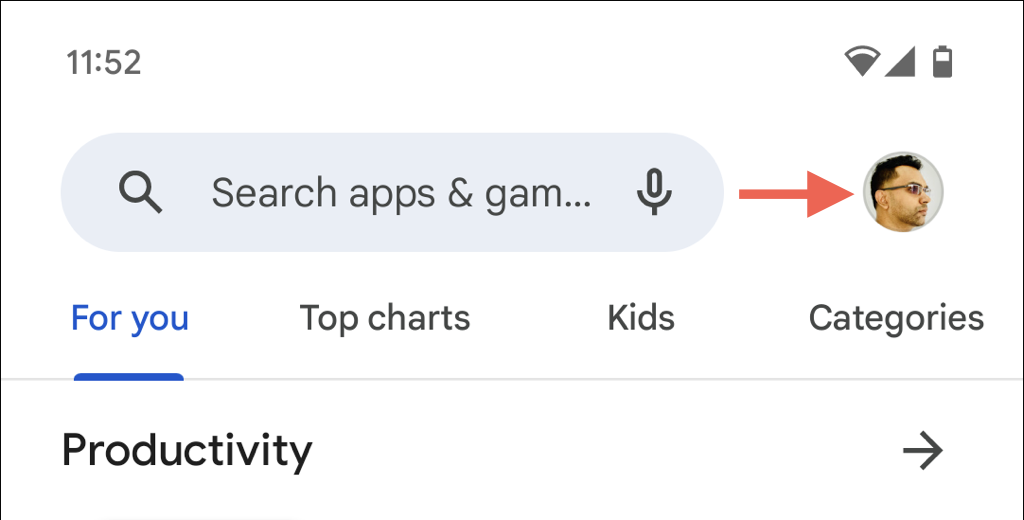
Launch the Google Play Store app and tap your profile icon in the top-right corner of the screen.
Step 2: Access App Management
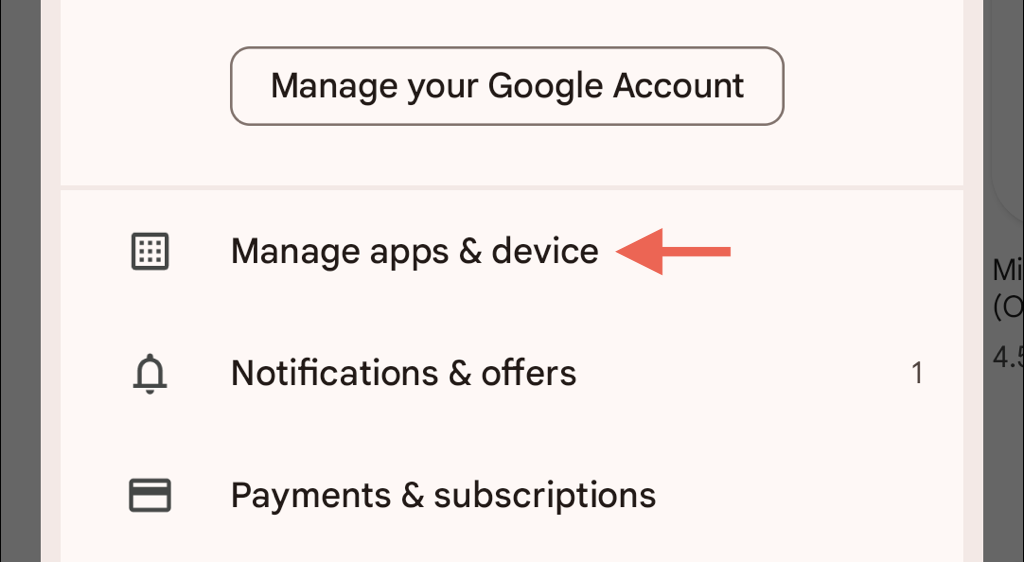
Tap Manage apps & device from the menu that appears.
Step 3: Switch to the Manage Tab
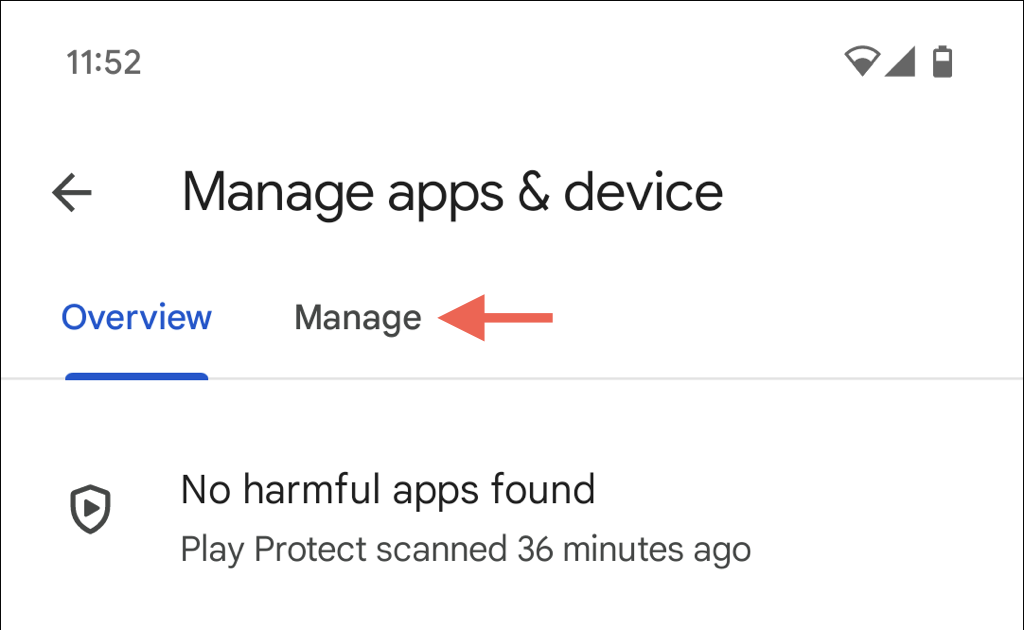
Tap the Manage tab at the top of the screen.
Step 4: View Currently Installed Apps
By default, you’ll see the This device filter (called Installed in the older screenshots), which shows all apps currently on your device. You can select multiple apps here and tap the Delete icon to uninstall them in bulk.
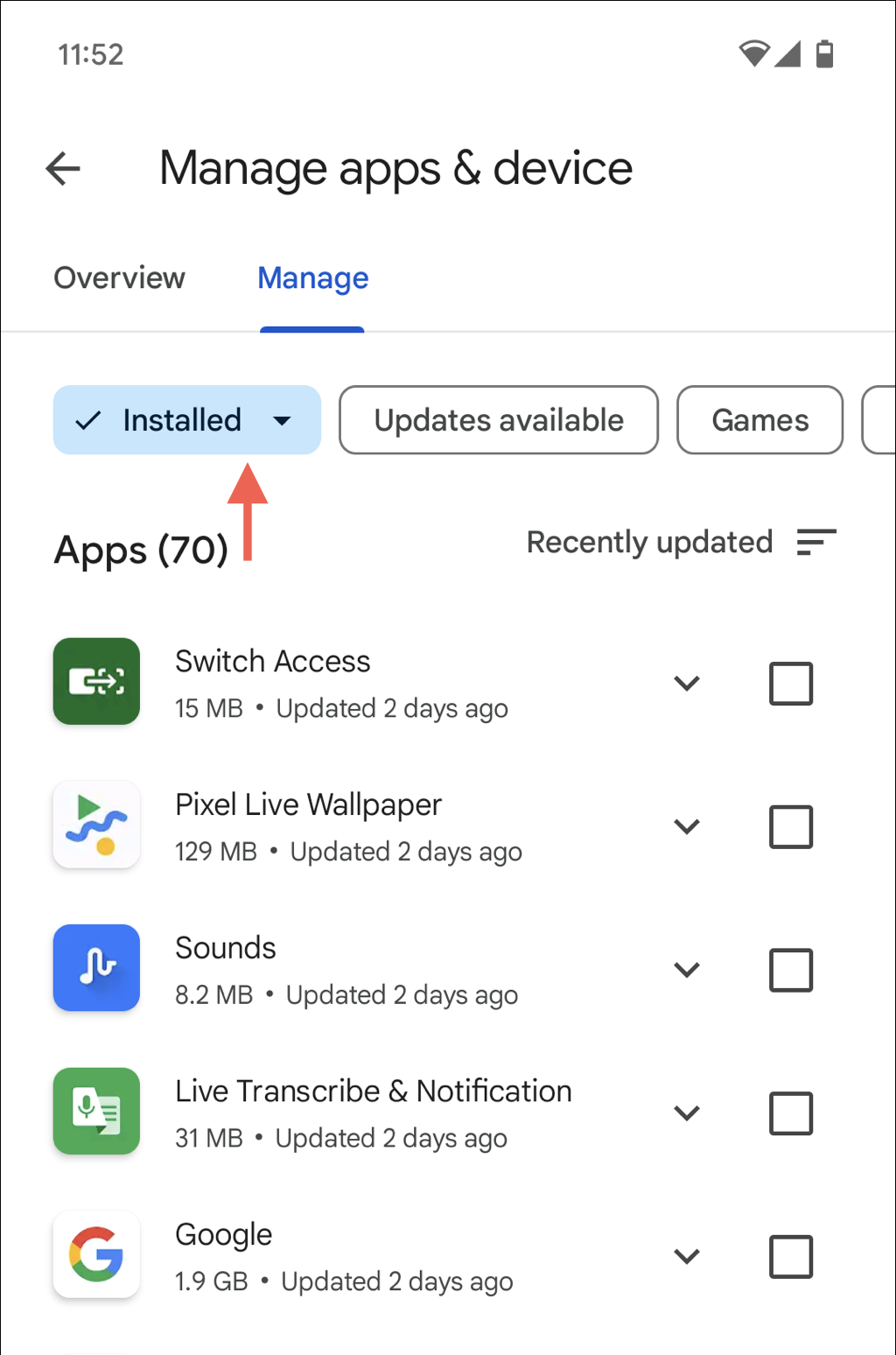
Step 5: See Your Full Download History
Here’s where it gets interesting! Tap the This device dropdown (called Installed in older versions) and select Not installed to see every app you’ve ever downloaded but don’t currently have on your device. This lists available apps associated with this Google account that are not on this device. See Google’s reinstall instructions.
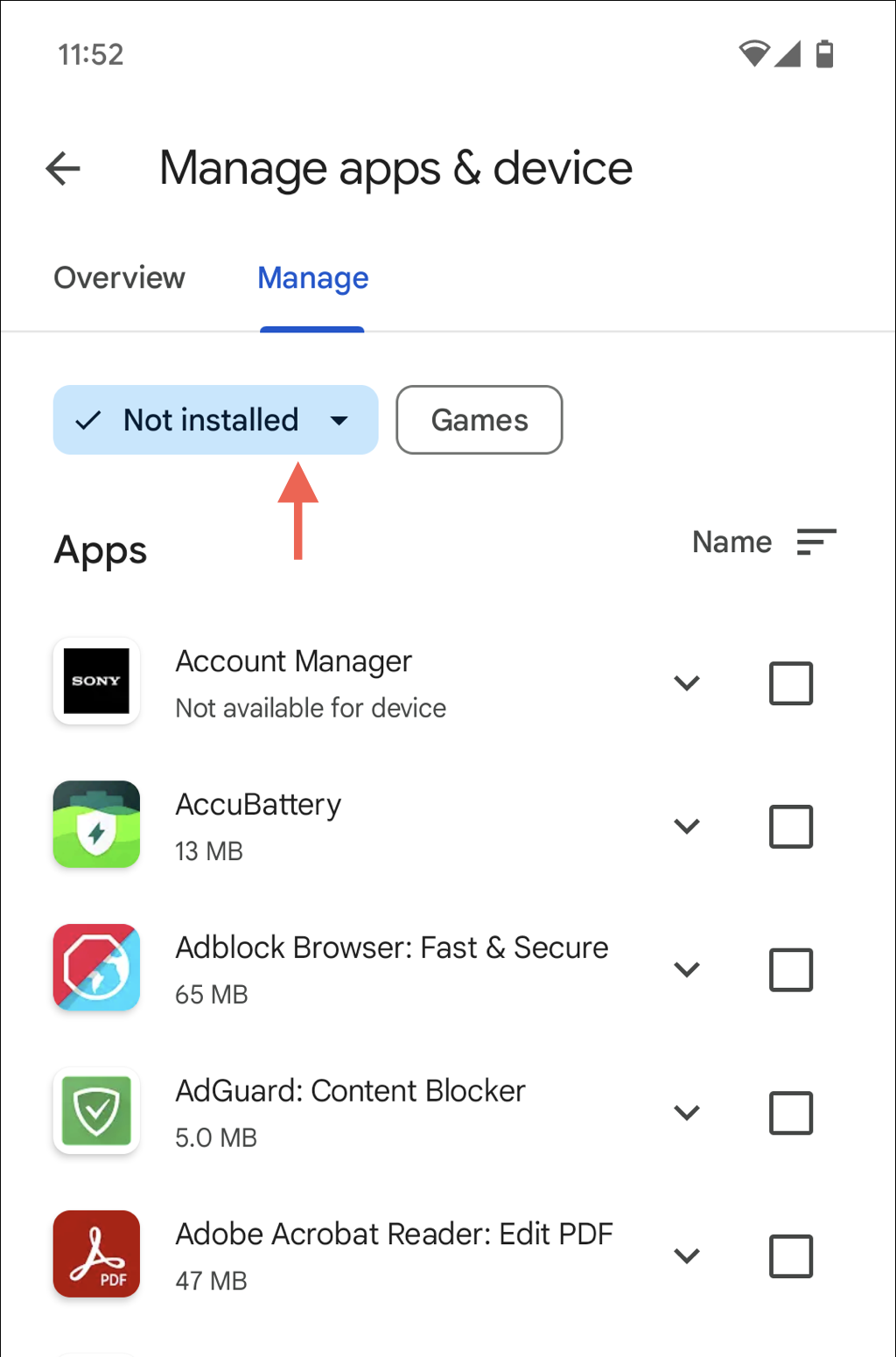
To reinstall any app, just check the box next to it and tap the Download icon. Eligible purchased apps can be downloaded again without repurchasing when you use the same account; availability and compatibility still apply.
How to View Your App Download History on iPhone and iPad
Apple makes it just as easy to see your complete app history. Here’s how to find it:
Step 1: Open the App Store
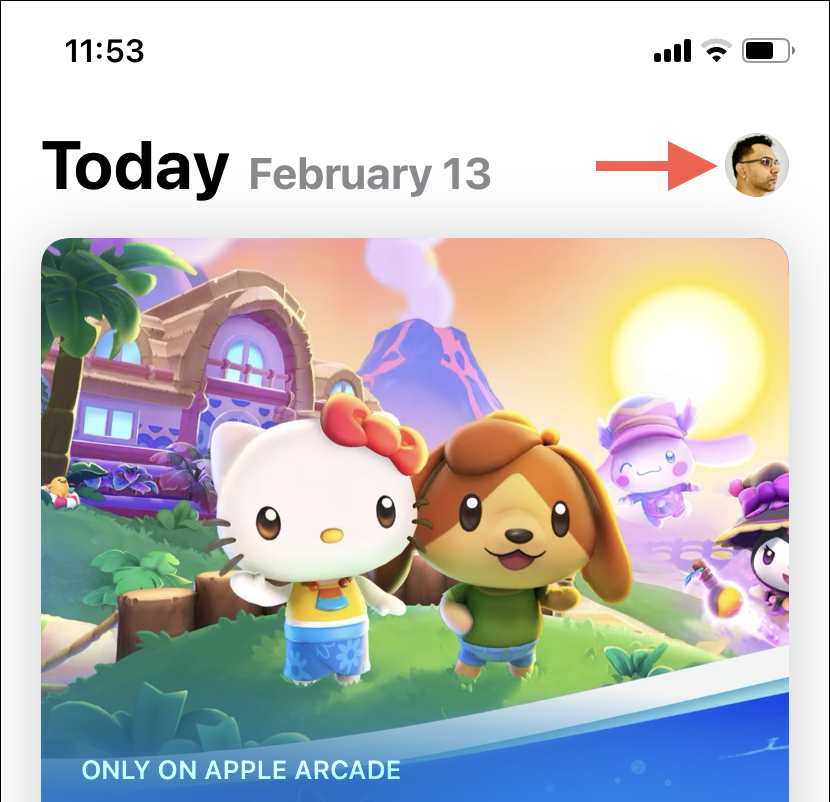
Launch the App Store and tap your profile icon in the top-right corner.
Step 2: Access Your Purchases
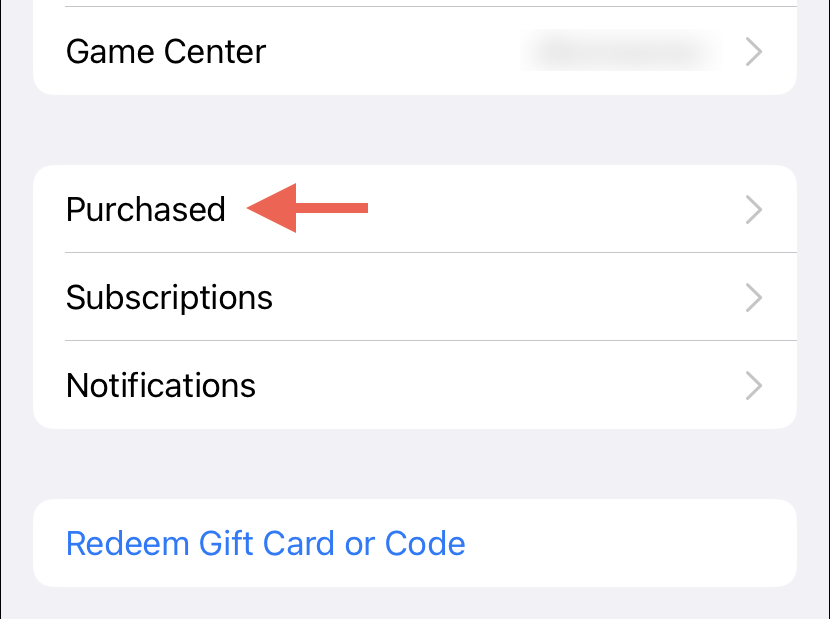
Tap Apps & Purchase History, then Your Apps. Some earlier iOS versions call this Apps or Purchased; the screenshots below show an older layout. Apple’s current redownload guide lists the current labels.
Step 3: View Your Complete History
If Family Sharing is enabled, choose My Apps or your own account. Older versions label this My Purchases.
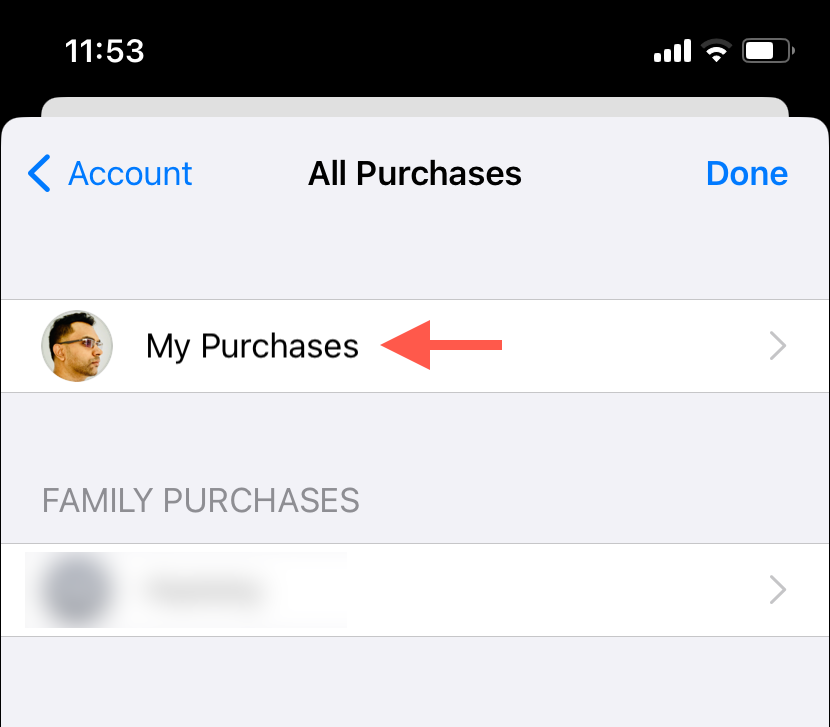
Step 4: Browse All Your Downloads
The All tab shows every app you’ve ever downloaded with your Apple ID. You’ll see Open for apps currently installed, or a cloud download icon for apps you can reinstall.
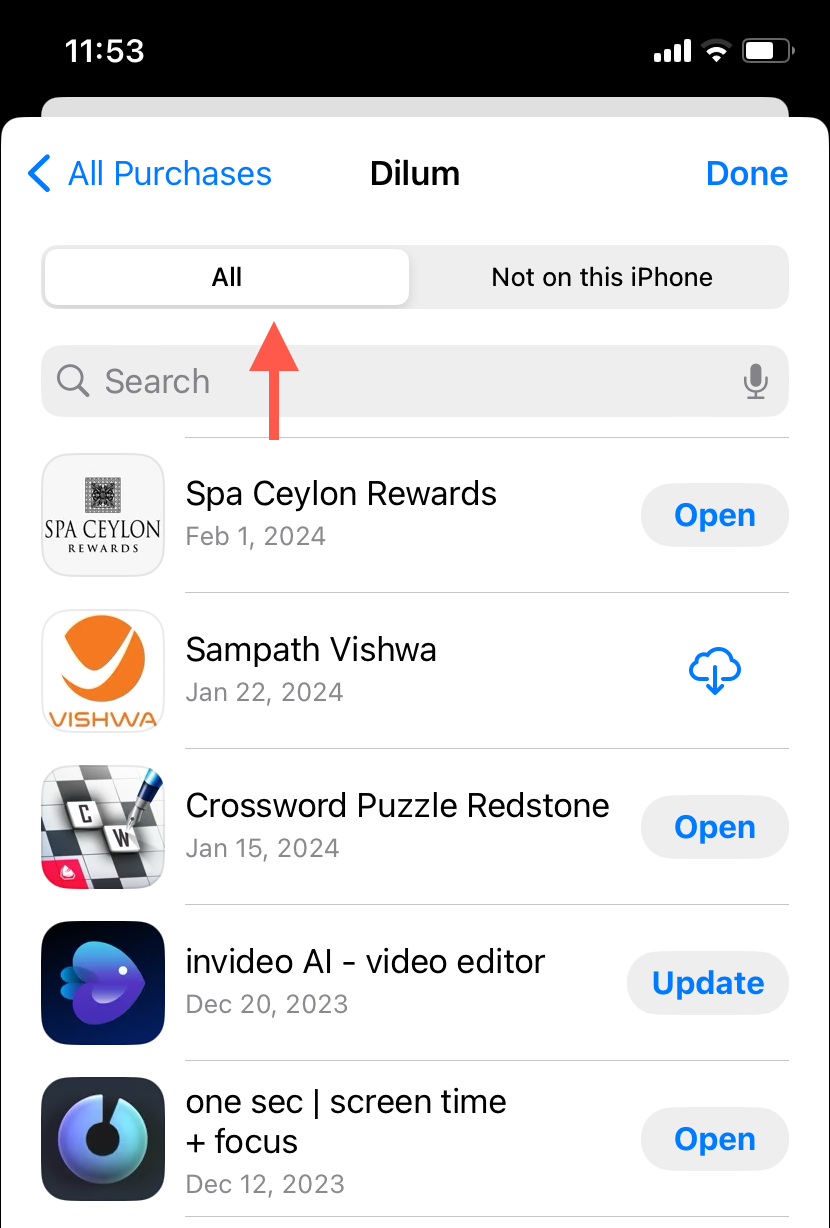
Step 5: Filter by Installation Status
Switch to the Not on this iPhone (or iPad) tab to see only apps you’ve downloaded before but don’t currently have installed. This makes it super easy to find that app you accidentally deleted last month.
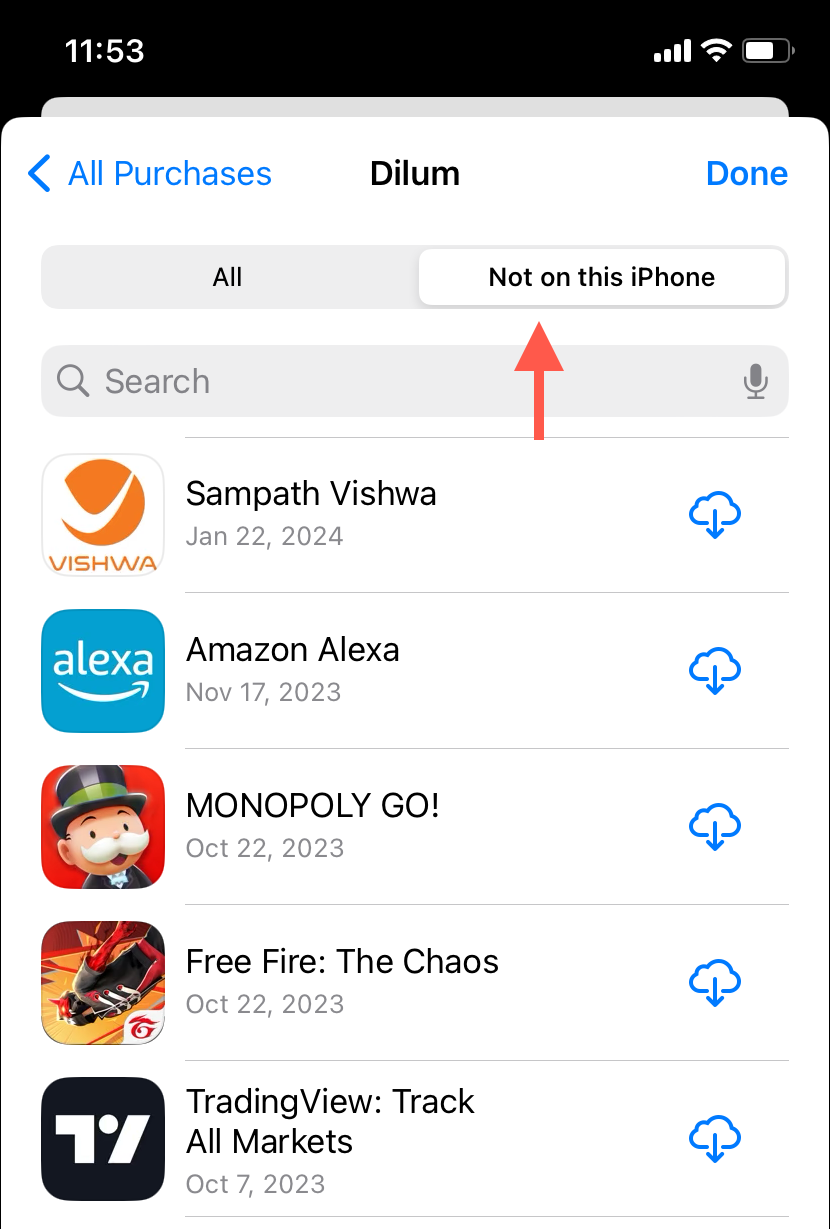
Quick Access Methods
Both platforms offer some handy shortcuts to get to your download history faster:
Android Shortcuts
- Reliable route: Use the profile menu and Manage apps & device > Manage; a store search for “my apps” may show unrelated apps.
- Web access: Visit
play.google.comon your computer and click Apps in the sidebar, great for managing lots of apps at once
iPhone Shortcuts
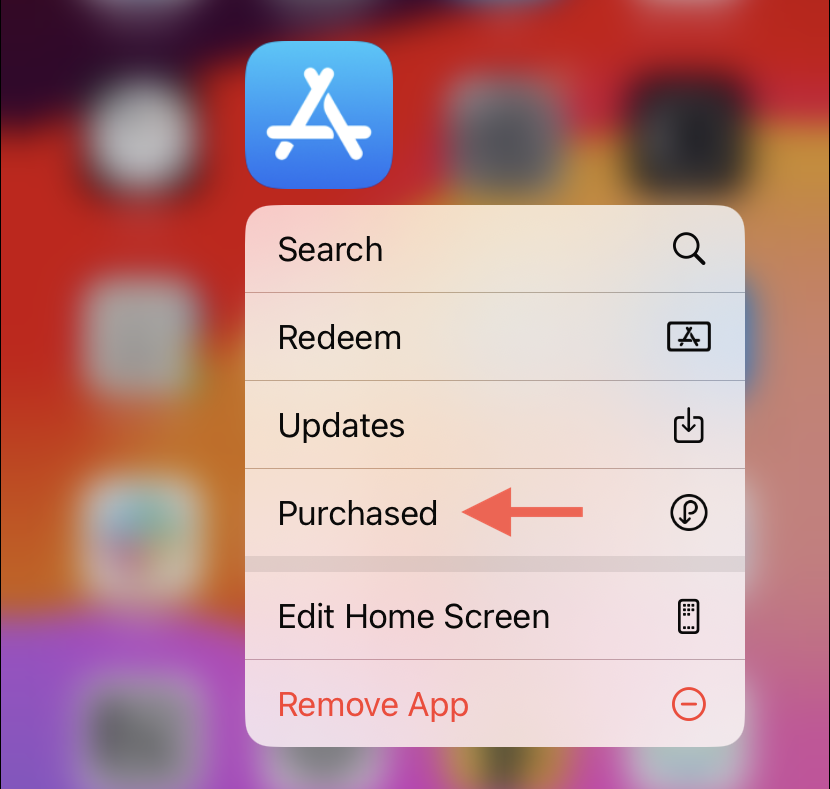
- Older iOS shortcut: Some versions offer Purchased when you long-press the App Store icon. If it is absent, open the app and use the account menu described above.
- Family sharing: If you’re part of an Apple Family, you can view family members’ download history from the same Purchased screen
Tips and Troubleshooting
Common Issues
Problem: My download history seems incomplete or missing apps
This usually happens when you’re signed into a different account than expected, or if you’ve cleared your app store cache. Here’s how to fix it:
- Make sure you’re signed into the correct Google or Apple account
- On Android, open the Google Play Store app info, then Storage & cache > Clear cache. This path does not apply to the iPhone App Store; on iPhone, close and reopen the App Store and check your account instead.
- Sign out and back into your account
Problem: Apps disappeared after changing countries/regions
If you’ve changed your Apple ID country or Google Play region, some apps might not appear in your history due to regional restrictions. Unfortunately, there’s no easy fix for this, as it’s a limitation of how the app stores handle regional content.
Problem: Family member’s downloads aren’t showing up
Make sure Family Sharing is properly set up and that the family member has enabled purchase sharing in their account settings.
Pro Tips
- Hide apps you don’t want to see: On iPhone, swipe left on any app in your history and tap Hide to clean up your list
- Bulk management: Use the Google Play web interface on your computer for easier bulk app management
- Check for updates: Your download history is also a great place to see if any of your previously installed apps have been updated recently
Never Lose Track of Your Apps Again
There you have it. Finding your complete app download history is just a few taps away on both Android and iPhone. Whether you’re trying to remember that awesome photo editing app you tried last year or want to clean house on your downloads, these built-in tools have got you covered.
The best part? Everything syncs across your devices automatically, so your app history follows you whether you’re switching phones or just want to reinstall something on a tablet. No more frantically trying to remember app names or digging through old emails for purchase receipts!