
Have you ever tried one of those free SMS websites to send a text from your computer, only to watch it fail spectacularly, or worse, spam the recipient with ads? Yeah, same. Those sites were never great, and in 2026 they’re even less worth your time. The good news? There are now several actually reliable ways to text from your PC for free, and most of them sync directly with your real phone number so your conversations stay in one place.
Whether you’re on Android, iPhone, or just want a standalone number, this guide covers the best free methods ranked from most to least reliable. We’ll save the old-school SMS websites for last because that’s exactly where they belong.
The Best Free Ways to Text from Your PC in 2026
Here’s a quick overview before we dive into the details:
| Method | Best For | Requires Phone? | Uses Your Number? |
|---|---|---|---|
| Google Messages for Web | Android users | Yes (Android) | Yes |
| Microsoft Phone Link | Windows PC users | Yes (Android/iPhone) | Yes |
| Apple Messages for Mac | iPhone + Mac users | Yes (iPhone) | Yes |
| Google Voice | No smartphone needed | No | No (new number) |
| Free SMS Websites | Last resort only | No | No |
Method 1: Google Messages for Web (Best for Android Users)
If you’ve got an Android phone, this is hands-down the easiest option. Google Messages for Web syncs your phone’s entire text inbox to any browser with no extra software needed on your PC. It’s free, unlimited, and works across Chrome, Edge, and Firefox.
Before You Begin
- An Android phone with the Google Messages app installed (it comes pre-loaded on Pixel phones; everyone else can grab it free from the Play Store)
- A PC with Chrome, Edge, or Firefox (any recent version)
- Both devices on the same Wi-Fi network for first-time setup
Step 1: Open Device Pairing on Your Phone
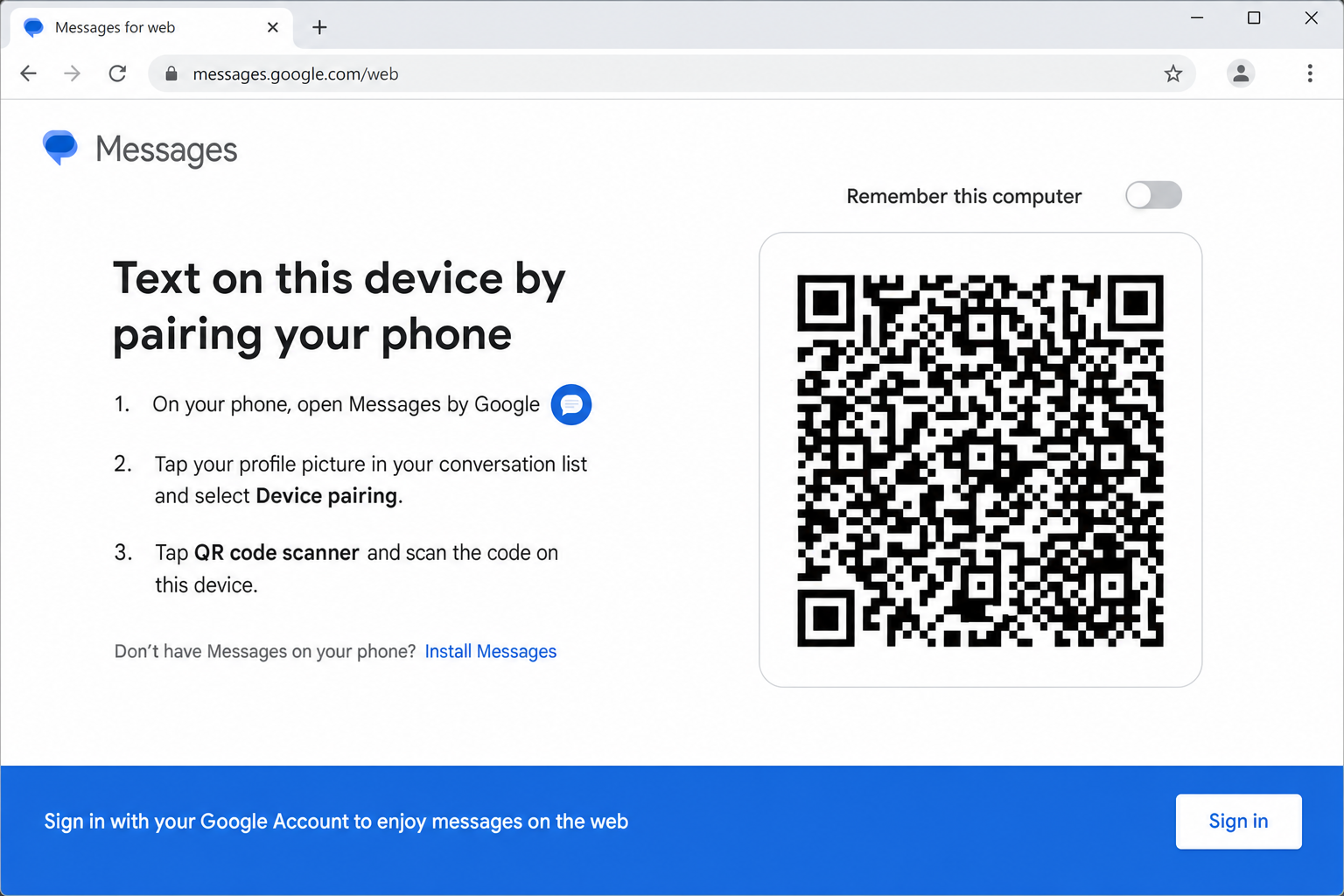
Open the Google Messages app on your Android phone. Tap your profile picture in the top-right corner, then tap Device pairing > QR code scanner.

Step 2: Open Google Messages on Your PC
On your PC, go to messages.google.com/web. A QR code will appear on the screen.
Step 3: Scan the QR Code
Point your phone’s camera at the QR code on your PC screen. Your conversations will sync instantly, it usually takes just a few seconds.
Step 4: Send a Message
Click the pencil (New chat) icon in the top-right corner of the web interface. Type a contact name or phone number, write your message, and hit Send. That’s it! It goes out just like a normal text from your phone.
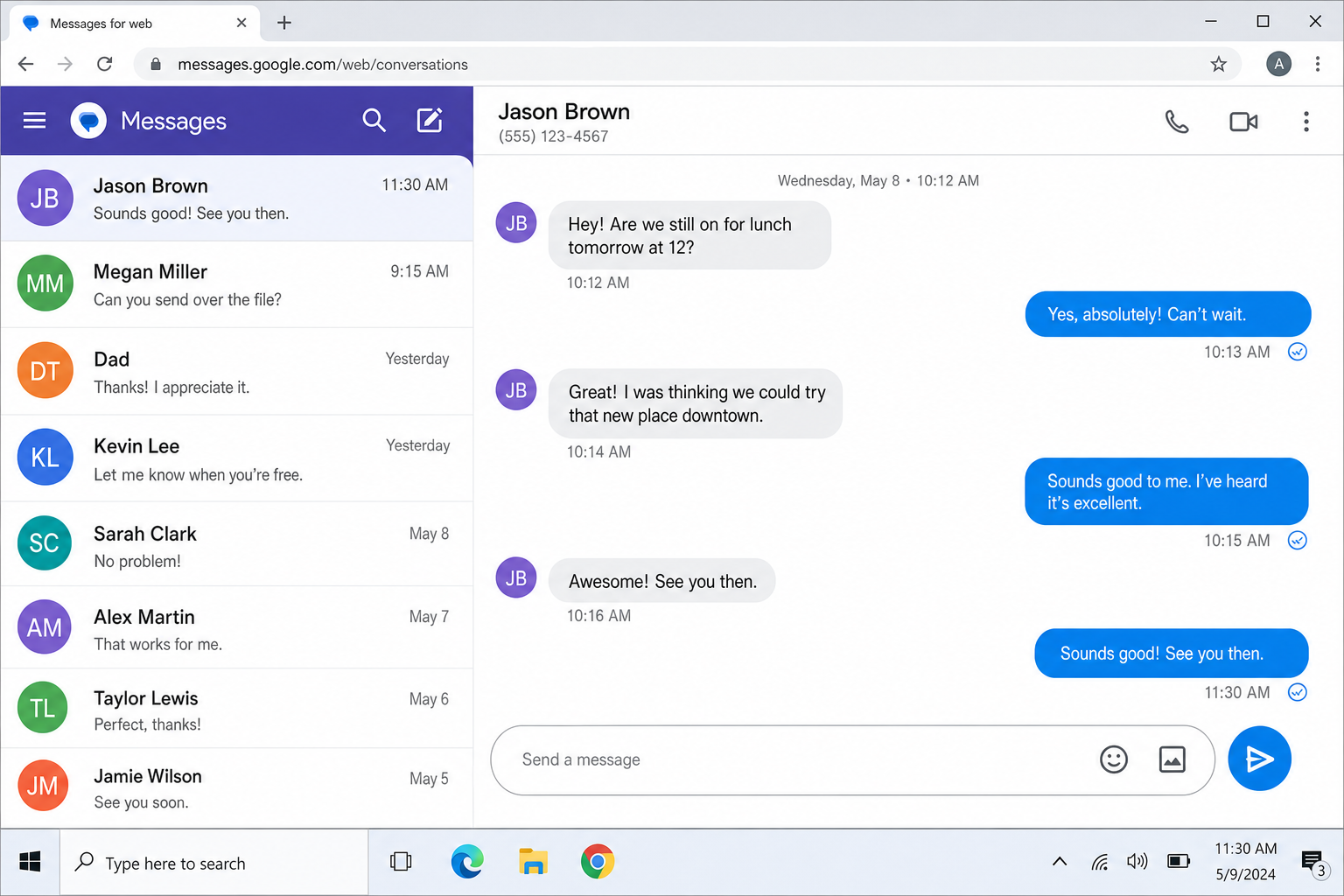
The catch: Your Android phone needs to be on and connected to the internet for messages to sync. But once it’s paired, you can enable remote access in the app settings so it works even when you’re not on the same Wi-Fi network.
Method 2: Microsoft Phone Link (Best for Windows PC Users)
Already on Windows 10 or 11? Microsoft’s Phone Link app lets you connect your Android or iPhone to your PC and text directly from your desktop, no browser required. It also handles calls, notifications, and photos, so it’s basically a full mirror of your phone on your PC screen.
On Android
- On your PC, open the Phone Link app (search for it in the Start menu – it comes pre-installed on Windows 11). Sign in with your Microsoft account and select Android.
- On your Android phone, install the Link to Windows app from the Play Store.
- Open the app on your phone and scan the QR code shown on your PC.
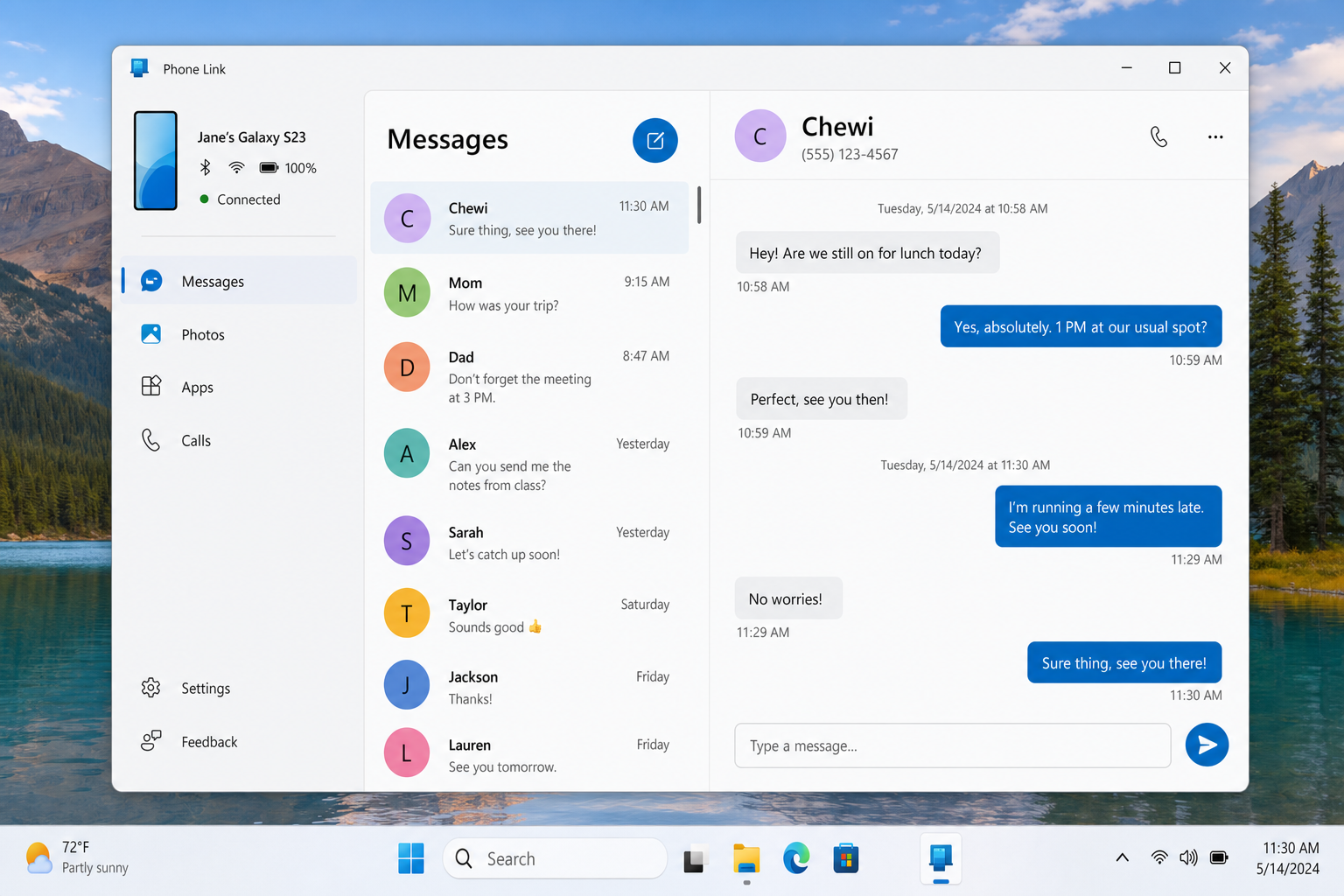
- Once paired, click the Messages tab in Phone Link, then click the pen icon to start a new message. Enter a name or number and send away.
On iPhone (iOS 18 or Later)
- On your PC, open Phone Link and select iPhone this time.
- On your iPhone, install the Link to Windows app from the App Store.
- Follow the on-screen pairing steps, which use a combination of QR code and Bluetooth.
- Once connected, the Messages tab works the same way as on Android.
Heads up for iPhone users: MMS (picture messages) support is limited compared to Android. If you need to send photos frequently, Method 3 below will serve you better.
Method 3: Apple Messages for Mac (Best for iPhone + Mac Users)
If you’re in the Apple ecosystem, you’ve already got the best texting setup available, you just might not have turned it on yet. Apple’s built-in Messages app on Mac and iPad can forward all your iPhone texts (including regular SMS, not just iMessages) so you can send and receive from your computer without touching your phone.
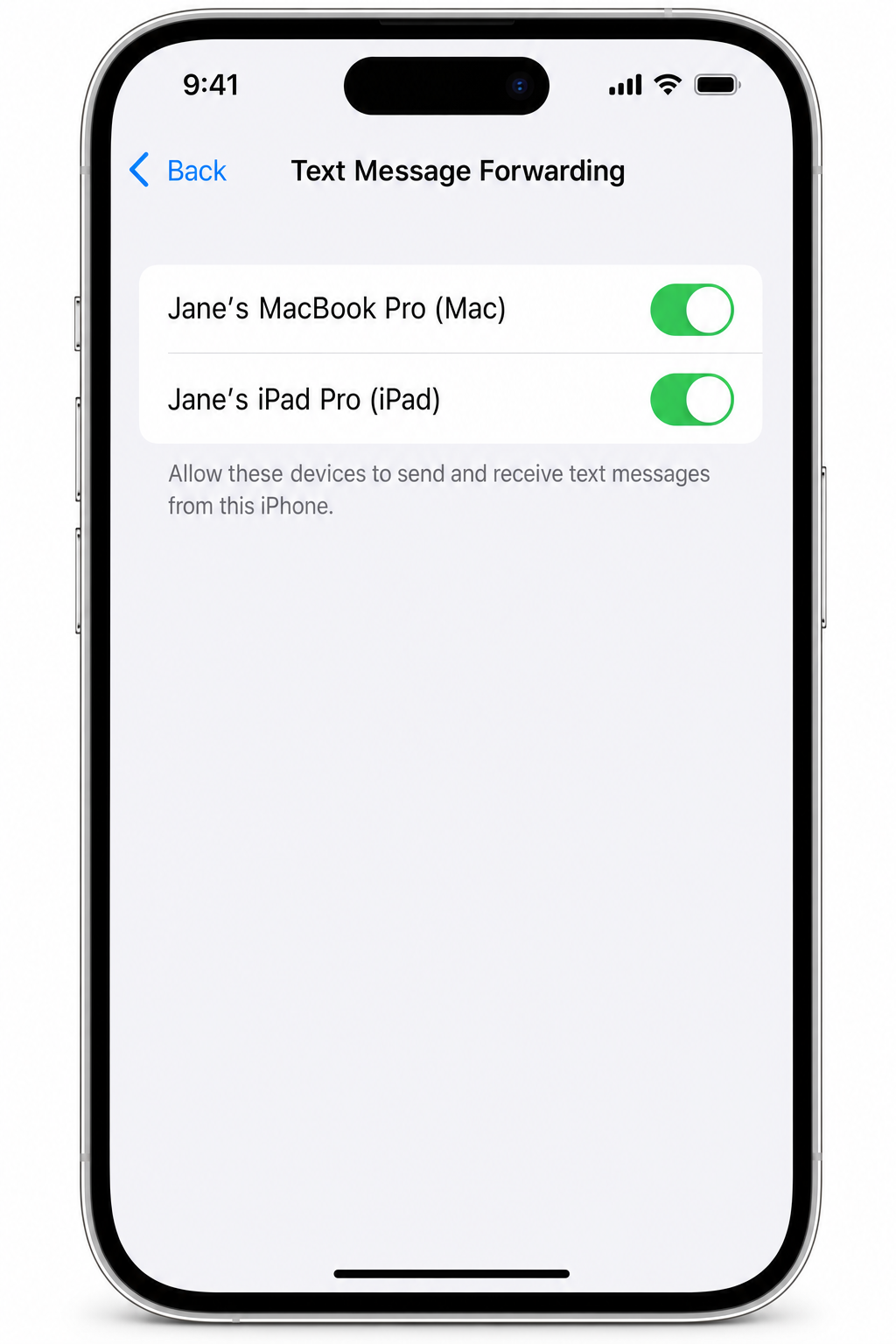
- On your iPhone, open Settings > Messages > Text Message Forwarding.
- Toggle on your Mac or iPad from the list of devices.
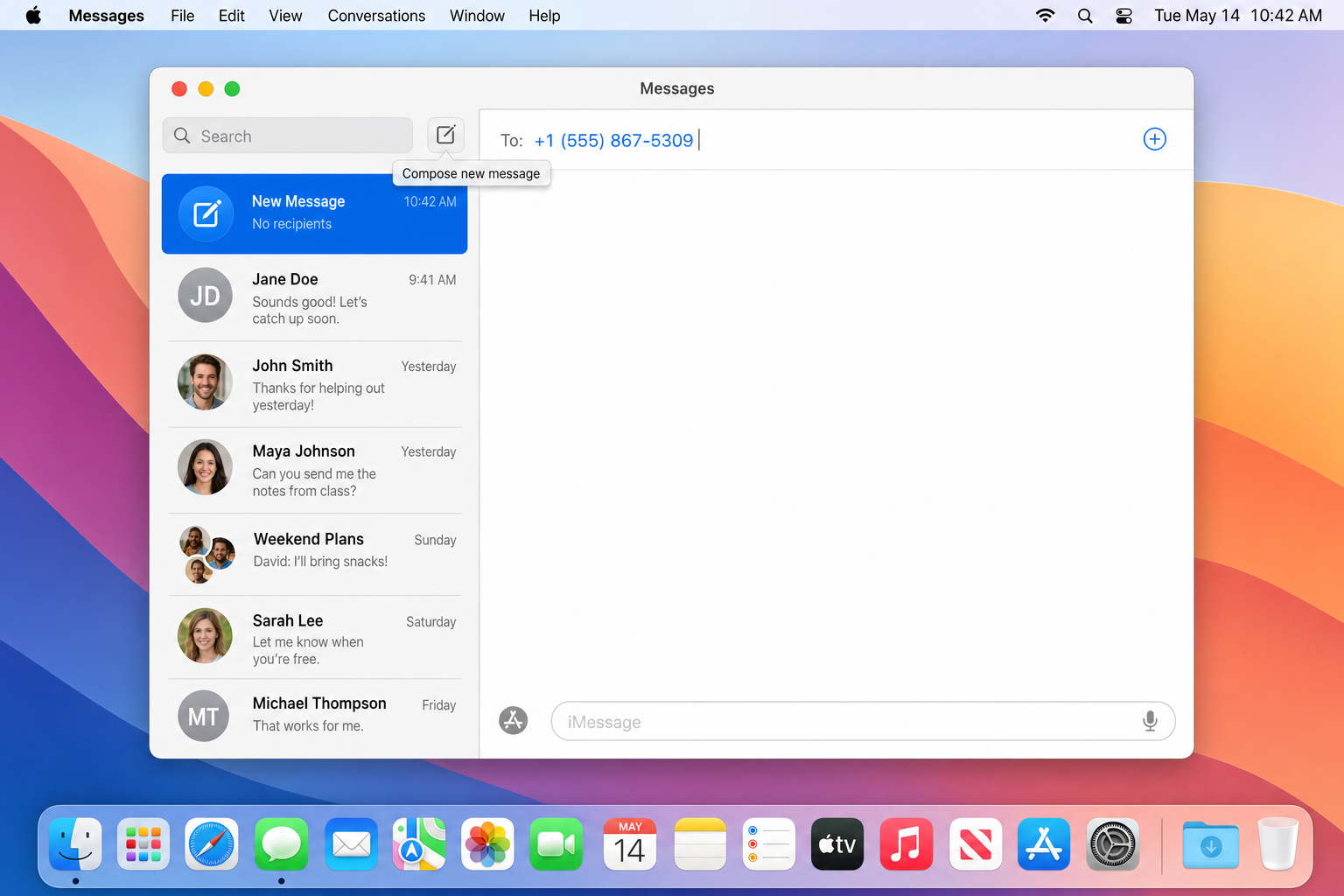
- On your Mac, open the Messages app. Make sure you’re signed in with the same Apple ID as your iPhone.
- Click the compose button, enter a phone number or contact name, and start typing. Your texts go out through your iPhone number automatically.
This method is end-to-end encrypted and completely seamless once it’s set up. The only downside: it’s Apple devices only. No Windows support here.
Method 4: Google Voice (No Smartphone Required)
Don’t have a smartphone, or just want a dedicated number for texting from your computer? Google Voice gives you a free US phone number you can use to send and receive texts (and calls) entirely from the web. You don’t need a phone at all, just a Google account.
- Go to voice.google.com and sign in with your Google account.
- Search for and claim a free phone number (you can pick your area code).
- Click Send a message, enter the recipient’s number, type your message, and hit send.

The main thing to know here is that messages come from your Google Voice number, not your regular cell number. That’s fine for most situations, but if you need to text people who already have your number saved, they’ll see an unfamiliar number pop up. Google Voice also only works for US and Canadian numbers.
Method 5: Send an Email to a Phone Number
This one’s a bit old-school, but it still works — and it doesn’t require any apps or accounts. Most US carriers have a special email address tied to each phone number. Send an email to that address and it shows up as a text message on the recipient’s phone.
The format is: phonenumber@carrierdomain.com
Here are the email-to-SMS addresses for the major US carriers:
| Carrier | SMS (Text) | MMS (Photos/Media) |
|---|---|---|
| AT&T | @txt.att.net | @mms.att.net |
| Verizon | @vtext.com | @vzwpix.com |
| T-Mobile | @tmomail.net | @tmomail.net |
| Boost Mobile | @myboostmobile.com | @myboostmobile.com |
| Cricket Wireless | @sms.cricketwireless.net | @mms.cricketwireless.net |
| Metro by T-Mobile | @mymetropcs.com | @mymetropcs.com |
| US Cellular | @email.uscc.net | @mms.uscc.net |
So if you want to text a Verizon customer at (555) 123-4567, you’d send an email to 5551234567@vtext.com. Simple enough! The downside is that you need to know which carrier the recipient is on, and some carriers have started filtering these as spam, so delivery isn’t always guaranteed.
Method 6: Other Free Apps Worth Knowing About
If none of the above methods fit your situation, here are a few more options that are worth a look:
- MightyText: An Android app that syncs your texts to a web interface, similar to Google Messages for Web. The free tier is ad-supported but functional. Check it out at mightytext.net.
- TextFree: Gives you a free US number for texting via web or app. Good if you need a standalone number but don’t want to use Google Voice. Ad-supported on the free plan. Visit textfree.us.
- mysms: Another Android sync app that lets you text from a browser or desktop app. Works well, though recipients who aren’t mysms users may see carrier fees. See mysms.com.
What About Those Free SMS Websites?
Remember those sketchy free SMS sites from years ago? Sites like OpenTextingOnline and similar services still exist in 2026, but honestly, skip them. Here’s why:
- Carriers block them: Verizon, AT&T, and T-Mobile actively filter messages from these services as spam. Your text might never arrive.
- No MMS support: You can’t send photos or media — just plain text.
- Privacy risks: Some of these sites collect phone numbers and sell them to advertisers.
- Unreliable delivery: Expect roughly a 50% failure rate on a good day.
If you absolutely must use one as a one-time last resort, go in with low expectations. The methods above are so much better that there’s really no reason to bother with these sites anymore.
Tips and Troubleshooting
Common Issues
Problem: The QR code won’t scan (Google Messages or Phone Link)
Make sure both your phone and PC are on the same Wi-Fi network. Try restarting both the app and your browser. If it still won’t work, try using your phone as a hotspot and connecting your PC to that instead.
Problem: Messages aren’t syncing to the web interface
Check that your phone’s battery saver mode isn’t killing the app in the background as this is a really common culprit. Also make sure your Google Messages or Phone Link app is updated to the latest version. If it’s still stuck, try unpairing and re-scanning the QR code.
Problem: iPhone messages aren’t showing up in Phone Link
iPhone support in Phone Link requires iOS 18 or later and Bluetooth to be enabled on both devices. MMS (picture messages) is also limited on iPhone, so if you need full photo support, use Apple Messages on a Mac instead.
Problem: Email-to-SMS messages aren’t being delivered
Double-check that you’re using the right carrier domain for the recipient. Also note that some carriers have tightened their spam filters recently, so this method is less reliable than it used to be. Switch to one of the app-based methods if you’re having consistent issues.
Pro Tips
- Enable remote access in Google Messages: In the Google Messages app, go to Device pairing settings and turn on Allow this device to be used without a nearby phone. This lets you text from your PC even when your phone is in another room (or another city).
- Keep Phone Link running in the background: Pin it to your taskbar so it’s always available. You’ll get notification pop-ups for new texts right on your Windows desktop.
- Use Google Voice for work or side projects: Having a separate number that isn’t your personal cell is handy if you want to keep things compartmentalized and it’s completely free.
- Privacy check: All of these methods require granting some permissions on your phone. You can revoke access anytime, just go into your phone’s app settings and remove the permissions, or unpair the device from within the app.
Wrapping Up
Finally, no more crossing your fingers hoping a sketchy SMS site actually delivers your message! In 2026, texting from your PC is genuinely easy and reliable, whether you’re on Android, iPhone, or just want a standalone number through Google Voice. The phone-linked apps (Google Messages for Web, Microsoft Phone Link, and Apple Messages) are the clear winners here as they use your real number, sync your full conversation history, and work consistently across all the major carriers.
If you’re an Android user, start with Google Messages for Web: it takes about two minutes to set up and just works. Windows users with any type of phone should give Microsoft Phone Link a shot. And if you’re deep in the Apple ecosystem, you’ve basically already won: just flip that Text Message Forwarding toggle and you’re done. Give one of these a try and you’ll wonder why you ever messed around with those old SMS sites in the first place.