Skip to content
ONLINE 101010 TECH 010101 TIPS
  • How-To
  • Social
  • Streaming
  • Gaming
  • Reviews
  • Videos
  • News

Explore

  • How-To
  • Social
  • Streaming
  • Gaming
  • Reviews
  • Videos
  • News

About & help

  • About Us
  • Editorial Standards
  • Contact Us
  • Terms of Use
  • Privacy Policy
  • Advertise
0%
In this article
    1. Home/
    2. Social Media/
    3. How to See Who Shared Your Facebook Post

    How to See Who Shared Your Facebook Post

    Kayla Dube
    December 12, 2022
    4 min read
    Share

    Online Tech Tips is reader-supported. We may earn a commission when you buy through links on our site. Learn more.

    - preview-media-title

    When you post something on Facebook, it’s out there for your friends or more to see, depending on your privacy settings. Your posts can be “shared.” That means people can post your posts on their profile, now allowing their social circle to see your posts. You’ll get notifications on Facebook when someone shares your post, and you can see how many people have shared it.

    However, you may want to see more details on who is sharing your post and who is interacting with the shared post on their Facebook profile. This is easy to do. In this article, we’ll show you how to find this information and how to find your Facebook privacy settings to change who can share your posts.

    Table of Contents

      How to See Who Shared Your Facebook Post

      If you don’t see who shared your Facebook post in your notifications, you’ll need to go to the post itself to see who shared it. Follow these steps to do so.

      1. On Facebook, go to the post you shared.
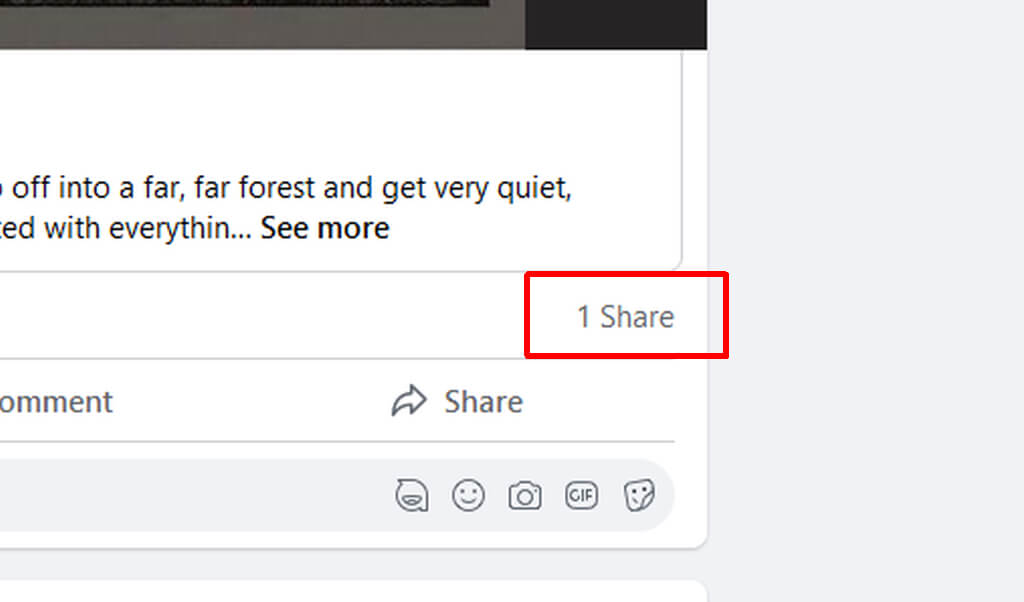
      1. Look at the bottom of the post, where you see the likes and reactions, and in the right-hand corner you can see the number of shares above the share button.
      How to See Who Shared Your Facebook Post image 2 - how-to-see-who-shared-your-facebook-post-2-compressed
      1. Hover the mouse over the number of shares to see the names of the persons who have shared the post.
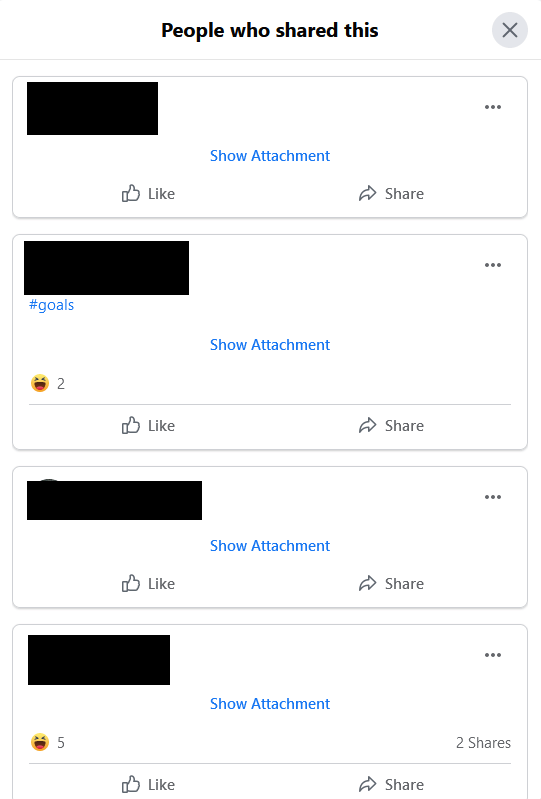
      1. You can click on the number of people sharing the post to see individual shares from each person, including any comments they may have added as well as people who have reacted to the shared post.
      How to See Who Shared Your Facebook Post image 3 - how-to-see-who-shared-your-facebook-post-3-compressed

      From this point, you can see all the people who shared your post and find their Facebook accounts by clicking on their names. You’ll also see others’ comments on the shared post. This can give you a good idea of who has seen your post.

      How to Change Facebook Post Settings

      If you find that you don’t want certain people to share your post, there’s a way you can prevent this from happening. It’s as simple as going into your Facebook settings and changing a few things. Here’s how to do so.

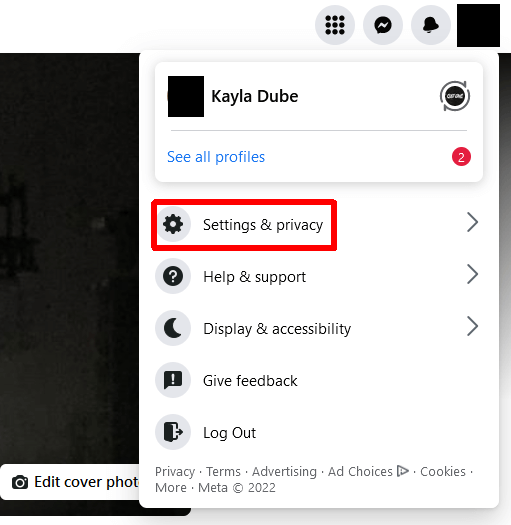
      1. On Facebook, in the top-right corner, select your profile picture.
      2. Select Settings & Privacy > Settings.
      How to Change Facebook Post Settings image - how-to-see-who-shared-your-facebook-post-4-compressed
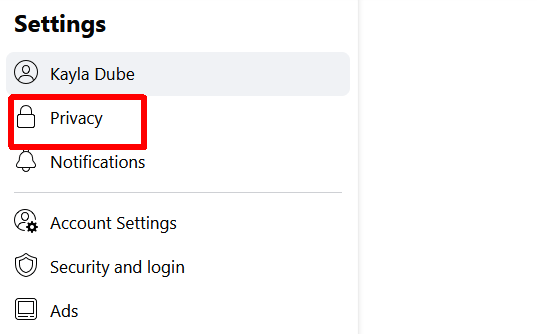
      1. Go to Privacy.
      How to Change Facebook Post Settings image 2 - how-to-see-who-shared-your-facebook-post-5-compressed
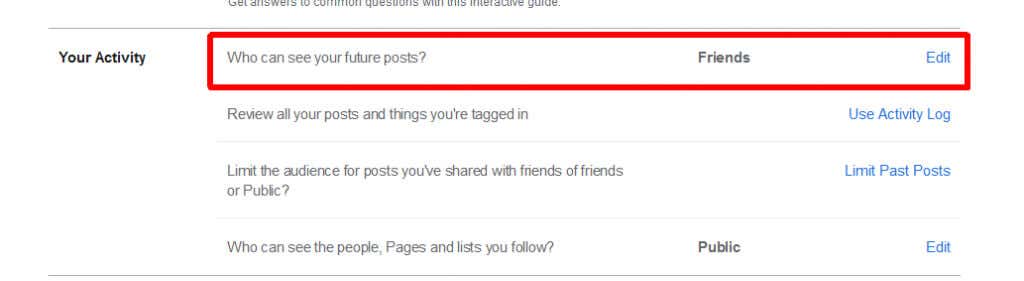
      1. Here you can limit both your older posts as well as future posts. Next to Who can see your future posts? select Edit.
      How to Change Facebook Post Settings image 3 - how-to-see-who-shared-your-facebook-post-6-compressed
      1. Select who you want to see and consequently be able to share your posts.
      1. You can also select Limit Past Posts to limit who can see and interact with your previous posts. By doing this, you will limit all your past posts to Friends.

      Going forward, Facebook will default to these privacy settings when you create a new post. Only the people who you choose to see your posts will be able to share them. However, you also can change these settings for each post. This means you can prevent sharing on any post you want. Here’s how.

      1. Find the post on Facebook you want to limit sharing for.
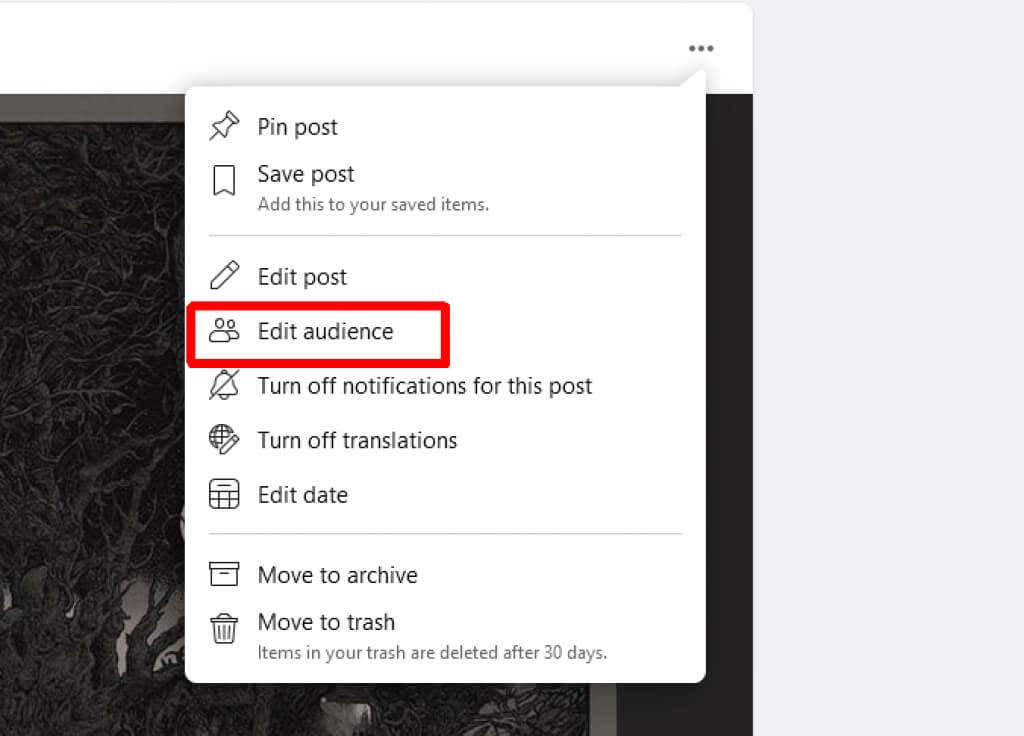
      1. Click on the three dots in the top-right corner and select Edit Audience.
      How to Change Facebook Post Settings image 4 - how-to-see-who-shared-your-facebook-post-7-compressed
      1. From here, you can choose who you want to be able to see and share your posts.

      With this option, you can choose between only Facebook friends, certain people, or just you who can see the post. This will stop the rampant sharing of your posts with anyone.

      See Who Shared Your Facebook Posts

      Whether your post has gotten a few shares or tons of them, you may want to see who has shared it on their profile. Thankfully this is very easy to do on Facebook, and you can quickly see not only the sharers but their comments and reactions.

      Tags: Facebook

      Was this helpful? Share it.

      Send it to someone who is stuck on the same thing, or post it.

      MessagesWhatsAppEmailXFacebookLinkedInRedditBlueskyTelegramThreads
      Written by

      Kayla Dube

      Since she was a child, Kayla has had a fascination with technology, video games, and filmmaking. Growing up she wrote on multiple personal blogs about these topics, enjoying the process of breaking down technical concepts. Most recently her focus has shifted to writing, and Kayla now reviews and writes technology, video editing, and gaming related articles. Read Kayla's Full Bio

      View Kayla's Profile

      Weekly Newsletter

      One email a week. Unsubscribe anytime.

      Recent Posts

      • How to Set Up Parental Controls on Amazon Fire TV - How to Set Up Parental Controls on Amazon Fire TV
        How to Set Up Parental Controls on Amazon Fire TVOct 20, 2026
      • Streaming Audio Out of Sync? How to Find and Fix the Delay - Streaming Audio Out of Sync? How to Find and Fix the Delay
        Streaming Audio Out of Sync? How to Find and Fix the DelayOct 20, 2026
      • Microsoft Surface Laptop Ultra Is Here: Price, Specs, and Who Should Actually Buy One - Microsoft Surface Laptop Ultra Is Here: Price, Specs, and Who Should Actually Buy One
        Microsoft Surface Laptop Ultra Is Here: Price, Specs, and Who Should Actually Buy OneOct 19, 2026
      • How to Fix YouTube Not Loading in Your Browser on Windows and Mac - How to Fix YouTube Not Loading in Your Browser on Windows and Mac
        How to Fix YouTube Not Loading in Your Browser on Windows and MacOct 19, 2026

      Search

      Categories

      • AI Tools (1)
      • Gaming (357)
      • How-To (1,203)
      • News (64)
      • Reviews (468)
      • Social Media (477)
      • Streaming (188)
      • Uncategorized (27)

      Popular Tags

      Adobe AI Alexa Amazon Android Buying Guides ChatGPT Chrome Discord Explainers Facebook FireTV Gadget Reviews Gmail Google Google Docs Google Maps Google Sheets Home Networking Hulu Instagram Internet LinkedIn Minecraft Netflix Nintendo Switch PlayStation Premiere Reddit Remote Work Roblox Roku Roundups Smart Home Snapchat Software Reviews Spotify Steam TikTok Twitch VR WhatsApp Windows X (Twitter) YouTube

      Our Publishing Family

      Online Tech Tips is part of the AK Internet Consulting publishing family.

      • HELP DESK GEEK
      • THE BACK ROOM TECH
      • SWITCHING TO MAC
      • XBOX ADVISOR

      Weekly Newsletter

      One email a week. Unsubscribe anytime.

      Connect With Us

      About Online Tech Tips

      Online Tech Tips has published easy-to-follow technology tutorials, honest reviews, and practical how-to guides since 2007 — helping millions of readers solve tech problems and get more from their devices.

      Learn More →

      Advertise →

      © 2007-2026 Online Tech Tips.com, LLC.
      All Rights Reserved.

      • Home
      • About Us
      • Editorial Standards
      • Contact Us
      • Terms of Use
      • Privacy Policy
      • Advertise
      Online

      Share this article

      How to See Who Shared Your Facebook Post

      Send to someone

      MessagesWhatsAppEmail

      Post on

      XFacebookLinkedInRedditBlueskyTelegramThreads