
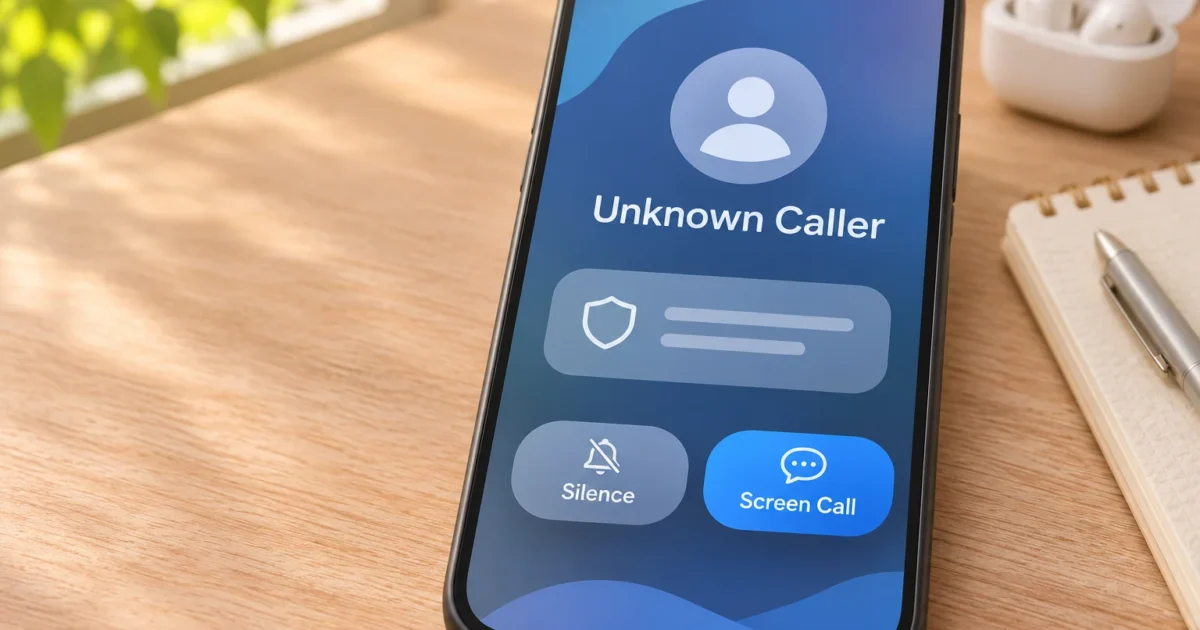
Nobody likes a phone that keeps ringing with useless calls. Start with Screen Unknown Callers on an iPhone using the iOS 26 interface, or Caller ID and spam in Phone by Google.
Choose carefully if you’re expecting a doctor, school, or delivery driver. Screening asks callers to explain themselves. Silencing can send legitimate unfamiliar callers to voicemail, too. The Google steps below apply to Phone by Google. Call Screen works only on supported devices and configurations.
How to Block Robocalls and Spam Calls on iPhone and Android Without Missing Important Calls
Start with the option that matches your problem. Think of screening as asking someone at the door why they’re visiting before you open it.
| Your situation | First setting or action to check | Main tradeoff |
|---|---|---|
| You want information about unfamiliar callers | Google Phone’s See caller ID & spam | Identification can make mistakes |
| You need unfamiliar callers to explain their call | iPhone’s Ask Reason for Calling, or supported Google Call Screen | Callers must respond to screening |
| You want unfamiliar calls to stop ringing | iPhone’s Silence | Important unsaved callers can go to voicemail |
| Google flags repeated calls as spam | Filter spam calls, where available | Filtered calls don’t produce missed-call or voicemail notifications |
| One unwanted number keeps calling | iPhone’s Block this Caller, or Google Phone’s Block control | Blocking that number won’t address calls using other numbers |
These controls have different jobs:
- Blocking: Restricts calls from a specific number.
- Spam filtering: Uses a spam assessment to decide how to handle a call.
- Screening: Asks who’s calling and why before you decide whether to answer.
- Silencing: Stops the call from ringing through, while leaving information you can review.
I’d start with identification or screening if you often get important calls from unfamiliar numbers. A quiet phone is pleasant, but chasing a missed appointment call probably isn’t the improvement you had in mind.
Set Up Unknown-Caller Screening on iPhone
On iOS: Choose Screening or Silence
These labels match the iOS 26 steps described in Apple’s call-screening guide. Use this path when your iPhone displays Screen Unknown Callers.
- Open Settings. You’ll see your iPhone’s settings categories.
- Tap Apps. The app settings list appears.
- Tap Phone. Look for Screen Unknown Callers.

- Open Screen Unknown Callers. Look for Never, Ask Reason for Calling, and Silence.
- Choose the behavior that suits your calls:
- Never: Let unknown calls ring without this screening.
- Ask Reason for Calling: Ask unfamiliar callers why they’re calling before you answer.
- Silence: Send unknown calls to voicemail without ringing through.
- Check that your chosen option has the selection indicator. That confirms the setting is selected.
Keep important callers reachable: Choose Ask Reason for Calling when you need unfamiliar people to reach you. Before choosing Silence, remember that an unsaved doctor’s office or delivery number can be affected.
Check Calls After Choosing Silence
- Open Phone. Your calling interface appears.
- Review your call history for unfamiliar numbers you were expecting.
- Check voicemail for messages from legitimate callers.
- Return to Settings > Apps > Phone > Screen Unknown Callers if important calls aren’t ringing.
- Select Ask Reason for Calling or Never. Confirm that the selection indicator moves to that option.
Unknown-caller screening and call-list filtering have different jobs. A separate unknown-caller or spam list doesn’t prove those calls are blocked. Check your chosen screening setting to see how calls are handled.
Block a Specific Number From Recents or Contacts on iPhone
Screening and silencing change how unfamiliar calls are handled generally, but they don’t stop one specific number outright. Use this path when a particular caller keeps getting through and you want it blocked completely.
- Open Phone and tap Recents.
- Find the entry for the number you want to block, then tap the info button next to it.
- Scroll down and tap Block this Caller.
- Confirm by tapping Block Contact in the dialog that appears.
If the number is already saved in your Contacts, you can block it from there instead.
- Open Contacts and select the contact you want to block.
- Scroll down and tap Block this Caller.
- Confirm by tapping Block Contact.
These labels match the iOS 26 interface described in Apple’s support documentation. Apple has adjusted this wording across past versions, so check Apple’s current guide if your screen looks different.
Enable Spam Protection in Phone by Google
On Android: Check Which Phone App You’re Using
Google Phone and Samsung Phone have different settings. Following the wrong steps is like using another television’s remote (the buttons look promising until nothing happens).
- Open your phone’s app information screen for its Phone app.
- Check the app’s identity. Continue below if you’re using Phone by Google.
- Open the Phone by Google Play listing.
- Tap Update if offered, so you’re looking at current settings.
Updating helps, but it isn’t a guarantee. Call Screen availability also depends on your device, country, and SIM, so check for the feature inside the app.
Turn On Caller Identification and Spam Warnings
According to Google’s caller ID and spam documentation, protection is on by default. It’s still worth checking your own setting.
- Open Phone by Google. Your calling screen appears.
- Tap More options. The app menu opens.
- Tap Settings. The settings list appears.
- Open Caller ID and spam. Look for See caller ID & spam.
- Turn on See caller ID & spam. Confirm that the switch shows it’s on.
This turns on caller information and warnings about possible spam. It doesn’t mean every unfamiliar caller will be blocked.
Filter Suspected Spam Calls
Before turning on filtering, keep the notification tradeoff in mind. Google’s caller ID and spam help says filtered calls stay in your call history and you can still check voicemail, but you don’t get missed-call or voicemail notifications for them.
- Stay in Caller ID and spam.
- Turn on Filter spam calls, if displayed. Confirm that its switch shows it’s on.
- If the option is absent, return to Settings.
- Look for Spam and Call Screen or Call Screen. Devices with automatic screening use its spam controls instead.
Don’t keep hunting for a missing switch. Google documents this difference between supported setups.
Block or Report a Number in Google Phone
Blocking and reporting are separate actions. Choose the control that matches what you want, then read its confirmation.
- Open Phone by Google.
- Open Home and select the unwanted call. You should see its available actions.
- Touch and hold the call if its actions aren’t immediately displayed.
- Tap Block to block the number, or Report spam to report it.
- Complete the displayed confirmation. Check that the call’s available actions reflect your choice.
These steps follow Google’s documented blocking and reporting workflow. Don’t assume that every reporting action also blocks the caller.
Correct a Caller Marked as Spam
Spam labels can catch legitimate callers. Correct the affected number before turning off all protection.
- Open your recent calls in Phone by Google.
- Select the legitimate call. Its details or available actions appear.
- Tap Not spam, when offered.
- Tap Unblock if the number is also blocked.
- Review the call’s actions again to confirm that the correction was applied.
Set Up Google Call Screen on a Supported Phone
Google’s Call Screen documentation is written mainly for Pixel phones, and the settings differ by model and setup. Depending on your phone, you may see protection levels, automatic-screening switches, or only manual screening, so treat the steps below as a guide rather than an exact menu map.
Configure Automatic Screening
- Open Phone by Google.
- Tap More > Settings. The app’s settings appear.
- Open Spam and Call Screen or Call Screen, whichever is displayed.
- Tap Call Screen if there’s another entry inside that section.
- Follow any displayed setup instructions. You should reach the Call Screen settings.
- Select an available protection level, or turn on Automatically screen calls, depending on your interface.
- Review the selected level or check that the switch is on. That confirms your saved choice.
With supported automatic screening, calls identified as spam can be disconnected. Other screened calls can ring with the caller’s response.
Screen an Incoming Call Manually
- When a call arrives, tap Screen call, if available.
- Read the caller’s response as the transcript appears.
- Choose an available response, answer the call, or hang up.
Google lists automatic screening on Pixel phones in Australia, Canada, Ireland, the UK, and the US. Manual screening reaches Pixel phones in more countries, including France, Germany, Italy, Japan, and Spain, plus selected other Android phones in the US and Canada. Manual Call Screen also needs a SIM card from a country where the feature is available, so having an Android phone alone doesn’t mean it will work.
Fix Missing or Inconsistent Call Screen
- No Call Screen settings: Update Phone by Google and check its settings again. Google says a device without either setup instructions or Call Screen settings doesn’t support the feature.
- Screening stops while traveling: Check whether you’re roaming. Google says automatic screening doesn’t work while roaming.
- Screening behaves differently with headphones: Review your connected audio devices. Bluetooth or headphones can affect automatic screening on some devices.
- A recording app is running: Turn off third-party call-recording and screen-recording apps before using Call Screen.
Choose the Right Route for Samsung Phone and Carrier Protection
On Android With Samsung Phone
Samsung Phone has its own settings. Don’t look for Google’s Filter spam calls or assume Google’s Call Screen steps apply. These steps follow Samsung’s spam-call support page.
To turn on spam protection:
- Open the Phone app, tap the three-dot More options icon, and choose Settings.
- Tap Caller ID and spam protection and turn on the switch at the top.
- Read the terms and privacy policy, then tap Agree.
- Turn on Block spam and scam calls, then choose whether to block all spam and scam calls or only high-risk scam calls.
To block one specific number:
- Open the Phone app and go to Recents.
- Tap the number, open its menu, and choose Block.
- Tap Block again to confirm.
You can also manage your list from Settings > Block numbers. Samsung notes that its Smart Call spam feature may not be available on every carrier or model, so check which options your phone shows before you add another app.
Check Your Carrier’s Built-In Call Protection
Before installing another app, check what your carrier already includes free with your line. AT&T, Verizon, and T-Mobile each offer some spam and robocall protection at no extra cost on many lines, with paid tiers for more features. Eligibility and the exact free features vary by plan, device, and line type.
AT&T ActiveArmor: The free ActiveArmor app focuses on fraud-call blocking and spam-risk alerts. A paid ActiveArmor Advanced tier adds more features, which can include caller ID, reverse number lookup, and identity-protection tools. AT&T has repackaged and repriced these tiers over time, and its own pages don’t always describe the split the same way. Check AT&T’s ActiveArmor page for the current feature list, since carriers adjust these tiers over time.
Verizon Call Filter: The free Call Filter service includes spam detection, a spam filter, a log of spam and blocked calls, and spam reporting on eligible lines. The paid Call Filter Plus tier ($3.99 a month per line, according to Verizon) adds caller ID, spam lookup, a personal block list, and blocking by category. See Verizon’s Call Filter support page to confirm what’s included with your specific plan.
T-Mobile Scam Shield: The free Scam Shield tools include Scam ID and Scam Block. Scam Shield Premium, a paid add-on, adds options such as reverse number lookup, blocking by call category, and voicemail-to-text. Caller ID and Premium eligibility depend on your plan and line type, and T-Mobile has listed some prepaid lines as ineligible for Premium. Review T-Mobile’s Scam Shield page for the current breakdown of included features.
Free-tier features and names can change, and what’s included sometimes varies by plan or line type. Confirm the current details in your carrier’s app or account before assuming a feature is free or already active.
If you’re on a different carrier, the same general approach applies.
- Open your carrier’s official account app or website.
- Find its call-protection information.
- Check which protections are included with your line.
- Read the setup instructions and any subscription terms before accepting.
- Confirm the service’s active status in your account after setup.
Check what’s included and what requires a paid upgrade. A trial offer doesn’t mean a feature stays free.
Use Official FTC Websites on the Web
Open the Do Not Call Registry
- Open the FTC National Do Not Call Registry in your browser.
- Check that the address is donotcall.gov before entering personal information.
- Choose the registration action displayed on the site.
- Follow its instructions and complete any confirmation it requests.
Read the site’s explanation of covered calls and reporting options in the Registry FAQ. The Registry doesn’t block anything on your phone. It covers telemarketing sales calls, so law-abiding telemarketers shouldn’t make sales calls to your number, while calls from charities, political groups, debt collectors, and surveys may still come through. Scammers who ignore the law won’t stop either, so keep your phone’s call protections on too.
Open the FTC Scam-Reporting Site
- Open ReportFraud.ftc.gov.
- Check that the address is reportfraud.ftc.gov.
- Follow the site’s reporting prompts for the scam you encountered.
- Review the information you entered before submitting.
Use the Do Not Call site’s unwanted-call reporting guidance for sales-call complaints. Use ReportFraud for a suspected scam.
Check a Call-Blocking App’s Privacy Before Installing It
Google’s caller ID and spam help says that when you make or receive a call with someone who isn’t in your contacts, that phone number is sent to Google to identify a business caller name or check for spam. It also says Google doesn’t get phone numbers from your Contacts list. Third-party blocker apps have their own privacy practices, so don’t assume they work the same way.
Before installing another blocker:
- Open its store listing and review the privacy information.
- Read which permissions it requests.
- Check its subscription terms and cancellation instructions.
- Find its data-deletion options before creating an account.
I’d skip another app unless your built-in settings and carrier options leave a specific problem unresolved. If you mainly want to know who’s behind a number, our roundup of tools for identifying unknown callers covers the lookup side.
Frequently Asked Questions
Will Doctors and Delivery Drivers Still Reach Me?
An unfamiliar legitimate caller can be silenced. On the described iPhone interface, choose Ask Reason for Calling or Never if missed calls would cause problems. Check voicemail and call history after turning on filtering.
Why Is Filter Spam Calls Missing?
Google says devices with automatic Call Screen omit that separate setting. Open Spam and Call Screen or Call Screen and review its spam controls instead.
Does Every Android Phone Have Call Screen?
No. Device, country, language, and SIM requirements apply. Update Phone by Google, then check for Call Screen settings or setup instructions.
Why Wasn’t I Notified About a Filtered Voicemail?
Google’s Filter spam calls turns off voicemail and missed-call notifications for filtered calls. Check voicemail directly, then mark a legitimate caller Not spam.
Does My Carrier’s Free Protection Replace These Phone Settings?
No. Carrier protections like ActiveArmor, Call Filter, and Scam Shield work alongside your phone’s built-in screening and blocking, not instead of it. Check both your carrier app and your phone’s settings for the fullest coverage.
Wrapping Up
Screening is my first choice when important unfamiliar callers need to reach you. If unwanted calls keep slipping through, review your call history and correct mistaken spam labels. Then check your carrier’s available protection before adding another app.