
Ever needed to send someone sensitive info, a password, financial details, or something personal, and thought, “wait, is this actually private?” You’re right to wonder. Regular email is about as secure as sending a postcard: anyone who intercepts it along the way can read it. The good news? Sending a fully encrypted email in 2026 is way easier than it used to be, and completely free.
Back in the day, encrypting email meant wrestling with PGP keys, installing plugins, and convincing your recipient to do the same. Thankfully, those days are mostly gone. Services like Proton Mail and Tuta now handle all of that automatically. No key exchanges, no complicated setup, no headaches. In this guide, you’ll learn exactly how to send a secure, end-to-end encrypted email for free, even if the person you’re emailing doesn’t use an encrypted service.
What Is Email Encryption (And Why Does It Matter)?
End-to-end encryption (E2EE) means your email is scrambled before it leaves your device and can only be unscrambled by the intended recipient. Not by the email provider, not by hackers, and not by anyone snooping on the connection. It’s different from regular email services like Gmail or Outlook, which encrypt the connection (so no one can spy on your Wi-Fi) but can still read your messages on their servers.
Here’s a quick breakdown of the difference:
- TLS encryption (what Gmail uses): Protects your email in transit, like a sealed envelope, but the post office can still open it.
- End-to-end encryption (what Proton Mail uses): Protects your email so thoroughly that even the provider can’t read it. Only you and your recipient hold the keys.
Gmail and Outlook are fine for everyday stuff, but if you’re sending anything sensitive, such as medical info, legal documents, passwords, or private conversations, E2EE is the way to go.
The Best Free Encrypted Email Services in 2026
You’ve got a few solid options here. Here’s how they stack up:
| Provider | Free Storage | E2EE Type | Based In | Best For |
|---|---|---|---|---|
| Proton Mail ⭐ Top Pick | 1 GB | Automatic (zero-access) | Switzerland | Everyday privacy, easiest to use |
| Tuta (formerly Tutanota) | 1 GB | Automatic (quantum-resistant) | Germany | Eco-conscious users, future-proofing |
| Mailfence | 500 MB | Optional OpenPGP | Belgium (EU) | PGP power users, IMAP access |
| StartMail | 7-day trial only | PGP + aliases | Netherlands | Alias-heavy users (paid after trial) |
For most people, Proton Mail is the clear winner. It’s free, based in Switzerland (which has some of the strongest privacy laws in the world), and encryption happens automatically, so you don’t have to think about it. That’s what we’ll use for the step-by-step guide below.
How to Send an Encrypted Email with Proton Mail
Step 1: Create a Free Proton Mail Account
- Go to proton.me/mail and click Sign up.
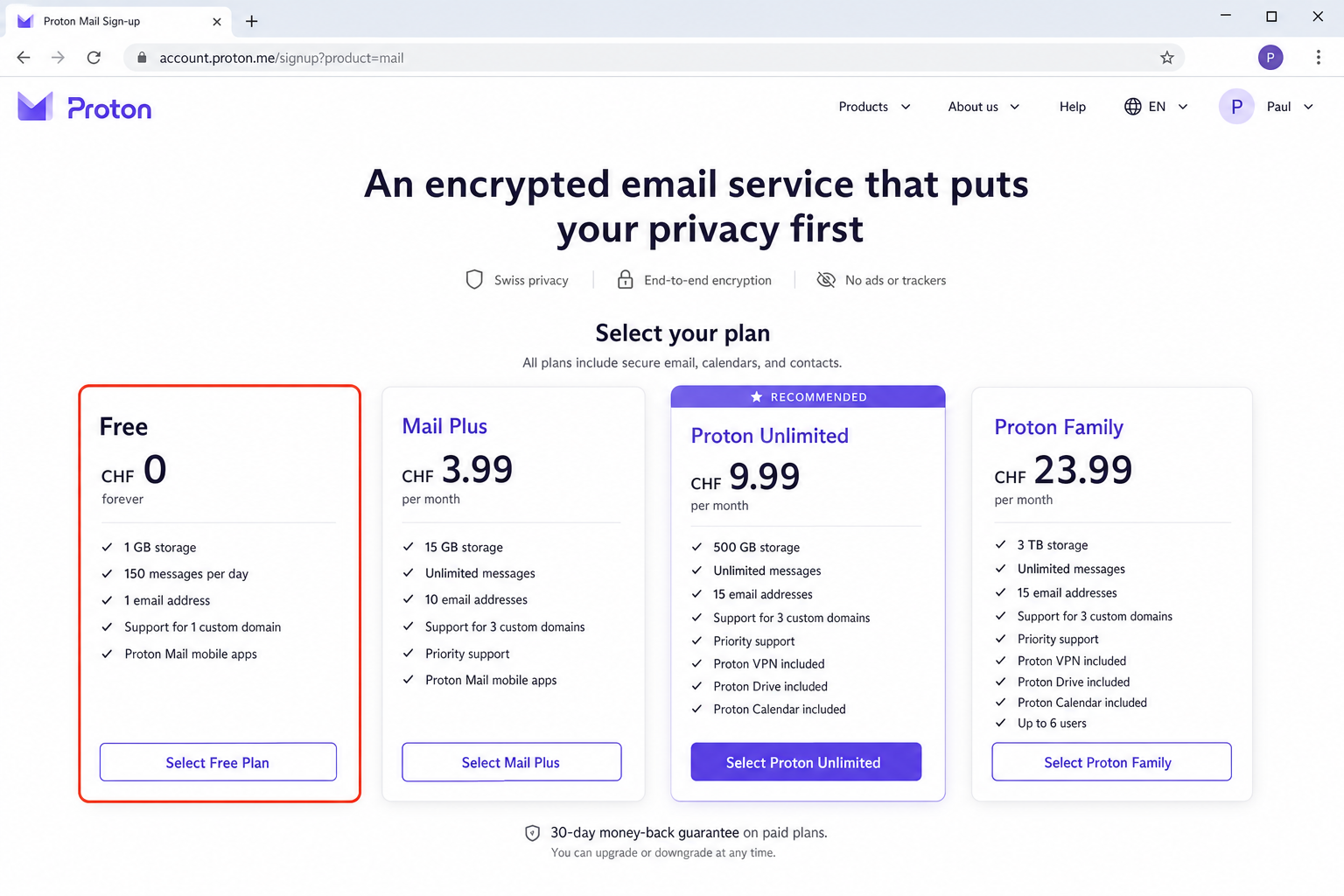
- Choose the Free plan (click Continue with Free when prompted).
- Pick a username, this becomes your @proton.me email address.
- Create a strong password, then optionally add a recovery email address.
- Complete the CAPTCHA to verify you’re human.
That’s it, you’ve got a free encrypted email account. The free plan gives you 1 GB of storage and one calendar. More than enough for most people.
Step 2: Send an Encrypted Email to Another Proton Mail (or Tuta) User
If the person you’re emailing also uses Proton Mail or Tuta, encryption is completely automatic. You don’t have to do anything special, just send the email like normal.
- Log in to your Proton Mail account at proton.me/mail.
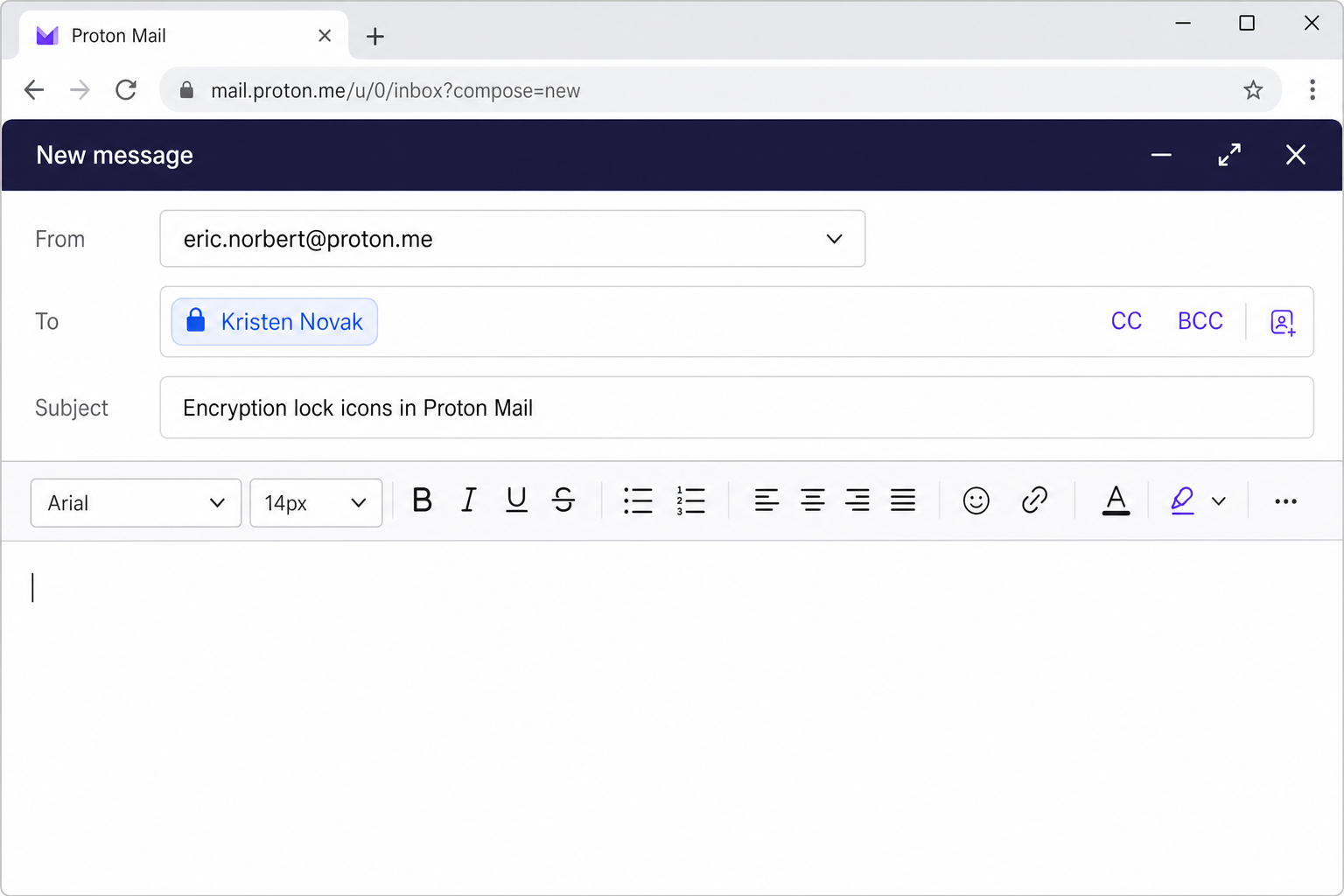
- Click New Message in the top left.
- Enter your recipient’s Proton Mail (or Tuta) address in the To field.
- Write your message and click Send.
You’ll notice a padlock icon next to the recipient’s address. That confirms the message is end-to-end encrypted. Nicely done.
Step 3: Send an Encrypted Email to Someone Who Doesn’t Use Proton Mail
This is where it gets clever. If your recipient uses Gmail, Outlook, or any other regular email service, Proton Mail lets you send them a password-protected encrypted link. They don’t need a Proton account; they just need the password you give them.
- Click New Message to open the compose window.
- Enter your recipient’s email address (e.g., their Gmail address).
- Write your message as normal.
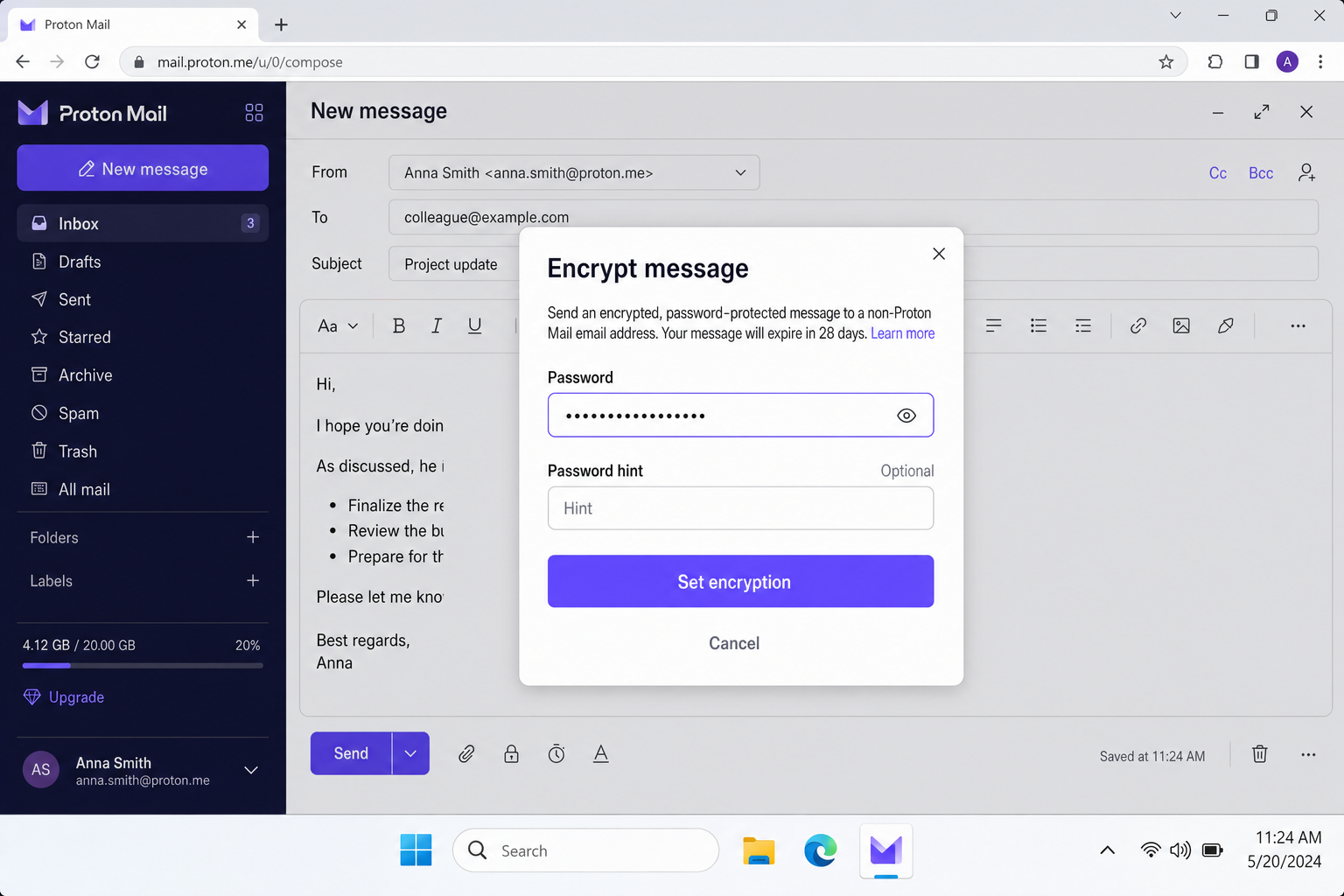
- Click the lock icon at the bottom of the compose window.
- Set a password that your recipient will use to open the message. (Share this password with them via phone, text, or in person, not in the same email!)
- Optionally, set an expiry time (e.g., 1 day, 1 week) so the message self-destructs after it’s been read.
- Click Send.
Your recipient will get an email with a secure link. When they click it and enter the password, they can read the message right in their browser. No account, no app, no fuss.
Step 4: Verify Your Email Was Encrypted
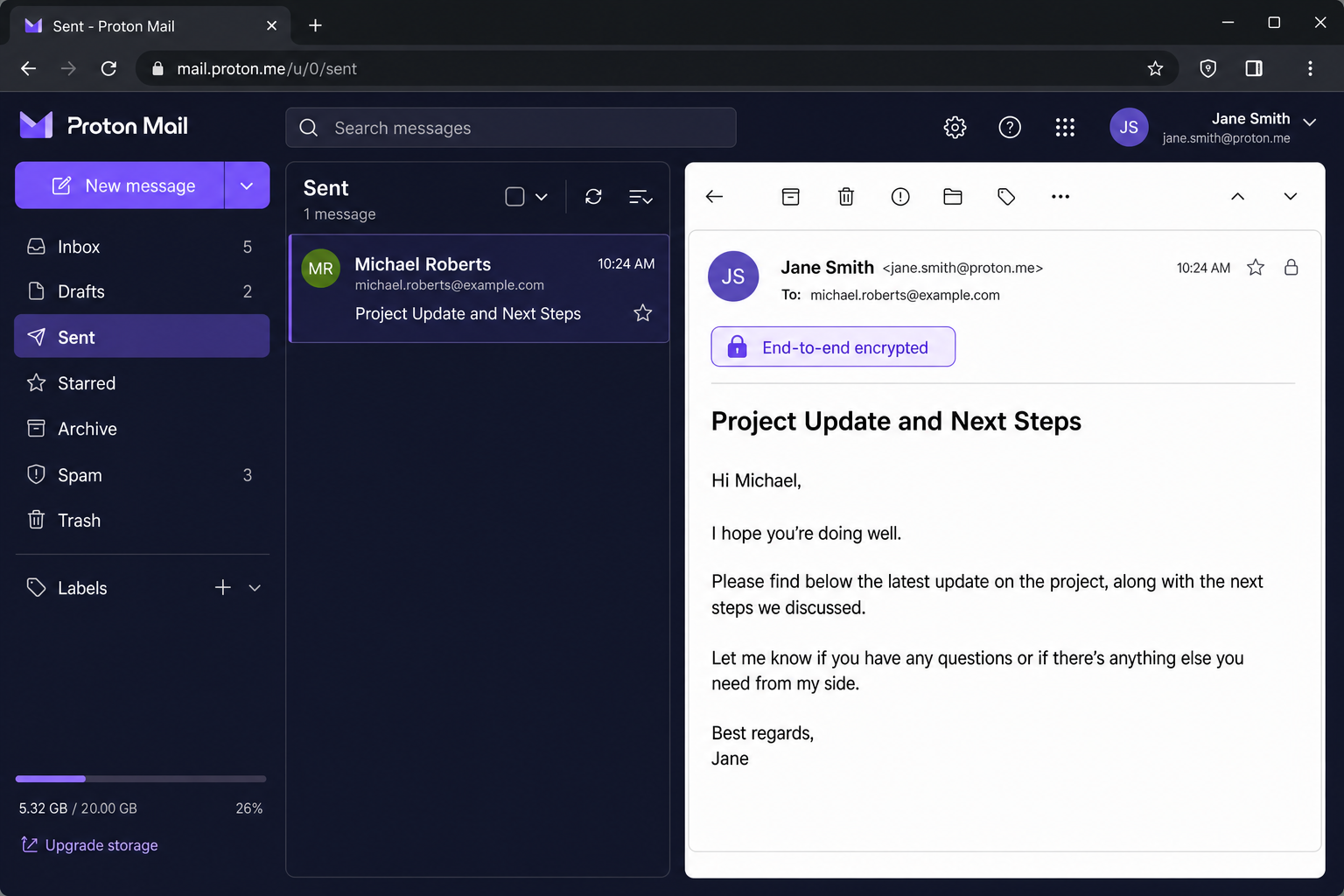
After sending, open the message in your Sent folder. You’ll see an “End-to-end encrypted ✓” badge on the message. That’s your confirmation that the contents were protected all the way from your device to the recipient’s. Not even Proton can read it.
How to Use Proton Mail on Your Phone
Proton Mail has apps for both iOS and Android, and they work just as well as the web version. Encryption is still automatic.
On iPhone (iOS 18 or later)
- Download the Proton Mail app from the App Store.
- Sign in with your Proton Mail account credentials.
- Tap the pencil icon to compose a new message.
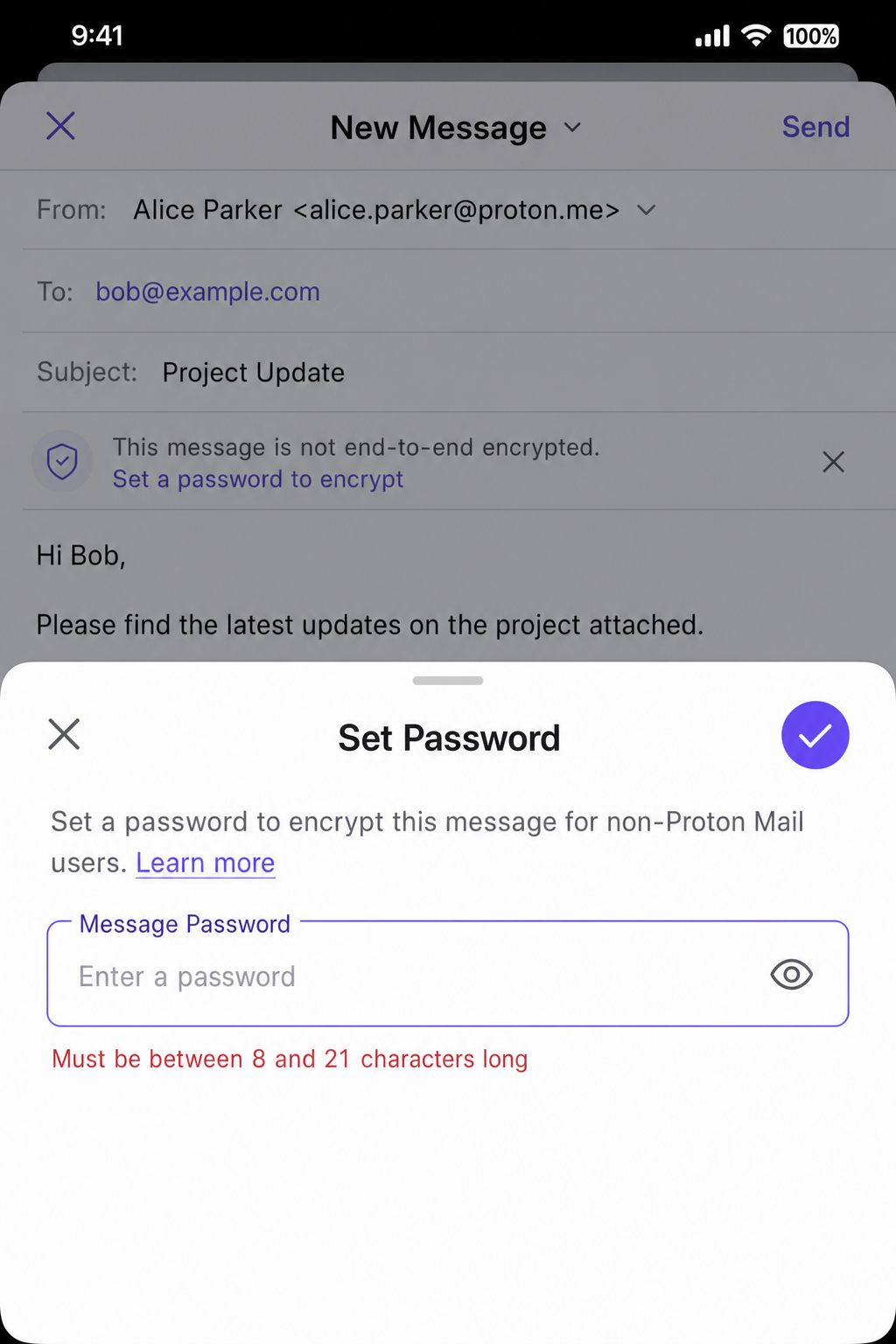
- Follow the same steps as above, the lock icon and password option are available here too.
On Android (Android 12 or later)
- Download the Proton Mail app from the Google Play Store.
- Sign in with your Proton Mail credentials.
- Tap the compose button (pencil icon) to start a new message.
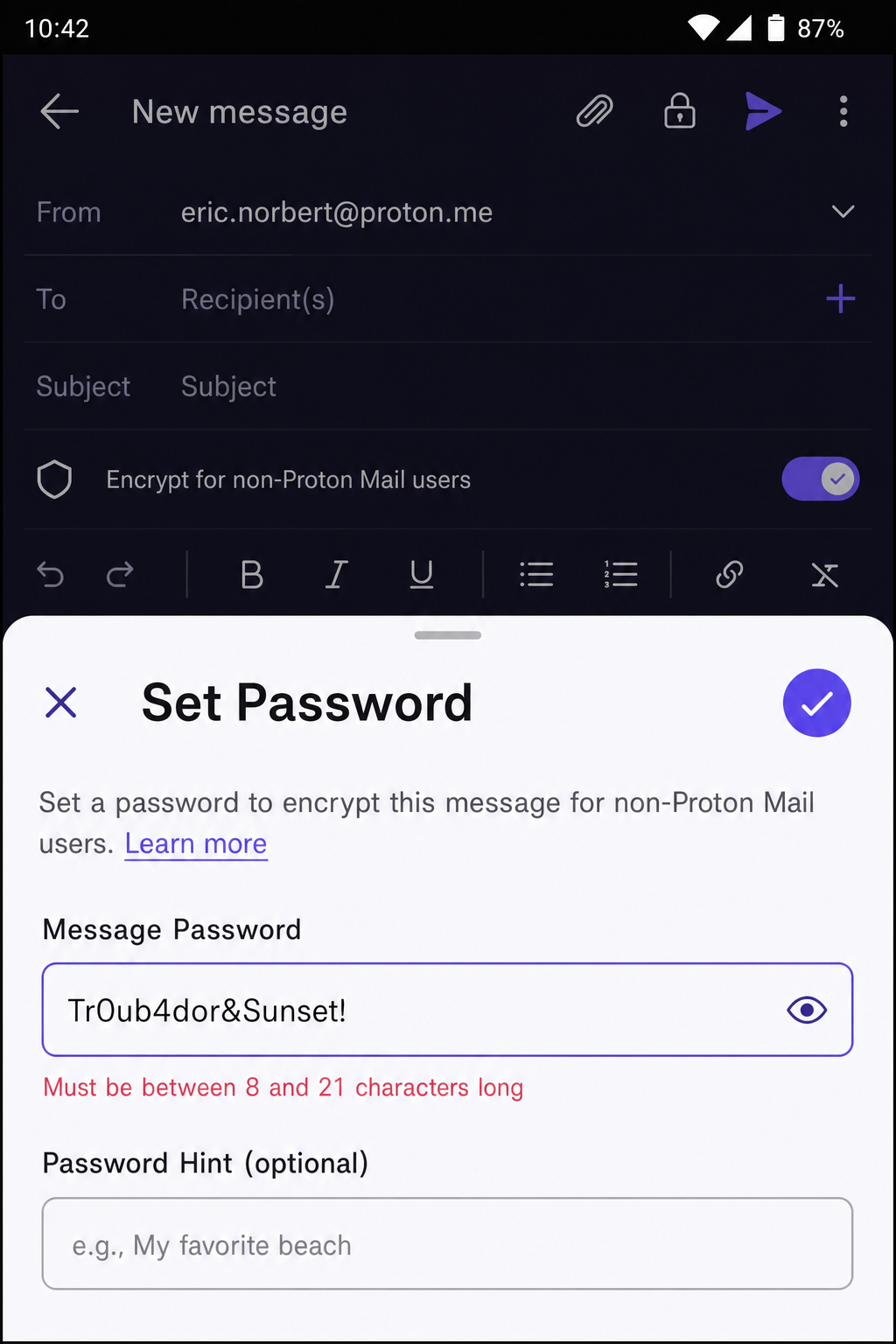
- Tap the lock icon to add a password for non-Proton recipients.
Quick tip: If you notice push notifications are delayed on Android, it’s probably your battery optimization settings killing background sync. Go to Settings > Battery > App optimization and whitelist Proton Mail to fix it.
Alternative: Try Tuta (Great for Quantum-Resistant Encryption)
If you want something a little different, or you’re thinking ahead about quantum computing threats (yes, that’s a real thing now), Tuta is a solid alternative. It’s based in Germany, runs on green energy, and uses quantum-resistant encryption algorithms that even future supercomputers would struggle to crack.
The setup process is almost identical to Proton Mail:
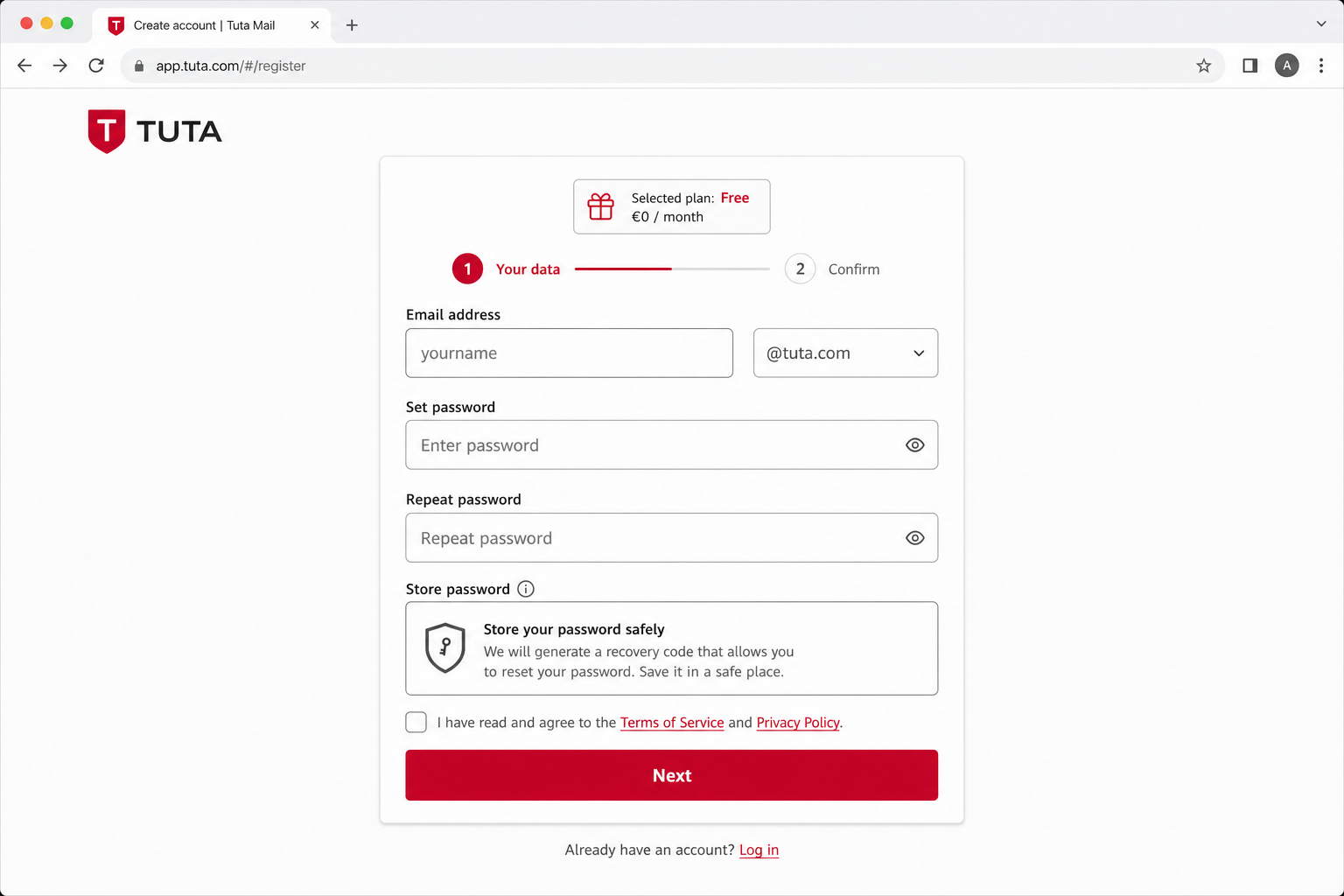
- Go to tuta.com and click Sign up.
- Choose the Free plan (1 GB storage).
- Pick a username to get your @tuta.com address.
- Create a password and complete setup.
Sending encrypted emails works the same way. Automatic E2EE to other Tuta users, and password-protected links for everyone else. The interface is clean and smooth, and the free tier is genuinely usable.
Tips and Troubleshooting
Common Issues
Problem: My recipient says they can’t open the encrypted message
This almost always comes down to the password. Make sure you shared it with them through a separate channel, such as a text message, phone call, or in person. Never send the password in the same email as the encrypted link (that defeats the whole point!). Also double-check that the message hasn’t expired if you set an expiry time.
Problem: I’ve hit my storage limit
Proton Mail’s free tier caps out at 1 GB. If you’re running low, delete old emails (especially anything with large attachments) or consider upgrading to Proton Mail Plus for around $4/month, which bumps you up to 15 GB.
Problem: I want to use Proton Mail in Outlook or Thunderbird
Proton Mail’s free tier doesn’t support IMAP (the protocol that lets third-party email apps connect). That’s actually a security feature, as IMAP connections can leak metadata. If you really need Outlook or Thunderbird integration, you’ll need Proton Mail Bridge, which is available on the paid plan (~$4/month). Alternatively, Mailfence supports IMAP on its free tier if that’s a dealbreaker for you.
Problem: I need to send a high volume of emails per day
Proton’s free plan uses anti-abuse throttling rather than a hard daily message cap, so casual personal use is rarely affected. If you’re sending bulk emails for business purposes, you’ll want to upgrade or look at Mailfence, which has more flexible limits on its free tier.
Pro Tips
- Set message expiry times: When sending a password-protected message to a non-Proton user, always set an expiry date. A 7-day expiry means the link stops working after a week, even if someone else gets hold of it later.
- Share passwords out-of-band: “Out-of-band” just means using a different channel. Text the password while emailing the link. Never put both in the same place.
- Use Proton’s mobile apps: The iOS and Android apps (check the App Store and Play Store for the latest versions) are just as secure as the web version and support all the same encryption features.
- Check the padlock icon: Before hitting send, always check for the padlock next to the recipient’s address. No padlock means the message will use standard TLS only, not E2EE.
- Avoid sending the password via email: Seriously, this one’s worth repeating. If you email someone the password to their encrypted message, you’ve just made the encryption pointless.
What About Gmail and Outlook?
It’s worth being upfront here: Gmail and Outlook are not truly end-to-end encrypted for regular users. Both services encrypt your connection (so no one can intercept your emails on the way to their servers), but they retain access to your messages on their end. That means they can, and do, scan your emails for advertising purposes, and they’ll hand over data to law enforcement if presented with a valid legal request.
For everyday emails, that’s probably fine. But if you’re sending anything sensitive, such as medical records, legal documents, financial details, or private conversations, stick with Proton Mail or Tuta. If you’re also exploring Gmail alternatives for different types of users, there are several privacy-focused options worth considering beyond just these two. The extra five minutes of setup is absolutely worth it.
Wrapping Up
Honestly, I was a little surprised by how far encrypted email has come. What used to require a computer science degree and a lot of patience now takes about five minutes and zero technical knowledge. Proton Mail in particular is a genuine gem, free, fast, and actually easy to use. If you’ve been putting off switching to encrypted email because it sounded complicated, 2026 is the year to just do it.
Start with Proton Mail’s free plan, it covers the vast majority of use cases without spending a cent. If you need quantum-resistant encryption or prefer a European provider, give Tuta a look too. And if you’re also thinking about broader cybersecurity tips to protect your digital life, it’s worth going beyond just email. Either way, your sensitive emails will be in much better hands than they are in a standard Gmail inbox. Bookmark this, spread the word, and start sending securely!