
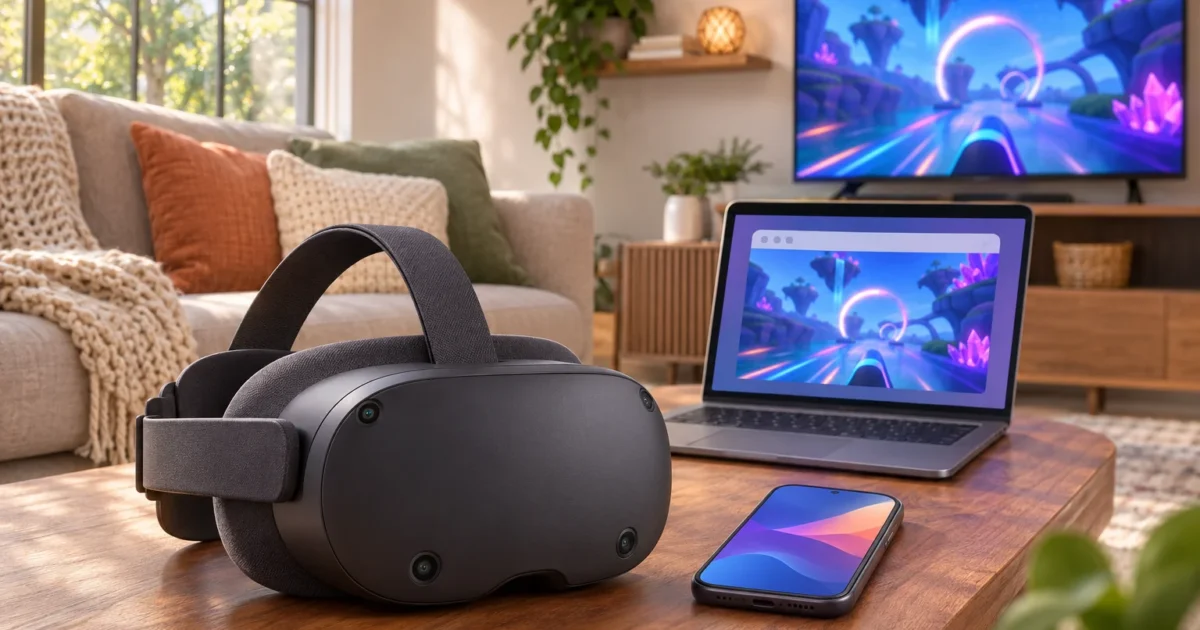
Your family is crowded around the couch asking “What are you looking at?” and all they can see is you waving your arms at nothing. Before you try anything else, check one thing. Your headset and the screen you want to cast to need to be on the same Wi-Fi network. For casting to your own phone or computer, sign in there with the same Meta account that’s on the headset. That one check fixes a surprising number of failed casts.
Once that’s sorted, you can cast most Meta Quest headsets, including Quest 2, Quest 3, Quest 3S, and Quest Pro, to three kinds of screens. Those are a Chromecast-enabled TV, a phone running the Meta Horizon app, or a computer browser at horizon.meta.com/casting. Meta’s main casting page documents the phone and browser methods. Chromecast TVs are covered on its troubleshooting page, and support can vary by TV model and firmware. You start the cast from the headset or from the Meta Horizon app on your phone. It’s built into the headset, and Meta’s casting help page doesn’t list any subscription for it.
Quick Answer: Three Ways to Cast Meta Quest to TV, Phone, or Computer
| Cast target | What you need | Where to start |
|---|---|---|
| TV | Chromecast-enabled TV or compatible nearby device on the same Wi-Fi | Headset Cast menu, pick the TV |
| Phone | Meta Horizon app, Bluetooth on, same Wi-Fi and account | Headset Cast menu (pick Mobile) or the app’s Devices section |
| Computer | A modern browser at horizon.meta.com/casting (Windows or Mac), or the Meta Horizon Link app on Windows | Headset Cast menu (pick Web/Computer) or the Link app’s Devices section |
This guide covers casting your view out so other people can watch. Streaming PC games into your headset (Quest Link and Air Link) is a separate topic. So are in-game spectator modes.
What You Need Before You Cast Your Quest
Run through this checklist first. Each item is a common reason casting fails.
- A supported headset: Meta Quest 2, Quest 3, Quest 3S, or Quest Pro. Meta’s casting help page covers casting setup for Quest headsets, and the menu steps are the same across models.
- Up-to-date software: In the headset, go to Settings > System > Software Update and install anything waiting. Updates roll out gradually, so your version number can differ from a friend’s.
- Same Wi-Fi network: The headset and the receiving device must share one network.
- Same Wi-Fi band, ideally: Many routers broadcast a 2.4GHz network and a 5GHz (or 6GHz) network under separate names. Put both devices on the same one.
- Same Meta account (for your own devices): For the standard phone and browser flow, sign the phone app, browser, or Link app in to the account on the headset. Meta also documents casting from a secondary account on the headset, and managed (organization) accounts can share a URL and code so viewers don’t sign in to the headset’s account. See the privacy notes below.
- For phone casting: The Meta Horizon mobile app installed, with Bluetooth turned on.
- For TV casting: A Chromecast-enabled TV, a Google TV streaming device, or another compatible nearby device. Meta handles Chromecast in its troubleshooting pages rather than its main casting guide, and it doesn’t guarantee every TV model or firmware version will work.
Warning: Guest, hotel, office, and certificate-based Wi-Fi networks often block the device-to-device traffic casting needs. Meta’s casting troubleshooting page recommends a standard home network instead. (Public Wi-Fi sucks for this, basically.)
If a teen in your house uses a managed Meta account, available features can differ. Meta lists what managed accounts can do on its managed account features page.
Check Your Wi-Fi Network on Windows
- Click the network icon at the right end of the taskbar (next to the clock).
- Click the arrow beside the Wi-Fi tile to open the network list.
- Look for the network marked Connected. Note its name, including any “5G” or “2.4” tag.
You should see the same network name your headset uses under Settings > Wi-Fi.

Check Your Wi-Fi Network on macOS
- Click the Control Center icon in the menu bar (the two-toggle icon near the clock).
- Click Wi-Fi.
- Note the network with a checkmark or highlighted icon next to it.
That name should match the network shown in your headset’s Wi-Fi settings.
How to Cast From Your Meta Quest Headset
This is the most common way to start, and it works for all three targets. Get your TV, phone, or browser ready first (see the sections below). Then follow these steps inside the headset.
- Press the Meta button on your right controller to open the universal menu. The menu bar appears in front of you.
- Select the clock and battery area on the left side of the menu to open Quick Settings. A panel of tiles opens.
- Select Cast in Quick Settings. Labels and tile positions can shift a little between software versions, and some managed headsets call it Casting. A list of cast targets appears.
- Pick your target. Choose Mobile for the Meta Horizon app, Web or Computer for a browser, or the name of your TV or nearby device.
- Select Next or Start to begin.
Within a few seconds, the receiving screen should show what you see in the headset. If the list in step 4 is empty, jump to the troubleshooting section.
Tip: The cast shows a flat view of what you’re seeing in the headset. It’s still a little shaky when you move your head fast, so turning slowly makes it much nicer for viewers.
Cast Meta Quest to a TV With Chromecast
TV casting is the best option for a room full of people. It also has the strictest requirements.
- Turn on the TV and switch to the input for its built-in Chromecast or your Google TV streaming device. You should see the device’s home screen or ambient screen.
- Confirm the TV or streaming device is on the same Wi-Fi network and band as the headset. Check this in the TV’s network settings.
- Put on your headset and open Quick Settings > Cast as described above.
- Select your TV’s name from the list of nearby devices.
- Select Start.
The TV should switch to your headset view. If your TV doesn’t show up, check that Chromecast is turned on in the TV’s settings. Also check the TV’s date and time, since Meta’s casting troubleshooting page flags a wrong clock as a cause.
No Chromecast on Your TV?
Meta’s official instructions don’t cover TVs without casting support. A third-party guide from Resolve suggests two practical workarounds. You can cast to a laptop browser and connect the laptop to the TV with an HDMI cable (or a USB-C to HDMI adapter for newer laptops). You can also cast to your phone and mirror the phone to the TV. Both add a layer, so expect a bit more delay. A cheap Google TV streaming device is often the cleaner long-term fix.
Wired Option: Mirror to an External Display
On supported headsets such as Quest 3, Meta also documents a wired alternative to casting. You connect the headset’s USB-C port to a monitor or TV with a USB-C cable that supports DisplayPort, or through a USB-C to DisplayPort adapter and an active DisplayPort-to-HDMI adapter.
The big limit is that this connection carries video only, so there’s no audio on the external screen. Meta’s external display help page also lists resolution and protected-content limits and the cable combinations Meta has tested, so check its current version before you buy an adapter.
Cast Meta Quest to Your Phone With the Meta Horizon App
Phone casting is the quickest way to show one person beside you what’s going on.
- On your phone, turn on Bluetooth and confirm you’re on the same Wi-Fi as the headset.
- Open the Meta Horizon app and make sure it’s signed in to the same account as the headset. Your headset should appear in the app’s Devices section.
- Put on the headset and go to Quick Settings > Cast.
- Select Mobile (or your phone) and then Start.
Your VR view should appear inside the Meta Horizon app. Keep the app open and in front during the cast. Switching to another app or closing it can end the session.
Start the Cast From Your Phone Instead
This is handy when someone else is wearing the headset (a kid trying VR for the first time, say). You can run the cast without taking the headset off their head.
- Open the Meta Horizon app on your phone.
- Tap Devices and select the headset if you have more than one.
- Tap Cast (or Start casting).
- Choose where the cast should go, such as this phone or a nearby device, and confirm.
The view from the headset should show up on your chosen screen within a few seconds. If the person wearing it sees a prompt in the headset, have them accept it.
Cast Meta Quest to a Computer
Casting to a computer is great for recording a session or sharing it in a video call. The browser method at horizon.meta.com/casting works the same way on Windows and macOS, so it’s the one to try first regardless of which computer you’re using.
Meta also offers a Meta Horizon Link desktop app as an alternative. Meta’s current documentation describes installing and using this app on Windows; if you’re on a Mac, the browser method below is the verified option until Meta publishes macOS-specific Link instructions.
Browser Method (Web)
- Open any modern browser, like Chrome, Edge, or Safari.
- Go to
horizon.meta.com/casting. - Sign in with the same Meta account that’s on your headset. Once you’re in, the page waits for a cast.
- In the headset, go to Quick Settings > Cast and select Web or Computer, then Start.
The browser tab should switch from the waiting screen to your headset view. Meta’s main casting page now uses the horizon.meta.com/casting address, though some of its troubleshooting pages still mention the older oculus.com/casting link. If an old bookmark doesn’t load the receiver page, use the newer address.
On Windows
The browser steps above work as-is. Two Windows-specific extras:
- Full screen: Press
F11in Chrome or Edge to hide the browser bars. PressF11again to exit. - Meta Horizon Link app: If you’d rather use a desktop app, download Meta Horizon Link from Meta’s official site and install it. Open it, sign in with your headset’s account, click Devices, choose your headset if asked, and click Start casting.
Your headset view should open in a window on the PC.
On macOS
Same browser steps, with Mac shortcuts:
- Full screen: Press
Control+Command+Fin Chrome or Safari. Press it again to exit.
Meta documents the Meta Horizon Link app for Windows only, so there’s no Link app step for Mac. Use the browser method. It uses the same horizon.meta.com/casting page and the same sign-in steps described earlier.
How to Stop Casting (and a Few Privacy Notes)
To stop from the headset, open Quick Settings > Cast again and select Stop casting. In the Meta Horizon app or Meta Horizon Link, tap or click the stop option on the cast screen. The receiving screen should return to its normal view.
A few things worth knowing about who sees what:
- Everyone near the screen sees your view: That includes menus, apps, and anything else that pops up in the headset. Stop casting before opening anything personal.
- Taking off the headset may not end it: Behavior depends on your model and software version. On Quest 3, Meta’s release notes say a cast to the phone app can keep running after you take the headset off. Stop it manually when you’re done.
- Account matching usually applies, but not always: Phone and browser casting typically require the receiver to be signed in to the same Meta account as the headset. Meta’s documentation also covers organization-managed casting, where a primary or secondary account can start the cast and viewers join using a provided URL and code instead of signing in directly.
- Check your specific setup: If you’re using a managed or shared account, confirm the correct workflow in Meta’s current instructions before sharing a cast link. Sign out of
horizon.meta.com/castingon shared or work computers when you’re done. - Several things end a cast: For phone casting, closing the Meta Horizon app or switching to another phone app stops it. For any target, the headset sleeping or restarting, Wi-Fi dropping, or signing out can also end the cast.
Fix Meta Quest Casting Not Working
All of these fixes come from Meta’s casting troubleshooting page. None of them reset your headset or erase data.
Problem: The TV, Phone, or Computer Doesn’t Show Up
Why it happens: The devices are on different networks, or on different bands of the same router.
Fix:
- Open Settings > Wi-Fi in the headset and note the network name.
- Connect the receiving device to that exact network and band.
- Restart your router if the device still doesn’t appear. Unplug it, count to 30, and plug it back in (like giving your network a quick rest).
- For phones, turn Bluetooth on and restart the Meta Horizon app.
Your device should now appear in the headset’s Cast list.
Problem: The Cast Shows a Black Screen
Why it happens: An account mismatch, a stalled connection, or a network hiccup blocking the video.
Fix:
- Confirm the same Meta account is signed in on the headset and the receiver.
- Restart the headset. Hold the power button and select Restart.
- Restart the phone, TV, or browser.
- Start the cast again.
You should see your headset view instead of black.
Problem: The Cast Is Laggy or Stutters
Why it happens: Weak Wi-Fi, a busy network, or a mesh Wi-Fi system, which Meta specifically lists as a known source of casting trouble.
Fix:
- Move the headset and receiver closer to the router. Walls and floors block signals like nobody’s business.
- Pause big downloads or streams on other devices.
- Make sure both devices are on the same network and band. Meta’s Chromecast troubleshooting suggests 5GHz or 6GHz rather than 2.4GHz for better performance, if your devices support it.
- Restart the router. If you use mesh Wi-Fi, restart the whole mesh system or test on a different network.
The picture should stay smoother. Some delay is normal, though, even on a good network.
Problem: Audio Plays in the Wrong Place
Why it might happen: Meta’s troubleshooting page doesn’t give a single cause. Where you hear sound can depend on the casting method, the receiving device and the headset’s audio settings.
Fix:
- Check the headset’s audio output settings and volume.
- Turn up the volume on the TV, phone, or computer, and make sure it isn’t muted.
- Stop the cast and start it again to resync sound and picture.
You should hear audio where you expect it. If it still plays only in the headset, try a different cast target (for example, the browser instead of the TV), or contact Meta support through the casting help page.
Problem: Browser Casting Won’t Connect
Why it happens: The browser is signed in to a different account, or you’re using an old casting address.
Fix:
- Sign out of
horizon.meta.com/casting, then sign back in with the headset’s account. - Go to
horizon.meta.com/castingdirectly. That’s the address Meta’s main casting page uses.
The page should show its ready state, and your headset cast should land there.
Meta Quest Casting FAQ
Can I cast to any TV? No. You need a Chromecast-enabled TV or a compatible nearby device, and Meta doesn’t guarantee every model. For other TVs, a third-party-suggested workaround is casting to a laptop browser and connecting that laptop to the TV with HDMI.
Does casting work the same on Quest 2 and Quest 3 or 3S? The basic Quick Settings > Cast steps are similar on Quest 2, Quest 3, Quest 3S, and Quest Pro. Some features depend on your model and software version, though. Wired external-display mirroring, for example, is only on supported headsets, so check Meta’s release notes for your headset.
Do I need to pay for casting? Meta’s help pages don’t mention any fee or subscription for casting. It’s part of the headset software.
Why did my phone cast stop on its own? You probably switched apps, closed the Meta Horizon app, or the headset went to sleep. Keep the app open in front and start the cast again.
Can I record the cast? Casting to a computer browser gives you a window you can capture with your usual screen recorder or share in a video call.
Wrapping Up
Casting a Quest comes down to the same three things every time. Use the same network, the same band, and the same account. Get those lined up and TV, phone, and browser casting all follow the same short path through Quick Settings > Cast. My take: the browser method is the simplest starting point because it needs only a browser and a sign-in, and TV casting is the most fun when your TV cooperates.
| Step | Action | Applies To |
|---|---|---|
| 1 | Match Wi-Fi network, band, and Meta account | All targets |
| 2 | Open Quick Settings > Cast in the headset | All targets |
| 3 | Pick TV, Mobile, or Web/Computer and start | TV, phone, computer |
| 4 | Or start from Devices in the Meta Horizon app or Link app | Phone, Windows |
| 5 | Select Stop casting when you’re done | All targets |
If casting keeps failing after you’ve matched networks, restarted everything, and tried a non-mesh network, stop troubleshooting at home. Contact Meta support through the casting help page, since repeated failures on a clean home network point to an account or headset problem only Meta can check.