

Is Task Manager refusing to kill that frozen program? Or maybe Force Quit on your Mac just isn’t cutting it? Sometimes the GUI tools we rely on every day just don’t have enough muscle to handle stubborn processes. That’s when the command line becomes your best friend.
In this guide, you’ll learn how to forcefully terminate any program using command line tools on Windows, macOS, and Linux. We’ll cover the modern methods (including PowerShell), explain when to use each approach and help you avoid the common pitfalls that can crash your system.
What Are Command Line Process Killers?
Command line process killers are built-in system tools that can terminate running programs instantly – no questions asked, no “Are you sure?” dialogs. They’re like having a digital sledgehammer when your regular tools feel more like rubber mallets.
Key Features:
- Immediate termination: Programs die instantly without saving data
- System-level access: Can kill processes that GUI tools can’t touch
- Batch operations: Kill multiple processes at once or by pattern
- Remote capabilities: Some tools can kill processes on other computers
- Filtering options: Target specific types of processes (like non-responsive ones)
Before You Begin
Make sure you have:
- Administrator/root access on your computer
- Basic familiarity with opening a terminal or command prompt
- Understanding that force-killing programs will lose any unsaved data
Warning: Never kill critical system processes like csrss.exe or winlogon.exe on Windows or you’ll get a blue screen of death.
How to Kill Processes on Windows
Windows gives you three main options: the legacy Command Prompt method, the modern PowerShell approach (recommended), and some advanced filtering tricks.
Method 1: PowerShell (Recommended for Windows 10/11)
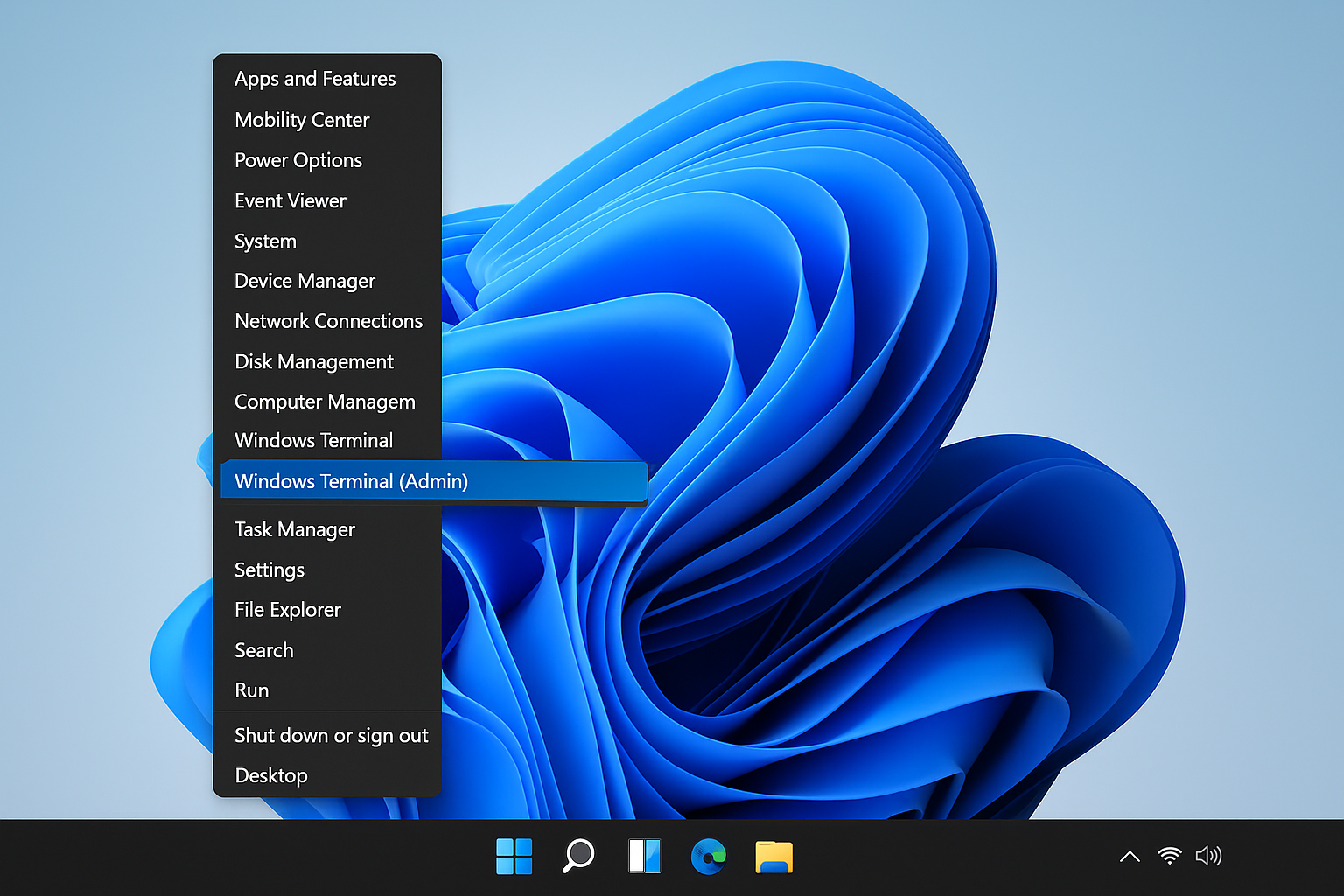
Step 1: Open PowerShell as Administrator
Right-click the Start button and select Terminal (Admin). If you see multiple tabs, click the PowerShell tab.
Step 2: Find Your Target Process
Type Get-Process to see all running processes, or search for a specific one:
Get-Process | Where-Object {$_.Name -like "*notepad*"}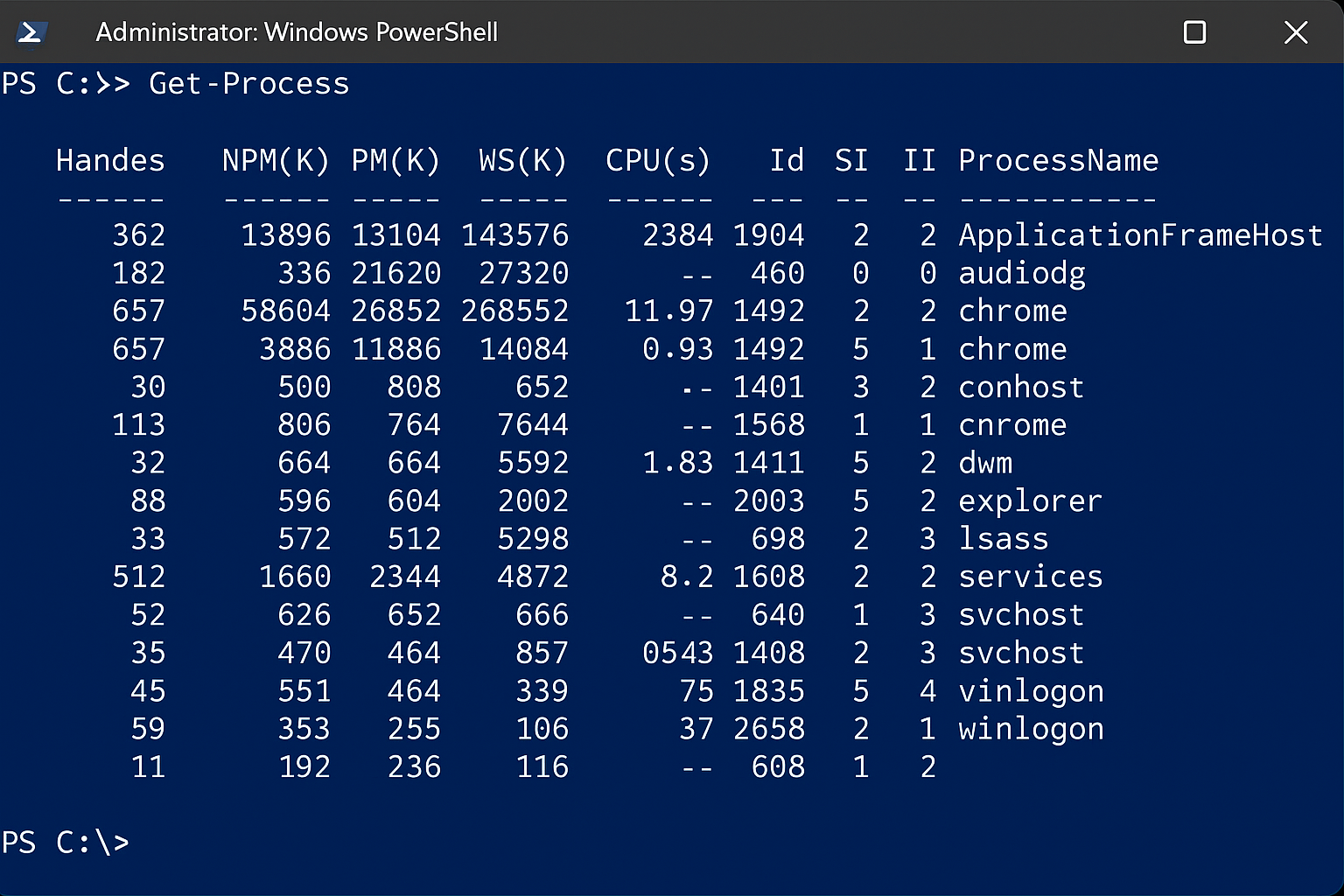
Step 3: Kill the Process
Kill by name: Stop-Process -Name "notepad" -Force
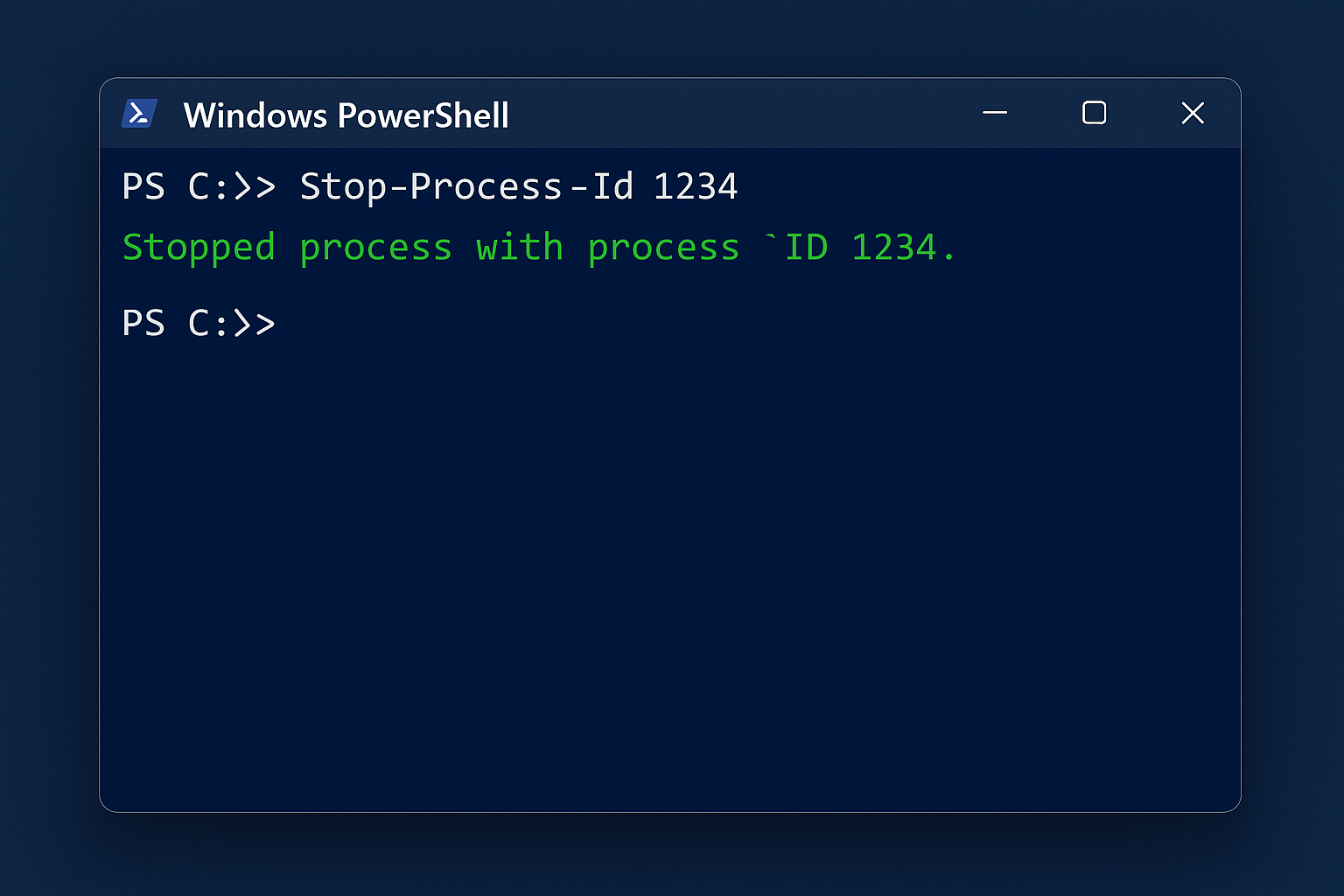
Kill by Process ID: Stop-Process -Id 1234 -Force
Method 2: Command Prompt (Works on All Windows Versions)
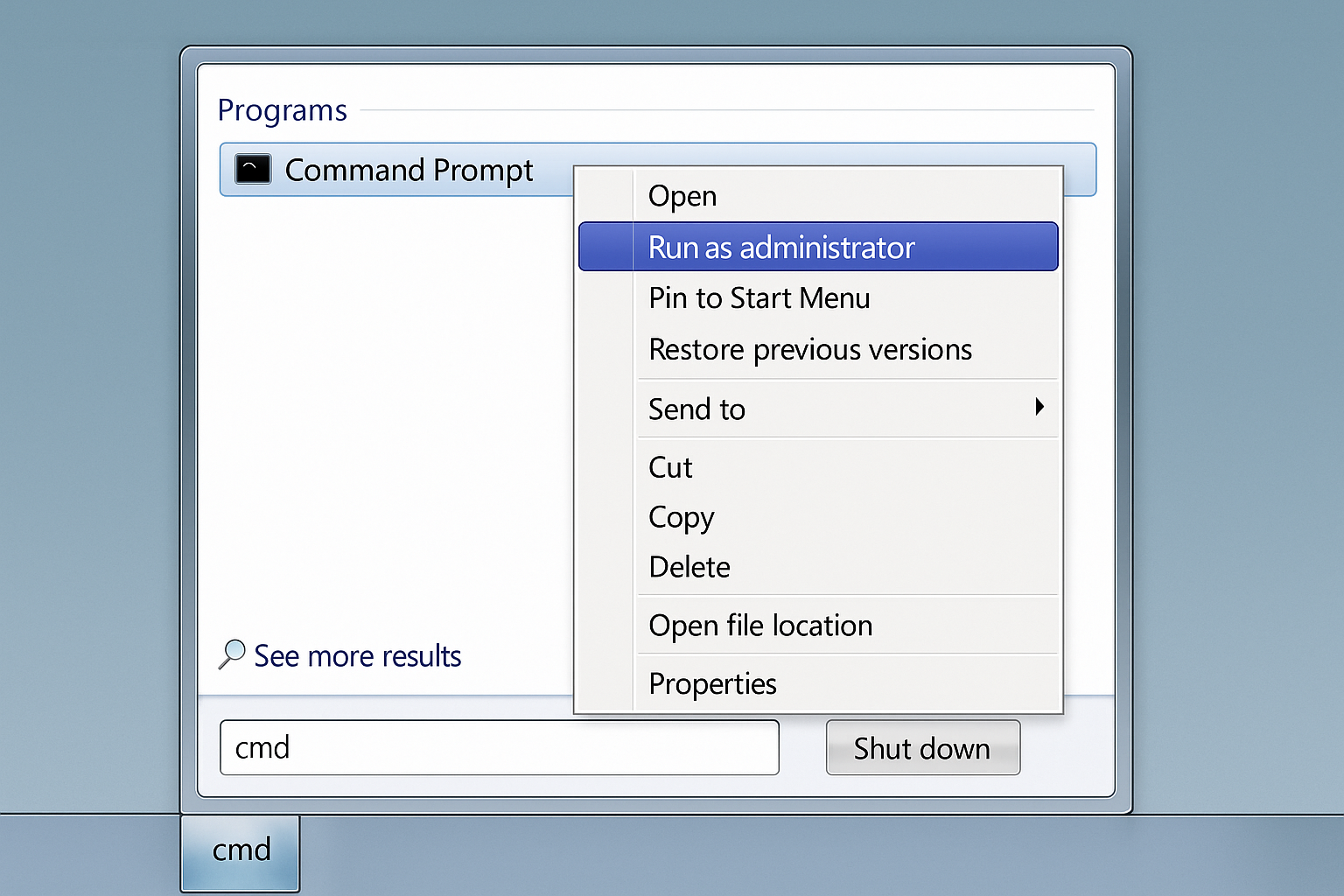
Step 1: Open Command Prompt as Administrator
Search for “cmd” in the Start menu, then click Run as administrator.
Step 2: List Running Processes
Type tasklist to see all processes with their Process IDs (PIDs).
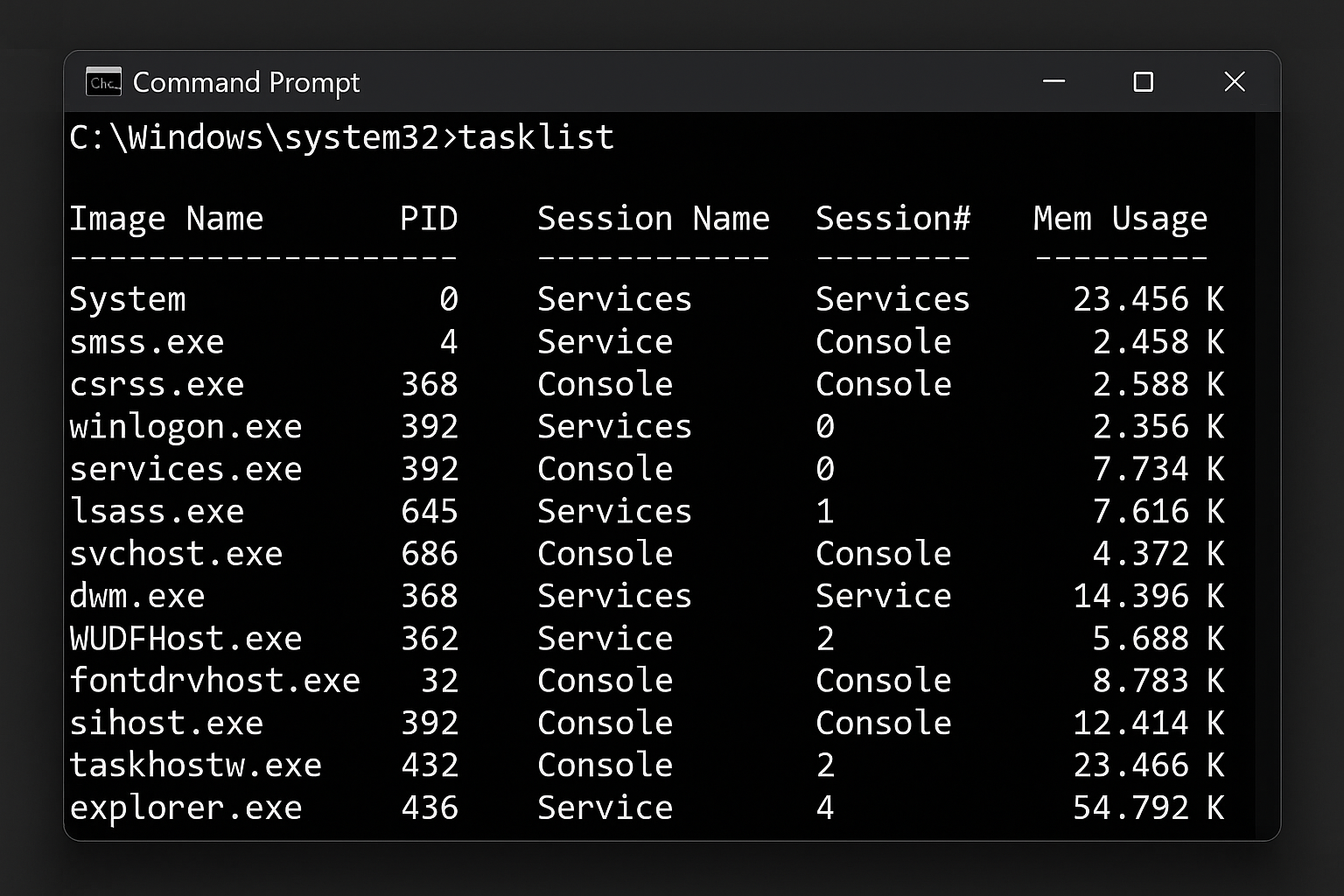
Step 3: Kill the Process
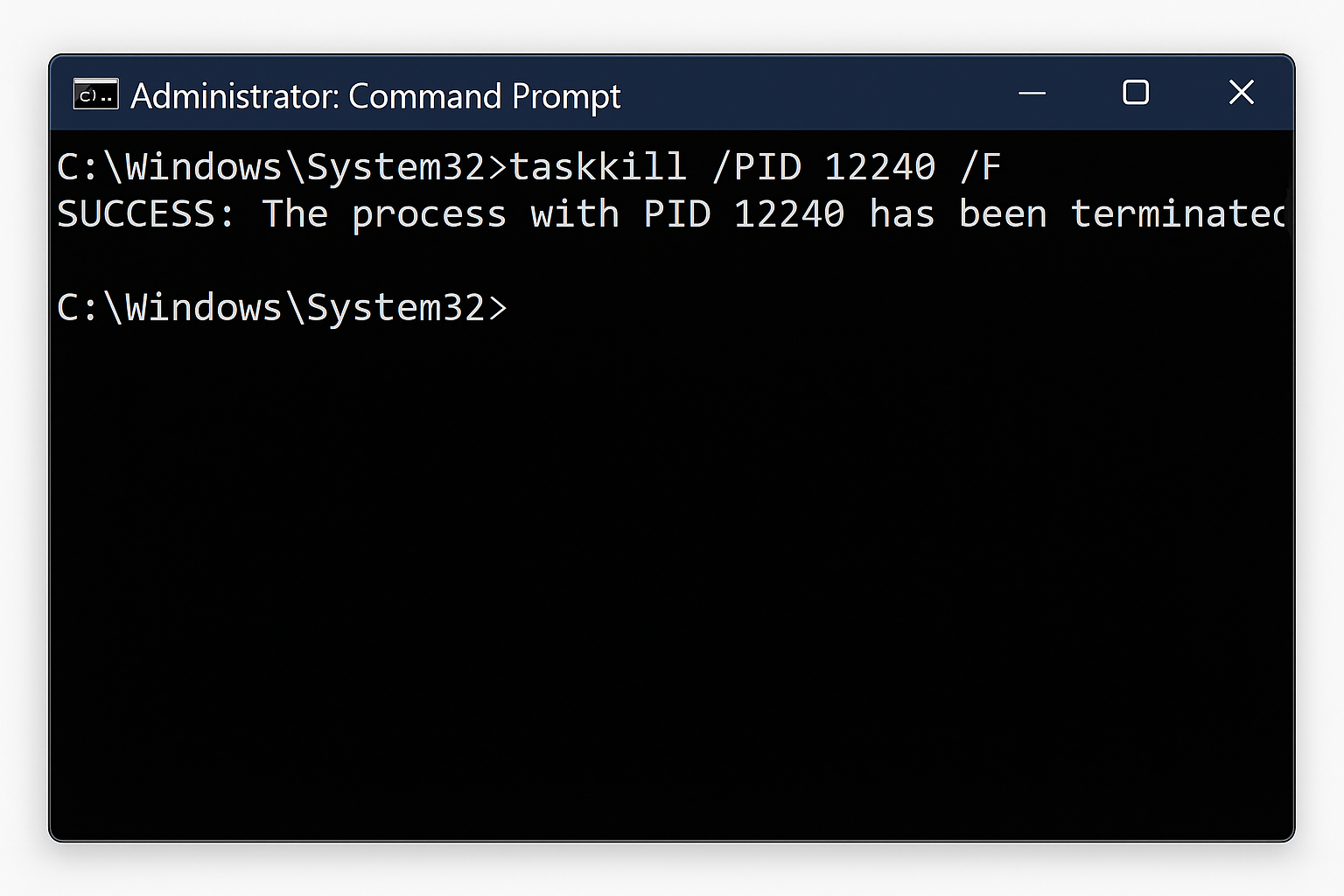
Kill by name: taskkill /IM notepad.exe /F
Kill by PID: taskkill /F /PID 1234
Kill process and its children: taskkill /IM notepad.exe /F /T
Method 3: Advanced Filtering (Command Prompt)
Kill all non-responsive programs:
taskkill /FI "STATUS eq NOT RESPONDING" /FKill all processes from a specific user:
taskkill /FI "USERNAME eq YourUsername" /IM someapp.exe /FHow to Kill Processes on macOS
Step 1: Open Terminal
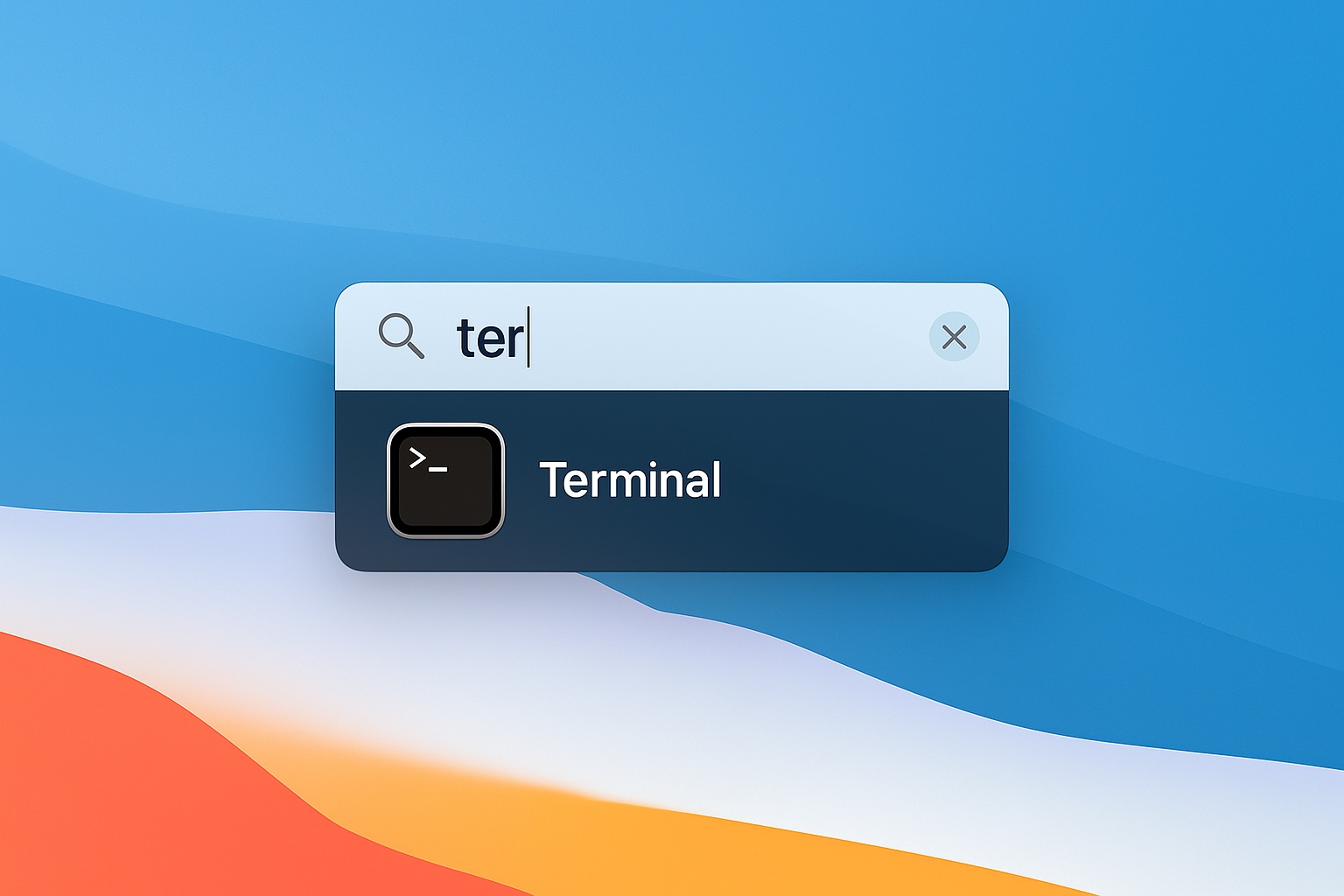
Press Cmd + Space to open Spotlight, type “Terminal”, and press Enter.
Step 2: Find Your Target Process
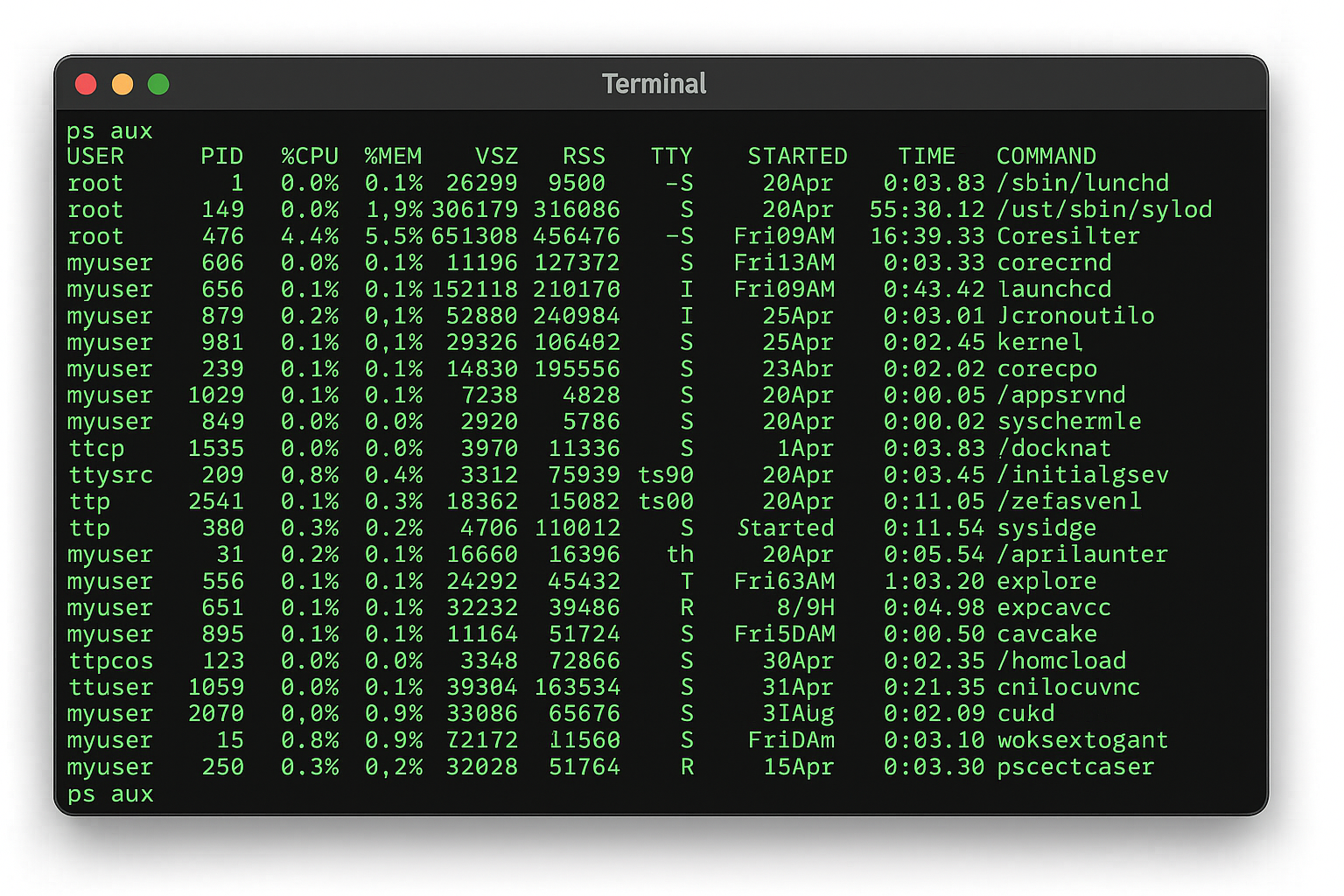
Use one of these commands to locate the process:
ps aux | grep processname(search for specific process)top(interactive list, press ‘q’ to quit)ps aux(show all processes)
Step 3: Kill the Process
Kill by Process ID: kill -9 1234
Kill by name: killall "Google Chrome"
Force kill by name: killall -9 "Google Chrome"
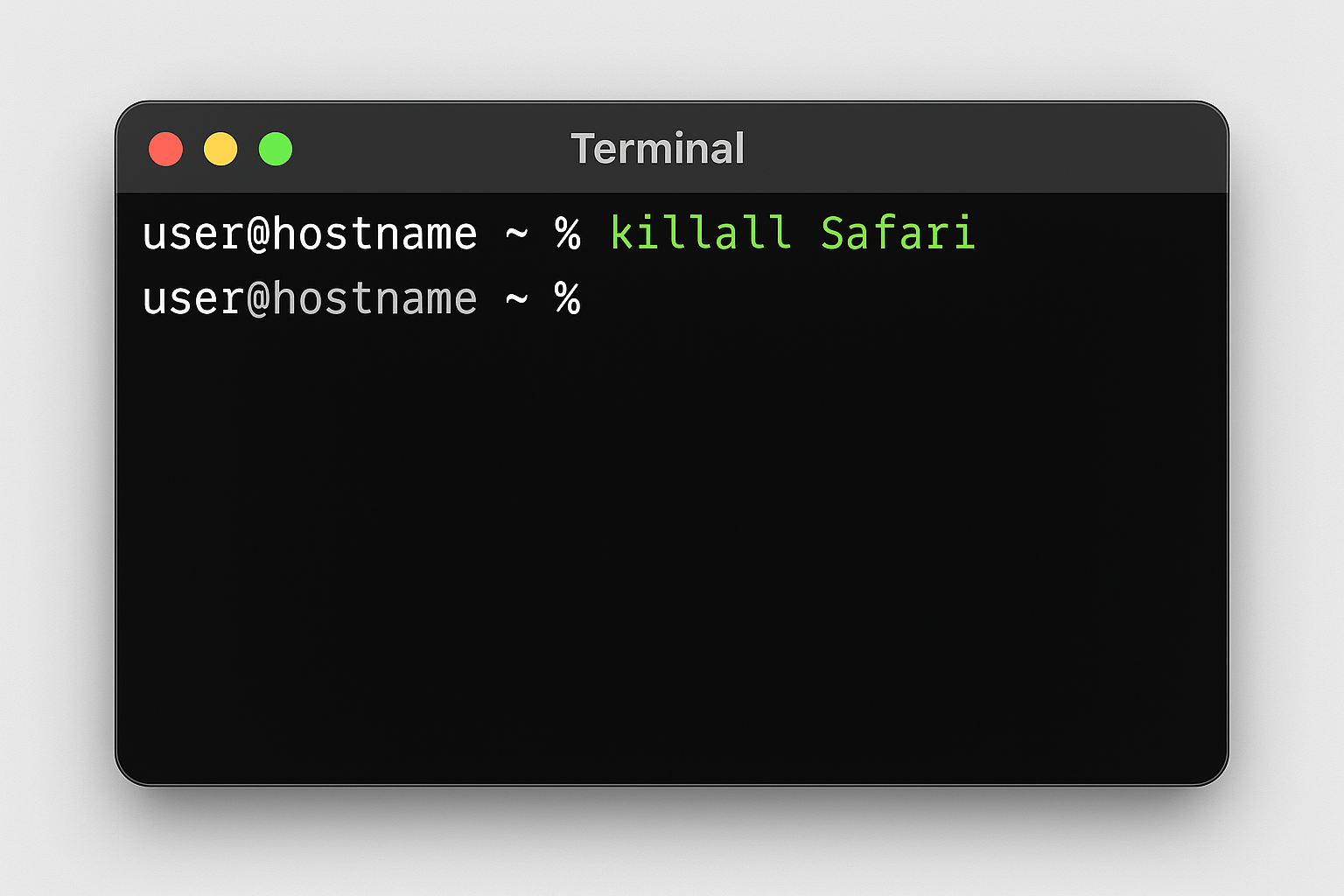
If you get a permission error, add sudo at the beginning:
sudo killall -9 "Google Chrome"How to Kill Processes on Linux
Step 1: Open Terminal
Use Ctrl + Alt + T or find Terminal in your applications menu.
Step 2: Find Your Target Process
Use these commands to locate processes:
ps aux(show all processes)ps x(show your processes)pgrep processname(find PID by name)
Step 3: Kill the Process
Kill by PID: kill -9 1234
Kill by name: killall processname
Kill with pattern matching: pkill firefox
For system processes, use sudo:
sudo kill -9 1234Understanding Kill Signals
Not all “kill” commands are created equal. Here’s what those numbers mean:
- -9 (SIGKILL): Nuclear option — kills immediately, no cleanup
- -15 (SIGTERM): Polite request to quit (default if no number specified)
- -3 (SIGQUIT): Quit with core dump (debugging)
- -6 (SIGABRT): Abort signal
Always try kill -15 first (or just kill) to give the program a chance to save data. Only use -9 when the process won’t respond to the polite request.
Tips and Troubleshooting
Common Issues
Problem: “Access Denied” or permission errors
This happens when you’re trying to kill a system process or someone else’s process. Run your terminal as administrator (Windows) or use sudo (macOS/Linux):
- Windows: Right-click and “Run as administrator”
- macOS/Linux: Add
sudobefore your command
Problem: Process keeps coming back
Some programs restart automatically. Look for:
- Parent processes: Kill the parent that’s respawning the child
- Services: Stop the Windows service or systemd service instead
- Startup programs: Remove from startup folder or disable in Task Manager
Problem: Wrong process name or PID
Process names are case-sensitive on macOS/Linux. On Windows, include the .exe extension with taskkill. Double-check the exact name using tasklist or ps aux.
Pro Tips
- Use wildcards in PowerShell:
Get-Process chrome | Stop-Process -Force - Kill process trees: Add
/Ttotaskkillto kill child processes too - Quick keyboard shortcut:
Ctrl + Shift + Escopens Task Manager directly - Remote killing: Use
taskkill /S computernameto kill processes on network computers - Save first: Try graceful shutdown (
kill -15) before force-killing (kill -9)
Wrapping Up
Command line process killing is like having a master key for stubborn programs that refuse to quit normally. Whether you’re dealing with a frozen app or need to automate process management, these tools give you the control that GUI alternatives sometimes lack. PowerShell’s Stop-Process is particularly solid for Windows users, while killall remains the go-to choice on macOS and Linux.
Just remember: with great power comes great responsibility. Force-killing processes will lose unsaved data, and targeting the wrong system process can crash your computer. When in doubt, try the gentle approach first, then bring out the big guns if needed.