

Ever stumble across a website and wonder “How long has this been around?” Maybe you’re researching a business, checking out a potential partner, or just curious about that blog you’ve been following. Here’s the thing though, when we talk about a website’s “age,” we could mean two different things.
You might want to know when the domain name was first registered (like when someone bought “example.com”), or you might want to see how long the current website has been running on that domain. A domain registered in 2010 could be hosting a completely different site today than it was five years ago. In this guide, you’ll learn how to check both and it only takes a few minutes.
What’s the Difference Between Domain Age and Website Age?
Before we dive in, let’s clear up the confusion. Domain age tells you when someone first registered the domain name (like “google.com” or “facebook.com”). This date never changes, even if the domain gets sold to different owners.
Website age is trickier as it’s about the actual content and design you see. A domain might be 15 years old, but the current website could have launched just last month after the previous owner sold it.
Key differences:
- Domain registration: When someone first bought the domain name
- Current website: When the existing content/design went live
- Ownership changes: Domains can be sold, transferred, or repurposed
Method 1: Check Domain Registration Age
The easiest way to find when a domain was first registered is through a WHOIS lookup. This searches a database that tracks domain ownership and registration details.
Step 1: Use a WHOIS Lookup Tool
Head to whois.icann.org (the official registry) or try alternatives like whois.com or whoisxmlapi.com. These are free and don’t require sign-ups.
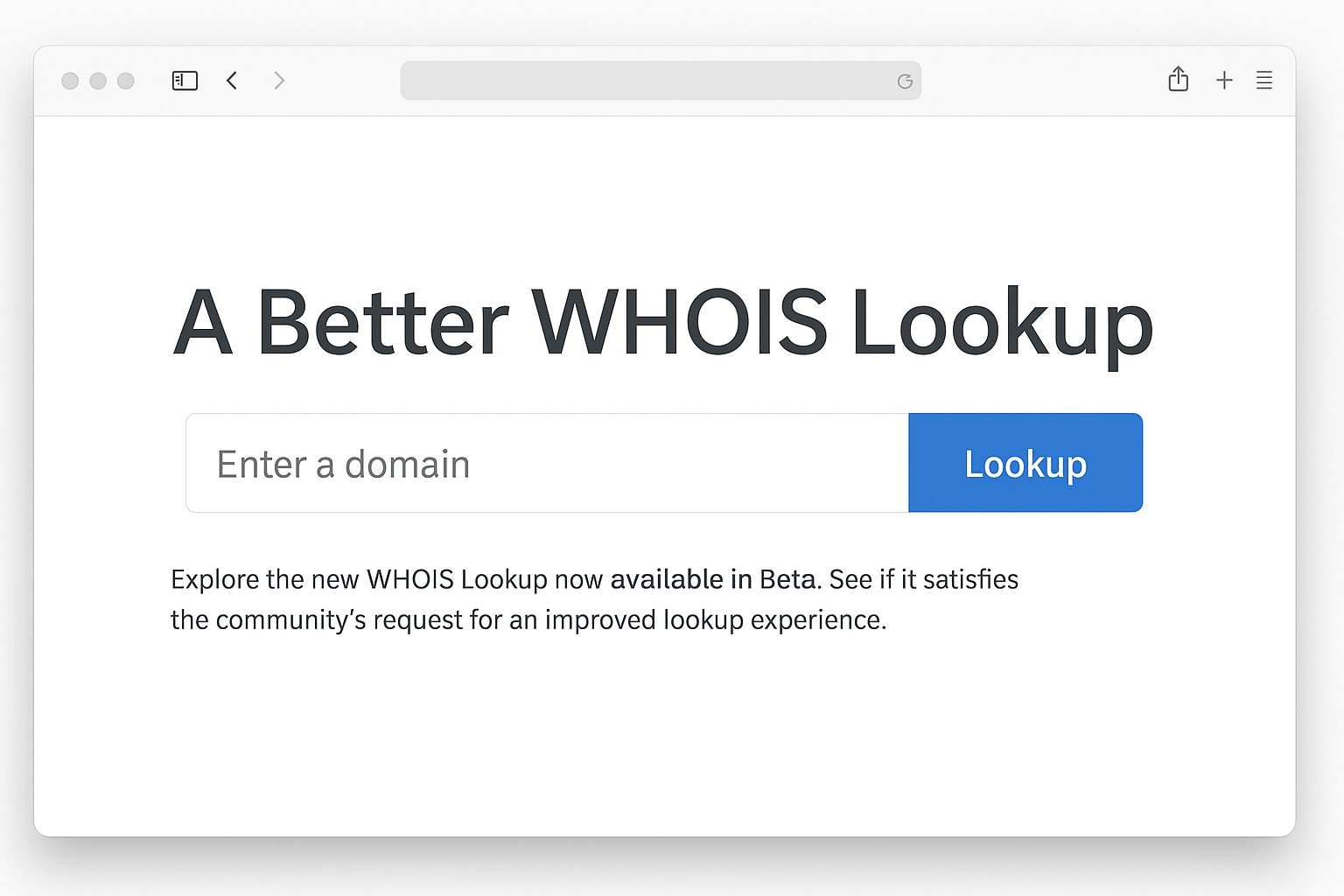
Step 2: Enter the Domain Name
Type the domain you want to check (like “example.com”) and hit search. Don’t include “www” or “https://” — just the basic domain name.
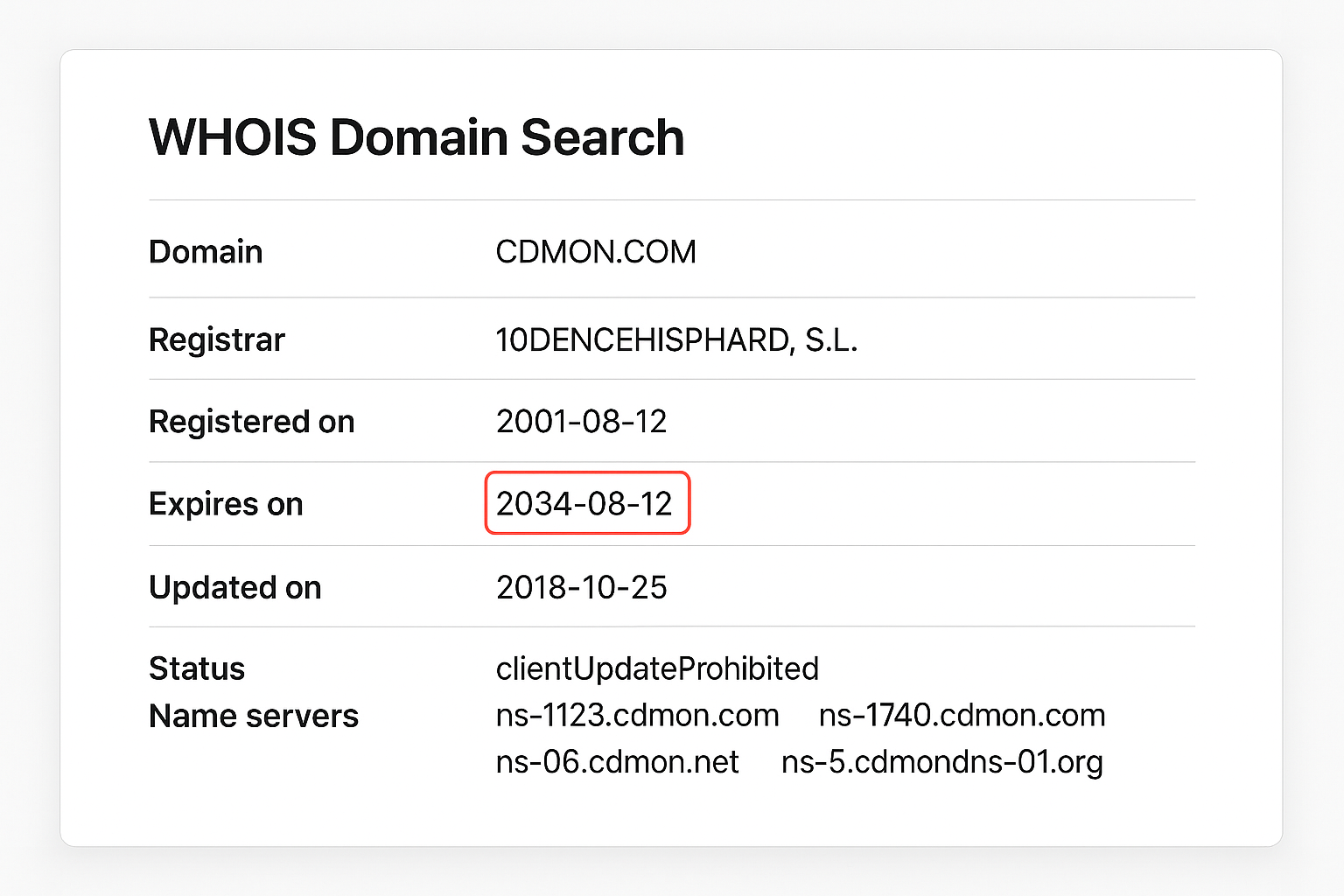
Step 3: Find the Key Dates
Look for these important fields in the results:
- Created Date: When the domain was first registered (this is the “age”)
- Updated Date: Last time registration details changed
- Expires Date: When the current registration expires
- Registrar: Company that sold the domain
Privacy Protection Note: Since 2018, many WHOIS records hide owner details due to GDPR privacy rules. You’ll see “REDACTED FOR PRIVACY” instead of names and addresses, but the registration dates are still visible.
Alternative Tools for Domain Age
If you want a simpler interface or additional details, try these alternatives:
| Tool | Best For | Cost |
|---|---|---|
| WhoisXML API | Historical ownership changes | Free (limited) / Paid |
| SecurityTrails | Visual timeline of changes | Free tier / $49/month |
| DomainTools | Professional domain research | Paid ($99+/month) |
Method 2: Check When the Current Website Launched
Now for the fun part: seeing how the website looked over time and figuring out when the current version went live.
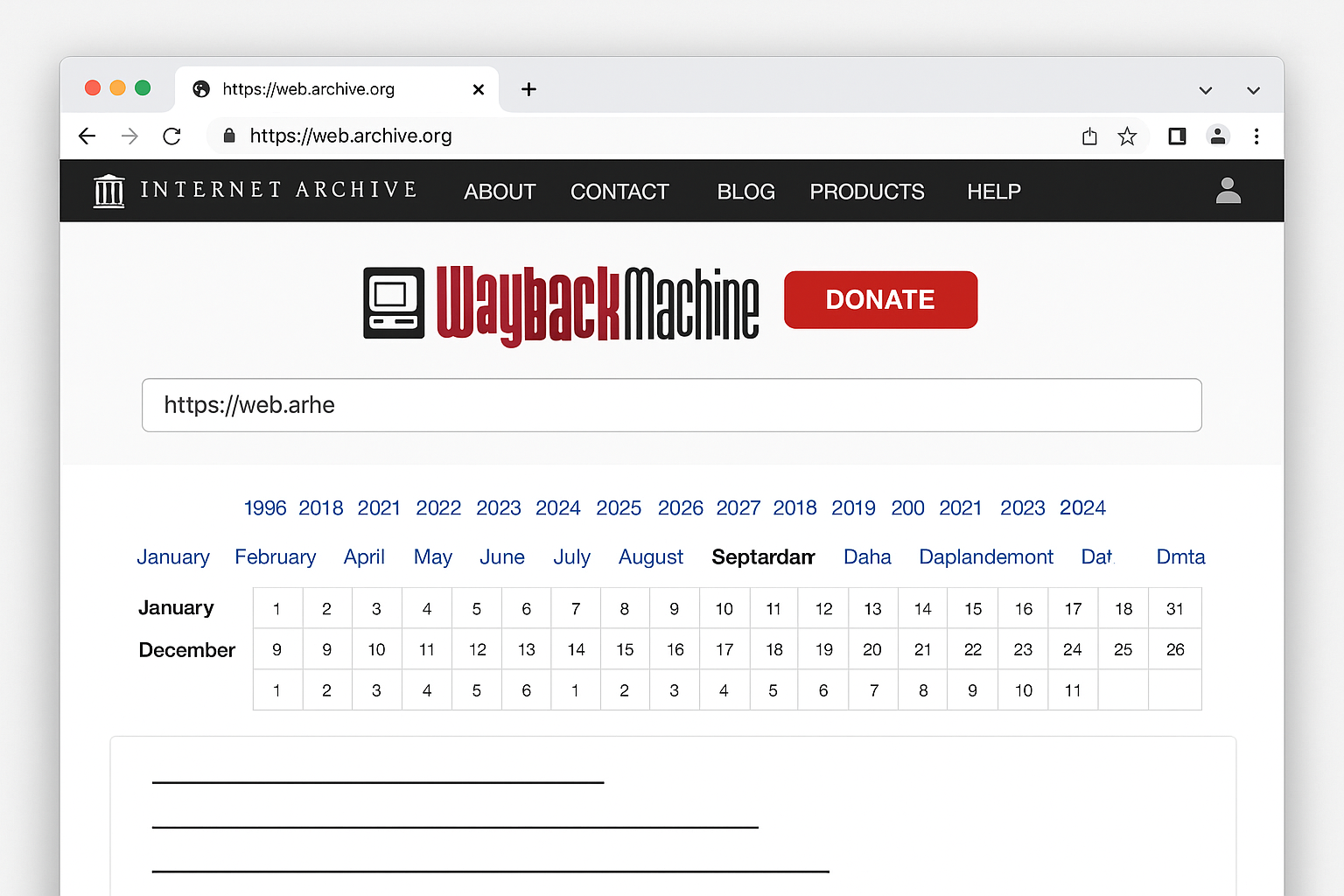
Step 1: Visit the Wayback Machine
Go to archive.org/web (also called the Wayback Machine). This site has been taking snapshots of websites since 1996, so it’s like a time machine for the internet.
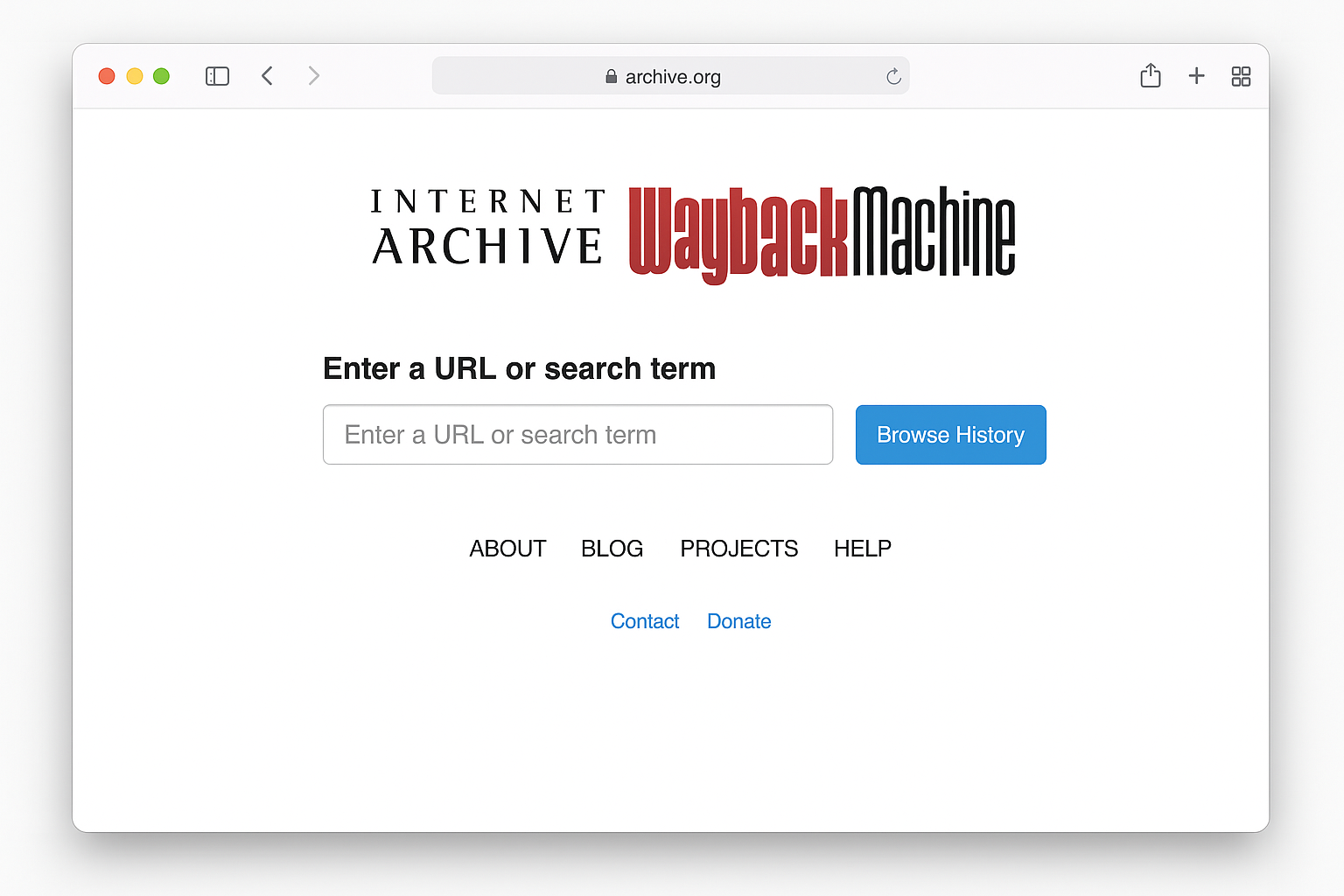
Step 2: Enter the Website URL
Type the full website URL (like “https://example.com”) and click Browse History.
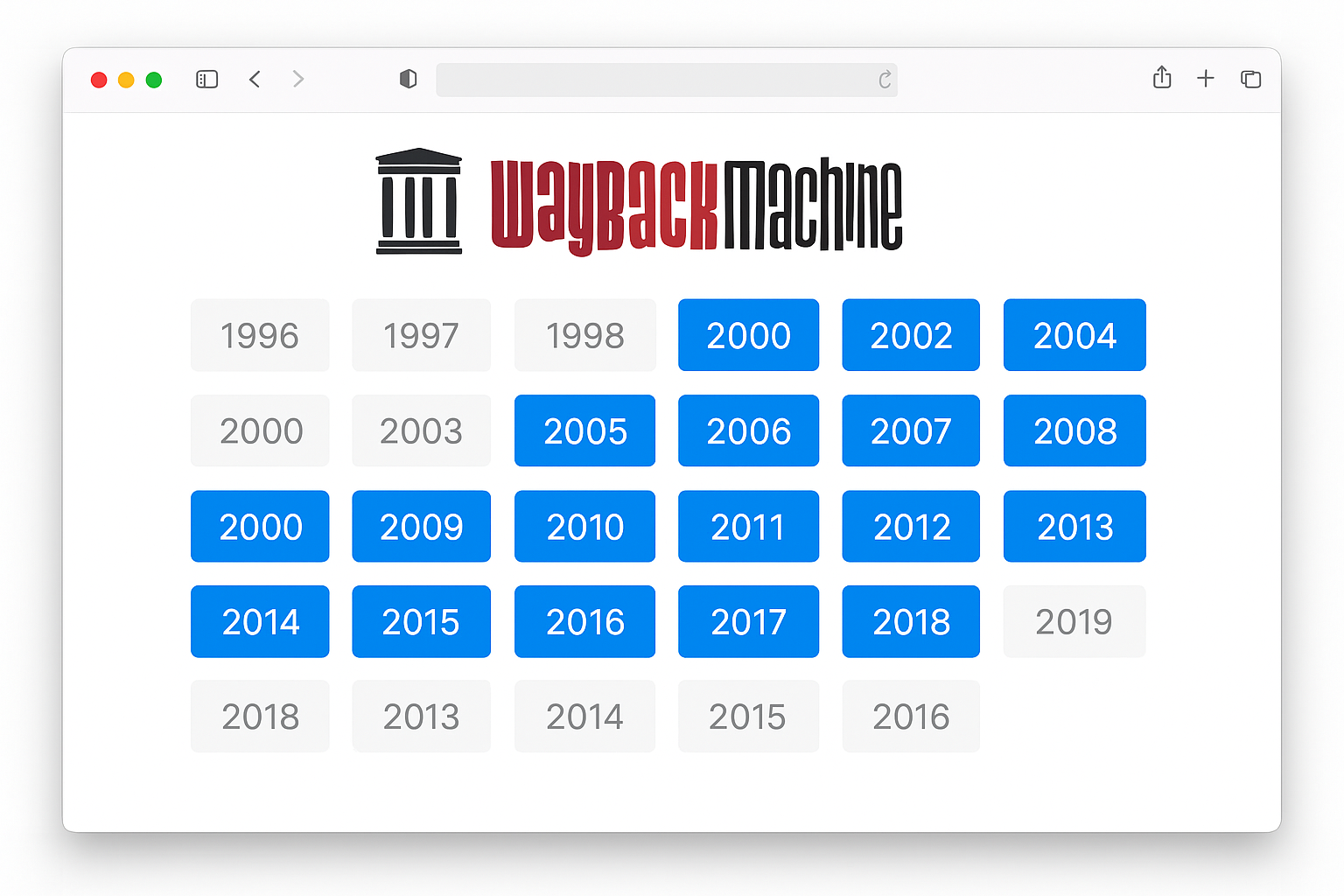
Step 3: Explore the Timeline
You’ll see a calendar going back to 1996. Blue circles indicate days when snapshots were taken. Click on any year to see more detail, then click on a specific date to view what the site looked like.
Step 4: Compare Different Time Periods
Look for major changes in design, content, or branding. Big redesigns usually indicate when new owners took over or when companies pivoted their business.
Tips and Troubleshooting
Common Issues
Problem: WHOIS shows “REDACTED FOR PRIVACY” everywhere
This is normal since 2018 due to privacy laws. The registration dates should still be visible, but owner details are hidden. Try historical WHOIS tools like SecurityTrails for older ownership records.
Problem: No Wayback Machine snapshots available
Some sites block archiving robots, and newer sites might not have been crawled yet. Try searching for the site on Google with date filters, or check social media for launch announcements.
Problem: Domain shows as “pending deletion” or “redemption period”
The domain has expired and might be available for purchase. The original registration date is still accurate, but the site is probably offline.
Pro Tips
- Check multiple tools: Different WHOIS services sometimes show slightly different dates due to database sync delays
- Look for patterns: If a domain was registered in 2010 but the first Wayback snapshot is from 2020, it was probably parked or unused for years
- Cross-reference with news: Search Google for “[company name] founded” or “[website name] launched” to verify dates
- Mobile apps available: “Domain Scanner” (iOS/Android) combines WHOIS and Wayback Machine features in one app
Why Website Age Matters
Knowing a website’s age can help with:
- Business research: Older, established sites often seem more trustworthy
- SEO analysis: Search engines tend to favor older domains
- Competitive intelligence: See when competitors launched or pivoted
- Domain purchasing: Aged domains are valuable for SEO projects
- Scam detection: Brand-new sites mimicking established companies are red flags
Wrapping Up
Checking a website’s age is pretty straightforward once you know the difference between domain registration and actual site launch dates. WHOIS lookups give you the domain’s birthday, while the Wayback Machine shows you how the site evolved over time. Both tools are free and work great for casual research or deeper competitive analysis.
The internet moves fast, but these archives help us remember where we’ve been. Whether you’re researching a business partner or just satisfying your curiosity, now you’ve got the tools to dig into any website’s history.