
Tired of websites that assault you with auto-playing video ads, pop-ups that cover the entire page, or audio ads that blast without warning? You’re not alone. These obtrusive ads have gotten worse over the years, and they’re designed to force your attention whether you like it or not.
The good news? You can fight back with ad blockers that specifically target the annoying stuff while leaving reasonable ads alone. In this guide, you’ll learn how to install the best ad-blocking extensions for Chrome, Firefox, and Edge — and why some work better than others in 2026.
What Are Ad Blockers?
Ad blockers are browser extensions that filter out unwanted content using lists of known ad servers and tracking scripts. Think of them as bouncers for your browser as they check every piece of content trying to load and block the troublemakers.
Key Features:
- Filter Lists: Constantly updated databases of ad servers and tracking domains
- Element Blocking: Hide specific page elements like pop-ups or video overlays
- Tracker Protection: Block scripts that follow you around the web
- Customizable Rules: Whitelist sites you want to support or block specific annoyances
The Browser Wars: What Changed in 2026
Here’s something important you need to know: not all browsers treat ad blockers equally anymore. Google pushed through something called “Manifest V3” in 2023-2025, which basically neutered the most powerful ad blockers on Chrome and Edge. Firefox and Brave said “nope” and kept the good stuff working.

What this means for you: if you’re serious about blocking ads, Firefox or Brave will give you the best experience. Chrome users are stuck with weaker versions that miss more ads (especially on YouTube).
How to Install Ad Blockers by Browser
On Chrome or Edge (Limited Options)
Due to Google’s restrictions, your best bet on Chrome is uBlock Origin Lite — a watered-down version of the real thing, but still better than nothing.
- Open Chrome and click the puzzle piece icon (Extensions) in the top-right corner
- Click Visit Chrome Web Store
- Search for “uBlock Origin Lite” and click Add to Chrome
- Click Add extension when prompted
- Pin the extension to your toolbar by clicking the puzzle icon again and clicking the pin next to uBlock Origin Lite
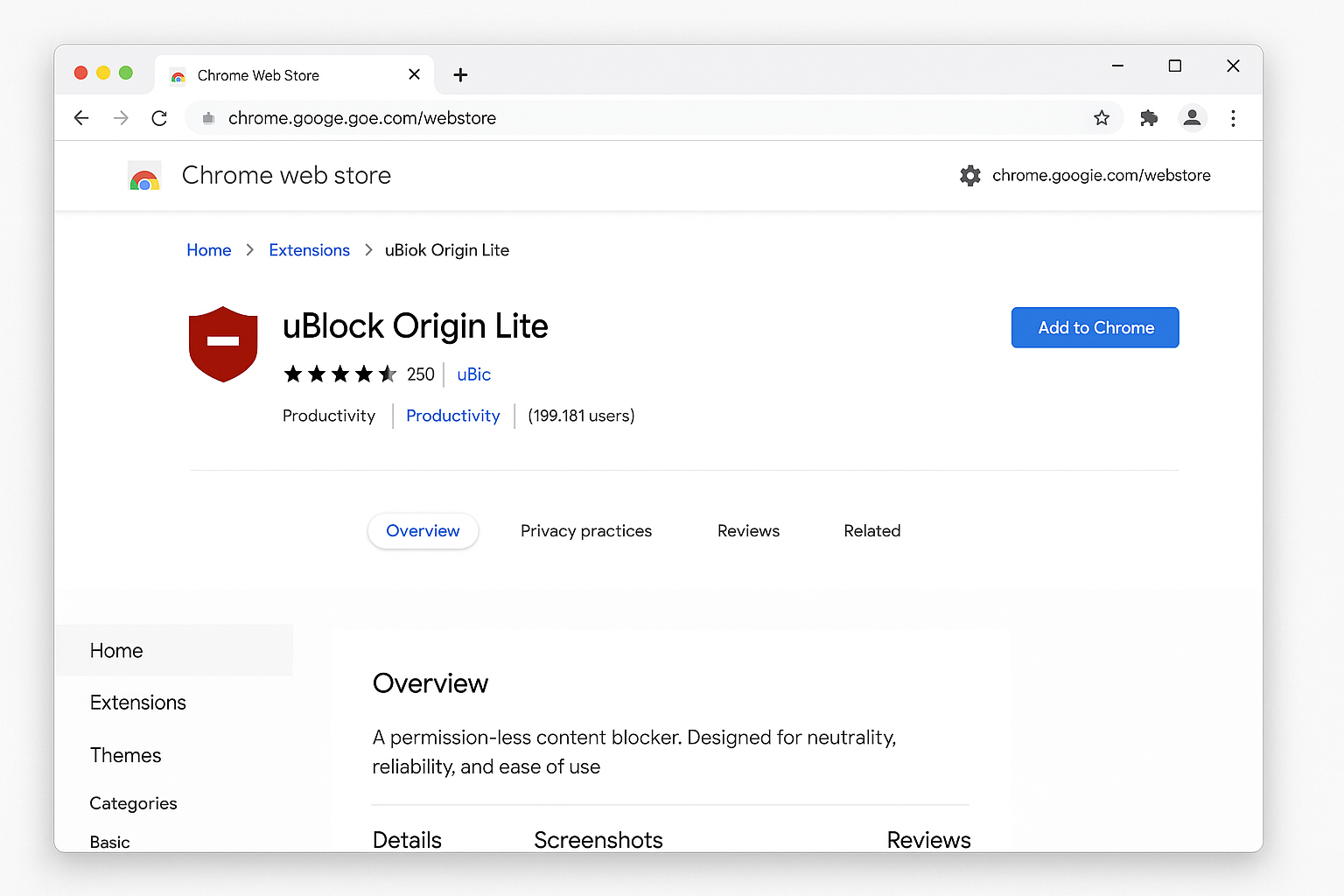
> macOS note: The steps above are the same on macOS. The Extensions puzzle icon appears in the same top-right location of the toolbar; the prompts and Web Store pages are identical.
Alternative for Chrome: If you want better YouTube ad blocking, try “Total Adblock” instead, it’s paid but handles video ads better than the free options.
On Firefox (The Good Stuff)
Firefox users get the full-powered uBlock Origin — no compromises, no restrictions.
- Click the menu button (three lines) in the top-right corner
- Select Add-ons and themes
- Click Extensions in the left sidebar
- Search for “uBlock Origin” (not Lite) and click Add to Firefox
- Click Add when prompted
- The extension icon will appear in your toolbar
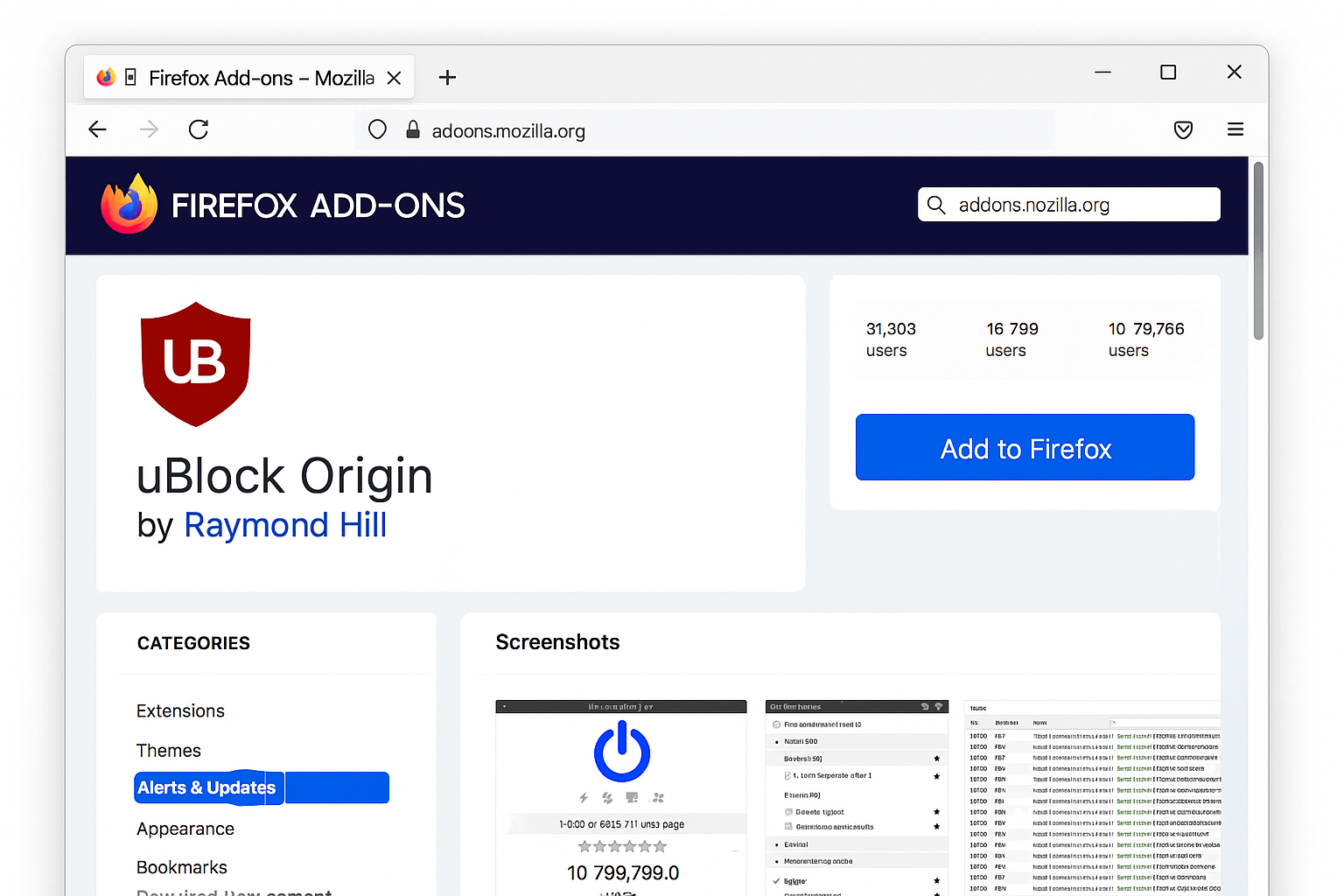
> macOS note: On macOS, the Firefox menu button (three lines) is in the same top-right position. All steps are otherwise identical to the Windows instructions above.
On Brave (Built-in Protection)
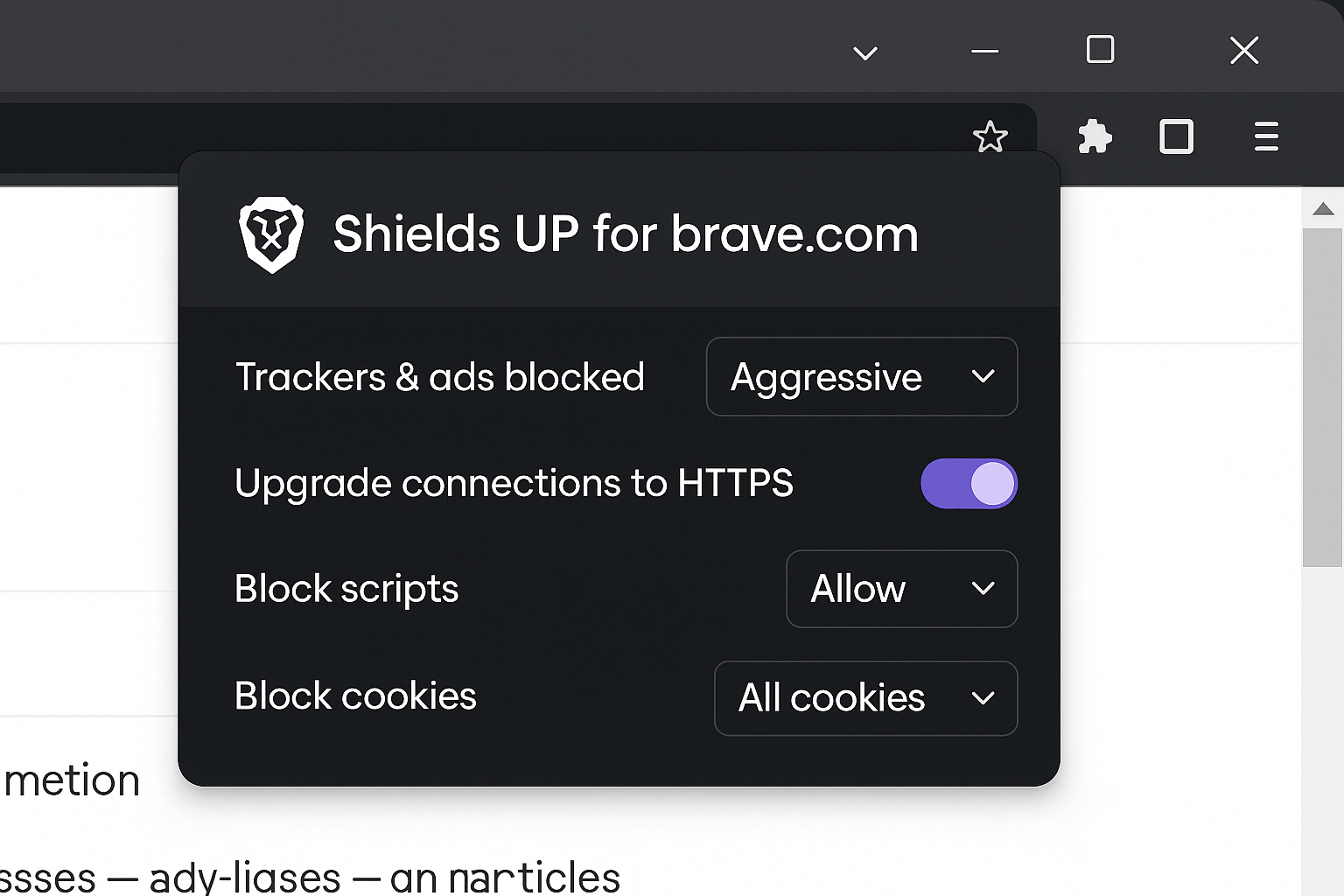
Brave comes with ad blocking built right in — no extension needed! Just make sure it’s enabled:
- Look for the lion shield icon in your address bar
- Click it and make sure Block ads and trackers is set to “Aggressive”
- That’s it — you’re protected
Testing Your Ad Blocker
Want to see if it’s working? Visit a site known for annoying ads (like news sites or streaming platforms). You should notice:
- Faster loading: Pages load quicker without ad scripts
- Cleaner layout: No banner ads or pop-ups cluttering the content
- Silent browsing: No auto-playing audio or video ads
Configuration and Fine-Tuning
Whitelist Sites You Want to Support
If you find a site with reasonable ads that you want to support (like this one!), you can whitelist it:
- Click the ad blocker icon while on the site
- Look for a “Disable on this site” or similar option
- Click it to allow ads on just that domain
Update Your Filter Lists
Ad blockers work by downloading lists of known ad servers. These lists need regular updates:
- uBlock Origin: Click the extension icon > Open dashboard > Filter lists > Update now
- Most extensions: Auto-update, but you can force an update in the extension settings
Tips and Troubleshooting
Common Issues
Problem: YouTube ads still getting through on Chrome
This is the Manifest V3 limitation in action. Your best options, in order of effectiveness:
- Switch to Firefox with full uBlock Origin (free, most effective)
- Use Brave browser with its built-in aggressive blocking (free)
- Stay on Chrome but upgrade to Total Adblock (paid), which handles YouTube ads better than free Manifest V3 extensions
Problem: Websites breaking or not loading properly
Sometimes ad blockers are too aggressive and break legitimate site features:
- Try disabling the ad blocker on that specific site
- In uBlock Origin, use the “zapper” tool to hide specific elements instead of blocking the whole site
- Check if the site has an ad-blocker detection message and follow their instructions
Problem: Mobile ads aren’t blocked
Desktop extensions don’t work on mobile browsers. For phones:
- Use the Brave mobile app (built-in blocking)
- Try Firefox mobile with uBlock Origin
- Consider a VPN with ad-blocking features like Surfshark CleanWeb
Pro Tips
- Layer your protection: Use an ad blocker plus a pop-up blocker like “Poper Blocker” for maximum coverage
- Network-wide blocking: Set up Pi-hole on your home network to block ads on all devices (including smart TVs and phones)
- Don’t go overboard: Blocking all ads hurts content creators — whitelist sites you genuinely enjoy
The Bottom Line
Blocking obnoxious ads doesn’t have to be complicated, but your browser choice matters more than ever. Firefox and Brave give you the strongest protection, while Chrome users are stuck with weaker tools thanks to Google’s restrictions. Whatever you choose, you’ll browse faster and with way less frustration.
Remember: there’s a difference between blocking intrusive ads and nuking every ad on the internet. Sites need revenue to keep creating content, so consider whitelisting the ones that play fair with reasonable, non-annoying advertising.