
You’re watching a video. You haven’t touched your screen. TikTok moves on anyway.
This is a widely reported problem in 2026. iOS 26, Android 16, and TikTok’s UI refresh created new friction points that didn’t exist before. The fix is almost always simple, and none of the steps below require technical expertise. Most take under five minutes.
Quick Self-Triage: What Kind of Problem Are You Having?
Not sure where to start? Answer these three questions and they’ll point you to the most likely fix.
1. Is the scrolling constant or intermittent? If TikTok skips the moment you open it and never stops, the culprit is almost certainly an in-app setting, so start with Step 1 or Step 7. If it skips randomly, you’re more likely dealing with a cache issue (Step 3), a Bluetooth device (Step 4), or a hardware problem (Step 6).
2. Does it happen on mobile data but not on Wi-Fi? If the skipping disappears on a strong Wi-Fi connection, Data Saver mode or slow-connection buffering is probably the cause. Jump to Step 7.
3. Does it happen in other apps too? Open Instagram Reels or YouTube Shorts and see if videos skip without input. If they do, TikTok isn’t the problem and your phone is. Head to Step 2 (accessibility settings) or Step 6 (hardware inspection).
If you’re not sure, just start at Step 1. Each step rules out a category of causes before moving to the next.
Why Does TikTok Scroll on Its Own?
Before diving into fixes, here’s a quick overview of what can cause this.
- TikTok’s AutoScroll/Auto-Advance feature — a built-in toggle that automatically advances to the next video. Many users turn it on accidentally.
- TikTok’s Screen Time or Sleep Reminder — a timer-based feature that can interrupt the current video. Often mistaken for random skipping.
- iOS 18 and Android 15 gesture conflicts — both OS updates expanded their edge swipe zones, which can overlap with TikTok’s swipe-to-scroll behavior.
- Accessibility features acting as ghost inputs — tools like Switch Control, AssistiveTouch, or Voice Control on iOS can register as swipe gestures inside apps.
- Bluetooth devices sending skip signals — wireless headphones, smartwatches, and game controllers can transmit “next track” commands that TikTok acts on.
- Battery Saver or Low Power Mode — power-saving modes on both iOS and Android can alter how touch inputs are processed.
- A corrupted app cache — degraded temporary files can cause TikTok to misread or duplicate touch inputs.
- An outdated TikTok version — older gesture logic that doesn’t align with the current OS can behave unpredictably.
- Phantom touch from a screen protector — a lifted or poorly fitted protector is a surprisingly common trigger.
Step 1: Disable Auto-Advance and Check Screen Time Reminders
⏱ Estimated time: under 2 minutes
This is the most common cause — and the fastest fix. TikTok has a built-in setting that automatically advances to the next video without any swipe. It can switch on accidentally during onboarding, after an update prompt, or from a brushed gesture shortcut.
Turn Off AutoScroll / Auto-Advance
TikTok offers two ways to access the Auto-Scroll feature, depending on your app version and region:
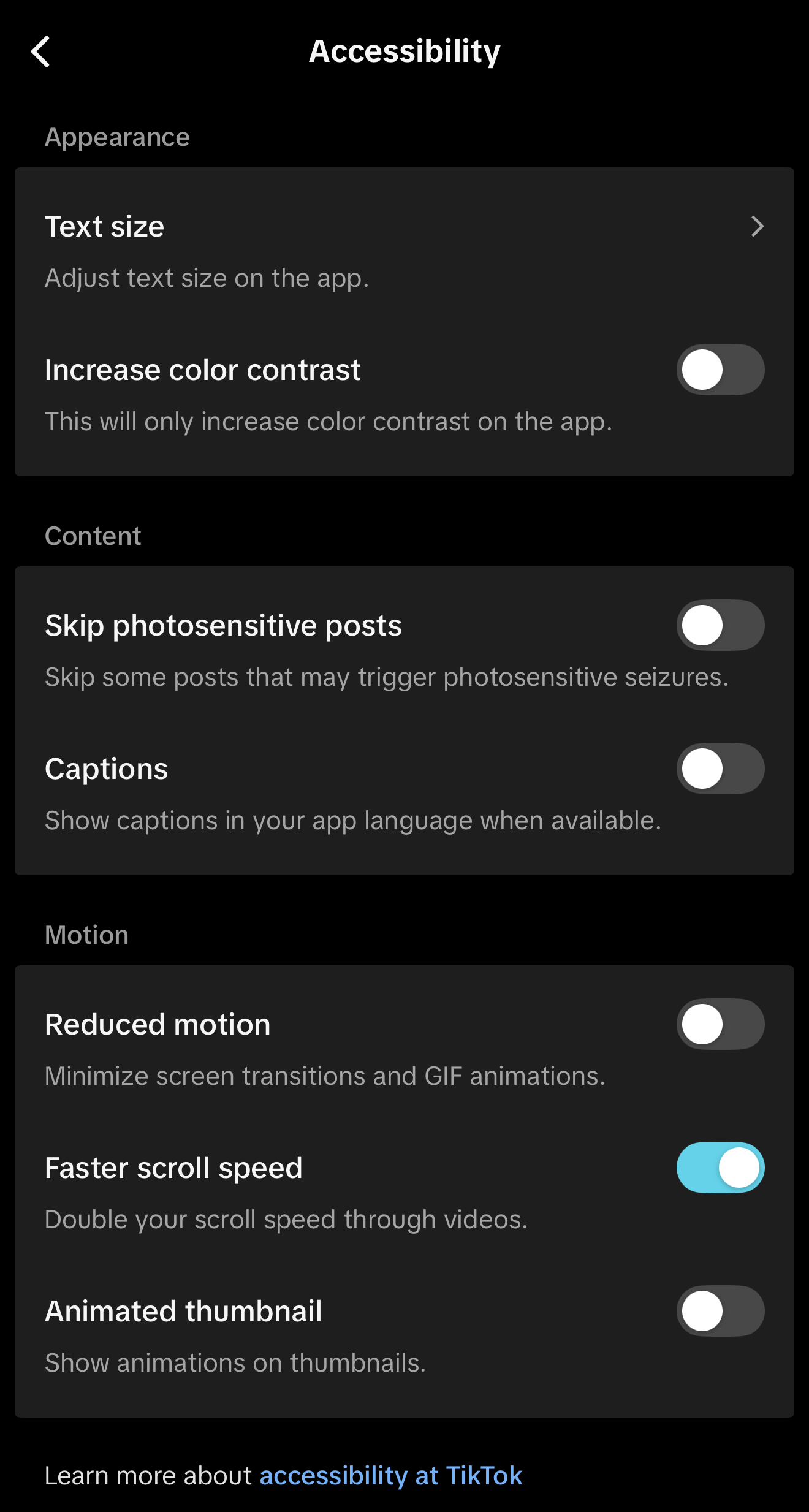
Method 1: Settings menu (most versions)
- Open TikTok and tap Profile (the person icon, bottom-right).
- Tap the three-line menu in the top-right corner.
- Tap Settings and Privacy.
- Tap Accessibility.
- Look for a toggle labeled AutoScroll, Auto-Scroll, Auto-Advance, Faster scroll speed or similar — switch it off if it’s on.

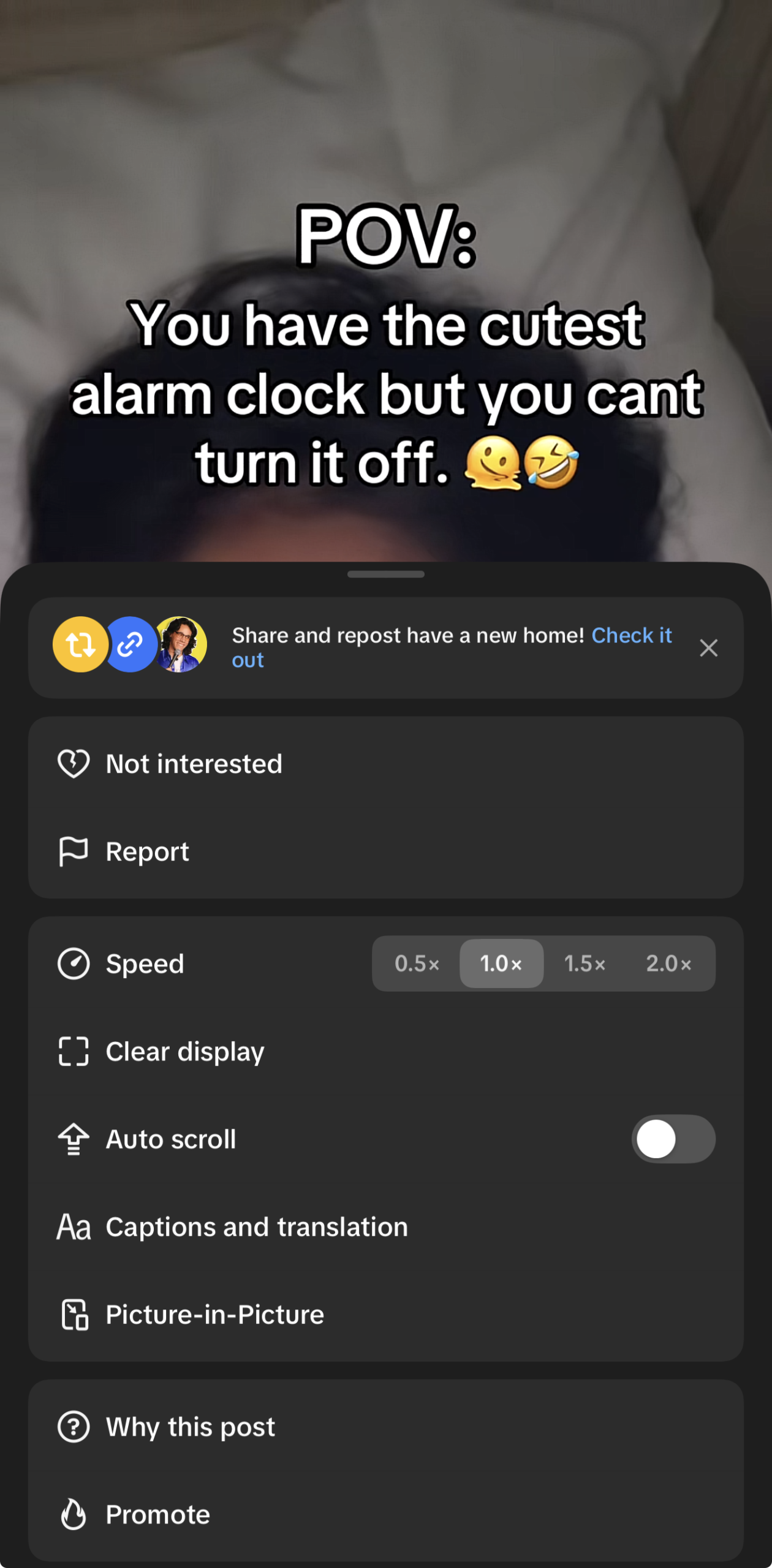
Method 2: Long-press menu (if the Accessibility path isn’t available)
If you don’t see an Auto-Scroll toggle under Accessibility, your app version may only expose it through the long-press shortcut:
- Open TikTok and go to your For You Page.
- Long-press the center of any video until a pop-up menu appears.
- Look for an Auto Scroll option (usually shown with an upward arrow icon) and tap it to toggle it off.
Note: The exact label and location of this toggle vary by app version and region. If you can’t find it in either place, make sure your TikTok app is fully updated — the feature’s availability depends on your current version. If it still doesn’t appear after updating, it may not be rolled out in your region yet, and you can skip to Step 2.
Also Check: Screen Time and Sleep Reminders
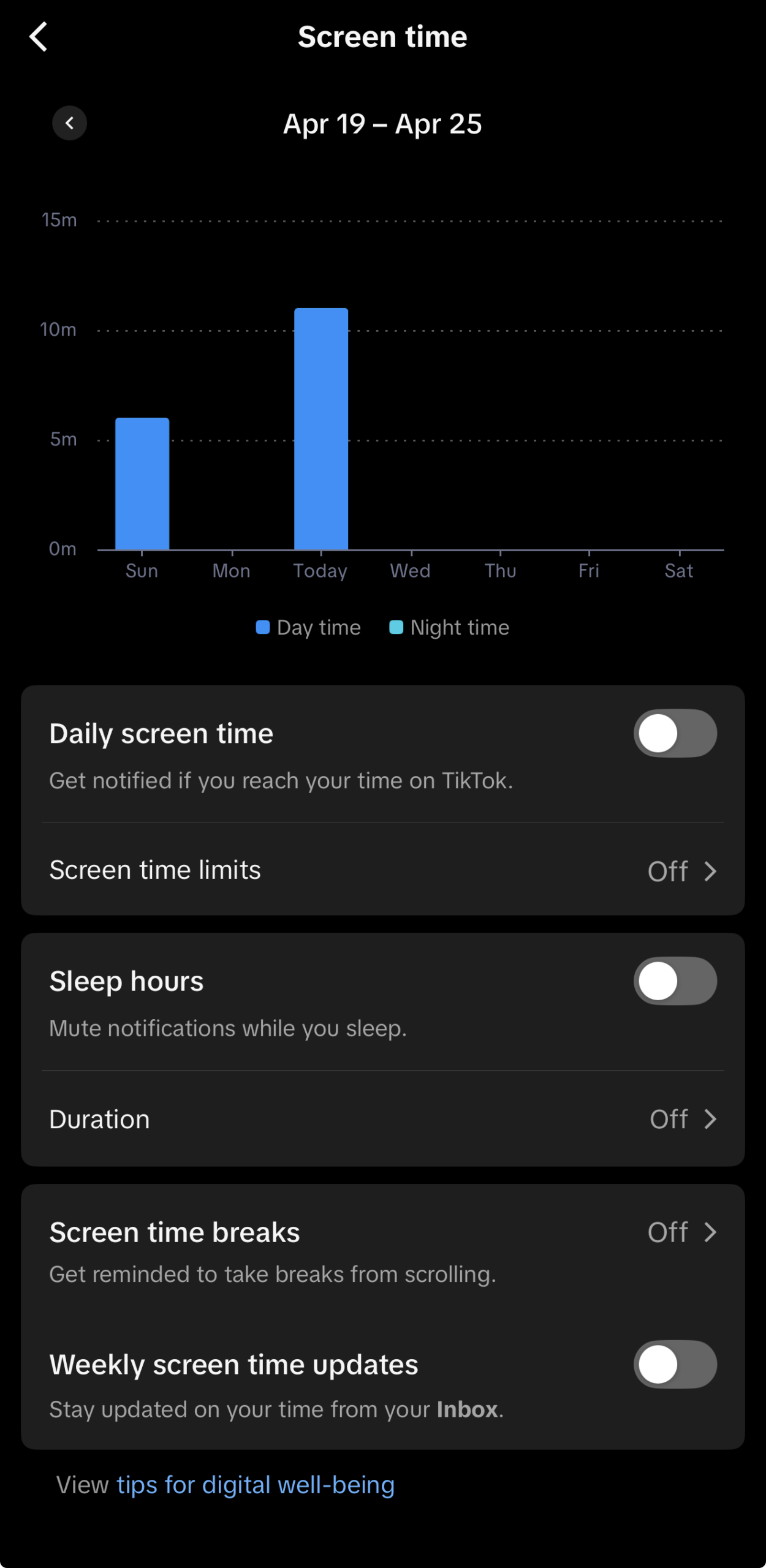
This is a separate TikTok feature – not the same as AutoScroll – but it produces nearly identical behavior. TikTok’s wellbeing tools include timers that display an interruption screen when a countdown hits zero. If one of these is firing, it looks exactly like random skipping.
- From Settings and Privacy, tap Digital Wellbeing, Screen Time, or Time and Well-being — the label varies by app version and region.
- Check for active Daily Screen Time limits, Break Reminders, or Sleep Reminders.
- Disable or adjust any that are triggering unexpectedly.
If disabling either of these fixes the problem, you’re done, no need to continue.
Step 2: Audit Accessibility Settings and Power Modes
⏱ Estimated time: 3–5 minutes
Your phone has built-in tools designed to help people control their device in different ways. Some of those tools can accidentally interpret screen activity as a swipe command inside TikTok: a “ghost-swipe” where the phone thinks something is telling it to scroll, even though your finger isn’t moving.
Important: These are temporary diagnostic tests. Disable settings one at a time, test TikTok after each, and re-enable anything you actually use once you’ve found the culprit.
On iPhone (iOS 26)
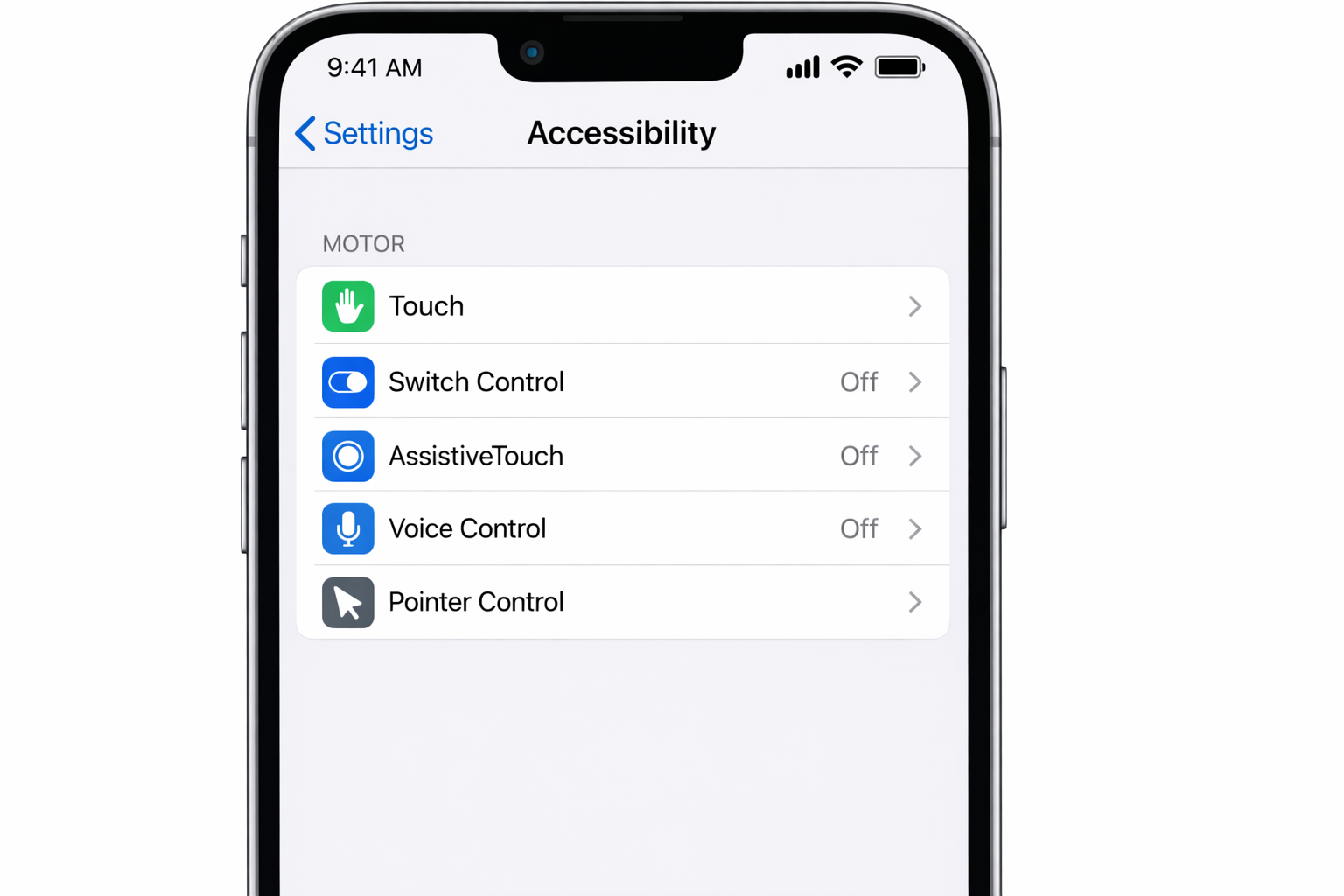
Go to Settings > Accessibility and check each of the following:
- Switch Control — if enabled and scanning is active, it can advance through on-screen elements including TikTok videos. Toggle it off to test.
- AssistiveTouch — the floating gesture button can overlap with TikTok’s swipe zones. Disable temporarily.
- Voice Control — if active and picking up ambient noise, it may be triggering scroll commands. Turn it off to test.
- Pointer Control — iOS 26 updated pointer sensitivity settings that can interact unexpectedly with gesture-heavy apps. Check Settings > Accessibility > Pointer Control.
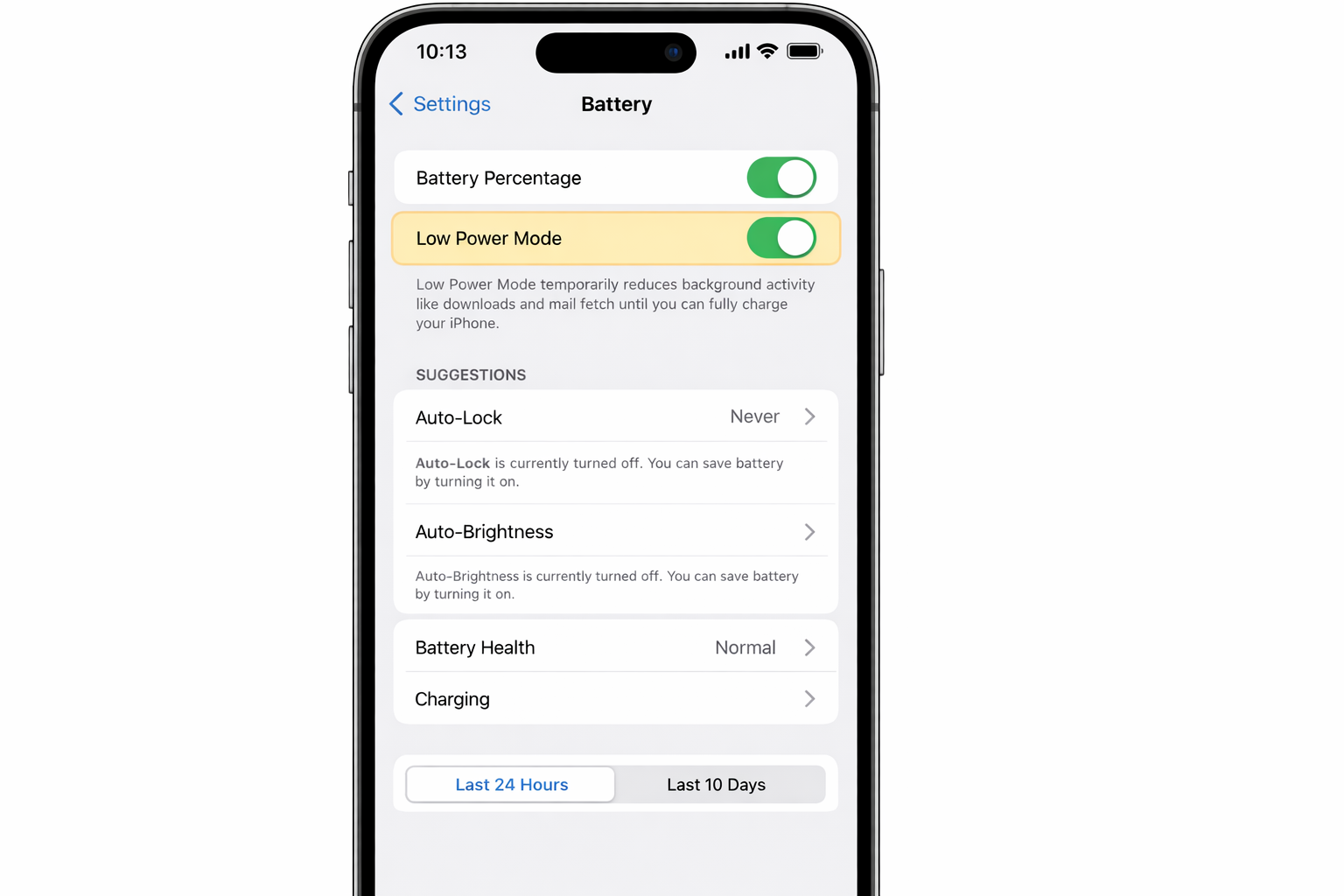
Also check Low Power Mode: go to Settings > Battery > Low Power Mode and toggle it off. Low Power Mode can throttle app responsiveness and alter how touch inputs are processed — worth ruling out.
On Android (Android 16)
- Interaction Controls — go to Settings > Accessibility > Interaction and Dexterity and check for active touch delay adjustments or tap assistants.
- Gesture Navigation overlap — Android 15 expanded edge swipe zones. Go to Settings > System > Gestures to review whether any system gesture zone overlaps with TikTok’s scroll area.
- Third-party accessibility apps — screen readers or gesture overlay apps from the Play Store can intercept touch inputs. Check which are active.
- Battery Saver — go to Settings > Battery > Battery Saver and disable it, then retest TikTok.
Step 3: Clear TikTok’s Cache
⏱ Estimated time: 1–2 minutes
TikTok’s cache is a scratch pad with temporary files that help the app load faster. When those files become corrupted, TikTok can start misreading touch inputs or replaying old behavior, including scrolls you never triggered. Clearing it takes about 30 seconds and fixes this more often than you’d expect.
On iPhone (in-app method — the only method on iOS)
- Open TikTok and tap Profile.
- Tap the three-line menu > Settings and Privacy.
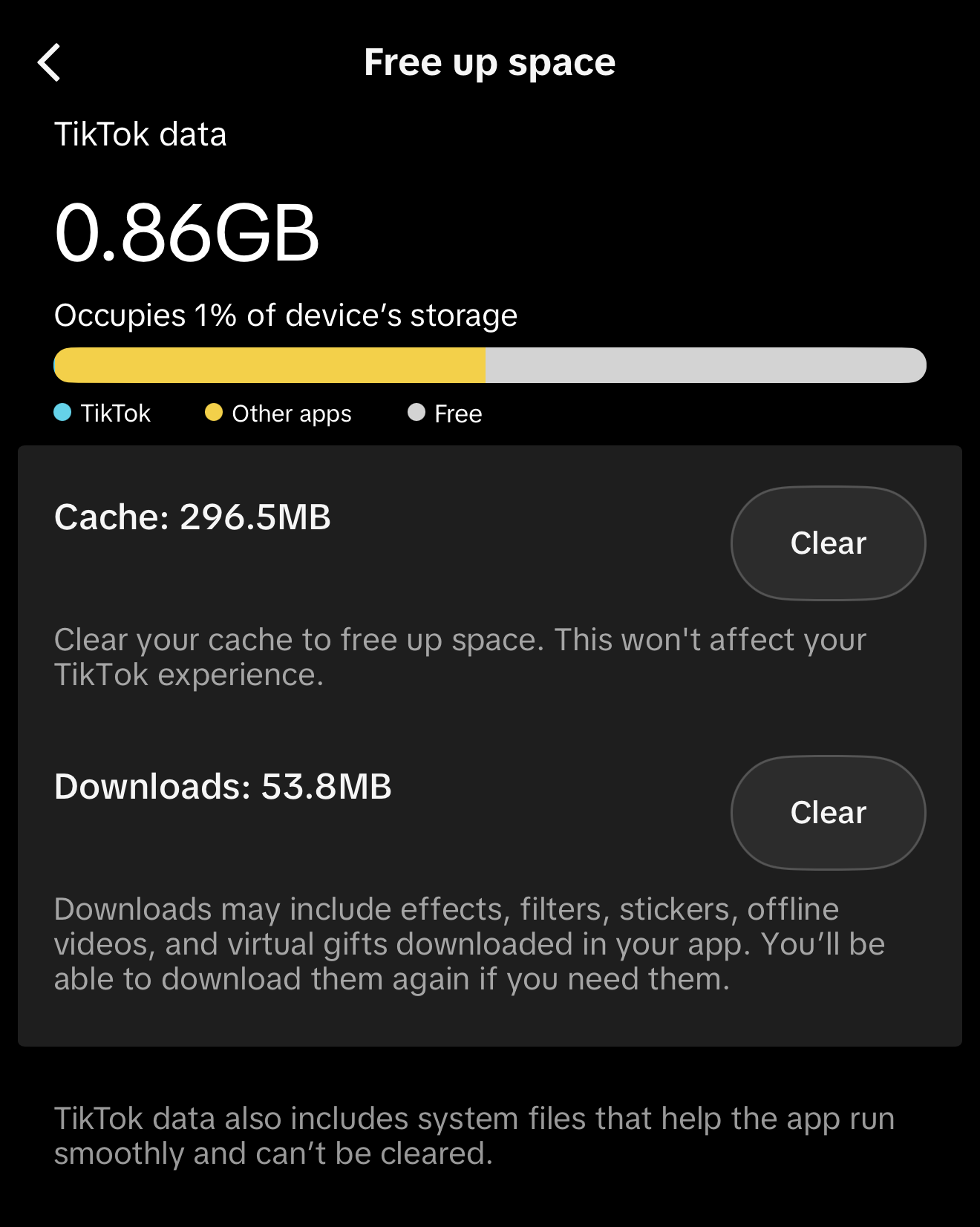
- Scroll down and tap Free up Space – Clear next to cache or Downloads.
- Confirm if prompted.
iOS doesn’t allow system-level cache clearing for individual apps, so TikTok’s built-in option is the correct method here.
On Android (system-level method)
- Go to your phone’s Settings.
- Tap Apps (or Application Manager).
- Find and tap TikTok.
- Tap Storage.
- Tap Clear Cache.
⚠️ Do NOT tap “Clear Data.” Clear Cache removes temporary files only. Clear Data deletes your login session, saved preferences, and downloaded content, plus you’ll be signed out and lose your local settings. Only tap Clear Data if specifically instructed to do so.
After clearing the cache, TikTok may take a few extra seconds to reload the first time you open it — that’s normal. You won’t be logged out.
A good habit: clear TikTok’s cache roughly once a month, especially after major app updates. For a deeper look, see our guide on how to clear TikTok cache.
Step 4: Check for Conflicting Bluetooth Devices and Overlay Apps
⏱ Estimated time: 3–5 minutes
Two categories of external interference can cause TikTok to skip videos with no screen input: Bluetooth devices sending media commands, and apps with special permissions that intercept your touch.
Bluetooth Devices and External Controllers
Wireless headphones, earbuds, smartwatches, and game controllers often have media control buttons. These transmit “skip” or “next track” commands, and TikTok responds by advancing to the next video even if you didn’t mean to press anything.
This one catches a lot of people off guard. A button on a jacket collar, the remote clipped to your earbuds, a watch you barely glanced at, any of these can be the culprit.
Quick test: Turn Bluetooth off completely is to go to Settings > Bluetooth and toggle it off, or swipe into Control Center and tap the Bluetooth icon. Then use TikTok for a few minutes. If the random skipping stops, a connected device was the cause.
If Bluetooth was the culprit, reconnect your devices one at a time to find which one is sending the rogue signal. Check whether the device has a physical skip button that could be getting pressed accidentally.
Apps with Overlay or Gesture Permissions
Some apps can display content on top of other apps, this is called an “overlay” permission. When one of these apps is active while you use TikTok, it can accidentally intercept or duplicate your touch inputs.
Common offenders in 2026:
- Screen dimmer and blue light filter apps (Night Owl, Twilight) — these create a permanent overlay layer that can interfere with gesture detection
- Floating widget apps and bubble launchers — floating buttons or chat heads may overlap with TikTok’s swipe zones
- Automation apps — Tasker (Android) or active Shortcuts automations (iOS) can fire while TikTok is open and simulate a gesture
- One-handed mode — Samsung’s one-handed mode and similar features shift swipe zones in ways TikTok doesn’t always expect
How to find and disable them:
On Android: go to Settings > Apps > Special App Access > Display Over Other Apps — toggle off any apps you don’t need.
On iOS: go to Settings > General > Background App Refresh to see what’s running in the background. Also open the Shortcuts app and review any active automations that could fire during TikTok use.
Step 5: Update or Reinstall TikTok
⏱ Estimated time: 2–10 minutes depending on connection speed
TikTok releases frequent updates to stay compatible with the latest iOS and Android versions. If your version is outdated, its gesture logic may not align with how iOS 18 or Android 15 handles touch input and that mismatch produces erratic scrolling. This became especially common through late 2025 and into 2026 for users who had auto-updates turned off.
Check for Updates
On iPhone: Open the App Store > tap your profile icon (top-right) > scroll down to see pending updates. Or search “TikTok” and check whether the button reads Update or Open.
On Android: Open the Google Play Store > tap your profile icon > Manage Apps & Device > look for TikTok under available updates.
When to Reinstall Instead
Consider a full reinstall if:
- The update didn’t fix the issue
- TikTok hasn’t been freshly installed in more than six months
- The app behaves strangely after updates rather than before them (which can indicate a corrupted installation)
How to Reinstall
⚠️ Before you uninstall: Write down your TikTok login credentials: your email address or phone number and password, or the social account you use to log in. You’ll need them to sign back in.
On iPhone: Press and hold the TikTok icon > Remove App > Delete App > reinstall from the App Store.
On Android: Press and hold the TikTok icon > Uninstall (or go to Settings > Apps > TikTok > Uninstall) > reinstall from Google Play Store.
Your TikTok account, videos, followers, and content are stored on TikTok’s servers — not on your phone. Uninstalling removes only the app itself.
Step 6: Inspect Your Screen for Phantom Touch
⏱ Estimated time: 5–10 minutes
Everything up to this point has assumed a software problem. But hardware issues produce identical symptoms. “Phantom touch” or “ghost touch” means your screen registers a tap or swipe you didn’t make. It’s usually caused by a screen protector issue, physical damage, or sensitivity calibration problems.
Signs the Problem May Be Hardware
- The random scrolling happens in other apps too, or even on the home screen
- The skip always comes from the same area of the screen
- The phone has been dropped, exposed to moisture, or has a cracked screen or protector
- The issue started after you applied a new screen protector or case
Quick Tests to Try at Home
Remove your screen protector and use TikTok for a few minutes. A lifted edge, air bubble, or low-quality protector is one of the most common phantom-scroll triggers. It’s mundane, but it works.
Hold the phone with one hand only. Two-handed holds can cause unintentional palm contact near the screen edges, which some phones register as a swipe.
Test another vertical-scroll app. Open Instagram Reels or YouTube Shorts and see if videos skip without input. If they do, your screen, not TikTok, is the source.
When to Get Professional Help
Stop troubleshooting at home and visit an authorized repair center if:
- Phantom touches persist after removing the screen protector
- The issue is consistently localized to one specific area of the screen
- The device has visible screen damage or has been exposed to liquid
Step 7: Adjust TikTok’s In-App Playback Preferences
⏱ Estimated time: 2–3 minutes
Even without AutoScroll enabled, a few other TikTok settings can make the app behave as if it’s scrolling on its own. These aren’t “auto-advance” features, but they affect how and when TikTok transitions between videos.
Navigate to Profile > three-line menu > Settings and Privacy, then check:
Data Saver Mode
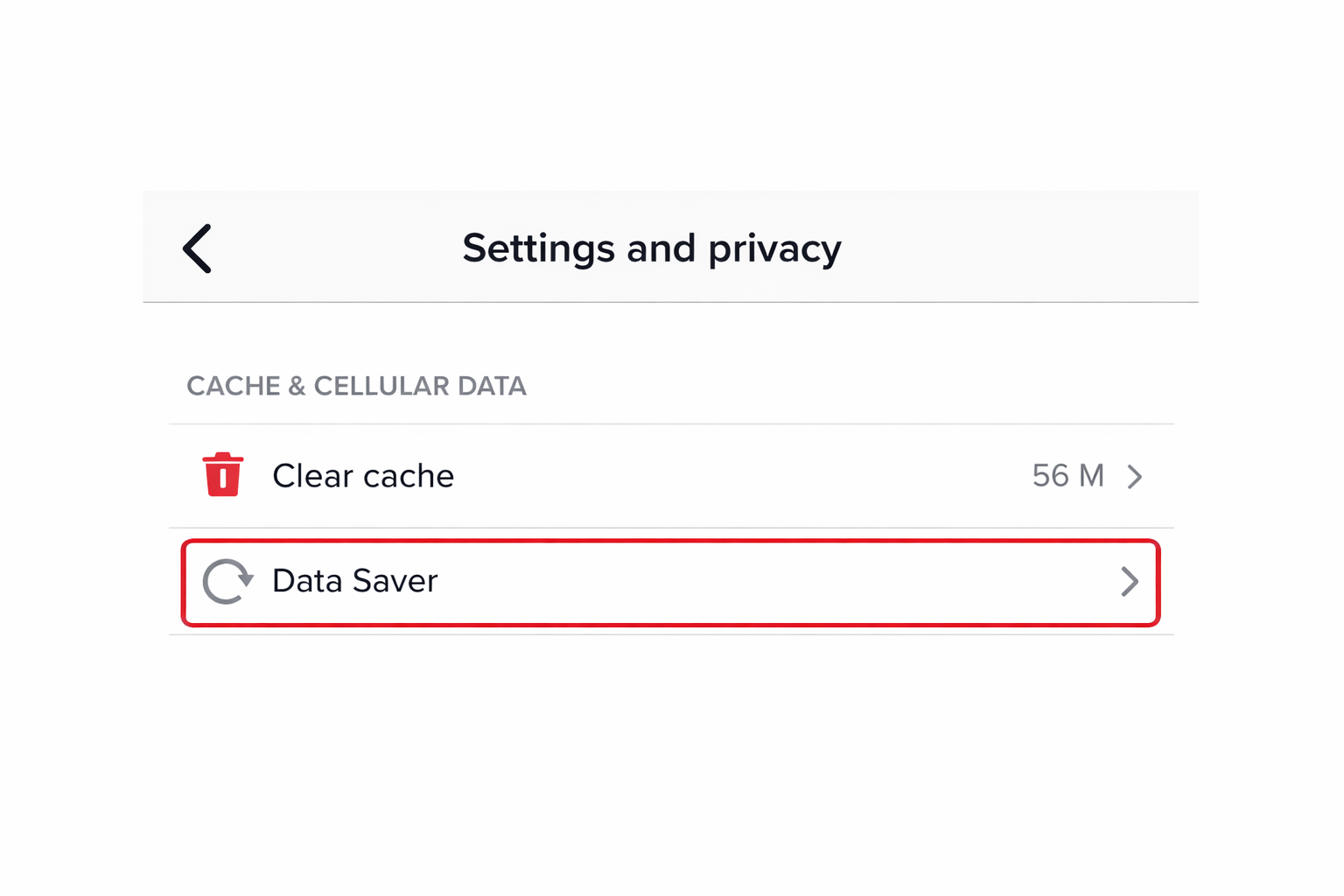
Go to Settings and Privacy > Data Usage > Data Saver.
When Data Saver is on, TikTok preloads less of each video before playing it. On a slow connection, the app may skip to the next video before the current one finishes buffering, which looks exactly like auto-scrolling. Turn Data Saver off and test on a strong Wi-Fi connection.
Restricted Mode
Go to Settings and Privacy > Content Preferences > Restricted Mode.
In some configurations, Restricted Mode causes TikTok to skip or shorten certain content without a visible swipe. Toggle it off temporarily to see whether playback behavior changes.
Region / Language Settings
Go to Settings and Privacy > Account > Region.
If your account is set to a region that mostly serves very short clips (under 15 seconds), videos may cycle so fast the feed appears to advance on its own. Check your region setting if you suspect this is a factor.
Step 8: Report the Issue to TikTok
⏱ Estimated time: 3–5 minutes
If you’ve worked through all seven steps and TikTok is still scrolling on its own, the problem may be on TikTok’s end – a server-side bug, a bad update, or an undocumented conflict that requires a patch. Reporting it isn’t futile. TikTok uses in-app bug reports to identify widespread issues, and a surge of reports about the same behavior often speeds up patch releases.
How to Submit a Report
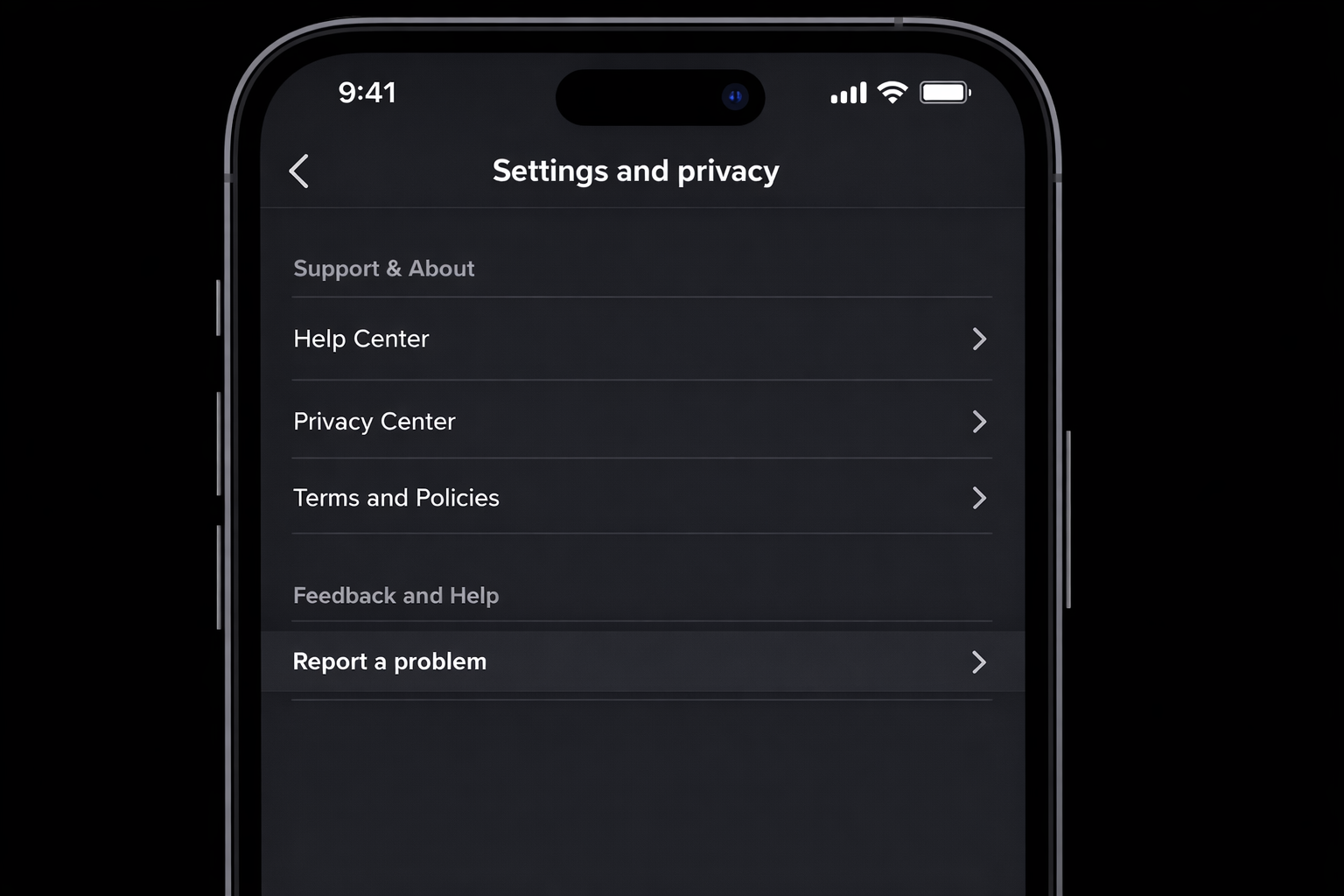
- Open TikTok and tap Profile.
- Tap the three-line menu > Settings and Privacy.
- Scroll to the very bottom and tap Report a Problem.
- Select the most relevant category: Video Playback or App Performance.
- Describe the behavior as specifically as you can and submit.
What to Include for the Best Results
- Device model and OS version — for example: iPhone 15 Pro, iOS 18.3 or Samsung Galaxy S25, Android 15
- TikTok app version — find this under Settings and Privacy > About
- Description of the behavior — how often it happens, whether it’s constant or intermittent, and which steps you’ve already tried
- Trigger event — did it start after a specific app update, OS update, or after connecting a new Bluetooth device?
Other Ways to Get Help
- TikTok’s official Help Center — check for any active known issue notices about scrolling or playback
- r/Tiktokhelp on Reddit — search to see if others on your device or OS version are reporting the same behavior; community workarounds sometimes appear before official patches
- TikTok Business or Creator support — if you use a creator or business account, these channels may offer faster response times than standard user support
What to Expect
TikTok doesn’t typically respond to individual bug reports with a personal reply and that’s normal. Confirmed widespread issues are usually patched within days to a few weeks. Keep auto-updates enabled so you receive the fix automatically when it drops.
Quick Reference: TikTok Auto-Scroll Fix Checklist
Work through these in order as each step rules out a category of causes before moving to the next. If the problem returns after being fixed, Step 3 (clear cache) and Step 5 (check for updates) are the two best maintenance habits to prevent recurrence.
🎧 Bluetooth reminder: If you use wireless headphones, earbuds, or a smartwatch, make that the first thing you test on any return visit. It’s the easiest fix to forget and the easiest to confirm — just toggle Bluetooth off and see if the skipping stops.
| Step | What to Do | Estimated Time |
|---|---|---|
| Self-Triage | Answer 3 questions to identify your problem type | 1 min |
| Step 1 | Disable AutoScroll/Auto-Advance via Settings > Accessibility or the long-press video menu; check Digital Wellbeing/Screen Time/Time and Well-being for active Screen Time or Sleep Reminders — exact labels vary by app version | Under 2 min |
| Step 2 | Disable accessibility features (Switch Control, AssistiveTouch, Voice Control) and turn off Low Power Mode (iOS) or Battery Saver (Android) one at a time to test | 3–5 min |
| Step 3 | Clear TikTok’s cache — iOS: in-app only; Android: Settings > Apps > TikTok > Storage > Clear Cache (not Clear Data) | 1–2 min |
| Step 4 | Turn Bluetooth off and test; disable overlay apps (screen dimmers, floating widgets, automation apps) | 3–5 min |
| Step 5 | Update TikTok; reinstall if updating doesn’t help — save login credentials first, your account won’t be deleted | 2–10 min |
| Step 6 | Remove screen protector and test; check if other apps also skip (points to hardware); seek repair if phantom touch persists | 5–10 min |
| Step 7 | Turn off Data Saver mode; check Restricted Mode and Region settings in TikTok | 2–3 min |
| Step 8 | Report the bug via Profile > Settings > Report a Problem with device model, OS version, and behavior description | 3–5 min |
Wrapping Up
For most people, the fix is in Step 1 – AutoScroll or a Screen Time Reminder switched on without realizing it. A Bluetooth device or corrupted cache resolves most remaining cases. Either way, you’re probably looking at under 10 minutes total.
If TikTok acts up again after a future update, the TikTok no internet connection fix guide and our Can’t follow someone on Tiktok guide cover the next tier of issues.