
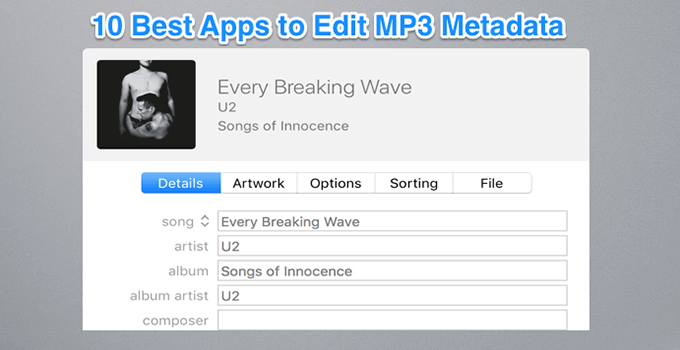
Often when you download your music from unofficial sources, it comes with no metadata and no album artwork. Metadata can get lost due to various other reasons as well, such as when you convert your files from one format to another but the converter doesn’t carry over the required tags.
This metadata is actually what allows your music player apps to organize your files. When your files lack this information, they remain unorganized and make it difficult for you to filter through your files.
One of the ways to fix the problem is to edit the MP3 metadata of your files. This way, you can add the missing information in each of your music files and make them searchable using various filters. There are plenty of apps to tag MP3s and you can use any of them to edit your files’ metadata and add in the missing information.
MusicBrainz Picard (Free)
MusicBrainz Picard is a multi-platform open-source tool that lets you easily add metadata to your music files that miss them. It supports almost all the music file formats available out there and so your files don’t necessarily have to be in MP3 format in order to edit the metadata
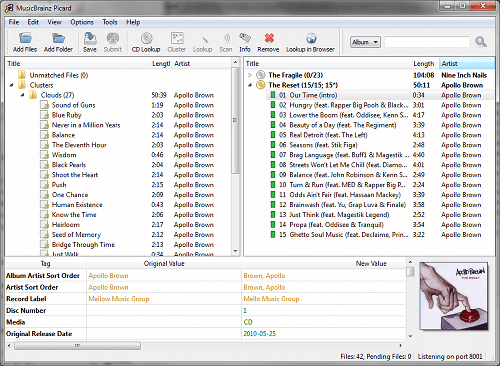
It uses something called AcoustID that helps it identify your music files by their contents and not their other meta fields. So even if your MP3s have zero data available, you can use the tool to add the missing information.
MP3Tag (Free)
MP3Tag is a popular app to tag MP3s and it supports batch processing as well. That means if you have a number of music files sitting on your computer without any metadata, you can load them all into this tool and let it find and add the required metadata for you.
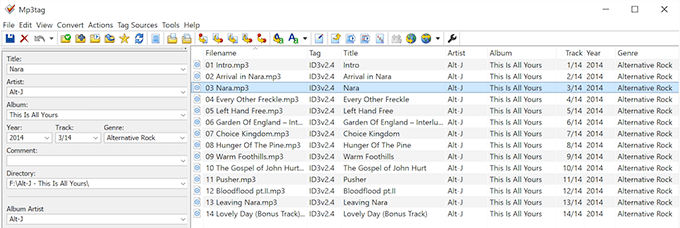
It looks up various online databases to find the required information and album artwork and adds that to your files. It even lets you rename your MP3 files based on the tag information.
Frigate3 (Paid)
Frigate3 is actually a file manager but it has various other features as well. One of these features lets you view and edit MP3 metadata. You basically need to navigate to the folder where your MP3 files are, click on any one of them, and you have a window open on the right-hand side pane to add the missing information.
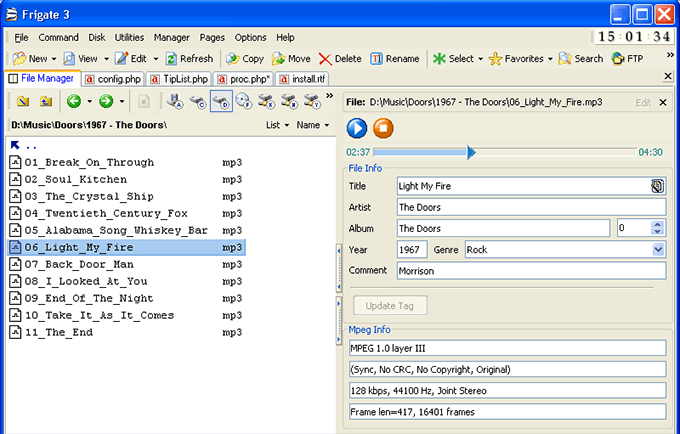
Besides letting you edit MP3 metadata, it lets you view other information as well such as the MP3’s bit-rate and the frame numbers.
The GodFather (Free)
If there are several MP3 files that you want to add metadata to, The GodFather can help you do it with ease using its batch processing mode. It supports various tag formats even for non-MP3 files, helps update all the tags at once, lets you use the replacement matrix, and also allows you to delete all the tags at once, if you want to do it.
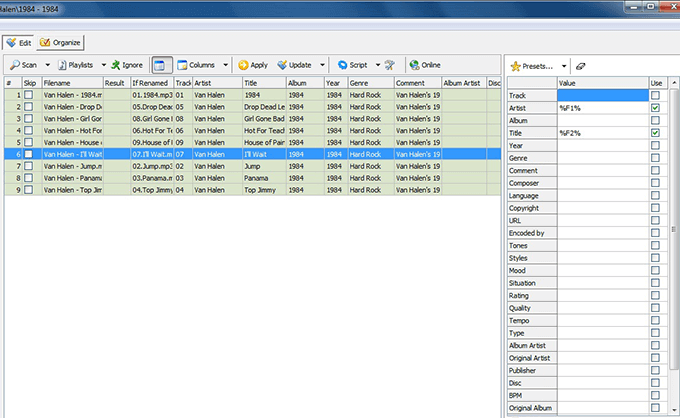
The tool is suitable for those of you wanting to update the metadata of a number of MP3 files at once. It makes the job a whole lot easier for you.
ID3 Tag Editor (Free)
ID3 Tag Editor is a Unicode supported app to tag MP3s and you can use it to add missing metadata values to your files in various languages. It also lets you add a cover art to your MP3 files which remains embedded in the main file itself.
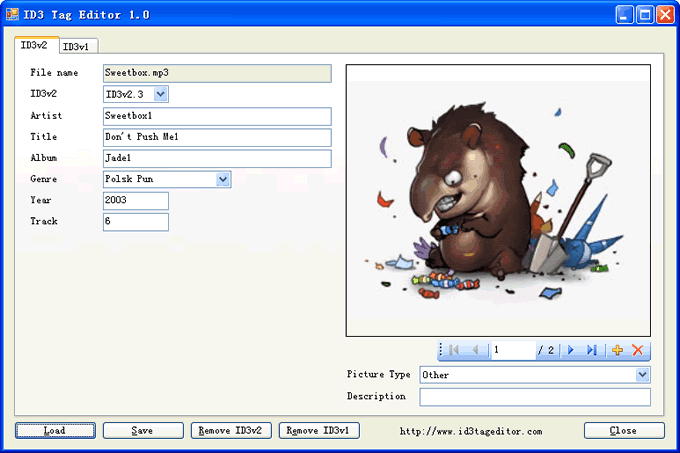
Other features include the ability to add custom comments to your files, remove all the tags at once, and compatibility with both 32-bit and 64-bit versions of Windows.
Music Tag (Paid)
Most apps that let you edit MP3 metadata use manual methods to do the task. Music Tag is unlike those apps and lets you automatically download and add missing metadata to your music files. To use the app, all you basically need to do is give it your MP3 files and it’ll download the required information and add it to all of your MP3 files.
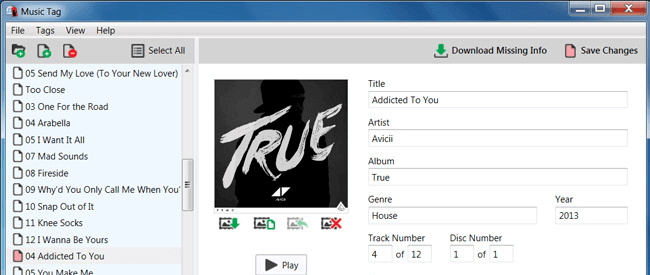
This way it’s quicker than the other apps and gets the job done in no time. Also, it recognizes over 35 million music tracks and it’s highly likely your files are included here.
TigoTago (Free)
If you like Excel spreadsheets, you’re going to love the TigoTago app to tag your MP3s. It uses a spreadsheet-like format to let you edit and add new information to your MP3 files. Any changes you make to your files are first visible to you before they’re actually applied to your files.
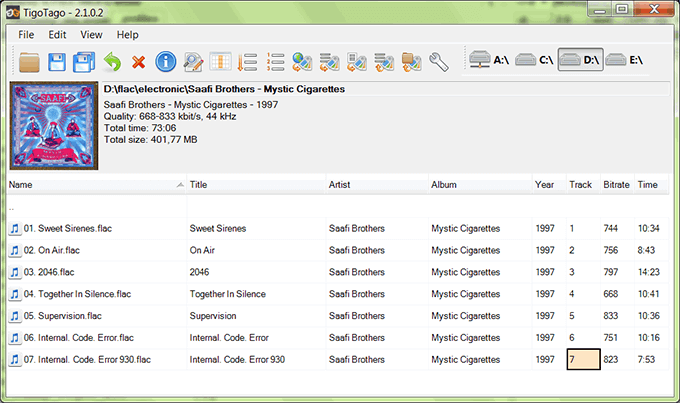
It’s convenient for mass-tagging tasks and requires almost no typing as most of the data is fetched from online databases.
EasyTAG (Free)
EasyTAG is a feature-rich program for both Linux and Windows that helps you edit the metadata part of your audio files. It lets you view, read, and edit any part of the metadata for your files. You can also apply a single change to all of your MP3 files at once.
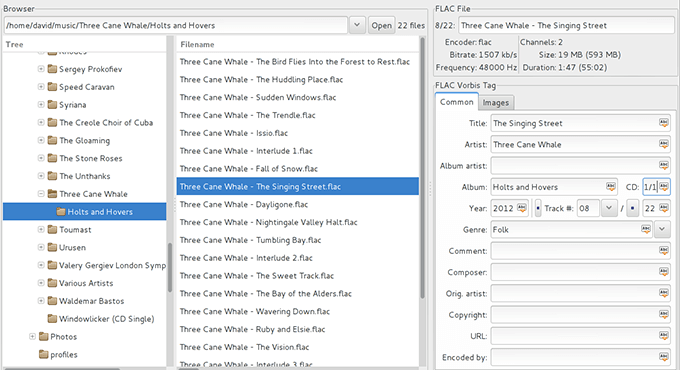
It has an easy to use interface and is available in multiple languages.
Kid3 (Free)
Kid3 is both an MP3 metadata editor and a tag converter to help you convert your tags into multiple formats. You can use it to tag almost all the audio file formats out there including MP3, generate tags from file names, and import data from online databases to add to your files.
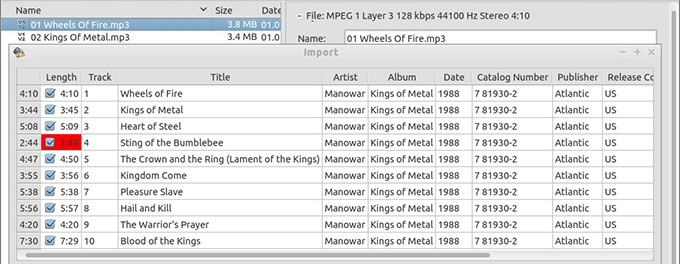
It comes with a command-line interface as well to help you use it from a Command Prompt window and to automate some of its tasks.
Metatogger (Free)
Metatogger helps you both edit your existing tags in your MP3 files and clean-up any junk content in these tags. As you start using the app, you can go for either the manual mode or with C# scripts to speed-up the process. It also lets you organize your files by their tags content which is something not offered by many other tag editors.
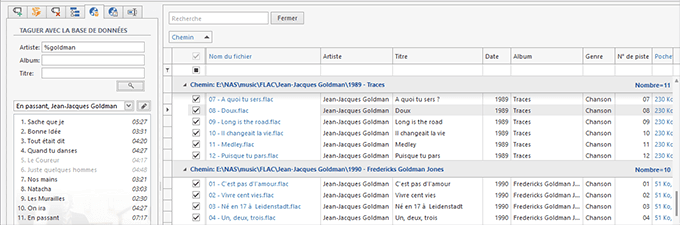
It identifies your music files using the acoustic fingerprinting technology and downloads the required data from various online databases.