

Getting an “eSIM not activating” error or seeing “Invalid QR code” when trying to set up your digital SIM? You’re definitely not alone. eSIM activation can be frustratingly finicky, especially when you’re switching carriers or setting up a travel plan. The good news? Most eSIM issues have simple fixes that don’t require calling customer service.
Whether you’re dealing with a stubborn QR code that won’t scan or an eSIM profile that just won’t download, we’ll walk you through the most effective troubleshooting steps for both Android and iPhone. By the end of this guide, you’ll know exactly how to get your digital SIM working properly.
Quick Fixes at a Glance: If you want to jump straight to the most common solutions, here’s what resolves the majority of eSIM activation problems:
- Check your Wi-Fi connection — eSIM activation needs a stable internet connection (Step 2)
- Toggle Airplane Mode off and on — refreshes wireless connections and clears glitches (Step 3)
- Update your phone’s software — outdated OS is a frequent culprit (Step 4)
- Try manual eSIM entry — use the SM-DP+ address if the QR code fails (Step 5)
- Reset network settings — clears corrupted cellular configuration (Step 6)
What Is an eSIM?
An eSIM is a digital SIM card that’s built into your phone instead of being a physical chip you insert. Think of it as a virtual SIM that can be programmed with different carrier profiles without swapping out hardware.
Key Features:
- No Physical Card: Everything is handled digitally through QR codes or activation codes
- Multiple Profiles: You can store several carrier plans on one device (great for travel)
- Quick Switching: Change between carriers or plans without visiting a store
- Dual SIM Support: Use alongside a physical SIM for work/personal lines — learn more about dual-SIM smartphones
eSIMs work on most modern phones including iPhone XS/XR and newer, Google Pixel 3 and up, and Samsung Galaxy S20 series and later models.
Before You Begin
Make sure you have:
- Compatible Device: Check if your phone supports eSIM (we’ll show you how below)
- Strong Wi-Fi Connection: eSIM activation needs stable internet, not cellular data
- QR Code or Activation Details: From your carrier’s email, app, or website
- Updated Software: Make sure your phone is running the latest version of iOS or Android available for your device, eSIM activation works best on up-to-date software
Step 1: Verify eSIM Compatibility
Before diving into fixes, let’s make sure your device actually supports eSIM. Not all phones do, and this is the most common reason for activation failures.
On iPhone
- Open Settings and tap General.
- Tap About and scroll down.
- Look for an EID number. If you see it, your iPhone supports eSIM.

On Android
- Open Settings and tap About phone.
- Look for EID or dial *#06# to see all device identifiers.
- If you see an EID number, your Android phone supports eSIM.
No EID Number? Your phone likely doesn’t support eSIM. To be sure — especially on less common Android models where the EID may be hidden or labeled differently by the manufacturer, check your device’s product page or your carrier’s compatibility list before concluding eSIM isn’t supported.
Step 2: Check Your Network Connection
eSIM activation requires a stable internet connection, and cellular data won’t work since that’s what you’re trying to set up! Make sure you’re connected to reliable Wi-Fi before attempting activation.
Quick Network Test:
- Switch to Wi-Fi Only: Turn off cellular data temporarily
- Test Your Connection: Try loading a webpage or streaming a video
- Move Closer to Router: Weak Wi-Fi signals can interrupt the activation process
Step 3: Toggle Airplane Mode
This classic “turn it off and on again” trick works surprisingly well for eSIM issues. Airplane mode refreshes all your wireless connections and can clear up activation glitches.
On iPhone
- Swipe down from the top-right corner to open Control Center.
- Tap the airplane icon to enable Airplane Mode.
- Wait 30 seconds, then tap it again to disable.

On Android
- Swipe down from the top of your screen to open the notification panel.
- Tap the airplane icon to turn on Airplane Mode.
- Wait 30 seconds, then tap it again to turn it off.

Step 4: Update Your Software
Outdated software is a major cause of eSIM activation problems. Carriers regularly update their systems, and your phone needs the latest software to communicate properly.
Update iOS
- Go to Settings > General > Software Update.
- If an update is available, tap Download and Install.
- Let your iPhone restart and try eSIM activation again.
Update Android
- Open Settings and tap System (or Software update on Samsung).
- Tap System update to check for available updates.
- Install any updates and restart your phone.
Step 5: Try Manual eSIM Setup
If the QR code isn’t working, manual entry often does the trick. Your carrier should provide an SM-DP+ Address and Activation Code along with the QR code.
On iPhone
- Go to Settings > Cellular > Add eSIM.
- Tap Enter Details Manually instead of scanning the QR code.
- Enter the SM-DP+ Address and Activation Code from your carrier.
- Tap Next and wait for the profile to download.
On Android
- Open Settings > Network & Internet > Mobile Network.
- Tap Add (or Download SIM on some devices).
- Select Enter activation code manually.
- Input your carrier’s activation details and tap Continue.
Pro Tip: Don’t include “https://” when entering the SM-DP+ Address manually. Just use the address portion that starts after the “https://” part.
Step 6: Reset Network Settings
If you’re still stuck, a network reset can clear out corrupted cellular settings that might be blocking eSIM activation. Fair warning: this will erase all saved Wi-Fi passwords, so have those handy.
On iPhone
- Go to Settings > General > Transfer or Reset iPhone.
- Tap Reset > Reset Network Settings.
- Enter your passcode and confirm the reset.
- After your iPhone restarts, reconnect to Wi-Fi and try eSIM activation again.
On Android
- Open Settings > System > Reset.
- Tap Reset Wi-Fi, mobile & Bluetooth (or Reset Network Settings).
- Confirm the reset and wait for your phone to restart.
- Reconnect to Wi-Fi and attempt eSIM setup again.
Step 7: Update Carrier Services (Android Only)
Android phones use a special app called Carrier Services to handle the handshake between your device and cellular networks. If this app is outdated, eSIM activation can fail.
- Open the Google Play Store.
- Search for Carrier Services and tap it in the results.
- If you see an Update button, tap it. If you only see Uninstall, the app is already current.
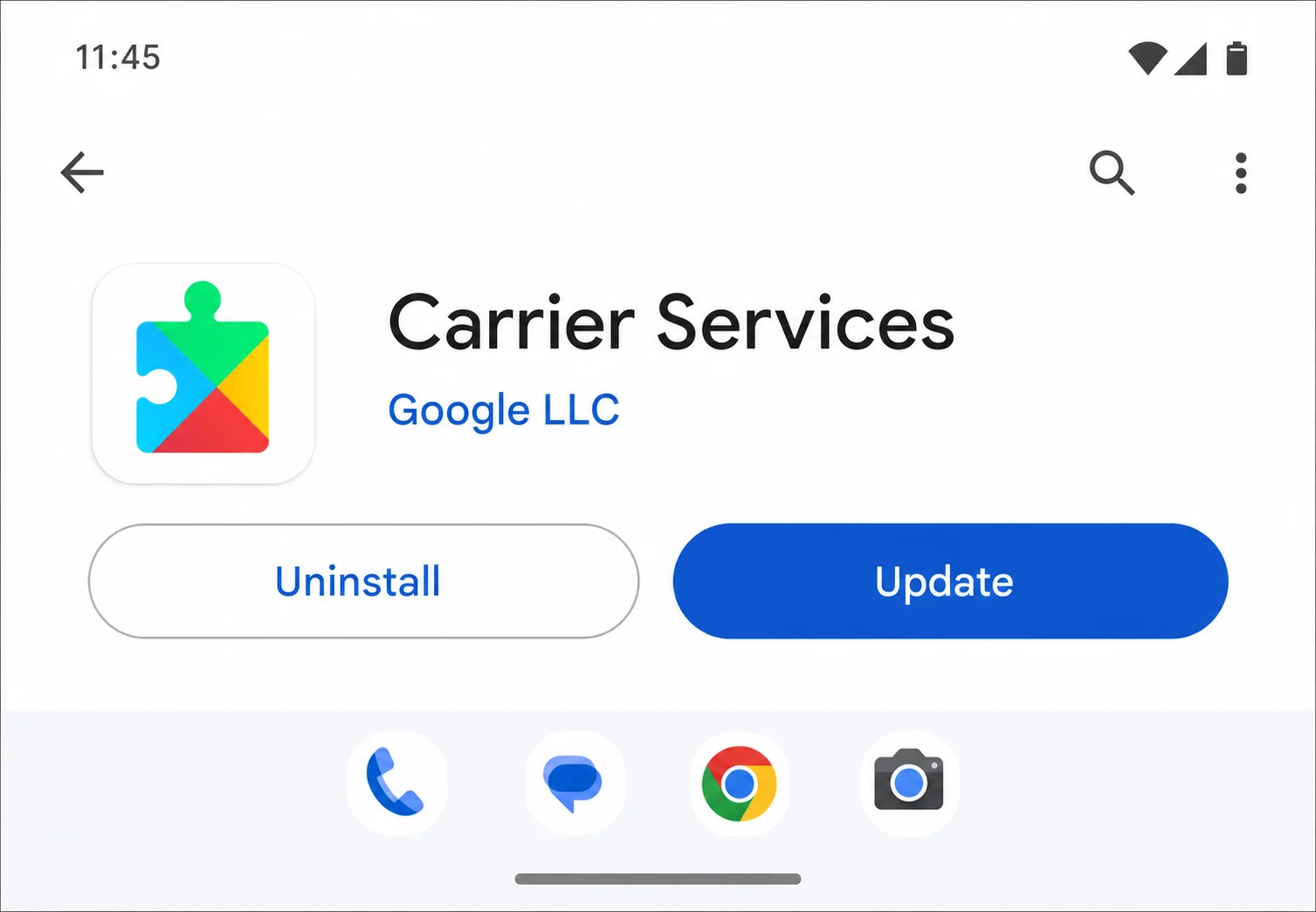
After updating, restart your Android phone and try the eSIM activation process again.
Step 8: Check for Carrier Lock Issues
Here’s something that catches a lot of people off guard: carrier-locked phones often can’t activate eSIMs from other carriers, even if the phone technically supports eSIM technology.
Quick Lock Check:
- iPhone: Go to Settings > General > About and look for “Carrier Lock” status
- Android: Try inserting a different carrier’s physical SIM to see if it works
- Contact Your Carrier: If locked, request an unlock (usually free after contract completion)
Step 9: Delete and Re-add eSIM Profiles
Sometimes eSIM profiles get corrupted during the initial setup. Starting fresh can solve stubborn activation issues.
Note on Profile Limits: Most devices can only store a limited number of eSIM profiles — the exact cap varies by model (for example, some iPhones store up to eight or more, while many Android phones allow fewer). If you’ve accumulated old eSIM profiles from previous carriers or travel plans, you may need to delete unused ones before your device will allow you to add a new eSIM, even if the activation steps are all correct.
On iPhone
- Go to Settings > Cellular.
- Tap the problematic eSIM plan.
- Scroll down and tap Remove Cellular Plan.
- Confirm removal, then start the eSIM setup process from scratch.
On Android
- Open Settings > Network & Internet > Mobile Network.
- Find your eSIM profile and tap the gear icon next to it.
- Tap Delete or Remove SIM.
- Return to the main mobile network settings and add the eSIM again.
Important: Make sure you still have access to your QR code or activation details before deleting the profile!
Tips and Troubleshooting
Common Issues
Problem: QR code keeps showing “Invalid” or won’t scan
This usually happens when the code is expired, corrupted, or you’re scanning it wrong. Try these fixes:
- Clean Your Camera: Wipe the lens and make sure lighting is good
- Try Manual Entry: Use the activation code instead of scanning
- Request New Code: Contact your carrier for a fresh QR code
- Check Expiration: Some eSIM codes expire after 24-48 hours
Problem: eSIM downloads but won’t connect to network
The profile installed successfully, but you’re not getting service:
- Check Coverage: Make sure you’re in an area with carrier coverage
- Verify Account Status: Confirm your plan is active and paid up
- Toggle eSIM Off/On: Disable and re-enable the eSIM in cellular settings
- Wait It Out: Initial activation can take 15-30 minutes sometimes
Problem: Can’t activate while traveling internationally
Travel eSIMs have their own quirks:
- Use Wi-Fi Only: Don’t try activating on roaming data
- Check Local Restrictions: Some countries have eSIM registration requirements
- Contact Travel eSIM Provider: They often have 24/7 chat support
Pro Tips
- Screenshot Your QR Code: Save it to your photos before traveling in case you need to re-add the eSIM
- Keep Physical Backup: Don’t remove your physical SIM until you’ve confirmed the eSIM works properly
- Test Before You Travel: Set up travel eSIMs a day before departure, not at the airport
- Use Carrier Apps: Many carriers have dedicated apps that make eSIM management easier than the built-in settings and some carriers actually require you to use their official app to complete eSIM activation. If QR code scanning and manual entry both fail, check whether your carrier has an app (e.g., My Verizon, My T-Mobile, or your carrier’s equivalent) and follow the in-app eSIM setup instructions before trying anything else.
When to Contact Your Carrier
If you’ve tried all the steps above and your eSIM still won’t activate, it’s time to call in the experts. Contact your carrier if:
- The eSIM profile downloads but shows “No Service” after 30+ minutes
- You get specific error codes during activation
- Multiple QR codes from the same carrier all fail
- Your account shows the eSIM as active, but your phone disagrees
When you call, mention the troubleshooting steps you’ve already tried. This saves time and shows you’re not a complete newbie (even if you feel like one!).
eSIM Success at Last
eSIM activation can be finicky, but persistence usually pays off! Most issues come down to software updates, network connectivity, or carrier compatibility problems that these steps can resolve. Once you get the hang of it, switching between eSIM profiles becomes surprisingly convenient.
The technology is definitely the future of mobile connectivity, especially for frequent travelers or anyone juggling work and personal lines. Sure, it’s not as foolproof as popping in a physical SIM card yet, but when it works, the convenience is worth the occasional troubleshooting session.