
You probably already know how to create custom icons for your local hard drive or for your CD drive, but did you know there is also an easy way to create custom icons for USB flash drives? You can configure the USB drive so that whenever you plug it into a PC, it’ll show up with a custom icon and custom label instead of the default removable disk icon that Windows uses.
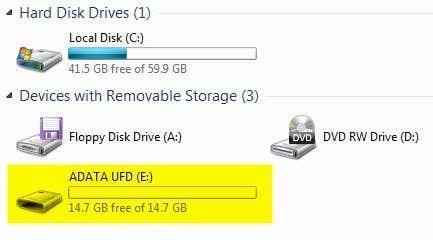
In this article, I’ll show you the steps you need to perform to create your own custom USB drive icon. Note that this procedure will work for anything that uses the Autorun feature in Windows like CDs, DVDs, external hard drives, etc.
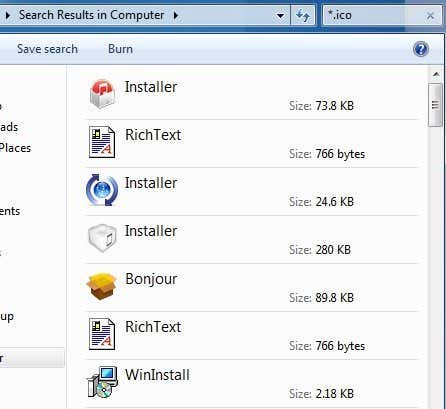
Step 1: The first thing you’ll need to do is either find an .ICO file on your computer or online that you would like to use or create your own ICO file from an image. If you want something really fast you can open Explorer and simply perform a search for *.ICO.
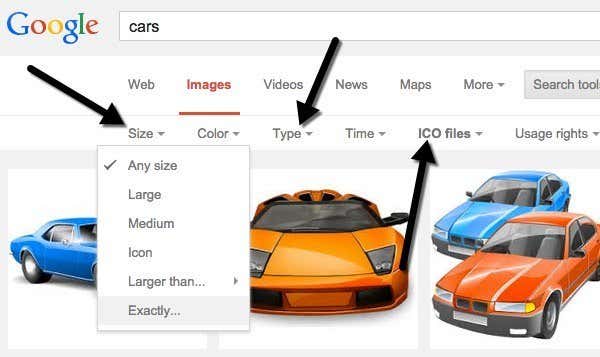
It’s also worth noting that Google search has some awesome search features for finding icons. Go to Google image search and then type in filetype:ico keyword where keyword is the kind of icons you are looking for.

You’ll get a bunch of results for icons of all sizes and types, but the awesome part is that you can filter the search results based on size, type, time, color, etc. In our case, you’re going to want to choose Exactly from size and then type in 64 for width and height. I tried to use a size smaller than 64×64, but it would not work in Windows 7. Seems like the minimum size for the icon file has to be 64×64 pixels.
Step 2: Once you have an icon file that you can use for your USB drive, we then need to create what is called an Autorun.inf file. This is basically a configuration file that all versions of Windows automatically recognize and will use to set up the connected device. To create the file, first go ahead and open Notepad.
Step 3: Now copy the text below and paste it into the Notepad file.
[autorun]
label=Aseem Drive
icon=autorun.ico
If you only care about the custom icon, you can just remove the second line that starts with label completely. Otherwise, you can just type anything you want there. It seems that you can also add a label with spaces or even apostrophe’s and it still works. If you do happen to run into an issue using a complicated label, then try putting quotes around the label name.
As you can see from the third line, the file just tells Windows the name of the icon file it wants to use as the drive icon. You can actually change the name of the icon file if you want to anything you like as long as you put that same name in the third line of the of autorun.inf file.
Step 4: Now that you have the file ready, we need to save it properly as an INF file. To do that, click on File – Save. In the Save dialog, you need to change two things. Firstly, click on the drop down box next to Save as type and choose All Files. Then go ahead and type in autorun.inf into the File name box.
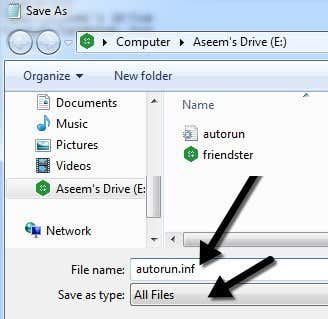
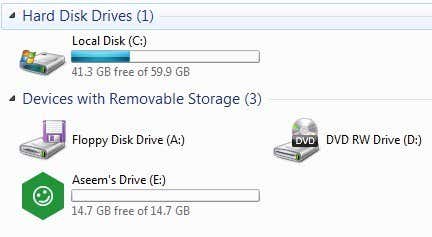
Now make sure to save this file at the root of your device. Once you have done that, copy over the ICO file to the root of the flash drive also. That’s all you have to do for setting it up. Go ahead and eject your flash drive and then plug it back in. If everything works properly, you should now have your new custom icon and custom label showing up in Explorer:
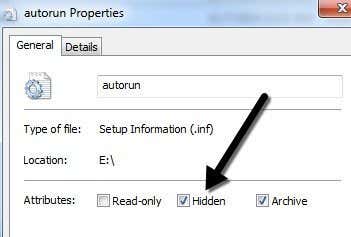
Also, if you don’t like both of those files showing up automatically whenever you open the flash drive, you can simply right-click on them, choose Properties and check Hidden at the bottom.
That’s it! Now whenever your plug your USB drive into your computer or any computer for that matter, you’ll see your custom icon and label! You can also try this technique for other autoplay devices, such as cameras, MP3 players, CDs/DVDs and more! If you have any questions, post a comment. Enjoy!