
Need to find or check the current BIOS version on your laptop or desktop computer? The BIOS or UEFI firmware is the software that comes installed on your PC motherboard by default and that detects and controls the built-in hardware including hard drives, video cards, USB ports, memory, etc.
Whether you need to update the BIOS or not is something I’ve written about previously and the basic premise of that article was not to update unless you really have a specific need to.
So how do you go about figuring out if you need to update the BIOS on your computer? Well first you’ll need to figure out the current version of the BIOS. In this article, I’ll explain multiple ways you can determine the BIOS version. Once you have the current version, you can visit the manufacturer’s website to see what the latest version is.
System Information
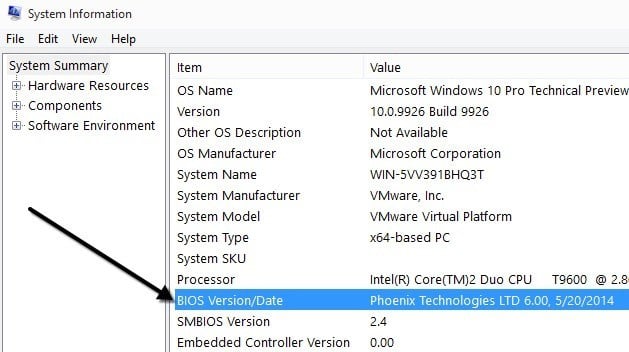
Click on Start, choose Run and type in msinfo32. This will bring up the Windows System information dialog box.
In the System Summary section, you should see an item called BIOS Version/Date. Now you know the current version of your BIOS.
Command Line
Another easy way to determine your BIOS version without rebooting the machine is to open a command prompt and type in the following command:
wmic bios get smbiosbiosversion
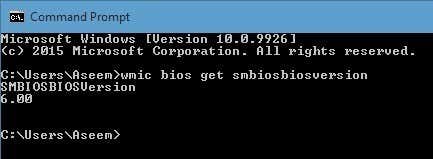
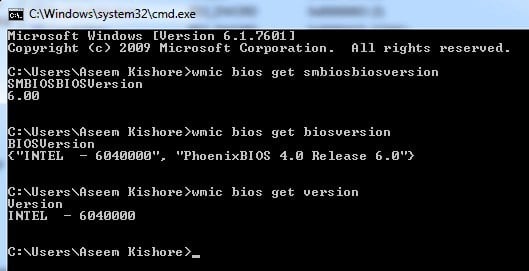
The command line will just give you the version number of the BIOS and that’s pretty much it. However, there are more commands that will get you a bit more info.
wmic bios get biosversion
wmic bios get version
Windows Registry
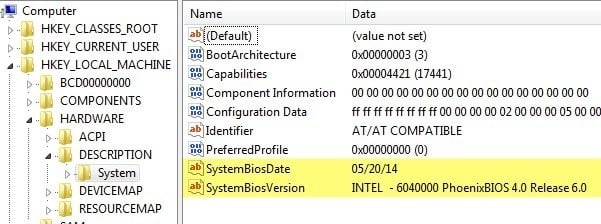
Just about everything in Windows is stored in the Registry and the version of the BIOS is no exception! Go to the following key:
HKEY_LOCAL_MACHINE\HARDWARE\DESCRIPTION\System
And you’ll see several keys related to the BIOS, including SystemBiosDate, SystemBiosVersion, VideoBiosDate, and VideoBiosVersion.
Windows Startup
Another method to determine the BIOS version on your computer is to simply restart the computer. Some computers, including Dell, show you the BIOS version number when the computer first boots up.

If not, you can enter the BIOS setup by pressing F12, DEL, F10 or F12 when it shows up during startup. Other computer manufacturers may have a different key to enter setup, but it will usually tell you which key to press.
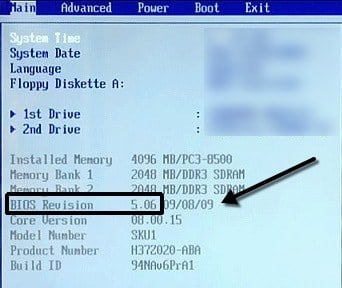
Since the BIOS interface is different for just about every computer manufacturer, you will have to navigate around until you see BIOS Revision or BIOS Version.
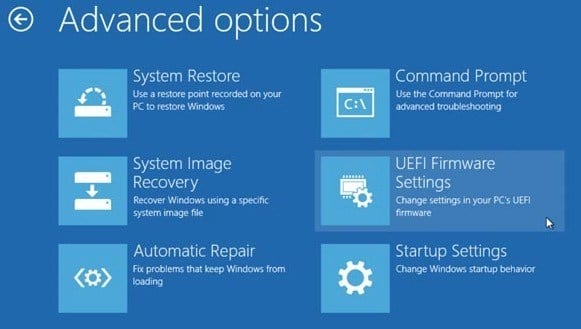
If you are using a newer computer running Windows 8 with UEFI instead of the traditional BIOS, you won’t be able to press any key during startup. In those cases, you have to boot to the System Recovery Options screen. Once there, you have to click on Troubleshoot and then Advanced Options.
This is the same method for getting Windows 8 into Safe Mode, but instead of clicking on Startup Settings, you should click on UEFI Firmware Settings. Note that you won’t see this option if your BIOS isn’t UEFI.
Third Party Software
If you’d prefer to use a third-party utility that can give you other information about your computer too, then a good option is Speccy. It’s from the same company that created CCleaner, one of the best maintenance tools for Windows PCs.
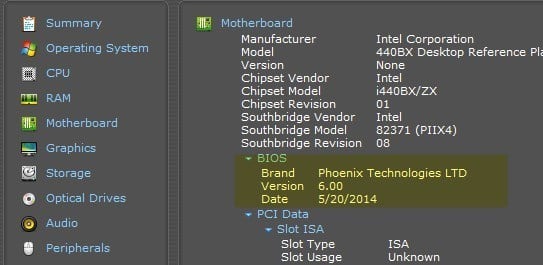
Click on Motherboard and then you’ll see a section called BIOS that gives you the Brand, Version and Date of the BIOS. The program also gives you a lot of other system info on CPU, RAM, Storage, etc.
Conclusion
So those are pretty much all the different ways you can determine your BIOS version. Updating your BIOS is something you should only do if needed and with great caution. A failed BIOS update can brick your entire computer and force you to spend a lot of money getting it repaired.
When updating the BIOS, there is no single way to go about it. Each motherboard manufacturer has their own set of tools for updating the BIOS. Some have the options in the BIOS itself to update, others require you to boot from a USB drive and flash the BIOS that way.
Each BIOS file will usually come in a compressed archive package that includes a ReadMe text file. It’s essential you read that file because it will have exact instructions for updating the BIOS.
The only method of updating the BIOS that you should avoid is the Windows option. This is usually a Windows application you can download and run from within Windows to flash the BIOS. The problem is that it can fail since Windows is still running and it’s usually not even recommended by the manufacturers themselves. It is the easiest way, but it carries the most risk of failure.