
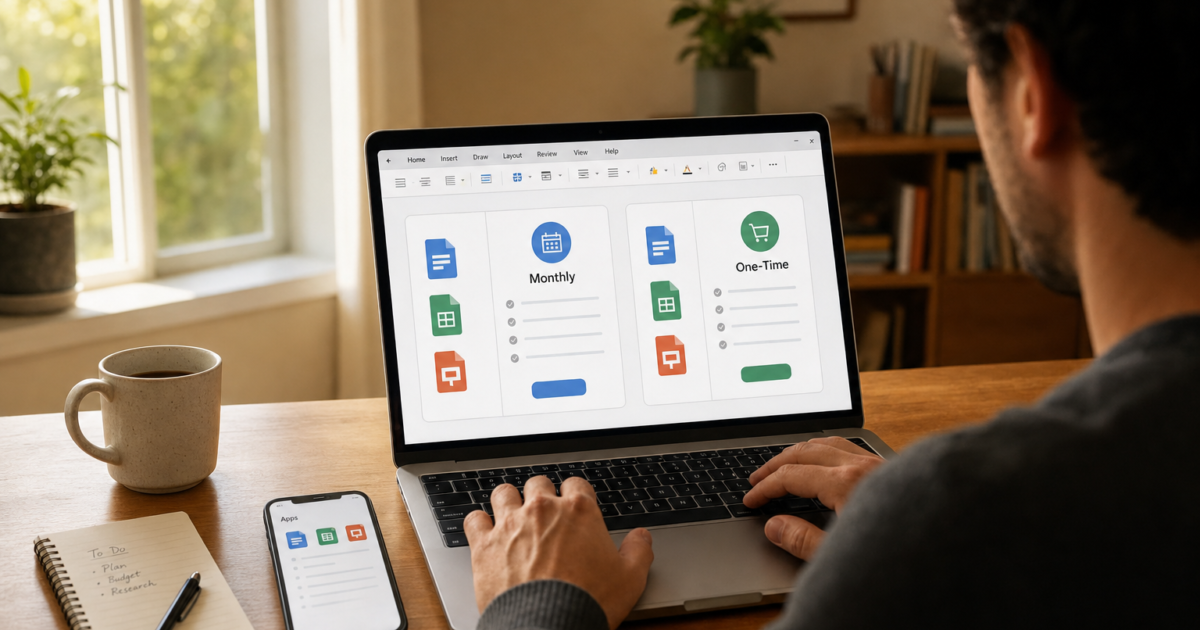
So you’ve been wondering what the latest version of Microsoft Office actually is, and honestly, the answer is a little more complicated than it used to be. Microsoft has quietly shifted things around over the past few years, and if you haven’t been keeping up, the naming alone can make your head spin. Is it Office 2024? Microsoft 365? Office 365? Are those even different things?
Don’t worry. By the end of this article, you’ll know exactly what the “latest” Office is, which version makes sense for you, and how to check what you’re currently running. Let’s untangle this.
Microsoft Office vs. Microsoft 365: What’s the Difference?
Here’s the thing: “Microsoft Office” now means two pretty different products depending on how you buy it. Microsoft has made its subscription service the clear priority, but the old one-time-purchase option still exists. Here’s a quick breakdown:
- Microsoft 365 (subscription): This is what Microsoft really wants you to use. You pay monthly or annually and get the always-updated desktop apps (Word, Excel, PowerPoint, Outlook, etc.), cloud storage through OneDrive, Teams, and, as of recently, AI-powered Copilot features built right into the apps. The version number changes every month as new features roll out.
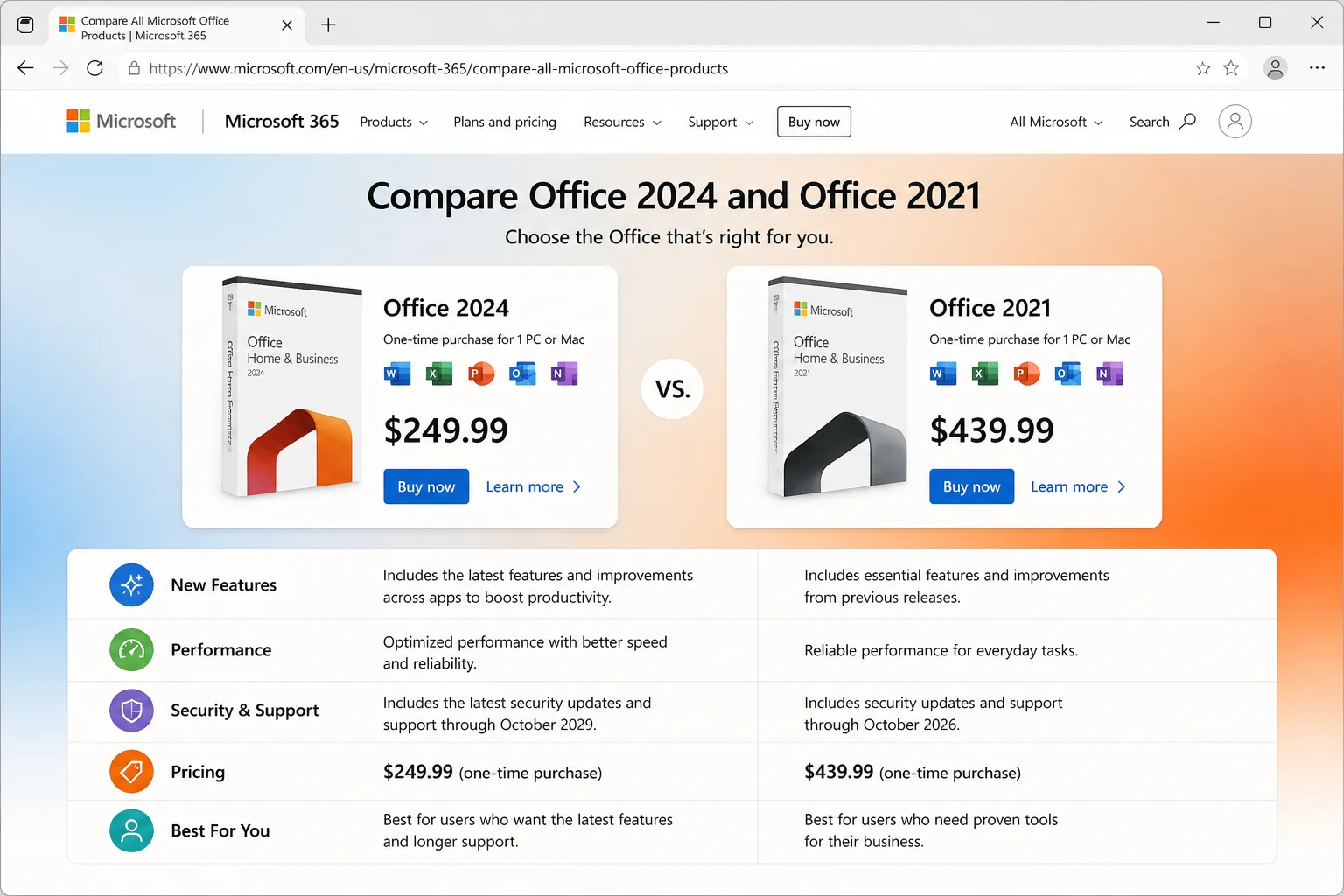
- Office 2024 (one-time purchase): This is the latest “buy it once, own it forever” version. You pay upfront, install it on one PC or Mac, and it gets security updates, but no new features. No Copilot, no rolling updates, no surprises.
- Office Online / Microsoft 365 on the web: The free version of Office you can use in any browser at Microsoft365.com. Great for light use, but missing some features you’d find in the desktop apps.
So when someone asks “what’s the latest version of Microsoft Office?” the honest answer is: it depends on what you mean. If you want the absolute latest features (including AI tools), that’s Microsoft 365. If you want the newest version you can buy outright, that’s Office 2024.
Quick note: you may have also heard rumors about “Office 2026.” As of right now, Microsoft has not announced any retail product with that name. Those articles floating around online are speculation, so take them with a grain of salt.
The Latest One-Time Purchase Version: Office 2024
If you’d rather not deal with a subscription, Office 2024 is the latest perpetual version you can buy. Think of it like buying a car: you own it, it runs fine, but it won’t magically gain new features over time the way a Tesla might.
There are three editions for home and small business users:
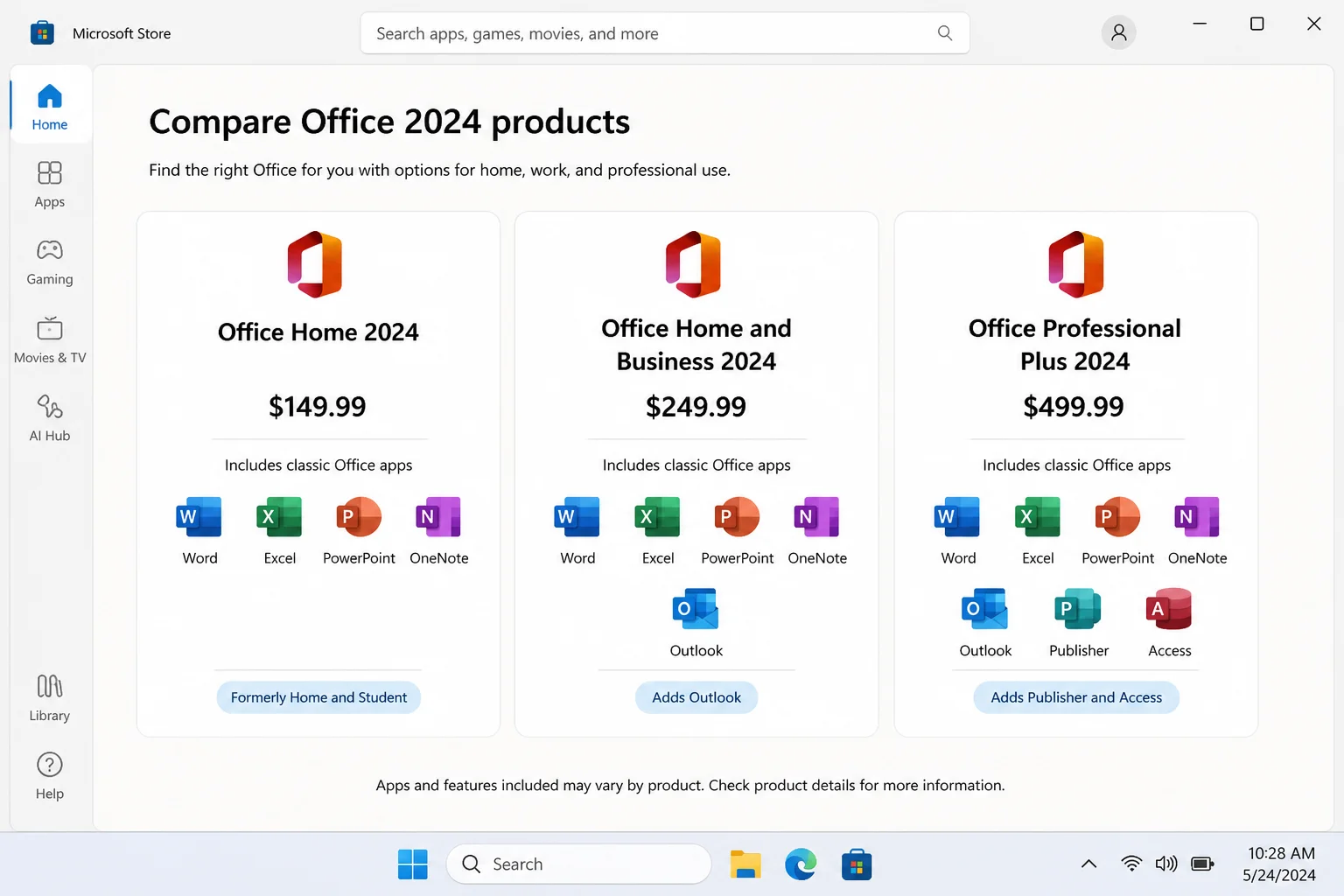
- Office Home & Student 2024 – Includes Word, Excel, and PowerPoint. One-time install on 1 PC or Mac. No Outlook.
- Office Home & Business 2024 – Adds Outlook to the mix. One-time install on 1 PC or Mac.
- Office Professional 2024 – The full package: Word, Excel, PowerPoint, Outlook, Publisher, and Access. Windows only, sorry, Mac users.
So it’s still a perfectly solid choice in 2026, especially if you work offline a lot or just don’t want to deal with a monthly bill.
Note for business users: Microsoft also offers Office LTSC 2024, a separate long-term servicing channel release aimed at enterprise and volume-licensing customers. It shares the same core apps but is sold through different commercial channels. This article focuses on the consumer and small-business retail editions; if you’re evaluating LTSC for a larger organization, check Microsoft’s Volume Licensing documentation for details.
The Latest Subscription Version: Microsoft 365
If you want the newest features, especially the AI stuff, Microsoft 365 is the version to choose. This is the version Microsoft actively develops, and it’s where Copilot (Microsoft’s AI assistant built into Word, Excel, PowerPoint, and Outlook) lives. If you’ve seen demos of AI drafting emails in Outlook or summarizing spreadsheets in Excel, that’s Microsoft 365.
One important caveat: Copilot features are rolling out to specific Microsoft 365 plans and may require an add-on license — not every subscription tier includes every AI feature. Check Microsoft’s Copilot page to see which plans are currently eligible before assuming Copilot is included with your subscription.
The version number updates constantly. For example, in early 2026, the Current Channel version was Version 2604 (Build 19929.20090), but by the time you read this, it’ll probably be higher. That’s the whole point. Rather than chasing a specific build number, you can always check Microsoft’s official update history page to see what’s current.
Here are the main consumer and business plans:
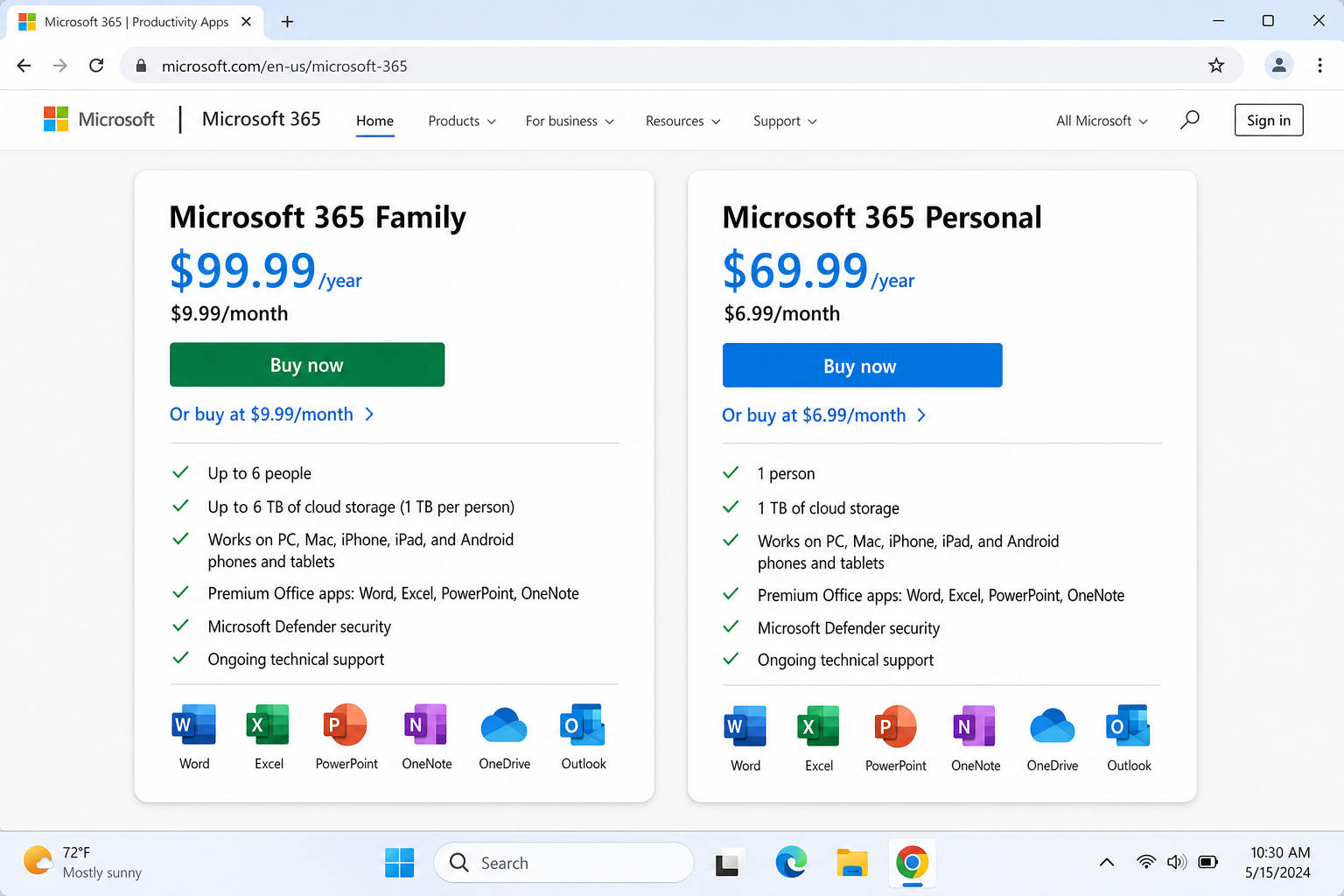
- Microsoft 365 Personal – 1 user, up to 5 devices, 1 TB OneDrive storage
- Microsoft 365 Family – Up to 6 people, 5 devices each, 1 TB OneDrive per person
- Microsoft 365 Business Standard – Includes desktop apps plus Teams, SharePoint, and more
- Microsoft 365 Business Premium – Adds advanced security features on top of Standard
And yes, Microsoft 365 works great on Windows 11 (including 23H2 and 24H2) and on Macs running macOS Sonoma or Sequoia, including Apple Silicon (M1/M2/M3) chips. No Rosetta required.
Microsoft 365 vs. Office 2024: Which Should You Get?
Here’s a side-by-side comparison to make this easier:
| Feature | Microsoft 365 | Office 2024 |
|---|---|---|
| Price | Monthly/annual subscription | One-time purchase |
| Feature updates | Yes, ongoing | No (security only) |
| AI Copilot features | Yes (on eligible plans; may require add-on) | No |
| Number of devices | Up to 5 per user | 1 PC or Mac |
| OneDrive storage | 1 TB included | Basic (5 GB free) |
| Teams included | Yes | No |
| Works offline | Yes | Yes |
| macOS support | Yes (Apple Silicon native) | Yes (Apple Silicon native) |
| Support timeline | Ongoing (with active subscription) | Extended support until Oct 2031 |
Honestly? For most people in 2026, Microsoft 365 is the better deal, especially if you use Office on more than one device or want access to the AI features. But if you hate subscriptions and just need Word, Excel, and PowerPoint on one computer, Office 2024 still gets the job done without the recurring charge. If you’re looking for free alternatives to Microsoft Office, there are solid options worth exploring too.
What About Older Versions?
If you’re still running Office 2016 or Office 2019, here’s what you need to know:
- Office 2016: Extended support ended October 14, 2025. It’s no longer receiving security updates, so it’s time to move on.
- Office 2019: Extended support also ended October 14, 2025. Same deal. If you’re still on this, it’s worth upgrading for security reasons alone.
- Office 2013 or older: Out of support entirely. Using these connected to the internet is a genuine security risk.
If you’re on anything older than Office 2024, upgrading is the right call, even if it’s just for the security updates.
How to Check Which Version of Office You Have
Not sure what you’re running right now? Here’s how to find out. It only takes a few seconds.
On Windows
- Open any Office app. Word, Excel, or PowerPoint all work.
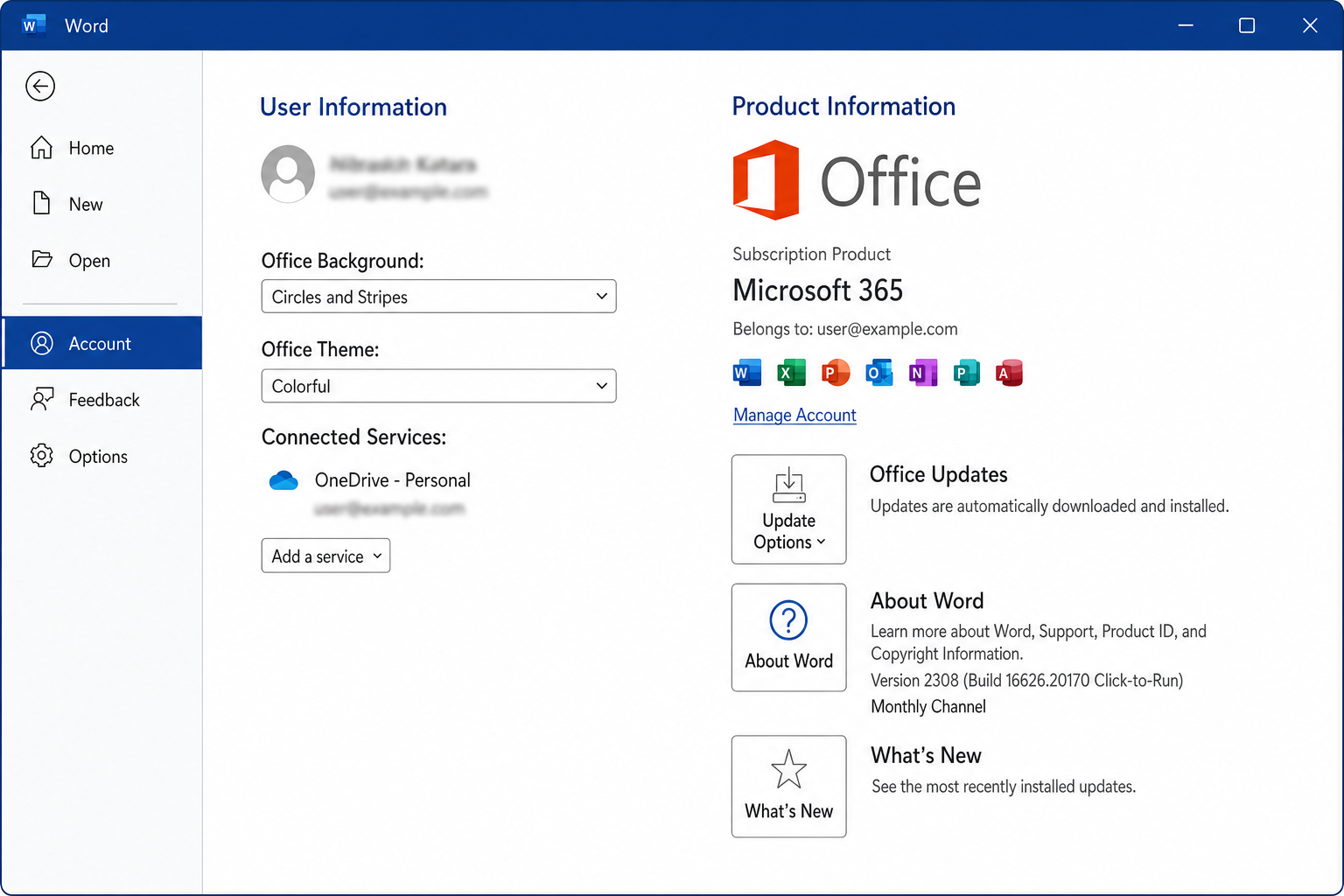
- Click File in the top-left corner.
- Select Account (sometimes labeled Office Account) from the left sidebar.
- Look under Product Information. You’ll see the product name (e.g., Microsoft 365 Family or Office Home & Student 2024) and the current version and build number below it.
- For even more detail, click About Word (or whichever app you opened). This shows whether you’re on 64-bit or 32-bit, plus the full build number.
On macOS
- Open Word (or Excel or PowerPoint).
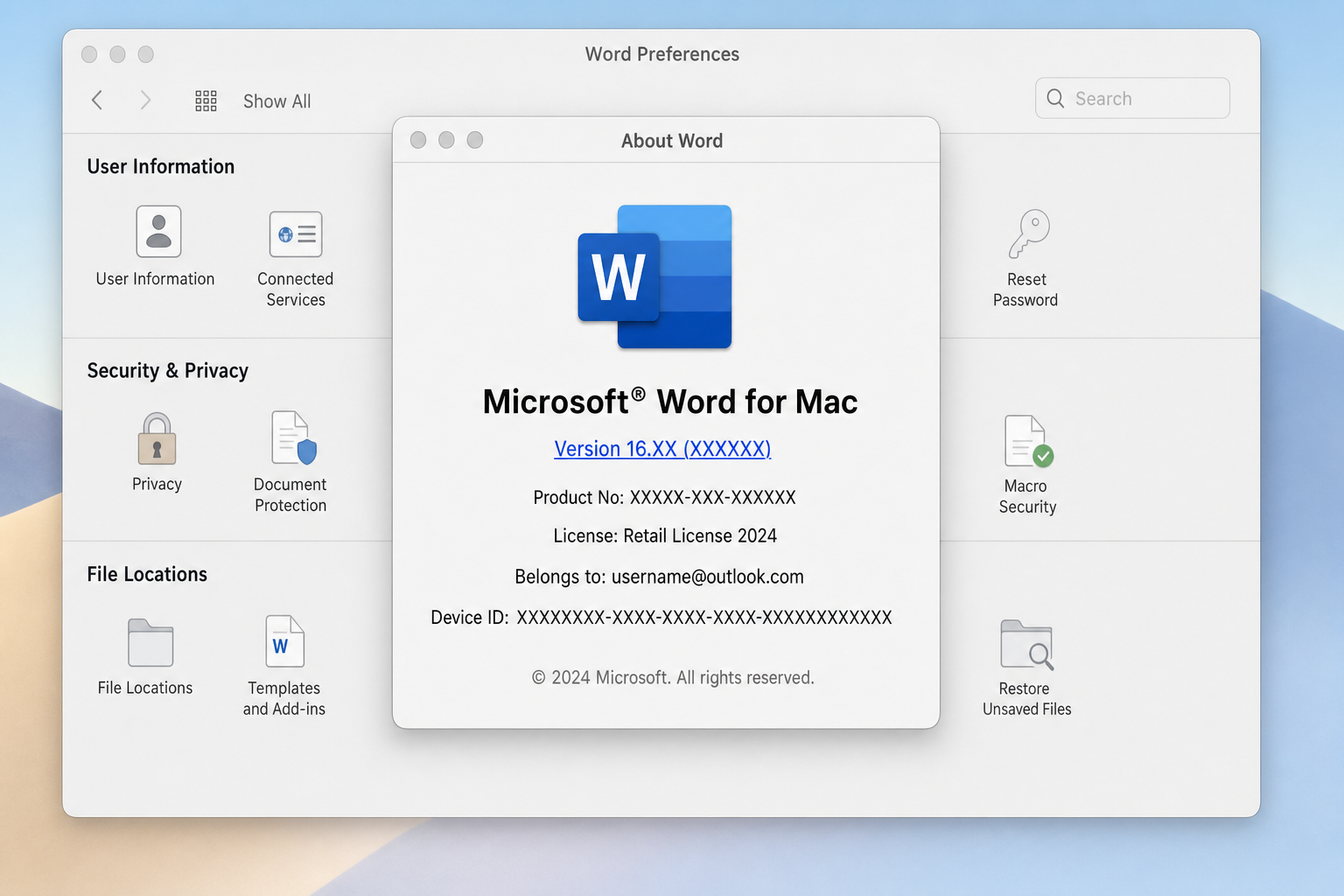
- In the menu bar at the top of your screen, click Word > About Word.
- A dialog box will appear showing the product name and version number (e.g., 16.xx.x).
- To confirm whether you have a subscription or a one-time purchase, go to Word > Preferences > Account. Look for a Subscription Product or One-time purchase label.
How to Update Office to the Latest Version
If you have Microsoft 365, keeping it current is easy. Here’s how to manually check for updates on both platforms.
On Windows
- Open any Office app (e.g., Word).
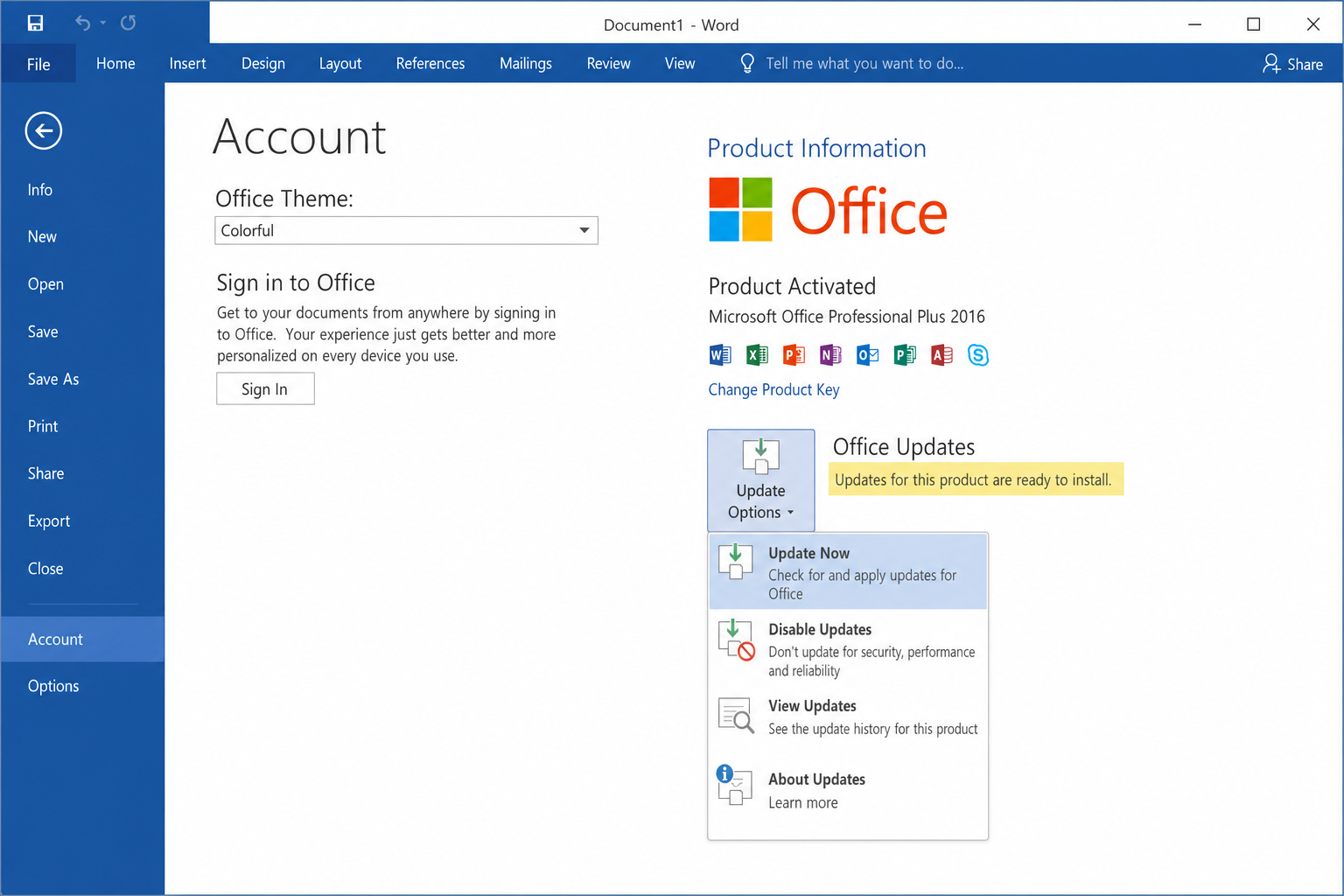
- Click File > Account.
- Under Office Updates, click Update Options.
- Select Update Now from the dropdown.
- Office will download and install any available updates. The app may close and reopen during the process, which is normal.
On macOS
- Open any Office app.
- In the menu bar, click Help > Check for Updates.
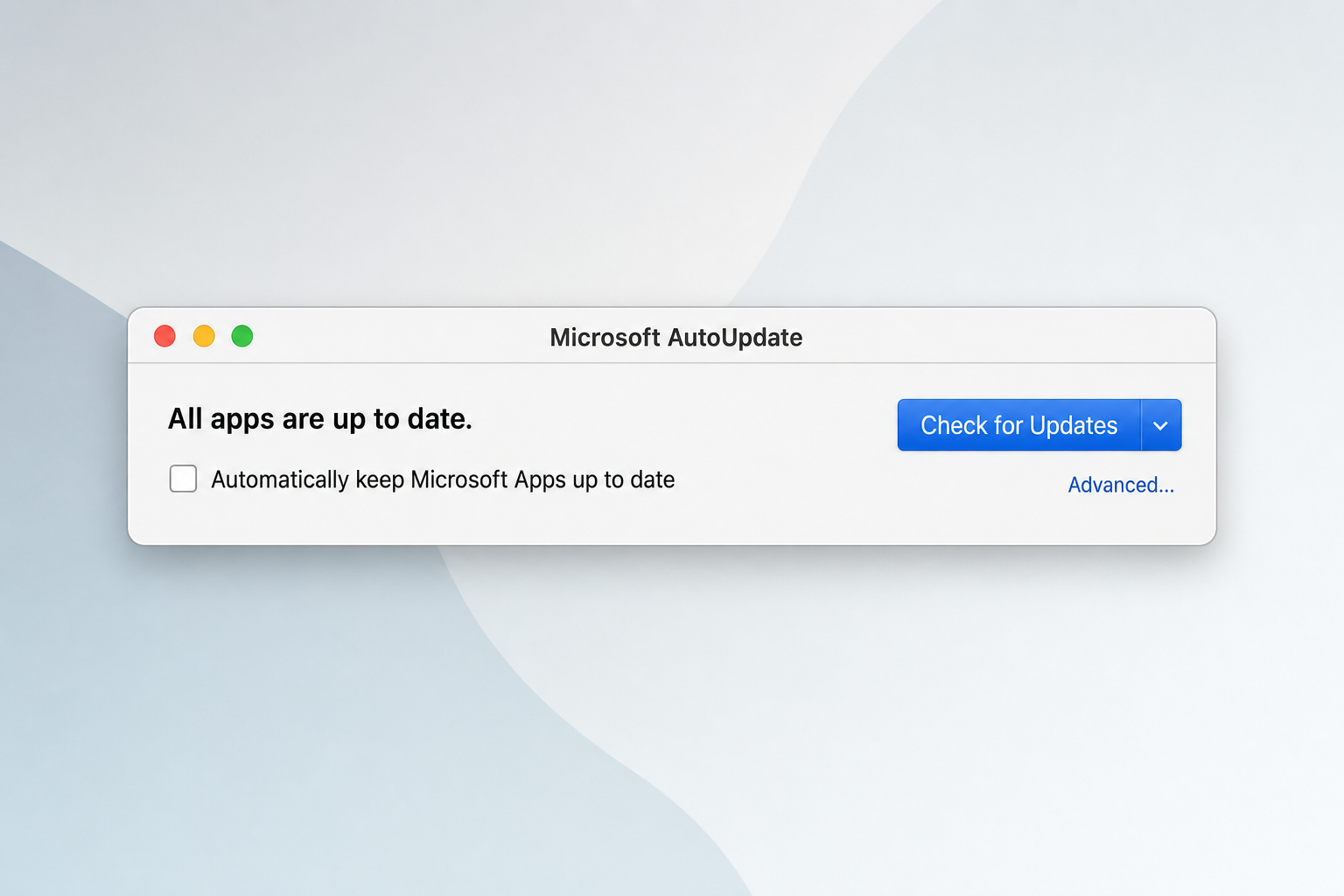
- The Microsoft AutoUpdate app will open. (If you don’t see the Help menu option, download Microsoft AutoUpdate directly from Microsoft’s website.)
- Click Check for Updates. Install anything that’s available.
- While you’re there, tick Automatically keep Microsoft Apps up to date. It’ll save you the hassle of doing this manually every time.
How to Get Office 2024 or Microsoft 365
Ready to grab a copy? Here’s where to go:
Office 2024 (One-Time Purchase)
- Check that your computer meets the minimum requirements:
- Windows: Windows 10 or Windows 11, 1.1 GHz processor with 2+ cores, 4 GB RAM, 4 GB drive space, 1280 x 768 display
- macOS: One of the three most recent macOS versions (Sequoia, Sonoma, or Ventura at the time of writing), 4 GB RAM, 10 GB drive space, 1280 x 800 display
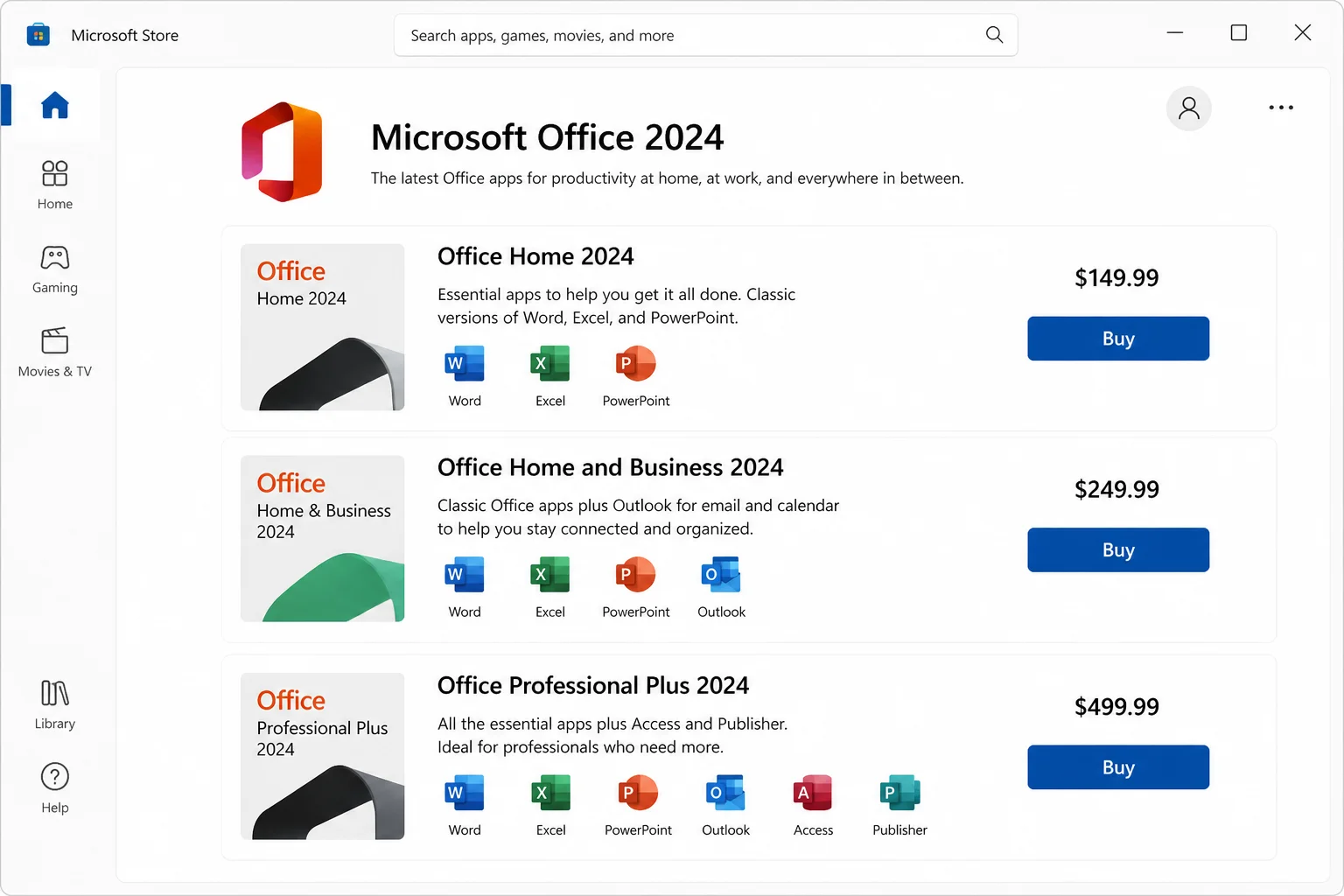
- Purchase the edition that fits your needs from Microsoft’s official store:
- Office Home 2024 (formerly Home & Student) – Word, Excel, PowerPoint (1 device)
- Office Home & Business 2024 – Adds Outlook (1 device)
- Office Professional Plus 2024 – Full suite including Access and Publisher (Windows only, 1 device)
- After purchasing, sign into your Microsoft account, download the installer, and run it. Office 2024 will typically remove older Office versions automatically during installation, but if it doesn’t, uninstall them manually. If you use Outlook, back up your data files before installing.
Microsoft 365 (Subscription)
- Head to microsoft.com/microsoft-365 and pick a plan.
- Sign in with your Microsoft account (or create one, it’s free).
- Follow the checkout process, then download and install the apps from your Microsoft account dashboard.
Key Features in Office 2024 Worth Knowing About
If you’re upgrading from Office 2016 or 2019, you’ll notice some genuinely useful additions in Office 2024. Here are the highlights:
- Co-authoring in Real Time (Word, Excel, PowerPoint, Windows & macOS): Multiple people can work on the same document simultaneously. You can see exactly who’s editing what, right as it happens. No more emailing files back and forth and losing track of which version is current. Requires saving to OneDrive or SharePoint.
- AutoSave (Word, Excel, PowerPoint, Windows & macOS): When your file is saved to OneDrive, every change is saved automatically as you work. You’ll never lose an hour of work to a crash again (and you know how well that goes without it).
- Dark Mode in Word (Windows & macOS): It’s not just the toolbar that goes dark; the page itself does too. Great for late-night writing sessions or anyone who finds bright screens hard on the eyes.
- Read Aloud (Word, Windows & macOS): Word will read your document back to you in a natural-sounding voice. It’s a surprisingly effective proofreading trick, as you catch missing words and awkward sentences way faster when you hear them.
- Free Stock Media (Word, Excel, PowerPoint, Outlook, Windows & macOS): Access a built-in library of stock photos, icons, illustrations, and more without leaving the app. No more hunting for royalty-free images on the web.
- Built-In Translator in Outlook (Windows): Outlook can translate emails in over 70 languages on the spot. Handy if you’re working with international clients or colleagues.
- Accessibility Checker (Word, Excel, PowerPoint, Windows): A built-in tool that scans your documents and flags anything that might be hard for people with disabilities to read or use. It even suggests fixes.
Frequently Asked Questions
Is there an Office 2026?
As of 2026, Microsoft has not released or officially announced a consumer “Office 2026” perpetual suite. Articles you might find speculating about this product are not based on official announcements. The latest perpetual version is Office 2024.
Is Office included with Windows 11?
Nope. Windows 11 gives you access to the basic web versions of Office apps through a Microsoft account, but the full desktop apps, including Word, Excel, and PowerPoint, are a separate purchase or subscription.
Can I still open .docx and .xlsx files in older Office versions?
Generally, yes. Office 2010 and later can open modern file formats. But older versions might not support newer features like dynamic arrays in Excel, advanced chart types, or AI-generated content. For the best compatibility and collaboration experience, Microsoft 365 is the safest bet.
Where are Access and Publisher?
Both are Windows-only apps. They’re included in Office Professional 2024 and in Microsoft 365 Apps for business/enterprise on Windows. Neither is available on macOS. If you’re on a Mac and need database tools, you’ll need to look at alternatives.
How do I know if I have Microsoft 365 or a one-time purchase?
On Windows, go to File > Account in any Office app and look at the product name. If it says “Microsoft 365,” you’re on a subscription. You can also check at account.microsoft.com under Services & subscriptions.
Wrapping Up
Here’s the short version: if you want the absolute latest Office with ongoing feature updates and AI tools, Microsoft 365 is the answer. If you’d rather pay once and be done with it, Office 2024 is the newest perpetual version, and it’s still a solid, well-supported product. Either way, if you’re running anything older than Office 2024, it’s genuinely time to upgrade, especially since Office 2016 and 2019 are now past their extended support dates.
Personally, Microsoft 365 is the better pick for most people in 2026. The Copilot features are genuinely useful for many users (on eligible plans), and getting apps on multiple devices for one subscription price is hard to argue with. But if subscriptions aren’t your thing, Office 2024 still gets the job done without any fuss. Check out our guide on how to find out what version of Office you currently have if you’re not sure where you’re starting from.