

Introduction
What’s more annoying than opening an important spreadsheet and watching your Wi-Fi disappear? Google Sheets Offline Mode keeps a local copy ready. You can work without internet access, then sync your edits when the connection returns.
The trick is to test the exact spreadsheet before you leave. These steps cover Windows, macOS, Android, iPhone, and iPad. You’ll also learn how to protect your work if syncing gets stuck.
What Is Google Sheets Offline?
Google Sheets Offline saves a working copy of a spreadsheet on your device. Once you’ve prepared the file, you can open and edit it without Wi-Fi or mobile data.
Its main features include:
- Offline editing: View and change a prepared spreadsheet without Wi-Fi or mobile data.
- Specific-file storage: Mark an important spreadsheet as Available offline, so you know Google saved it.
- Automatic recent-file storage: Let Google save some recently opened files when your device has enough space.
- Document status: Check whether an open spreadsheet is saved and ready for offline use.
- Automatic synchronization: Send stored edits to Google when your connection returns.
It’s handy for travelers, students, commuters, and anyone stuck with Wi-Fi that has other plans.
Prerequisites
Make sure you have:
- A non-sensitive test spreadsheet that you can safely edit
- An active internet connection for the initial setup
- The correct Google account signed in
- Google Chrome or Microsoft Edge on a Windows PC or Mac
- A normal browser window, not Incognito, InPrivate, or another private window
- The Google Docs Offline browser extension installed and enabled
- Enough free storage on the device
- The Google Sheets app for Android, iPhone, or iPad if using a mobile device
- Administrator permission if you use a managed work or school account
- A second device for the final synchronization check, if available
Important: Don’t use a private, irreplaceable, or actively shared spreadsheet for your first test. Ask collaborators to leave the test file alone until you’ve checked synchronization.
Step-by-Step Guide
Step 1: Choose a Safe Test Spreadsheet
While you’re online, visit https://docs.google.com/spreadsheets/ and sign in. Check the profile picture in the upper-right corner. It should match the Google account that can open your chosen spreadsheet.
Pick a harmless file, or create a blank spreadsheet with an obvious name, such as:
Offline Test 2026
Enter a simple label in cell A1, such as:
Before offline test
Treat this file like a crash-test dummy. You should be able to change or lose its contents without causing a small family emergency.
Expected result: The test spreadsheet opens under the correct Google account. Changing its contents wouldn’t cause a problem.
Step 2: Prepare Google Sheets Offline on Windows
Open Google Chrome or Microsoft Edge in a regular window. Desktop offline access doesn’t work in Incognito or InPrivate windows.
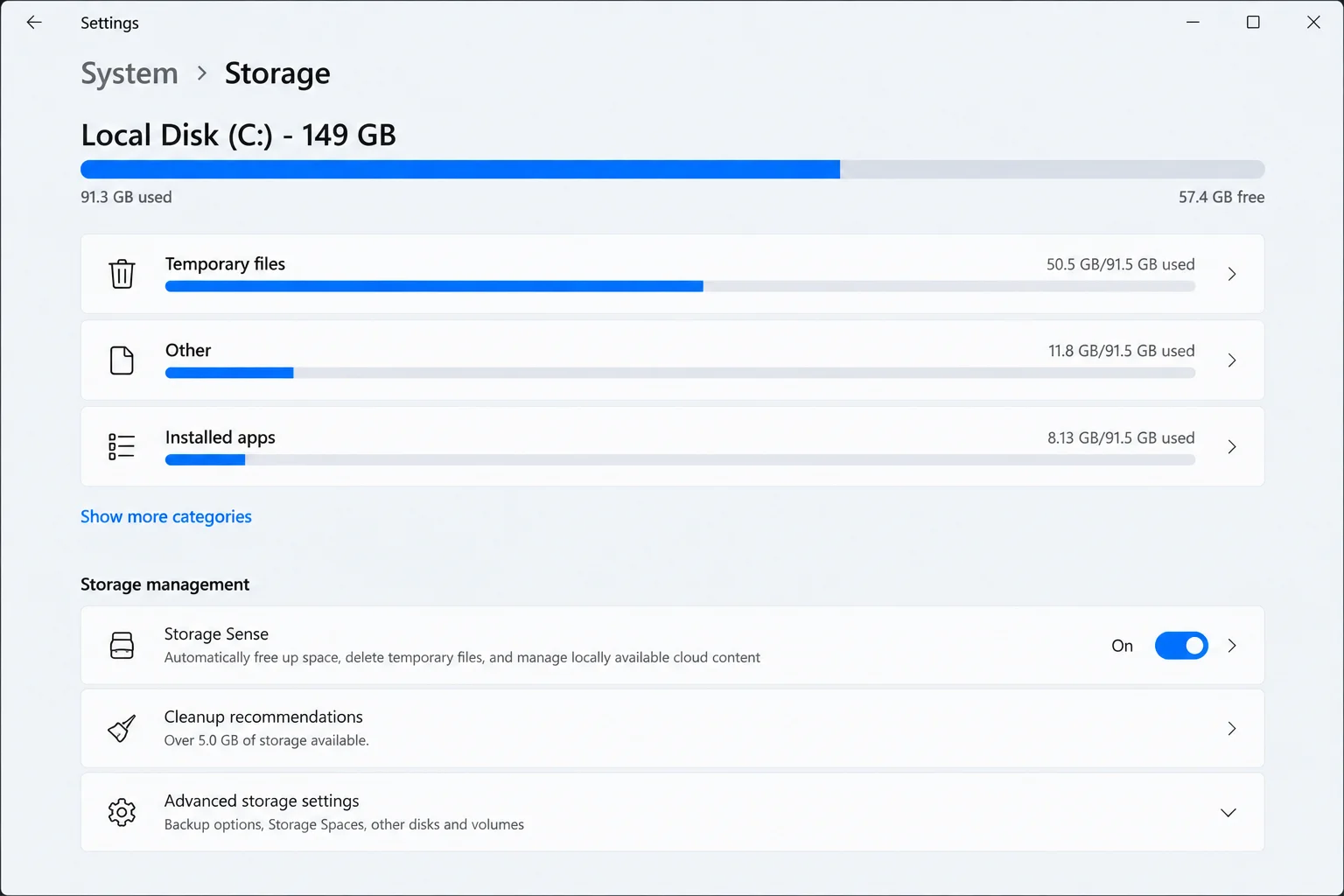
First, check that your PC has some free storage:
- Open Start > Settings.
- Select System > Storage.
- Check the free space shown for your system drive.
If you prefer PowerShell, right-click Start, select Terminal, and run:
Get-VolumeLook at the SizeRemaining value for drive C.
Next, open the official Google Docs Offline extension page. Select Add to Chrome if the extension isn’t installed. Then approve Add extension.
In Edge, allow extensions from other stores if prompted. Install the same extension. Next, check its status at chrome://extensions/ in Chrome or edge://extensions/ in Edge. The switch beside Google Docs Offline should be on.

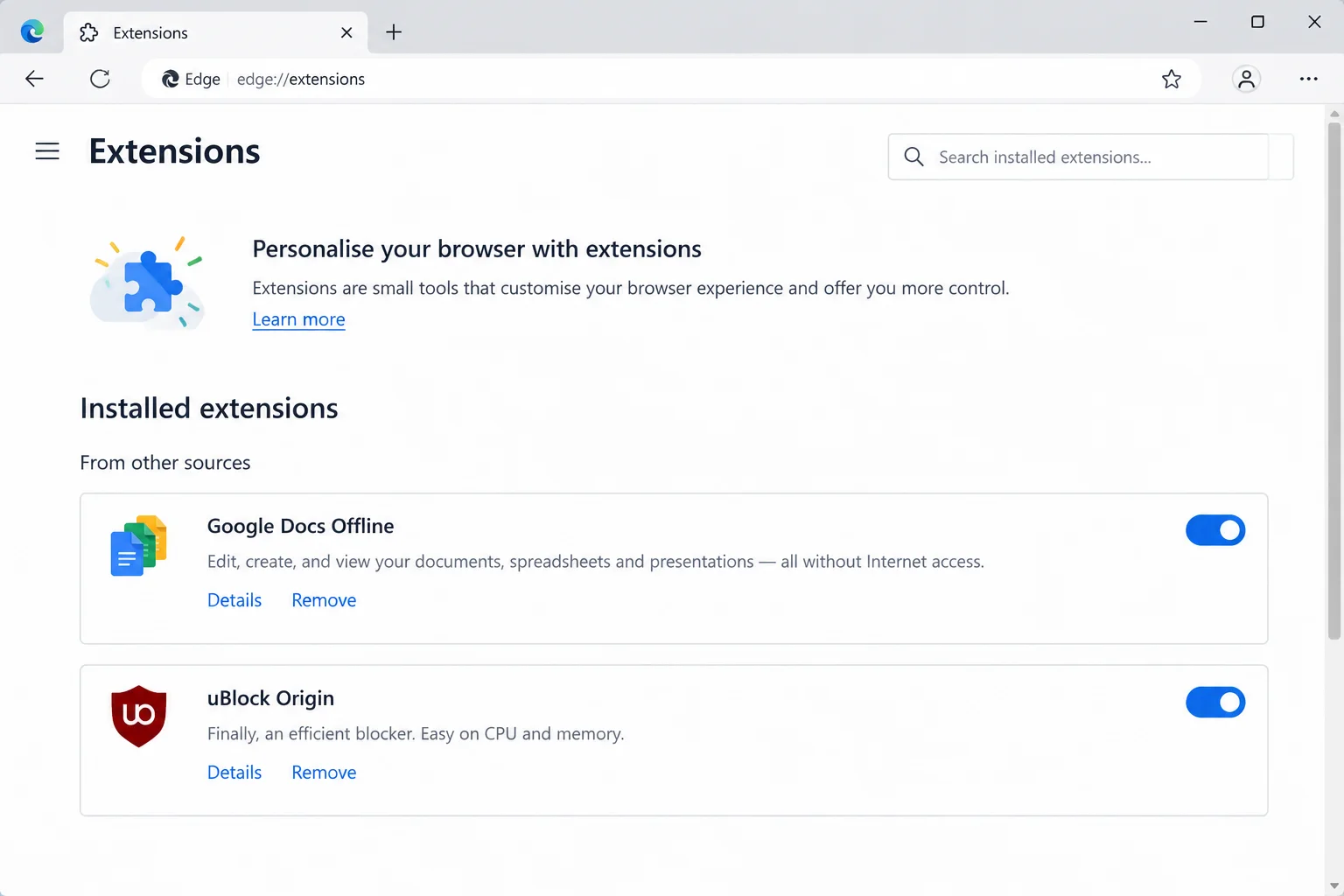
Expected result: Chrome or Edge is open in a normal window. You’re signed in to the correct account, storage is available, and Google Docs Offline is enabled.
Step 3: Prepare Google Sheets Offline on macOS
Open Google Chrome or Microsoft Edge in a regular window. Google’s desktop offline setup supports neither Safari nor Firefox. Private browsing won’t work either.
Check your Mac’s storage:
- Open the Apple menu.
- Select System Settings > General > Storage.
- Wait for macOS to calculate the available space.
You can also open Terminal from Applications > Utilities and run:
df -h ~Read the free space in the Avail column.

Install the Google Docs Offline extension if needed. To check it, enter chrome://extensions/ in Chrome or edge://extensions/ in Edge. Make sure the switch beside Google Docs Offline is on.

Expected result: Your browser, Google account, extension, and Mac storage are ready for offline setup.
Step 4: Enable Offline Access in Google Drive on the Web
The web setup is the same in Chrome and Edge on Windows and macOS:
- Open Google Drive settings.
- Find the Offline section.
- Turn on the option for creating, opening, and editing recent Google Docs, Sheets, and Slides files offline.
- Select Done if that button appears.
- Leave the browser open while Google prepares the offline storage.
Google changes its labels now and then (because settings menus apparently enjoy hide-and-seek). You may see a short Offline option or the longer description above. Both control the same setting.

Expected result: Offline access is on for this browser profile and Google account. Google won’t save every file in Drive automatically.
Step 5: Make One Spreadsheet Available Offline
Save the test spreadsheet yourself instead of relying on Google’s recent-file choices:
- Open the Google Sheets home screen.
- Find your test spreadsheet.
- Select its More button (the three-dot icon).
- Turn on Available offline.
- Wait for the offline indicator to appear.

You can also open the spreadsheet and select File > Make available offline.

Expected result: The chosen spreadsheet is marked for offline use on this computer.
Step 6: Confirm That the Spreadsheet Is Ready
Open the test spreadsheet while you’re still online. Beside the spreadsheet title, select See document status. This button usually looks like a cloud.
Wait for the panel to confirm that the document is saved or available offline. Don’t disconnect while Google is preparing or saving it. Walking away too early is like unplugging a printer halfway through a job: you’re asking for trouble.

Expected result: The status control confirms that the spreadsheet is saved and ready for an offline test.
Step 7: Perform a Harmless Offline Test on Windows or macOS
Keep the test spreadsheet open, then disconnect the computer.
On Windows:
- Select the Network icon on the taskbar.
- Select Wi-Fi to turn it off.
- Return to the spreadsheet.
On macOS:
- Select Control Center in the menu bar.
- Select Wi-Fi.
- Turn Wi-Fi off and return to the spreadsheet.
Try reloading or reopening the prepared spreadsheet from the Sheets home page. In an empty cell, enter a unique note:
Offline test 2026
Don’t open or edit this spreadsheet on another device yet. Using one device keeps the test nice and boring, which is exactly what you want.


Expected result: The spreadsheet opens without internet access and accepts the test edit. Google holds the change on this computer until it can sync.
Step 8: Reconnect and Verify Synchronization
Turn Wi-Fi back on with the same Windows or macOS controls. Return to the spreadsheet and keep the tab open.
Select See document status beside the title. Wait until the status says the changes are saved. Syncing can take a little time, so don’t reset anything while Google is working.
After the saved status appears:
- Open the spreadsheet on a second connected device.
- Make sure that device uses the correct Google account.
- Confirm that Offline test 2026 appears.
- Don’t edit from both devices during this check.
That second-device check is worth doing. It proves the edit reached Google instead of sitting quietly on your first computer.
Expected result: The offline edit appears on the second device, proving that synchronization finished.
Step 9: Set Up Google Sheets Offline on Android
Use the Google Sheets app for offline work on Android:
- Connect the Android device to the internet and open Google Sheets.
- Confirm that the correct account is selected.
- Tap Menu > Settings.
- Turn on Make recent files available offline if you want Google to save recent spreadsheets automatically.
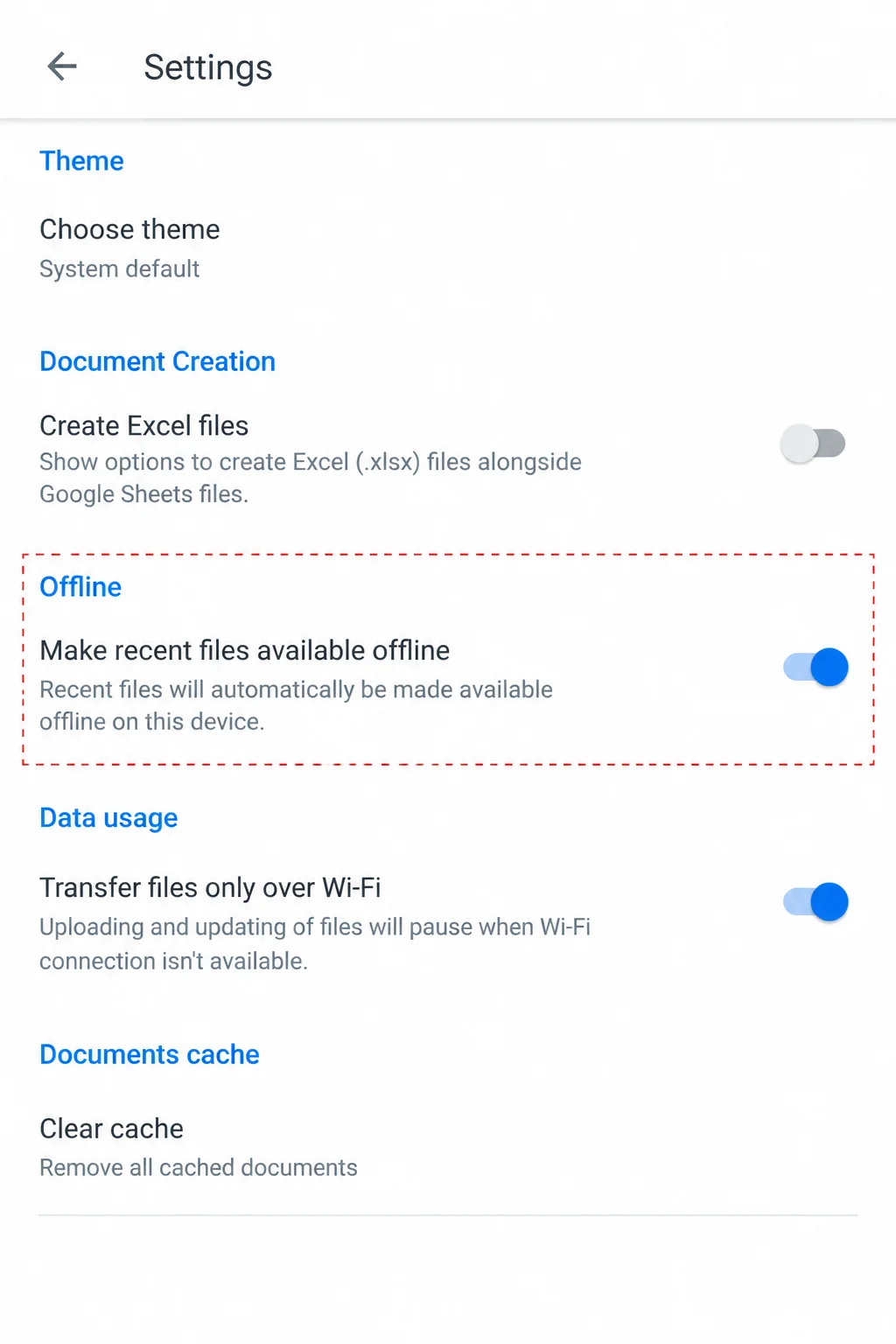
To save one spreadsheet, return to the file list. Tap More beside the file, then choose Make available offline.

Open Menu > Offline to confirm that the file appears. To test it, open Android’s Quick Settings and enable Airplane mode. Then open the saved spreadsheet.


Expected result: The spreadsheet appears in the app’s Offline list and opens without a network connection.
Step 10: Set Up Google Sheets Offline on iPhone or iPad
Use the Google Sheets app for full offline editing. The Google Drive app on iPhone or iPad may save only a preview. That’s not much use when you need to change a cell.
- Open Google Sheets while connected.
- Confirm that you’re using the correct Google account.
- Tap Menu > Settings.
- Enable Make recent files available offline if you want Google to save recent spreadsheets automatically.
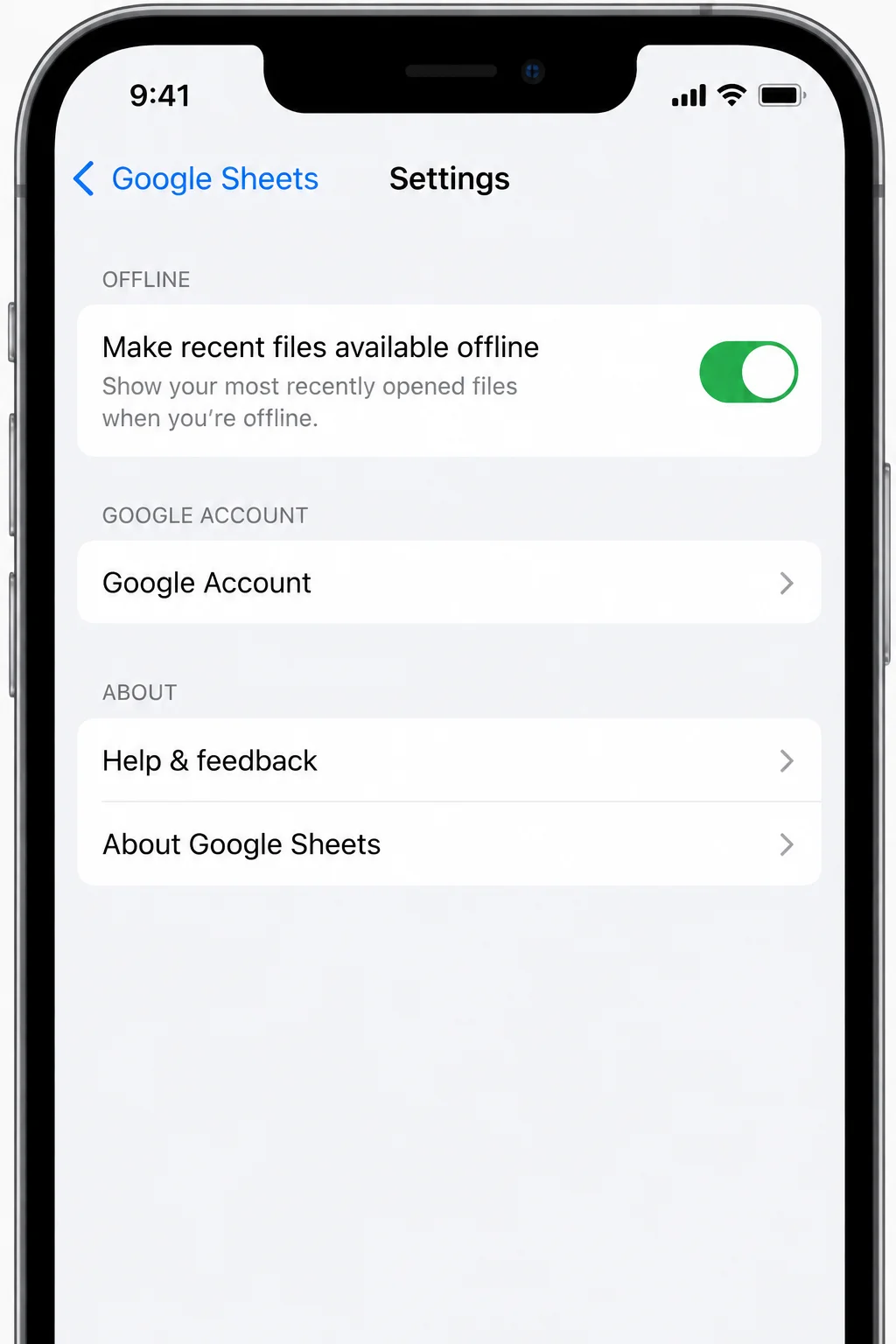
To prepare one spreadsheet, tap More beside it and select Make available offline.

Tap Menu > Offline and check that the spreadsheet appears. For a harmless test, open Settings and turn on Airplane Mode. Return to Google Sheets and open the file.

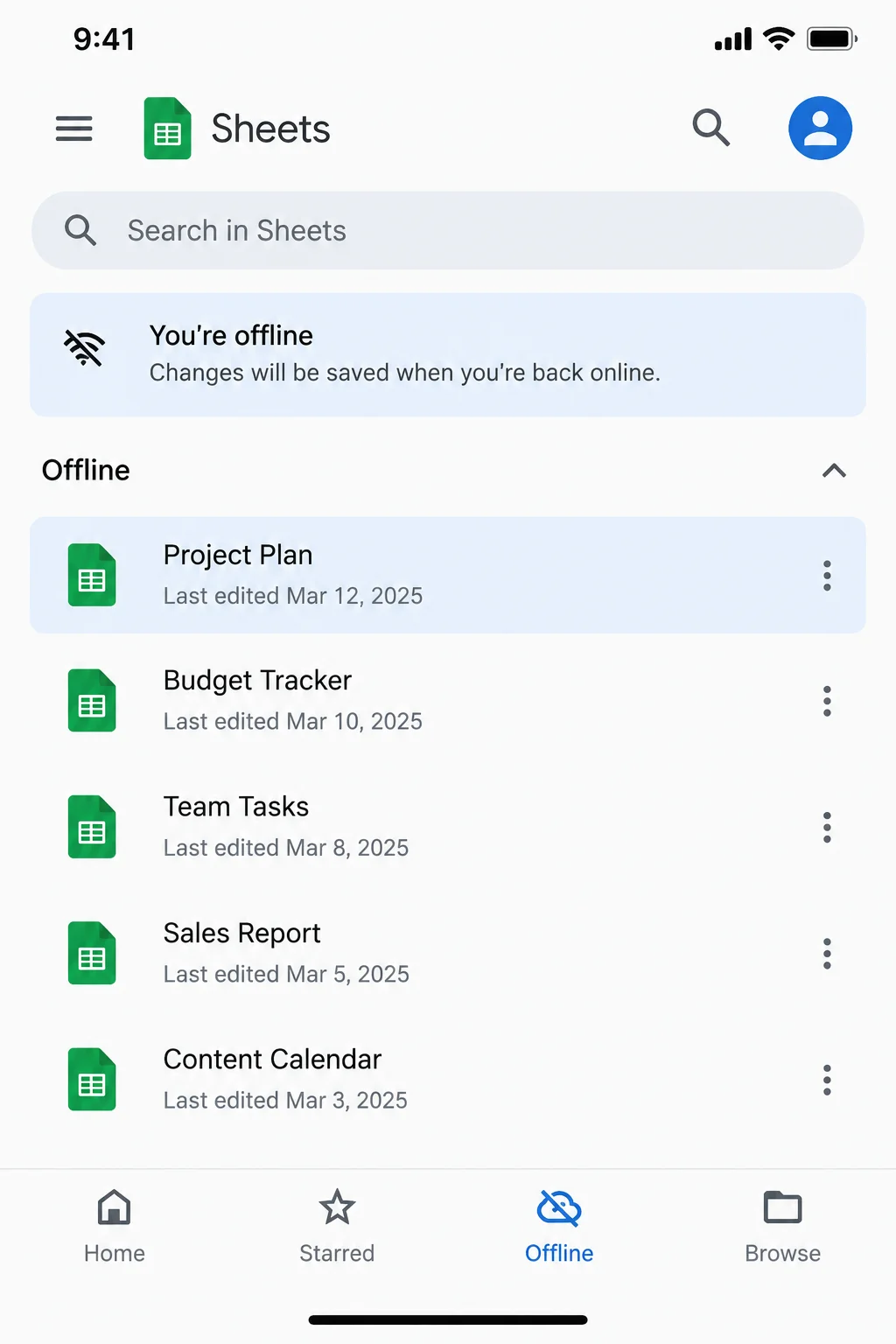
Expected result: The file opens and can be edited in the Google Sheets app without internet access.
Configuration
- Store important files individually: Use More > Available offline on desktop or More > Make available offline in the mobile app. This is the safest choice for travel documents, schedules, and other must-have files.
- Retain recent files automatically: Enable the Offline setting in Google Drive or Make recent files available offline in the mobile app. Google picks recent files based partly on use and free storage. It’s handy, but it doesn’t guarantee that a certain file will be there.
- Use separate browser profiles carefully: Offline storage belongs to the browser profile and Google account used during setup. A spreadsheet prepared in one Chrome profile may be missing from another.
- Manage limited storage: Save only the spreadsheets you expect to need. An external SSD can free space on your computer. However, Google’s offline copy still needs room on the device’s main storage.
- Check status before leaving: Open each needed spreadsheet and select See document status while you still have internet access. This tiny check beats arguing with airport Wi-Fi later (airport Wi-Fi usually wins).
Tips and Troubleshooting
Problem: The offline option is missing on desktop
- Reconnect to the internet.
- Use Chrome or Microsoft Edge in a normal window.
- Confirm that you’re signed in to the correct Google account.
- Enable the Google Docs Offline extension.
- Return to Google Drive > Settings and find the Offline section.
A work or school administrator can turn off offline access. If the option is still missing on a managed account, ask whether your account and device allow offline use.
Problem: The spreadsheet is unavailable without internet
- Reconnect before changing any browser settings.
- Open the file’s More menu.
- Enable Available offline.
- Open the spreadsheet and select See document status.
- Wait for confirmation before disconnecting again.
Recent-file storage doesn’t mean Google saves every Drive file. Think of it like packing a small bag: Google chooses a few likely items, but it can’t read your mind.
Problem: The file won’t finish preparing
- Keep any spreadsheet with unsynchronized changes open.
- Restore the internet connection.
- Check the free space on your device.
- Move unrelated photos or videos to an external SSD or cloud storage.
- Mark the spreadsheet offline again and wait for its status confirmation.
Storage can turn into a digital junk drawer surprisingly quickly. I’d move large videos first. They usually free far more space than a pile of tiny documents.
Problem: Offline edits don’t appear on another device
- Reconnect the original device.
- Leave the spreadsheet open.
- Wait until See document status says the changes are saved.
- Only then open the spreadsheet on the second device.
Avoid editing on both devices during this test. Two devices changing the same cells can cause confusion, especially while one copy is still syncing.
Problem: The iPhone or iPad file can’t be edited offline
- Open the spreadsheet in the Google Sheets app instead of the Google Drive app.
- Tap More > Make available offline.
- Confirm that it appears under Menu > Offline.
- Test it again with Airplane Mode enabled.
Protect unsynchronized work before resetting anything: Don’t sign out, clear browser data, disable offline access, remove the extension, or delete app data while local edits may be waiting to sync. Leave the file open. If possible, copy vital entries into a separate local document. Then reconnect and wait for the saved status.
Nobody likes staring at a stubborn sync icon. Still, a rushed reset can wipe out the only local copy of your changes. Give the connection time to recover before trying bigger fixes.
Wrapping Up
| Step | Action | Applies To |
|---|---|---|
| 1 | Choose a non-sensitive test file | All platforms |
| 2–4 | Check storage, enable the extension, and activate offline access | Windows, macOS, web |
| 5–6 | Mark the exact file and verify its status | Windows, macOS, web |
| 7–8 | Disconnect, test, reconnect, and confirm synchronization | Windows, macOS |
| 9 | Prepare and test a file in the Sheets app | Android |
| 10 | Prepare and test a file in the Sheets app | iPhone, iPad |
Google Sheets Offline Mode works well when you save the exact file and test it before leaving. The status check takes a few minutes. That’s much easier than finding a missing spreadsheet on a train, plane, or patchy hotel network.