
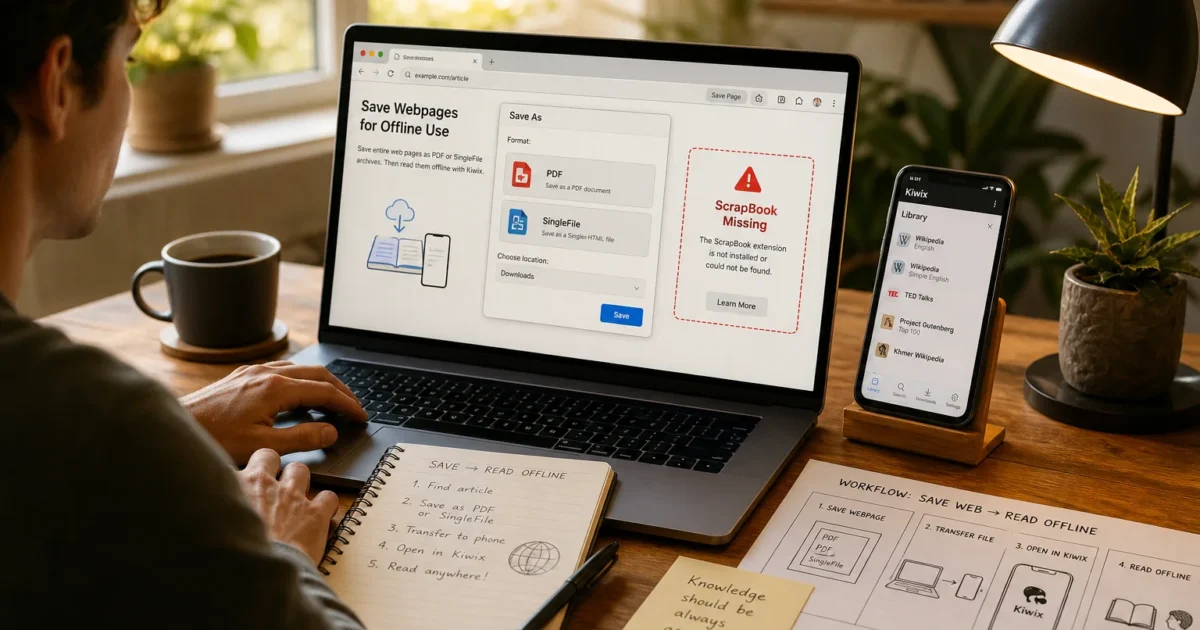
If you learned to save webpages back when ScrapBook (or ScrapBook X) was still a thing in Firefox, you’ve probably noticed it just vanished. No error message, no warning. One day it worked, and after an update it simply wasn’t there anymore. You’re not losing your mind, and you’re not alone in missing it.
The good news: saving websites offline is still completely doable in 2026. You just need different tools for different jobs. Want to grab one article to read on a flight? Your browser already does that. Want a pixel-perfect copy you can email or archive forever? There’s a better extension for that. Want an entire offline copy of Wikipedia or a whole reference site? There’s a tool built specifically for that too. This guide walks you through all of it, step by step.
What Happened to ScrapBook (And What Replaced It)?
ScrapBook let Firefox users save, organize, and annotate webpages in a personal offline library, kind of like a scrapbook for the internet (hence the name). It was genuinely great. The problem is that it was built on Firefox’s old add-on architecture, called XUL/XPCOM, which let extensions dig deep into the browser’s internal code.
In November 2017, Firefox 57 (“Quantum”) retired that old architecture entirely and switched to WebExtensions, the same cross-browser system Chrome and Edge use. That was a huge win for speed and security. But it also meant every old-school XUL add-on that hadn’t been rebuilt from scratch, ScrapBook included, stopped working overnight. Its developer never ported it to the new system, so it’s been effectively dead for years now. A quiet, unceremonious ending for a tool a lot of people relied on.
Here’s what fills that gap today:
- Built-in Save Page / Save as PDF – No install needed, works in every browser, best for a single page you need fast.
- SingleFile – A free extension that flattens an entire page into one self-contained HTML file, even more reliably than the browser’s own “Save As.”
- Save Page WE – A free extension similar to SingleFile, built specifically to capture a faithful, evidence-quality snapshot of a page.
- Kiwix – A free desktop app that reads ZIM files, letting you browse whole offline libraries like Wikipedia or entire archived websites with no internet at all.
- WebScrapBook – Worth a mention as the closest thing to a true ScrapBook revival: a WebExtensions-based tool that lets you organize saved pages into a browsable local collection.
Prerequisites
Before you start, make sure you’ve got:
- A current version of Chrome, Firefox, or Edge installed and updated
- macOS 14.6 or later (if you plan to install the Kiwix desktop app)
- A few minutes of free time and a webpage open that you want to save
- Enough free disk space: a single saved page is tiny, but full reference archives like Wikipedia can run into gigabytes
- No special account or subscription: every tool in this guide is free
Step-by-Step Guide
Step 1: Try the Built-In Save Option First
Before installing anything, know that Chrome, Firefox, and Edge already have a save option baked in. It’s just not as reliable as it sounds.
On macOS
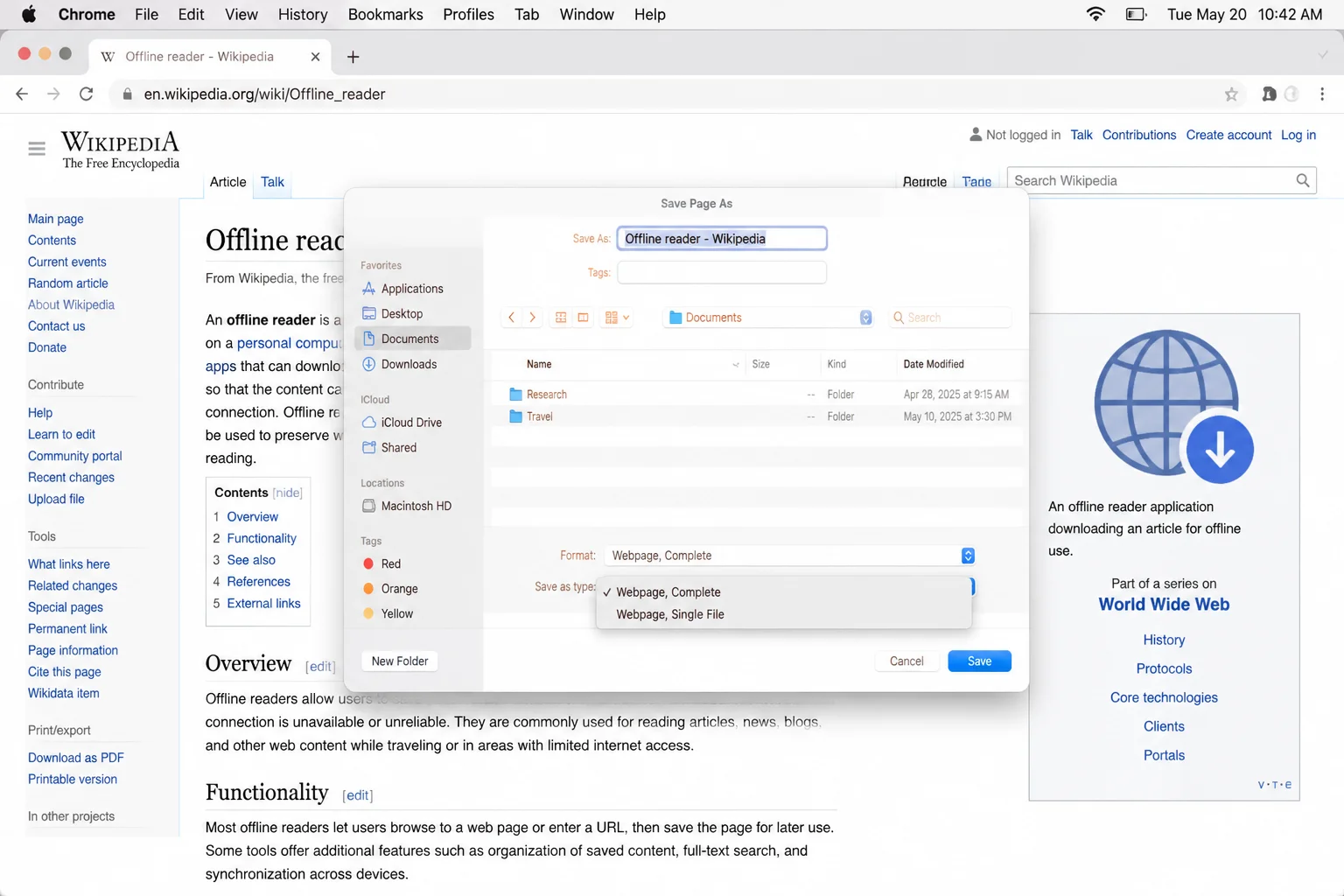
Open the page you want to save and press Cmd+S. A save dialog appears with a format dropdown:
- Webpage, Complete – Saves the HTML plus a separate folder of images, CSS, and scripts. This is the default, and it’s the one that tends to break if you move or rename the file.
- Webpage, HTML Only – Saves just the text and layout, without images.
- Webpage, Single File (Chrome and Edge only) – Saves everything as one
.mhtmlfile.
(On Windows, the same dialog opens with Ctrl+S instead.)
On Web (Any Browser)
The same basic dialog appears in Firefox and Edge, just with slightly different wording:
- Firefox: Press
Ctrl+S(Cmd+Son Mac) and choose between Web Page, complete and Web Page, HTML only in the format dropdown. - Edge: Press
Ctrl+S(Cmd+Son Mac); it offers the same Webpage, Complete / Single File / HTML Only choices as Chrome, since both are Chromium-based.
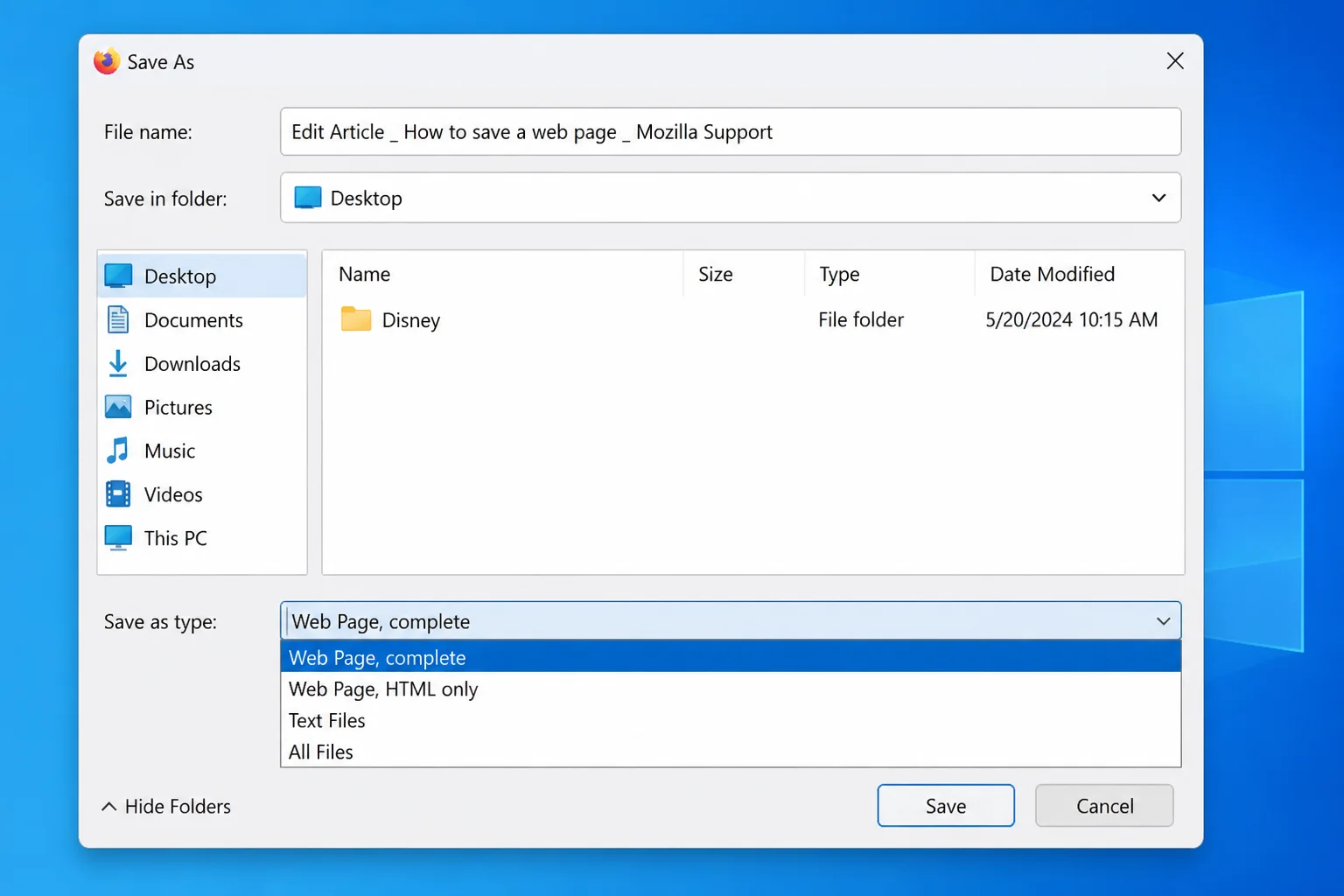
Expected result: A saved file (and possibly a companion folder) lands in your Downloads folder, ready to open even with no internet connection.
Tip: If you just want a portable document rather than an editable webpage, skip Save As and jump to Step 2. Printing to PDF is usually the better call for a single article.
Step 2: Save a Page as a PDF Instead
Printing to PDF avoids the whole “file plus folder” problem entirely, since a PDF is always one self-contained file.
On macOS
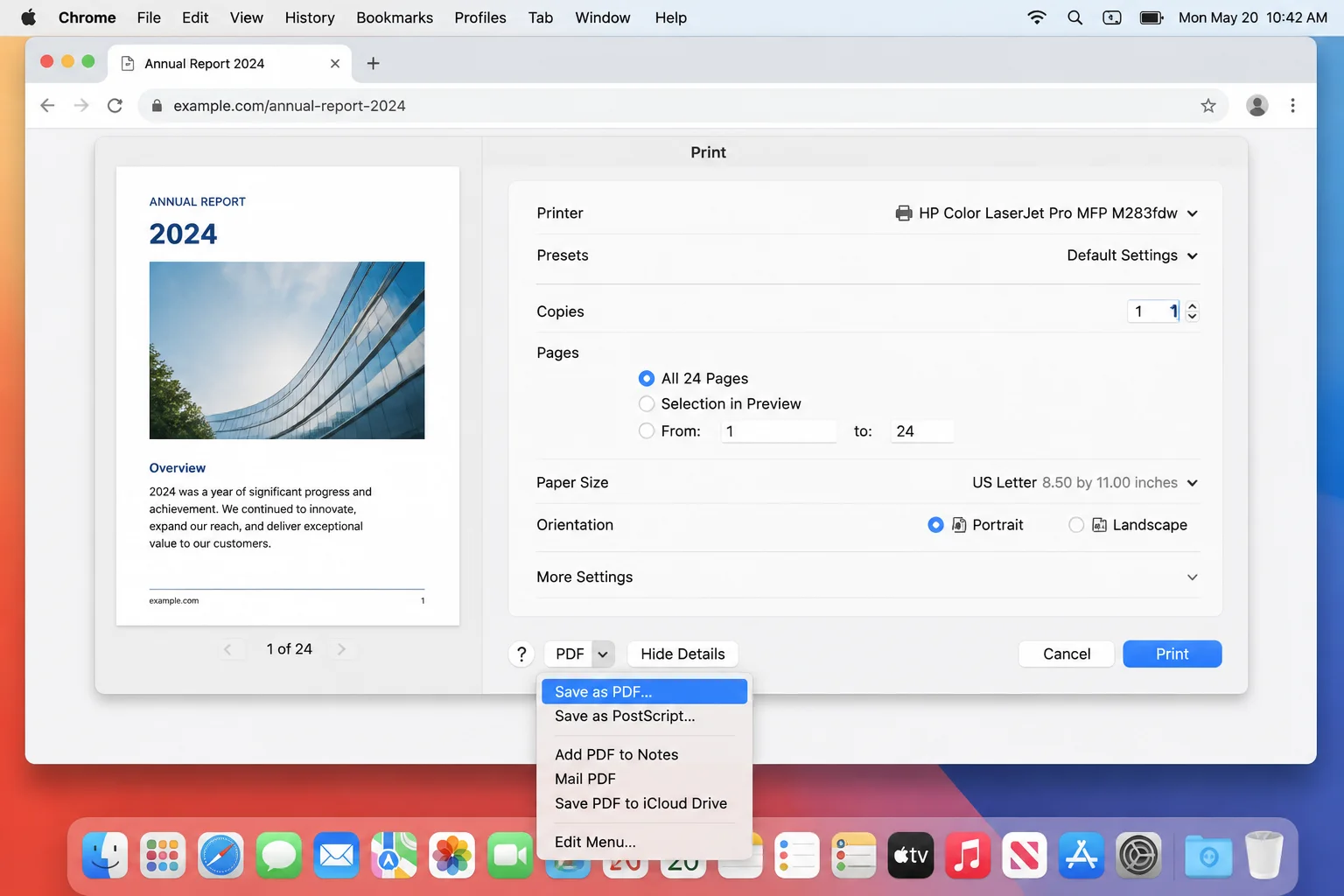
Press Cmd+P to open the print sheet, then click the PDF dropdown button in the bottom-left corner and choose Save as PDF. Pick a filename and location, then click Save.
On Web (Windows and macOS)
The same Ctrl+P / Cmd+P shortcut opens a print dialog in every browser. On Windows, choose Microsoft Print to PDF from the destination/printer dropdown instead of a physical printer, then click Save or Print.
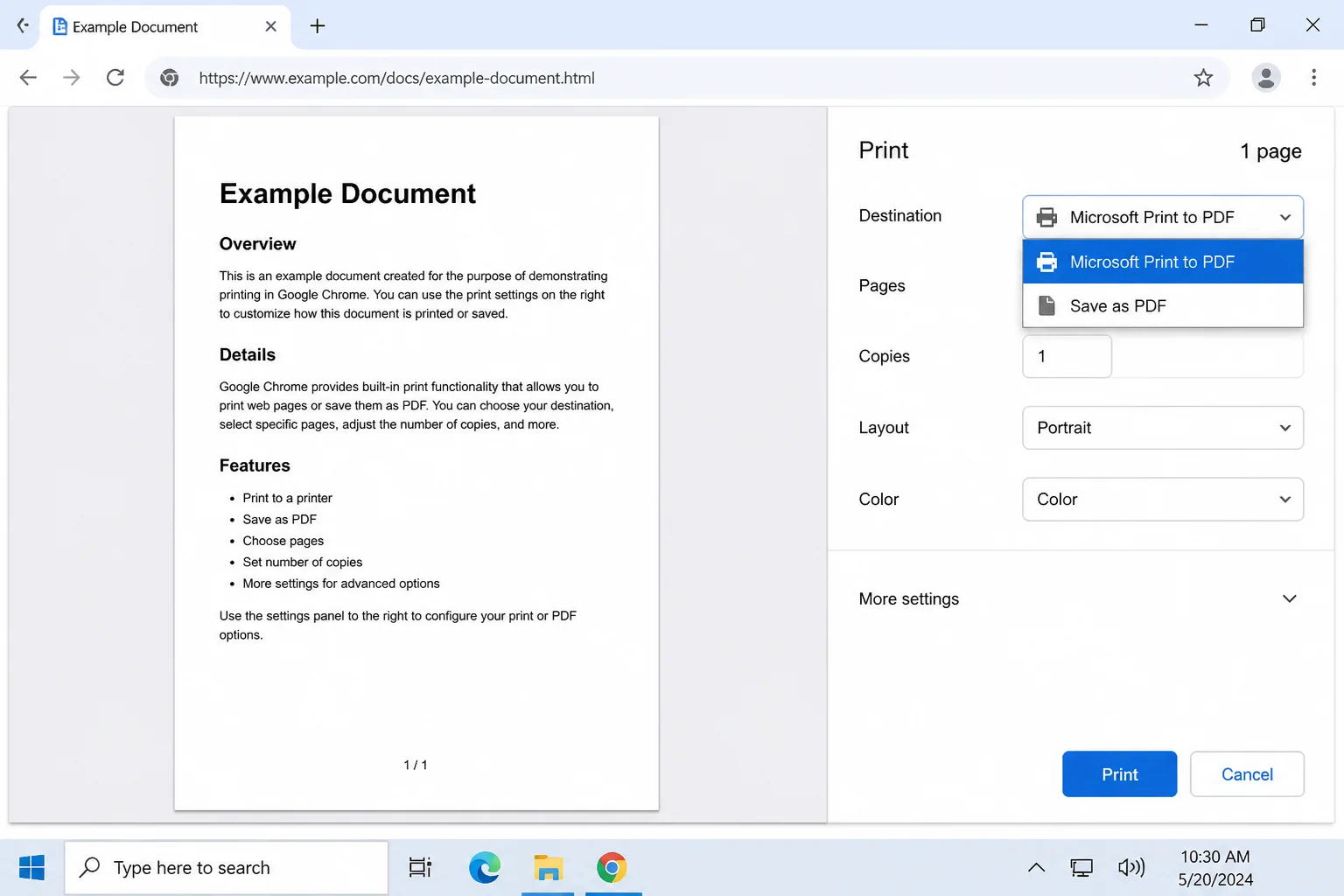
Expected result: A .pdf file that opens identically in any PDF reader, phone, or computer. Great for emailing or archiving, though it won’t preserve clickable links or dynamic layout the way a saved HTML page can.
Step 3: Install SingleFile for Better Single-Page Archiving
SingleFile is a free, open-source extension that captures a highly faithful snapshot of most pages, including images, fonts, and content hidden inside frames, and bundles it into one genuinely portable .html file. Unlike the browser’s native “Webpage, Complete” save, there’s no separate folder to lose track of. Dynamic, script-heavy, or lazy-loaded pages may not preserve every interactive element perfectly, but for most static and content-heavy pages this is the one I’d trust with something I care about keeping.
On Web (Any Browser)
- Go to your browser’s extension store:
- Chrome: the Chrome Web Store
- Firefox: Firefox Add-ons (addons.mozilla.org)
- Edge: Microsoft Edge Add-ons
- Search for SingleFile.
- Click Add to Chrome, Add to Firefox, or Get (Edge), then confirm the permissions prompt.
- Pin the extension icon to your toolbar so it’s easy to find later.
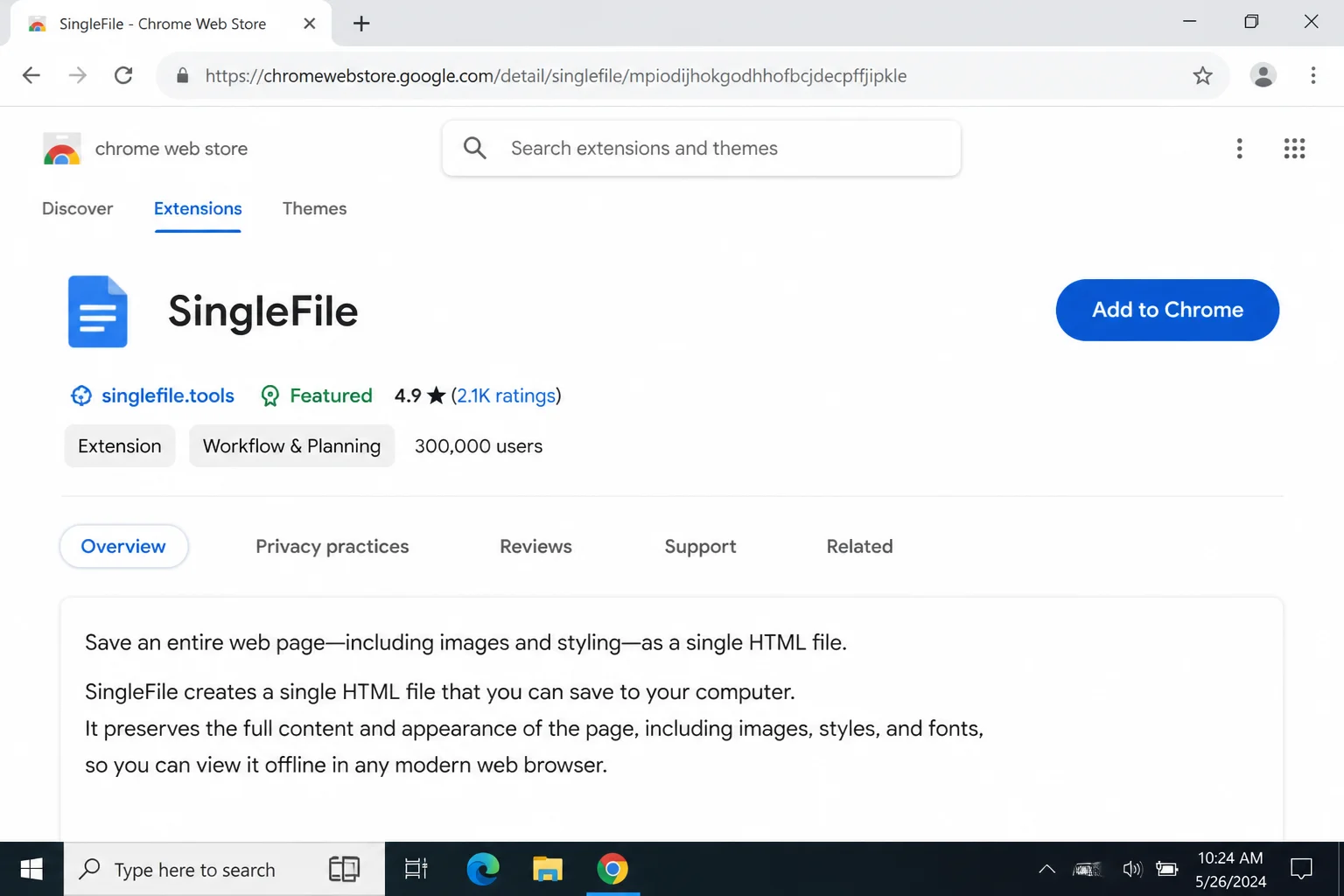
Expected result: A small SingleFile icon appears in your browser’s toolbar.
Step 4: Save a Page with SingleFile
- Open any webpage you want to archive.
- Scroll all the way down and back up once. This forces any lazy-loaded images to finish loading before you save. It’s a step people skip, and then wonder why their saved copy is missing pictures.
- Click the SingleFile toolbar icon.
- Wait a second or two while it processes the page (you’ll see a small progress indicator).
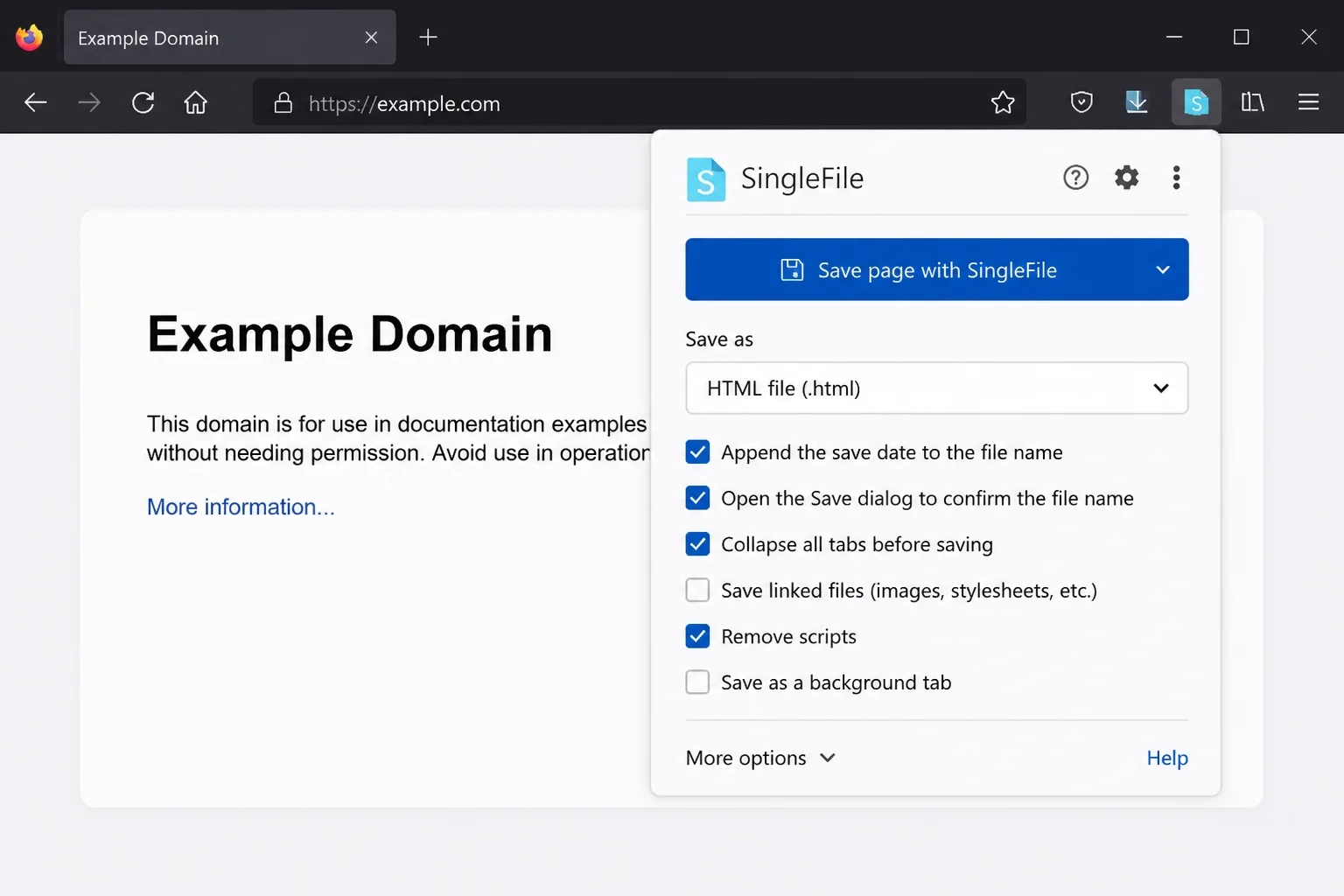
Expected result: A single .html file downloads automatically. Open it later, offline, in any browser; text, images, and layout should look exactly like the live page did.
Tip: Click the SingleFile icon’s dropdown arrow (or right-click it and choose Options) to reach settings like self-extracting archives and auto-save rules; more on that in the Configuration section below.
Step 5: Install and Try Save Page WE (Optional Alternative)
Save Page WE is another free extension with the same basic goal as SingleFile: one faithful, self-contained saved file. But it’s built with an emphasis on capturing an exact, evidence-quality snapshot of a page at a specific moment.
On Web (Any Browser)
- Open your browser’s extension store and search for Save Page WE.
- Click Add to Chrome / Add to Firefox / Get.
- Pin the icon to your toolbar.
- Open a page, click the icon, and choose Save.
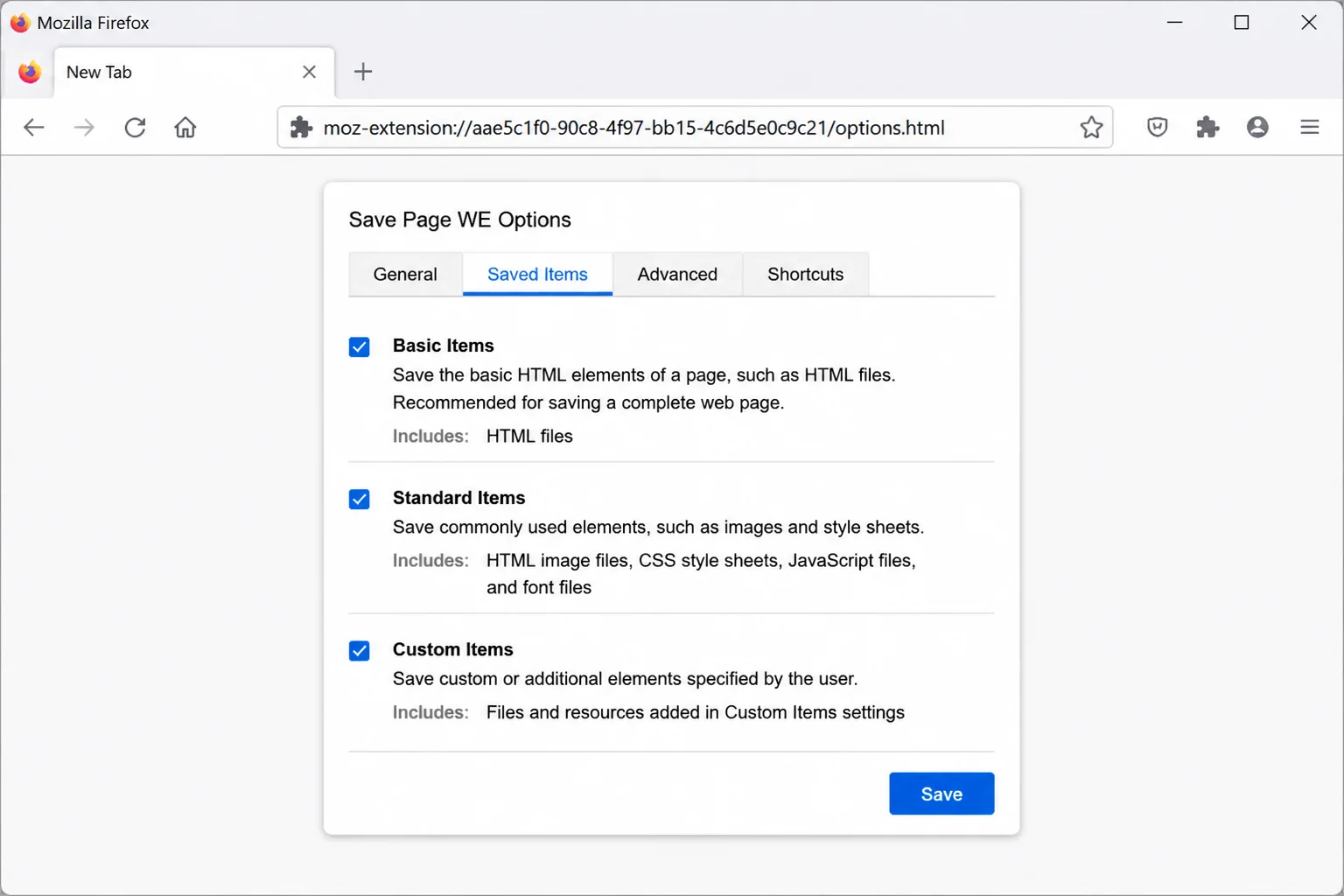
Expected result: A single saved file lands in your Downloads folder, similar to SingleFile’s output.
Step 6: Install Kiwix Desktop for Whole-Site and Library Archiving
Neither SingleFile nor Save Page WE is built for saving an entire website or a huge reference library; that’s Kiwix’s job. Kiwix reads compressed archive files called ZIM files, which can hold anything from a single documentation site to the full text of Wikipedia, and lets you browse them completely offline, with working search. This is the tool that made me realize how far offline browsing has actually come since ScrapBook’s era.
On macOS
- Go to the official Kiwix downloads page at kiwix.org.
- Download the macOS
.dmgbuild. - Open the downloaded file and drag the Kiwix icon into your Applications folder.
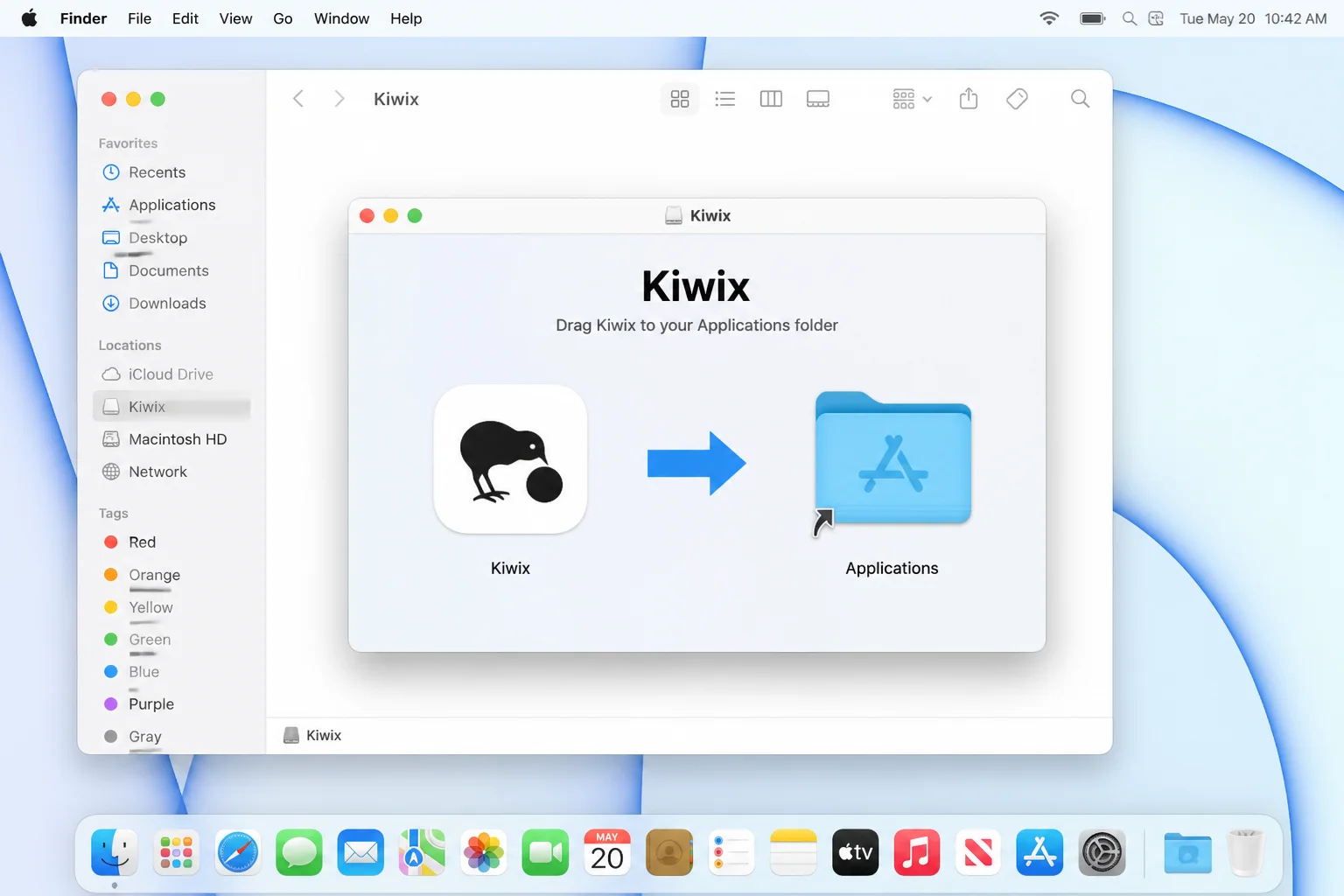
- Open Kiwix from Applications (right-click and choose Open the first time, since it’s downloaded from outside the App Store).
Expected result: Kiwix Desktop launches with an empty library, ready for you to add a ZIM file.
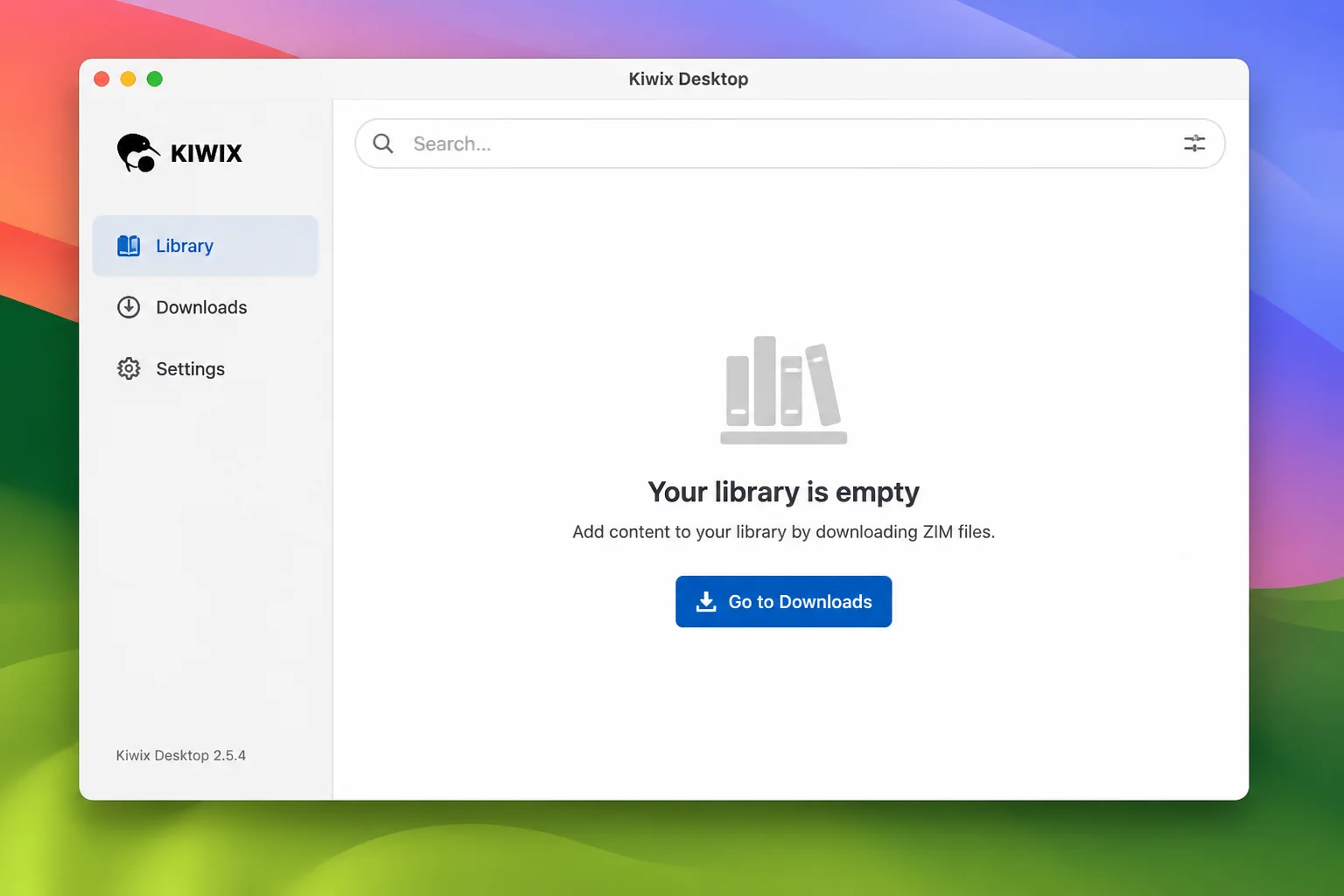
Step 7: Download and Open a ZIM File
- In your browser, go to library.kiwix.org, no login required.
- Browse or search for what you want offline (Wikipedia, Wiktionary, Project Gutenberg, Stack Exchange, and many more are available).
- Pick an edition that fits your storage; full archives with images can be huge, while text-only editions are much smaller.
- Click the download link for the
.zimfile.
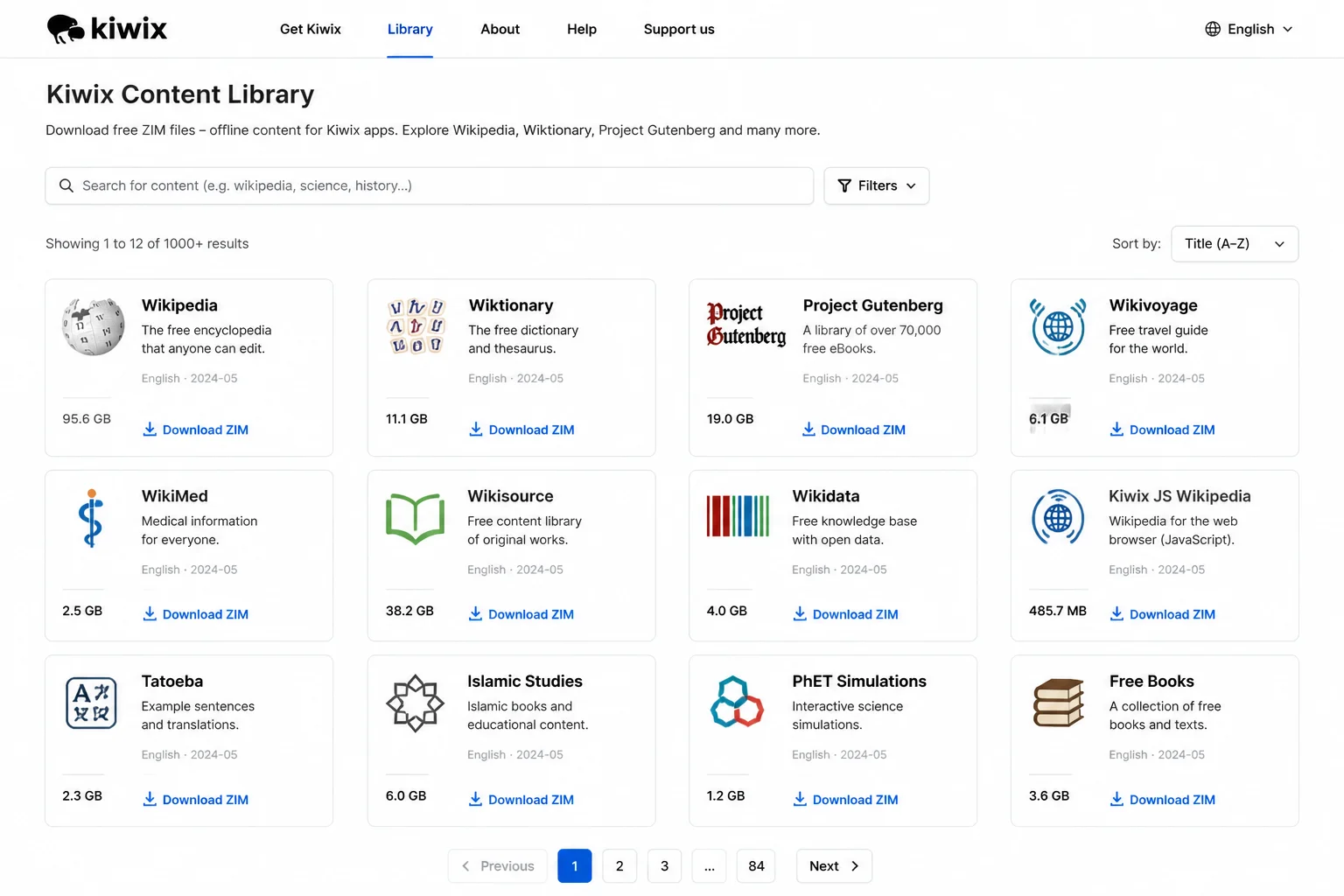
- Once it finishes downloading, open Kiwix Desktop and either drag the
.zimfile into the app window or use File > Open to select it.
Expected result: The archive appears in your Kiwix library, and you can search and click through it exactly like a live website, with zero internet connection required. There’s something quietly satisfying about clicking through Wikipedia on an airplane with no Wi-Fi.
Which Tool Should You Use? (Comparison Table)
| Tool | Best For | Output | Cost |
|---|---|---|---|
Built-in Save Page (Ctrl+S/Cmd+S) | Quick, throwaway saves of one page | HTML file (+ folder) | Free |
Save as PDF (Ctrl+P/Cmd+P) | Sharing or archiving a document-style copy | Single PDF file | Free |
| SingleFile | Faithful, portable single-page archives | Single self-contained HTML file | Free |
| Save Page WE | Evidence-quality single-page snapshots | Single HTML file | Free |
| Kiwix + ZIM files | Whole-site or reference-library offline browsing | Browsable local archive | Free |
If you just need one article for later, use the built-in Save or Save as PDF. If you want a highly faithful, self-contained copy that’s safe to email, move, or store away for years, reach for SingleFile or Save Page WE (dynamic or script-heavy pages may not be preserved with full fidelity). If you’re trying to preserve or browse an entire website or reference library, Kiwix is the only tool on this list actually built for that job.
Configuration
A few settings are worth adjusting once you’ve got these tools installed:
- SingleFile: self-extracting archive: Found in the extension’s Options page. Leave this on (it’s the default); it keeps your saved file as a single, double-clickable
.htmlrather than a ZIP-style bundle. - SingleFile: save behavior: Also in Options, you can switch the toolbar button between saving the whole visible page, only a text selection, or auto-saving pages as you browse (handy for research sessions).
- Save Page WE: save location and file naming: In the extension’s settings, you can point saved files to a specific folder and customize the filename pattern instead of using the browser’s default Downloads folder.
- Kiwix: library folder: In Kiwix Desktop’s preferences, you can change where it looks for and stores ZIM files, which is useful if you’re keeping a large archive collection on an external drive.
Tips and Troubleshooting
Problem: “Webpage, Complete” looks broken after you move or email it.
This format splits the page into an .html file plus a folder of linked assets. Moving or renaming one without the other breaks the links.
- Use Webpage, Single File (
.mhtml) in Chrome or Edge instead, or - Install SingleFile, which bundles everything into one file that never depends on a companion folder.
Problem: A .mhtml file saved from Chrome or Edge won’t open in Firefox.
MHTML is a Chromium format with inconsistent support elsewhere.
- Re-save the page with SingleFile or Save Page WE instead; both produce a standard
.htmlfile that opens correctly anywhere.
Problem: Your SingleFile or Save Page WE copy is missing images.
- Scroll through the entire page before saving so lazy-loaded content finishes loading.
- Check the extension’s options for a “load deferred images” or auto-scroll setting, and enable it.
Problem: Saved files are way bigger than you expected.
- Remember that self-contained formats embed every image, font, and stylesheet directly in the file.
- Use the extension’s options to compress images or strip fonts/scripts before saving.
- For media-heavy pages, try Save as PDF instead; it’s often smaller.
Problem: Printed PDFs cut off content or drop background colors.
- Open the print dialog’s More settings.
- Set margins to None or Minimum.
- Enable Background graphics (Chrome/Edge) or the equivalent toggle before saving.
Problem: A Kiwix ZIM download fills up your hard drive.
- Go back to library.kiwix.org and pick a smaller or text-only edition.
- Choose a topic-specific ZIM instead of a full archive like all of Wikipedia.
Tip: If what you actually miss from ScrapBook is the organizing, meaning folders of saved pages, tags, and notes, look into WebScrapBook, a WebExtensions-based tool built as a more direct spiritual successor to the original.
Wrapping Up
ScrapBook isn’t coming back. But you’re not missing out on much anymore. Between your browser’s built-in Save and PDF tools, SingleFile or Save Page WE for single pages, and Kiwix for whole sites and reference libraries, you’ve got better coverage than ScrapBook ever offered on its own.
Install SingleFile now, even if you don’t need it today. It takes 30 seconds, and it’s the tool you’ll reach for the next time you find a page you’re worried might disappear.
| Step | Action | Applies To |
|---|---|---|
| 1 | Use Ctrl+S/Cmd+S to Save Page As | Chrome, Firefox, Edge |
| 2 | Use Ctrl+P/Cmd+P and Save as PDF | Chrome, Firefox, Edge |
| 3 | Install SingleFile from your extension store | Chrome, Firefox, Edge |
| 4 | Save a page as one self-contained HTML file | SingleFile |
| 5 | Install Save Page WE as an alternative | Chrome, Firefox, Edge |
| 6 | Install Kiwix Desktop | macOS (also Windows/Linux) |
| 7 | Download a ZIM file and open it in Kiwix | library.kiwix.org |
Resources: