
If you’re ditching iOS for Android, you don’t have to leave your WhatsApp chat history behind. You can transfer everything with a USB-C to Lightning cable. This tutorial will show you how.
Although WhatsApp has a reputation for making it challenging to transfer conversations and media files from iPhone to Android, that isn’t the case if your phone is Android 12-compatible. You need a freshly reset Android 12 device, an up-to-date copy of WhatsApp on the iPhone, and a USB-C to Lightning cable to move your data across.
If your new Android smartphone is from Samsung, you don’t even need to be running Android 12. You can migrate your WhatsApp data directly via the built-in Samsung Smart Switch app.
How Transferring Data Between iPhone and Android Works
WhatsApp for iPhone backs up your chats and media to Apple’s iCloud Drive, but its Android counterpart uses Google Drive. That means you can’t use your chat backup on iCloud to restore WhatsApp while switching from iPhone to Android.
However, assuming you use a phone running Android 12 or newer (such as a Google Pixel 3 or later), you can transfer your iPhone’s WhatsApp chat history using a USB-C to Lightning cable. You can also copy other forms of data—apps, contacts, and photos—during the process.
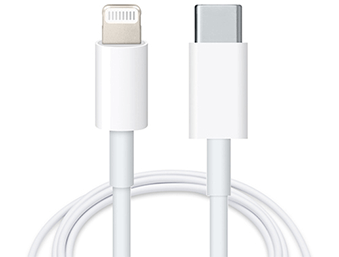
Android 12 isn’t a requirement on Samsung phones (e.g., Samsung Galaxy). Instead, you can transfer your WhatsApp data to the new device using the Samsung Smart Switch app. But again, you need a USB cable to initiate the data transfer.
In both instances, you need a freshly reset Android 12 or Samsung device before you can begin. You must also visit the App Store on your iPhone and install pending WhatsApp updates to avoid potential issues during the transfer process. It’s also best to update iOS to its latest version.
How to Transfer WhatsApp Chats From iPhone to Android 12
If you use an Android phone running Android 12 or later, you can transfer your WhatsApp chat history—including other compatible apps and data—from iPhone to Android after connecting both devices via a USB-C to Lightning cable.
If you’ve already gone through the Android setup for your phone, you must factory reset it again before you can transfer your WhatsApp data. Go to Settings > System > Reset Options > Erase all data to do that. You don’t have to reset if you’re at the Home Screen but have yet to complete the device setup.
Note: As you work through the instructions below, you may have to complete additional steps—sign in to a Google Account, configure privacy and security settings, etc.—as part of the Android setup.
- Connect the iPhone and Android with a USB-C to Lightning cable.
- Unlock both devices and tap Get Started on your Android.
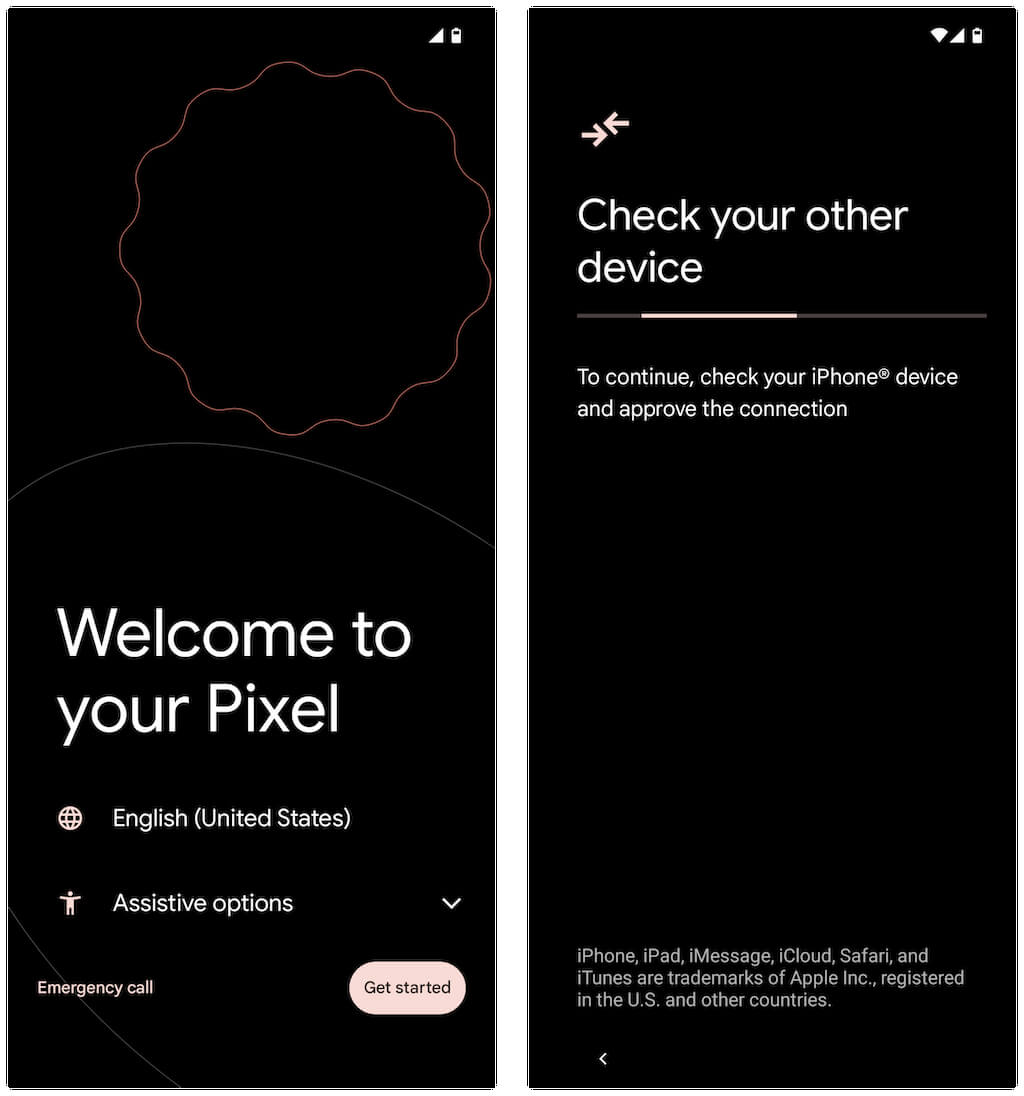
If you didn’t completely go through the Android setup previously, swipe down from the top of the Home Screen and tap Continue Pixel Setup on your Google Pixel phone (or any equivalent option depending on your Android device model).
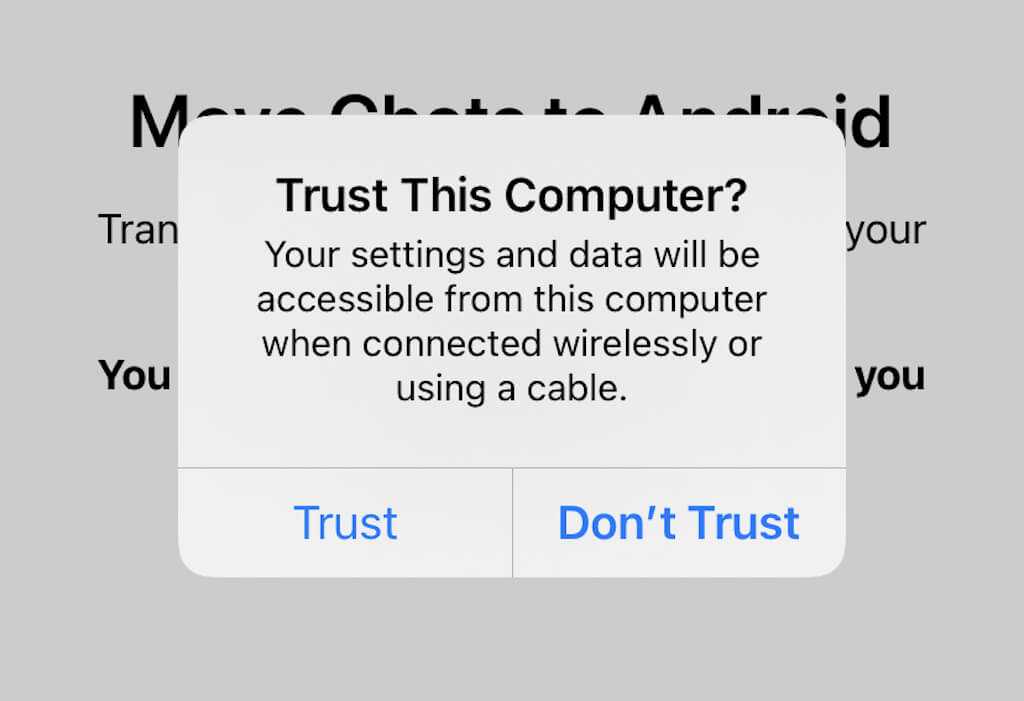
- Look for a Trust This Computer? pop-up on your iPhone and tap Trust or Allow.
- Tap Next on the “Phones are connected” screen. Then, wait while your Android device prepares to copy data from your iPhone. If you encrypt your iPhone backups on a PC or Mac, you must enter your iTunes backup password to continue.
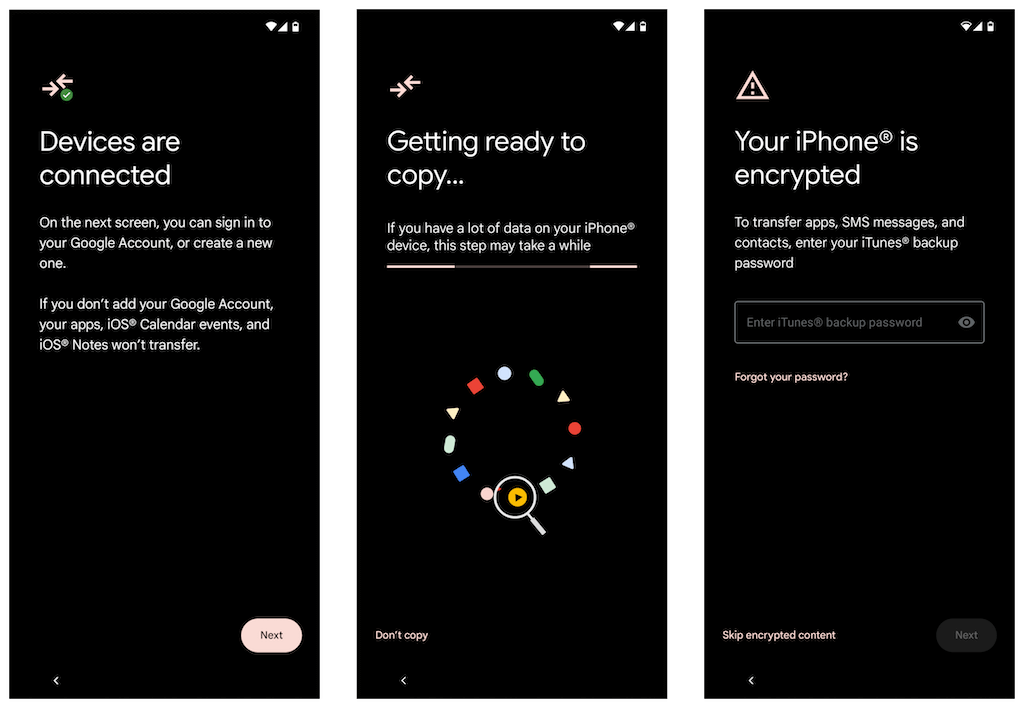
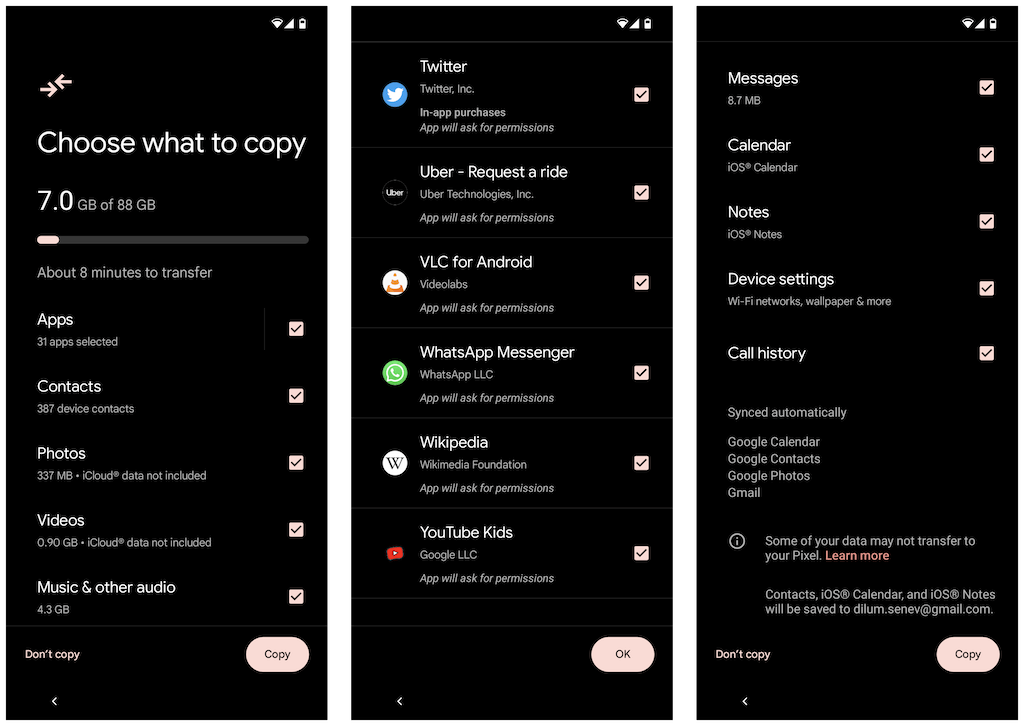
- Select the forms of data you want to transfer on the “Choose what to copy” screen. If you only want to move WhatsApp, tap Apps and ensure that WhatsApp Messenger is selected. Next, tap Copy.
- Open WhatsApp on your iPhone and go to Settings > Chats > Move Chats to Android. Then, tap the Start button to prepare your WhatsApp data for migration and remain on the “Continue On Your New Phone” screen unlocked while your Android copies the data on your iPhone.
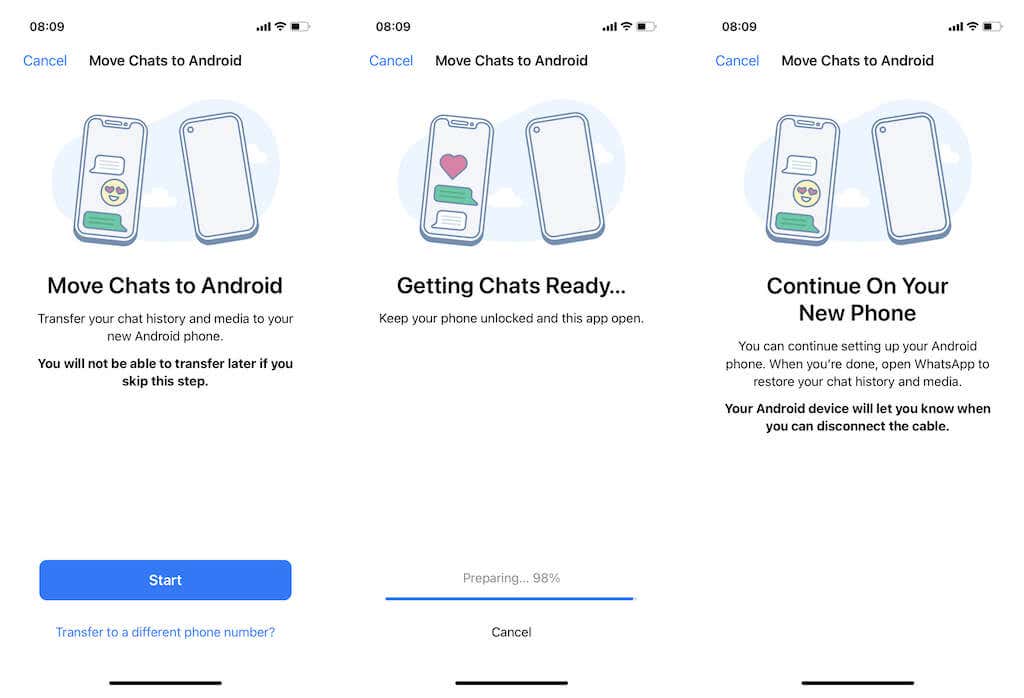
Alternatively, your Android phone may prompt you to open the Camera app on your iPhone and scan a QR code. Once you do that, tap Open in WhatsApp and select Start.
Note: If you use a different phone number on your Android device, tap the Transfer to a different phone number? option within the “Move Chats to Android” screen and switch numbers before you continue.
- Wait until your Android finishes copying data from your iPhone. Once everything’s complete, tap Done. Do not disconnect the USB-C to Lightning cable just yet.
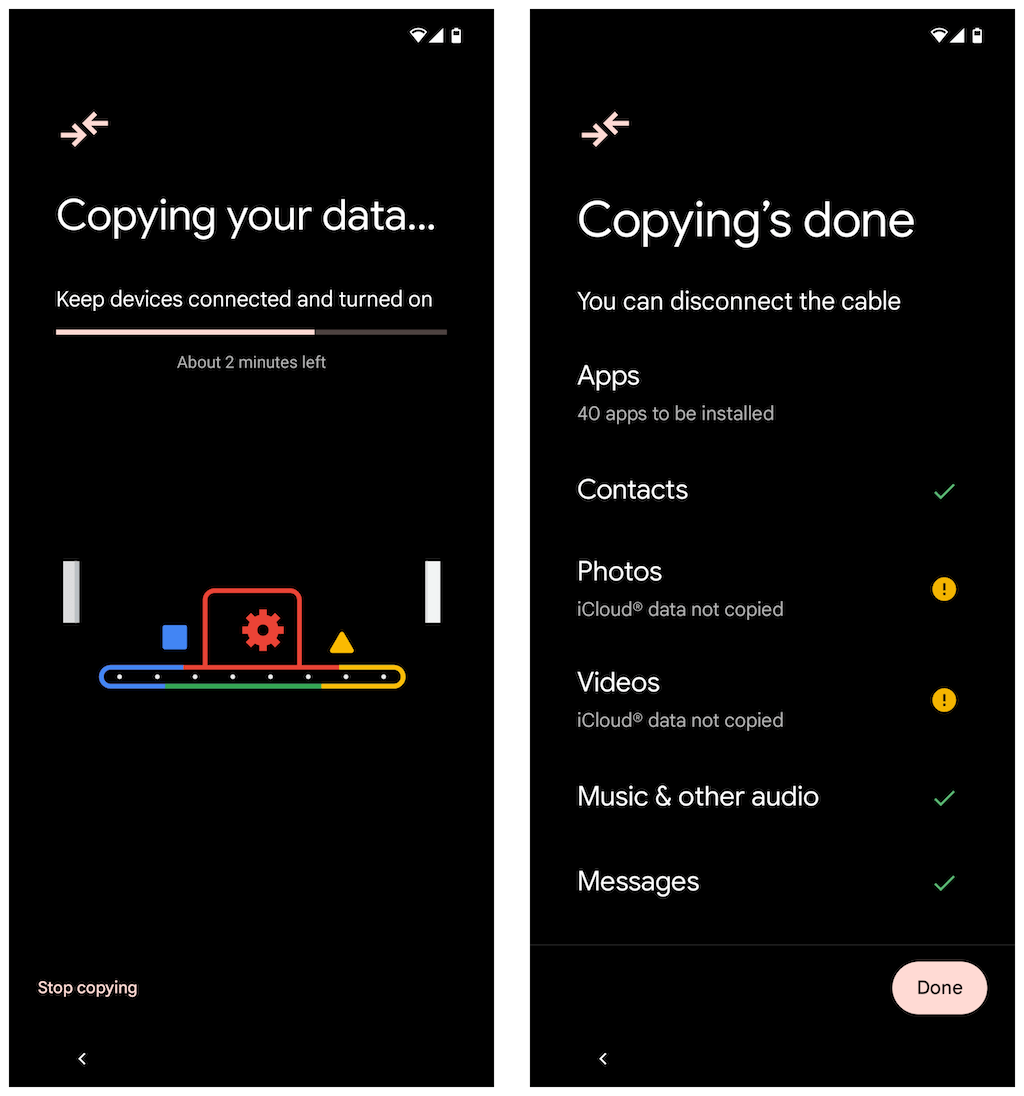
- Wait until Android finishes downloading WhatsApp via the Google Play Store. Then, open WhatsApp and verify the phone number associated with your WhatsApp account.
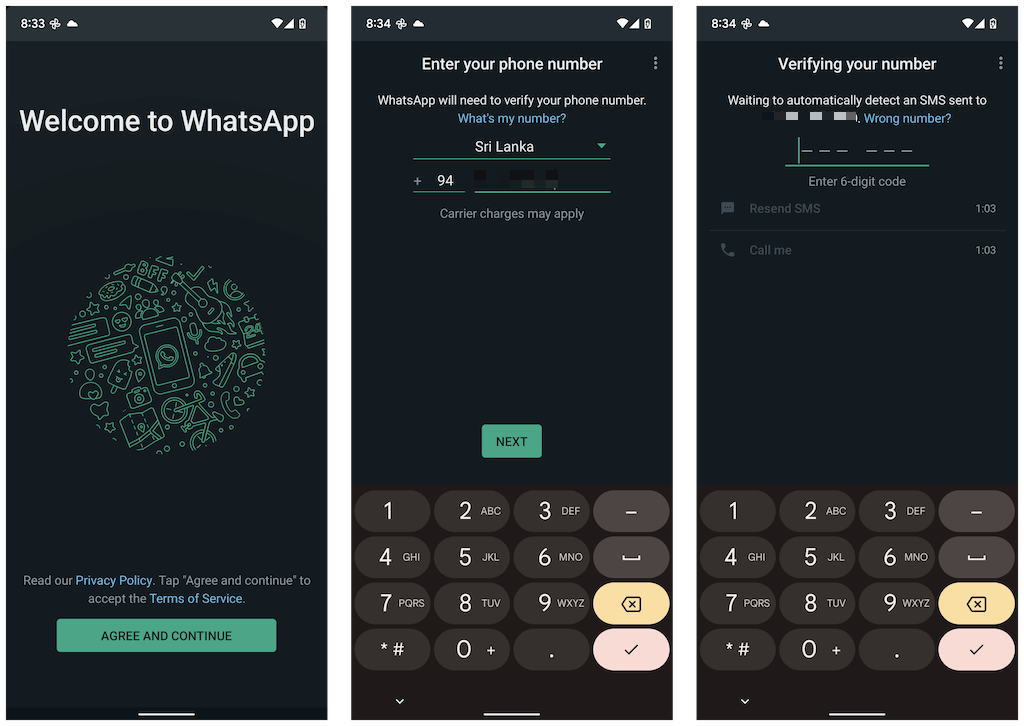
If the SIM card is still inside your iPhone, open the Messages app, locate the verification code from WhatsApp, and enter it into your Android’s “Verifying your number” screen.
- Tap Continue and Allow WhatsApp permissions to the contacts and media on your iPhone. Additionally, you may come across an “Importing chat history” screen, where you must tap Start to finish importing your iPhone’s WhatsApp data.
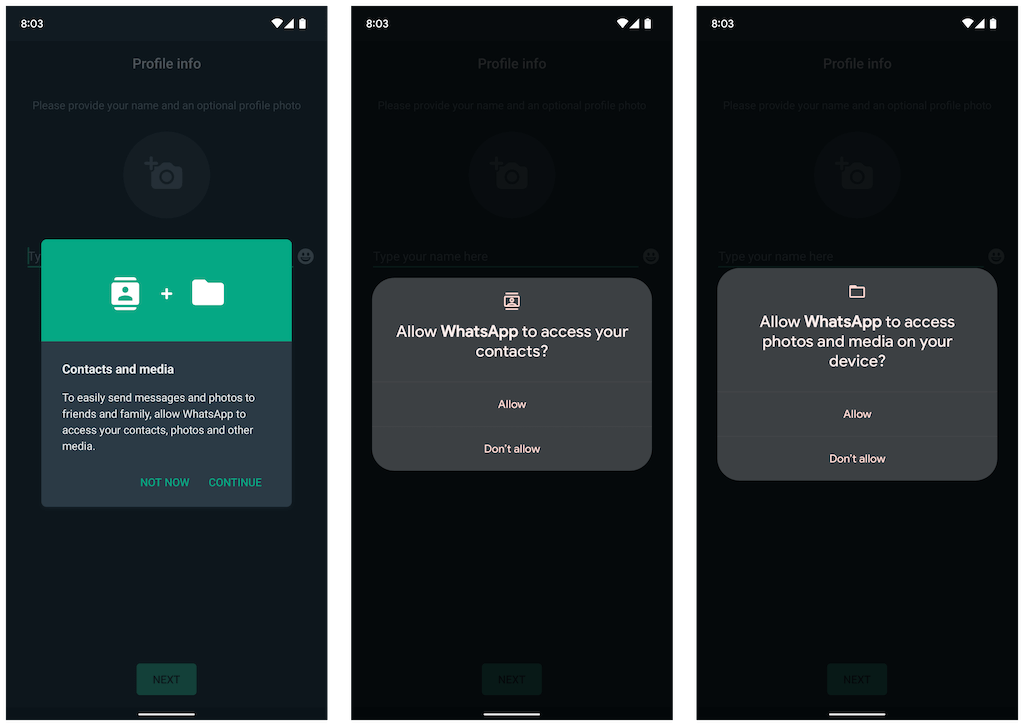
- Type your WhatsApp name and insert a profile picture (optional). Then, tap Next. You should see your chats on the following screen. Make sure that everything’s in order, and disconnect the cable.
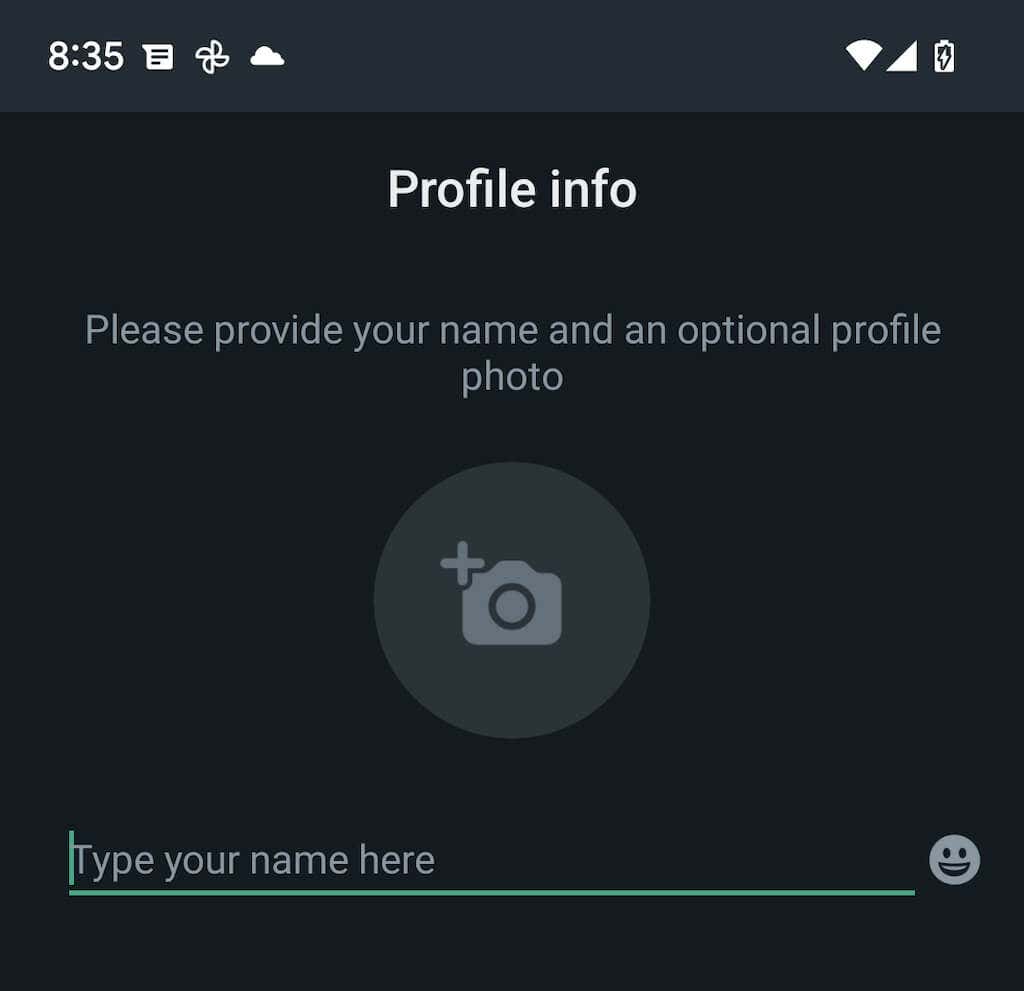
You’ve finished importing your WhatsApp data. Your WhatsApp data will remain on your iOS device, but you won’t be able to use the app unless you verify it with your phone number.
Transfer WhatsApp Data From iPhone to Samsung Devices
If you use a Samsung smartphone, the Android operating system version isn’t a factor. You can connect both devices over a USB-C to Lightning cable and copy all compatible apps and data—including WhatsApp—using the Smart Switch app. The transfer process is straightforward and similar to moving data from an iPhone to an Android 12 device.
Note: If you haven’t yet completed the Android setup on your Samsung device, but you can access the Home Screen, it’s best to update the Samsung Smart Switch and Data Restore Tool apps via the Google Play Store before you begin.
Just select WhatsApp and any other apps or forms of data you want to transfer and scan the QR code on your Samsung (or manually tap Settings > Chats > Move Chats to Android > Start within WhatsApp) during the data transfer. After copying your data, open WhatsApp, verify your phone number, and import your chat history.
WhatsApp Chat History Transfer Complete
Moving your WhatsApp chat history from iPhone to Android is considerably more accessible now that the app natively supports the functionality.