

Snapchat’s algorithm assigns the “best friend” status. You can’t choose, add, or remove best friends at your discretion. However, there are workarounds for getting someone off your best friend list on the social media app. This tutorial covers everything you need to know about removing best friends on the Snapchat app for Android and iOS.
Snapchat adds special Friend Emojis next to your best friends’ names. Follow the steps below to see all your Snapchat best friends.
How Snapchat Categorizes People – Best Friends
Snapchat categorizes people you often interact with as your Best Friends. You can have as many as eight best friends, all automatically curated by Snapchat. If you have a Snapchat+ subscription, you can manually make one person your best friend.
Open your Snapchat Chat screen, tap the three-dot icon in the top-right corner, and select Manage Friendships. Snapchat displays a list of best friends at the top of the “My Friends” page.
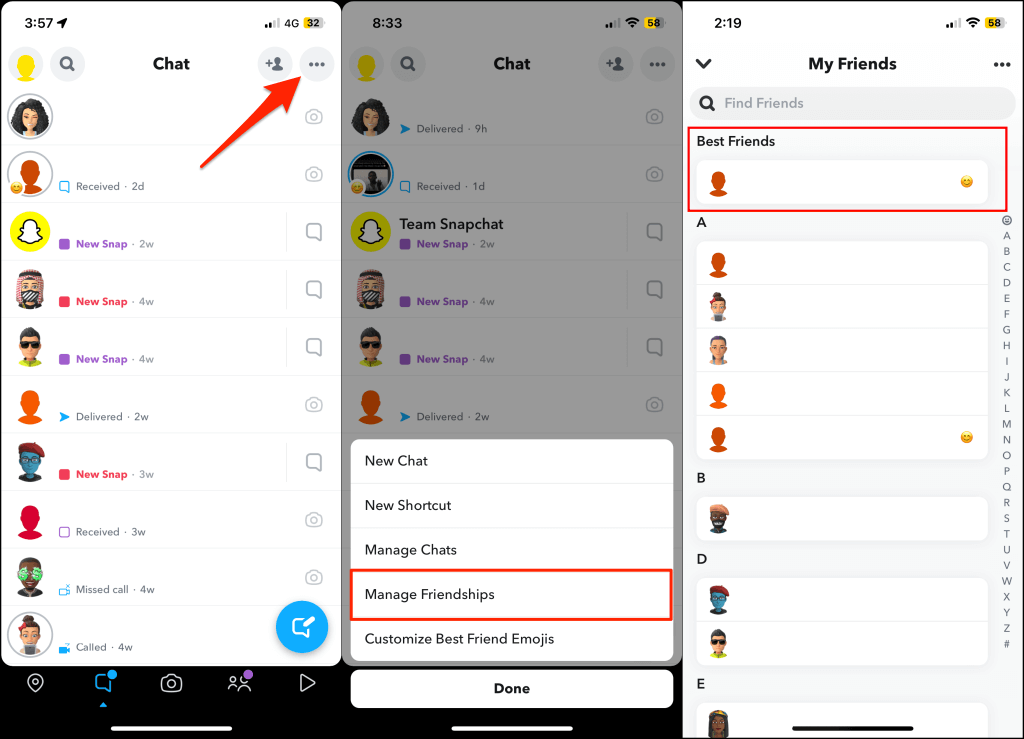
That’s how you check the number of best friends on Snapchat. Now, let’s talk about removing people from your best friends list.
1. Send Them Fewer Texts and Snaps
The more you interact with someone, the higher the chances of getting them on your best friends list. Conversely, contacting someone less than usual removes them as your best friend with time. So, reduce your interaction with the person and increase your interaction with others.
If you can wait one or two weeks, send fewer messages or Snaps to whoever you want off your best friends list and leave the rest to Snapchat. Likewise, you can ignore messages or Snaps they send to you.
This is the easiest (but longest) way to delist someone as your best friend. If you can’t wait, removing or blocking someone as your friend is the closest workaround to instantly getting them off your best friend list.
2. Remove and Re-Add the Person
Removing someone as your friend on Snapchat deletes them from your best friends list. Depending on your profile settings, removed friends won’t be able to view your story, send you Snaps and messages, or call you.
How to Remove Someone from Your Snapchat Friends List
Follow the steps below to remove someone as your friend or best friend on Snapchat.
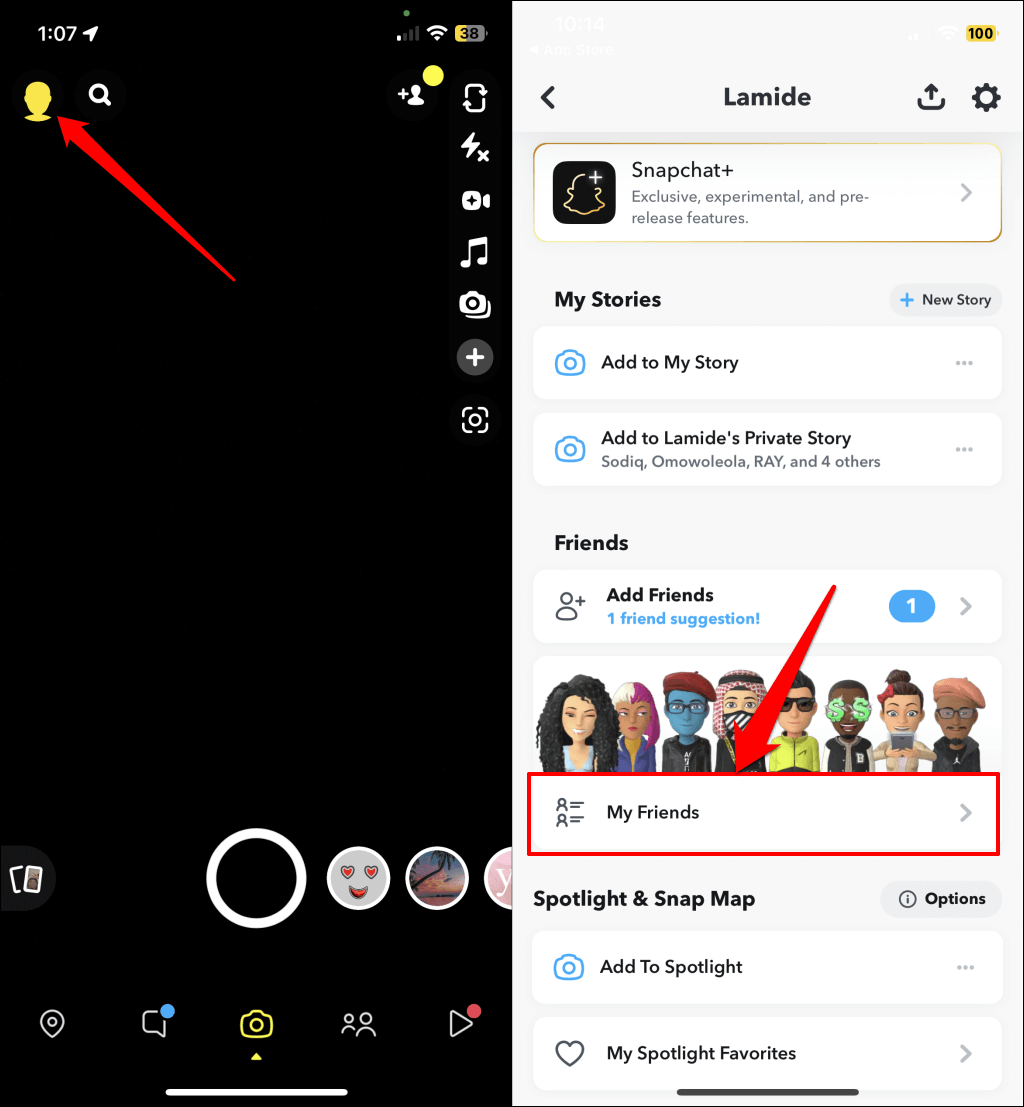
- Open Snapchat on your iPhone or Android device and tap the profile icon or Bitmoji in the top-left corner.
- Scroll to the “Friends” section and select My Friends.
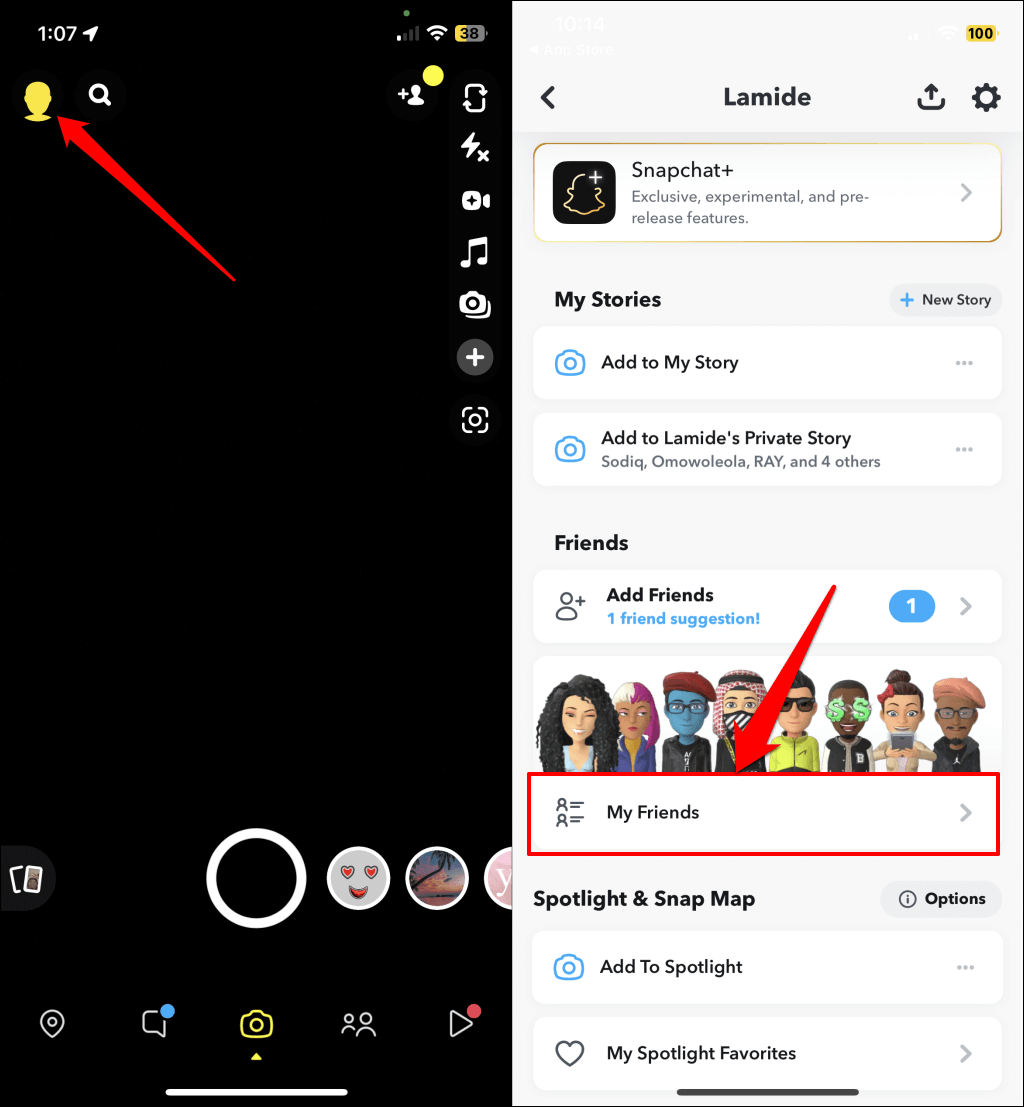
- Locate the person you want to remove in the “Best Friends” section. Next, tap and hold the person’s name and select Manage Friendship.
- Tap Remove Friend and select Remove again on the pop-up message.
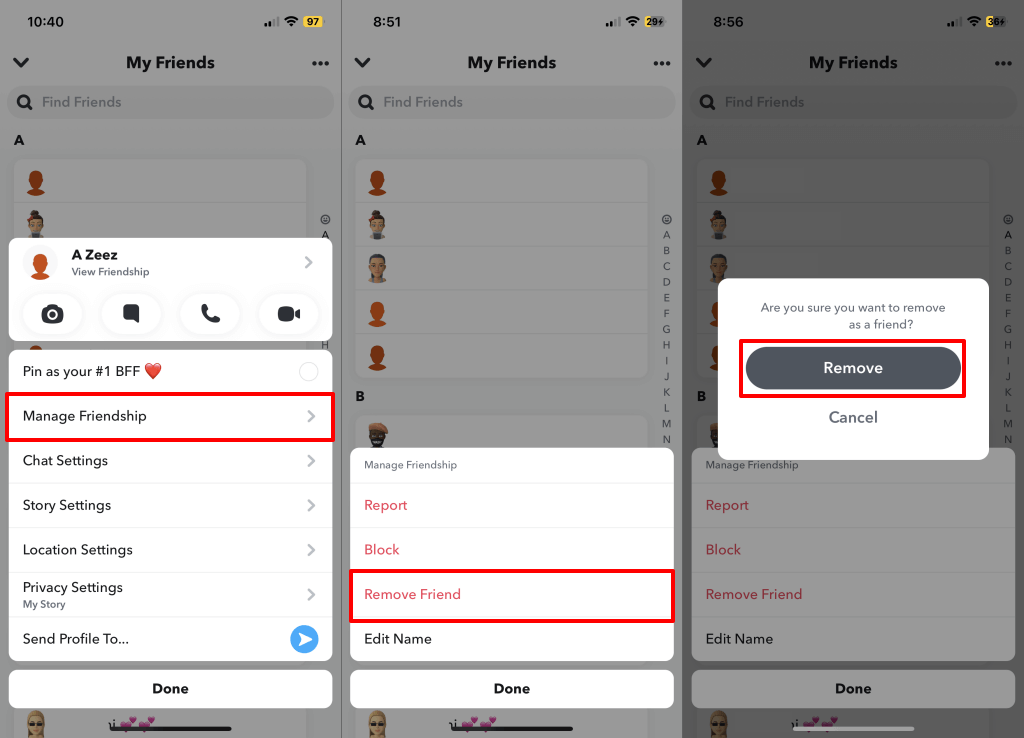
Snapchat removes the person from your friend list and bars them from contacting you.
Stop Removed Friends from Contacting You
People you remove as friends might still be able to text, call, and send you Snaps if they have your phone number on their device. Change your profile settings to restrict removed Snapchat users not on your friends list from contacting you.
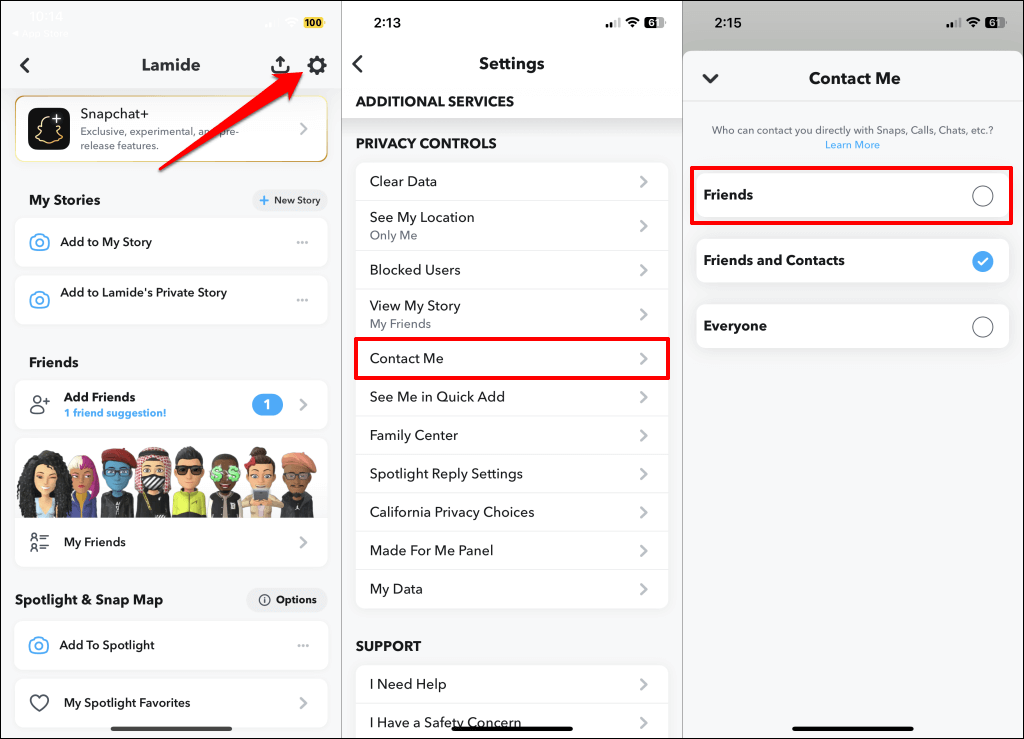
- Open your Snapchat profile and tap the gear icon in the top-right corner.
- Scroll to the “Privacy Controls” section and select Contact Me.
- Choose Friends to allow only people on your friends list to contact you via calls, chat, or Snaps.
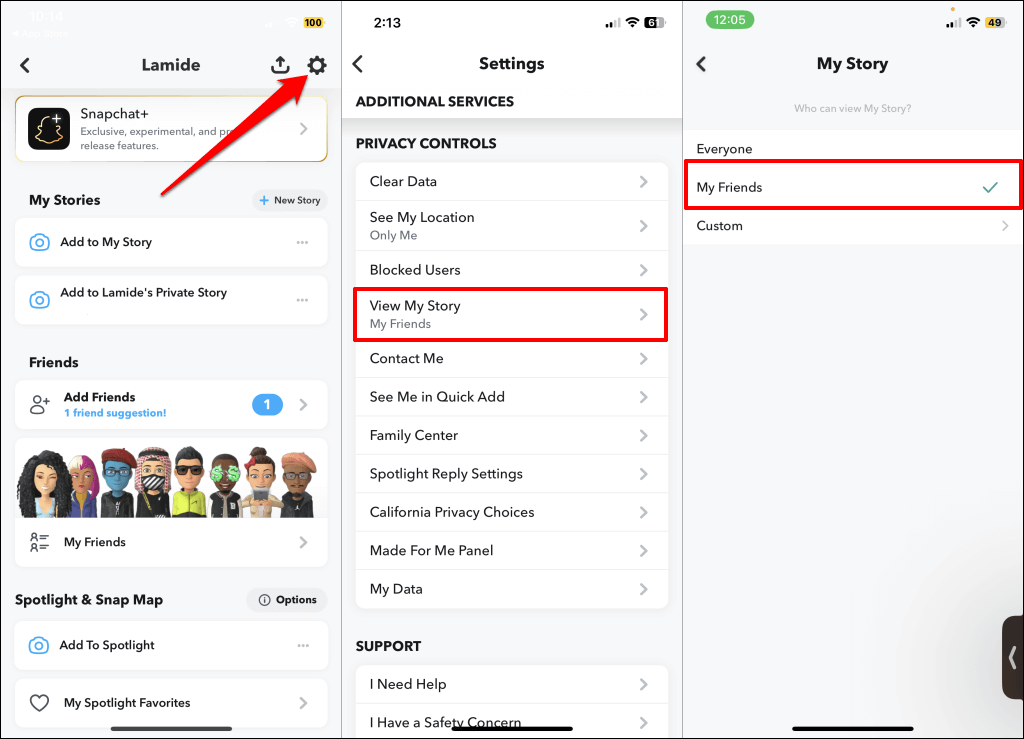
- You should also verify that only your friends can view your story. Return to the Settings page, select View My Story in the “Privacy Controls” section, and choose My Friends.
How to (Re)Add Your Friend or Best Friend
Did you rethink removing someone as your friend or best friend? You can re-add them through their Snapcode or username.
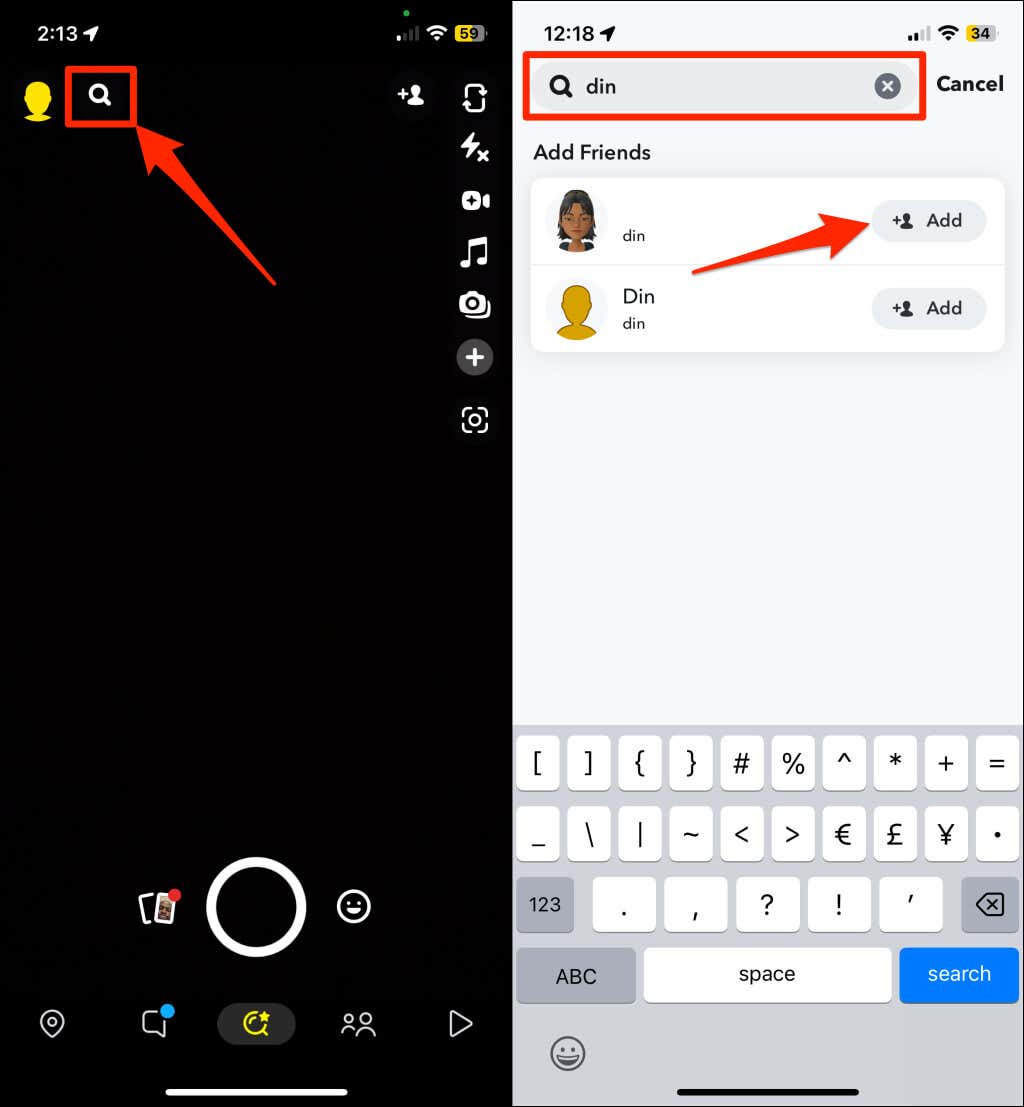
Open Snapchat and tap the search icon on the chat or camera screen. Type your friend’s name or username and tap the Add button to re-add them to your friend list.
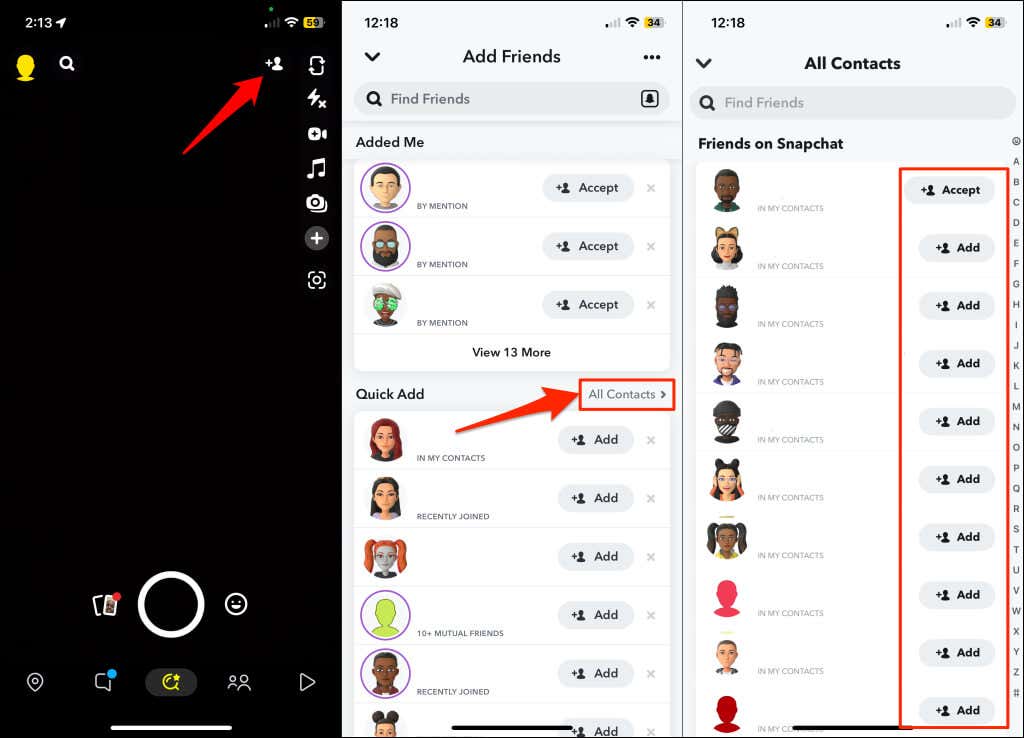
If you have the person’s phone number, you can also re-add them from your phone’s contact list or address book.
Open Snapchat and tap the Add Friends icon in the top-right corner of the chat or camera screen. Next, select All Contacts and tap the Add icon next to the person you want to re-add.
Note: Re-adding someone may not re-add them to your best friends list. You might have to interact with them (exchange Snaps, text, etc.) for a week or two before Snapchat ranks them as your best friend.
3. Block the Person
Blocking someone on Snapchat removes them as your friend, best friend, bestie, BFF, or super BFF. You’ll lose your chats and Snapchat streaks with the blocked user. Likewise, Snapchat bars them from viewing your story, sending you texts, or calling you.
Follow the steps below to get someone off your best friends list by blocking them.
- Tap your profile icon or Bitmoji in the top-left corner of the camera or chat screen.
- Head to the “Friends” section and tap My Friends.
- Tap and hold the person you want to block and select Manage Friendship.
- Select Block and tap Block on the confirmation pop-up.
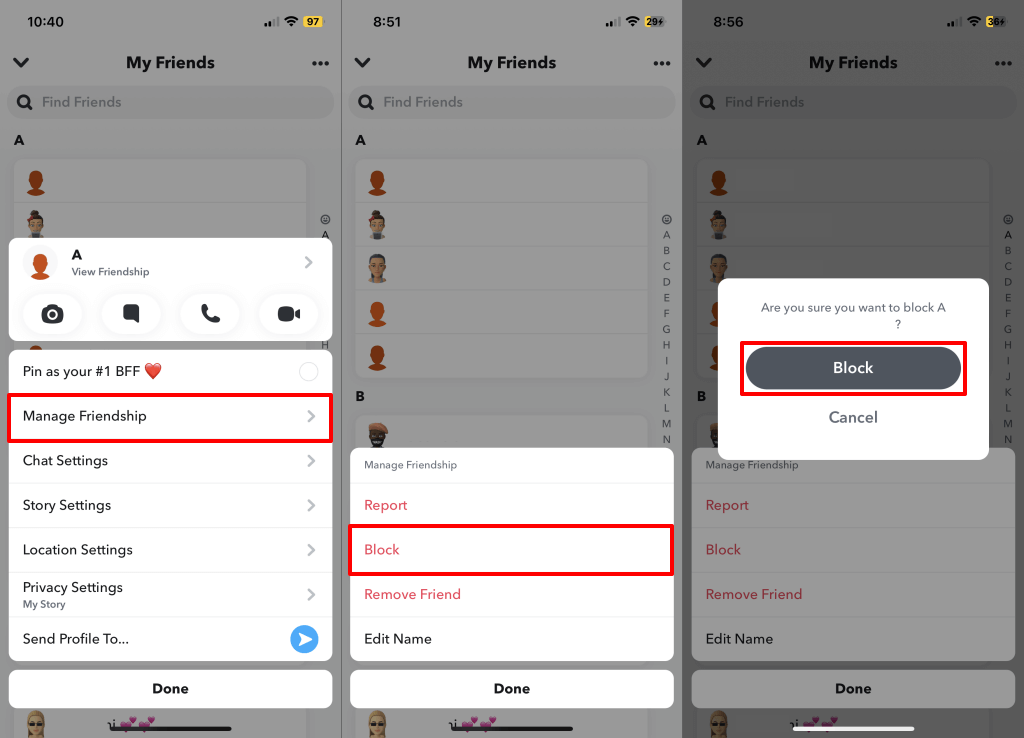
Snapchat will remove the person as your friend or best friend. Note that unblocking the person won’t re-add them to your friend list. You must manually add the person again via username, Snapcode, or Quick Add.
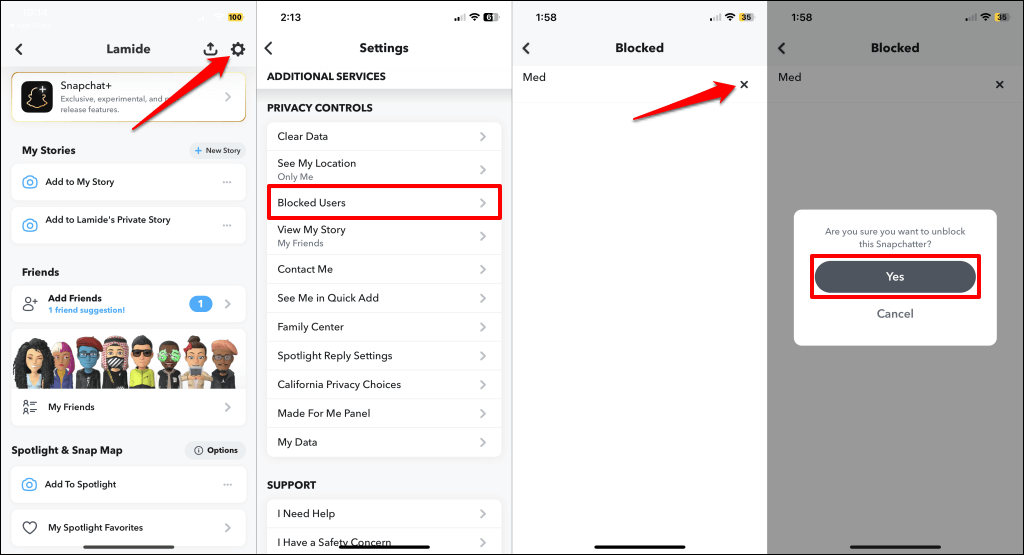
To unblock a user, open your Snapchat profile, tap the gear icon in the top corner, and select Blocked Users. Tap the X icon next to the person you want to unblock and select OK to proceed.
Fewer Best Friends
Reducing your interaction with someone is the most straightforward way to get them off your best friend list. Doing so sends a message to Snapchat’s algorithm that you aren’t as close to the person as before. Give it a week or two, and they’ll be off your best friends list.